Stop Clicking Update One App at a Time: Let an Agent Upgrade Common Software on Windows 11, Ubuntu 26.04, and macOS 26
Short version
Updating everyday software is painful not because the commands are impossible, but because the update sources are scattered across several worlds. Windows 11 has WinGet, Microsoft Store, and vendor installers. Ubuntu 26.04 has apt, snap, flatpak, and service restarts. macOS 26 has Software Update, App Store, Homebrew, and applications downloaded outside the store. A human can easily miss something. An AI Agent can help, but only if you give it boundaries.
My recommendation is to treat the Agent as an update operator: inventory first, dry-run second, execute third, verify last. This article provides three one-command scripts for Windows 11, Ubuntu 26.04, and macOS 26. They do not depend on third-party update assistants or cloud services. They call only built-in update tools and package managers already installed and configured on the machine. The examples contain no real private address, full computer name, private domain, token, or key.
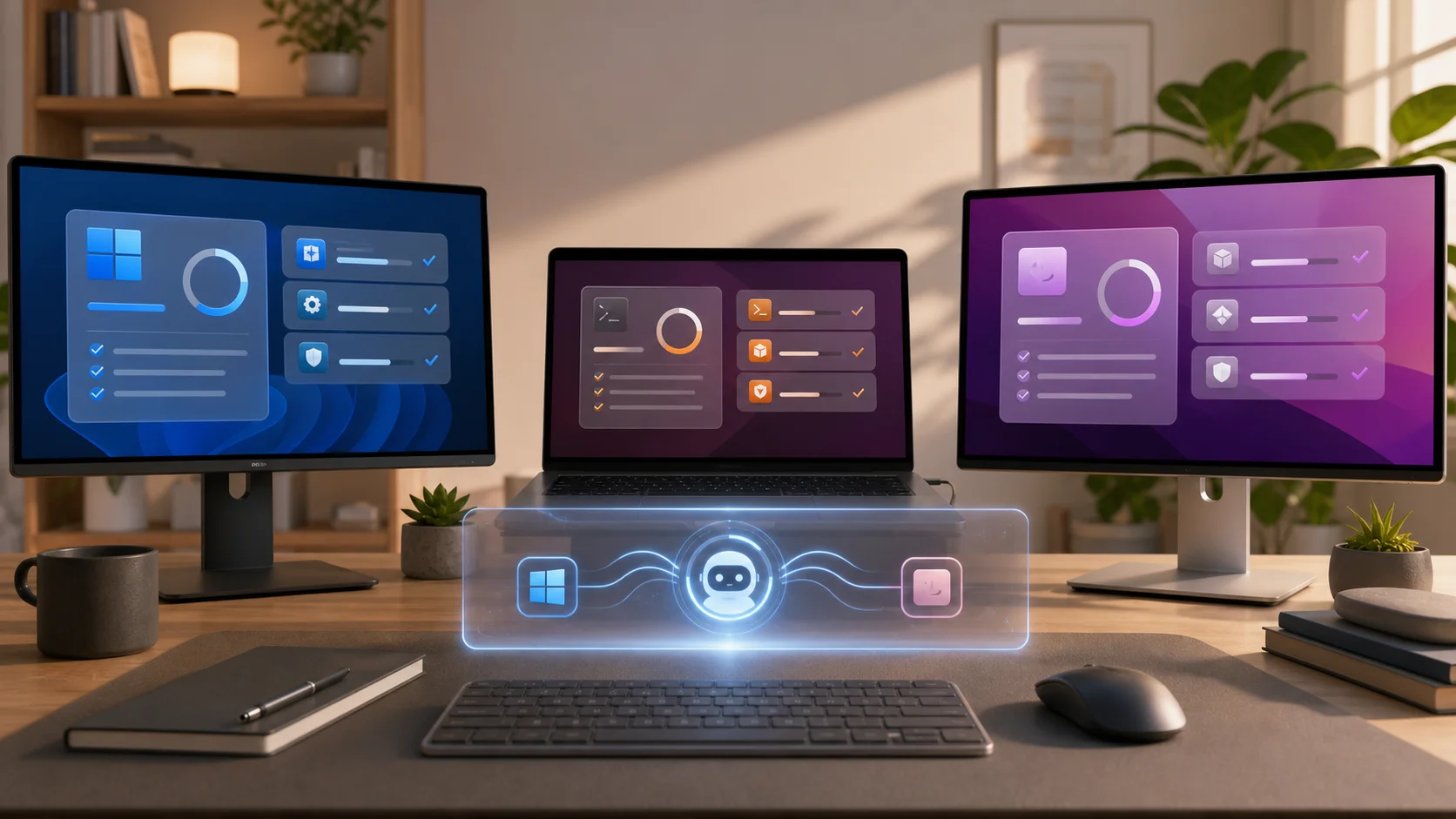
Figure 1: AI-generated cover. Software updating should feel like a documented health check, not a frantic round of clicking Next.
1. Background: why software updates are a good Agent task
A decade ago, updating software often meant opening one app and clicking one button. Today, development machines, home computers, small servers, and laptops often overlap. Browsers, archive tools, terminals, editors, media tools, database clients, container tools, remote-access utilities, sync tools, and command-line tools all need updates. Some come from a store, some from a package manager, some from a vendor installer, and some from the operating system itself.
This looks small, but ignoring it creates three problems. The first is security: browsers, archive tools, remote-access utilities, and development runtimes should not lag behind public fixes for months. The second is compatibility: an old CLI may make a script fail on your machine while it works everywhere else. The third is maintenance cost: if you wait half a year, one update session can include dependency changes, configuration migrations, reboot requirements, and plugin incompatibilities at the same time.
Think of a computer like a kitchen. Updating software is like periodically checking the fridge, stove, microwave, and faucet. You do not need to rebuild the kitchen every day, but you also should not wait until the stove stops lighting. The value of an Agent is not that it blindly upgrades everything to the newest possible version. The value is that it patiently does the repetitive work: list what can be updated, separate patches from risky changes, record failures, and show whether a restart is needed.
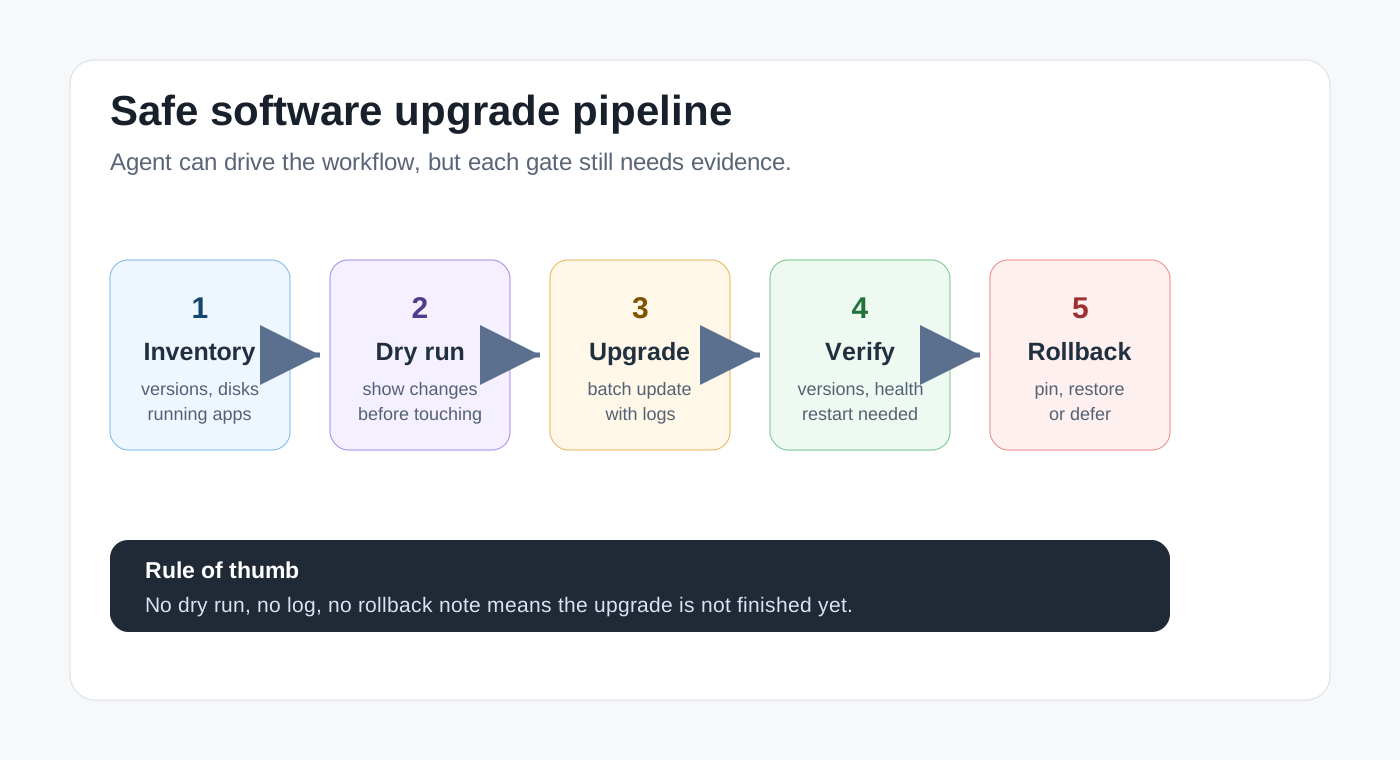
Figure 2: Inventory, dry-run, upgrade, verify, and record rollback clues. An update without verification is only a command that happened to run.
2. Symptoms: the real issue is scattered update entry points
The symptoms are familiar. On Windows, winget upgrade shows several packages, but Microsoft Store still has pending updates. On Ubuntu, apt upgrade completes, but snap refresh still has browser or tool updates. On macOS, system patches are installed, but Homebrew packages such as openssl, node, or ffmpeg are still old. Some GUI applications also have their own updaters and may not be managed by a package manager at all.
That is the real problem: update entry points are scattered. It is like a building with parcels in several lockers, the front desk, and the mail room. If you check only one place, you will miss packages. The Agent’s first job is not to upgrade immediately. Its first job is to identify how many update entry points exist on this machine.
For Windows 11, the common entry points are WinGet, Microsoft Store, and vendor updaters. For Ubuntu 26.04, they are apt, snap, flatpak, language package managers, and container images. For macOS 26, they are Software Update, App Store, Homebrew, and self-updating apps downloaded outside the store. The scripts in this article cover the system and common package-manager layers. They do not download unknown installers and do not take over private stores that require an account.

Figure 3: The commands differ, but the grammar is the same: list, upgrade, clean, verify.
3. Analysis: Agents are useful only when guarded
The risky part of Agent-driven updating is not that the Agent cannot run commands. The risky part is that it may be too obedient. If you say “upgrade everything to the latest,” it may try a major operating-system upgrade. If you say “fix failures automatically,” it may remove conflicting packages. If you ask it to send the log, it may copy machine names, local paths, user names, or private repository addresses into the report. Reliable Agent automation starts with boundaries.
For update tasks, I usually give the Agent at least six guardrails: do not perform a major OS upgrade; do not download unknown installers; do not print private addresses, full computer names, private domains, tokens, or keys; list or dry-run first; ask before rebooting; and finish with before/after versions, failures, and log paths.
This is no different from hiring someone to repair appliances at home. You would not simply say, “make every appliance newer.” You would say: inspect first, do not open the safe, do not tear down the wall, keep removed parts on the table, and tell me exactly what was repaired. Agents need the same clarity. The more explicit the boundary, the more reliable the execution.
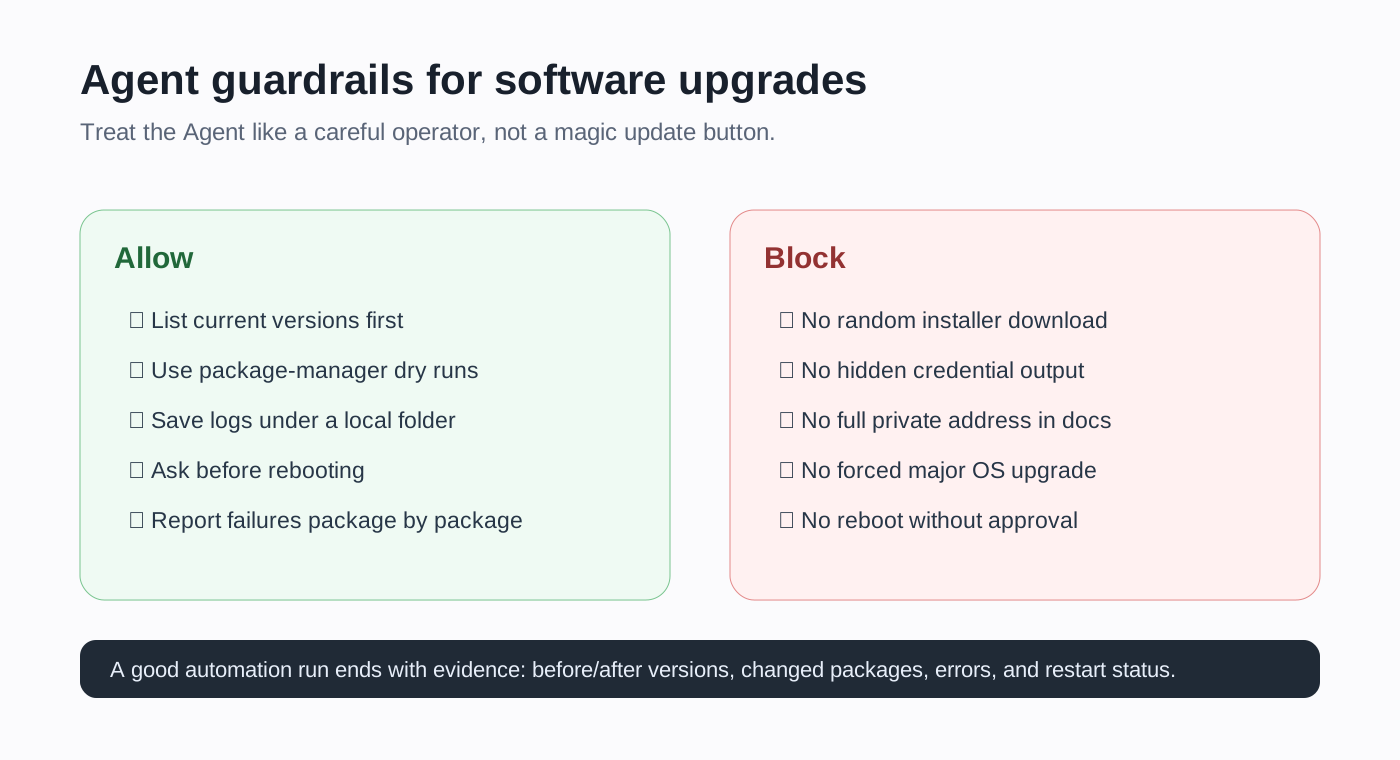
Figure 4: An Agent is not a magic button. It is a capable operator that needs scope, prohibited actions, and acceptance criteria.
4. Root cause: failures are usually state-management failures
Software update failures often look like download errors, dependency conflicts, locked files, missing permissions, slow networks, or unfinished reboots. The underlying problem is often poor state management: no inventory before the update, no log during the update, no verification after the update, and no clear record of which entry point failed.
On Windows, common states include installer elevation requirements, running applications locking files, WinGet not recognizing an old installer, and Store apps depending on account state. On Ubuntu, common states include apt locks, held packages, full-upgrade removal decisions, and kernel updates requiring a reboot. On macOS, common states include user confirmation for system updates, Apple ID requirements for App Store apps, long Homebrew dependency chains, and GUI apps outside Brew’s control.
That is why an update script should not be only “upgrade all.” A better script creates a log directory, prints current system information, lists upgradeable packages, runs the package manager’s own update flow, records exit codes, performs cleanup when appropriate, checks restart status, and prints next steps. Even when something fails, you know where it failed.
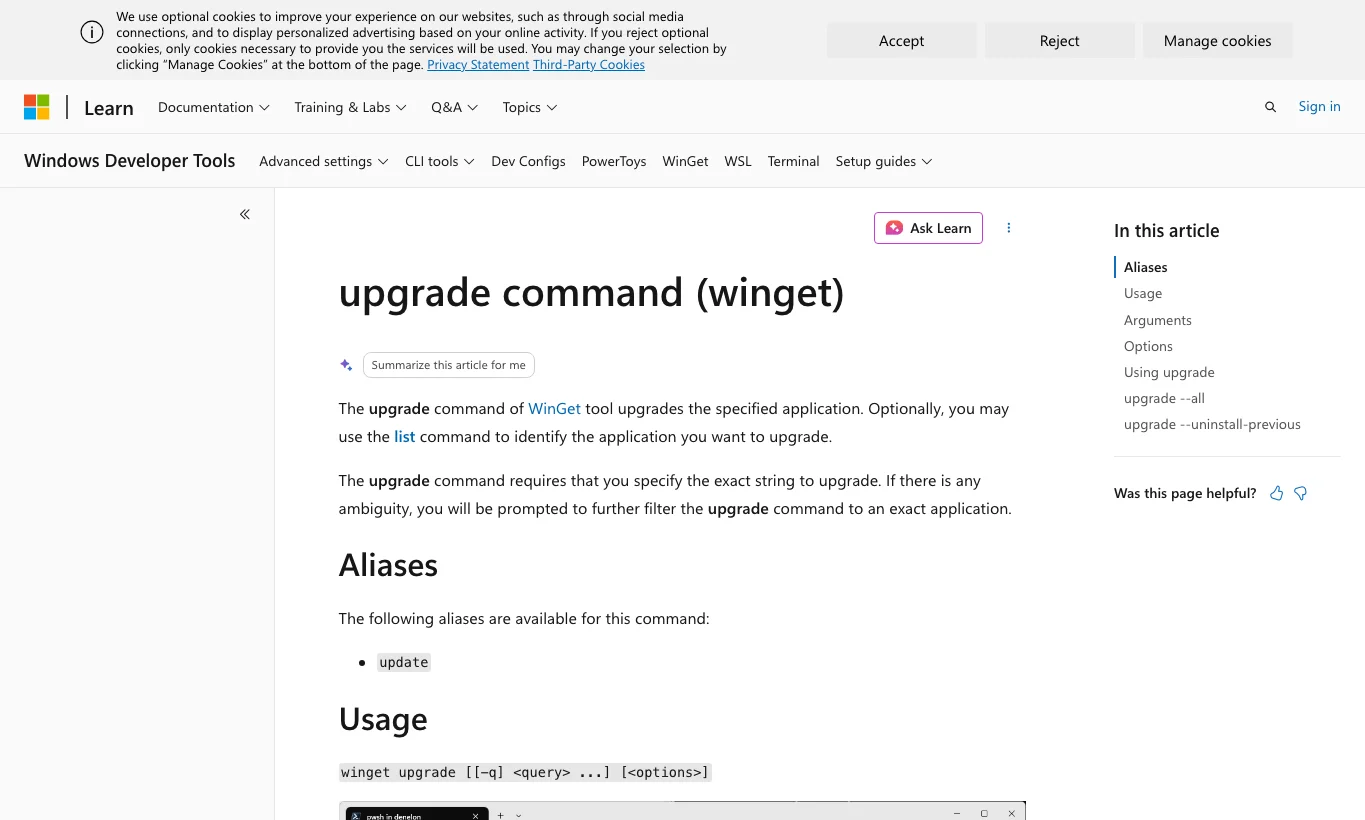
Figure 5: WinGet provides a unified upgrade entry point, making it a good first layer for Windows application updates.
5. Manual automation: three one-command scripts
The three scripts below follow one rule: inventory by default, execute only when explicitly enabled. Windows uses -Execute; Ubuntu uses EXECUTE=1; macOS also uses EXECUTE=1. They do not depend on third-party update assistants, do not call an AI API, and do not download random installers. They use built-in tools and package managers that are already installed and configured on the machine.
5.1 Windows 11: PowerShell plus WinGet
Save this as Upgrade-Windows11-Apps.ps1. First run a dry run:
powershell -ExecutionPolicy Bypass -File .\Upgrade-Windows11-Apps.ps1
After reviewing the list, execute:
powershell -ExecutionPolicy Bypass -File .\Upgrade-Windows11-Apps.ps1 -Execute
Script:
param(
    [switch]$Execute,
    [switch]$IncludeUnknown
)

$ErrorActionPreference = "Stop"
$LogRoot = Join-Path $env:USERPROFILE "upgrade-logs"
$Stamp = Get-Date -Format "yyyyMMdd-HHmmss"
$LogFile = Join-Path $LogRoot "windows11-app-upgrade-$Stamp.log"
New-Item -ItemType Directory -Force -Path $LogRoot | Out-Null
Start-Transcript -Path $LogFile -Force | Out-Null

try {
    Write-Host "Mode: $(if ($Execute) { 'EXECUTE' } else { 'DRY-RUN' })"
    Write-Host "Log: $LogFile"

    if (-not (Get-Command winget -ErrorAction SilentlyContinue)) {
        throw "winget is not available. Install or repair App Installer from Microsoft Store first."
    }

    Write-Host "`n[System]"
    Get-ComputerInfo | Select-Object WindowsProductName, WindowsVersion, OsHardwareAbstractionLayer | Format-List

    Write-Host "`n[WinGet sources]"
    winget source list

    Write-Host "`n[Upgradeable packages]"
    winget upgrade

    $ExportPath = Join-Path $LogRoot "winget-export-$Stamp.json"
    Write-Host "`n[Inventory export] $ExportPath"
    winget export --output $ExportPath --accept-source-agreements | Out-Host

    if ($Execute) {
        $args = @("upgrade", "--all", "--silent", "--disable-interactivity", "--accept-package-agreements", "--accept-source-agreements")
        if ($IncludeUnknown) { $args += "--include-unknown" }
        Write-Host "`n[Upgrade] winget $($args -join ' ')"
        & winget @args
        $code = $LASTEXITCODE
        Write-Host "winget exit code: $code"
    } else {
        Write-Host "`nDry-run only. Re-run with -Execute to upgrade. Add -IncludeUnknown only after reviewing unknown-version packages."
    }

    Write-Host "`n[After]"
    winget upgrade
    Write-Host "`nIf Store apps still show updates, open Microsoft Store > Library > Get updates."
}
finally {
    Stop-Transcript | Out-Null
}
I do not enable --include-unknown by default. It is like replacing medicine bottles whose labels are hard to read. It may be fine, but it deserves a separate review. For work machines, I usually run the regular upgrade first, then handle unknown-version packages one by one.
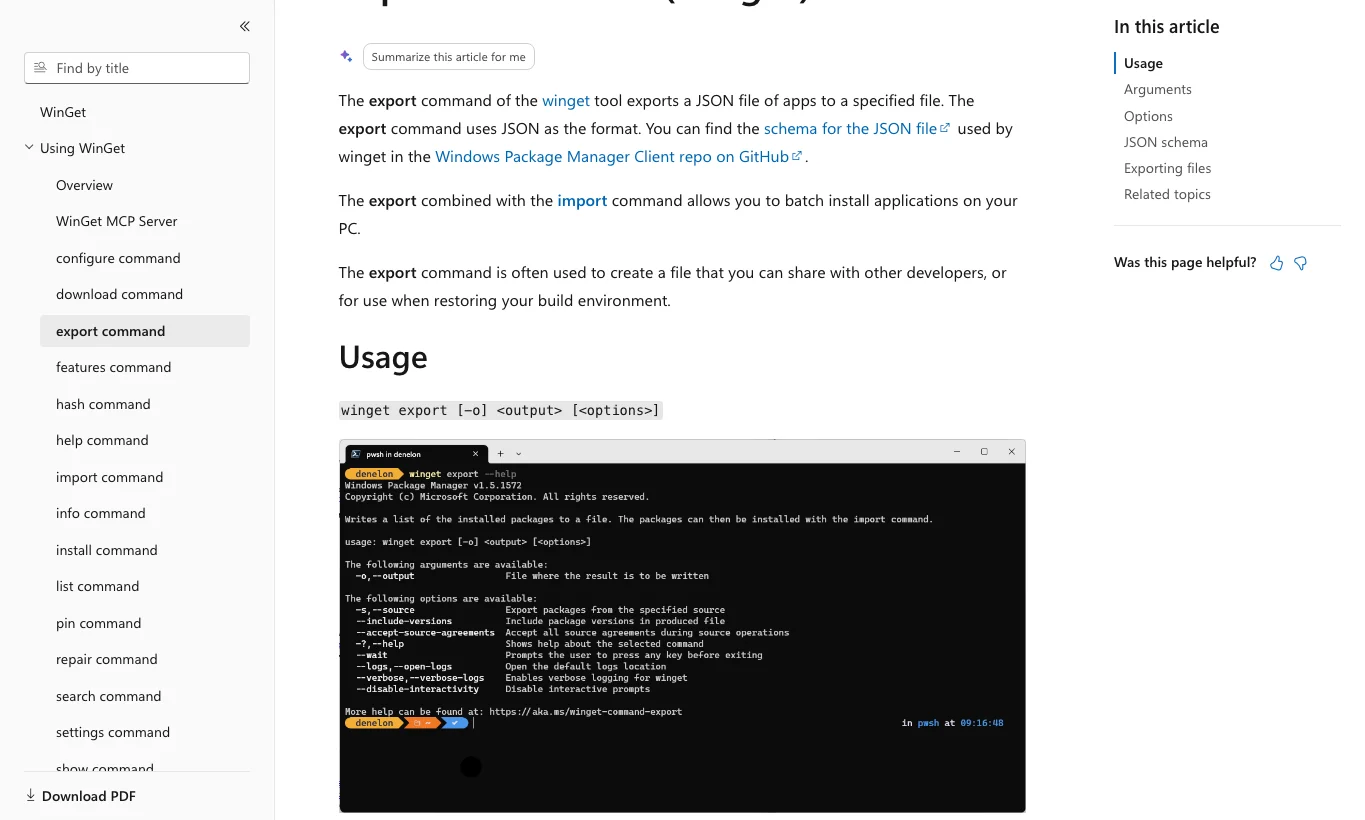
Figure 6: Exporting inventory before updating gives you a snapshot of what this machine roughly had before the change.
5.2 Ubuntu 26.04: Bash plus apt/snap/flatpak
Save this as upgrade-ubuntu2604-apps.sh. Dry-run first:
bash upgrade-ubuntu2604-apps.sh
Execute after review:
EXECUTE=1 bash upgrade-ubuntu2604-apps.sh
If you explicitly allow apt to perform a full dependency-changing upgrade, add:
EXECUTE=1 FULL_UPGRADE=1 bash upgrade-ubuntu2604-apps.sh
Script:
#!/usr/bin/env bash
set -euo pipefail

EXECUTE="${EXECUTE:-0}"
FULL_UPGRADE="${FULL_UPGRADE:-0}"
LOG_DIR="${LOG_DIR:-$HOME/upgrade-logs}"
STAMP="$(date +%Y%m%d-%H%M%S)"
LOG_FILE="$LOG_DIR/ubuntu2604-app-upgrade-$STAMP.log"
mkdir -p "$LOG_DIR"
exec > >(tee -a "$LOG_FILE") 2>&1

run() {
  if [ "$EXECUTE" = "1" ]; then
    echo "+ $*"
    "$@"
  else
    printf '[dry-run]'; printf ' %q' "$@"; printf '\n'
  fi
}

as_root() {
  if [ "$(id -u)" -eq 0 ]; then "$@"; else sudo "$@"; fi
}

echo "Mode: $([ "$EXECUTE" = "1" ] && echo EXECUTE || echo DRY-RUN)"
echo "Log: $LOG_FILE"
echo

echo "[System]"
lsb_release -a 2>/dev/null || cat /etc/os-release
uname -srmo
df -h / /var 2>/dev/null || df -h /

echo
echo "[APT locks]"
if fuser /var/lib/dpkg/lock-frontend >/dev/null 2>&1; then
  echo "APT lock is busy. Wait for other package tasks to finish."
  exit 1
fi

echo
echo "[APT update]"
run as_root apt-get update

echo
echo "[APT upgrade simulation]"
as_root apt-get -s upgrade || true
if [ "$FULL_UPGRADE" = "1" ]; then
  echo
  echo "[APT full-upgrade simulation]"
  as_root apt-get -s full-upgrade || true
fi

if [ "$EXECUTE" = "1" ]; then
  as_root apt-get upgrade -y
  if [ "$FULL_UPGRADE" = "1" ]; then
    as_root apt-get full-upgrade -y
  fi
  as_root apt-get autoremove --purge -y
  as_root apt-get autoclean -y
else
  echo "Dry-run only. Set EXECUTE=1 to upgrade. Set FULL_UPGRADE=1 only after reviewing removals."
fi

if command -v snap >/dev/null 2>&1; then
  echo
  echo "[Snap]"
  snap refresh --list || true
  run as_root snap refresh
fi

if command -v flatpak >/dev/null 2>&1; then
  echo
  echo "[Flatpak]"
  flatpak remote-ls --updates 2>/dev/null || true
  run flatpak update -y
fi

echo
echo "[Restart check]"
if [ -f /var/run/reboot-required ]; then
  echo "Reboot is required. Packages:"
  cat /var/run/reboot-required.pkgs 2>/dev/null || true
else
  echo "No reboot-required marker found."
fi

echo
echo "Done. Review log: $LOG_FILE"
full-upgrade is a switch on purpose. It may install new packages or remove old ones to satisfy dependencies. That can be exactly what you need, but it is a higher-risk decision. For routine updates, start with upgrade; read the simulation before allowing FULL_UPGRADE=1.
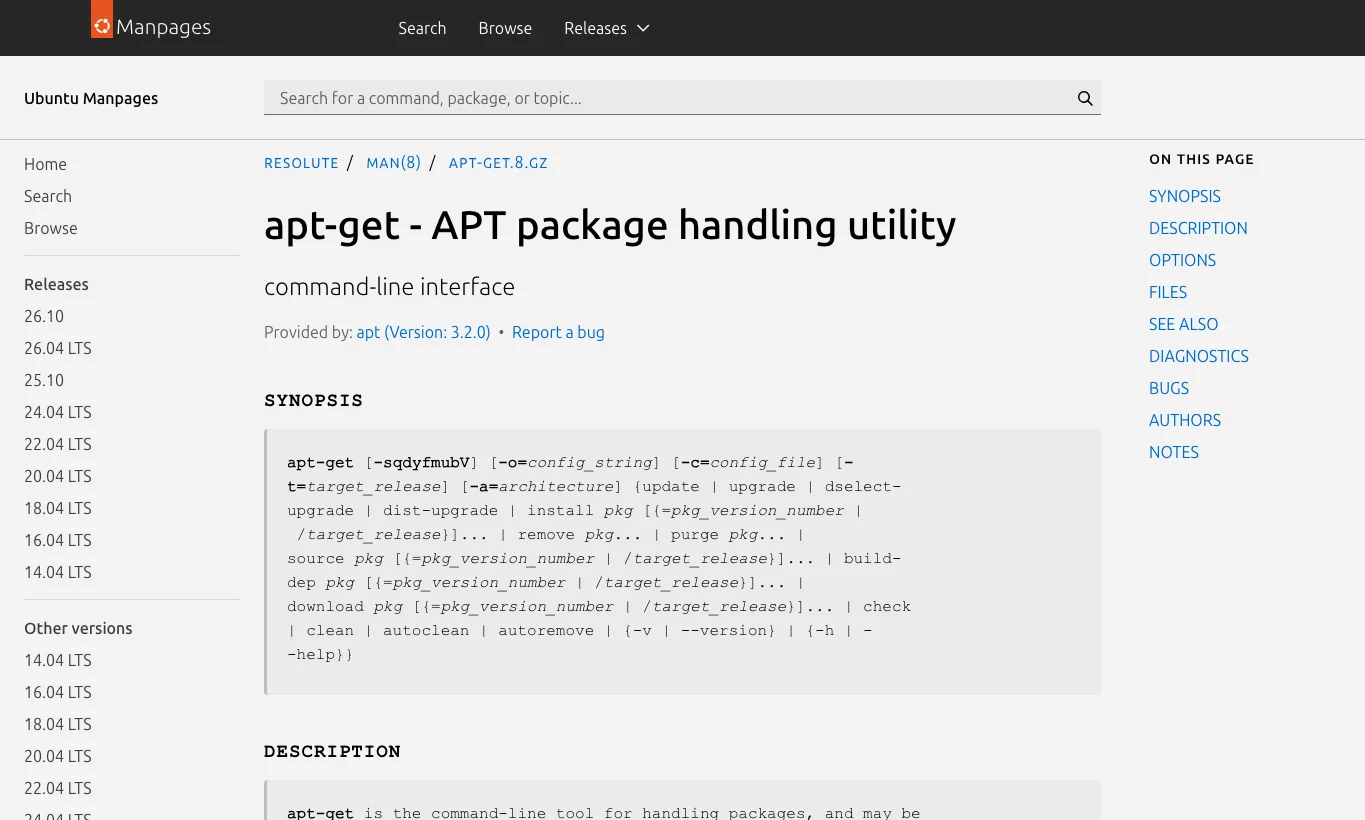
Figure 7: apt already has simulation, upgrade, cleanup, and autoremove features. Do not solve package-manager problems by manually deleting files first.
5.3 macOS 26: zsh plus Software Update plus Homebrew
Save this as upgrade-macos26-apps.zsh. Dry-run first:
zsh upgrade-macos26-apps.zsh
Execute after review:
EXECUTE=1 zsh upgrade-macos26-apps.zsh
Script:
#!/bin/zsh
set -euo pipefail

EXECUTE="${EXECUTE:-0}"
LOG_DIR="${LOG_DIR:-$HOME/upgrade-logs}"
STAMP="$(date +%Y%m%d-%H%M%S)"
LOG_FILE="$LOG_DIR/macos26-app-upgrade-$STAMP.log"
mkdir -p "$LOG_DIR"
exec > >(tee -a "$LOG_FILE") 2>&1

run() {
  if [[ "$EXECUTE" == "1" ]]; then
    echo "+ $*"
    "$@"
  else
    printf '[dry-run]'; printf ' %q' "$@"; printf '\n'
  fi
}

echo "Mode: $([[ "$EXECUTE" == "1" ]] && echo EXECUTE || echo DRY-RUN)"
echo "Log: $LOG_FILE"
echo

echo "[System]"
sw_vers
uname -srmo

echo
echo "[Apple Software Update]"
softwareupdate --list || true
if [[ "$EXECUTE" == "1" ]]; then
  echo "Installing all listed Apple software updates. Save work before running this script."
  sudo softwareupdate --install --all
else
  echo "Dry-run only. Set EXECUTE=1 to install listed Apple updates. This script does not request a major OS installer."
fi

if command -v brew >/dev/null 2>&1; then
  echo
  echo "[Homebrew]"
  brew --version
  brew update
  brew outdated || true
  if [[ "$EXECUTE" == "1" ]]; then
    brew upgrade
    brew cleanup
  else
    echo "[dry-run] brew upgrade"
    brew cleanup --dry-run || true
  fi
else
  echo
  echo "[Homebrew] not installed; skip. This script will not install it automatically."
fi

echo

echo "[App Store]"
echo "For Mac App Store apps, open App Store > Updates, or keep automatic app updates enabled. This script does not install third-party App Store CLI tools."

echo

echo "[Restart check]"
softwareupdate --history | tail -20 || true
echo "If Software Update reports a restart is required, reboot manually after saving work."
echo "Done. Review log: $LOG_FILE"
The macOS script is intentionally conservative in two ways. It does not install Homebrew; if Brew is present, it updates Brew packages, and if not, it skips that layer. It also does not install third-party App Store CLI tools, because that introduces another dependency and account boundary. App Store apps should still be handled by the system UI or automatic updates.
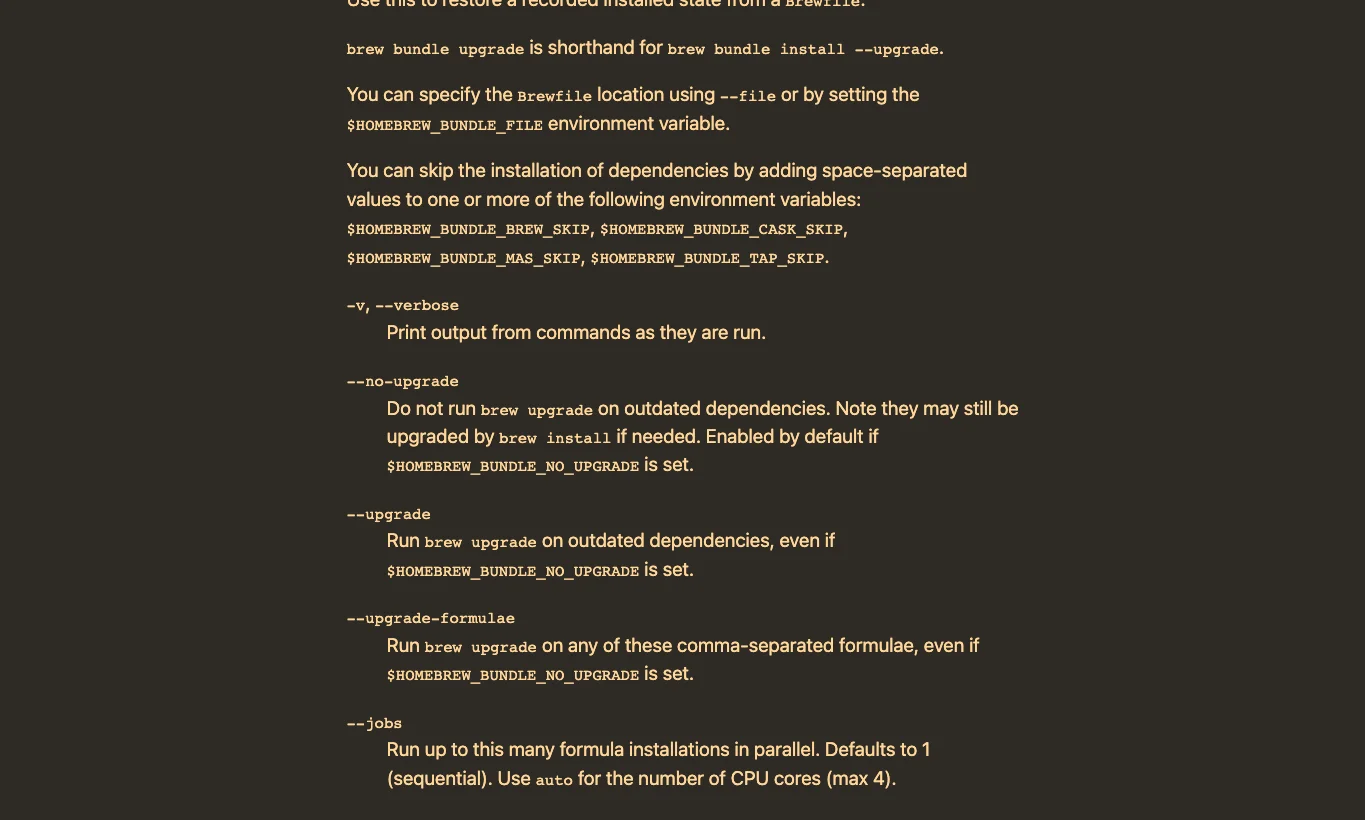
Figure 8: Homebrew is excellent for developer tools and CLI software, but it is not the manager for every macOS app.
6. Agent automation: one prompt is enough only if it includes acceptance criteria
If you use Codex, Claude Code, OpenClaw, HermesAgent, or another Agent that can run local commands, you can hand it the following instruction. This is not asking the Agent to call a cloud update service. It is asking it to use the machine’s existing system tools and package managers.
Please help upgrade common software on the current machine. First identify whether the current OS is Windows 11, Ubuntu 26.04, or macOS 26, then select the matching script or equivalent commands. Requirements:
1. Inventory OS version, disk space, upgradeable packages, and package-manager sources first.
2. Start with dry-run or list-only mode. Do not upgrade immediately.
3. Do not perform a major OS upgrade, download unknown third-party installers, or install a new package manager.
4. Do not print private addresses, full computer names, private domains, tokens, keys, or account data.
5. Before execution, state which update entry points will be touched: WinGet / apt / snap / flatpak / Software Update / Homebrew, and so on.
6. After execution, report before/after results, failures, log paths, restart requirement, and rollback or defer suggestions.
The important part is not the phrase “help me upgrade.” The important part is the acceptance criteria. Without acceptance criteria, an Agent behaves like an energetic but inexperienced technician: it has tools, but may not know which cabinets are off-limits. Writing “what not to do” and “what to deliver at the end” matters as much as writing the task itself.
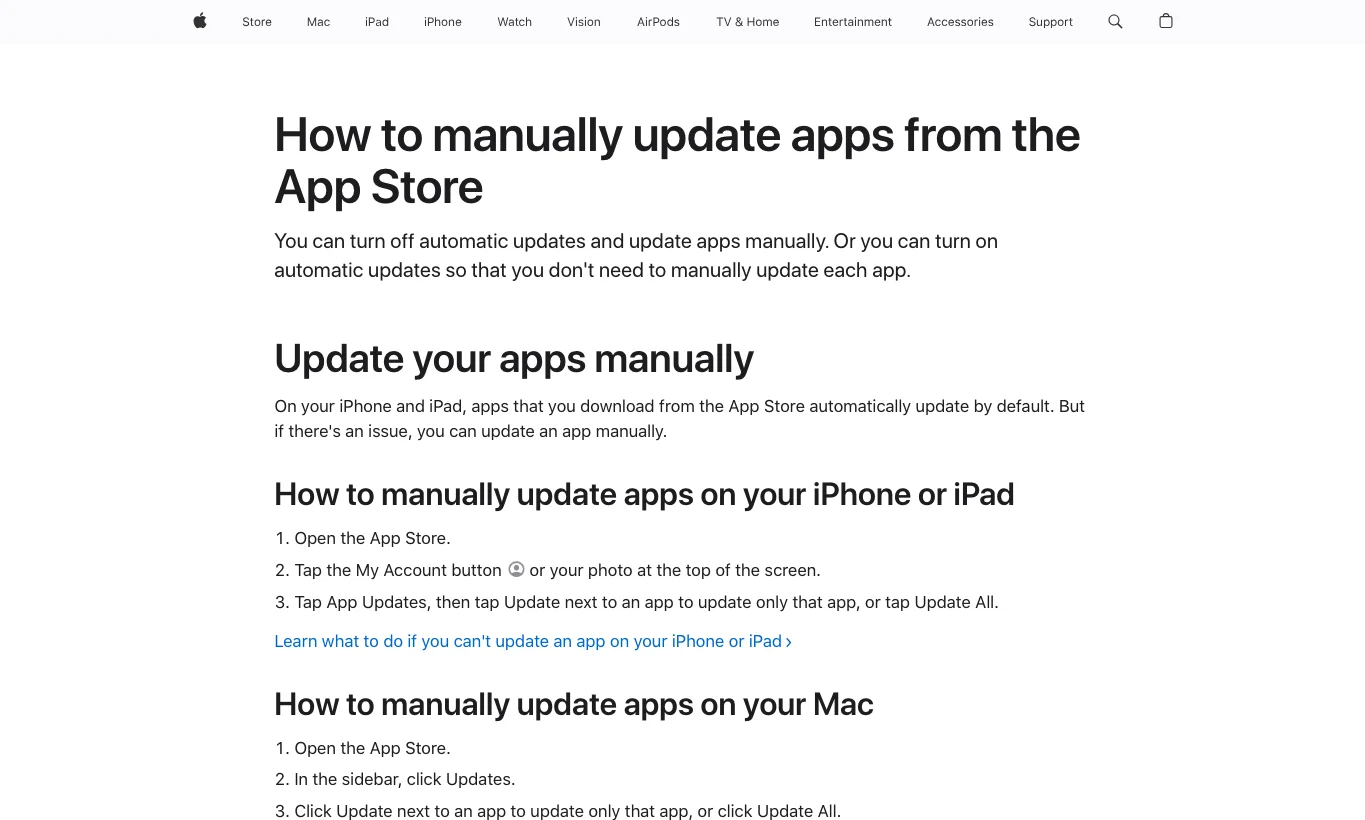
Figure 9: macOS updates are not command-line only. App Store applications still require attention through the system UI or automatic update settings.
7. Manual automation vs Agent automation
If you have one personal machine, start with manual automation. Copy the script, read the dry-run output, and then execute. This helps you understand what update entry points exist on that machine. The first run on a new machine should teach you the machine’s shape.
If you manage several machines, or often maintain family, lab, or team devices, the Agent path is more efficient. Let the Agent run inventory commands, summarize the report, and then apply the same script. The benefit is consistency: logs look similar across machines, and failures can be grouped. The cost is that you must give the Agent stricter boundaries, especially around private addresses, machine names, secrets, and private repositories.
My practical pattern is simple: use the manual script first in a new environment; once it matches the environment, let the Agent run that same script repeatedly. The Agent handles repetition, records, and summaries. It should not make the risky policy decision for you.
8. Q&A
Q1: Can every app be upgraded with one command?
No. Package managers can upgrade only software they know. Portable apps, internal company apps, private licensed apps, browser extensions, IDE plugins, container images, and project-specific language dependencies may need separate handling. The goal is to cover the common 80% of system and tool updates, not pretend to be a universal updater.
Q2: Why not automatically install Chocolatey, Homebrew, mas, or similar tools?
Because this article avoids depending on third-party update assistants. If Homebrew already exists, the macOS script uses it. If it does not, the script skips it. Installing a new package manager changes the trust boundary of the machine and should be a separate human decision.
Q3: Why does the Ubuntu script not default to full-upgrade?
full-upgrade may install new packages or remove old ones to satisfy dependencies. It is not bad, but it is more powerful. Routine software updates should start with upgrade; read the simulation before enabling FULL_UPGRADE=1.
Q4: Can the Agent reboot automatically?
Technically yes. Operationally, I would not allow it by default. Rebooting interrupts editors, remote sessions, virtual machines, containers, and running jobs. A safer flow is for the Agent to report that a reboot is required, then let you pick the time window.
Q5: Should a failed update be rolled back immediately?
Not always. Many failures are just nonzero installer exits, a GUI app still running, or a temporary network issue. Read the log, identify the failed layer, and then decide whether to retry, skip, pin, or roll back. A rollback without evidence can turn a small problem into a large one.
9. Final recommendation: update automation should feel like a health check
Reliable update automation is not about clicking “Next” faster. It is about making every step explainable, reviewable, and stoppable. Know what existed before the update, know what changed during the update, know whether it succeeded afterward, and know where to look when it failed.
Windows 11, Ubuntu 26.04, and macOS 26 have different tools, but the workflow is the same. An Agent can turn software updates from an occasional chore into scheduled maintenance. Just do not treat the Agent as a magic button. Treat it as an update operator: give it an inventory target, boundaries, and acceptance criteria, and it can do the boring but important work reliably.
References
- Microsoft Learn: WinGet
upgradecommand, https://learn.microsoft.com/en-us/windows/package-manager/winget/upgrade - Microsoft Learn: WinGet
exportcommand, https://learn.microsoft.com/en-us/windows/package-manager/winget/export - Ubuntu Manpages: Ubuntu 26.04 series
apt-getmanpage, https://manpages.ubuntu.com/manpages/resolute/man8/apt-get.8.html - Ubuntu Manpages:
unattended-upgrademanpage, https://manpages.ubuntu.com/manpages/resolute/man8/unattended-upgrade.8.html - Homebrew Documentation: Manpage, https://docs.brew.sh/Manpage
- Apple Support: How to manually update apps from the App Store, https://support.apple.com/en-us/102629