Is Your Computer Always Full? Use an AI Agent to Safely Clean Junk Files on Windows 11, Ubuntu 26.04, and macOS 26
Short version
Junk cleanup is risky not because it is hard to delete files, but because it is easy to delete too much. On Windows 11, Ubuntu 26.04, and macOS 26, the safe cleanup targets are usually temporary directories, package caches, old logs, recycle bin or trash contents, and files that can be regenerated. A cleanup script should not casually touch documents, photos, browser profiles, keys, certificates, virtual machine images, or application data.
This article gives you two paths: manual automation, where you run the scripts yourself, inspect the dry-run output, and then explicitly enable deletion; and Agent-driven automation, where Codex, Claude, OpenClaw, HermesAgent, or another AI Agent performs the same scan, review, execution, and verification flow for you. The three scripts cover Windows 11, Ubuntu 26.04, and macOS 26. They do not depend on third-party services, do not download cleanup utilities, and do not contain real private addresses, computer names, private domains, or secrets.
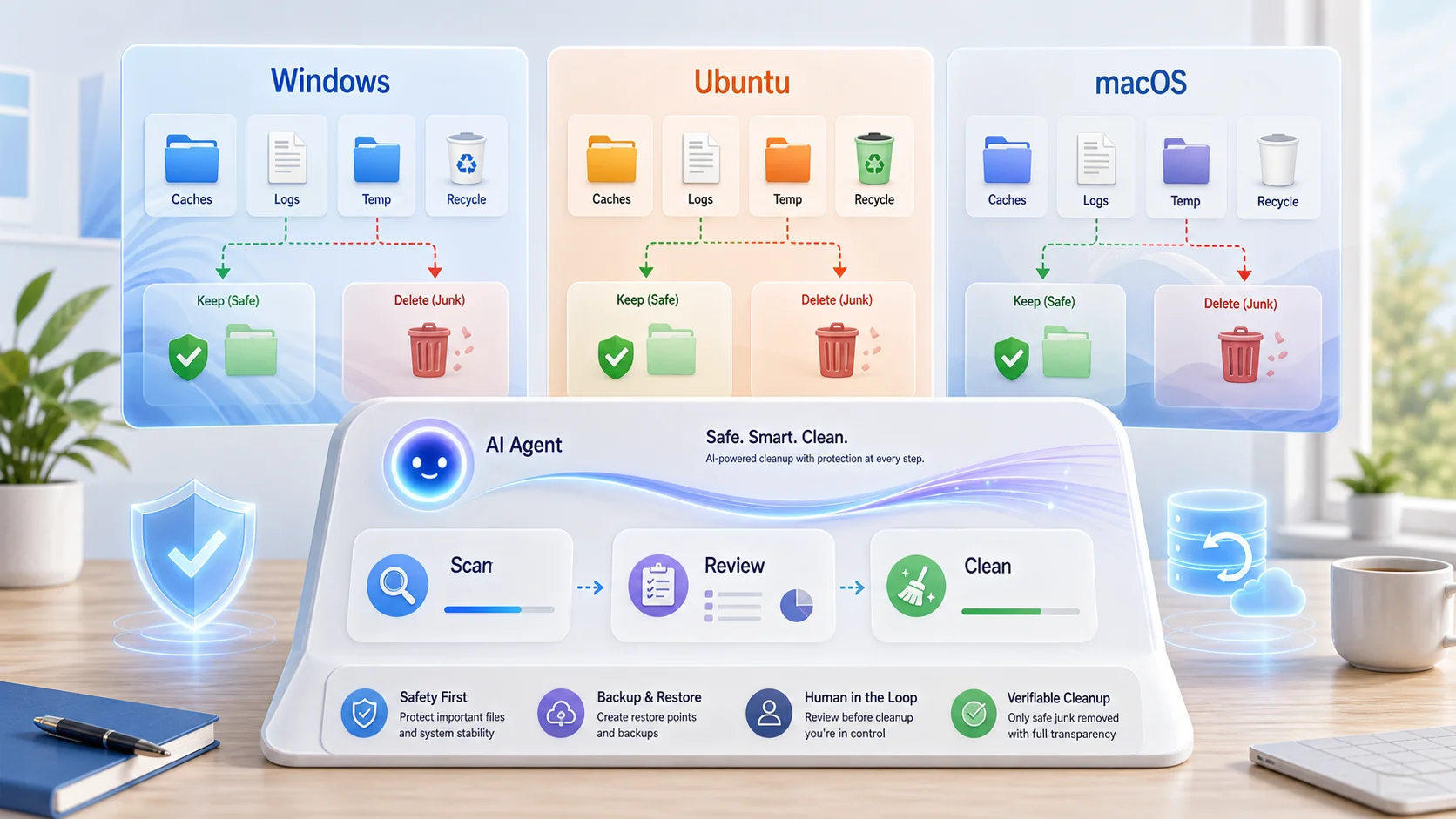
Figure 1: AI-generated cover. Cleaning junk files should feel like sorting a room, not dumping the entire room into a bin.
1. Background: disks do not become full suddenly
A clean machine usually feels fine at first. After months of updates, development work, downloads, logs, and application usage, the system drive slowly runs out of room. Updates fail, Docker or virtual machines complain, IDE indexing slows down, backup jobs take longer, and downloading one large file becomes difficult. When you open the file manager, it may still look as if you did not save that much.
This happens on three common types of machines. A Windows 11 workstation accumulates temporary installers, update leftovers, app caches, recycle bin contents, and thumbnail caches. An Ubuntu 26.04 development host or server accumulates APT caches, old dependency packages, systemd journal files, temporary files, and disabled Snap revisions. A macOS 26 laptop accumulates user caches, logs, trash contents, development tool residue, and old installers in Downloads.
Think of the disk as a school bag. Books, homework, keys, and ID cards must stay. Wrappers, scrap paper, and expired flyers can go. If you ask a very energetic helper to make the bag lighter without rules, that helper may throw away homework too. The value of an AI Agent is not that it is braver at deletion; the value is that it is patient enough to inventory, classify, show evidence, and then execute a bounded plan.
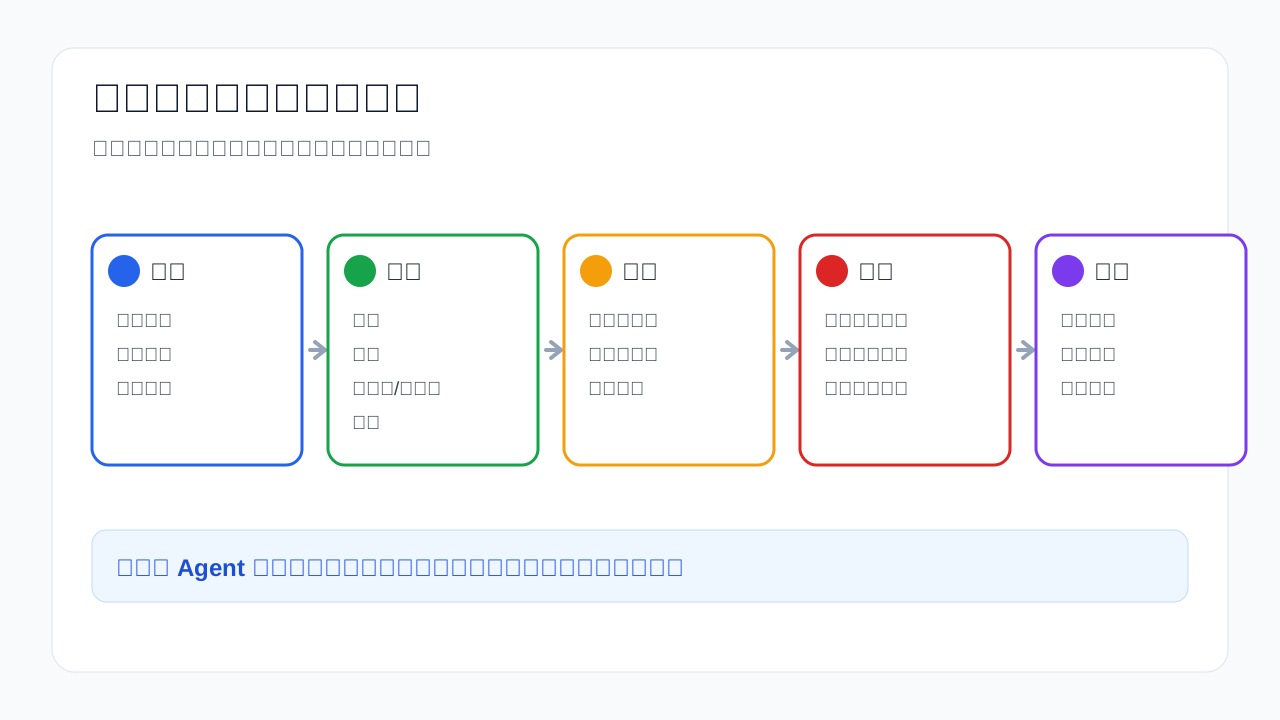
Figure 2: Scan, classify, dry-run, clean, verify. Skipping dry-run is where many cleanup accidents begin.
2. Symptoms: it may look like slowness, but the root issue is space governance
Junk buildup does not always announce itself with a clear “disk full” dialog. More often, the symptoms are indirect: an OS update fails halfway; an application upgrade leaves several old versions behind; a log directory grows to tens of gigabytes; /var or the system volume approaches 100%; macOS “System Data” looks huge; Windows loses a large amount of C drive space after updates; build caches make backup jobs painfully slow.
The common pattern is that the files may not have business value, but the system has not removed them yet. Cache is not evil. Cache is like spare dishes in a kitchen: useful when kept under control, annoying when every delivery box and old menu is kept forever. The goal is not to eliminate cache. The goal is to make cache obey boundaries: expire when old, rebuild when needed, and never mix with important data.
The usual mistakes are predictable. People install an unknown “deep cleaner” without understanding what it deletes. They copy a script containing rm -rf or Remove-Item -Recurse without a dry-run mode. Or they treat the entire Downloads folder as junk, even though it may contain contracts, photos, installers, certificates, or offline archives.
3. Analysis: AI Agents are useful, but they need guardrails
An AI Agent is well suited to cleanup because it can run repeated checks, summarize disk usage, generate scripts, compare before and after states, and collect logs. Humans get bored checking a dozen directories; Agents do not. But an Agent should not decide the value of every file on your behalf. It should behave like a warehouse clerk: inventory first, label items second, present a list third, and only then remove approved items.
The three scripts in this article follow the same rule: dry-run by default. The Windows script deletes only when -Execute is provided. The Ubuntu script deletes only when EXECUTE=1 is set. The macOS script follows the same EXECUTE=1 pattern. This is like asking a cleaner to first put questionable items near the door, then wait for your confirmation before taking them away.
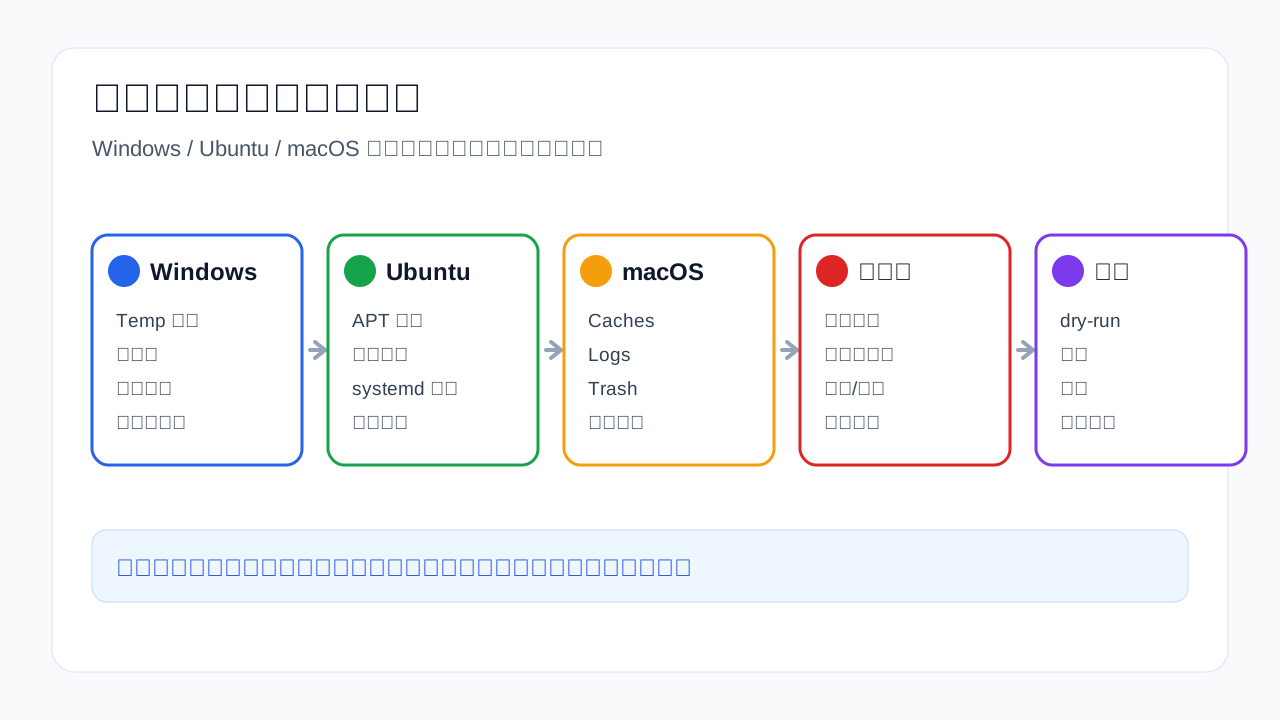
Figure 3: The names differ across operating systems, but the principle is the same: temporary files, package caches, logs, and trash are candidates; personal data and secrets are not.
The official tools point in the same direction. Windows includes cleanmgr for disk cleanup. Ubuntu’s apt-get manpage documents clean, autoclean, and autoremove for package cleanup. journalctl supports vacuuming systemd journal files by time or size. Apple Support recommends starting from built-in storage management, trash, downloads, and unneeded files instead of unknown cleanup utilities.
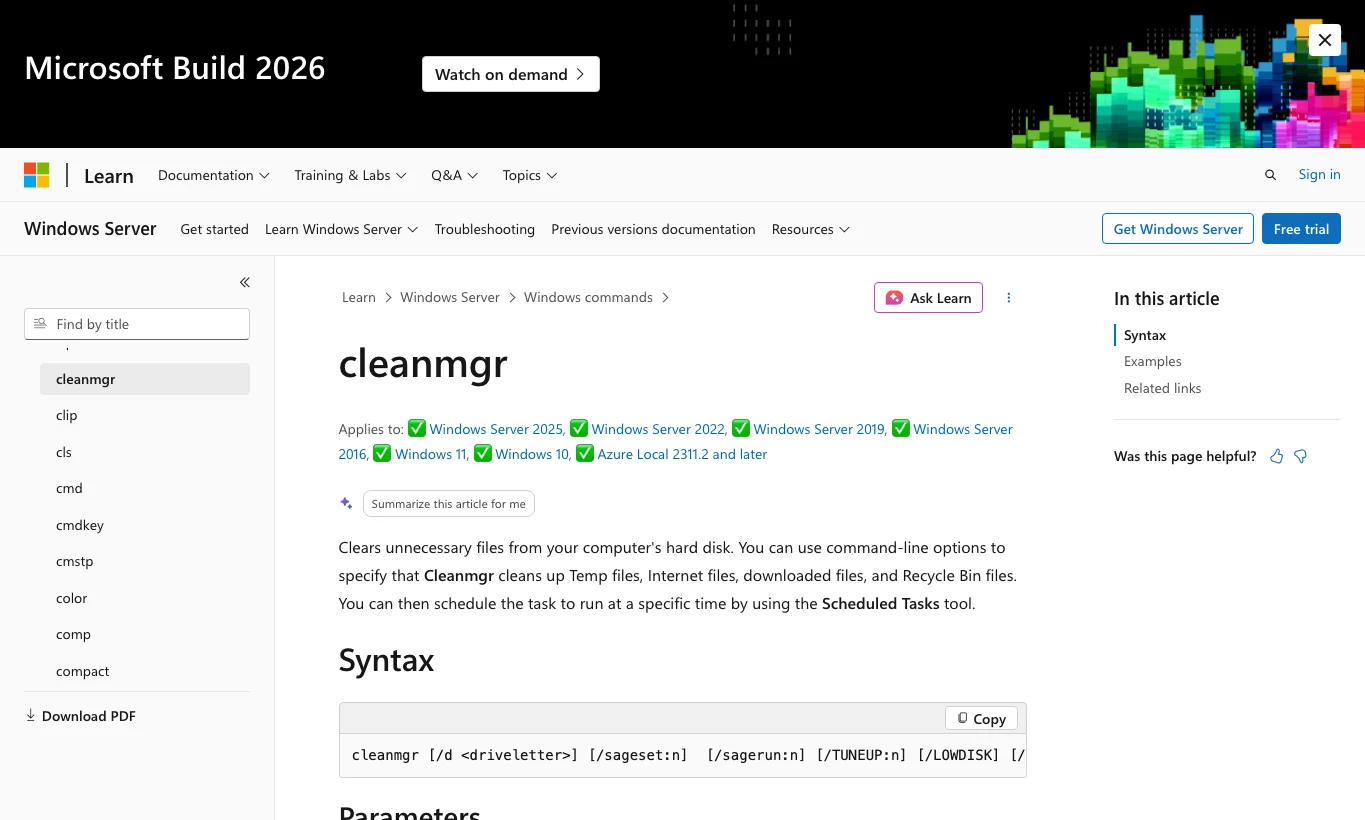
Figure 4: On Windows, prefer built-in tools and explicit paths before reaching for third-party cleaners.
4. Root cause: junk is not a file type; it is a disposable state
Asking “which directory can I delete?” is already a risky question. A directory is only a location. The real question is file state. Cache files can be deleted because applications can regenerate them. Old logs can be vacuumed because their troubleshooting value declines over time. APT package caches can be cleaned because packages can be downloaded again. Trash can be emptied because the user already deleted those files once.
By contrast, Downloads is not automatically junk. It is merely a folder where downloaded things land. It may contain throwaway installers or the only copy of an important archive. Browser profiles are not junk because they may include bookmarks, extension settings, cookies, and sign-in state. Development caches are also nuanced: they can often be rebuilt, but deleting them may make the next build or index run much slower.
That is why the scripts here are intentionally conservative. They target system temp locations, user temp locations, old temporary files, recycle bin or trash contents, APT caches, no-longer-needed Debian packages, old systemd journal files, disabled Snap revisions, and old user-level Caches or Logs. They do not scan the whole disk looking for large files to delete.
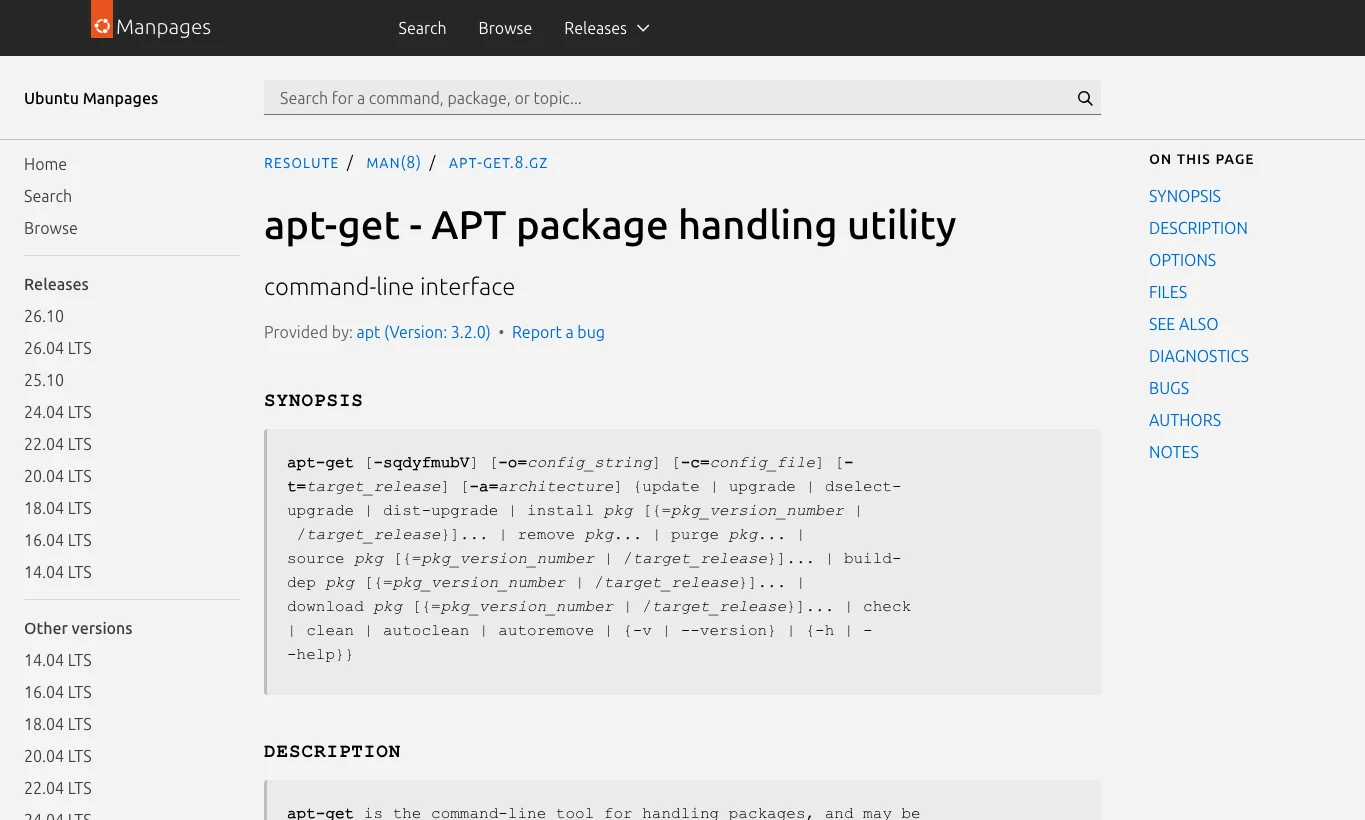
Figure 5: On Linux, start with package-manager and logging-system cleanup commands instead of deleting random parts of /var.
5. Manual automation: three one-command scripts
The scripts below do not depend on third-party services. Copy the relevant script to the machine, run it in dry-run mode, inspect the output, and only then enable execution. Placeholders such as <...> are intentional; this article should not contain real private addresses, computer names, private domains, or secrets.
5.1 Windows 11: conservative PowerShell cleanup
Save this as Clean-Windows11-Junk.ps1. First run it in an elevated PowerShell window without deletion:
powershell -ExecutionPolicy Bypass -File .\Clean-Windows11-Junk.ps1
After reviewing the list, run the execution mode:
powershell -ExecutionPolicy Bypass -File .\Clean-Windows11-Junk.ps1 -Execute -Days 14
Script:
param(
    [switch]$Execute,
    [int]$Days = 14
)

$ErrorActionPreference = "Stop"
$DryRun = -not $Execute
$Cutoff = (Get-Date).AddDays(-$Days)
$FreedBytes = 0

function Format-Bytes([Int64]$Bytes) {
    if ($Bytes -ge 1GB) { return "{0:N2} GB" -f ($Bytes / 1GB) }
    if ($Bytes -ge 1MB) { return "{0:N2} MB" -f ($Bytes / 1MB) }
    if ($Bytes -ge 1KB) { return "{0:N2} KB" -f ($Bytes / 1KB) }
    return "$Bytes B"
}

function Get-FileSizeSafe($Item) {
    try { return [int64]$Item.Length } catch { return 0 }
}

function Clean-Folder($Path, [string]$Label) {
    if (-not (Test-Path $Path)) { return }
    Write-Host "`n[$Label] $Path"
    $items = Get-ChildItem -LiteralPath $Path -Force -ErrorAction SilentlyContinue |
        Where-Object { -not ($_.Attributes -band [IO.FileAttributes]::ReparsePoint) -and $_.LastWriteTime -lt $Cutoff }

    foreach ($item in $items) {
        $size = 0
        if ($item.PSIsContainer) {
            $size = (Get-ChildItem -LiteralPath $item.FullName -Recurse -Force -ErrorAction SilentlyContinue |
                Where-Object { -not $_.PSIsContainer } |
                ForEach-Object { Get-FileSizeSafe $_ } |
                Measure-Object -Sum).Sum
        } else {
            $size = Get-FileSizeSafe $item
        }
        if (-not $size) { $size = 0 }
        Write-Host ("  {0}  {1}" -f (Format-Bytes $size), $item.FullName)
        if (-not $DryRun) {
            try {
                Remove-Item -LiteralPath $item.FullName -Recurse -Force -ErrorAction Stop
                $script:FreedBytes += [int64]$size
            } catch {
                Write-Warning "Failed to remove: $($item.FullName) - $($_.Exception.Message)"
            }
        }
    }
}

Write-Host "Mode: $(if ($DryRun) { 'DRY-RUN' } else { 'EXECUTE' })"
Write-Host "Only items older than $Days days are considered."
Get-PSDrive -PSProvider FileSystem | Format-Table Name, Used, Free

Clean-Folder $env:TEMP "User temp"
Clean-Folder "$env:WINDIR\Temp" "Windows temp"
Clean-Folder "$env:LOCALAPPDATA\Temp" "Local app temp"
Clean-Folder "$env:LOCALAPPDATA\Microsoft\Windows\INetCache" "Browser/system cache"

if ($DryRun) {
    Write-Host "`n[Recycle Bin] Dry-run only. Use -Execute to empty it."
} else {
    try { Clear-RecycleBin -Force -ErrorAction Stop } catch { Write-Warning $_.Exception.Message }
    try { Start-Process cleanmgr.exe -ArgumentList "/verylowdisk" -Wait } catch { Write-Warning $_.Exception.Message }
}

Write-Host "`nEstimated removed in script-controlled paths: $(Format-Bytes $FreedBytes)"
Write-Host "Done. Review warnings before treating the cleanup as successful."
The script does not scan Documents and does not delete browser profiles. It is closer to emptying bins and wiping counters than opening drawers and judging private files.
5.2 Ubuntu 26.04: conservative Bash cleanup
Save this as clean-ubuntu2604-junk.sh. Dry-run first:
bash clean-ubuntu2604-junk.sh
Execute only after reviewing the output:
EXECUTE=1 DAYS=14 JOURNAL_KEEP=14d bash clean-ubuntu2604-junk.sh
Script:
#!/usr/bin/env bash
set -euo pipefail

EXECUTE="${EXECUTE:-0}"
DAYS="${DAYS:-14}"
JOURNAL_KEEP="${JOURNAL_KEEP:-14d}"
DRY_RUN=1
if [ "$EXECUTE" = "1" ]; then DRY_RUN=0; fi

run() {
  if [ "$DRY_RUN" = "1" ]; then
    printf '[dry-run] %q ' "$@"; printf '
'
  else
    "$@"
  fi
}

need_sudo() {
  if [ "$(id -u)" -eq 0 ]; then "$@"; else sudo "$@"; fi
}

echo "Mode: $([ "$DRY_RUN" = "1" ] && echo DRY-RUN || echo EXECUTE)"
echo "Before:"; df -h / /var 2>/dev/null || df -h /
echo

echo "[APT] simulation for autoremove"
need_sudo apt-get -s autoremove --purge || true

if [ "$DRY_RUN" = "0" ]; then
  need_sudo apt-get autoremove --purge -y
  need_sudo apt-get autoclean -y
  need_sudo apt-get clean
else
  echo "[dry-run] apt-get autoremove/autoclean/clean will run only with EXECUTE=1"
fi

echo
if command -v journalctl >/dev/null 2>&1; then
  echo "[journal] current usage"
  journalctl --disk-usage || true
  if [ "$DRY_RUN" = "0" ]; then
    need_sudo journalctl --vacuum-time="$JOURNAL_KEEP"
  else
    echo "[dry-run] journalctl --vacuum-time=$JOURNAL_KEEP"
  fi
fi

echo
for dir in /tmp /var/tmp; do
  [ -d "$dir" ] || continue
  echo "[temp] $dir files older than $DAYS days"
  if [ "$DRY_RUN" = "1" ]; then
    find "$dir" -xdev -mindepth 1 -mtime +"$DAYS" -print 2>/dev/null | head -200
  else
    need_sudo find "$dir" -xdev -mindepth 1 -mtime +"$DAYS" -print -delete 2>/dev/null || true
  fi
done

echo
if command -v snap >/dev/null 2>&1; then
  echo "[snap] disabled revisions"
  snap list --all | awk '/disabled/{print $1, $3}' || true
  if [ "$DRY_RUN" = "0" ]; then
    snap list --all | awk '/disabled/{print $1, $3}' | while read -r snapname revision; do
      [ -n "$snapname" ] && [ -n "$revision" ] && need_sudo snap remove "$snapname" --revision="$revision"
    done
  else
    echo "[dry-run] disabled snap revisions will be removed only with EXECUTE=1"
  fi
fi

echo
echo "After candidate cleanup:"; df -h / /var 2>/dev/null || df -h /
echo "Done. If this is a server, review service logs before and after cleanup."
The Linux script starts with official entry points: APT handles packages, journalctl handles journal files, and temporary directories are filtered by age. Do not treat /var as a big trash can. It can contain databases, queues, containers, logs, and application state.
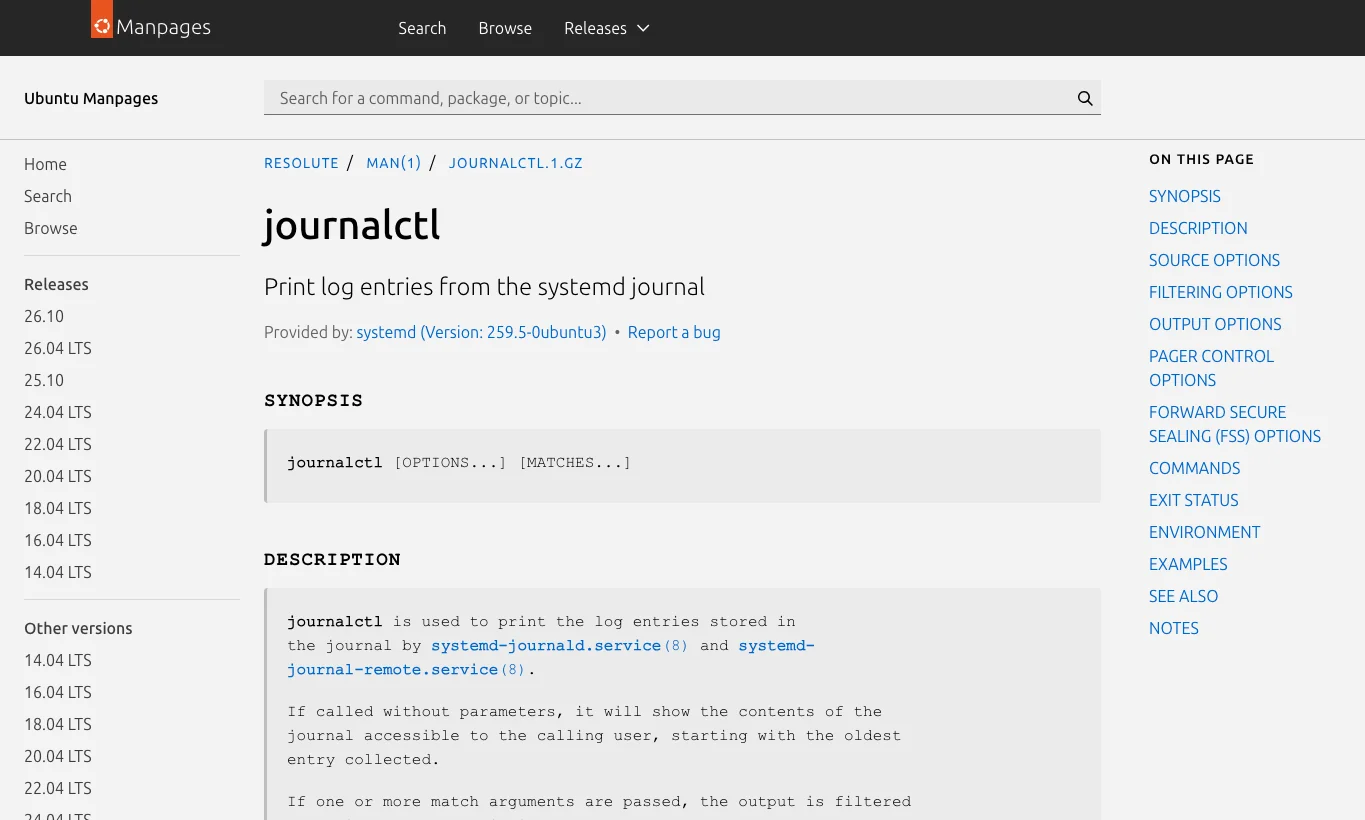
Figure 6: Let the logging system vacuum logs instead of manually deleting active journal files.
5.3 macOS 26: conservative zsh cleanup
Save this as clean-macos26-junk.zsh. Dry-run first:
zsh clean-macos26-junk.zsh
Execute after review:
EXECUTE=1 DAYS=14 EMPTY_TRASH=1 zsh clean-macos26-junk.zsh
Script:
#!/bin/zsh
set -euo pipefail

EXECUTE="${EXECUTE:-0}"
DAYS="${DAYS:-14}"
EMPTY_TRASH="${EMPTY_TRASH:-0}"
DRY_RUN=1
[[ "$EXECUTE" == "1" ]] && DRY_RUN=0

print_mode() { [[ "$DRY_RUN" == "1" ]] && echo "DRY-RUN" || echo "EXECUTE"; }
run_or_print() {
  if [[ "$DRY_RUN" == "1" ]]; then
    printf '[dry-run]'; printf ' %q' "$@"; printf '
'
  else
    "$@"
  fi
}

clean_dir() {
  local dir="$1"
  local label="$2"
  [[ -d "$dir" ]] || return 0
  echo "
[$label] $dir"
  if [[ "$DRY_RUN" == "1" ]]; then
    find "$dir" -xdev -mindepth 1 -mtime +"$DAYS" -print 2>/dev/null | head -200 || true
  else
    find "$dir" -xdev -mindepth 1 -mtime +"$DAYS" -print -delete 2>/dev/null || true
  fi
}

echo "Mode: $(print_mode)"
echo "Only user-level cache/log/temp files older than $DAYS days are considered."
df -h /

clean_dir "$HOME/Library/Caches" "User caches"
clean_dir "$HOME/Library/Logs" "User logs"
clean_dir "$TMPDIR" "User temp"
clean_dir "$HOME/Downloads" "Downloads candidates only; review carefully"

if [[ "$EMPTY_TRASH" == "1" ]]; then
  if [[ "$DRY_RUN" == "1" ]]; then
    echo "
[dry-run] Trash would be emptied with EXECUTE=1 EMPTY_TRASH=1"
    find "$HOME/.Trash" -mindepth 1 -maxdepth 2 -print 2>/dev/null | head -100 || true
  else
    rm -rf "$HOME/.Trash/"* "$HOME/.Trash/".[!.]* "$HOME/.Trash/"..?* 2>/dev/null || true
  fi
else
  echo "
[Trash] skipped. Set EMPTY_TRASH=1 if you really want to empty it."
fi

echo "
After candidate cleanup:"
df -h /
echo "Done. Do not automate deletion of Photos libraries, browser profiles, keychains, or virtual machine images."
macOS “System Data” often makes people anxious, but it is not a single folder that should be deleted. Start with built-in storage management, trash, clearly unwanted downloads, user caches, and logs. When the value is unclear, do not hand it to a script.
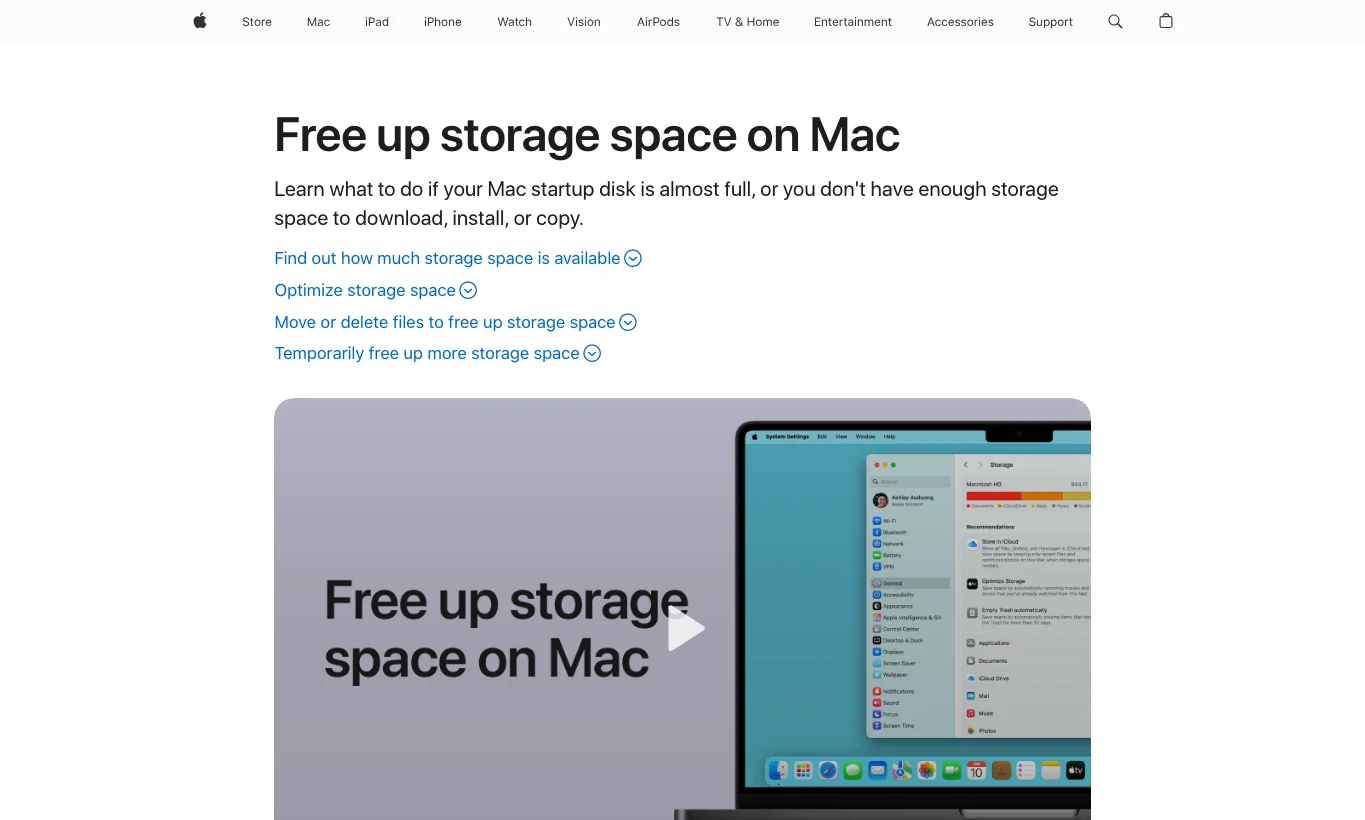
Figure 7: On macOS, start from official storage guidance and user-verifiable files rather than trying to force “System Data” to zero.
6. Agent-driven automation: copy this prompt
If you want an AI Agent to perform the workflow, use a bounded prompt like this:
Please help me clean junk files on the current machine. The target system is <Windows 11 / Ubuntu 26.04 / macOS 26>.
Requirements:
1. Do not download third-party cleanup tools and do not run unknown scripts.
2. Do not delete user documents, photos, browser profiles, keys, certificates, virtual machine images, or business data directories.
3. First identify OS version, disk usage, major cache/log/temp locations, and output only redacted results.
4. Generate a dry-run list first, including path, type, estimated size, and risk level.
5. Do not actually delete anything until I explicitly confirm.
6. After confirmation, use only built-in tools and the scripts in this article: PowerShell and cleanmgr on Windows; apt-get, journalctl, find, and snap on Ubuntu; zsh, find, Trash/Caches/Logs on macOS.
7. After cleanup, report before/after disk space, failed items, skipped items, and follow-up manual checks.
8. The final report must not include full IP addresses, full computer names, private domains, tokens, passwords, keys, or real usernames.
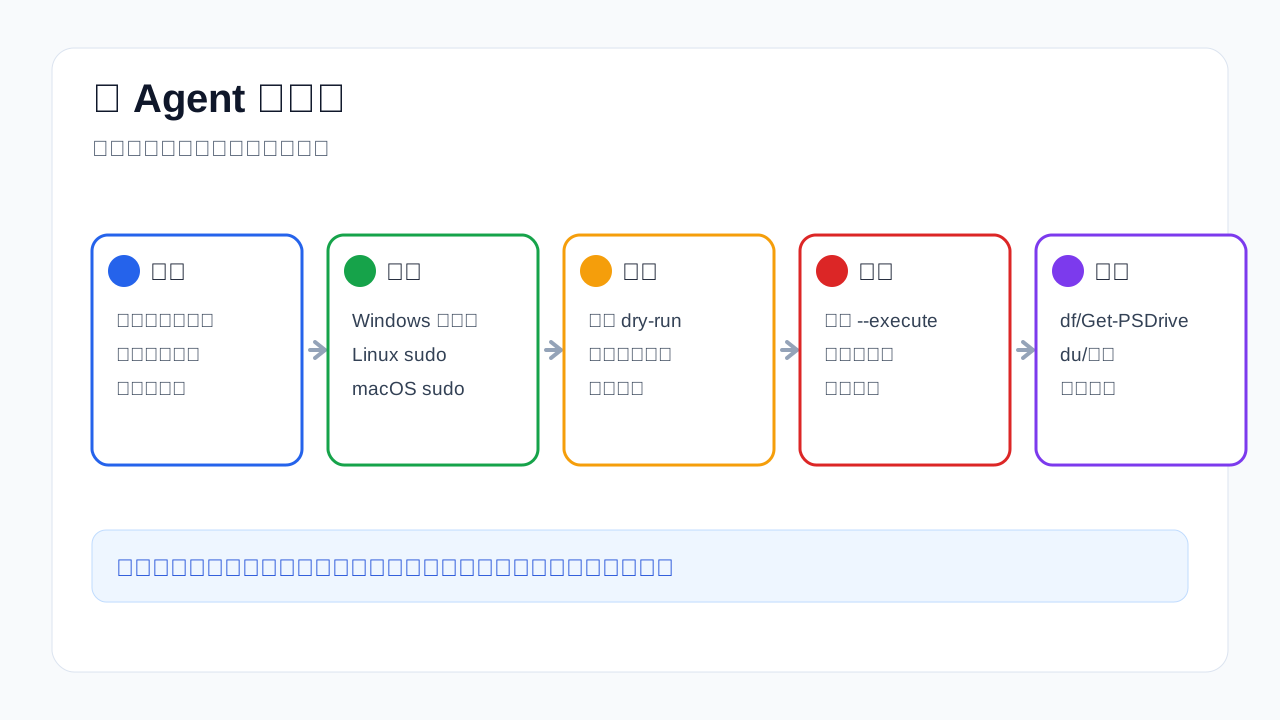
Figure 8: Agents do not mind complexity; they mind vague boundaries. Define permissions, paths, dry-run, execution, and acceptance evidence.
I prefer splitting the Agent workflow into two rounds. Round one is read-only inspection and dry-run. Round two executes only after human confirmation. It may feel slower, but recovering from accidental deletion is much slower.
7. What you should not clean automatically
Every cleanup guide should state the forbidden area clearly. Do not automatically delete:
- Documents, Desktop, Pictures, Photos libraries, Music, or Videos.
- Browser profiles, password stores, bookmarks, extensions, cookies, or sign-in state.
- SSH keys, certificates, keychains,
.gnupg,.ssh, or cloud sync directories. - Virtual machine images, container volumes, database directories, or source code repositories.
- Unknown large files, especially when they may be the only copy.
- Logs or data directories currently written by business services.
Cleaning a computer is like cleaning a room. Sweeping the floor, emptying bins, and throwing away delivery boxes is fine. Opening drawers and throwing away ID cards, keys, and contracts is not. A conservative script should remove clearly disposable or regenerable files, not make life-value decisions for you.
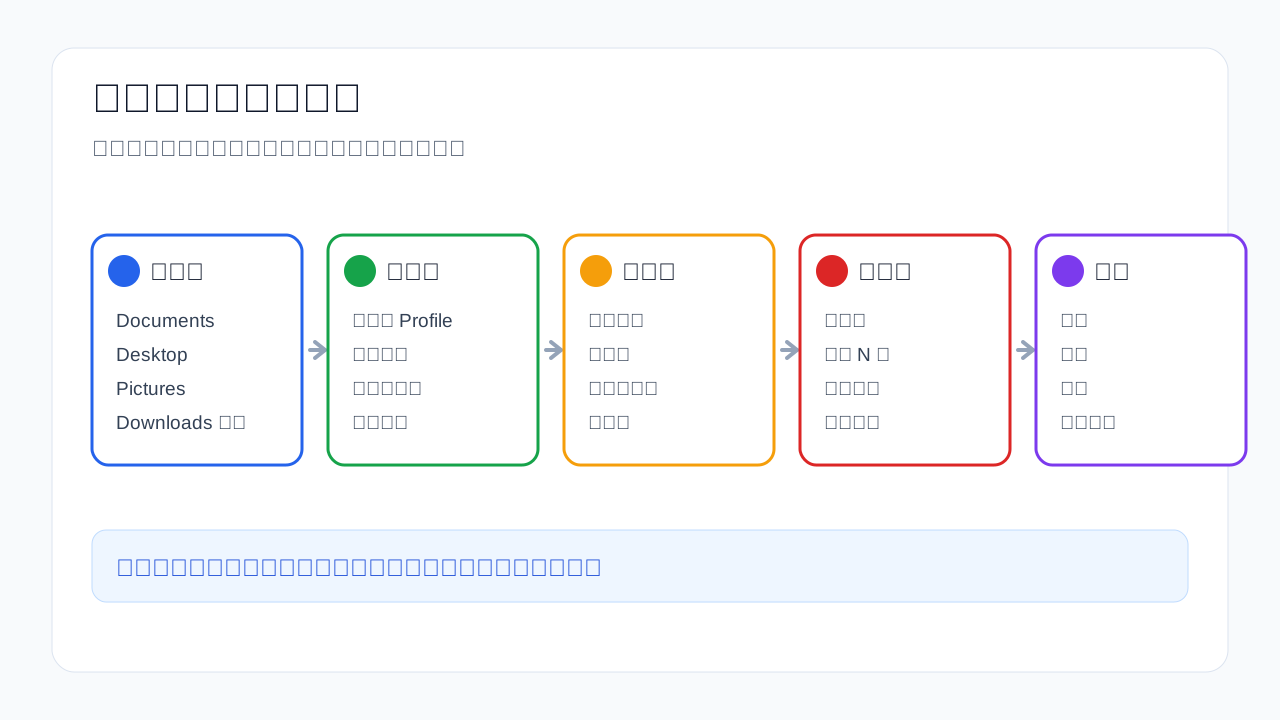
Figure 9: Conservative cleanup is not timid; it puts accidental deletion risk first.
8. Q&A
Q1: Why not use third-party cleanup software?
Some third-party tools are useful, but this article is about auditable, reproducible cleanup without third-party service dependency. Built-in tools and visible scripts are easier for an Agent to run, explain, and verify.
Q2: Why are the scripts dry-run by default?
Because the most important feature of a cleanup script is not deletion. It is explaining what it plans to delete. Dry-run exposes the candidate list before risk is hidden behind a shiny one-click button.
Q3: What if I do not recover much space?
That can be normal. The real space users may be photos, virtual machines, Docker images, games, development dependencies, or large files in Downloads. A conservative script will not delete those automatically because they may be valuable. It first handles low-risk areas, then points you toward manual review.
Q4: Can I simply delete /var/log on Ubuntu?
No. Use journalctl --vacuum-time or --vacuum-size for systemd journal files, and inspect logrotate for traditional logs. Deleting active log files may not even free space if a process still holds the file handle.
Q5: Can I force-delete macOS “System Data”?
No. It is a category, not a single safe folder. Start with storage management, trash, unneeded downloads, user caches, and logs. If you cannot explain what a file is, do not let a script delete it.
Figure 10: macOS 26 is Tahoe. The cleanup strategy should still rely on built-in tools and auditable paths.
9. Recommended routine
For routine maintenance, run dry-run once a month, review the candidate list, and perform conservative cleanup once a quarter. Before a major OS upgrade, clean package caches, old logs, and temporary files again. Keep before/after disk output. On servers, confirm backups, service status, and log retention before cleanup. On personal machines, inspect Downloads and Trash for the only copy of important files.
AI Agents can make this workflow less annoying, but they should not replace judgment. The best automation is not “I do not care what happens.” The best automation is “the Agent handles repetitive checks and evidence collection; the human handles value judgment, deletion approval, and exception decisions.” Used this way, an AI Agent is a careful organizer, not a reckless shredder.
References
- Microsoft Learn:
cleanmgrcommand: https://learn.microsoft.com/en-us/windows-server/administration/windows-commands/cleanmgr - Ubuntu Manpage:
apt-get: https://manpages.ubuntu.com/manpages/resolute/en/man8/apt-get.8.html - Ubuntu Manpage:
journalctl: https://manpages.ubuntu.com/manpages/resolute/en/man1/journalctl.1.html - Apple Support: Free up storage space on Mac: https://support.apple.com/en-us/102624
- Apple Developer: macOS Tahoe 26 Release Notes: https://developer.apple.com/documentation/macos-release-notes/macos-26-release-notes