Stop Hunting for YOLO Flags: One Launcher for 6 AI Agent Tools
Short version
In AI Agent tools,
yolodoes not mean “the model is smarter.” It means “ask me fewer questions.” It reduces or skips approval prompts so the Agent can run more like an unattended automation script. The annoying part is that every tool names this differently. Codex exposes a dangerous approval-and-sandbox bypass. Claude Code has a dangerous permission-skip mode and a permission mode. Gemini CLI and Qwen Code use--approval-mode=yolo. OpenCode uses--autoplus permission rules. Aider uses--yes-always.My recommendation is not to overwrite
codex,claude, orgeminiwith risky aliases. Install an explicitagent-yololauncher instead. When you really want high autonomy, typeagent-yolo codex,agent-yolo claude, oragent-yolo gemini. This article provides Windows 11, Ubuntu 26.04, and macOS 26 scripts. They do not depend on third-party services, do not install missing Agent tools, and do not contain private addresses, full computer names, private domains, tokens, or keys.

Figure 1: AI-generated cover. YOLO mode is not a magic button. It is more like a fast lane with guardrails.
1. Background: every Agent has its own “do not ask me, just run it” switch
When you use an AI Agent to edit code, change configuration, clean up a repository, or run tests, the most common interruption is not that the model cannot do the work. It is that the tool keeps stopping to ask: may I read this file, edit this file, run this command, install this dependency, or execute this test?
Those prompts matter. They are like a door guard at a building entrance. If a stranger asks to come in, asking first is reasonable. But if you are moving boxes inside your own temporary lab, scanning a badge for every single box becomes painful. It is safer, but it can also slow the job down until the human becomes the bottleneck.
That is why many Agent tools provide a high-autonomy mode. People often call it YOLO. In this context, the word should not be read as “be reckless.” It means the tool will automatically approve more actions. The real problem is naming: one tool calls it --yolo, another calls it --approval-mode=yolo, another calls it --dangerously-skip-permissions, and another does not call it YOLO at all.
If you rely on memory, three things go wrong quickly.
First, you use the wrong flag. OpenCode does not behave like Gemini CLI. Gemini still has --yolo, but its unified approval-mode form is clearer for automation.
Second, you grant more authority than intended. You may only want fewer prompts, but accidentally disable sandboxing too.
Third, you pollute your defaults. If you alias codex directly to a dangerous mode, you may forget about it later and start it in an important repository.
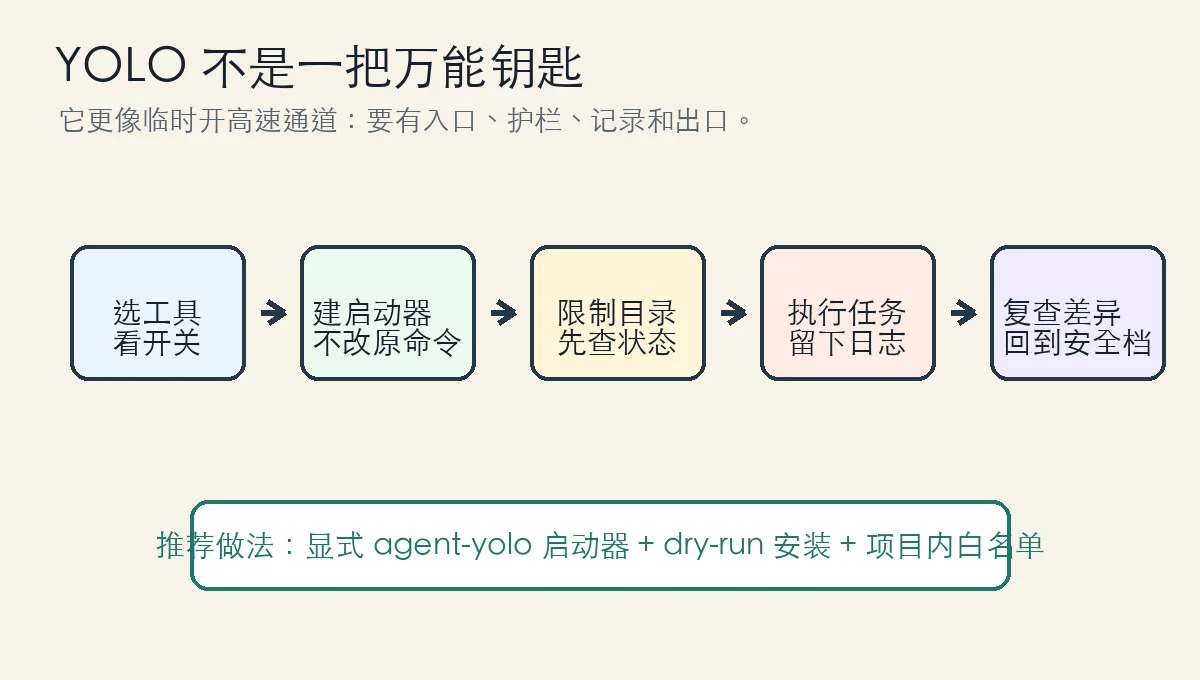
Figure 2: The safe pattern is explicit entry, logs, review, and returning to the normal mode after the task.
2. Symptoms: one simple goal turns into scattered flags
The practical scenario is familiar. You want an Agent to perform a batch refactor, fix formatting, add tests, update Markdown links, or migrate a configuration field. These tasks are not conceptually hard, but they involve many steps. If the Agent asks for approval at every step, the human ends up doing the repetitive work of clicking yes.
So you start collecting commands:
codex --dangerously-bypass-approvals-and-sandbox
claude --dangerously-skip-permissions
gemini --approval-mode=yolo
qwen --approval-mode=yolo
opencode --auto
aider --yes-always
The list looks short until you try to use it across several machines. Which option uses an underscore? Which one uses a hyphen? Which one is a deprecated alias? Which one also affects sandboxing? Which one only auto-answers confirmation prompts? And how do you make this work across PowerShell, Bash, and Zsh without rewriting your shell profile three different ways?
It is like having six remote controls in the living room: TV, projector, sound system, lights, set-top box, and air conditioner. Each one works, but finding the right button every time is annoying. A good universal remote does not destroy the original remotes. It gives you one clearly labeled entry point.
That is what agent-yolo does. It does not install models, change APIs, request accounts, or call a cloud service. It does exactly one thing: it turns “I explicitly want to run this Agent in high-autonomy mode now” into one consistent command.
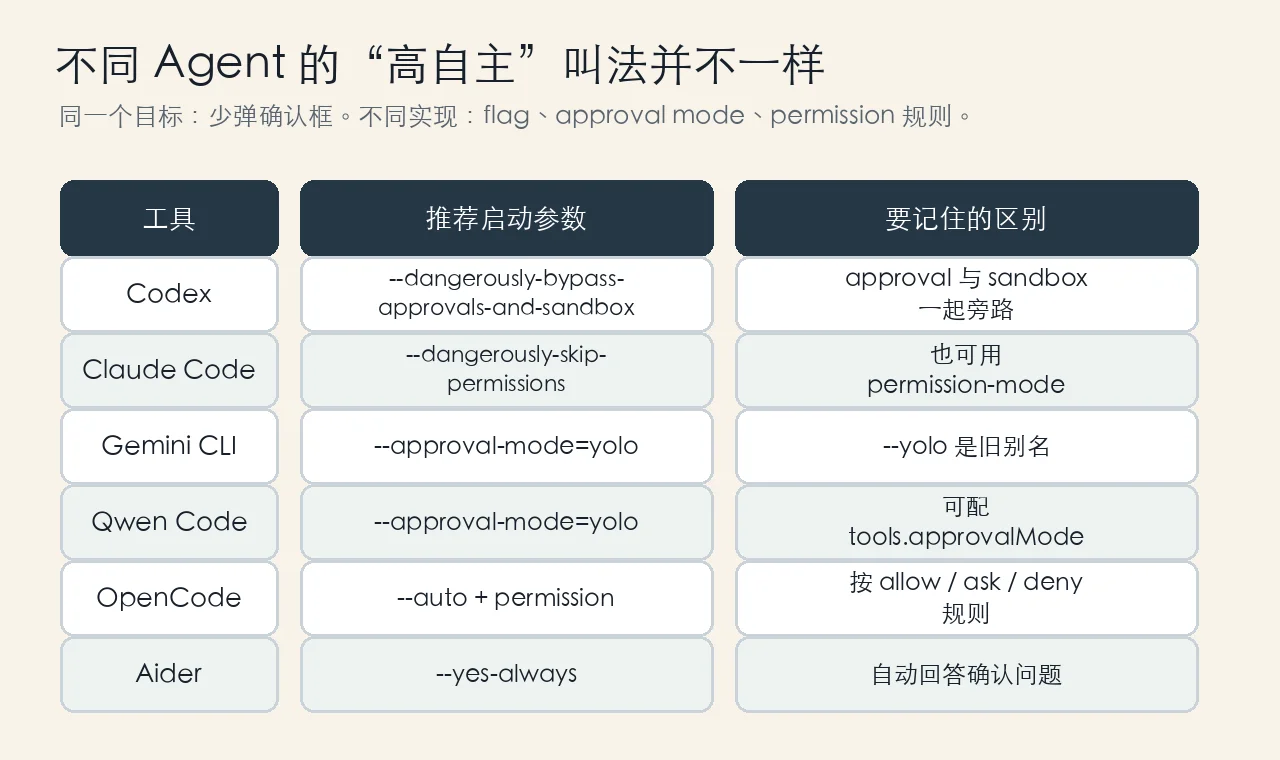
Figure 3: The goal is similar, but the implementation differs: flags, approval modes, and permission rules are not the same thing.
3. Analysis: what YOLO mode actually opens up
Think of an Agent as a capable intern. In the normal mode, the intern asks before taking a key, opening a cabinet, editing a file, or running a machine. In YOLO mode, you say in advance: “Inside this lab, common actions are approved.”
That improves throughput, but it changes the risk model.
Codex is very direct. Its help output describes --dangerously-bypass-approvals-and-sandbox as skipping confirmation prompts and executing commands without sandboxing. It is marked extremely dangerous and intended for environments that are externally sandboxed. In plain English: this is not only “ask less.” It may also mean “remove the fence.” If you only want fewer interruptions, use it in a disposable container, temporary folder, or clean worktree.
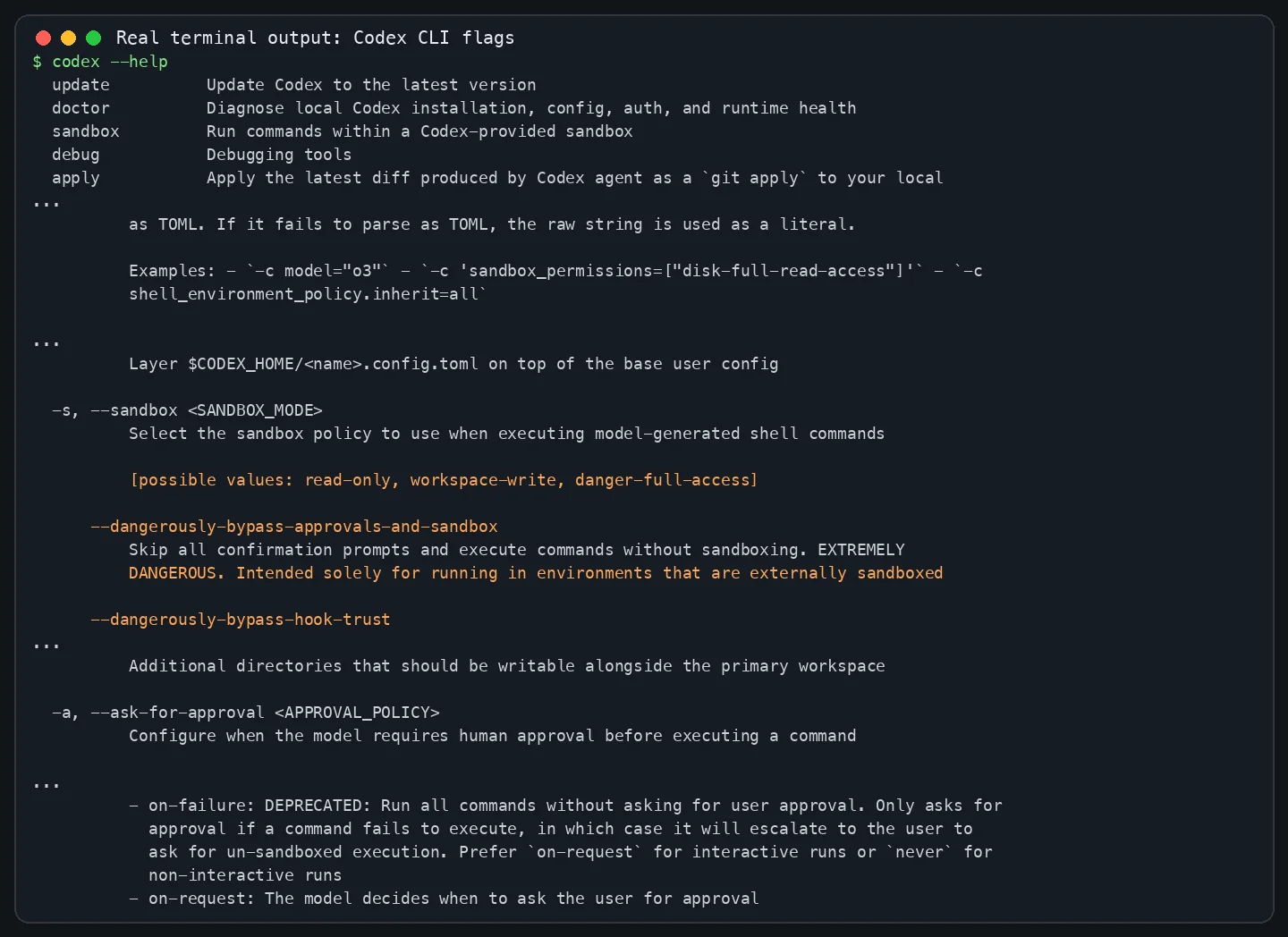
Figure 4: Codex high-autonomy mode must be treated as a dangerous operation, especially because approval and sandboxing are separate concerns.
Claude Code also makes the risk clear. Its CLI exposes --dangerously-skip-permissions, and recommends using it only in sandboxes without internet access. It also exposes --permission-mode, including modes such as bypassPermissions. The point is not which spelling is shorter. The point is knowing what you are bypassing.
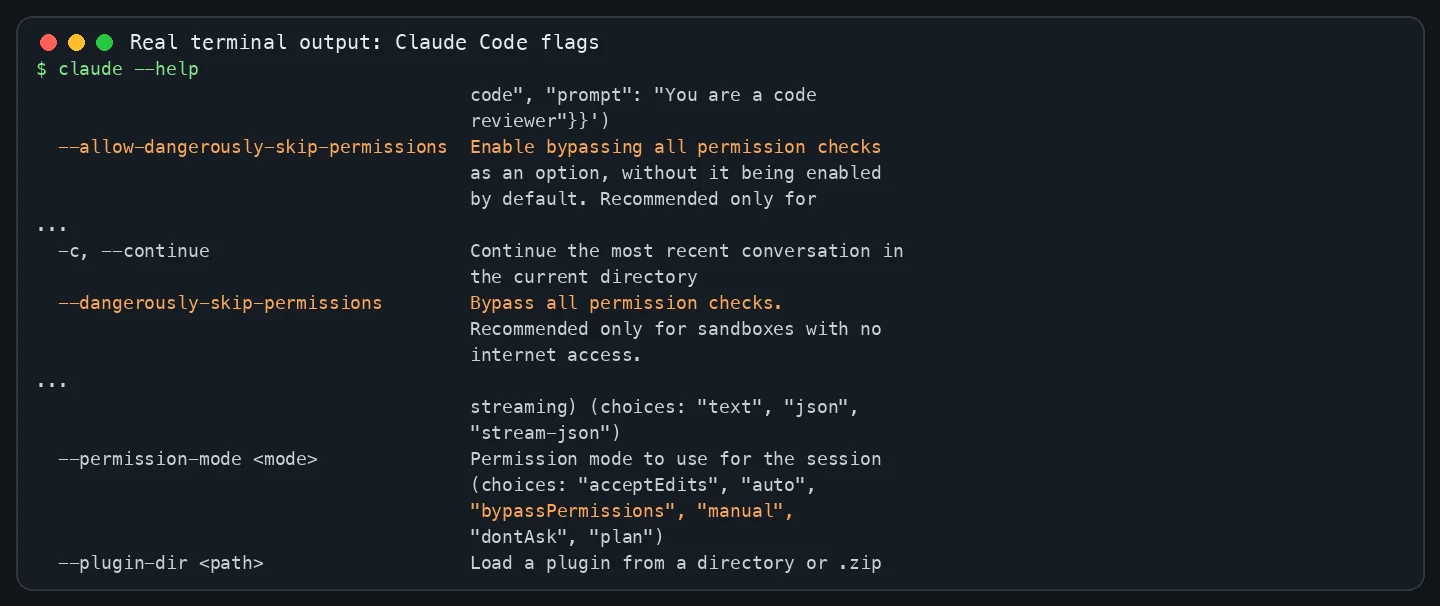
Figure 5: Claude Code can skip permissions directly, or express session permissions through permission mode.
Gemini CLI is more like a tool that is consolidating naming. It still has -y / --yolo, but its help also lists --approval-mode with choices such as default, auto_edit, yolo, and plan. For scripts, I prefer gemini --approval-mode=yolo because it says exactly what kind of setting is being changed.
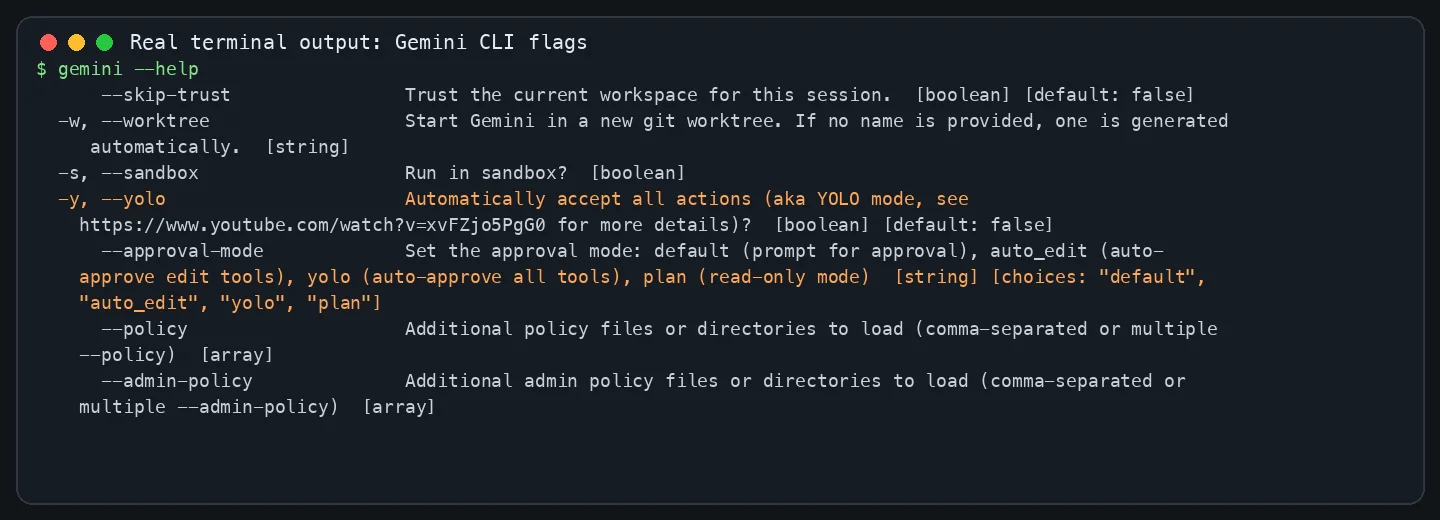
Figure 6: Gemini CLI still supports --yolo, but --approval-mode=yolo is clearer in a unified launcher.
OpenCode is different. Its permissions documentation resolves actions into allow, ask, or deny, and its --auto mode automatically approves permission requests that are not explicitly denied. This model feels more like a building access list: some doors always open, some doors require a guard, and some doors never open.
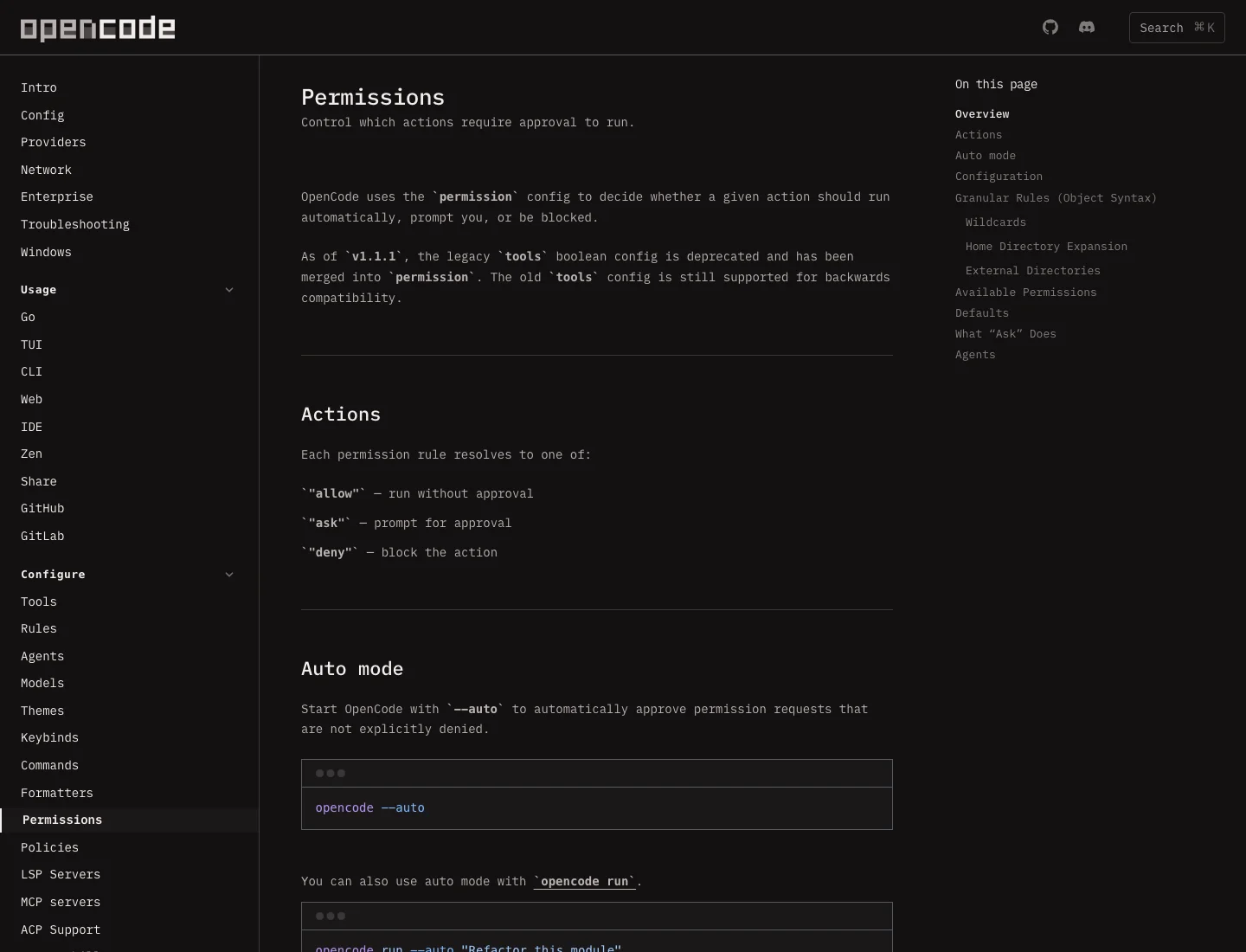
Figure 7: OpenCode is not centered on a flag literally named yolo. Its model is permission rules plus --auto.
Aider is simpler. Its options reference includes --yes-always, meaning it always answers yes to confirmations. This is useful when you know you want Aider to proceed continuously, but you still need a clean Git state and a clear rollback path.
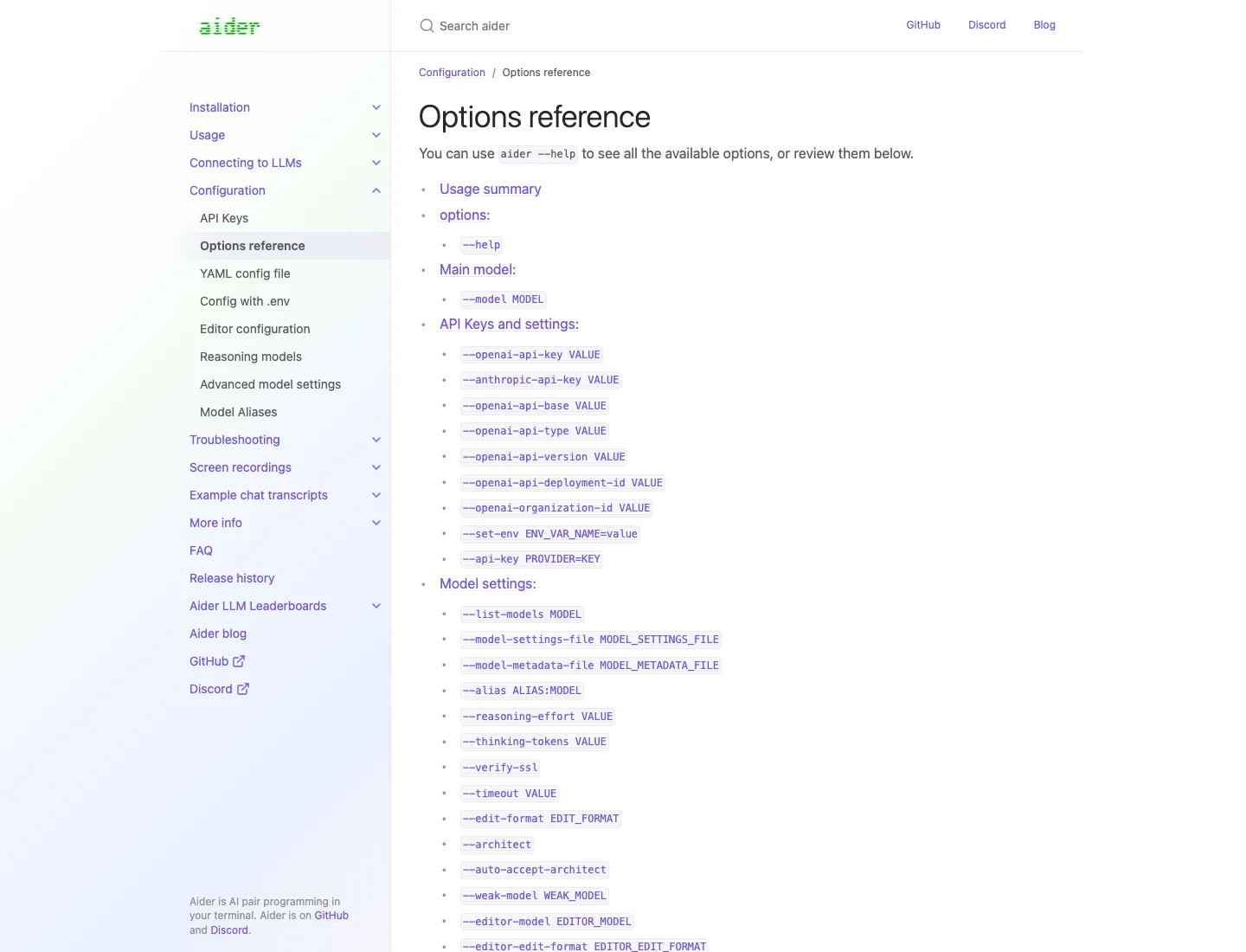
Figure 8: Aider’s --yes-always is like automatically pressing yes. It does not magically remove the need to review results.
4. Root cause: “auto-approve” combines three different security concepts
The confusion exists because people use YOLO to mean three different things.
The first concept is approval: should the tool ask a human before running a tool call? Gemini and Qwen express this with approval modes. default asks, auto_edit approves edit tools, and yolo approves more tool calls.
The second concept is sandboxing: even after approval, what can the command touch? Codex warns about approval and sandboxing together because both matter. You can allow an Agent to run commands automatically while still placing it inside a container. You can also reduce prompts while limiting writes to the current project directory.
The third concept is permission rules: which actions are always allowed, always denied, or require approval? OpenCode emphasizes this model. It is less about asking “should I enable YOLO?” and more about defining how permissions resolve.
Here is the child-friendly analogy. Approval is whether the teacher asks before you go to the playground. Sandbox is whether the playground has a fence. Permission rules are which areas you can visit, which areas require a teacher, and which areas are forbidden. Saying “free time” is not enough. Free time inside a fenced playground and free time across an entire city are very different risk levels.
That is why the solution in this article does not pretend every tool has the same internal mode. It only unifies the entry point. The entry point is agent-yolo; inside it, each Agent receives its own official high-autonomy flag.
5. Manual automation: three one-command installers
The three scripts below target Windows 11, Ubuntu 26.04, and macOS 26. They dry-run by default and install only when you explicitly enable execution. They create an agent-yolo launcher, do not install missing tools, do not call any AI API, and do not modify your project files.
After installation, usage is:
agent-yolo list
agent-yolo codex
agent-yolo claude
agent-yolo gemini
agent-yolo qwen
agent-yolo opencode
agent-yolo aider
5.1 Windows 11: PowerShell installer
Save this as Install-AgentYolo-Windows11.ps1. Dry-run first:
powershell -ExecutionPolicy Bypass -File .\Install-AgentYolo-Windows11.ps1
Install after review:
powershell -ExecutionPolicy Bypass -File .\Install-AgentYolo-Windows11.ps1 -Install
Script:
param(
    [switch]$Install,
    [string]$TargetDir = "$HOME\bin"
)

$ErrorActionPreference = "Stop"
$Launcher = Join-Path $TargetDir "agent-yolo.ps1"
$DryRun = -not $Install

$LauncherBody = @'
param(
    [Parameter(Position=0)]
    [string]$Tool,
    [Parameter(ValueFromRemainingArguments=$true)]
    [string[]]$Rest
)

function Show-Usage {
    Write-Host "Usage:"
    Write-Host "  agent-yolo.ps1 list"
    Write-Host "  agent-yolo.ps1 codex [args...]"
    Write-Host "  agent-yolo.ps1 claude [args...]"
    Write-Host "  agent-yolo.ps1 gemini [args...]"
    Write-Host "  agent-yolo.ps1 qwen [args...]"
    Write-Host "  agent-yolo.ps1 opencode [args...]"
    Write-Host "  agent-yolo.ps1 aider [args...]"
}

function Require-Command($Name) {
    if (-not (Get-Command $Name -ErrorAction SilentlyContinue)) {
        throw "$Name is not installed or not in PATH. This launcher does not install AI tools."
    }
}

if ([string]::IsNullOrWhiteSpace($Tool)) {
    Show-Usage
    exit 2
}

switch ($Tool.ToLowerInvariant()) {
    "list" {
        foreach ($name in "codex","claude","gemini","qwen","opencode","aider") {
            $cmd = Get-Command $name -ErrorAction SilentlyContinue
            if ($cmd) { "{0,-10} {1}" -f $name, $cmd.Source } else { "{0,-10} not found" -f $name }
        }
    }
    "codex" {
        Require-Command codex
        & codex --dangerously-bypass-approvals-and-sandbox @Rest
    }
    "claude" {
        Require-Command claude
        & claude --dangerously-skip-permissions @Rest
    }
    "gemini" {
        Require-Command gemini
        & gemini --approval-mode=yolo @Rest
    }
    "qwen" {
        Require-Command qwen
        & qwen --approval-mode=yolo @Rest
    }
    "opencode" {
        Require-Command opencode
        & opencode --auto @Rest
    }
    "aider" {
        Require-Command aider
        & aider --yes-always @Rest
    }
    default {
        Show-Usage
        exit 2
    }
}
'@

Write-Host "Mode: $(if ($DryRun) { 'DRY-RUN' } else { 'INSTALL' })"
Write-Host "Launcher: $Launcher"
Write-Host "The original codex/claude/gemini/qwen/opencode/aider commands will not be overwritten."

if ($DryRun) {
    Write-Host "Dry-run only. Re-run with -Install to create the launcher."
    exit 0
}

New-Item -ItemType Directory -Force -Path $TargetDir | Out-Null
Set-Content -LiteralPath $Launcher -Value $LauncherBody -Encoding UTF8

$UserPath = [Environment]::GetEnvironmentVariable("Path", "User")
if (($UserPath -split ";") -notcontains $TargetDir) {
    [Environment]::SetEnvironmentVariable("Path", "$UserPath;$TargetDir", "User")
    Write-Host "Added $TargetDir to the user PATH. Open a new terminal before using agent-yolo.ps1."
}

Write-Host "Installed. Try:"
Write-Host "  powershell -ExecutionPolicy Bypass -File $Launcher list"
Write-Host "  powershell -ExecutionPolicy Bypass -File $Launcher gemini"
On Windows, I intentionally avoid creating many global aliases. A single agent-yolo.ps1 launcher is easier to audit and easier to remove.
5.2 Ubuntu 26.04: Bash installer
Save this as install-agent-yolo-ubuntu2604.sh. Dry-run first:
bash install-agent-yolo-ubuntu2604.sh
Install after review:
EXECUTE=1 bash install-agent-yolo-ubuntu2604.sh
Script:
#!/usr/bin/env bash
set -euo pipefail

EXECUTE="${EXECUTE:-0}"
TARGET_DIR="${TARGET_DIR:-$HOME/.local/bin}"
LAUNCHER="$TARGET_DIR/agent-yolo"
PROFILE_FILE="${PROFILE_FILE:-$HOME/.bashrc}"

echo "Mode: $([ "$EXECUTE" = "1" ] && echo INSTALL || echo DRY-RUN)"
echo "Launcher: $LAUNCHER"
echo "Profile: $PROFILE_FILE"
echo "Original AI agent commands will not be overwritten."

if [ "$EXECUTE" != "1" ]; then
  echo "Dry-run only. Re-run with: EXECUTE=1 bash $0"
  exit 0
fi

mkdir -p "$TARGET_DIR"
cat > "$LAUNCHER" <<'EOF'
#!/usr/bin/env bash
set -euo pipefail

tool="${1:-}"
if [ -z "$tool" ]; then
  cat <<'USAGE'
Usage:
  agent-yolo list
  agent-yolo codex [args...]
  agent-yolo claude [args...]
  agent-yolo gemini [args...]
  agent-yolo qwen [args...]
  agent-yolo opencode [args...]
  agent-yolo aider [args...]
USAGE
  exit 2
fi
shift || true

need() {
  command -v "$1" >/dev/null 2>&1 || {
    echo "$1 is not installed or not in PATH. This launcher does not install AI tools." >&2
    exit 127
  }
}

case "$tool" in
  list)
    for name in codex claude gemini qwen opencode aider; do
      if command -v "$name" >/dev/null 2>&1; then
        printf '%-10s %s\n' "$name" "$(command -v "$name")"
      else
        printf '%-10s not found\n' "$name"
      fi
    done
    ;;
  codex)
    need codex
    exec codex --dangerously-bypass-approvals-and-sandbox "$@"
    ;;
  claude)
    need claude
    exec claude --dangerously-skip-permissions "$@"
    ;;
  gemini)
    need gemini
    exec gemini --approval-mode=yolo "$@"
    ;;
  qwen)
    need qwen
    exec qwen --approval-mode=yolo "$@"
    ;;
  opencode)
    need opencode
    exec opencode --auto "$@"
    ;;
  aider)
    need aider
    exec aider --yes-always "$@"
    ;;
  *)
    echo "Unknown tool: $tool" >&2
    exit 2
    ;;
esac
EOF

chmod 0755 "$LAUNCHER"

if ! printf '%s' "$PATH" | tr ':' '\n' | grep -Fxq "$TARGET_DIR"; then
  touch "$PROFILE_FILE"
  if ! grep -Fq "$TARGET_DIR" "$PROFILE_FILE"; then
    {
      echo ''
      echo '# agent-yolo launcher'
      echo 'export PATH="$HOME/.local/bin:$PATH"'
    } >> "$PROFILE_FILE"
  fi
  echo "Added PATH line to $PROFILE_FILE. Open a new shell or run: source $PROFILE_FILE"
fi

echo "Installed. Try:"
echo "  agent-yolo list"
echo "  agent-yolo gemini"
On Ubuntu, use this in a temporary worktree, a disposable container, or at least a repository with a clean Git state. The explicit command agent-yolo codex makes your shell history honest about what happened.
5.3 macOS 26: Zsh installer
Save this as install-agent-yolo-macos26.sh. Dry-run first:
zsh install-agent-yolo-macos26.sh
Install after review:
EXECUTE=1 zsh install-agent-yolo-macos26.sh
Script:
#!/usr/bin/env zsh
set -euo pipefail

EXECUTE="${EXECUTE:-0}"
TARGET_DIR="${TARGET_DIR:-$HOME/.local/bin}"
LAUNCHER="$TARGET_DIR/agent-yolo"
PROFILE_FILE="${PROFILE_FILE:-$HOME/.zshrc}"

echo "Mode: $([[ "$EXECUTE" == "1" ]] && echo INSTALL || echo DRY-RUN)"
echo "Launcher: $LAUNCHER"
echo "Profile: $PROFILE_FILE"
echo "Original AI agent commands will not be overwritten."

if [[ "$EXECUTE" != "1" ]]; then
  echo "Dry-run only. Re-run with: EXECUTE=1 zsh $0"
  exit 0
fi

mkdir -p "$TARGET_DIR"
cat > "$LAUNCHER" <<'EOF'
#!/usr/bin/env zsh
set -euo pipefail

tool="${1:-}"
if [[ -z "$tool" ]]; then
  cat <<'USAGE'
Usage:
  agent-yolo list
  agent-yolo codex [args...]
  agent-yolo claude [args...]
  agent-yolo gemini [args...]
  agent-yolo qwen [args...]
  agent-yolo opencode [args...]
  agent-yolo aider [args...]
USAGE
  exit 2
fi
shift || true

need() {
  command -v "$1" >/dev/null 2>&1 || {
    echo "$1 is not installed or not in PATH. This launcher does not install AI tools." >&2
    exit 127
  }
}

case "$tool" in
  list)
    for name in codex claude gemini qwen opencode aider; do
      if command -v "$name" >/dev/null 2>&1; then
        printf '%-10s %s\n' "$name" "$(command -v "$name")"
      else
        printf '%-10s not found\n' "$name"
      fi
    done
    ;;
  codex)
    need codex
    exec codex --dangerously-bypass-approvals-and-sandbox "$@"
    ;;
  claude)
    need claude
    exec claude --dangerously-skip-permissions "$@"
    ;;
  gemini)
    need gemini
    exec gemini --approval-mode=yolo "$@"
    ;;
  qwen)
    need qwen
    exec qwen --approval-mode=yolo "$@"
    ;;
  opencode)
    need opencode
    exec opencode --auto "$@"
    ;;
  aider)
    need aider
    exec aider --yes-always "$@"
    ;;
  *)
    echo "Unknown tool: $tool" >&2
    exit 2
    ;;
esac
EOF

chmod 0755 "$LAUNCHER"

if ! print -r -- "$PATH" | tr ':' '\n' | grep -Fxq "$TARGET_DIR"; then
  touch "$PROFILE_FILE"
  if ! grep -Fq "$TARGET_DIR" "$PROFILE_FILE"; then
    {
      echo ''
      echo '# agent-yolo launcher'
      echo 'export PATH="$HOME/.local/bin:$PATH"'
    } >> "$PROFILE_FILE"
  fi
  echo "Added PATH line to $PROFILE_FILE. Open a new terminal or run: source $PROFILE_FILE"
fi

echo "Installed. Try:"
echo "  agent-yolo list"
echo "  agent-yolo claude"
On macOS, remember that system privacy controls still apply. YOLO is not a universal operating-system permission key. If a tool lacks folder access or the system requires user authorization, the Agent may still fail.
6. Agent-driven configuration: let the Agent install it, but give it boundaries
If you want an Agent to configure this for you, do not simply say “turn on YOLO.” Use a bounded prompt:
Configure an explicit agent-yolo launcher on this machine for starting Codex, Claude Code, Gemini CLI, Qwen Code, OpenCode, and Aider in high-autonomy mode.

Requirements:
1. Do not overwrite the original commands. Do not alias codex, claude, gemini, or other original commands into dangerous mode.
2. Detect whether the system is Windows, Ubuntu, or macOS, then choose the matching script.
3. Dry-run first and show the path to be created plus the tools that will be supported.
4. Install only after I confirm.
5. Do not install missing AI tools, download dependencies, or call any AI API.
6. After installation, run agent-yolo list to verify.
7. Do not print private addresses, full computer names, private domains, tokens, or keys.
8. Finish by reporting created files, detected tools, missing tools, and the uninstall command.
If you already want it to proceed, change item 4 to:
I confirm installation. Execute the installer, but still do not overwrite the original commands.
The important distinction is that “automatic configuration” and “automatic authority” are not the same thing. The Agent can install the launcher automatically. It should not silently make every project dangerous by default.
7. When to use it, and when not to
Good use cases:
- Disposable folders, clean test repositories, demo projects, or temporary worktrees.
- Clear tasks such as formatting, documentation updates, project-local field replacement, or running tests.
- A known Git checkpoint so you can inspect and roll back changes.
- External isolation such as a container, virtual machine, or temporary user.
- Long-running Agent sessions where prompts would otherwise interrupt every step.
Bad use cases:
- Production servers, important work directories, or folders containing the only copy of data.
- Dirty Git states where you cannot tell your changes from Agent changes.
- Tasks involving keys, certificates, browser profiles, wallets, or synced storage.
- Vague tasks where you do not know what commands the Agent may run.
- Any situation where you want convenience but have no rollback or verification plan.
A simple rule: if you would not hand a copy of this folder to an intern and let them experiment, do not enable YOLO in that folder. YOLO belongs in a lab with a reset button, not taped onto the main power switch.
8. Uninstall
Windows:
Remove-Item "$HOME\bin\agent-yolo.ps1" -Force
Ubuntu / macOS:
rm -f "$HOME/.local/bin/agent-yolo"
If the script added a PATH line to your shell profile, remove the two lines around agent-yolo launcher from $HOME/.bashrc or $HOME/.zshrc. Removing the launcher does not remove Codex, Claude Code, Gemini CLI, Qwen Code, OpenCode, or Aider.
9. Q&A
Q1: Why not alias codex directly into YOLO mode?
Because that turns risky behavior into the default. It may feel convenient today in a temporary folder, but it can surprise you later in an important repository. agent-yolo codex is slightly longer and much clearer.
Q2: Can Codex use --yolo?
Some versions may support a short alias, but the clearest spelling is --dangerously-bypass-approvals-and-sandbox. It is long for a reason: it tells you exactly what is dangerous.
Q3: Why do Gemini and Qwen both use --approval-mode=yolo?
They model automation as approval modes. yolo is the high-autonomy mode. For scripts, the long form is clearer than a short flag.
Q4: Why is OpenCode different?
OpenCode uses permission rules that resolve actions into allow, ask, or deny. --auto approves requests that are not explicitly denied. That is a different model from a single flag literally named yolo.
Q5: Is Aider’s --yes-always safe?
It automatically answers confirmation prompts. Safety depends on the directory, Git state, and task clarity. Use it for reversible code work, not unique data folders.
Q6: Should I still review diffs after YOLO?
Yes. Even more than usual. YOLO reduces process prompts; it does not prove the result is correct. At minimum, run git status, git diff, tests, and builds.
Q7: Does this launcher expose API keys?
The launcher does not read, print, or upload secrets. It only calls installed local tools. The Agent itself may still read files during a task, so keep the workspace clean and bounded.
10. References
- OpenAI Codex CLI reference: https://developers.openai.com/codex/cli/reference
- Anthropic Claude Code settings: https://docs.anthropic.com/en/docs/claude-code/settings
- Gemini CLI reference: https://github.com/google-gemini/gemini-cli/blob/main/docs/cli/cli-reference.md
- Gemini CLI configuration reference: https://github.com/google-gemini/gemini-cli/blob/main/docs/reference/configuration.md
- Qwen Code npm package: https://www.npmjs.com/package/@qwen-code/qwen-code
- OpenCode permissions: https://opencode.ai/docs/permissions
- Aider options reference: https://aider.chat/docs/config/options.html