After Buying an 80-Yuan 10-Year Domain, Hand the Rest to Cloudflare
The short version
Buying a cheap domain is only the first step. The real value starts when you move authoritative DNS to Cloudflare: DNS records, dynamic DNS, business email verification, mail forwarding, certificate automation, and even Agent-assisted configuration through scoped API Tokens can all live behind one clean control plane. The previous article covered how to buy a low-cost
.xyzdomain for roughly80 RMB for 10 years. This one continues from there: how to connect that domain to Cloudflare, the generous infrastructure provider many people jokingly call a public good of the Internet, and how to use it efficiently without leaking secrets.
All screenshots and examples in this article use safe placeholders such as example.xyz, 203.0.113.10, and 2001:db8::10. They do not contain real domains, real IP addresses, Cloudflare account identifiers, Zone IDs, API Tokens, or private network information. Replace the placeholders with your own values when you follow the steps.
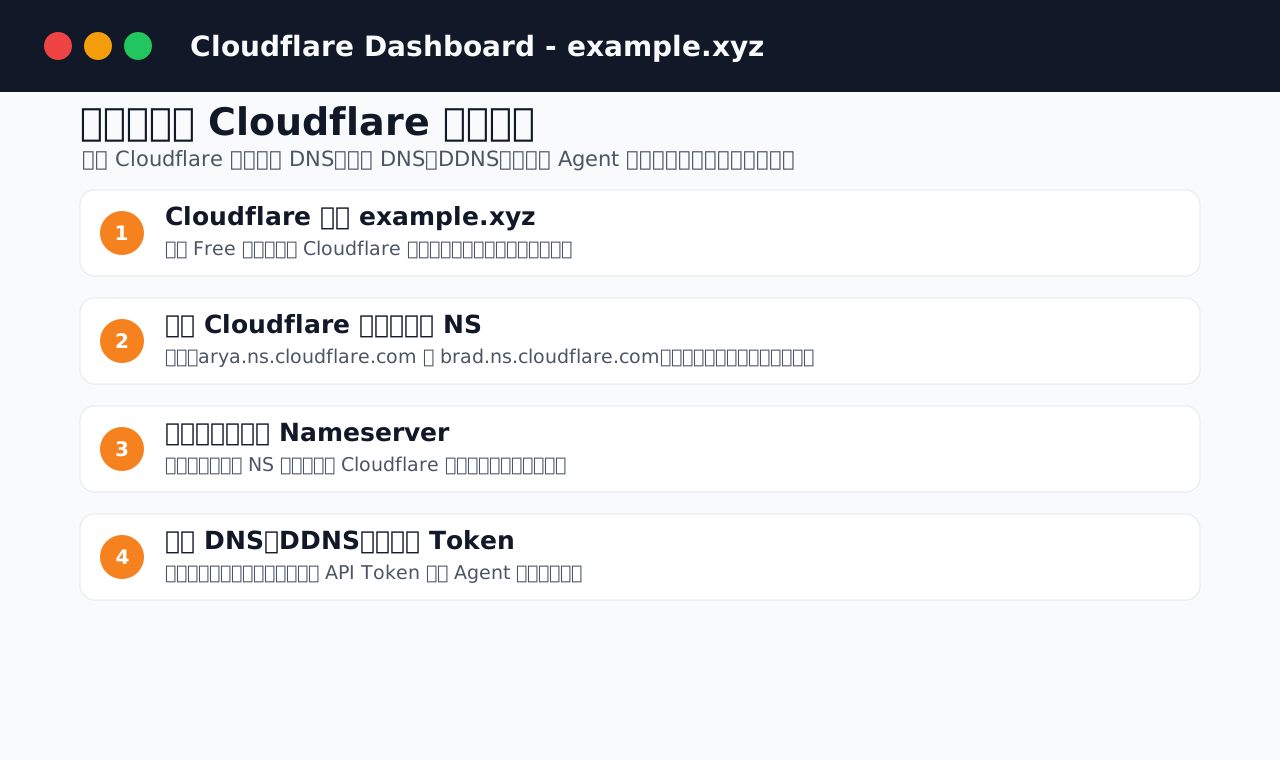
Figure 1: The practical route after buying a domain: move authoritative DNS to Cloudflare first, then expand into DNS records, DDNS, email, and Agent automation.
1. Why Cloudflare is usually the next stop after buying a domain
When people buy domains, they usually focus on price first: which registrar has the cheapest first year, which one has the lowest 10-year total cost, and which payment methods are convenient. That is reasonable. A low-cost .xyz domain is perfectly good for personal services, Homelab projects, temporary applications, internal test systems, and email aliases. But after the purchase, keeping DNS at the registrar often becomes the weak link: slow dashboards, incomplete record support, clumsy bulk edits, poor API support, weak DDNS ecosystems, confusing email verification, and extra migration work when you later want CDN, Workers, Zero Trust, certificate automation, or other edge services.
Cloudflare fits exactly into this gap. It is not only a CDN and not only an orange-cloud acceleration switch. For regular users, it is more like a free infrastructure control plane for domains: authoritative DNS is free, propagation is usually fast, record types are complete, APIs are mature, documentation is clear, and services like Access, Workers, Pages, and Email Routing can be adopted gradually. You can start by using Cloudflare only as a DNS panel and then enable additional capabilities as your setup grows.
Cloudflare is not magic. Accessing Cloudflare from different domestic networks can vary a lot. Some operators and regions are smooth, while others can be unstable. This article does not solve that network problem. You need to prepare a working network environment yourself, including proxy tools where necessary. If login, dashboard access, API debugging, Workers management, or documentation loading is unreliable, you should fix the network path before diagnosing DNS.
The pragmatic split is simple: the registrar keeps domain ownership and renewals; Cloudflare handles authoritative DNS and the surrounding services; Agents receive only scoped API Tokens; and real secrets never appear in posts, screenshots, public repositories, or logs.
2. Understand nameservers first: this is not just another DNS record
Connecting a domain to Cloudflare means changing the domain’s authoritative nameservers to the two nameservers assigned by Cloudflare. New users often misunderstand this as “add two NS records in the registrar’s DNS table”. That is usually wrong. You need to change the registrar-side nameserver setting for the domain, not add normal NS records under the current DNS provider.
Think of DNS as a chain of questions. When a user visits www.example.xyz, the recursive resolver first asks the root, then the .xyz top-level domain. The TLD tells it which authoritative nameservers are responsible for example.xyz. The resolver then asks those authoritative nameservers for A, AAAA, CNAME, MX, TXT, and other records. In other words, Cloudflare can answer DNS questions for your domain only after the authoritative nameserver delegation points to Cloudflare.
Cloudflare calls this model Full setup or Primary setup. Each zone receives two authoritative nameservers. You copy these two values back to your registrar. If the domain is purchased directly through Cloudflare Registrar, it normally already uses Cloudflare DNS. This article focuses on the more common case: the domain is bought elsewhere, while DNS is managed by Cloudflare.
3. Add the domain to Cloudflare and copy the assigned nameservers
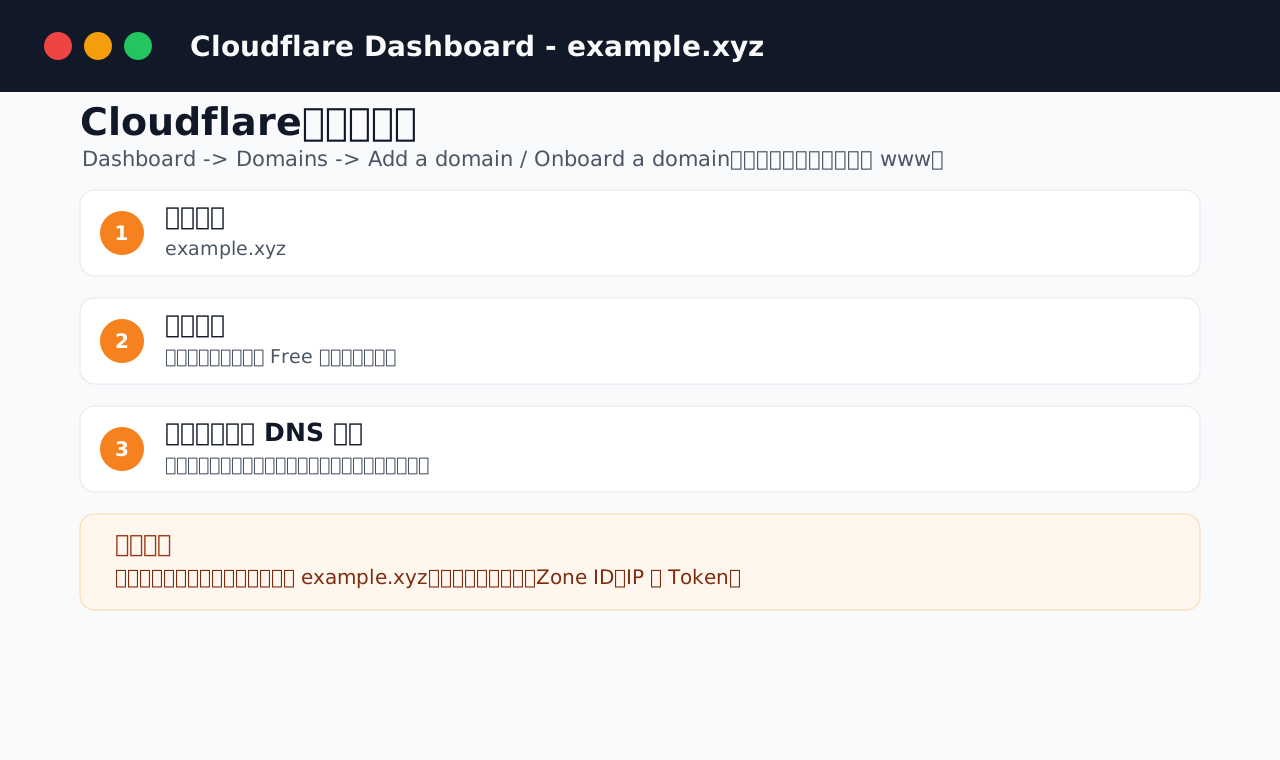
Figure 2: Add example.xyz in the Cloudflare dashboard. This is a privacy-safe recreated screenshot; the real interface may change over time.
The steps are straightforward:
- Open
https://dash.cloudflare.com/and sign in. - Go to
DomainsorWebsites, then selectAdd a domainorOnboard a domain. - Enter the apex domain, such as
example.xyz. Do not enterwww.example.xyz. - Choose a plan. For personal DNS, DDNS, and email forwarding scenarios, the Free plan is usually enough.
- Cloudflare may scan existing DNS records. A newly purchased domain often has no useful records, so you can continue. If this is an existing domain migration, review A, AAAA, CNAME, MX, and TXT records carefully before switching nameservers.
After onboarding, Cloudflare displays two nameservers for this domain. In the illustration, they are:
arya.ns.cloudflare.com
brad.ns.cloudflare.com
These are examples only. Cloudflare assigns different nameservers to different zones and accounts. You must copy the values shown in your own dashboard. Do not copy the nameservers from a tutorial, and do not copy only one of the two values.
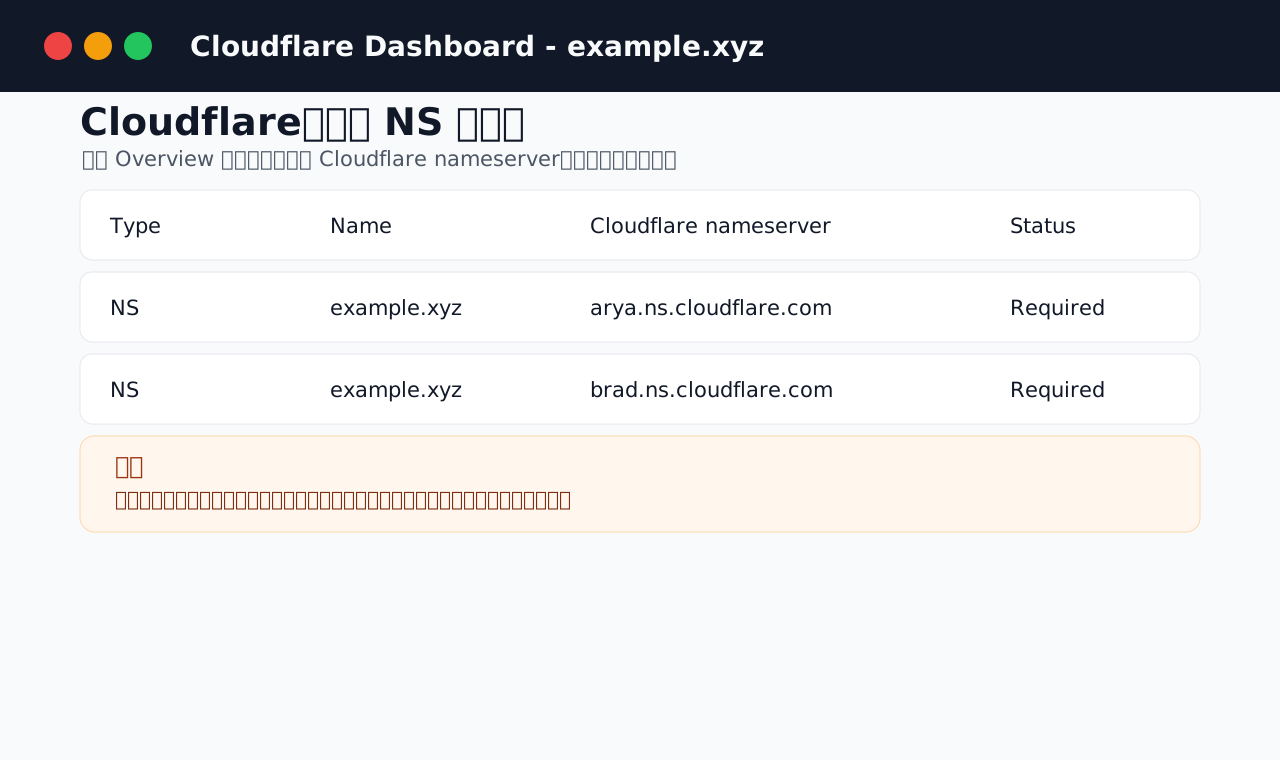
Figure 3: Cloudflare shows two assigned nameservers during onboarding or on the zone Overview page. Copy both values from your own account.
If you have already closed the onboarding page, open the domain’s Overview page to find them again. While the domain is not active yet, Cloudflare will usually show a pending message asking you to update nameservers at the registrar. That is not an error. It simply means the authoritative delegation has not moved to Cloudflare yet.
4. Return to the registrar and replace the nameservers
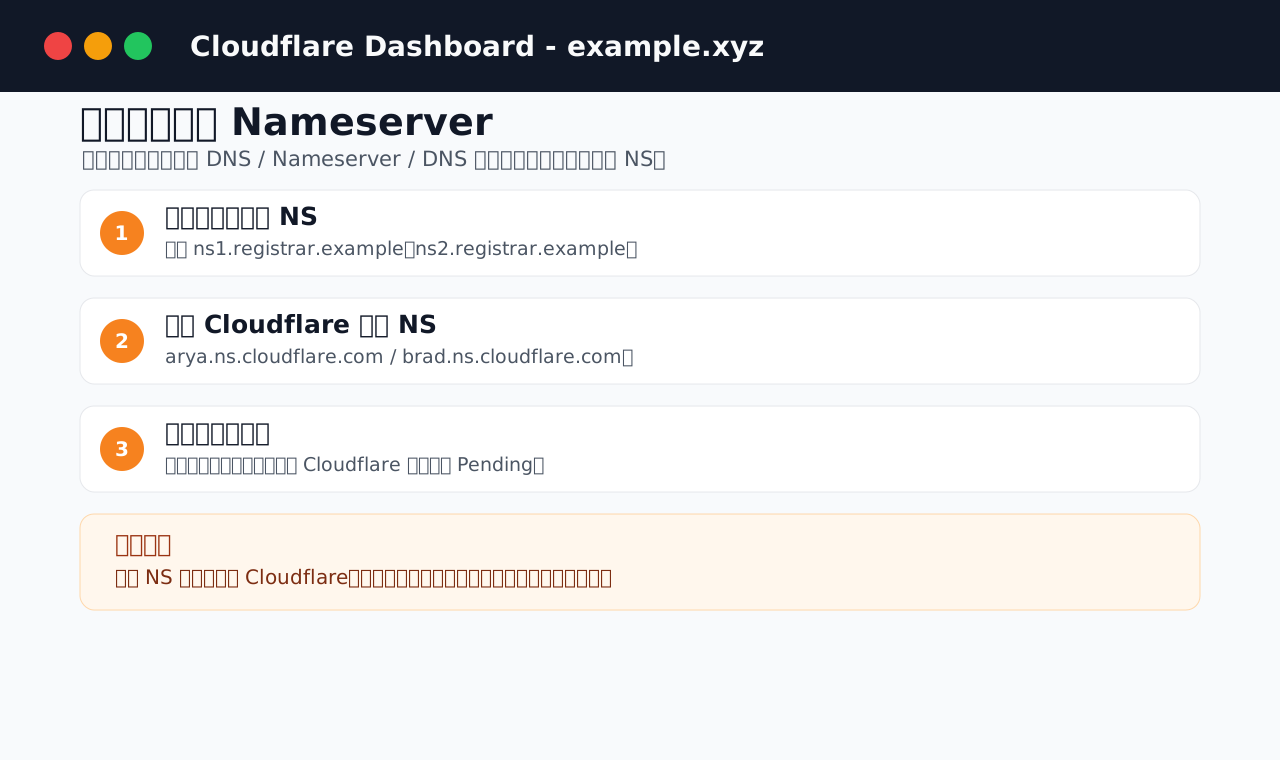
Figure 4: Replace the registrar’s default nameservers with the two Cloudflare nameservers. Different registrars use different labels, such as DNS Server, Nameserver, or Custom DNS.
Go back to the platform where you bought the .xyz domain and open the domain management page. The relevant entry may be called Nameserver, DNS Server, Custom DNS, Modify NS, or Change nameservers. You will usually see default nameservers from the registrar. Choose custom nameservers, remove the old values, paste the two Cloudflare values, and save.
Avoid these common mistakes: do not mix Cloudflare and registrar nameservers; do not add the values as ordinary DNS records; be careful with DNSSEC if it was enabled at the old provider; and wait for Cloudflare’s Pending state to become Active. Mixed authoritative DNS is especially painful because different resolvers can receive different answers.
You can verify delegation with:
dig NS example.xyz +short
dig +trace example.xyz NS
For most users, Cloudflare showing Active plus dig NS returning the right nameservers is enough.
5. Create API Tokens: give Agents permissions, not a master key
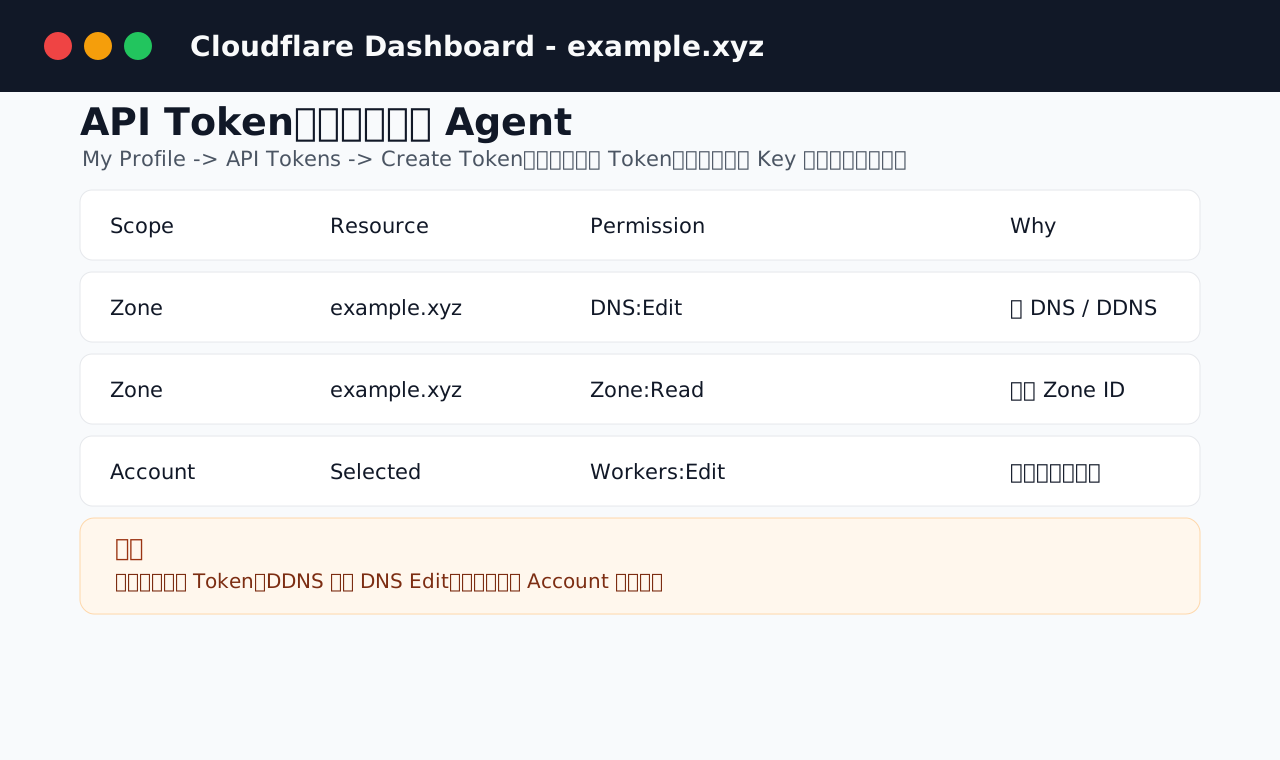
Figure 5: Use scoped API Tokens for Agents. DNS automation usually needs only DNS:Edit and Zone:Read for one selected zone.
Cloudflare’s API is one of its biggest strengths. You can write scripts yourself, or you can give a token to OpenClaw, HermesAgent, Claude Code, Codex, or another Agent so it can create DNS records, maintain DDNS, add email verification records, check proxy status, import records in batches, or generate migration plans. The stronger the automation, the tighter the permissions should be.
Avoid using the Global API Key for automation. Prefer scoped API Tokens that can operate only on one domain, one set of resources, and one class of actions. Create separate tokens for DNS management, DDNS, email verification, and advanced services such as Workers or Access. A DDNS token should be easy to revoke without breaking other workflows.
The dashboard path is usually: profile menu -> My Profile -> API Tokens -> Create Token. Start from Edit zone DNS if a template is available, then restrict the resource to the specific zone such as example.xyz. Cloudflare shows the token value only once, so copy it to your secret store immediately.
Do not paste the token directly into a chat window. Use environment variables, secret files, or runtime secret mechanisms instead:
export CLOUDFLARE_API_TOKEN="<YOUR_RESTRICTED_TOKEN>"
export CLOUDFLARE_ZONE_NAME="example.xyz"
A good Agent instruction is explicit about scope: use the token from the environment, modify only the approved names, list the planned diff before writing, verify afterward, and never print or commit the token.
6. Use case 1: configure common DNS records in Cloudflare
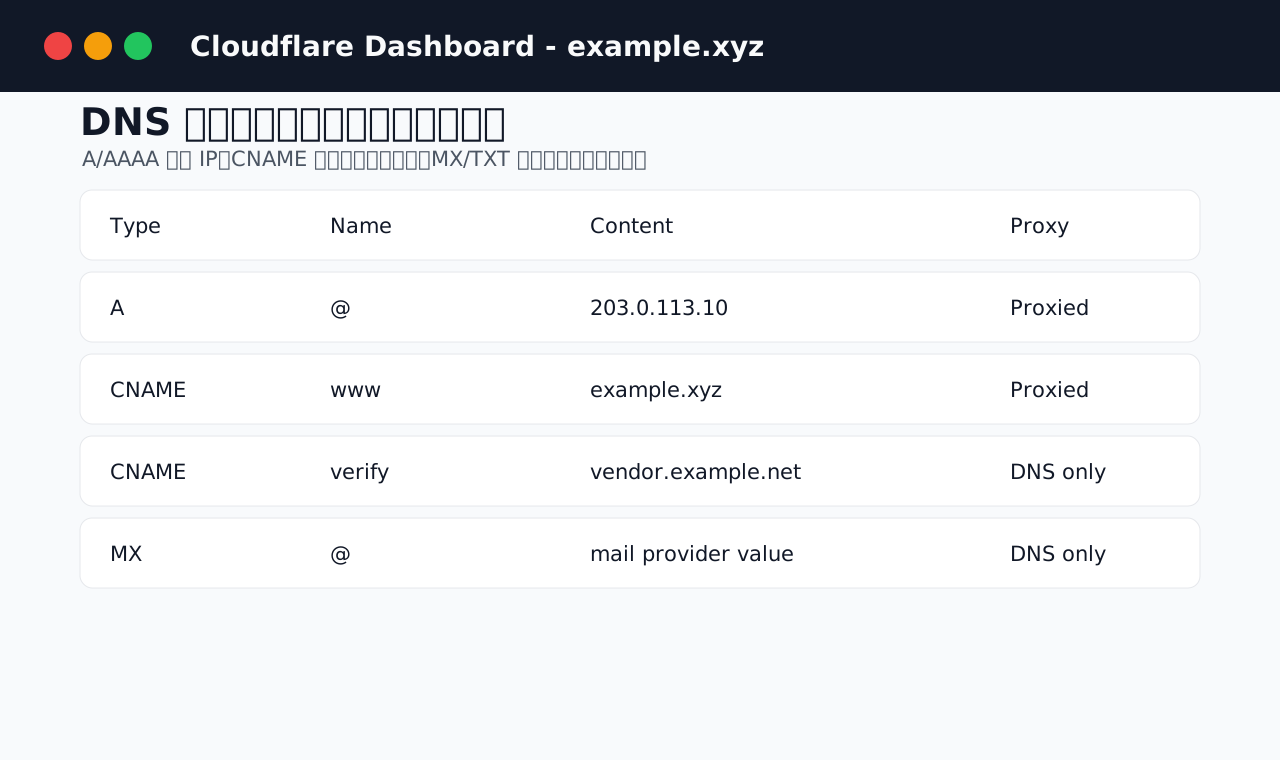
Figure 6: A/AAAA/CNAME records may be proxied or DNS-only. MX and TXT records are commonly used for email and verification.
The record types you will use most often are A for IPv4, AAAA for IPv6, CNAME for aliases, TXT for verification and mail policies, MX for mail delivery, and CAA for certificate authority restrictions. You do not need to use every type on day one, but you should know what each one does before copying values from a provider dashboard.
The most common confusion is the orange cloud versus gray cloud. Cloudflare calls orange cloud Proxied and gray cloud DNS only. Proxied means HTTP/HTTPS traffic goes through Cloudflare and can use caching, DDoS protection, rules, and certificates. DNS only means Cloudflare returns the record value without proxying traffic.
A basic website could look like this:
A      @      203.0.113.10       Proxied
CNAME  www    example.xyz        Proxied
TXT    @      "v=spf1 include:_spf.example.net ~all"  DNS only
Websites and dashboards can use the orange cloud if they support Cloudflare proxying. SSH, databases, mail, and other non-HTTP services should usually stay DNS-only unless you intentionally use a product designed for that protocol.
7. Use case 2: DDNS for dynamic home or server addresses
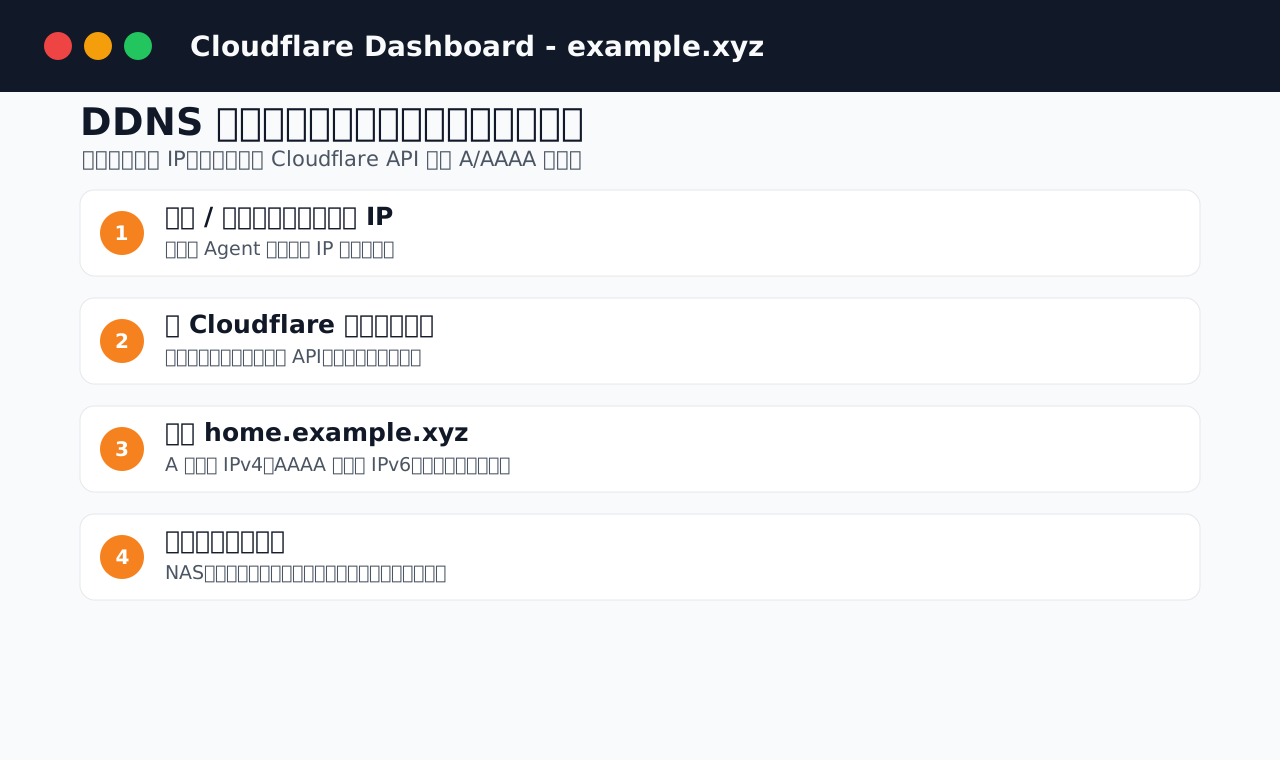
Figure 7: DDNS means checking the current public IP, comparing it with the DNS record, and updating Cloudflare only when it changes.
DDNS is useful when your broadband or server has a public IPv4 or IPv6 address that may change. Common use cases include a home NAS, a router, a temporary lab server, a reverse-proxied service, a monitoring page, a game server, or a remote desktop gateway. You do not want to edit DNS manually every time the IP changes, so a script or Agent updates Cloudflare for you.
The logic is simple: check the current public IP, read the current Cloudflare record, do nothing if the value is unchanged, update the A or AAAA record if it changed, and verify with dig. Use dedicated names such as home.example.xyz, nas.example.xyz, router.example.xyz, and lab.example.xyz.
IPv6 is often easier to obtain on residential networks than public IPv4. In that case, AAAA records become very useful. But public IPv6 also means your devices may be reachable from the Internet, so firewall rules, operating system updates, weak password protection, and management panel exposure all matter.
When you ask an Agent to manage DDNS, define its boundary tightly. Allow it to maintain only the DDNS names and forbid changes to the apex, mail records, or production service records. This limits the impact of a bad decision.
8. Use case 3: Google Workspace, Tencent Exmail, and other business email providers
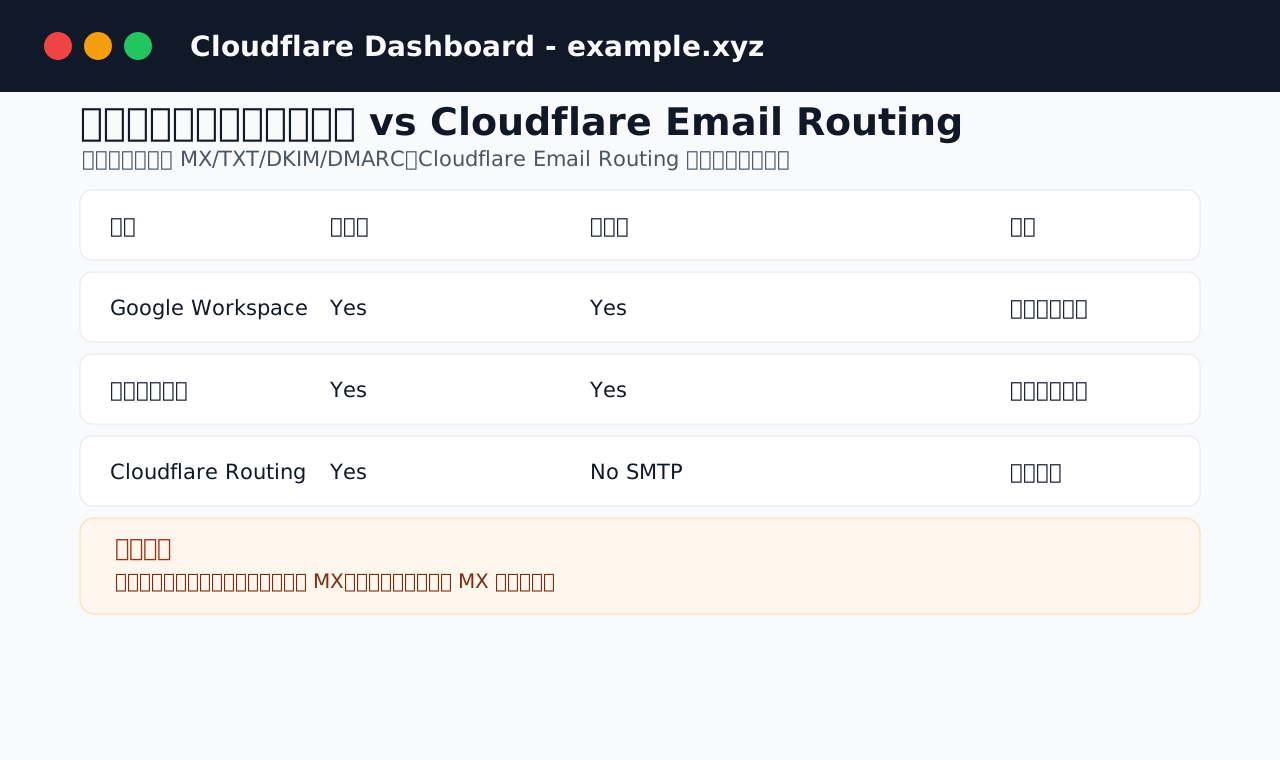
Figure 8: Third-party business email and Cloudflare Email Routing are different. The former usually provides full sending and receiving; the latter is mainly forwarding and routing.
Business email is more than creating a mail subdomain. It usually requires MX records for delivery, TXT records for domain verification, SPF for allowed senders, DKIM for signatures, DMARC for policy and reporting, and sometimes service CNAMEs for automatic discovery.
For Google Workspace, the Google Admin console gives you the required records. For Tencent Exmail, the Tencent console gives its own values. Do not memorize static values from a tutorial; provider dashboards are the source of truth. MX priorities should match the provider exactly, mail records should not be proxied, and a domain should normally have one final MX setup rather than mixing several providers.
SPF should normally be one TXT record. If multiple services send mail, merge them into one SPF string. After adding DKIM records, return to the provider dashboard and enable or verify DKIM. Start DMARC with p=none if you are unsure, observe reports, and then tighten later.
This is a strong use case for Agent assistance because records are long and easy to copy incorrectly. Still, make the Agent produce a plan first and verify afterward with the Cloudflare API, dig MX, dig TXT, and the provider dashboard status.
9. Use case 4: Cloudflare Email Routing as lightweight domain email
Cloudflare Email Routing is excellent for personal domains. You can create addresses such as admin@example.xyz, hello@example.xyz, or billing@example.xyz, and forward them to your real Gmail, Outlook, or other inbox. Externally, people see a domain email address; internally, you do not need to run a mail server.
The boundary is important: Cloudflare Email Routing is primarily for receiving and forwarding mail. It is not a traditional full mailbox host, and it does not provide a normal SMTP server for outbound mail. Cloudflare’s own documentation says Email Routing does not process outbound email and does not have an SMTP server.
The usual flow is to add a destination address, verify it through email, create a custom address such as hello@example.xyz, route it to the verified destination, let Cloudflare add the required MX and TXT records, and then send a test email. It is great for aliases, public contact addresses, temporary project addresses, and simple family or small-team receiving addresses.
If you need formal team communication, multiple mailboxes, calendar, shared storage, meetings, SMTP sending, archiving, or compliance features, use Google Workspace, Microsoft 365, Tencent Exmail, Feishu Mail, or another full provider. Cloudflare Email Routing is lightweight by design.
10. The right way to let Agents configure Cloudflare
The best reason to give an Agent a Cloudflare API Token is to offload complex and repetitive work: batch subdomain creation, DDNS maintenance, provider-specific email DNS records, proxy status checks, DNS exports, migration plans, and before/after comparisons. OpenClaw and HermesAgent can act as DNS operations assistants if they can reliably reach Cloudflare’s API.
Use this process: define the target, grant minimum permissions, read before write, require a diff, verify after execution, keep rollback data, and rotate tokens. A robust instruction says exactly which records may be changed, where the token is stored, which records are forbidden, and what verification is required.
If your Agent framework supports approval mode, enable it for DNS changes. DNS records look like small text entries, but a wrong MX deletion breaks mail, a wrong proxy toggle can break services, and exposing an origin can create a security issue. Automate with boundaries.
11. Troubleshooting: why changes sometimes appear not to work
The hardest part of DNS is usually not complexity. It is caching and layers. Changing a record in Cloudflare does not mean every recursive resolver sees it immediately. Changing nameservers at a registrar does not mean the TLD, recursive resolvers, browsers, and operating system caches all update at the same time.
Use this order: confirm nameservers with dig NS, ask Cloudflare’s authoritative server directly, ask your default recursive resolver, check the record name in the Cloudflare dashboard, check proxy status, and for email check MX before SPF, DKIM, and DMARC. If the Cloudflare dashboard or API is unstable from your network, fix the network path before changing records repeatedly.
When asking an Agent to troubleshoot, request three views: Cloudflare API, authoritative DNS, and public recursive DNS. Also tell it not to modify anything until it has produced a repair plan.
12. A recommended rollout order
If you have just bought a cheap .xyz domain, follow this order instead of enabling every feature at once: add the domain to Cloudflare, replace nameservers at the registrar, wait for Active, add basic web records, create a scoped DNS token, let the Agent read the record inventory, test one low-risk subdomain, configure DDNS, choose between full business email and Email Routing, and only then move into DMARC tightening, CAA, rules, Workers, Pages, Tunnel, and other advanced features.
A cheap domain is only the entrance. The useful part is turning it into a stable, maintainable, automatable infrastructure entry point. Cloudflare works well because the floor is low and the ceiling is high: at the beginning you only need nameservers and DNS records; later you can add API Tokens, DDNS, email, and Agent automation one piece at a time. That is how a cheap 10-year domain becomes genuinely useful.
References
- Cloudflare DNS: Set up a primary zone (Full setup) - https://developers.cloudflare.com/dns/zone-setups/full-setup/setup/
- Cloudflare DNS: Update nameservers - https://developers.cloudflare.com/dns/nameservers/update-nameservers/
- Cloudflare Fundamentals: API token permissions - https://developers.cloudflare.com/fundamentals/api/reference/permissions/
- Cloudflare DNS: Vendor-specific DNS records - https://developers.cloudflare.com/dns/manage-dns-records/reference/vendor-specific-records/
- Cloudflare Email Routing: Enable Email Routing - https://developers.cloudflare.com/email-routing/get-started/enable-email-routing/
- Cloudflare Email Routing: Get started - https://developers.cloudflare.com/email-routing/get-started/