Your MCP Config Was Fine. The Server Died Before the Handshake.
The short version
The misleading part of this incident was the surface error. Codex reported that an MCP client could not initialize and that the MCP server handshake failed. That naturally pushes you toward MCP configuration, JSON-RPC initialization, plugin settings, authentication, network transport, or stale tool caches. But the root cause was lower than the MCP protocol: one local MCP server binary was killed by the macOS dynamic linker before it could answer the
initializerequest. The client only saw a closed connection. The useful evidence was in the server stderr:dyld: Symbol not found, pointing at a missing Swift Concurrency runtime symbol.In other words, MCP did not really get a chance to fail. The server process died first.
This article walks through a real troubleshooting pattern around Codex, MCP clients, and MCP servers. The failure looked like a protocol startup problem, but the root cause lived in a native macOS binary and its Swift runtime compatibility.
All private details have been removed. This article does not include real internal addresses, usernames, session IDs, full local paths, tokens, private repository names, or business system names. Paths use placeholders such as ~, <USER_HOME>, <PLUGIN_DIR>, and <PROJECT>. Log snippets keep only the technical fields needed to explain the diagnosis.
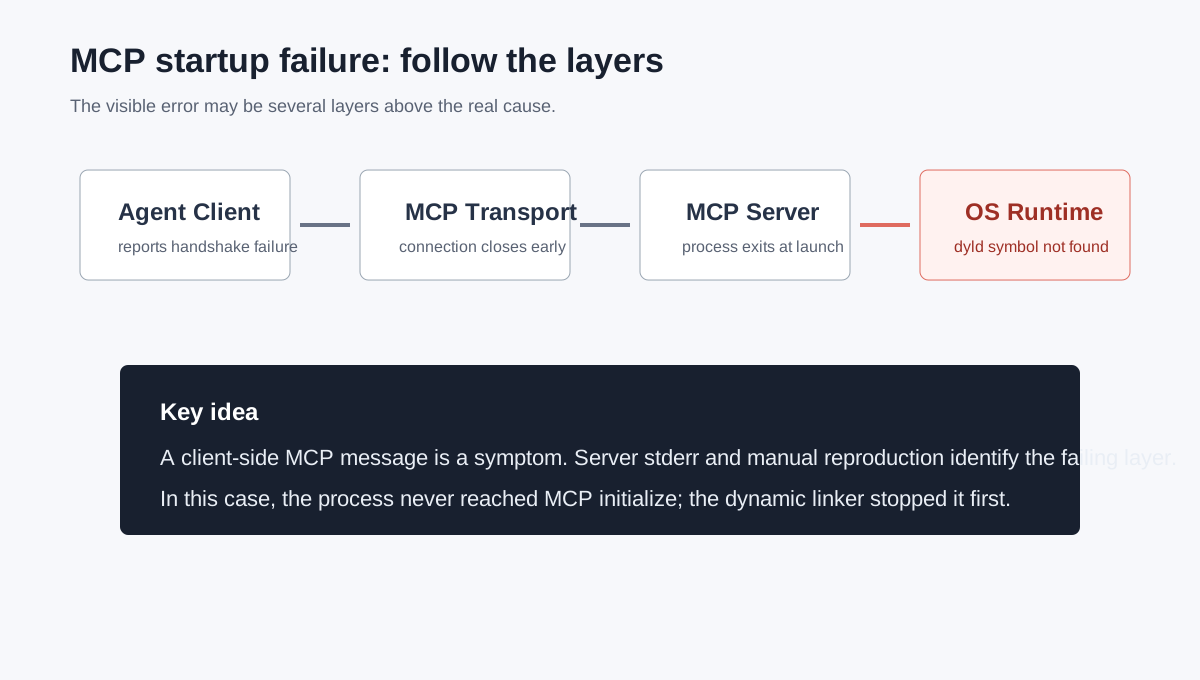
Figure 1: The visible error was an MCP handshake failure, but the real failure happened below the protocol layer.
1. Background: MCP is becoming the peripheral bus for agents
Modern AI agents are no longer just chat windows. They read files, execute shell commands, drive browsers, connect to GitHub, inspect calendars, open documents, call databases, and sometimes control local applications. The Model Context Protocol, or MCP, has become a common way to connect those capabilities to an agent host.
In a Codex-like environment, MCP can do several jobs:
- Expose local capabilities through stdio servers, such as browser automation, computer-use, or file-oriented tools.
- Expose remote connectors through HTTP or streamable HTTP servers.
- Provide tool descriptions, argument schemas, and call results to the model.
- Handle initialization, capability discovery, tool refresh, and shutdown cleanup.
That flexibility also makes failures harder to diagnose. When users see “MCP startup failed,” the root cause may not be the MCP protocol. It may be a malformed config file, a missing environment variable, a broken Node installation, a Python import error, an authentication failure, a proxy issue, a certificate problem, a permission boundary, a stale login session, or a native binary that cannot load on the current operating system.
This incident was the last kind. MCP was only the messenger.
2. Symptoms: the client saw a closed connection, the server left a dyld clue
The first symptom was straightforward: Codex itself was running, the app server was alive, normal conversation worked, and shell commands could still be executed. But one MCP-backed tool path failed to initialize.
The client-side log looked like this:
failed to initialize MCP client during shutdown:
MCP startup failed:
handshaking with MCP server failed:
connection closed: initialize response
A tool refresh path also showed this kind of warning:
failed to force-refresh tools for MCP server '<server-name>', using cached/startup tools:
failed to get client:
MCP startup failed:
handshaking with MCP server failed:
Transport channel closed
If you only read those lines, the obvious instinct is to debug the MCP client. Did it send the wrong initialize payload? Did the plugin configuration change? Did authentication expire? Was the connector offline? Did the transport close too early?
The decisive clue came from the MCP server stderr:
dyld: Symbol not found: _swift_task_addPriorityEscalationHandler
Referenced from: <PLUGIN_DIR>/SkyComputerUseClient
Expected in: /usr/lib/swift/libswift_Concurrency.dylib
That changes the case completely. dyld is the macOS dynamic linker. It loads a program and resolves its dynamic library symbols before the program can run its own code. If dyld reports Symbol not found, the server did not reach its MCP logic. It did not parse configuration, open stdio, or respond to initialize. It died while the operating system was loading the executable.
The failure moved from “MCP protocol problem” to “native executable runtime dependency problem.”
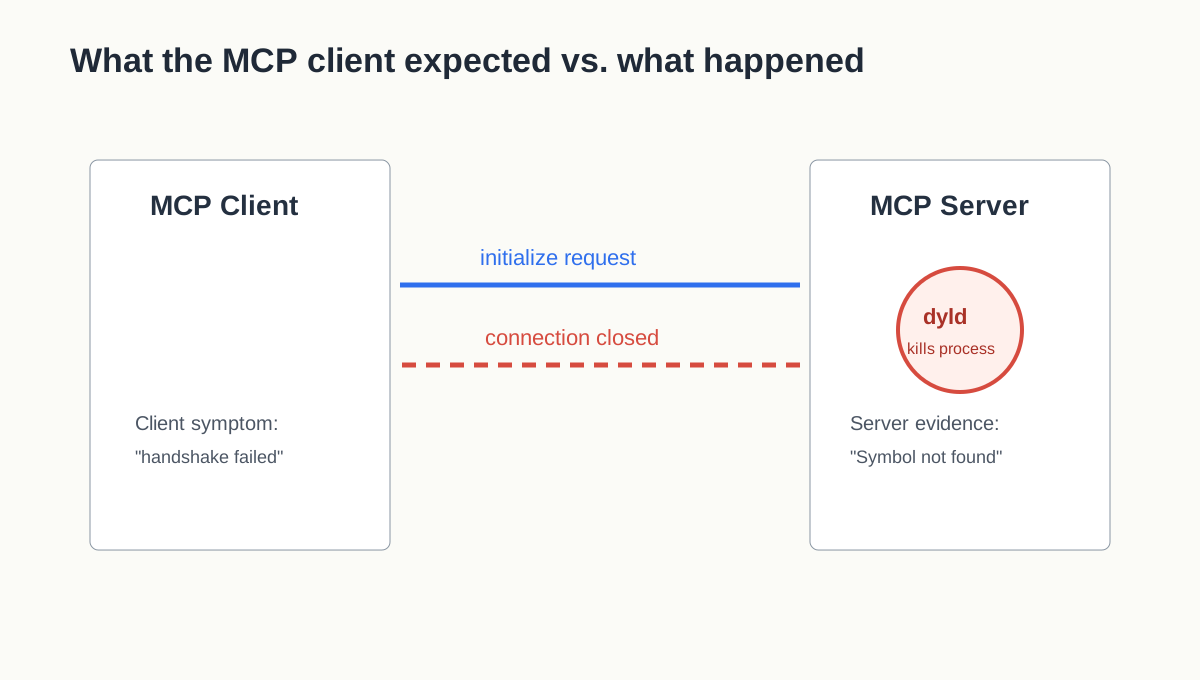
Figure 2: The client waited for an initialize response, but the server process exited first.
3. First principle: do not debug only MCP config just because the error says MCP
The most important step in this kind of incident is not fixing. It is locating the layer where the failure actually happens.
At least four layers are involved:
| Layer | Responsibility | Possible failures |
|---|---|---|
| Codex / agent client | Loads tools, creates MCP clients, calls tools during a session | Config not loaded, stale cache, shutdown race |
| MCP transport | Carries initialize and later messages over stdio or HTTP |
Closed channel, timeout, proxy issue, permission issue |
| MCP server process | Implements the tool server | Wrong command, missing dependency, bad environment |
| Operating system / runtime | Loads the binary and its libraries | Architecture mismatch, unsupported OS, missing symbol |
A client-side message like “handshaking failed” only tells you that the client did not receive a valid handshake result. It does not tell you whether the server crashed, exited voluntarily, emitted invalid stdout, failed authentication, or was killed by the operating system.
The practical rule is simple: when an MCP client reports a handshake failure, get the MCP server stderr before changing configuration. If the server stderr is unavailable, run the server command manually. If the server dies outside the agent too, MCP configuration is probably not the first thing to edit.
4. The diagnostic path
The investigation followed a short but useful sequence.
4.1 Confirm the main application is alive
First, check whether the host application and its app server are actually running. If the whole application is broken, MCP failures may only be a secondary symptom.
In this case the main processes were alive, normal requests still worked, and the terminal tool path was usable. That narrowed the issue to one MCP server or connector path, not the entire Codex runtime.
4.2 Check whether there is a hand-written MCP configuration
Many MCP failures come from user-provided configuration: a misspelled command, missing quotes in an argument array, a nonexistent working directory, or environment variables that are not passed to the server.
Here, there was no custom mcp_servers block to fix. The relevant MCP servers came from enabled plugins and connectors. That mattered because plugin-backed servers often hide their exact launch command behind manifests and cached plugin directories.
4.3 Search logs for server stderr, not just client summaries
The next step was searching logs for terms such as mcp, rmcp_client, stdio_server_launcher, initialize response, and server stderr.
Two classes of logs appeared.
The first was a shutdown-stage warning:
failed to initialize MCP client during shutdown
connection closed: initialize response
That kind of message needs cautious interpretation. Shutdown logs may include cancellation and cleanup races. A connection closing while the session is shutting down is not always the primary problem.
The second class was much more useful:
MCP server stderr (...SkyComputerUseClient): dyld: Symbol not found
MCP server stderr (...SkyComputerUseClient): Referenced from: ...SkyComputerUseClient
MCP server stderr (...SkyComputerUseClient): Expected in: /usr/lib/swift/libswift_Concurrency.dylib
That is not a secondhand client summary. It is the child process error stream. Treat it as higher-priority evidence.
4.4 Run the server binary directly
The smallest useful reproduction was to run the same executable outside Codex. That produced the same dyld: Symbol not found error immediately.
This step ruled out several false leads. It was not an MCP initialize payload problem. It was not a stale tool cache. It was not a connector login issue. It was not caused by the current conversation state. The binary failed independently in the current operating system environment.
4.5 Inspect build metadata and runtime dependencies
The next checks were the executable architecture, app metadata, dynamic library list, and system version.
The evidence looked like this in generic form:
Mach-O 64-bit executable arm64
DTSDKName: macosx26.x
DTXcode: Xcode 17.x
LSMinimumSystemVersion: 15.0
The failing runtime library was:
/usr/lib/swift/libswift_Concurrency.dylib
The missing symbol was:
_swift_task_addPriorityEscalationHandler
That points to a Swift runtime compatibility issue. The binary was built with a newer macOS SDK / Xcode toolchain and referenced a Swift Concurrency symbol that the current macOS runtime did not provide. Even though the bundle metadata claimed a minimum supported system version, the actual runtime symbol dependency was not satisfied.
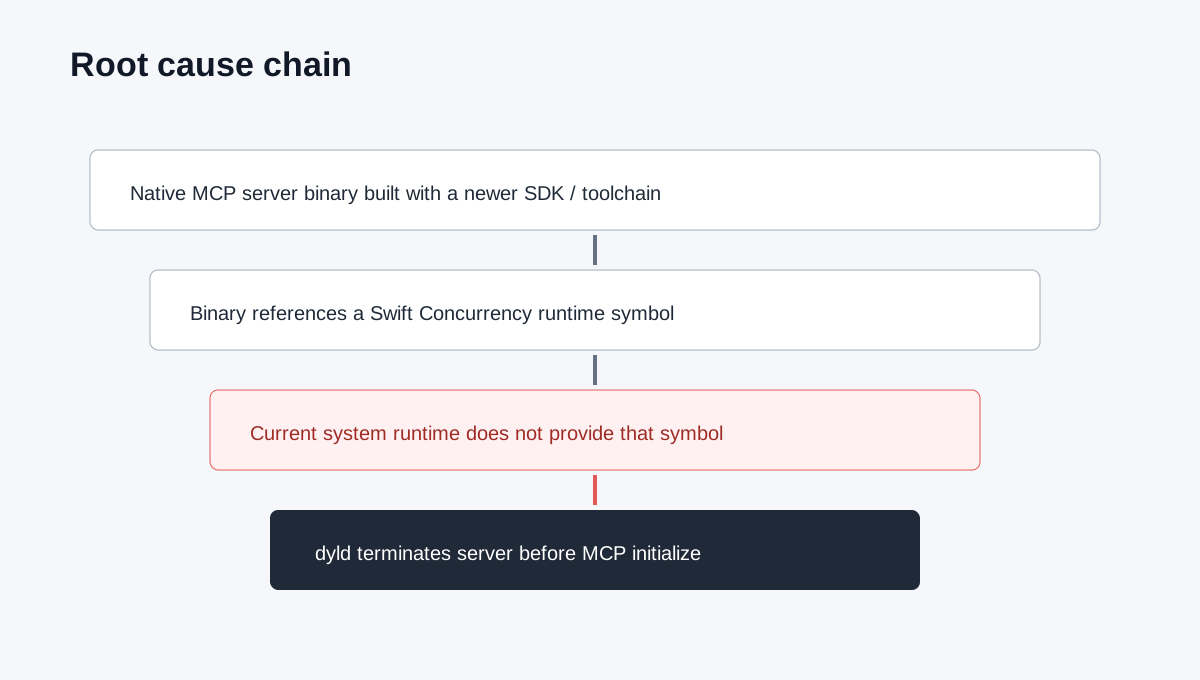
Figure 3: The binary failed during dynamic linking, before MCP server code could run.
5. Root cause
The root cause can be stated precisely:
A local MCP server was implemented as a native Swift/macOS binary. That binary was built with a newer SDK/toolchain and referenced a Swift Concurrency runtime symbol that was unavailable in the current macOS system runtime. The macOS dynamic linker terminated the process during load. The MCP client then reported a handshake failure because it never received the
initializeresponse.
There are three important implications.
First, MCP configuration was not the root cause. Configuration mistakes can absolutely break MCP servers, but in this case the server binary failed even when launched manually.
Second, the client error was a symptom. The client only knew that the transport closed before the handshake completed. It did not know whether the server crashed due to a missing library, permission problem, invalid stdout, or runtime incompatibility.
Third, minimum system version metadata is not enough proof of compatibility. A bundle may declare support for a system version while still referencing symbols that are not present on that system. The runtime failure is the stronger evidence.
6. Why this is easy to misdiagnose
This incident is easy to misdiagnose because several visible signals look like configuration failures.
6.1 The MCP error is high-level
handshaking with MCP server failed is a high-level client-side statement. It does not identify why the server failed to answer. Many unrelated failures collapse into that single message: wrong command, invalid stdout, missing module, HTTP 403, proxy timeout, permission denial, certificate failure, native crash, and dynamic linker failure.
Do not stop at the first line.
6.2 Plugin-backed servers hide the launch command
When you write an MCP configuration manually, the server command is visible. You can copy it and run it. But plugin-backed MCP servers are often launched through plugin manifests, cached directories, wrappers, and host-managed logic.
That means the user may only see “tool unavailable,” while the real failing binary is several directories below the plugin cache. The log entry from the stdio server launcher was the key to locating it.
6.3 Native macOS errors feel different from Node or Python errors
If a Node server is broken, you may see Cannot find module. If a Python server is broken, you may see ModuleNotFoundError. Those messages are familiar to many developers.
Swift native binaries can fail earlier. When dyld cannot resolve a symbol, the program does not start. There is no stack trace from the server application. The system loader is the thing reporting the error.
In this case, that was not noise. It was the root cause.
7. How to fix or work around it
The right response depends on whether you actually need that MCP server.
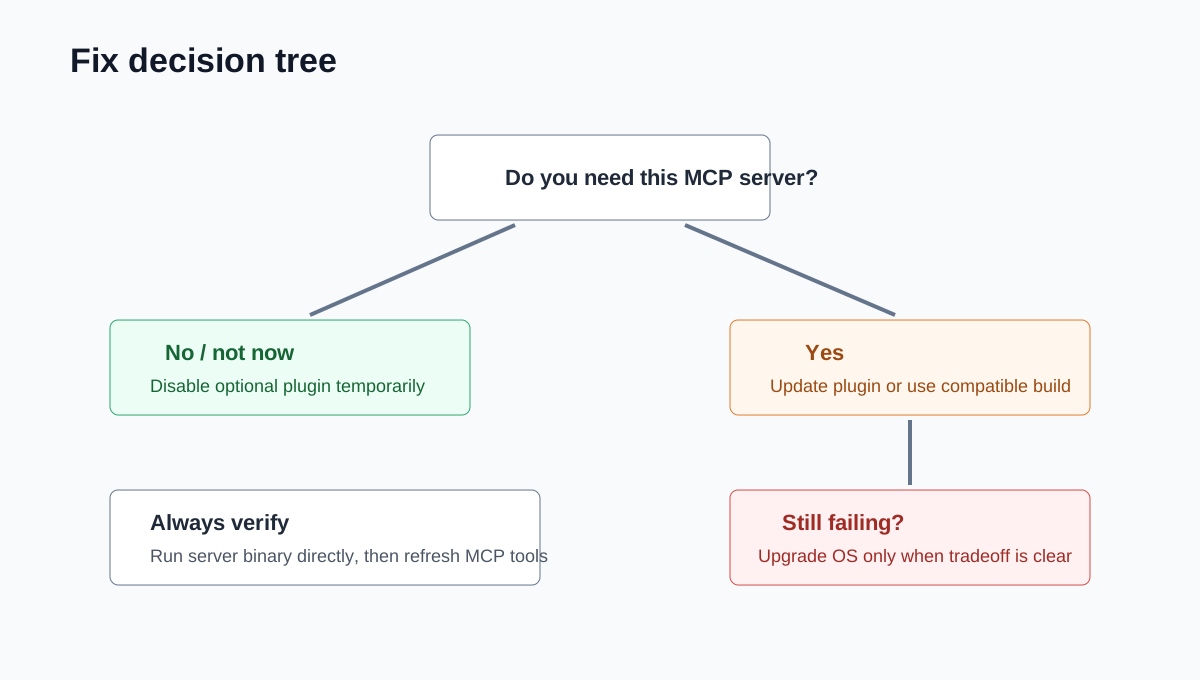
Figure 4: Disable optional tools, update the plugin when possible, or move to a compatible OS/runtime when necessary.
7.1 Short term: disable the optional plugin if you do not need it
If the failing MCP server belongs to an optional tool, such as local computer control, browser automation, or a connector you are not using in the current task, the safest short-term workaround is to disable that plugin.
This avoids repeated startup noise and keeps the rest of the agent usable. The downside is obvious: tools from that plugin will not be available until the compatibility issue is resolved.
7.2 Medium term: update to a compatible plugin build
If the plugin provider releases a newer build compatible with your macOS version, update the plugin. A correct build should either avoid referencing unavailable Swift runtime symbols or package/target the runtime correctly.
After updating, verify the actual executable, not just the installation step:
# 1. Run the server binary directly and confirm it is no longer killed by dyld.
<PLUGIN_SERVER_BINARY>

# 2. Restart the agent or refresh MCP tools and confirm initialize succeeds.
codex
Do not treat “plugin installed” as proof that the server can start.
7.3 Long term: upgrade macOS or wait for a backward-compatible build
If the binary truly requires a newer system Swift runtime and you must use that tool, upgrading macOS may be the eventual fix. But it should not be the first reflex, especially on a development workstation or automation host with a stable toolchain.
A better long-term solution is for the plugin to publish a build that matches the advertised minimum OS version. That may require a more conservative SDK, a corrected deployment target, or avoiding APIs and runtime symbols unavailable on the supported system.
7.4 Avoid replacing system Swift libraries manually
A tempting but dangerous idea is to copy a newer libswift_Concurrency.dylib into the system location. Do not do that. System Swift runtime libraries are system components. Manually replacing them can break other software, fight system integrity protection, and create a machine that is harder to update or debug.
Use a compatible plugin, a compatible operating system, or disable the plugin.
8. A reusable MCP startup troubleshooting checklist
This incident happened in one Codex setup, but the method applies to Claude Desktop, Cursor, Cline, OpenCode, custom MCP hosts, and internal agent platforms.
8.1 Identify the failing server
Find the server name, transport, launch command, and plugin source. Do not settle for “MCP failed.” Useful searches include:
rg -n "MCP|mcp|initialize|stdio_server|rmcp|server stderr" <LOG_DIR>
rg -n "mcp_servers|mcpServers|server" ~/.config ~/.codex <PROJECT>
If the server comes from a plugin, inspect the plugin manifest and cache path.
8.2 Get the original server stderr
Client errors are summaries. Server stderr is often the source of truth. Look for messages such as:
command not found
Permission denied
Cannot find module
ModuleNotFoundError
No such file or directory
dyld: Symbol not found
segmentation fault
HTTP 401 / 403
certificate verify failed
Each message leads to a different fix path.
8.3 Run the server outside the agent
For stdio servers, copy the launch command and run it under the same user. This separates server startup problems from host integration problems.
If the server fails outside the agent, investigate dependencies, permissions, binary compatibility, and environment variables. If it works outside the agent, investigate the host’s working directory, sandbox, environment propagation, stdout pollution, and transport logic.
8.4 Separate startup failures from shutdown noise
Logs during shutdown may include cancellation messages, dropped services, and closed transports. Those may be harmless cleanup artifacts. Give higher priority to failures during normal startup or tool refresh, especially when paired with server stderr or a manual reproduction.
8.5 For native macOS binaries, inspect the binary and runtime
If you see dyld, use commands like:
file <SERVER_BINARY>
otool -L <SERVER_BINARY>
plutil -p <APP>/Contents/Info.plist
sw_vers
uname -m
Answer these questions:
- Does the binary architecture match the machine?
- Which system libraries or Swift runtime libraries does it depend on?
- Was it built with a newer SDK or Xcode than expected?
- Does the declared minimum OS version match the actual runtime symbols?
- Does it fail before application code starts?
If the evidence points at a runtime symbol mismatch, editing MCP JSON is not the fix.
9. Notes for plugin authors
This incident is also a useful reminder for MCP plugin authors. Not every server is a JavaScript package or a Python script. More MCP servers will ship as native binaries written in Swift, Rust, Go, C++, Kotlin, .NET, or other compiled languages.
Native binaries are powerful, but compatibility must be tested explicitly.
For macOS MCP servers, plugin authors should verify:
- The deployment target truly matches the advertised support matrix.
- The CI build environment is not accidentally introducing newer runtime symbols.
- The binary starts on the oldest supported macOS version.
- Server stderr includes actionable errors.
- Plugin manifests communicate OS and architecture constraints clearly.
- Backward-compatible builds are available when the latest build requires a newer runtime.
MCP hosts can help too. When a server stderr contains dyld: Symbol not found, Cannot find module, or Permission denied, showing that text directly is far more useful than displaying only “handshake failed.”
10. Q&A
Q1: Does handshaking with MCP server failed always mean the MCP config is wrong?
No. It only means the client did not complete the handshake. The root cause may be configuration, but it may also be a server crash, missing dependency, incompatible dynamic library, network issue, authentication error, or invalid server output.
Q2: Why does the client not simply say dyld failed?
The client communicates over the configured transport. If the server process dies before it can speak MCP, the client observes a closed transport. Whether the dyld stderr is visible depends on whether the host captures and exposes the child process stderr.
Q3: What is dyld: Symbol not found?
It is a macOS dynamic linker error. At launch time, the loader resolves symbols referenced by the binary. If a required symbol is absent from the current system libraries, the program cannot start.
Q4: Will upgrading Xcode or Command Line Tools fix it?
Not necessarily. The missing symbol is in the system Swift runtime, not just the compiler. Updating developer tools may not update the runtime used by applications. A compatible plugin build or operating system runtime is usually the real fix.
Q5: Can I copy a newer Swift dynamic library onto the machine?
Do not replace system Swift runtime libraries manually. That is risky, may be blocked by system protections, and can break other software. Use a compatible build, upgrade the operating system, or disable the plugin.
Q6: Why do some MCP tools still work while one fails?
Each MCP server has its own implementation and dependencies. One server may be remote HTTP, another may be Node-based, another Python-based, and another native Swift. A Swift runtime mismatch in one server does not mean the whole MCP subsystem is broken.
Q7: If cached tools still work, should I ignore the warning?
If the failing tool is optional and your current workflow does not need it, you can disable or temporarily ignore it. But cached tools are not proof that the server is healthy. If you need the tool, diagnose the server directly.
Q8: What should a team runbook say?
Use a four-step flow: identify the exact server, capture server stderr, run the server outside the agent, then classify the failure as configuration, dependency, permission, network, authentication, or OS/runtime. Avoid treating all MCP startup failures as “reinstall the plugin.”
11. Final takeaway
The lesson is simple: MCP is the connection layer, not always the failure layer. A client-side handshake error says, “I did not get a valid answer.” It does not say why. The server may have crashed, been denied permission, emitted invalid output, failed authentication, or been killed by the operating system before it could run.
In this incident, the important clue was not the MCP summary. It was the server stderr from macOS dyld. Once the investigation followed the evidence down the stack, the fix options became clear: disable the optional plugin, update to a compatible plugin build, wait for a corrected build, or upgrade the operating system when that is truly the right tradeoff.
As agent toolchains become more capable, their failure modes will become more ordinary. MCP servers are just processes. Processes need correct commands, dependencies, permissions, network access, and compatible runtimes. Good troubleshooting still comes down to logs, reproduction, and layer-by-layer reasoning.
Source note
This article is based on a local Codex / MCP startup troubleshooting session. All private hostnames, internal addresses, usernames, full paths, session IDs, process IDs, repositories, and environment details have been generalized or removed. The article preserves only the reusable error pattern, diagnostic method, and technical conclusion.