China Telecom Cloud Computer Configuration and Never Sleep Method
Windows software download: https://download.margrop.net/#/EXE
China Telecom Cloud Computer: https://desk.ctyun.cn/html/download/ Scheduler software: http://www.everauto.net/ China Telecom Cloud Computer default path: C:\Program Files (x86)\CtyunClouddeskUniversal\CtyunClouddeskUniversal.exe BtPanel: https://www.bt.cn/new/product_windows.html BtPanel Legacy Version: http://download.bt.cn/win/update/net/BtSoft-Win.zip frp: https://github.com/fatedier/frp NSSM: http://www.nssm.cc/download Notepad++: https://download.margrop.net/d/oneindex/EXE/npp.8.6.7.Installer.x64.exe RustDesk: https://download.margrop.net/d/oneindex/EXE/rustdesk-1.2.3-2-x86_64.exe
The following tutorial comes from https://www.4awl.net/3298.html
The theme of this issue is making the China Telecom Cloud Computer never sleep, and with a little bit of intranet penetration, it can be used as a server. Having a cloud computer also allows you to use it as a cloud server.
Of course, this solution can also be applied to other cloud computer products like pay-per-use machines or similar services.
China Telecom Cloud Computer Never Sleep
How to make the China Telecom Cloud Computer never sleep is actually very simple. Most cloud computer products or pay-per-use machines typically run 24/7, but China Telecom is quite clever. If you don’t use it for more than an hour, it will hibernate, which saves server usage time and ensures complete resource recycling and utilization.
At this point, we need to use magic to defeat magic! First, we download two software programs on our cloud computer.
China Telecom Cloud Computer: https://desk.ctyun.cn/html/download/ and Scheduler Software: http://www.everauto.net/
Install both software programs, then open the China Telecom Cloud Computer, enter your account and password, and check the options for auto-login and save password.
Currently, the China Telecom Cloud Computer client has a strategy of automatically opening the cloud computer when you open the software. At this point, we open our scheduler software and add a plan to open the cloud computer, so our cloud computer will automatically log into our cloud computer, and by keeping it running, we achieve a never-sleep state.
Let’s add a new task first:
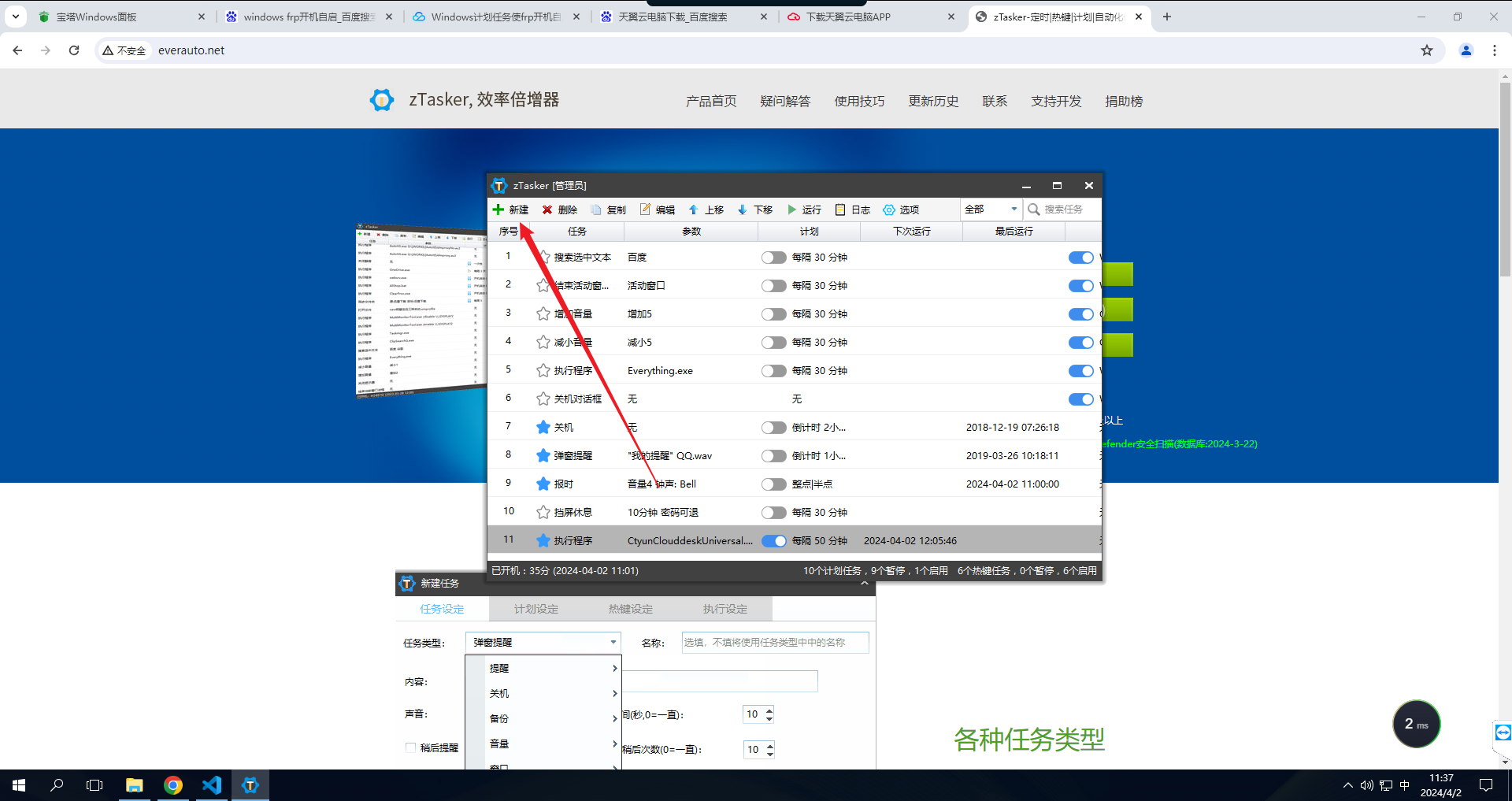
For task type, we select Program - Execute Program:
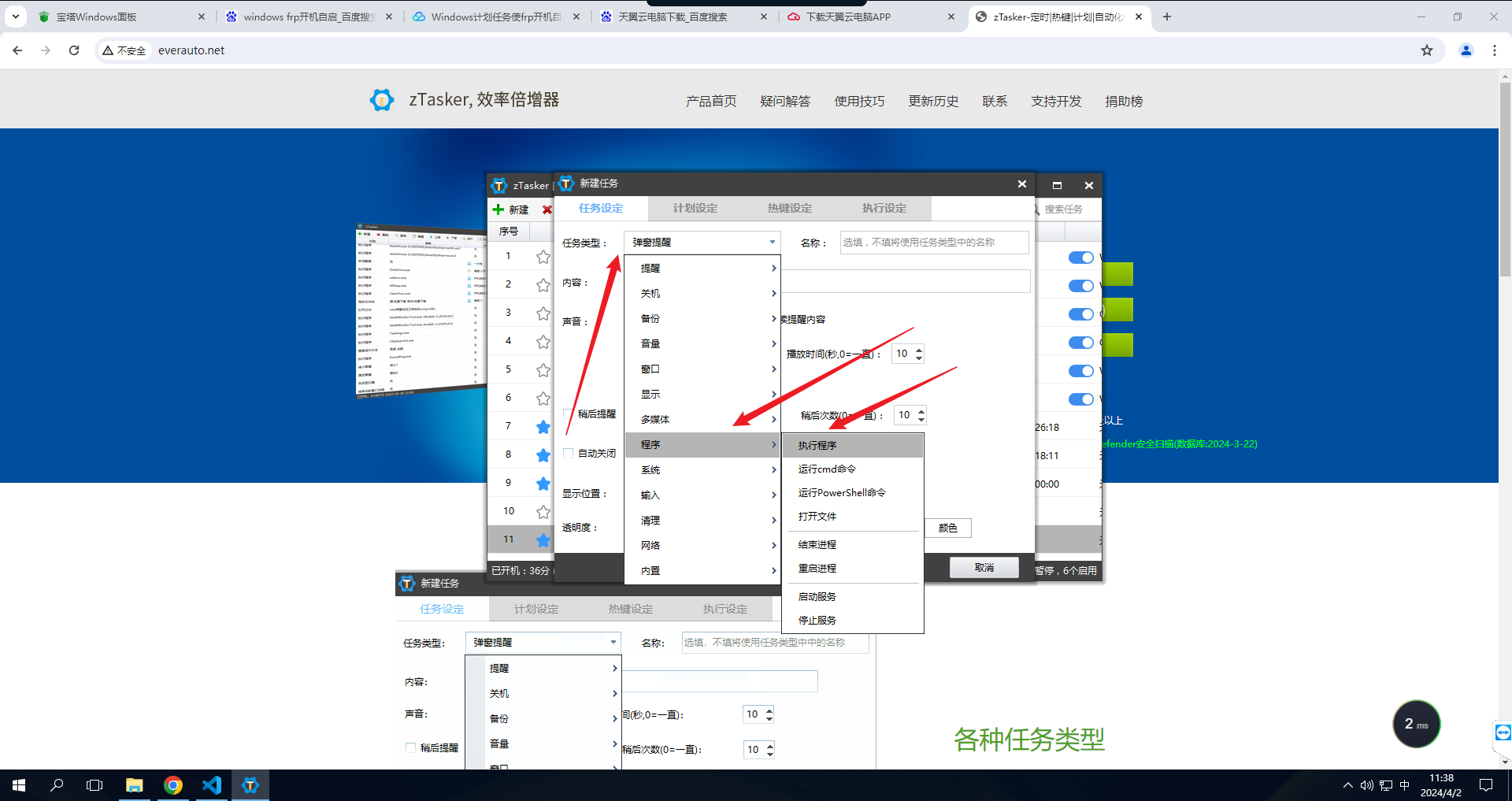
Then for the program path, fill in:
C:\Program Files (x86)\CtyunClouddeskUniversal\CtyunClouddeskUniversal.exe
This is the default installation directory for the China Telecom Cloud Computer. If you changed it yourself, modify it according to your actual situation. (Note that all these operations are done on the cloud computer)
Then for the schedule settings, we select minute cycle, and set the time interval to 50 minutes. This way, after 50 minutes, our cloud computer will automatically log into our cloud computer, and by keeping it running, it won’t sleep.
Transform into a Cloud Server
First, get out our national BtPanel or phpStudy, either one works. Here I use BtPanel.
Open BtPanel: https://www.bt.cn/new/product_windows.html for download and installation. There will be a button to open the panel. When we open it, we’ll find it can’t be accessed because our IP is not a public IP. So we need to change the IP to 127.0.0.1 to open the panel.
After opening the panel, install the environment software first, such as nginx, mysql, php, etc. This way, our server configuration is complete, but we still need to access the public network and bind a domain name to be considered a cloud server.
frp Intranet Penetration
frp is a high-performance reverse proxy application focused on intranet penetration, supporting TCP, UDP, HTTP, HTTPS and other protocols. It can expose intranet services to the public network in a secure and convenient way through nodes with public IP addresses.
If we don’t have a public IP server, we can search online for some public-interest frp services and set them up for use.
GitHub: https://github.com/fatedier/frp. You can download the latest client and server binaries from the Release page.
First, we need to download the Windows amd64 and Linux amd64 frp packages. You can download these yourself on GitHub.
Upload the Linux frp package to the server and extract it. Then execute chmod +x frps to add an execution permission. Then you can start it with the following command:
nohup ./frps -c frps. toml**** > /var/log/frp.log 2> & 1 &
This way, our frps is started in the background. Note: frps runs on the server with a public IP, and frpc runs on the intranet server.
Windows frpc Configuration + Auto Start on Boot
First, create a new text file with the following content, then save and change the extension to vbs:
set ws=WScript. CreateObject ( “WScript.Shell” )
ws. Run**** "c:frpfrpc.exe -c c:frpfrpc.toml" ,0
Modify it according to your frpc directory, then create a vbs file. Then open our control panel, find Task Scheduler, and create a scheduled task:
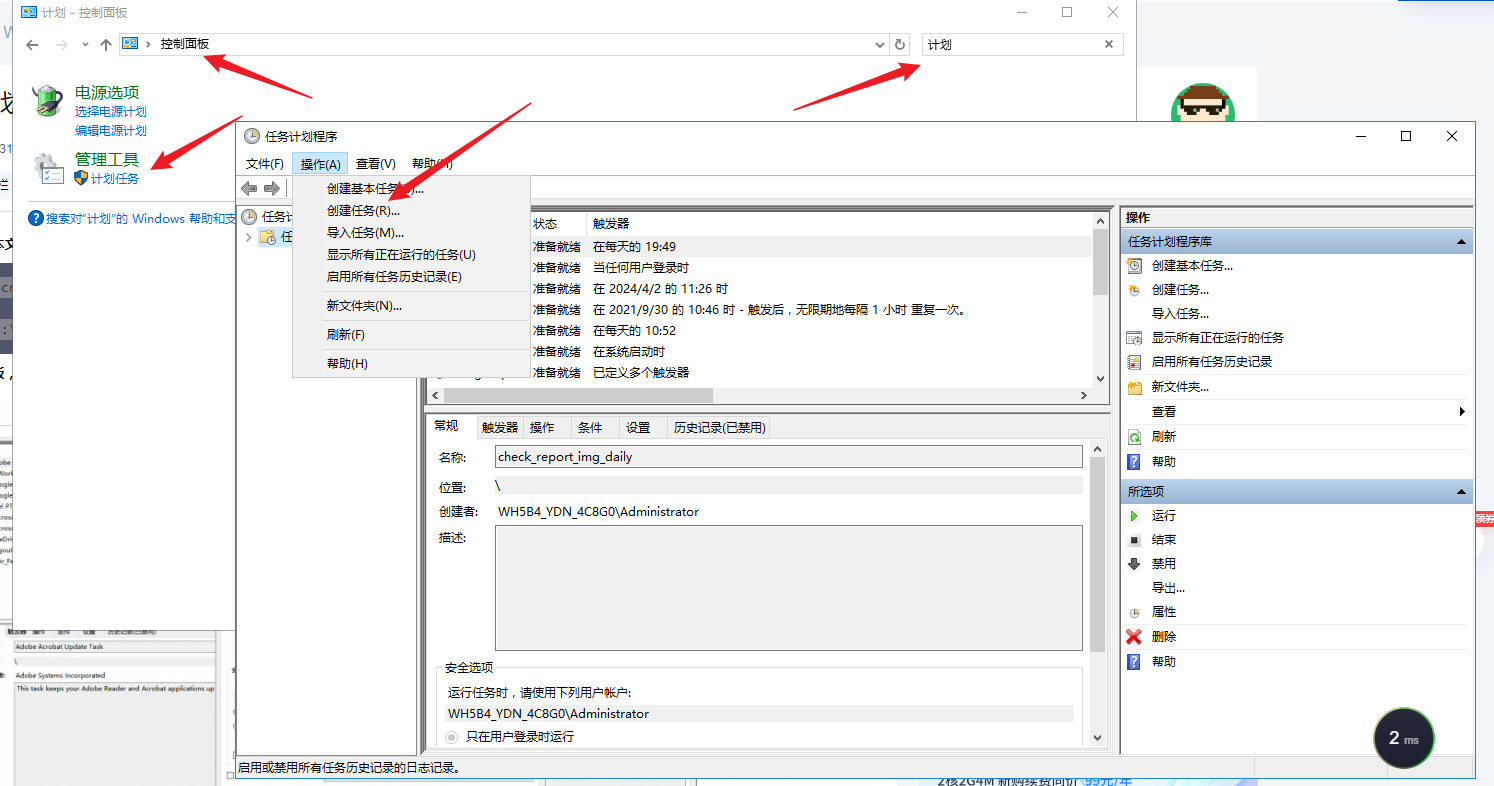
- Create a task in Task Scheduler.
- Fill in any name, check “Run whether user is logged on or not”.
- In the Triggers tab, click New, select “At startup”.
- In the Actions tab, click New, and for the program/script, select the vbs file you just created.
- In the Conditions tab, uncheck “Start only if on AC power”.
- In the Settings tab, uncheck “Stop the task if it runs longer than 3 days”.
Setting up the scheduled task will require entering the administrator password. By default, China Telecom Cloud Computer doesn’t have an administrator password set. We need to go to System - Account - Sign-in options and create a password.
This way, our boot startup configuration is complete. Even if our cloud computer restarts, it can ensure frpc runs stably.