When Docker Networks Collide with the Home LAN: Moving Auto-Allocated Subnets Back to 172
This post records a very practical Docker networking failure: the number of containers kept growing, Docker’s auto-assigned user-defined bridge networks eventually started landing in 192.168.x.x, and those networks began colliding with the real home LAN. The symptoms were not dramatic at first. Nothing looked “broken” in the usual sense. Containers were still running, the host was still alive, and the dashboard still looked normal. But parts of the home network became unreliable, and once I dug into it on my NAS, the root cause turned out to be the Docker network allocation strategy rather than any single bad container.
The fix was straightforward in principle, but important in practice: I moved Docker’s automatic network pool to 172.16.0.0/12, migrated the existing 192.168.* networks onto the 172 private range, and made sure future networks created through Portainer, Dockhand, or plain docker compose would follow the same rule.
The short version
The rule is simple:
Docker may auto-allocate only from 172.16.0.0/12. No more 192.168.*, and I try to avoid 10.* as well.
That was not a cosmetic choice. My home LAN already uses the 192.168 family. If Docker keeps creating user-defined bridge networks inside 192.168.*, you eventually end up with routing ambiguity, confusing host-side access paths, and a very unpleasant debugging experience. Portainer and Dockhand make this more visible because they keep creating new stacks and new networks over time. If the default pool is not constrained early, the problem grows silently until it affects the whole home environment.
On my NAS I did three things:
- Set Docker’s default address pools to
172.16.0.0/12withsize=20. - Migrated every existing Docker network that was still using
192.168.*. - Also moved one network that had drifted into an odd 172.x range back into the RFC1918 private range.
The final result was what I wanted:
- new containers and new networks continue to land in the 172 range,
- all old
192.168.*Docker networks are gone, - Portainer and Dockhand will also inherit the same behavior for new networks.
How the problem showed up
At first I did not think this was a Docker issue.
The symptoms looked like a mixed LAN failure: some devices could still reach the network, some could not talk to each other, and a few services became unreachable in ways that were hard to reproduce. Because my NAS runs a lot of things at once, including storage services, reverse proxying, monitoring, and multiple Docker projects, the first instinct is usually to suspect a physical device, a switch, an AP, or a weird routing loop rather than Docker’s address pool.
That is why Docker networking problems are so annoying. They rarely present as a clean failure. They usually look like “something is off” instead of “this exact component is down.” The issue can sit there silently for a long time as long as the address pool is still large enough. Once the pool starts overlapping with a real LAN, though, you get conflicts that are much harder to reason about.
This was exactly what I saw on my NAS.
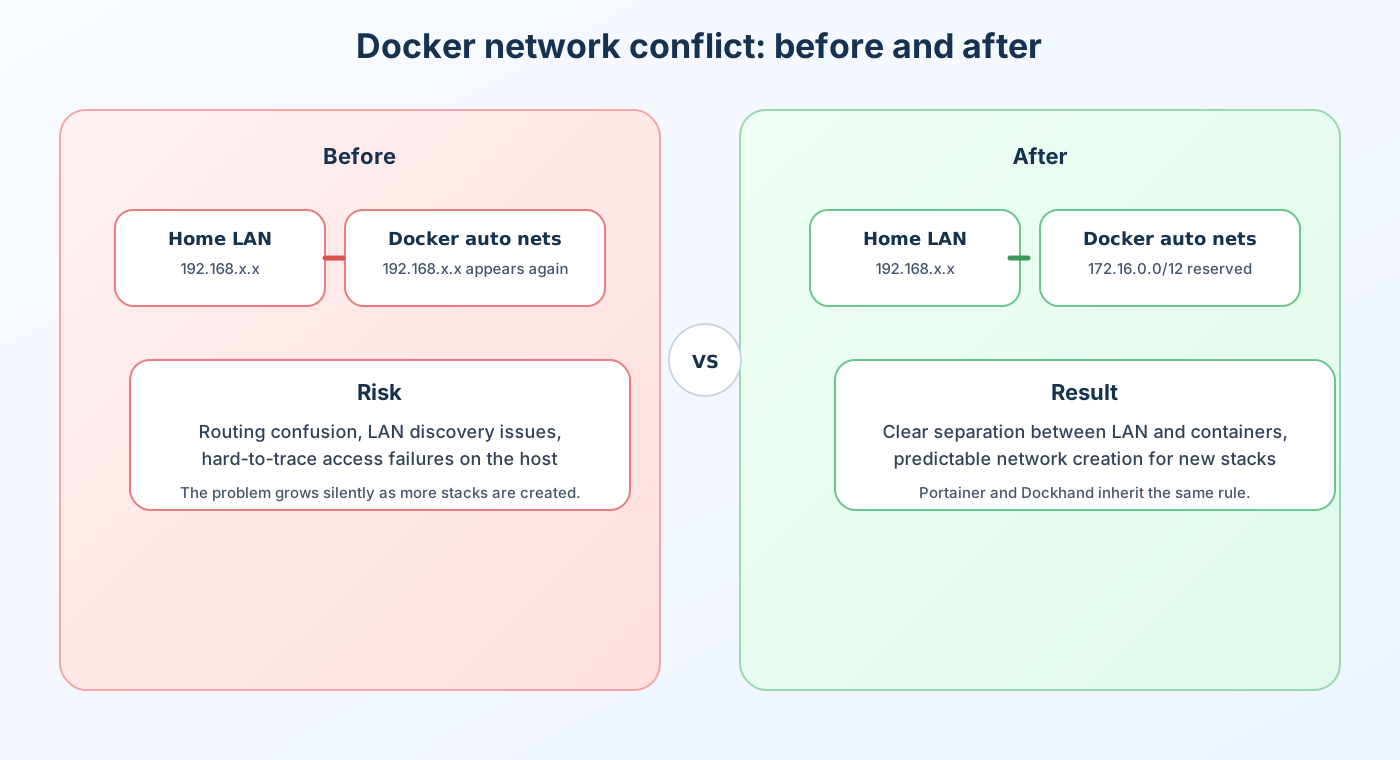
The left side of the image shows the bad state: Docker networks in 192.168.x.x living too close to the real LAN, which is also in the 192.168 family. The right side shows the fixed state: Docker auto networks live entirely in the 172.16.0.0/12 private range, away from the home LAN and away from the ambiguity that comes with it.
Why Docker picked 192.168 in the first place
Docker was not “randomly broken.” It was doing what it was configured to do.
When you create a user-defined bridge network through docker compose, Portainer, Dockhand, or docker network create, Docker will allocate a subnet from its default address pool unless you explicitly define your own ipam configuration. Docker does not know what your home LAN is. It does not inspect your router and decide to avoid it. It simply follows the pool it has been given.
That works fine for small setups. When you only have a couple of networks, the first few allocations usually stay out of the way. But once the number of projects grows, especially on a NAS that runs for months without a full reset, the pool gets consumed. If the default pool is not conservative enough, or if some old configuration has survived past a migration, Docker eventually starts handing out networks that look suspiciously close to your home LAN.
And once that happens, the issue is no longer “just a container network.” It becomes a routing problem, a discovery problem, and sometimes a DNS problem as well. Devices that rely on local discovery, containers that talk to each other by IP, and services that expect clean LAN separation can all start behaving oddly.
That is why I decided to stop playing whack-a-mole and set the rule explicitly: Docker’s auto-assigned networks will only come from the 172 private range.
Why I chose 172 instead of staying with 192.168 or using 10
This was a deliberate choice.
192.168.0.0/16 is the most common home-network default. Routers, APs, NAS setup wizards, guest Wi-Fi defaults, and many consumer devices all love 192.168.*. If you live in a normal home environment, you very quickly end up with a lot of equipment in that family of addresses.
10.0.0.0/8 is also private, but it is heavily used by VPNs, company networks, cloud VPCs, lab environments, and virtualization stacks. In other words, it is private on paper, but in real life it collides with a lot of other things. If you run a home lab, remote-work VPNs, or multiple isolated networks, 10.* is not necessarily safer than 192.168.*.
172.16.0.0/12 gives you a very large private block, from 172.16.0.0 to 172.31.255.255. That is plenty of space for Docker’s auto networks, monitoring stacks, app-specific networks, and future expansion. Most importantly, it is easier to keep away from the usual home LAN defaults and many common VPN ranges.
So the goal here was not just “pick another subnet.” The goal was to carve out a clean boundary between the host LAN and the container LAN.
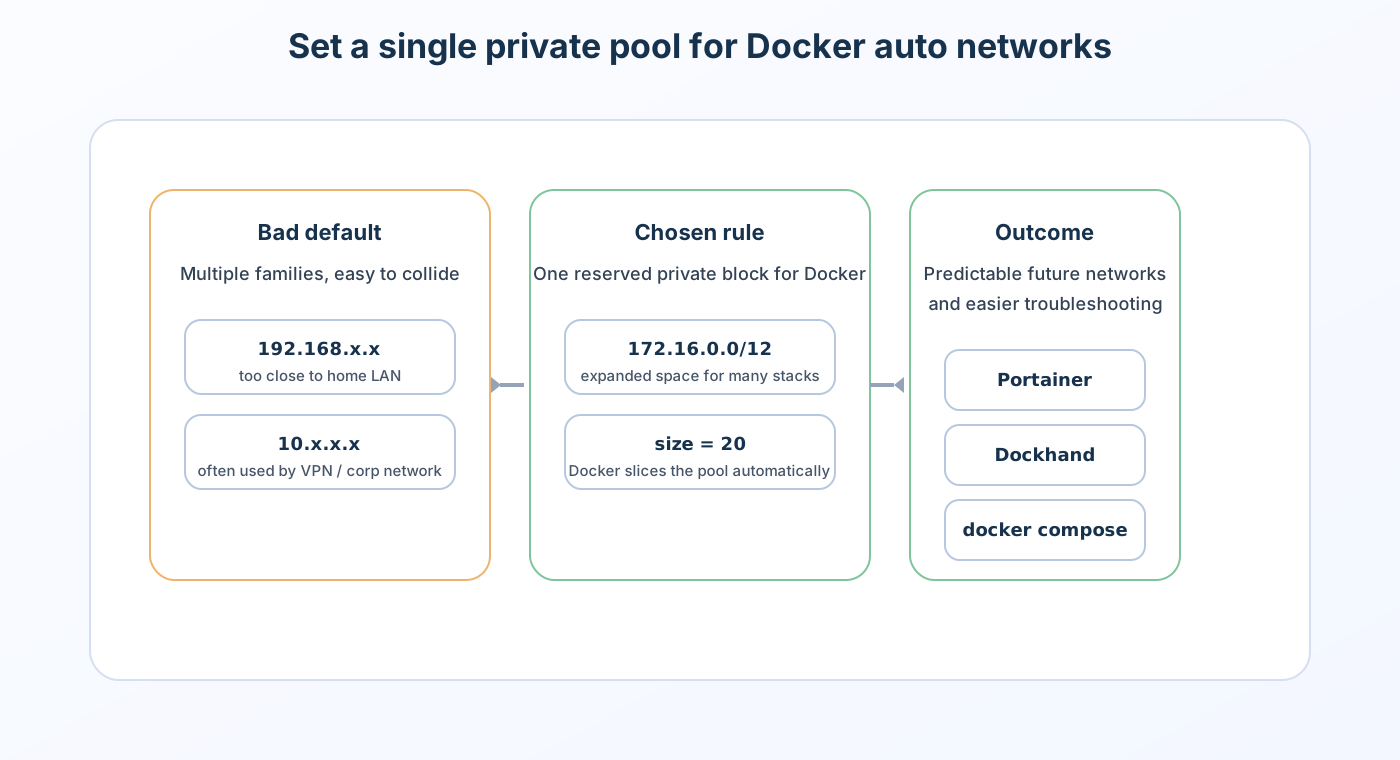
This picture summarizes the rule I wanted: Docker should stop guessing, and instead use one clearly bounded private block. If the daemon is constrained to 172.16.0.0/12, then every new automatically created bridge network stays inside that space.
Check the current state first
Before changing anything, I checked two things.
First, I asked Docker which default address pools it was using:
docker info --format '{{json .DefaultAddressPools}}'
On my NAS, after the correction, the result was:
[{"Base":"172.16.0.0/12","Size":20}]
This tells Docker to carve its automatic networks out of the 172 block with a /20 size. The exact mask is not the point. The important part is that the pool is now explicit, stable, and private enough to stay out of the way of the home LAN.
Second, I listed the existing networks and inspected the ones that looked suspicious:
docker network ls
docker network inspect <network-name>
The networks that needed migration included these:
| Old network | Old subnet | New subnet |
|---|---|---|
dockhand_central_data_default |
192.168.* |
172.16.16.0/20 |
dockhand_data_default |
192.168.* |
172.16.32.0/20 |
gopeed_default |
192.168.* |
172.16.48.0/20 |
hawser_data_default |
192.168.* |
172.16.64.0/20 |
gsmonitor_gs_monitor_net |
172.x |
172.16.80.0/20 |
The last row matters because I did not want the cleanup to stop at “no more 192.168.” The real target was “no more questionable non-RFC1918 network drift at all.” Once I decided to reserve 172 for container networks, it made sense to move everything else into the same private block too.
Changing Docker’s default address pool
My NAS runs on Synology’s Container Manager / Docker environment, so the configuration path is not exactly the same as on a stock Linux server. The idea is the same, though: change the daemon’s default address pool so Docker’s future allocations become predictable.
The essential configuration is this:
{
  "default-address-pools": [
    {
      "base": "172.16.0.0/12",
      "size": 20
    }
  ]
}
On a regular Linux system this usually lives in /etc/docker/daemon.json. On Synology it can live inside the Container Manager configuration area. The exact path is less important than the rule itself: Docker must be given a private block that is reserved for its own use.
After editing that file, Docker has to be restarted for the new allocation rule to take effect. That part is important because this is not a live-tweak setting that updates every existing network automatically.
I also kept a backup of the old configuration before making the change. On infrastructure work, the ability to roll back quickly is worth far more than the few seconds it takes to save a backup first.
Migrating the existing networks
This is where most of the real work lives.
People often assume that once the default pool is changed, the problem is solved. It is not. The new rule only applies to future networks. Existing networks do not get rewritten automatically. If you already have networks sitting in 192.168.*, they will stay there until you replace or recreate them.
For services with volumes and persistent data, the safest approach is usually to keep the data and replace only the network layer. In other words, do not destroy the service state unless you absolutely have to. Rebuild the network, not the data.
On my NAS I did the migration roughly like this:
- Identify which containers are attached to the target network.
- Record the current network name and IPAM settings.
- Stop the related stack or project.
- Recreate the network using the new 172 subnet.
- Bring the containers back and verify reachability.
The concrete migrations were:
dockhand_central_data_default->172.16.16.0/20dockhand_data_default->172.16.32.0/20gopeed_default->172.16.48.0/20hawser_data_default->172.16.64.0/20gsmonitor_gs_monitor_net->172.16.80.0/20
To the outside world this looks like subnet housekeeping. To me it mattered because it removed the ambiguity completely: there were no more Docker networks pretending to be part of the same address family as the home LAN.
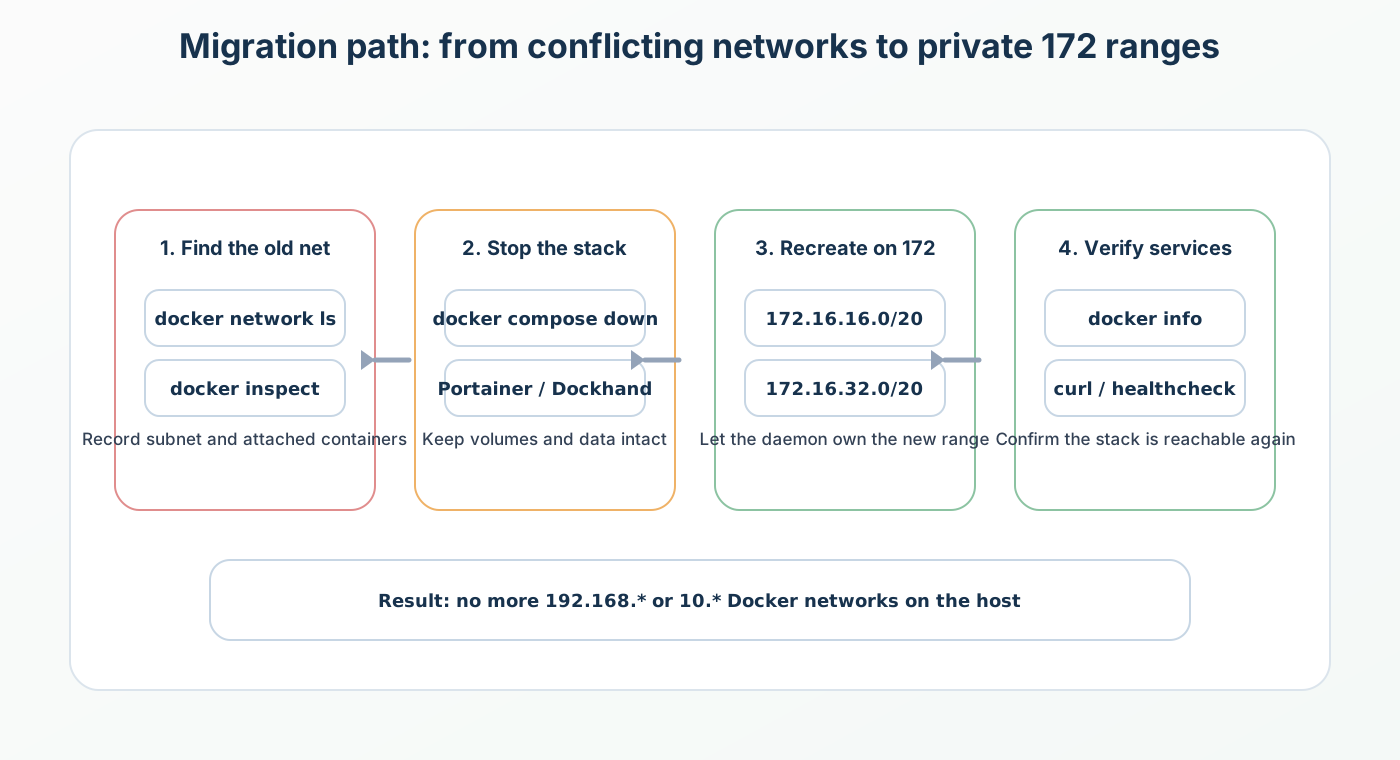
The diagram shows the logic: find the old network, stop the dependent stack, recreate the network under a reserved private subnet, and then start the services again. Simple on paper, but there are two common ways this can go wrong:
- Deleting the network too early while containers are still attached.
- Migrating the runtime network but forgetting that the compose file or stack template still hard-codes the old subnet.
What Portainer and Dockhand change in the story
The user specifically mentioned that Portainer or Dockhand might be used later to manage the same Docker host. That matters, because the fix cannot stop at “change the daemon once.” It also has to hold up when someone creates a new stack from a GUI next month.
There is a key distinction here:
- If a stack does not specify a subnet, Docker uses the default address pool.
- If a stack hard-codes
ipam.config.subnet, then that stack bypasses the daemon’s default pool entirely.
So if you want the rule to hold for future containers, you need to audit not only Docker itself, but also the templates and stack definitions used by Portainer and Dockhand:
- Check the Portainer stacks you commonly redeploy.
- Check Dockhand project templates or presets.
- Search for
ipamblocks in compose files. - Find any manually created bridge networks with an explicit subnet.
If an explicit subnet is hard-coded, either move it into the 172.16.0.0/12 private space or remove the explicit subnet and let Docker allocate from the daemon pool. For a long-running home NAS, letting the daemon manage the pool is usually the cleaner option.
One more note: macvlan, ipvlan, and Swarm overlay networks are a different story. They are still Docker networks, but they do not behave exactly like normal bridge networks. The default address pool is the main fix for bridge network drift, not a magic universal cure for every Docker network model.
How I verified the end state
After the migration, I checked the result in several layers.
First, I confirmed the default address pools:
docker info --format '{{json .DefaultAddressPools}}'
Second, I checked that the Docker network list no longer contained lingering 192.168.* or 10.* networks that might later collide with the home LAN or a VPN.
Third, I verified that the moved services were healthy again, especially the gsmonitor set:
gsmonitor-grafanagsmonitor-prometheusgsmonitor-victoriametrics
All three were back on the new private subnet and reachable as expected.
That last step is important. A blog post about network migration is only half useful if it stops at the configuration file. In practice, the meaningful part is whether the services still work after the network move, whether monitoring is back online, and whether new containers will continue to land on the correct subnet.
Why I no longer accept “good enough”
If this were just a one-off test server, I would be fine with a quick workaround. This NAS is not that. It is a long-lived piece of home infrastructure. When a Docker network on that machine starts to drift into the same family as the home LAN, the cost is not a single failed container. The cost is unpredictable network behavior across the whole house.
For that kind of environment, I ended up with a very simple rule set:
- Do not leave network allocation to whatever default Docker happens to ship with.
- Do not mix the home LAN, Docker network space, and VPN space inside the same broad address family if you can avoid it.
- Do not assume that fixing the symptom later is cheaper than reserving the subnet properly today.
I would rather spend a bit more time carving out a clean 172 block than keep chasing weird edge cases every time a new container is added.
What I took away from this migration
If you hit a similar issue on a NAS, soft router, home lab host, or any box that keeps accumulating Docker workloads, my recommendation is to follow this sequence:
- Identify the physical LAN subnet first.
- Check Docker’s default address pools second.
- Scan the existing bridge networks third.
- Find every stack or compose file that hard-codes a subnet.
- Move both the default pool and the explicit subnets into a private range with no conflict risk.
For me, the answer in this case was 172. It is not fancy, but it is practical, stable, and easy to reason about.
The home network is complicated enough already. Docker should not add another layer of randomness on top of it.