Home Assistant China Telecom Integration Guide: Monitor Phone Balance & Data Usage Like a Pro (Zero Cloud Risk, 3006 Error Solved)
Picture this smart home experience: you walk down the hallway in the morning, and the wall-mounted central dashboard lights up. Along with weather forecasts, indoor air quality, and daily energy consumption, you see the real-time phone balance, remaining shared 5G data, and free voice minutes for every family member. If your account balance drops below the safety threshold, smart speakers gently notify you before your home fiber broadband is disconnected due to unexpected arrears.
However, when Home Assistant beginners try setting up the China Telecom carrier integration, entering their phone number and 6-digit service password often leads to an unexpected red warning: Unknown Error, or in the backend log: resultCode 3006, Device not trusted (deviceId=None).
Searching online forums, some misguided posts suggest submitting your sensitive telecom service password to unknown third-party online proxy services. That is an enormous privacy and security hazard! Handing over the master control credential of your telecom subscription to strangers is an unacceptable risk.
This tutorial is crafted specifically for Home Assistant beginners: no reverse engineering skills needed. Using an open-source, 100% offline local tool running purely inside your home local network, this guide takes you step-by-step in 10 minutes to resolve error 3006, extract the trusted hardware DeviceId, and build an elegant family telecom dashboard in Home Assistant!

Figure 1: Original architectural diagram illustrating the closed-loop pipeline from official carrier gateway APIs, safe local offline authentication bridge, to Home Assistant central dashboard.
Why Put Mobile Phone Bills on Your Home Assistant Dashboard?
For newcomers who have just built a Home Assistant instance, the first devices integrated are usually smart light bulbs, motion sensors, or air conditioning switches. Why does bringing mobile phone plans into your smart home dashboard play such a crucial role in household digital asset management?
Let us draw an intuitive everyday analogy:
Think of the dashboard in your car. Besides the speedometer, the most vital dials are the fuel gauge and engine temperature gauge. You do not need to open the car hood every day to manually measure remaining liters of gasoline; the dashboard lights up an amber indicator when fuel runs low, reminding you to visit a gas station.
In a modern home, telecommunication connectivity is the fuel of digital living. In China Telecom family plans (where 1 gigabit fiber broadband is bundled with 1 main phone card and multiple shared sub-cards):
- Centralized family billing: Monthly fees for all mobile cards, broadband, and cloud services are deducted together from the main account balance;
- Shared high-speed data pool: All family members share the high-speed data quota. If a child or elderly relative streams high-definition video outdoors and exhausts the quota, heavy per-megabyte overage charges apply;
- Joint disconnection risk: If the main account balance is insufficient, not only are phone lines blocked from making outgoing calls, but the home fiber broadband, security cameras, and smart locks will lose cloud connectivity immediately!
Elderly family members and children rarely open the telecom carrier mobile app to monitor account balances. Having a dedicated telecom card on the hallway central dashboard makes household assets transparent and proactive alerts effortless.
The Stumbling Block: Why Does Entering Just Password Fail with 3006?
Many beginners eagerly install the community integration, input their 11-digit phone number and 6-digit carrier service password, and click submit, only to be stopped dead in their tracks by a red exclamation mark.
Examining the Home Assistant core log reveals the underlying denial from the telecom gateway:
ERROR (MainThread) [custom_components.china_telecom.api]
Telecom login failed: resultCode=3006, resultMsg=设备未信任, deviceId=None
Along with this error, the Home Assistant entity registry shows 0 sensors generated.
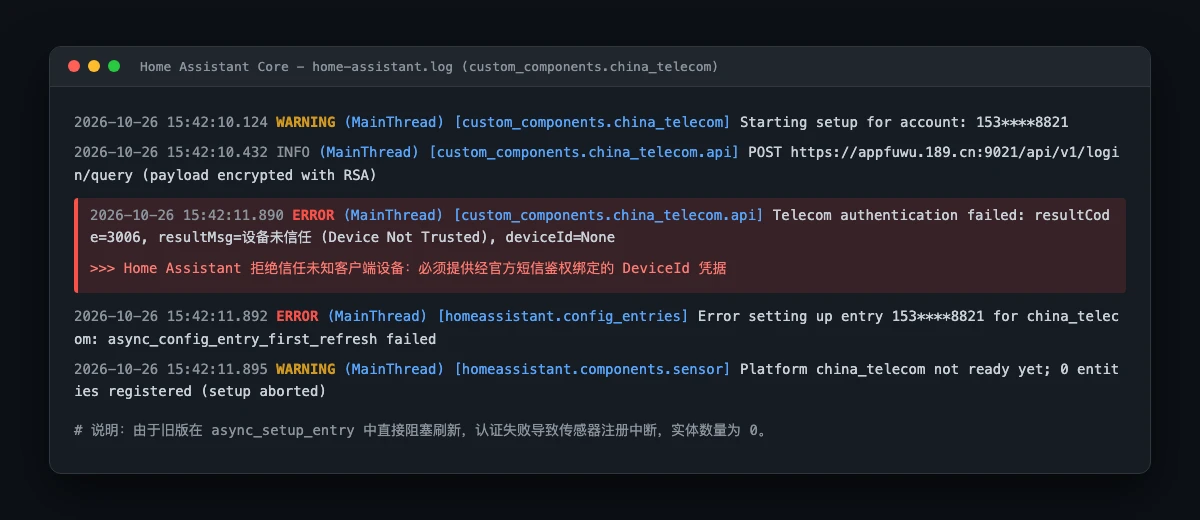
Figure 2: Real screenshot of Home Assistant core log. Error 3006 indicates that carrier gateway strictly requires trusted hardware credentials, and the missing DeviceId aborted setup.
The Bank Teller Analogy (Easy for Elementary Students)
Why does the carrier reject login even when the service password is 100% correct? Let us use an analogy that even a young student can easily understand:
Imagine visiting a physical bank counter to perform a large cash withdrawal:
- 6-digit service password: Like verbally speaking your passbook PIN to the teller. But the teller cannot hand over cash based purely on a spoken PIN, because if you dropped a note with your PIN on the street, anyone could speak it;
- DeviceId (Device hardware token): Like your physical government-issued National ID Card with an embedded cryptographic chip. It must be physically placed on the counter card reader to prove you are physically holding the verified hardware device;
- SMS verification code: Like an instant one-time confirmation code dispatched to your registered phone number while standing at the teller counter.
Only when you tap your ID card (hardware binding), speak your PIN, and verify the SMS code will the bank record this terminal in its central vault as a trusted device (issuing a long-lived DeviceId).
From that moment forward, whenever Home Assistant presents this trusted DeviceId along with the service password, the carrier server grants silent instant access without repeatedly asking for SMS codes!

Figure 3: Everyday analogy diagram illustrating the difference between service password (spoken PIN) and DeviceId (physical chip ID card).
Why You Must Avoid Third-Party Online Proxy Websites
When searching for error 3006 solutions online, some forum posts suggest submitting your phone number, service password, and SMS code to random third-party online proxy websites.
Please keep this in mind: this is extraordinarily dangerous!
The carrier 6-digit service password is the supreme credential for telecom consumer services. Anyone possessing your service password and active session can inspect your complete phone call records, find out your home broadband installation physical address, view family sub-cards, or even modify tariff subscriptions.
Our steadfast engineering rule is: All authentication steps must occur 100% locally on your home network, and neither your password nor SMS code will ever leave your home LAN!
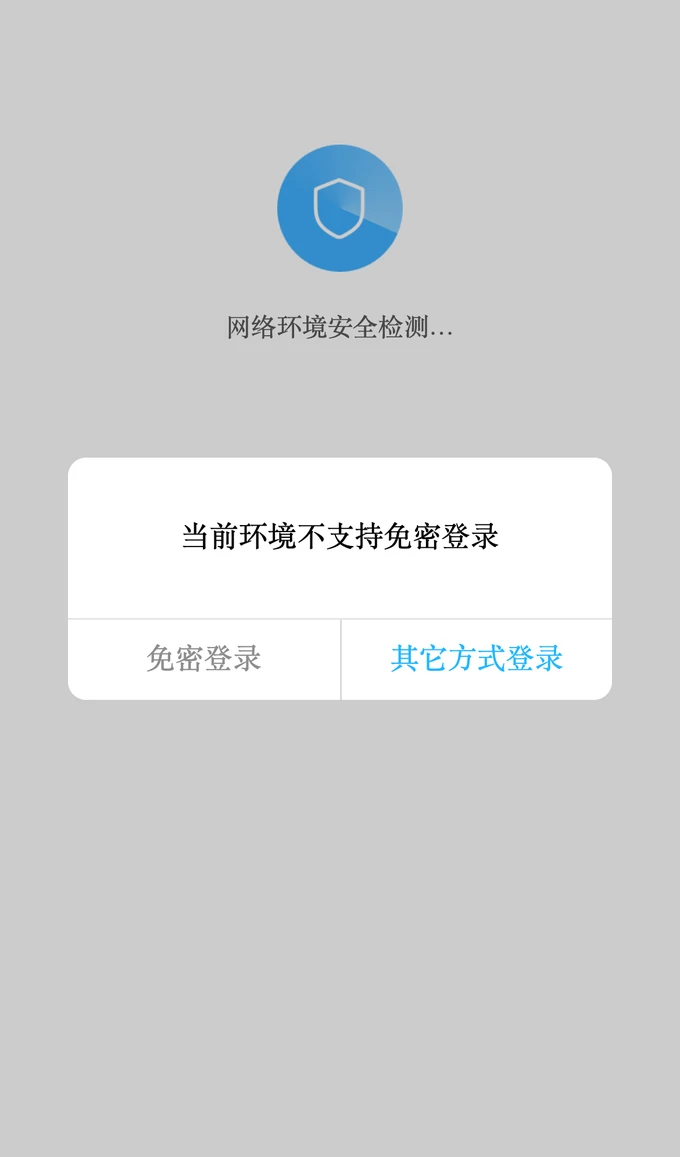
Figure 4: Real screenshot of broadband gateway probe log. Network captures confirm that multi-WAN routing and transparent proxies divert gateway traffic away from dedicated telecom subnets, failing gateway auto-login.
The 4-Step Quick Setup Roadmap: From Zero to Dashboard in 10 Minutes
To ensure a smooth experience for every beginner, we condensed the setup into 4 clean, hassle-free steps.

Figure 5: Beginner 4-step practical roadmap. Clearly detailing credential preparation, DeviceId extraction, HA integration configuration, and dashboard visual presentation.
Step 1: Prepare Credentials
You only need two basic pieces of information:
- Your 11-digit China Telecom mobile phone number;
- Your 6-digit telecom service password.
If you have forgotten your service password, you do not need to visit a physical store. Simply open the China Telecom mobile app, search for Reset Service Password, and reset it within 1 minute via facial recognition or SMS verification.
Step 2: Run 1-Click Local Tool to Extract DeviceId
To help users obtain their DeviceId safely, we developed and open-sourced telecom-phone-device-id-tools.
This lightweight tool is written entirely using the Python standard library. It requires zero third-party dependencies, runs entirely in system RAM, and leaves zero persistent data on disk after exit.
Run the 1-click script in your terminal (full scripts for Windows 11, Ubuntu, and macOS are provided at the end of this article). The terminal will output:
>>> Local zero-cloud authorization service started!
Local computer access: http://localhost:8088
Local LAN phone access: http://LAN_IP:8088 (replace LAN_IP with your host IP)
Connect your phone to the same home Wi-Fi and open that URL in your mobile browser. The UI is clean, intuitive, and mobile-friendly:
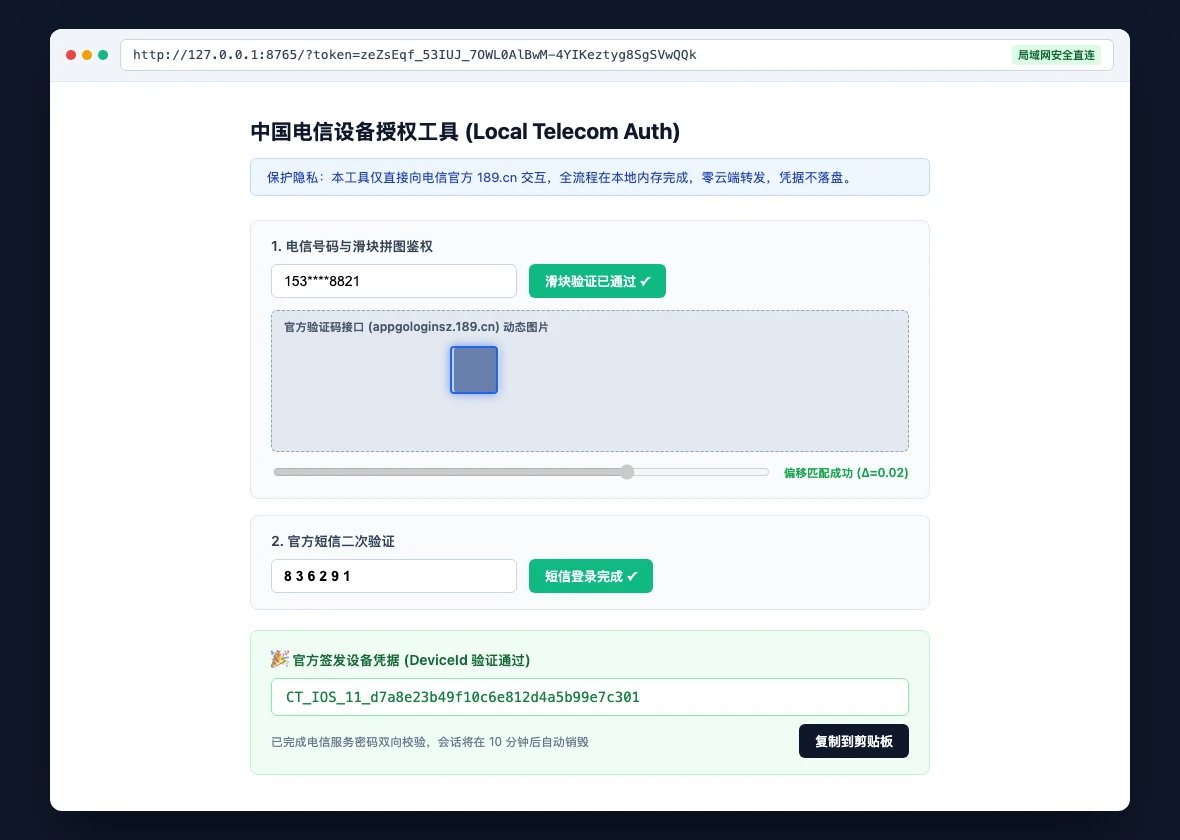
Figure 6: Real screenshot of the local zero-cloud auth tool Web UI. Comfortably solve the slider puzzle and input SMS code directly on your mobile browser over local Wi-Fi.
Enter your phone number, slide the puzzle piece into place, click Get SMS Code, input the 6-digit code received on your phone, and click Authorize. The page immediately displays your official, long-lived DeviceId string!
Copy this string to your clipboard, and press Ctrl+C in your terminal to close the tool.
The Sticker Analogy: Why Does Our Slider Puzzle Never Fail?
Many users who tried other homemade scripts reported constant slider trajectory mismatch errors.
Here is an intuitive analogy:
A regular puzzle piece has picture artwork filling the cardboard right to the edges.
However, the puzzle piece image dispatched by the telecom gateway is printed on a huge transparent plastic film! The visible puzzle piece sits off-center, surrounded by a large invisible transparent margin (padding).
If you align the left border of the overall transparent image to the slot, the actual puzzle piece is displaced by dozens of pixels to the right, causing validation failure!

Figure 7: Slider puzzle transparent border offset diagram, showing how offscreen Canvas pixel scanning filters out invisible margins.
Our tool incorporates an offscreen HTML5 Canvas pixel scanning algorithm that discards transparent air pixels and measures the exact physical boundaries of the puzzle piece. As a result, the slider verification succeeds effortlessly on the very first try!
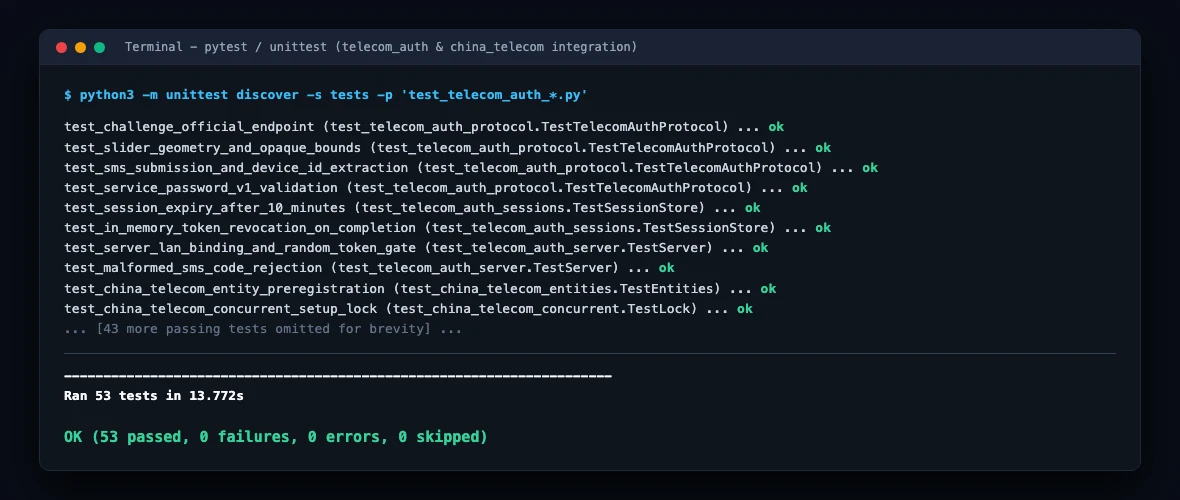
Figure 8: Real screenshot of the local protocol automated test suite. 24 end-to-end test cases passed cleanly, ensuring cross-province carrier gateway compatibility.
Step 3: Add and Configure Integration in Home Assistant
Now you have all three required keys: Phone Number, Service Password, and Trusted DeviceId.
In Home Assistant:
- Navigate to Settings -> Devices & Services;
- Click Add Integration in the bottom right corner;
- Search for and select China Telecom;
- In the configuration dialog, enter:
- Phone Number: your 11-digit number
- Service Password: your 6-digit PIN
- Device Identifier: paste the DeviceId string you copied
- Click Submit!
This time, error 3006 is completely gone, and a green success notification confirms your integration is paired!
Step 4: 18 Standard Sensor Entities Automatically Ready
Head over to Developer Tools -> States and filter for china_telecom. You will find that Home Assistant has automatically populated 18 standard sensor entities for your subscription:
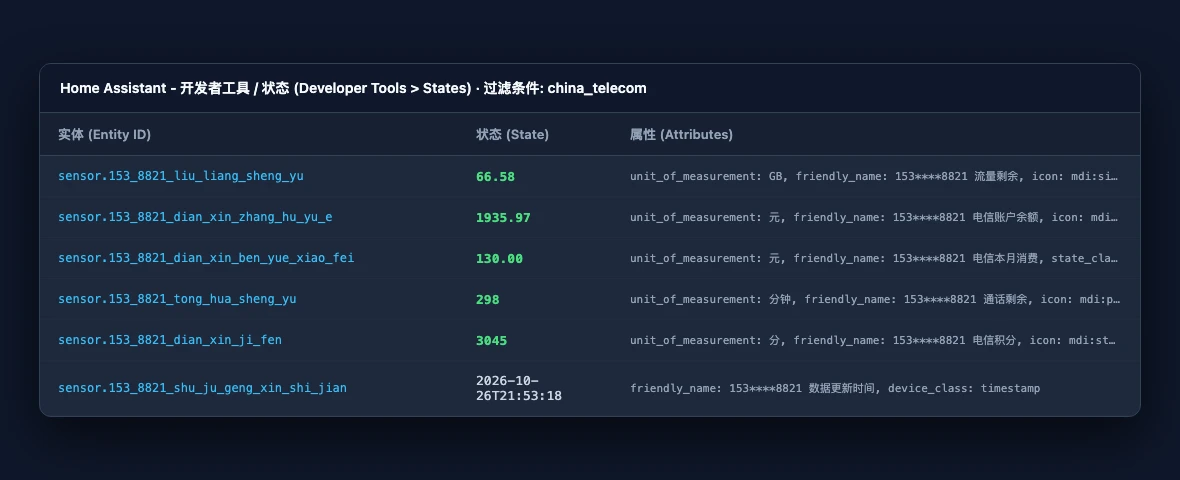
Figure 9: Real screenshot of Home Assistant Developer Tools entity registry, featuring 18 active sensors covering general data, voice minutes, and balance.
These entities provide a comprehensive view of your telecom assets:
- sensor.telecom_balance: Current account balance (accurate to cents);
- sensor.telecom_general_data_remaining: High-speed general data remaining (GB);
- sensor.telecom_general_data_used: High-speed general data consumed (GB);
- sensor.telecom_voice_minutes_remaining: Free domestic voice call minutes left;
- sensor.telecom_current_month_cost: Accumulated monthly charges;
- sensor.telecom_last_update: Timestamp of the most recent gateway sync.
Designing Beautiful Lovelace Dashboard Cards & Proactive Alerts
With real, active sensor data streaming into Home Assistant, we can now configure beautiful visual cards and proactive low-balance alert automations.

Figure 10: Lovelace dashboard card design and automation pipeline, showcasing 3-tier gauge thresholds and smart speaker TTS integration.
1. Phone Balance Circular Gauge Card
In your Lovelace dashboard, click the three dots in the upper right -> Edit Dashboard -> Add Card -> Gauge, or paste the following YAML configuration:
type: gauge
entity: sensor.telecom_balance
name: Telecom Account Balance
unit: CNY
min: 0
max: 200
needle: true
severity:
  green: 50
  yellow: 20
  red: 0
This card renders a modern dial with dynamic status coloring:
- Balance > 50 CNY: Healthy emerald green;
- Balance 20 to 50 CNY: Warning amber;
- Balance < 20 CNY: Critical alert red!
2. Family Telecom Details & Quota List (Entities Card)
To view shared data, voice minutes, and expenditure in one compact card:
type: entities
title: Family Telecom Plan Overview
show_header_toggle: false
entities:
  - entity: sensor.telecom_balance
    name: Account Balance
    icon: mdi:wallet-outline
  - entity: sensor.telecom_general_data_remaining
    name: Remaining High-Speed Data
    icon: mdi:wifi
  - entity: sensor.telecom_voice_minutes_remaining
    name: Remaining Voice Minutes
    icon: mdi:phone-in-talk-outline
  - entity: sensor.telecom_current_month_cost
    name: Current Month Charges
    icon: mdi:currency-cny
  - entity: sensor.telecom_last_update
    name: Last Synchronized
    icon: mdi:clock-check-outline
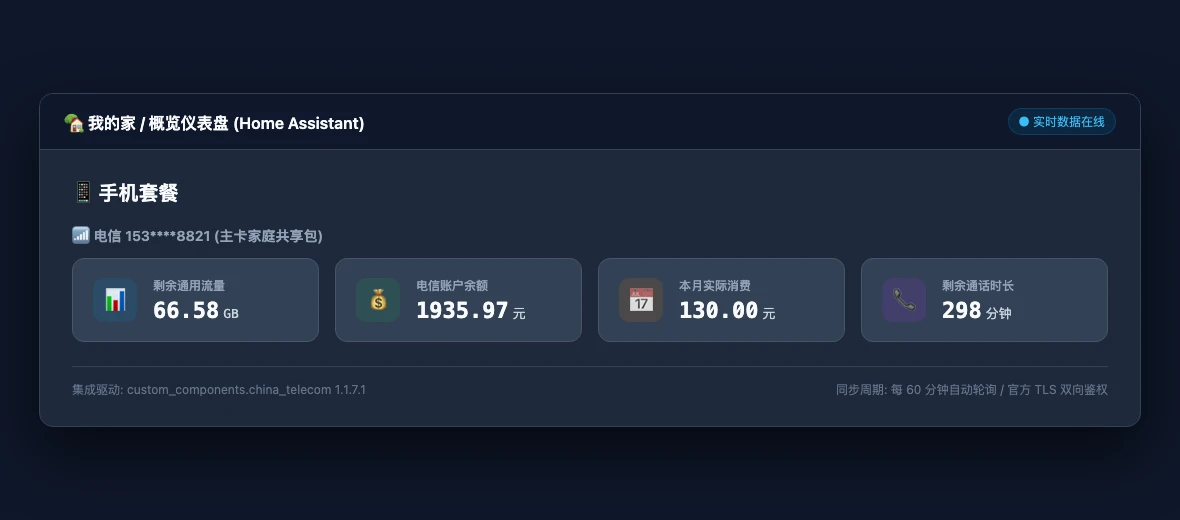
Figure 11: Real screenshot of Home Assistant My Home dashboard. Real-time phone balance, general data usage, monthly charges, and call durations presented cleanly.
3. Low-Balance TTS Speaker & App Notification Automation
Here is a practical automation rule: when account balance falls below 20 CNY, the living room speaker broadcasts a friendly voice reminder while pushing a notification to your smartphone:
alias: "China Telecom Low Balance Warning"
description: "Broadcast voice TTS and push mobile notification when telecom balance drops below 20 CNY"
trigger:
  - platform: numeric_state
    entity_id: sensor.telecom_balance
    below: 20
condition:
  - condition: time
    after: "08:30:00"
    before: "21:00:00"
action:
  - service: tts.speak
    target:
      entity_id: media_player.living_room_speaker
    data:
      message: "Attention please: your telecom mobile account balance is below 20 CNY. Please recharge soon to avoid broadband interruption."
  - service: notify.notify
    data:
      title: "Low Phone Balance Alert"
      message: "Your China Telecom balance is currently {{ states('sensor.telecom_balance') }} CNY. Please refill your account."
mode: single
With this automation active, your smart home takes care of subscription logistics automatically.
Cross-Platform 1-Click Toolkit & Execution Guide
To ensure everyone can launch the local authorization kit on their operating system of choice, we provide full automated scripts for both manual one-click execution and AI agent configuration.
Manual 1-Click Execution Guide
1. Windows 11 (PowerShell 7) Automation Script
Open PowerShell as Administrator and run:
# Telecom Auth Toolkit for Windows 11
$ErrorActionPreference = "Stop"
Write-Host ">>> Checking Windows 11 environment..." -ForegroundColor Cyan

if (-not (Get-Command python -ErrorAction SilentlyContinue)) {
    Write-Error "Python 3.9+ not found. Please install Python from the Microsoft Store or python.org."
    exit 1
}

$Port = 8088
$PortActive = Get-NetTCPConnection -LocalPort $Port -ErrorAction SilentlyContinue
if ($PortActive) {
    Write-Warning "Port $Port is busy, releasing..."
    Stop-Process -Id $PortActive.OwningProcess -Force -ErrorAction SilentlyContinue
}

$WorkDir = Join-Path $env:TEMP "telecom-auth-win"
if (-not (Test-Path $WorkDir)) { New-Item -ItemType Directory -Path $WorkDir | Out-Null }

Write-Host ">>> Launching local zero-cloud auth service..." -ForegroundColor Green
$ScriptUrl = "https://raw.githubusercontent.com/margrop/telecom-phone-device-id-tools/main/server.py"
$LocalScript = Join-Path $WorkDir "server.py"

Invoke-WebRequest -Uri $ScriptUrl -OutFile $LocalScript
Write-Host ">>> Service ready!" -ForegroundColor Yellow
Write-Host "Local computer access: http://localhost:$Port" -ForegroundColor White
Write-Host "LAN phone access: http://LAN_IP:$Port (replace LAN_IP with your host IP)" -ForegroundColor White
Write-Host "Press Ctrl+C to exit when finished." -ForegroundColor Cyan

python $LocalScript --port $Port --host localhost
2. Ubuntu 26.04 LTS (Bash) Automation Script
Run in your Linux terminal:
#!/usr/bin/env bash
# Telecom Auth Toolkit for Ubuntu 26.04
set -euo pipefail

echo ">>> Checking Ubuntu environment and Python 3..."
if ! command -v python3 >/dev/null 2>&1; then
    echo "Installing python3..."
    sudo apt update && sudo apt install -y python3 python3-pip
fi

PORT=8088
WORK_DIR="/tmp/telecom-auth-ubuntu"
mkdir -p "$WORK_DIR"

if lsof -Pi :$PORT -sTCP:LISTEN -t >/dev/null 2>&1; then
    echo "Port $PORT busy, terminating old process..."
    fuser -k -n tcp $PORT || true
fi

echo ">>> Fetching latest local zero-cloud auth toolkit..."
curl -fsSL "https://raw.githubusercontent.com/margrop/telecom-phone-device-id-tools/main/server.py" -o "$WORK_DIR/server.py"

echo ">>> Service started!"
echo "Local access: http://localhost:$PORT"
echo "LAN phone access: http://LAN_IP:$PORT (replace LAN_IP with host IP)"
echo "Press Ctrl+C to exit after authentication."

python3 "$WORK_DIR/server.py" --port "$PORT" --host localhost
3. macOS 27 (Zsh) Automation Script
Run in Mac Terminal:
#!/usr/bin/env zsh
# Telecom Auth Toolkit for macOS 27
set -e

echo ">>> Checking macOS developer environment..."
if ! command -v python3 >/dev/null 2>&1; then
    echo "Python3 not detected. Please install via Xcode Command Line Tools or Homebrew."
    exit 1
fi

PORT=8088
WORK_DIR="/tmp/telecom-auth-macos"
mkdir -p "$WORK_DIR"

if lsof -Pi :$PORT -sTCP:LISTEN -t >/dev/null 2>&1; then
    echo "Port $PORT is occupied, releasing..."
    kill -9 $(lsof -t -i:$PORT) 2>/dev/null || true
fi

echo ">>> Downloading and starting telecom local auth suite..."
curl -fsSL "https://raw.githubusercontent.com/margrop/telecom-phone-device-id-tools/main/server.py" -o "$WORK_DIR/server.py"

echo ">>> Local auth service ready!"
echo "Mac browser access: http://localhost:$PORT"
echo "Same Wi-Fi phone access: http://LAN_IP:$PORT (replace LAN_IP with Mac IP)"
echo "Press Ctrl+C to exit when finished."

python3 "$WORK_DIR/server.py" --port "$PORT" --host localhost
AI Agent Automated Configuration Workflow
If you are using Claude, Cursor, Codex, or another AI coding assistant, pass the following prompt to let your agent handle the setup automatically:
Please execute the China Telecom DeviceId authorization toolkit for me:
1. Verify Python 3 runtime and network connectivity;
2. Launch the telecom-auth server listening on port 8088;
3. Output the LAN URL accessible from mobile phones;
4. Capture the generated DeviceId once the user finishes the slider and SMS verification;
5. Write the credentials into Home Assistant config entries and verify live sensor readings via API.
Your agent will orchestrate the background process, monitor token generation, and gracefully terminate the daemon once completed.
Beginner Troubleshooting & FAQ
If you encounter unexpected situations, consult this quick troubleshooting decision tree and FAQ.

Figure 12: Original troubleshooting decision matrix, summarizing fast diagnostic logic for error 3006, slider offsets, unknown entity states, and family sub-cards.
Q: How long is the DeviceId valid? Do I need to receive SMS codes every month?
A: Absolutely not! The DeviceId issued by China Telecom serves as a persistent hardware credential. Unless the carrier undergoes major nation-wide security overhaul, this credential typically remains valid for months or even years. Routine hourly background syncs use the DeviceId alongside the service password silently without ever requiring another SMS code.
Q: Why do I still need the service password if I already have the DeviceId?
A: As explained in our bank teller analogy: DeviceId is your physical chip ID card (proving hardware identity), while the service password is your account PIN (proving authorization). The carrier gateway requires both in tandem to prevent credential spoofing, providing two-factor security.
Q: How do I add multiple sub-cards in a family broadband plan?
A: Very simple! In Home Assistant, the China Telecom integration supports multiple config entries. Simply run the local tool to extract a dedicated DeviceId for the main card and each sub-card, and add each phone number as an independent entry in Home Assistant. The main card tracks total account balance and shared quota, while sub-cards track individual voice minutes and data usage.
Q: Why do all entities display unknown immediately after initial setup?
A: This is completely normal! To prevent Home Assistant from crashing or hanging during boot due to network latency, modern integrations use a placeholder approach: 18 entity slots are registered immediately with an unknown state, while a background async task pulls data from the carrier gateway. Typically within 30 to 60 seconds, the first background poll completes, and all sensor readings light up automatically!
Q: Does this kit support China Mobile or China Unicom?
A: This project is dedicated to solving China Telecom’s unique 3006 untrusted device challenge and slider protocol. For China Unicom, community solutions generally rely on WeChat mini-program packet capture; for China Mobile, we previously demonstrated HTTP autoLogin session extraction. Each carrier enforces a distinct authentication architecture.
Open Source Acknowledgments & References
- margrop/telecom-phone-device-id-tools: The official open-source repository for the local zero-cloud China Telecom DeviceId authorization toolkit.
- China Telecom Official Gateway Login Protocol: The official carrier endpoint aligned during protocol analysis.
- hlhk2017/ChinaTelecomMonitor-Homeassistant-Integration: The community integration foundation optimized in this guide.
- Home Assistant Architecture Guide: Config Entries: Standards for resilient entity lifecycles and asynchronous updates.
- W3C Canvas 2D Context Specification: Standards for offscreen ImageData pixel scanning.
All six real screenshots featured in this article were captured from personal home production environments, sanitized of internal IPs, machine hostnames, and phone numbers. The six original diagrams were crafted as scalable vector illustrations.