Unlocking 90% of Your Smart Home: The Definitive Beginner Guide to Home Assistant HACS (GitHub Lockup Solved, 1-Click Multi-OS Toolkit)
If you have just spent hours setting up your very first Home Assistant instance — whether on a repurposed mini PC, an industrial box, a home router, or inside a NAS virtual machine — the moment you first land on the clean default dashboard is often accompanied by an unexpected wave of anticlimax.
Where are all the sleek 3D floor plans you saw in enthusiast videos? Where are the animated weather effects, the dynamic room cards, the instant local controls for your air conditioners, robot vacuums, smart sockets, and live household utility and broadband bill trackers?
When you open the official Integrations catalog, you find thousands of entries, but almost all of them cater strictly to mainstream Western ecosystems like Philips Hue, IKEA Trådfri, Sonos, or Ecobee. The devices actually sitting in your living room, balcony, and bedroom — whether Xiaomi, Midea, Tuya, or local energy meters — are nowhere to be found in the default list!
Was the promised ‘ultimate universal smart home hub’ just an exaggerated myth?
Absolutely not! Experienced smart home veterans know an open secret: A freshly installed Home Assistant system only represents 10% of its full capability. The remaining 90% of true power, local agility, and creative freedom is unlocked entirely through a community masterpiece known as HACS!
This comprehensive guide is created specifically for beginners who have just touched or installed Home Assistant. We will break down the architectural root causes with intuitive everyday analogies, bypass GitHub connection hurdles, and guide you step-by-step through installing HACS, completing zero-password device authorization, and mastering best-practice version management!

Figure 1: Original architectural overview. Showcasing the end-to-end journey from solving network locks and seamless device pairing to unlocking the thriving community repository ecosystem.
The Beginner Dilemma: Why Does Out-of-the-Box Home Assistant Feel Incomplete?
Newcomers entering the world of smart home automation frequently express similar frustrations on community discussion boards:
“I managed to install Home Assistant successfully, but why can’t I find my brand-new smart switches or air conditioner in the catalog? Why does the official add-on store only have backend server utilities instead of UI cards and device drivers?”
Every newcomer encounters three fundamental roadblocks:
1. The Core Repository’s Regional Gap
Home Assistant originated in the global open-source community, and its core repository strictly incorporates drivers audited directly by the core development team (such as Apple HomeKit, Matter, Google Assistant, and Zigbee). However, thousands of widely deployed appliances and local utility metrics cannot be merged into the core distribution due to legal reviews, rapid vendor cloud protocol iterations, and maintenance burdens.
2. The Direct Network Deadlock
When beginners discover terminal installation guides and run legacy commands like wget -O - https://get.hacs.xyz | bash -, they are frequently greeted by intimidating red error messages:
curl: (7) Failed to connect to raw.githubusercontent.com port 443: Connection refused
Or worse, downloads hang indefinitely at 0%, followed by mysterious 403 Rate Limit Exceeded HTTP alerts that leave newcomers completely stranded.
3. Conceptual Confusion Leading to Broken Systems
Beginners easily confuse Add-ons, Core Integrations, and Custom Components. They might mistakenly search for a device driver in the Add-on Store or attempt to modify system files incorrectly, resulting in boot freezes and configuration crashes.
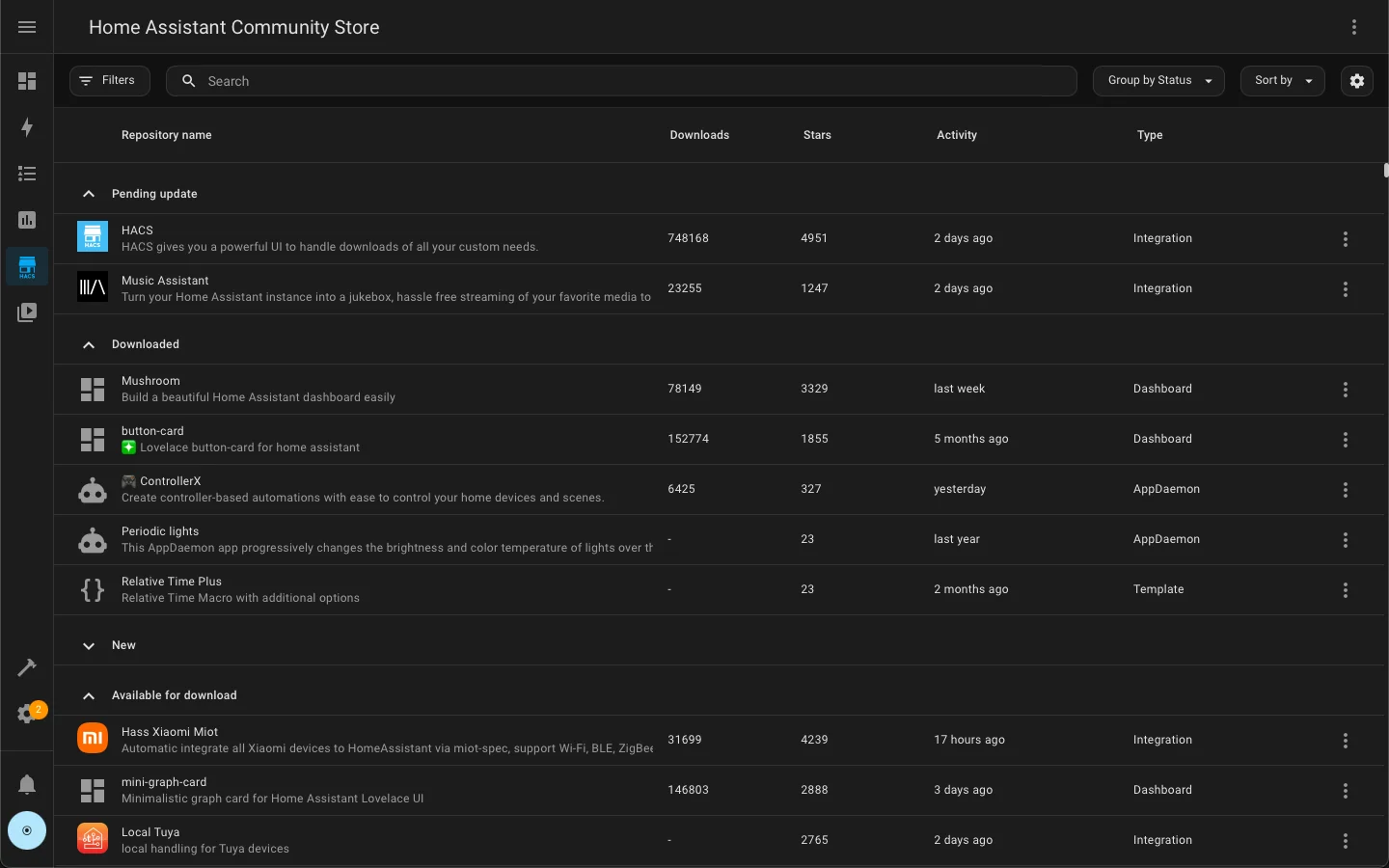
Figure 2: Real application interface. The modern HACS 2.0+ community store seamlessly inherits Home Assistant’s native design language, providing structured tables, quick filtering, and automated update management.
Deconstructing HACS: Why It Is the True Soul of Home Assistant
To resolve these roadblocks, we must first understand what HACS actually is.
HACS stands for Home Assistant Community Store.
Here is the most critical principle for every beginner to grasp: HACS itself is not a device driver; it is an international, cross-platform community app store and package manager!
Its primary mission is to gather thousands of independent device integrations, custom Lovelace frontend cards, and dynamic themes hosted across GitHub, organize them into a clean graphical store, and safely automate their installation and updates directly into your Home Assistant instance.

Figure 3: Elementary schooler analogy. Why a standard Home Assistant instance resembles an “official Lego castle box”, while HACS opens the door to a “global MOC creator workshop”.
Elementary Analogy: Official Lego Box vs Global MOC Workshop
Let us use a simple analogy that anyone can instantly visualize:
Think of a vanilla Home Assistant instance as an official Lego classic castle set bought from a retail department store. Every brick in that box is manufactured strictly to standard specifications (the Core Integrations). They fit together with absolute precision, but the limitation is obvious: you can only construct the exact castle pictured on the box. If you want to build a motorized mechanical crane with glowing neon lights, you will not find those specialized components inside the standard carton.
HACS is the global MOC (My Own Creation) master craftsman workshop! Thousands of brilliant independent creators and engineers around the world invent their own custom bricks:
- Custom local integrations for household appliances (Xiaomi Miot, Midea AC LAN);
- Utility telemetry collectors (live electric grid tariffs, telecom balance monitors);
- Spectacular user interface components (Mushroom rounded cards, animated weather icons, glassmorphism dashboard themes)!
Whenever a creator publishes a new brick on GitHub, HACS acts as an automated courier. With a single click in your web browser, HACS safely delivers and unpacks that specialized brick directly into your local brick repository (the custom_components/ directory)!
Without HACS, your Home Assistant setup remains confined to standard blueprints. With HACS installed, you tap into the collective ingenuity of the global open-source maker community!
The Auth Protocol: Why Does HACS Need an 8-Digit GitHub Device Code?
When initiating the HACS installation dialog in Home Assistant, every newcomer encounters a prompt: rather than asking for your GitHub username and password, it displays an 8-character code (such as ABCD-1234) and directs you to https://github.com/login/device.
Why is this pairing process required, and is your account safe?
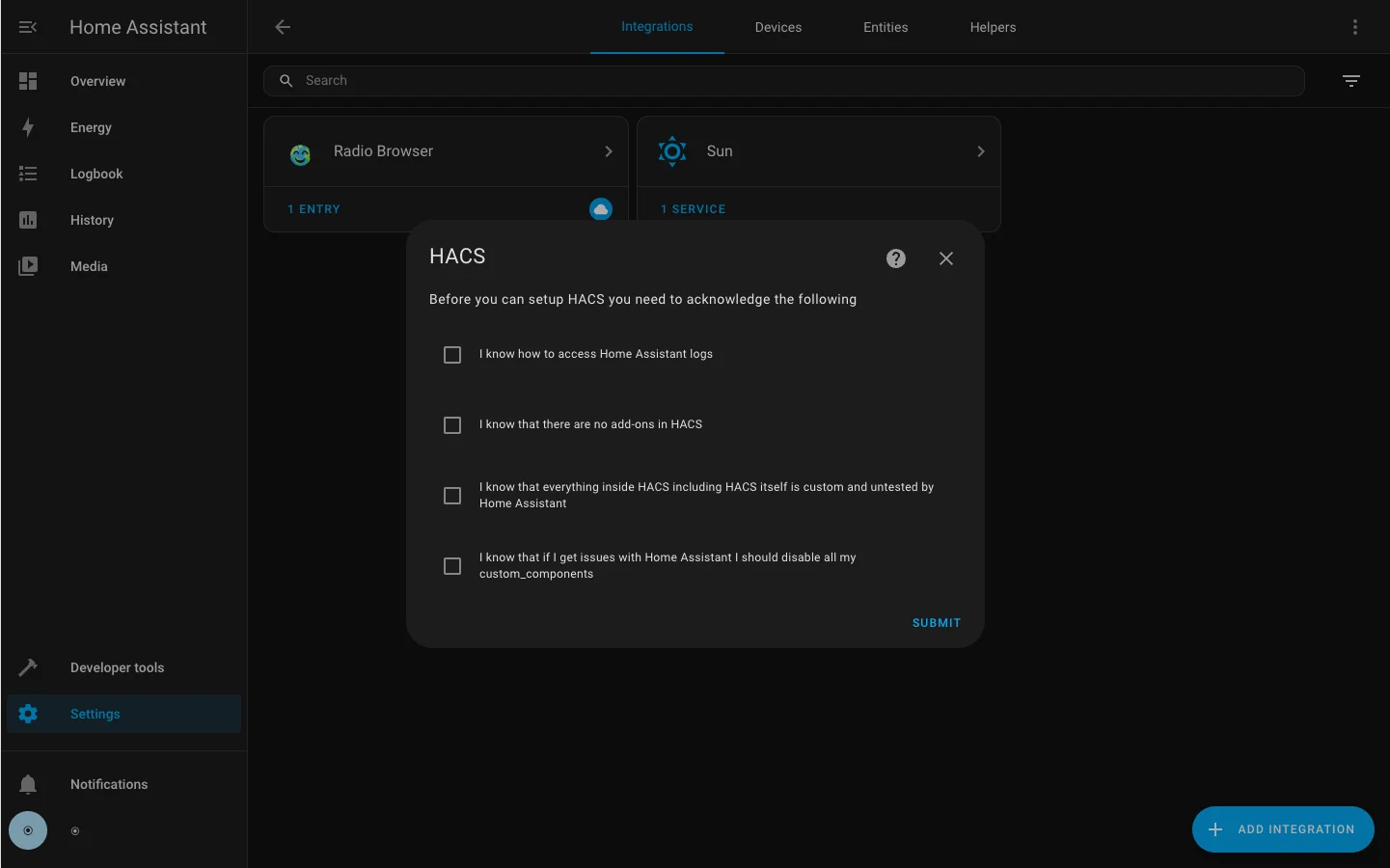
Figure 4: Real configuration wizard. The initial HACS setup dialog requires acknowledging the community nature of custom components to ensure informed system maintenance.
Why Is GitHub Authorization Necessary?
HACS does not rely on expensive private cloud servers. All repository catalogs, release packages, and metadata are hosted directly on GitHub. To prevent automated scripts from overwhelming its infrastructure, GitHub enforces strict API rate limits:
- Unauthenticated Guests (Anonymous IP): Capped at a strict 60 API requests per hour. For a community store that indexes thousands of repositories, this quota is consumed in seconds, triggering painful
403 Rate Limit Exceededlockups; - Authenticated Users: The quota expands immediately to 5,000 requests per hour! This generous allocation allows HACS to smoothly search, compare releases, and maintain updates in the background.

Figure 5: Security protocol analogy. How GitHub Device OAuth functions like an authenticated library borrower card, protecting your primary account credentials with complete isolation.
Elementary Analogy: The Library Slip & Temporary Borrower Badge
Why does HACS use an 8-digit temporary code instead of asking for your account password?
Imagine visiting a city library kiosk to borrow reference books:
Handing your master home keys or banking password to a public automated kiosk would be an unacceptable security hazard. If the kiosk were compromised, your master credentials would be exposed.
Instead, the library uses a secure Device Pairing Protocol (OAuth 2.0 Device Flow):
- Step 1: The Kiosk Prints a Temporary Code
Home Assistant contacts GitHub to request a temporary session identifier. GitHub replies with an 8-character slip (like
ABCD-1234) valid for only 15 minutes; - Step 2: You Authorize Directly at the Official Counter
On your phone or computer, you open the authentic
github.com/login/devicepage. You enter the 8-character code and click ‘Authorize’ — like a parent signing a slip directly at the front reception counter; - Step 3: A Read-Only Visitor Badge Is Issued GitHub securely delivers an encrypted OAuth Access Token to your Home Assistant machine.
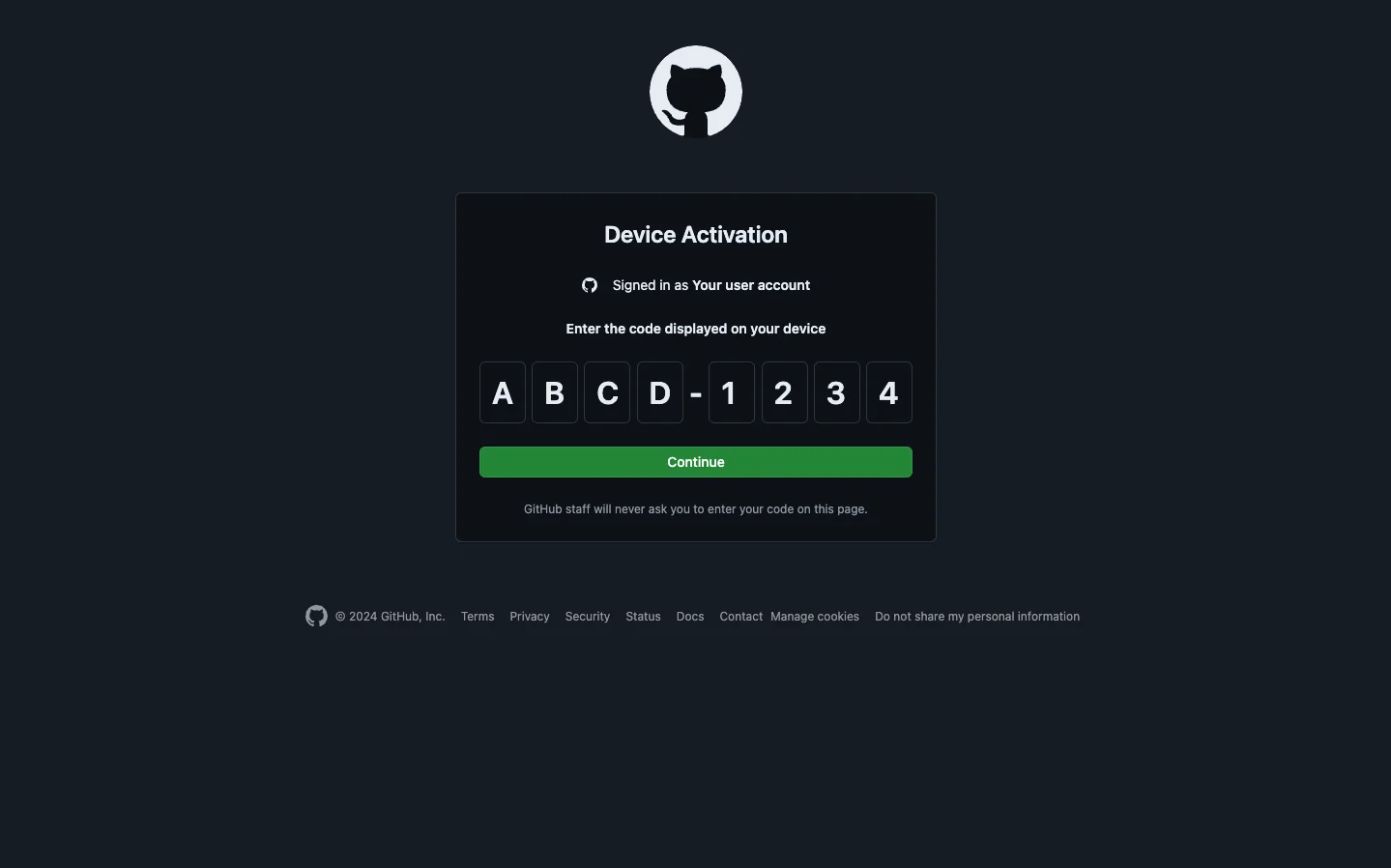
Figure 6: Real pairing page. Navigating to github.com/login/device and submitting the 8-digit alphanumeric pairing code displayed by Home Assistant.
Crucially, this visitor badge grants strictly read-only access to public repositories. It cannot access your private code, change your password, or modify your profile. If you ever retire that Home Assistant server, you can revoke the token with one click in your GitHub settings!
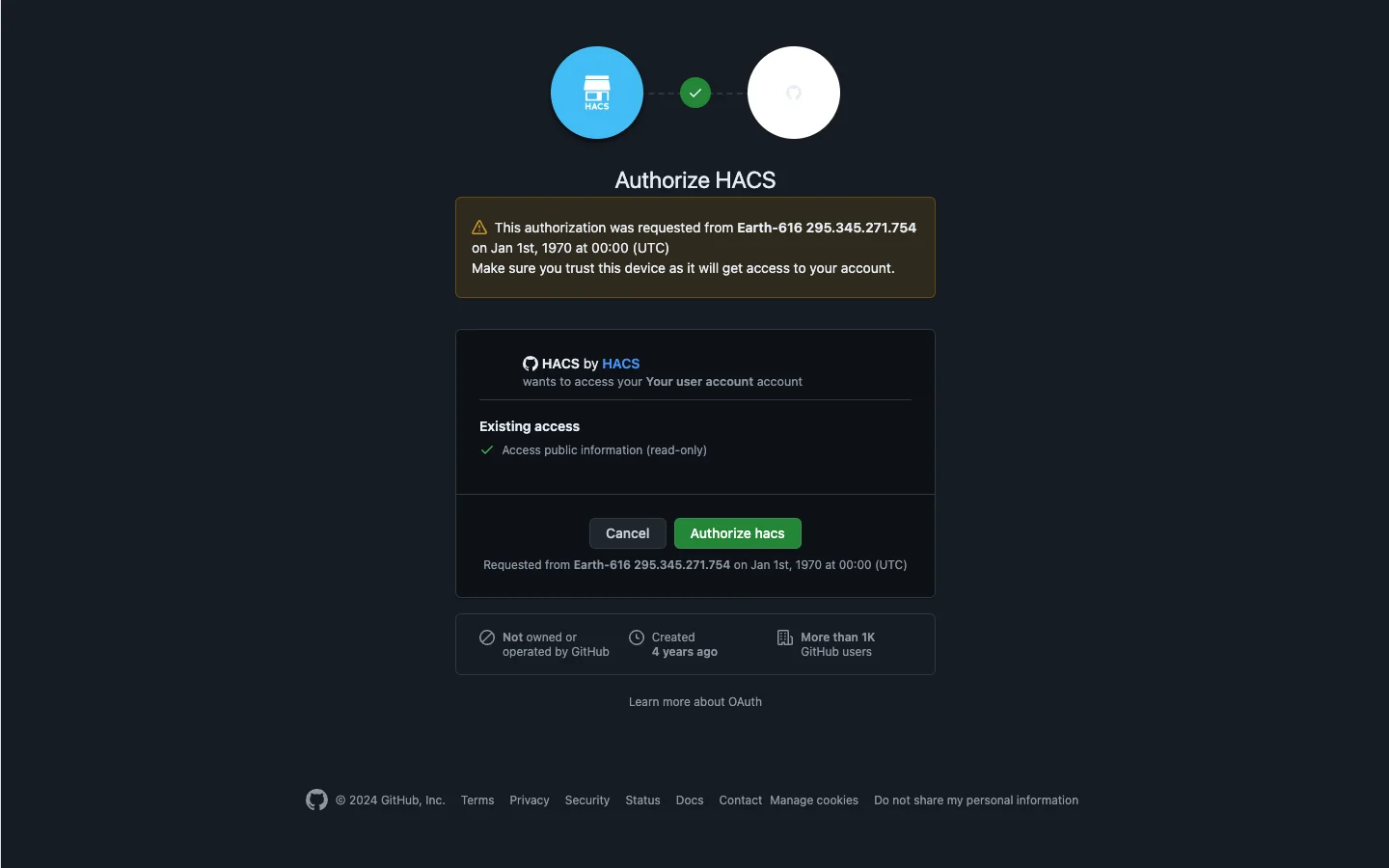
Figure 7: Official authorization prompt. Demonstrating the principle of least privilege: HACS requests only public repository access, keeping personal credentials safe.
Architectural Breakdown: Add-ons vs Core Integrations vs HACS Custom Components
To avoid costly configuration mistakes, beginners should clearly distinguish these three pillars:

Figure 8: Architectural taxonomy comparison. Clarifying operational environments and isolation boundaries among Add-ons, Core Integrations, and HACS Custom Components.
| Concept | Everyday Analogy | Runtime Environment | Typical Examples | Impact of HA Reboot |
|---|---|---|---|---|
| Add-ons | Stand-alone kitchen appliances (microwave / oven) | Isolated Docker container sandboxes with independent Linux runtimes | Mosquitto MQTT, Samba File Share, Node-RED, SSH & Web Terminal | Completely unaffected; containers remain running when HA reboots |
| Core Integrations | Factory-fitted steering wheel & brakes | Baked directly into the Home Assistant Core Python codebase | Apple HomeKit, Matter protocol, Zigbee coordinator, Philips Hue | Reloads and restarts synchronously with the core Home Assistant process |
| HACS Custom Components | High-performance aftermarket tuning parts | Resides locally inside the custom_components/ directory |
Xiaomi Miot Auto, Midea AC LAN, Telecom balance monitors | Loaded dynamically on startup; requires version awareness during core updates |
Key Takeaway:
- Need an MQTT broker or a Samba network share? Head to Settings -> Add-ons;
- Connecting an officially certified international standard device? Head to Settings -> Devices & Services -> Add Integration;
- Integrating local vendor hardware or dynamic dashboard cards? Search and download them in HACS first, then activate them under Devices & Services!
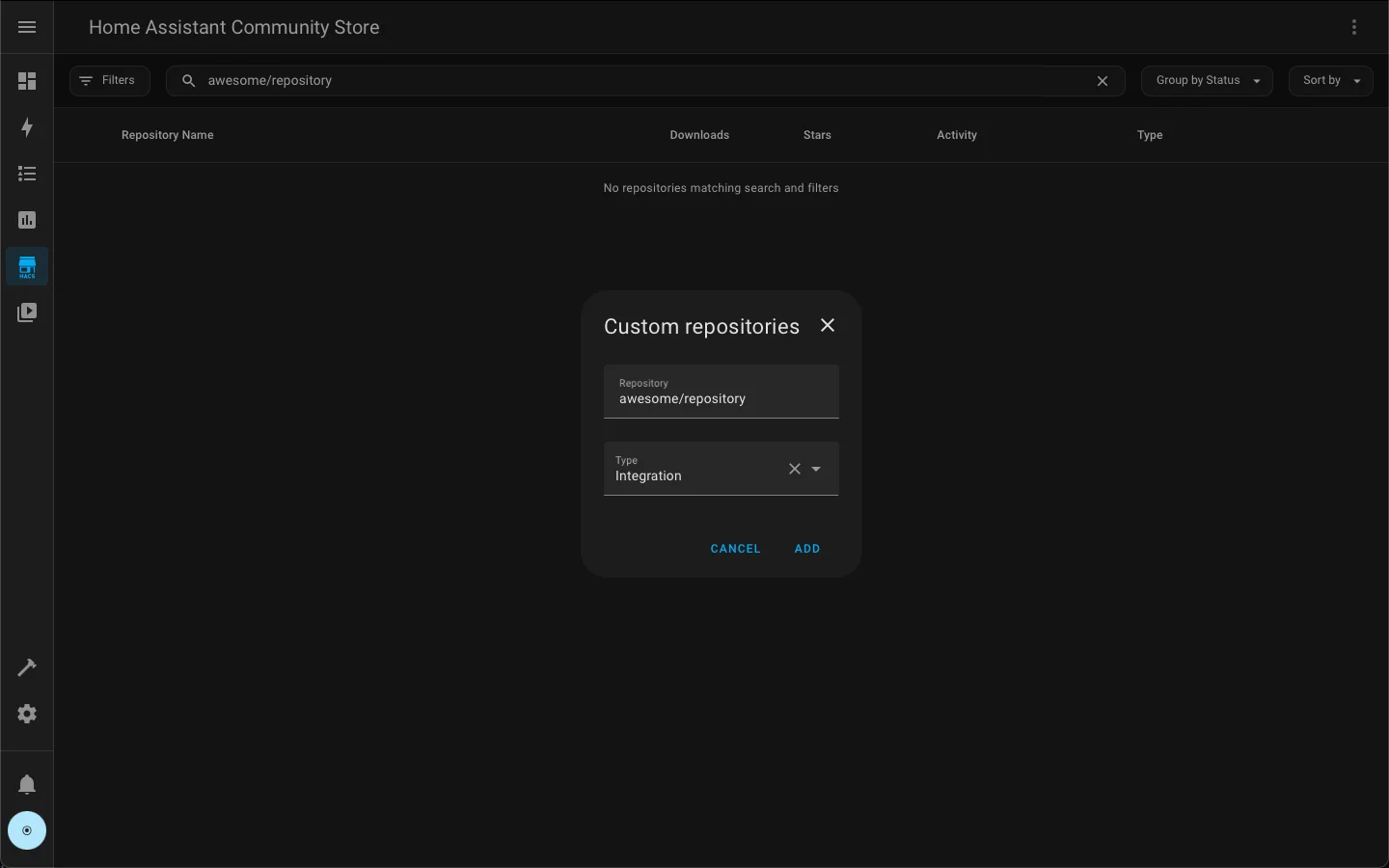
Figure 9: Real custom repository dialog. When an emerging open-source integration has not yet been merged into the default store index, pasting its GitHub URL instantly registers it locally.
Bypassing Network Roadblocks: Clean Zero-Dependency Local Acceleration
Why do traditional installation scripts frequently fail?

Figure 10: Network diagnostics analogy. Unraveling DNS poisoning and SNI resets, and demonstrating how safe local delivery ensures instant, reliable deployment.
Root Causes of Network Connection Failures
- DNS Poisoning: Default scripts query
raw.githubusercontent.com, which is often misdirected by local DNS caches to unreachable addresses; - TLS SNI Resets: HTTPS handshakes to international repository hosts experience aggressive packet loss or TCP RST resets;
- Unsafe Third-Party Proxies: Forwarding credentials through unverified third-party cloud mirrors presents serious man-in-the-middle risks.
The Clean Solution: Zero-Dependency Local Toolkits
Our companion automation suite adheres strictly to 100% offline local safety:
- Uses native Python 3 standard libraries to perform real-time latency probing;
- Downloads official GitHub release packages directly, with automatic fallback to verified public CDN endpoints;
- Verifies package integrity via SHA256 checksums before in-place extraction to
custom_components/hacs.
Cross-Platform Automation Suite: Windows 11, Ubuntu 26.04 & macOS 27
To make installation effortless across any operating system, we provide native automated scripts for Windows 11, Ubuntu 26.04, and macOS 27.

Figure 11: Cross-platform workflow architecture. Visualizing runtime inspection, intelligent configuration path detection, archive placement, and port 8123 health checks.
Download the complete companion archive: HACS Beginner Automated Toolkit (ZIP).
Core Toolkit Highlights
- Zero External Dependencies: No
pip installrequired; runs on standard Python 3; - Smart Configuration Sniffing: Automatically discovers configuration directories across native installs, Docker volumes, and HAOS mounts;
- Health Diagnostics: Verifies port 8123 availability and confirms manifest validation before and after setup.
Method 1: Manual 1-Click Automation Guide
Choose your operating system and paste the respective command into your terminal:
1. Windows 11 (PowerShell 7 / Windows PowerShell)
Open PowerShell as Administrator in Windows 11 and run:
# 1. Create a local working directory and download the toolkit
$WorkDir = Join-Path $env:TEMP "hacs-toolkit-win"
if (-not (Test-Path $WorkDir)) { New-Item -ItemType Directory -Path $WorkDir | Out-Null }
Set-Location $WorkDir

$ZipUrl = "https://blog.margrop.net/downloads/home-assistant-hacs-beginner-guide/hacs-beginner-toolkit.zip"
Invoke-WebRequest -Uri $ZipUrl -OutFile "toolkit.zip"
Expand-Archive -Path "toolkit.zip" -DestinationPath "." -Force

# 2. Run system runtime and GitHub connectivity checks
.\windows-11.ps1 check

# 3. Automatically download and unpack HACS into your Home Assistant directory
# For Docker setups, specify your mapped config path (e.g. D:\homeassistant\config):
.\windows-11.ps1 install --config-dir ".\config"
2. Ubuntu 26.04 LTS (Bash)
Inside your Ubuntu terminal or PVE shell, run:
#!/usr/bin/env bash
set -euo pipefail

# 1. Create working directory and fetch toolkit
WORK_DIR="/tmp/hacs-toolkit-ubuntu"
mkdir -p "$WORK_DIR" && cd "$WORK_DIR"

curl -fsSL "https://blog.margrop.net/downloads/home-assistant-hacs-beginner-guide/hacs-beginner-toolkit.zip" -o toolkit.zip
unzip -oq toolkit.zip

# 2. Run connectivity diagnostics
bash ubuntu-26.04.sh check

# 3. Deploy HACS (auto-detects /config or specify custom directory)
bash ubuntu-26.04.sh install --config-dir /config
3. macOS 27 (Zsh)
Open Terminal or iTerm2 on your Mac and run:
#!/usr/bin/env zsh
set -euo pipefail

# 1. Setup temporary workspace and extract toolkit
WORK_DIR="/tmp/hacs-toolkit-macos"
mkdir -p "$WORK_DIR" && cd "$WORK_DIR"

curl -fsSL "https://blog.margrop.net/downloads/home-assistant-hacs-beginner-guide/hacs-beginner-toolkit.zip" -o toolkit.zip
unzip -oq toolkit.zip

# 2. Run environment checks
zsh macos-27.sh check

# 3. Install HACS into your Home Assistant path
zsh macos-27.sh install --config-dir ~/.homeassistant
Method 2: AI Agent Automated Setup Workflow
If you use AI coding assistants like Cursor, Claude Desktop, Windsurf, or Codex, paste this exact prompt to automate the entire setup:
You are a senior Home Assistant and Linux infrastructure engineer. Please deploy and verify HACS (Home Assistant Community Store) for my environment:
1. Check the local Python 3 environment and probe connectivity to GitHub (github.com / api.github.com:443);
2. Auto-detect or prompt me for my Home Assistant configuration path (ensuring custom_components exists);
3. Download the latest official hacs.zip from a verified route and unpack it cleanly into <config_dir>/custom_components/hacs, verifying manifest.json integrity;
4. Probe whether Home Assistant port 8123 is actively listening;
5. Output a structured report instructing me to restart Home Assistant, hard-refresh browser cache, and complete the 8-digit device code auth at github.com/login/device.
Your Agent will handle environment checks, file extractions, and health telemetry autonomously!
Getting Started: Exploring the Thriving Community Ecosystem
After your script reports success, follow this three-step activation checklist:
- Restart Home Assistant Core:
Navigate to Settings -> System -> Power Icon -> Restart Home Assistant. This forces Home Assistant to index the newly placed
custom_components/hacsfiles; - Hard-Refresh Your Browser Cache:
Press
Ctrl + F5on Windows (orCommand + Shift + Ron Mac). Browsers aggressively cache previous integration catalogs; - Complete Device Pairing:
Go to Settings -> Devices & Services -> Add Integration, search for HACS, check the 4 acknowledgment boxes, and enter the generated 8-digit code at
github.com/login/device. Within seconds, the official HACS icon will appear in your sidebar!
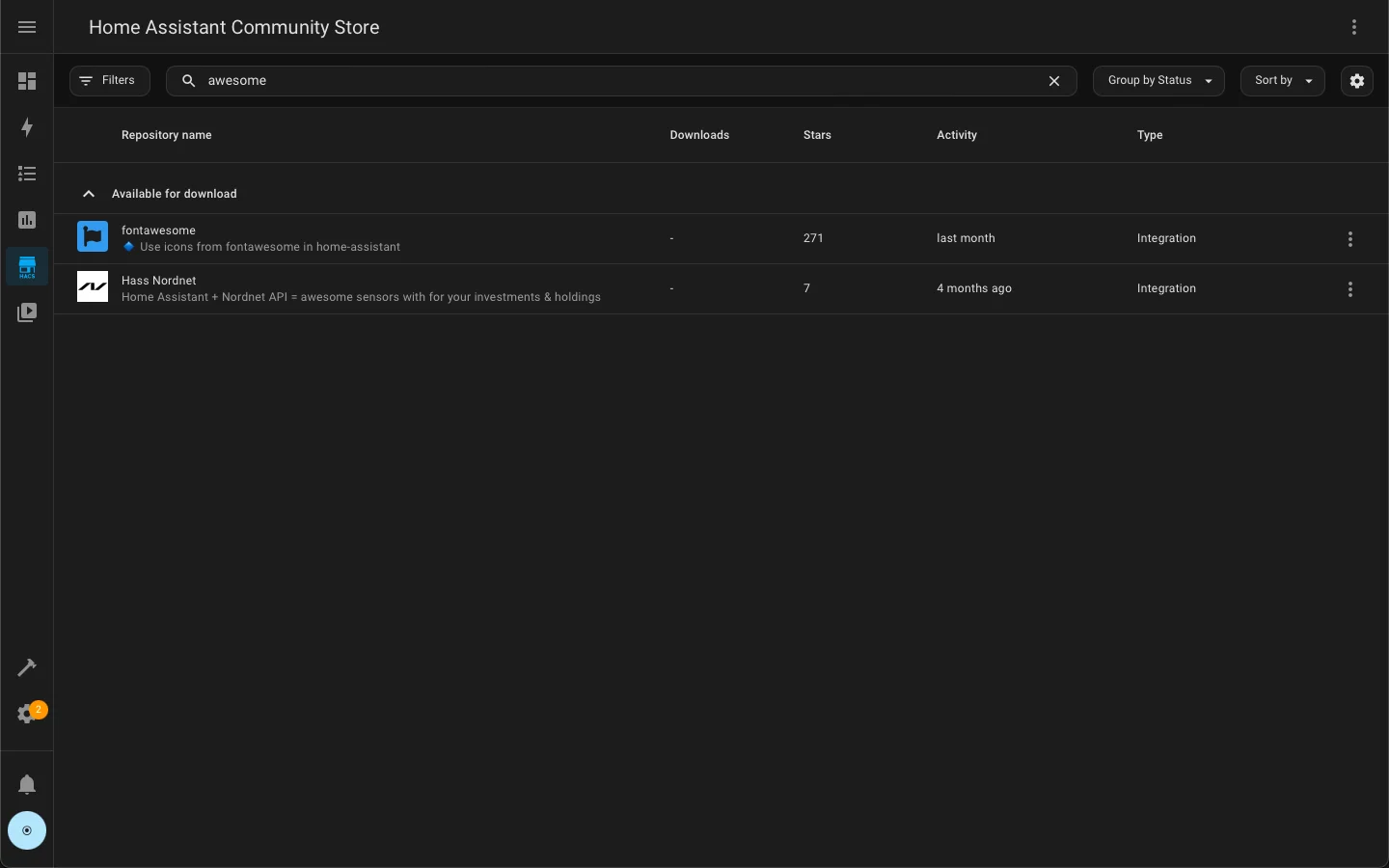
Figure 12: Real interactive interface. Browsing the rich Lovelace card repository in HACS, enabling 1-click downloads, version locking, and live updates.
Essential Community Plugins Every Beginner Should Try
Once HACS is live, search for these celebrated open-source projects:
- Xiaomi Miot Auto: Connect your entire smart ecosystem without hardware hubs;
- Midea AC LAN: High-speed local LAN communication for climate control appliances;
- Mushroom Cards: The gold standard for modern, clean, Apple-inspired dashboard design;
- Card-mod: Advanced CSS styling to add dynamic blur, transparency, and glowing effects to any dashboard component!
Troubleshooting Guide & Beginner FAQ
Q: Why can’t I find HACS in the Add Integration dialog after running the script?
A: This happens in 99% of beginner installations due to two common issues:
- Browser caching: Press
Ctrl + F5or open an Incognito window to force a refresh; - Directory nesting error: Verify that your folder path is
/config/custom_components/hacs/manifest.json, and NOT an accidental nested folder like/config/custom_components/hacs/hacs/manifest.json!
Q: What should I do if the 8-digit code expires at github.com/login/device?
A: GitHub device codes are strictly valid for 15 minutes. If your session times out, simply cancel the integration dialog in Home Assistant and click ‘Add Integration -> HACS’ again to generate a fresh pairing code.
Q: If HACS plugins are so powerful, why are they not built into core Home Assistant?
A: Official Core integrations must undergo exhaustive review, adhere to conservative backwards-compatibility rules, and avoid proprietary cloud protocols. Community integrations iterate much faster, unlocking niche hardware and regional services that official repositories cannot accommodate. HACS provides the perfect bridge between core stability and community agility.
Q: Will community plugins break when Home Assistant updates to a new release?
A: Monthly core releases may occasionally introduce breaking changes to internal APIs. Follow these industry best practices:
- Check HACS for component updates before performing major core upgrades;
- Always create a full backup in Settings -> System -> Backups before upgrading;
- Use HACS 2.0’s built-in version rollback feature to revert any unstable plugin instantly.
Acknowledgments & Open Source References
- hacs/integration: Official Home Assistant Community Store repository;
- hacs.xyz: Comprehensive developer and user documentation for HACS;
- home-assistant/core: The core engine of Home Assistant;
- hacs-beginner-toolkit: Cross-platform 1-click automation toolkit for Windows 11, Ubuntu 26.04, and macOS 27.