Never Open the Utility App Again: The Complete Beginner's Guide to Integrating State Grid into Home Assistant (Zero-Loss Restarts & Automated Alerts)
Anyone managing a smart home has experienced the same anxiety: during scorching summer heatwaves or freezing winter nights, heaters and air conditioners run around the clock, leaving you wondering how much electricity was consumed yesterday and whether your prepaid balance is about to run out.
Historically, the only option was tedious: open a sluggish commercial utility app on your smartphone, sit through splash screens and slow loading spinners, and manually check an isolated balance figure. Worse, if an unexpected zero-balance blackout occurs in the middle of the night, refrigerators shut down and expensive perishables spoil before anyone notices.
The true value of a smart home is not shifting physical remotes into smartphone screens; it is making essential household indicators work autonomously for your family. Having yesterday’s kilowatt-hours, real-time prepaid balance, and monthly comparisons visible on a wall-mounted dashboard—or receiving an automated gentle voice alert from smart speakers and instant notifications via mobile apps whenever balance drops below 50 CNY—is where practical home automation truly shines.
This guide provides a step-by-step, zero-confusion walkthrough designed specifically for Home Assistant beginners. Whether you have just set up your first Home Assistant server or have struggled in the past with disappearing entities after system reboots, following this tutorial will get your State Grid integration running reliably in 15 minutes with permanent persistence safeguards.

Figure 1. Original illustration. An end-to-end overview showing fast installation, pitfall mitigation, and home automation delivery.
The Three Core Roles: How Data Actually Reaches Your Dashboard
Before opening terminal windows or editing configuration files, let us spend two minutes breaking down the data pipeline using an analogy that any elementary school student can immediately grasp.
A common misconception among beginners is imagining that the smart electricity meter in the hallway is broadcasting real-time wireless numbers directly into Home Assistant. In reality, the integration consists of three distinct, cooperative roles:

Figure 2. Elementary school analogy. The utility central ledger, the background courier add-on, and Home Assistant the household butler.
-
Role 1: State Grid (The Utility Central Ledger) Your smart meter transmits electricity pulses over powerline carrier or cellular utility networks to the provincial power company. Every morning at midnight, utility mainframes batch-process millions of household meters, calculating yesterday’s daily kilowatt-hours and updated balance. This ledger lives entirely in the utility cloud and provides no direct local LAN interfaces.
-
Role 2: The SGCC Collector Add-on (The Scheduled Courier) To bring cloud records into your local home, the open-source community created dedicated add-ons (such as ARC-MX/sgcc_electricity_new). It acts like a punctual courier: every morning at a scheduled time (e.g., 07:00), it logs into the utility portal, solves the graphical CAPTCHA, pulls your meter statements, and delivers the readings to your doorstep.
-
Role 3: Home Assistant (The Household Smart Butler) When the courier arrives, it hands the numbers to Home Assistant through the REST API. Your smart butler receives the data, updates high-visibility Lovelace dashboard cards, and triggers speaker announcements if the balance is low.
Understanding this division of labor makes troubleshooting instant: if login fails, check the courier; if tiles turn red after a reboot, configure the butler; if today’s reading shows yesterday’s date, that is simply the utility’s overnight batching schedule.
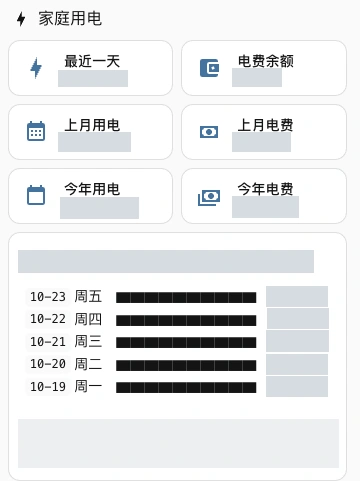
Figure 3. Actual Home Assistant dashboard crop. With proper persistence mirrors, electricity balance, daily usage, and billing history remain stable across reboots (account numbers and private readings masked).
Pre-Flight Checklist: Everything You Need Before Installation
Before configuring software, ensure you have the following four prerequisites ready:
-
Utility Account & Customer Number Verification: Download the official State Grid app on your smartphone and ensure your 10-digit utility customer account number is linked. Perform a manual query inside the app to verify you can see the account name, balance, and previous daily usage.
[!NOTE] This guide applies to State Grid operating provinces (North, East, Central, Northeast, and Northwest China). Southern Power Grid provinces (Guangdong, Guangxi, Yunnan, Guizhou, Hainan) require different provider integrations.
-
Home Assistant Environment Identification:
- HA OS / Supervised (Recommended for beginners): Features the native Add-on Store with visual one-click installation;
- HA Container / Docker: Requires deploying a standalone collector container via Docker Compose; the underlying data structures remain identical.
-
Long-Lived Access Token Creation:
- In the Home Assistant web interface, click your profile icon in the lower-left corner;
- Scroll to the bottom to the “Long-Lived Access Tokens” section and click “Create Token”;
- Name it “SGCC-Collector”, copy the generated token string, and save it securely in a text editor (it will only be displayed once). This serves as the courier’s key to deliver states to HA.
-
Vision API for CAPTCHA Solving (Crucial Pitfall!): Utility login requires passing an icon-click or slider challenge. The add-on supports OpenAI-compatible Vision APIs. You can utilize existing multimodal endpoints (such as budget-friendly commercial vision models or self-hosted local vision models).
Step-by-Step Walkthrough: Installing the Collector Add-on
Step 1: Add the Gitee Repository Mirror
Due to international routing constraints, reaching GitHub directly from home networks in mainland China often suffers from connection drops and timeouts.
Community developers maintain a complete mirror repository on Gitee for fast local deployment:
- In Home Assistant, navigate to Settings → Add-ons;
- Click the Add-on Store button in the lower-right corner;
- Click the Three Dots menu in the upper-right corner and select Repositories;
- Paste the Gitee mirror URL into the dialog and click Add:
https://gitee.com/ARC-MX/sgcc_electricity_new - Close the dialog and refresh the page. Scroll to the bottom of the Add-on Store to locate “SGCC Electricity”. Click it and select Install (typically finishes in under 10 seconds).
Step 2: Configure Add-on Parameters
After installation, do not start the add-on immediately. Switch to the Configuration tab and fill in the required fields:
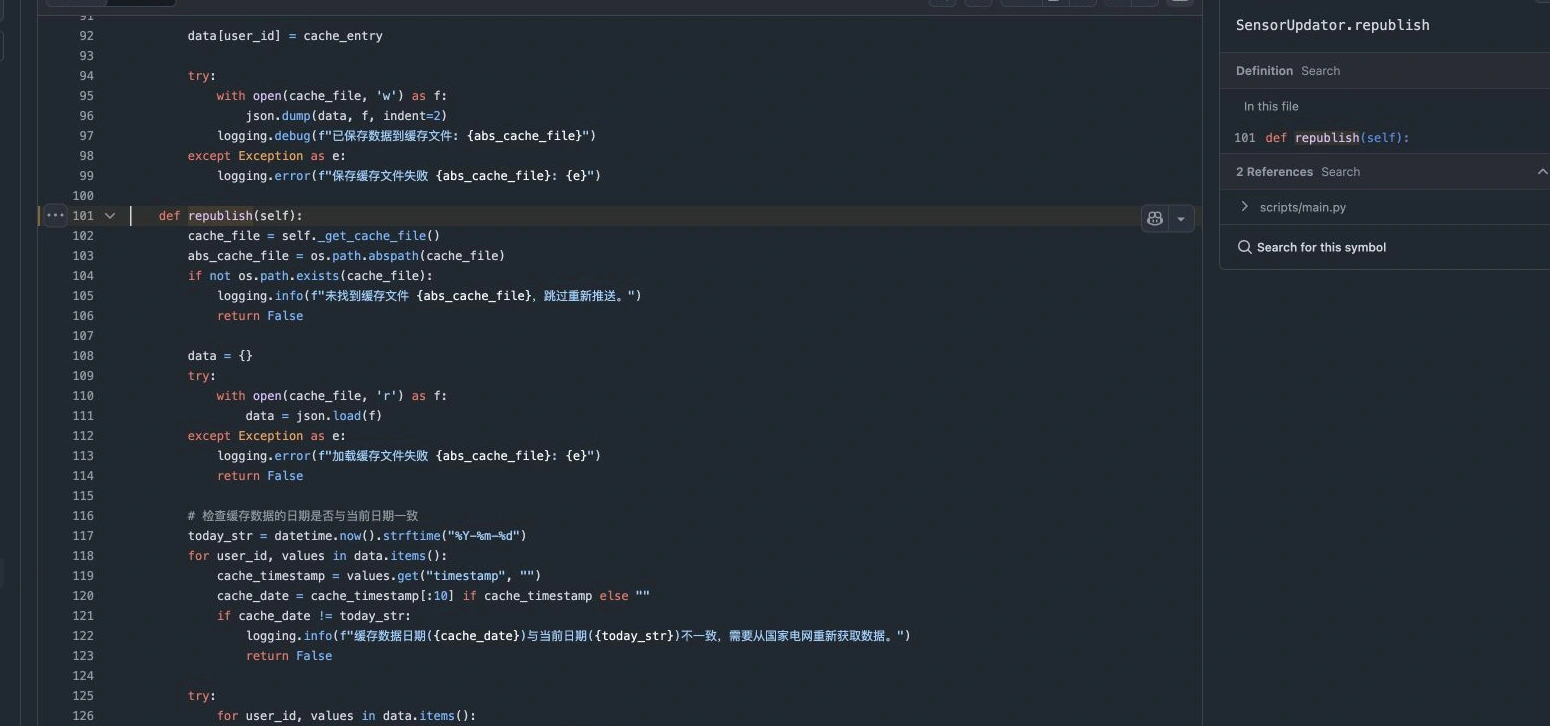
Figure 4. Upstream source screenshot showing republish() cache logic, which eliminates excessive logins while keeping sensor states fresh.
- HASS_URL: The local LAN URL of your Home Assistant server, such as
http://homeassistant.local:8123(ensure bothhttp://and the port are included); - HASS_TOKEN: The Long-Lived Access Token created in the pre-flight checklist;
- PHONE / PASSWORD: Your login mobile phone number and service password for the State Grid portal;
- USER_ID: Your 10-digit utility customer account number. For multiple properties (e.g., parents’ apartment and own residence), separate multiple account numbers with commas (e.g.,
3100211120,3101345701); - CRON / Schedule: Recommended to run once daily around
06:50or07:00. Utility meters batch overnight, so morning captures latest records. Never configure per-minute polling, or the utility will throttle your account; - VISION Configuration:
LLM_BASE_URL: Your vision model endpoint (e.g.,https://api.your-gateway.com/v1);LLM_KEY: API authorization key;LLM_MODEL: Model name (see the critical pitfall section below!).
The 50-Token Trap: Why Reasoning Models Fail at CAPTCHAs
This is the number-one pitfall where over 90% of newcomers hit an unexpected wall.
Attempting to achieve maximum accuracy, beginners frequently configure top-tier reasoning models (such as deep thinking models). The add-on log immediately erupts with repeated errors:
Captcha recognition failed, response is empty!

Figure 5. Original architectural breakdown of the 50-token output limit and optimal model selection.
The underlying root cause is simple:
Inside the add-on source code handling icon-click challenges, the author hardcoded an exceptionally tight constraint: max_tokens: 50 to prevent runaway token costs.
Consider an everyday classroom analogy: The teacher asks: “Where is the red apple on the blackboard? Give me just the coordinate numbers.”
- Fast Lightweight Vision Models (e.g. glm-5.3-flash or mini vision): Like a brisk student, it looks at the image and immediately answers
(120, 85). It uses 5 tokens, finishes in 200 milliseconds, and passes the challenge cleanly. - Deep Reasoning Models: Like a student solving a math olympiad problem, it insists on writing out an entire essay of internal contemplation: “Let me carefully inspect the 300x150 canvas. There is background noise, a bird in the corner, and I must compute the geometric center and shadow gradient…” Before the thought chain finishes its first sentence, the 50-token budget runs dry! The API server forcefully truncates the stream, and the program receives an empty string.
[!IMPORTANT] Model Selection Rule: Always select lightweight, fast, direct vision models without extended reasoning chains. Never use thinking-first reasoning models for rapid 50-token CAPTCHA challenges.
Four Common Traps Every Beginner Should Avoid
Once the add-on starts and logs display Login success and Push state success, the courier has completed its delivery.
However, beginners often encounter four classic points of confusion:
Trap 1: Why Can’t I See “Today’s” Electricity Usage Yet?
The most frequent beginner question: “I ran the air conditioning all day today. Why is today’s usage empty in Home Assistant?”

Figure 6. Original parcel delivery analogy. Separating energy consumption date, utility billing date, and arrival date.
Remember the three dates of parcel delivery:
- Monday (Usage Date): You place an order online (your household consumes electricity);
- Tuesday (Billing Date): The warehouse packs the parcel and prints the manifest (the utility batches overnight records);
- Wednesday (Arrival Date): The courier delivers the box to your door (the add-on pushes readings to HA).
You cannot claim an item was purchased on Wednesday simply because it was delivered on Wednesday. State Grid daily metrics have a natural T+1 or T+2 delay. What appears on your dashboard this morning represents the complete 24 hours of yesterday (or the day before). Waiting for billing publication is normal utility behavior, not a broken integration.
Trap 2: Never Confuse Real-Time Power (W) with Energy (kWh)
- Power (Watts / Kilowatts): Represents the instantaneous flow rate of your water tap (how fast electricity is flowing right now);
- Energy (Kilowatt-hours / kWh): Represents the total volume of water collected in the bucket (flow rate multiplied by duration).
State Grid reports billed energy; if you need instantaneous household wattage, install a dedicated smart power monitor at the distribution panel.
Trap 3: Do Not Blindly Add total_increasing to Daily Usage
Home Assistant’s Energy dashboard requires monitored sensors to declare state_class: total_increasing.
Beginners often think: “Can I just tag daily usage as total_increasing so it appears on the Energy board?”
Never do this!
The total_increasing class tells Home Assistant that numbers only ever rise. Daily usage is a daily slice: 12 kWh Monday, 5 kWh Tuesday, 8 kWh Wednesday. When the value drops from 12 to 5, Home Assistant assumes the meter was reset or replaced, causing massive negative spikes in statistical databases.
Trap 4: Multiple Account Suffix Clashes
When managing multiple apartments, the add-on appends the last four digits of each account number (e.g., _0310 and _1720). When copying dashboard examples, remember to match your own entity suffix.
The Disappearing Entity Bug: Why Do Cards Turn Red on Reboot?
You spend hours assembling a pristine dashboard. Then, after restarting Home Assistant Core to apply another update, disaster strikes: Your electricity balance, monthly cost, and yearly totals turn into bright red “Entity Not Found” boxes!

Figure 7. Blackboard vs notebook analogy. Revealing why in-memory REST states vanish upon restart and how template mirrors restore them.
Root Cause: Blackboard Chalk vs The Student Notebook
Reviewing Home Assistant’s architecture documentation reveals the core mechanism:
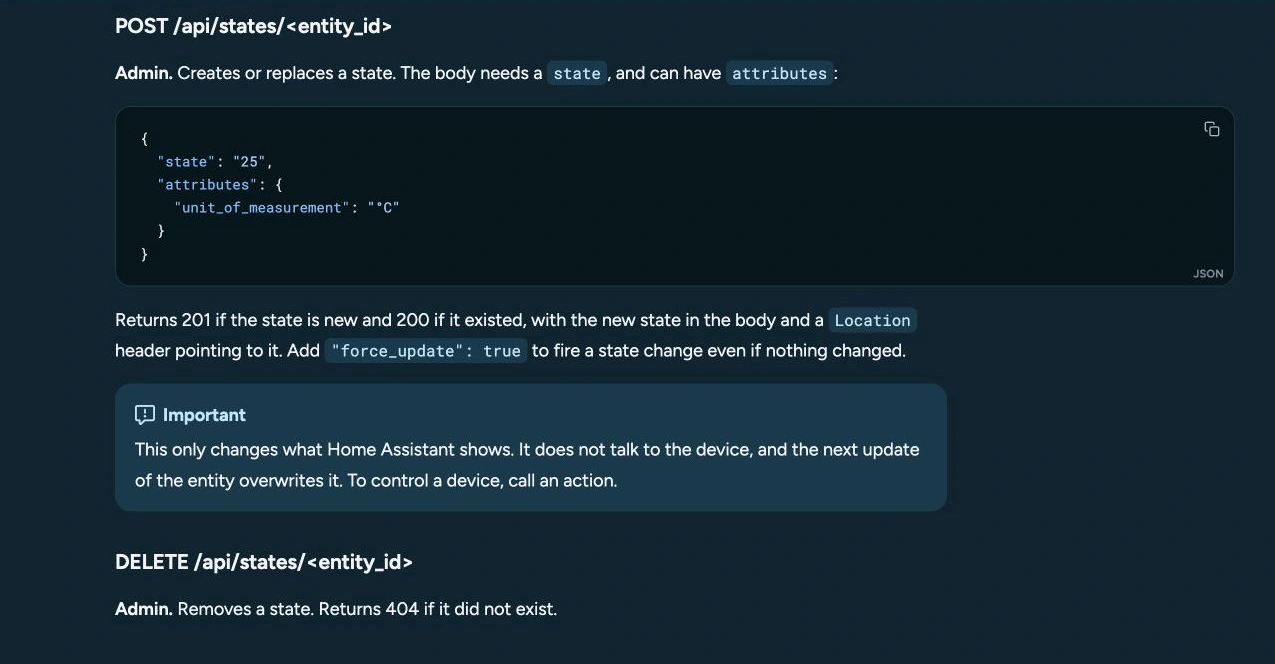
Figure 8. Official documentation crop. The POST /api/states/<entity_id> endpoint only creates temporary in-memory runtime states and does not register persistent entities.
When the collector delivers data, it calls Home Assistant’s POST /api/states/<entity_id> endpoint.
This is like a messenger walking into a classroom and writing “Balance: 128.5 CNY” with chalk on the blackboard. While class is in session, everyone sees it clearly.
However, when you restart Home Assistant Core, the janitor wipes the blackboard completely clean! Because REST-injected states exist only in runtime memory, the system does not know how to recreate them upon reboot. You are forced to wait up to 60 minutes for the add-on’s next scheduled refresh. During that 60-minute gap, your dashboard displays “Entity Not Found”.
The Fix: Official Trigger-Based Template Mirrors
The permanent cure is giving your smart butler a hardcover personal notebook:
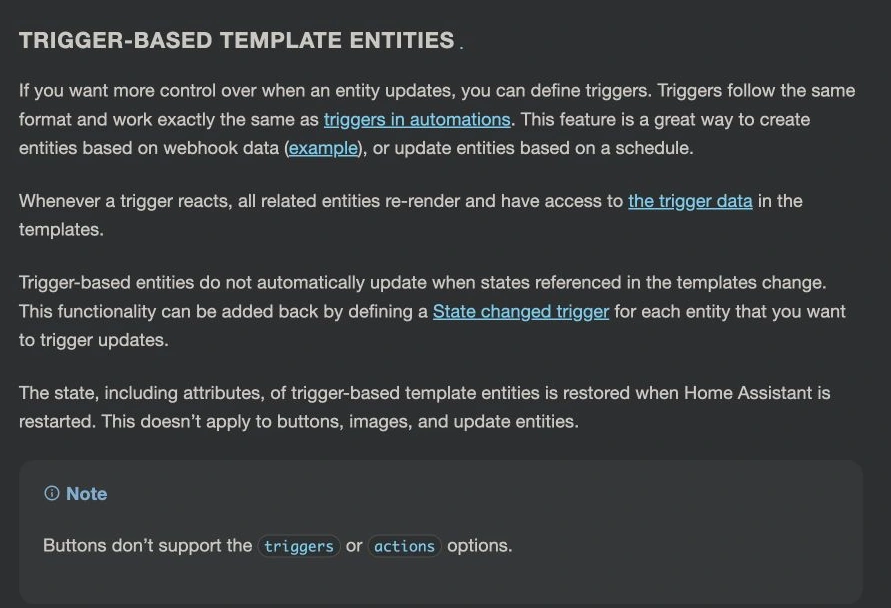
Figure 9. Official documentation confirmation. Trigger-based template entities automatically persist states and attributes to disk and restore them after restarts.
In Home Assistant, Trigger-based Template Sensors possess a vital property: their states serialize to disk. When Core restarts, the system restores the last known value immediately.
The core YAML logic is straightforward:
template:
  - triggers:
      - trigger: state
        entity_id: sensor.electricity_charge_balance_xxxx
    sensor:
      - name: "SGCC Mirror Balance"
        unique_id: sgcc_mirror_balance_xxxx
        unit_of_measurement: "CNY"
        device_class: monetary
        state: >-
          {% set v = states('sensor.electricity_charge_balance_xxxx') %}
          {{ v if is_number(v) else this.state }}
The final line {{ v if is_number(v) else this.state }} provides the fail-safe:
- When a valid new reading arrives, copy it into the notebook;
- When Core restarts and the blackboard is blank (the source entity is
unavailableorunknown), fall back tothis.state(the last verified valid reading)! Rebooting Home Assistant no longer causes missing entities; your electricity tiles remain online 24/7.
Lovelace Dashboard & Automated Low-Balance Alerts
Clean Dashboard Card Configuration
Once persistent mirror entities are active, configure an elegant overview card in your Lovelace dashboard:
type: vertical-stack
title: ⚡ Household Electricity Monitor
cards:
  - type: glance
    show_name: true
    show_icon: true
    show_state: true
    entities:
      - entity: sensor.sgcc_mirror_balance_xxxx
        name: Balance
        icon: mdi:wallet-outline
      - entity: sensor.sgcc_mirror_daily_xxxx
        name: Yesterday Usage
        icon: mdi:lightning-bolt-circle
      - entity: sensor.sgcc_mirror_month_charge_xxxx
        name: Last Month Bill
        icon: mdi:receipt-text-outline
  - type: entities
    title: 📊 Yearly Totals & Accounting
    entities:
      - entity: sensor.sgcc_mirror_year_usage_xxxx
        name: Year-to-Date Energy
      - entity: sensor.sgcc_mirror_year_charge_xxxx
        name: Year-to-Date Cost
      - type: attribute
        entity: sensor.sgcc_mirror_daily_xxxx
        attribute: data_date
        name: Accounting Date
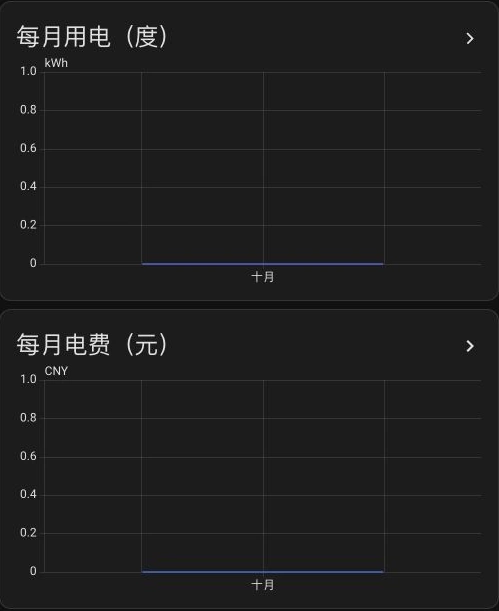
Figure 10. Real statistics graph. Monthly consumption bars and billing totals clearly visualized.
Real-World Automation: Low-Balance Voice and Push Alerts
Set up an automated trigger whenever your electricity balance drops below 50 CNY:
automation:
  - id: alert_power_balance_low
    alias: "Alert: Electricity Balance Below 50 CNY"
    trigger:
      - trigger: numeric_state
        entity_id: sensor.sgcc_mirror_balance_xxxx
        below: 50.00
    condition:
      - condition: template
        value_template: "{{ trigger.from_state.state not in ['unknown', 'unavailable'] }}"
    action:
      # Push notification to smartphones
      - action: notify.notify
        data:
          title: "⚠️ Low Electricity Balance Alert"
          message: "Prepaid electricity balance is down to {{ states('sensor.sgcc_mirror_balance_xxxx') }} CNY. Please recharge via the State Grid app."
      # Daytime voice broadcast via smart speakers (suppressed at night)
      - condition: time
        after: "08:00:00"
        before: "21:00:00"
      - action: tts.speak
        target:
          entity_id: media_player.living_room_speaker
        data:
          media_player_entity_id: media_player.living_room_speaker
          message: "Reminder: Household electricity balance is below 50 CNY. Please recharge today."
Notice the condition trigger.from_state.state not in [‘unknown’, ‘unavailable’]: it prevents false alarms during initial boot, triggering only when a genuine reading crosses the 50 CNY threshold.
Cross-Platform Automation Toolkit: Zero Manual YAML Editing
To simplify setup, the complete persistence generator, configuration validator, and safe rollback workflow are packaged in an open-source, zero-dependency toolkit:

Figure 11. Original automation pipeline. Environment probe, snapshot backup, template injection, REST syntax validation, and instant recovery.
Toolkit Download: SGCC Beginner Toolkit Archive (ZIP).
Design Principles
- Pure Local Execution: Written strictly with the Python 3 standard library; zero third-party pip packages;
- Zero Credential Exposure: Tokens and passwords remain on your local machine; requests only target your local HA IP;
- Failsafe Snapshots & Rollback: Automatically creates a timestamped backup before touching files, restoring instantly if syntax validation fails.
Workflow 1: Manual One-Click Execution
Windows 11 (PowerShell 7 / Windows PowerShell)
# 1. Unpack archive and copy mapping template
Copy-Item mapping.example.json mapping.local.json
# Edit mapping.local.json with your sensor IDs

# 2. Set temporary session variables (destroyed on window close)
$env:HOME_ASSISTANT_URL = "http://homeassistant.local:8123"
$env:HOME_ASSISTANT_TOKEN = "your_long_lived_token"
$env:HA_CONFIG_DIR = "Z:\config"  # Network mounted HA config directory

# 3. Three steps: preview -> check -> apply
.\windows-11.ps1 plan      # Read-only preview of generated YAML
.\windows-11.ps1 check     # Verify connectivity and sensor presence
.\windows-11.ps1 apply --restart  # Backup, write config, validate, and restart
Ubuntu 26.04 LTS (Bash)
# 1. Configure mapping and environment
cp mapping.example.json mapping.local.json
export HOME_ASSISTANT_URL="http://homeassistant.local:8123"
export HOME_ASSISTANT_TOKEN="your_long_lived_token"
export HA_CONFIG_DIR="/mnt/homeassistant_config"

# 2. Generate and apply
bash ubuntu-26.04.sh plan
bash ubuntu-26.04.sh check
bash ubuntu-26.04.sh apply --restart
macOS 27 (Zsh)
# 1. Configure mapping and environment
cp mapping.example.json mapping.local.json
export HOME_ASSISTANT_URL="http://homeassistant.local:8123"
export HOME_ASSISTANT_TOKEN="your_long_lived_token"
export HA_CONFIG_DIR="/Volumes/config"

# 2. Check and apply
bash macos-27.sh plan
bash macos-27.sh check
bash macos-27.sh apply --restart
Workflow 2: Delegating to an AI Operations Agent
If you utilize an autonomous coding or DevOps agent, delegate the deployment with this prompt:
You are my Home Assistant automation specialist.
Transform the collected State Grid entities into high-availability persistent mirrors:

1. Inspect existing collector entities, identify customer account suffixes, and read current states;
2. Download and unpack sgcc-beginner-toolkit, generating mapping.local.json;
3. Run `plan` to inspect the generated packages/sgcc_electricity.yaml template;
4. Ensure a full timestamped backup is captured before touching native configuration;
5. Validate configuration syntax via HA Core's /api/config/core/check_config API;
6. Only if status is valid, apply changes and reload templates;
7. Verify all 6 mirror entities accept current readings with `this.state` fallback protection;
8. Never echo access tokens or passwords to the console.
Frequently Asked Questions (FAQ)
Q1: Why does State Grid report “Daily Login Limit Exceeded”?
The utility portal enforces strict rate limits on failed authentication attempts.
- Never configure polling intervals every few minutes;
- Collect once daily (e.g., 06:50 AM). The add-on republishes from its local cache every 60 minutes, keeping Home Assistant populated without triggering upstream login counters.
Q2: I see a negative balance on my card. Is that an error?
In many billing regions, negative numbers represent pending charges or automated direct-debit draws. The toolkit supports negative monetary values; never filter balances with “greater than zero”, or negative balances will turn into missing entities.
Q3: Why can’t I add electricity costs to the official Energy dashboard?
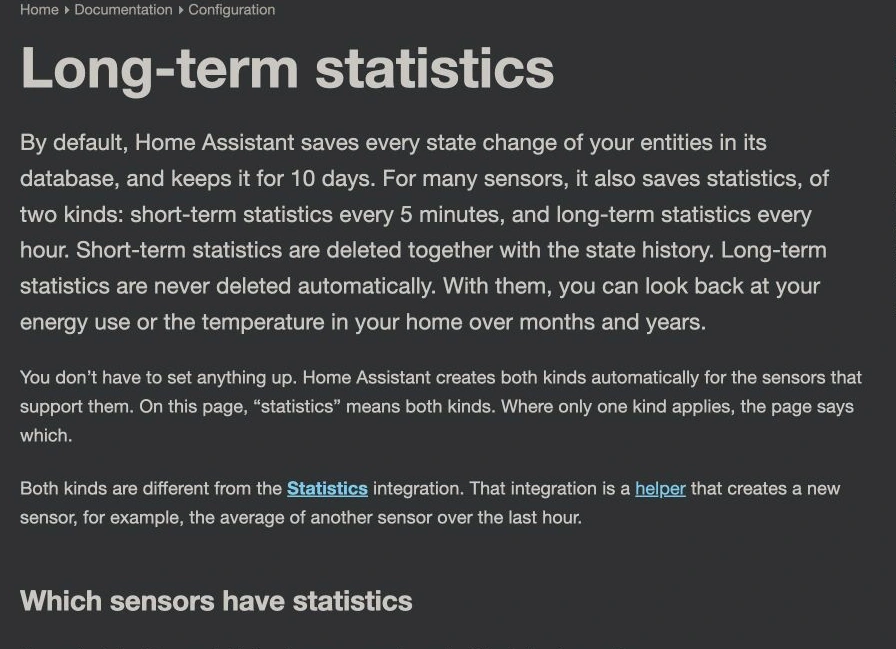
Figure 12. Official documentation screenshot. Long-term statistics require strict adherence to sensor types, measurement units, and state classes.
The Energy dashboard enforces strict rules:
- Energy: Must be
unit_of_measurement: kWhwith total increasing semantics; - Cost: Monetary sensors (
device_class: monetary) in Home Assistant only permitstate_class: totaland rejecttotal_increasing! Using our beginner toolkit automatically generates compliant attributes adhering to official standards.
Q4: Is this method secure against household intrusion?
Completely secure:
- The add-on executes entirely inside your private local environment;
- All sensor updates travel across the local LAN REST API without cloud intermediary proxies;
- Long-Lived Access Tokens remain strictly local and can be revoked instantly in Home Assistant settings.
References & Acknowledgments
- ARC-MX / sgcc_electricity_new Repository: The community State Grid collector add-on
- Home Assistant Official Documentation: REST API State Specifications
- Home Assistant Official Documentation: Trigger-Based Template Entities
- Home Assistant Official Documentation: Long-Term Statistics Architecture
- State Grid 95598 Customer Service Portal
Home Assistant logos and naming are trademarks of the Open Home Foundation. All diagrams are original vector assets, and UI screenshots reflect real operating environments with opaque masking applied to private accounts, local IPs, and monetary figures.