No More 20-Minute Boot Hangs! The Zero-Threshold Wintermelon HAOS Installation Guide: Breaking Network Deadlocks, 3-Minute WinPE Flashing & Port 8124 Visual Takeover
Anyone who has ever browsed smart home communities has probably marveled at what a mature Home Assistant (HA) setup can achieve: interactive 3D floorplans, instant cross-brand automations bridging Apple HomeKit with Xiaomi, Midea, and Zigbee sensors, and proactive utility bill alerts.
Yet behind those polished showcases lies a frustrating reality: more than 80% of enthusiastic beginners give up before they even reach the Home Assistant account registration screen.
The story plays out the same way every weekend. You buy a dedicated mini-PC, repurpose an old laptop, or spin up a virtual machine on your NAS. You flash the official Home Assistant OS (HAOS) image, power it on, open your browser, and are greeted by the infamous message:
Preparing Home Assistant (this can take up to 20 minutes or more)…
Twenty minutes turns into two hours. Two hours turns into an overnight vigil. Either the blue spinner rotates into eternity, or the page abruptly throws a red Error installing Home Assistant banner. And even if you get lucky at 3:00 AM and make it past onboarding, you immediately hit a second brick wall: there is no HACS community store pre-installed, every add-on download times out against overseas registries, and integrating local domestic appliances feels like studying for a network engineering certification.
Does building a private, local-first smart home hub really require mastering Linux kernel debugging and container proxy routing?
Not anymore. Created specifically to eliminate these barriers, Wintermelon HAOS (wghaos) transforms the Home Assistant OS experience from a black-box gamble into a transparent, turnkey workflow. By baking in high-speed mirror routing, pre-bundled community essentials, and a dedicated visual management cockpit on Port 8124 (Wintermelon Companion), it lets complete beginners go from bare hardware to a working smart home in minutes. This guide walks you through the underlying root causes, the hardware selection matrix, the 3-minute WinPE flashing workflow, and a zero-dependency cross-platform inspection toolkit.

Figure 1. Original overview illustration. The complete beginner delivery pipeline: breaking network deadlocks, 3-minute WinPE disk flashing, and visual takeover via Port 8124.
Problem Background & Symptoms: Why Official HAOS Traps Beginners at the Door
Before flashing any firmware, let us examine the three classic failure symptoms that derail newcomers when installing stock Home Assistant OS:
-
Symptom 1: The Infinite “Preparing Home Assistant” Spinner The disk image writes cleanly, the machine boots, and your router assigns it a local network address. Yet when you open port
8123in a browser, the screen stays frozen onPreparing Home Assistant (this can take up to 20 minutes or more). Behind the scenes, Supervisor enters an endless loop of failed container pulls and backoff retries. -
Symptom 2: The Black-Screen
ha >Terminal Panic Connecting an HDMI monitor to the host reveals no graphical desktop and no progress bar—only boot logs ending in a blinking greenha >prompt withHome Assistant Core: landingpageprinted above it. Beginners have no way of knowing whether the system is actively downloading gigabytes of data or sitting idle after a fatal network error. -
Symptom 3: An Empty House After Onboarding Even when onboarding eventually succeeds, stock HAOS ships without HACS (Home Assistant Community Store). Attempting to install popular ecosystem integrations—such as Xiaomi Home, Midea LAN, or State Grid electricity monitors—triggers constant connection resets when fetching archives from GitHub.
Problem Analysis & Root Cause: The Overseas Unfurnished Flat vs. The Turnkey Apartment
Why does a system image that you already flashed onto a local SSD still need to download so much data on its very first boot? Let us break down the architecture using an analogy that any elementary school student can grasp right away: moving into a new apartment.

Figure 2. Elementary school analogy. Why official HAOS behaves like an empty apartment waiting for overseas furniture shipping, whereas Wintermelon HAOS arrives move-in ready with a lobby concierge.
1. The Hidden Truth About Stock HAOS: You Only Flashed an Empty Shell
A universal misconception among beginners is assuming that the several-hundred-megabyte HAOS image contains the complete Home Assistant application.
In reality, it does not.
To keep the base OS image compact and version-independent, stock HAOS ships only a minimal Linux kernel, the container orchestrator (hassio_supervisor), and a tiny placeholder web server called landingpage. Think of it as an unfurnished concrete shell with a contractor standing inside.
The moment you plug in the power cord, the contractor (Supervisor) wakes up and tries to order all the actual furniture—beds, sofas, kitchen appliances (the multi-gigabyte homeassistant Core container and system plugins)—from overseas warehouses. During this first boot, it must clear four strict network checkpoints in sequence:
- Checkpoint 1: NTP Clock Synchronization (The Silent Killer) Brand-new mini-PCs, ARM TV boxes without CMOS batteries, or freshly created virtual machines often boot with a skewed system clock. If the default overseas NTP servers time out, the system clock remains out of sync. Every subsequent HTTPS request immediately fails because TLS certificates appear “not yet valid” or expired.
- Checkpoint 2: Version Manifest Resolution
Supervisor queries
version.home-assistant.ioto discover the latest release tags. If DNS resolution or CDN routing stalls here, Supervisor does not even know which container version to pull. - Checkpoint 3: Multi-GB Container Layer Pulls from
ghcr.io(90% of All Hangs) All official Home Assistant containers (core,cli,dns,audio,observer,multicast) live on GitHub Container Registry (ghcr.io). The Core image alone consists of 32 compressed layers totaling nearly 2 GB unpacked. Over a congested cross-border link, if even one layer suffers a TCP reset or stalls mid-stream, the pull aborts and restarts from scratch. - Checkpoint 4: Internal DoT / DNS Forwarding Deadlocks
The built-in
hassio_dnsplugin defaults to DNS-over-TLS fallbacks that frequently clash with double-NAT optical modem topologies in home networks.
2. How Wintermelon HAOS Eliminates Every Bottleneck at the Root
Once you understand those four checkpoints, the engineering behind Wintermelon HAOS (wghaos) becomes crystal clear:
- Domestic High-Speed Registry (
r.hassbus.com) +haos-turboEngine: Under the hood, Wintermelon HAOS redirects container pulls from throttled overseas registries to dedicated domestic mirror clusters (such asr.hassbus.com) paired with thehaos-turboacceleration service. Instead of waiting hours for cross-border shipping, all 32 layers stream from a local warehouse at full broadband speed. - Port
8124Wintermelon Companion (Your Visual Concierge Lobby): Instead of staring at a vague spinner on port8123, you open port8124immediately after boot. A clean graphical dashboard shows the exact initialization stage, which of the 7 core containers are running, how many image layers have finished downloading, and whether NTP time and network connectivity are healthy. - Pre-Loaded HACS & 19 One-Click Self-Healing Tools: Out of the box, HACS and essential system add-ons are pre-configured. If you ever hit peak-hour congestion, forget your password, or encounter a Supervisor glitch, 19 red buttons in the Companion UI let you switch mirror nodes, sync NTP time, or repair Supervisor with a single click—zero command-line typing required.
Architecture Selection: Why Beginners Should Pick Wintermelon HAOS Over Bare Docker
Anyone who already runs a NAS or Linux server inevitably asks: “Why not just run the homeassistant/home-assistant Docker container directly? Why install a full operating system?"
Choosing bare Docker is the single biggest trap that haunts beginners months later. Let us compare the two using a “Full Smart Villa vs. Rented Studio Room” analogy:

Figure 3. Architecture comparison. Bare Docker strips away Supervisor and the Add-on Store, whereas Wintermelon HAOS delivers the complete smart villa ecosystem.
- Docker Container Edition = Renting a Bare Studio Room
It contains only the Home Assistant Core web application. It completely strips out
Supervisorand theAdd-on Store! Whenever you follow a tutorial that says “open the Add-on Store and click Install on Mosquitto MQTT, Zigbee2MQTT, Node-RED, or Filebrowser,” you will discover that the Add-on Store menu does not even exist in Docker edition. You have to manually write Docker Compose files, debug container bridge networking, fight Linux USB serial permissions for Zigbee dongles, and live without native one-click full system snapshots. - Wintermelon HAOS Edition = Owning a Turnkey Smart Villa
It delivers the complete stack: OS + Supervisor + Core + Add-on Store + Wintermelon Companion. Every peripheral service installs with one click, internal container DNS is wired automatically, and a single
.tarbackup restores your entire smart home onto new hardware in minutes.
Matching Your Hardware to the Right 18.3.1 Firmware Image
As of October 2026, the latest stable release is Wintermelon HAOS 18.3.1 (available from the official firmware portal fw.wghaos.com and wghaos.com). Use this table to pick the exact image for your hardware:
| Your Hardware Environment | Recommended Wintermelon Image | Filename Pattern & Key Advantage |
|---|---|---|
| PVE / Synology VMM / iKuai / VMware VM (Best for Beginners) | 64-bit Win10PE Universal Installer ISO | win10pex64-wg-haos18.3.1.iso: Mount as virtual CD, double-click the desktop installer, zero manual disk conversion or resizing needed |
| x86-64 Bare-Metal Mini-PC (N100 / J4125 / Old Laptop) | 64-bit Win10PE Universal Installer ISO or PC Native Image | Boot via Ventoy USB and flash haos_x86-64-pc_cn-18.3.1 directly to internal SSD/NVMe with native CPU instruction support |
| Legacy 32-bit EFI Boards (e.g., Z3735F POS / Tablet Boards) | 32-bit IA32 Win10PE Installer ISO | win10pex86-wg-haos18.3.1.iso: Solves the notorious 32-bit UEFI bootloader limitation on older embedded boards |
| Direct Virtual Disk Import (ESXi / VirtualBox / QEMU) | x86-64 VM Dedicated Image | haos_x86-64-vm_cn-18.3.1…img.xz: Tuned for QEMU virtual hardware; remember to expand virtual disk to 32 GB+ after import |
| ARM TV Boxes & SBCs (Raspberry Pi / Phicomm N1 / RK3566) | Board-Specific ARM Build | Match your exact SoC (RK3566, S905X3, H618, Pi 4/5) and use the built-in Port 8122 Toolbox to flash eMMC |
[!TIP] The Golden Rule for Beginners: If you are installing on any x86 mini-PC, Proxmox VE (PVE), Synology NAS VMM, or VMware virtual machine, always grab
win10pex64-wg-haos18.3.1.iso. It wraps disk partitioning, image decompression, and partition auto-expansion into a foolproof 3-minute graphical workflow.
Step-by-Step Part 1: Golden Virtual Machine & BIOS Parameters
Let us walk through creating the virtual machine in Proxmox VE (PVE)—the exact same principles apply to Synology Virtual Machine Manager, VMware Workstation, and bare-metal motherboard BIOS settings.
Before clicking through the wizard, let us demystify the two hardware switches that cause 95% of boot failures:
- Why MUST BIOS be set to
OVMF (UEFI)instead ofSeaBIOS? Think of legacySeaBIOS (MBR)as an old-fashioned metal key, while Wintermelon HAOS uses a modern electronic smart-card lock (UEFI GPT partition table). If you leave the VM on default SeaBIOS, it tries to jam a metal key into an electronic reader—resulting in an immediate black screen stuck atBooting from Hard Disk…. - Why should CPU Type be set to
host? Default virtual CPUs (such askvm64orqemu64) act like speaking through a slow interpreter, hiding modern encryption and vector instructions. Selectinghostlets Wintermelon HAOS talk directly to your physical CPU cores, unlocking the full speed of the nativex86-64-pcbuild and cutting container extraction time in half.
Four-Step VM Creation Walkthrough (With Real Redacted Screenshots)
-
Upload the ISO & Select OS Media: Upload
win10pex64-wg-haos18.3.1.isoto your PVE ISO storage. Click “Create VM”, select the uploaded PE ISO under the “OS” tab, and leave Guest OS type on defaultLinux. -
System Tab (Critical: Select OVMF UEFI!): Switch to the “System” tab and match the exact settings highlighted below:
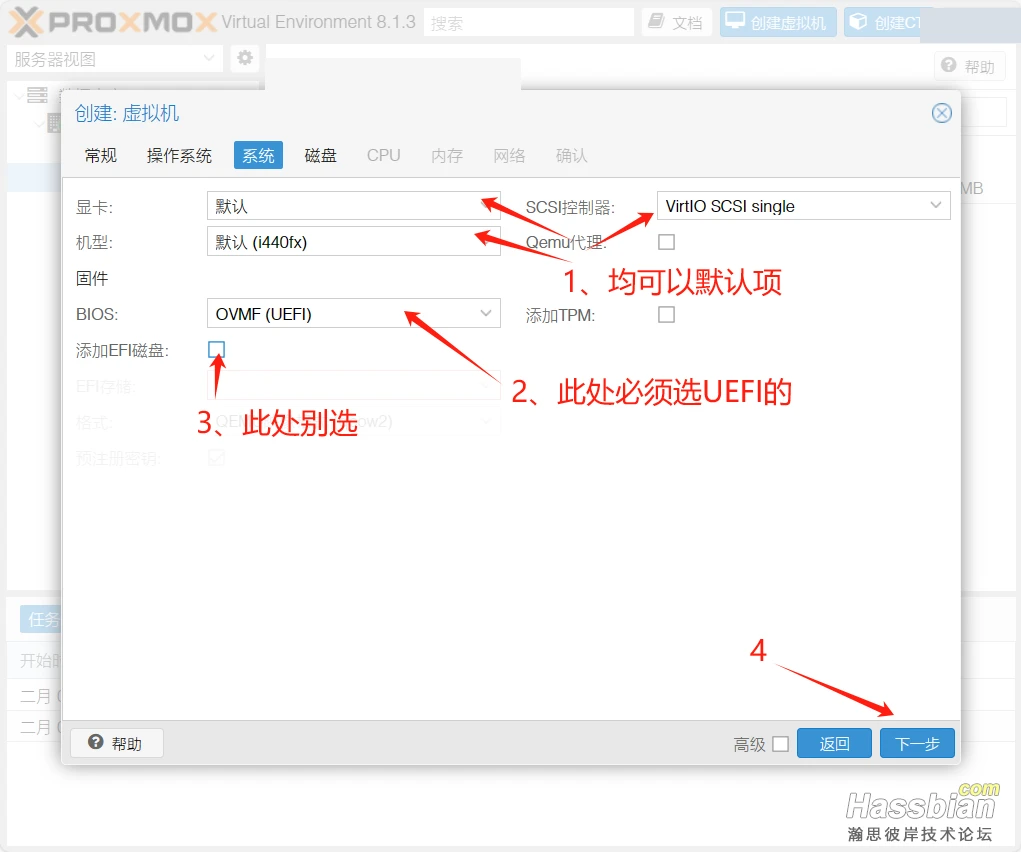
Figure 4. Actual PVE System tab configuration (node identifiers redacted). Set BIOS to OVMF (UEFI) and uncheck “Add EFI Disk” when using the WinPE installer ISO.
- Graphic card & Machine: Keep default (or
q35); - BIOS: Must be set to
OVMF (UEFI)! (In Synology VMM or VMware, selectUEFIunder Firmware; on bare-metal PCs, enable UEFI boot in motherboard BIOS); - Add EFI Disk: Uncheck this box when using the WinPE ISO installer.
- Disks & CPU Tabs (SATA 32 GB+ &
hostPassthrough):- Under “Disks”, set Bus/Device to
SATA(WinPE includes native SATA drivers out of the box without needing VirtIO driver injection) and set Disk size to32 GiBor larger; - Switch to the “CPU” tab and configure it as shown below:
- Under “Disks”, set Bus/Device to
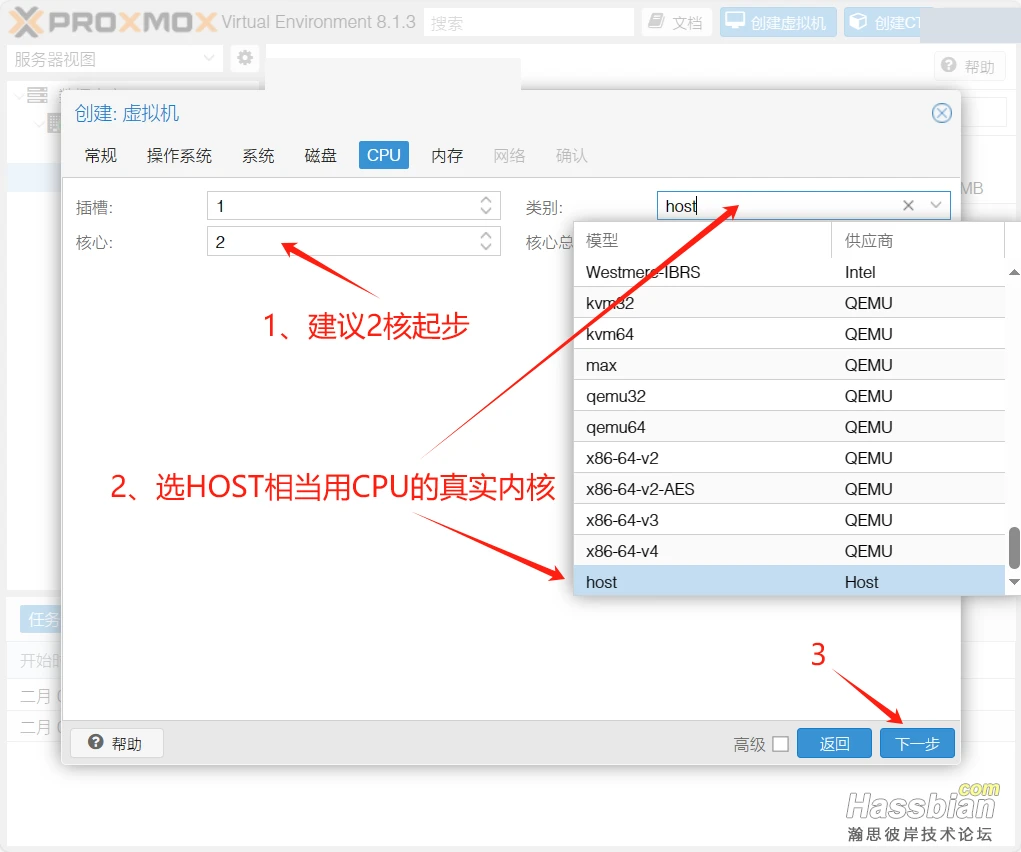
Figure 5. Actual PVE CPU tab configuration (node identifiers redacted). Allocate at least 2 cores and scroll to the bottom of the “Type” dropdown to select host.
- Memory & Network: Allocate
2048 MB(2 GB) to4096 MB(4 GB) of RAM. Keep the network device on bridged mode (vmbr0) so the VM sits on the exact same LAN subnet as your phone and computer.
Step-by-Step Part 2: Flashing Wintermelon HAOS to Disk in 3 Minutes via WinPE
Whether you booted the VM above or plugged a Ventoy USB stick into a physical mini-PC, writing the system to disk takes less than three minutes:
-
Boot into the Win10 PE Desktop: Start the machine and open the console. Within 30 seconds, you will land on a clean blue Windows 10 PE desktop featuring a prominent shortcut icon:
双击安装冬瓜HAOS到硬盘(Double-click to install Wintermelon HAOS to hard disk). -
Double-Click the Installer, Type
1, and Press Enter: Double-clicking the icon opens a terminal window listing the bundled firmware image. Simply type1on your keyboard and press Enter!
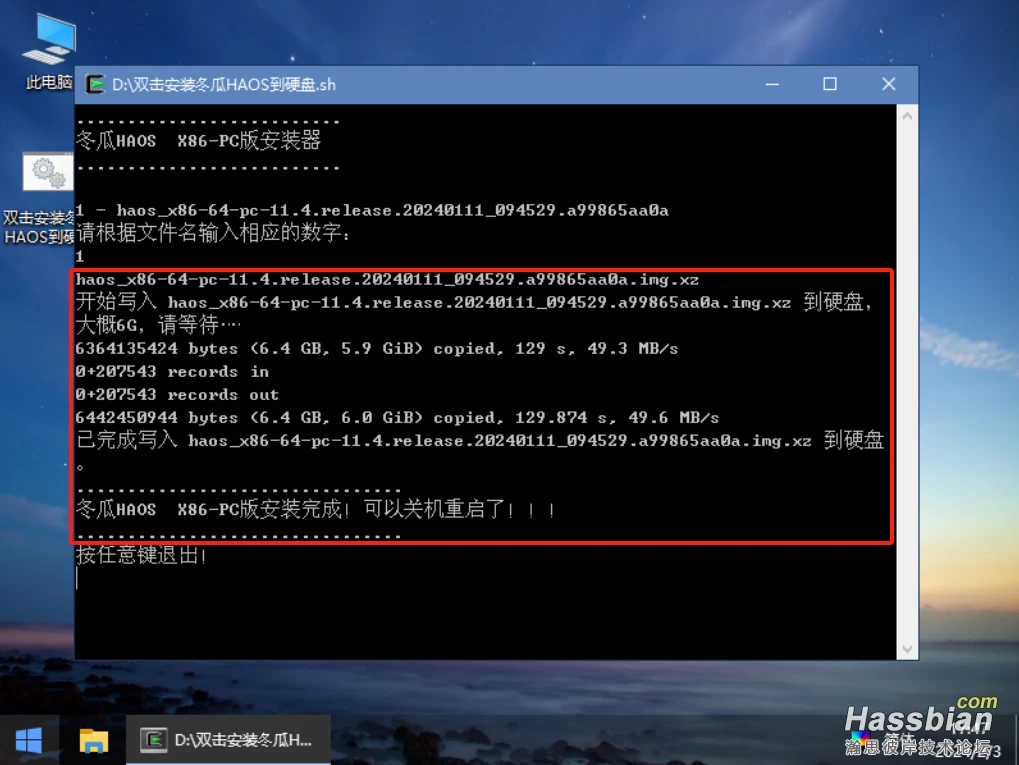
Figure 6. Actual WinPE flashing screenshot. After typing 1 and pressing Enter, the script streams the 6.4 GB uncompressed image onto the target SATA disk at nearly 50 MB/s, finishing in about two minutes.
- Shut Down, Eject the ISO / USB Drive, and Power On!
Once the terminal prints:
冬瓜HAOS X86-PC版安装完成!可以关机重启了!!!(Installation complete! Ready to shut down and reboot!)[!IMPORTANT] Crucial Step Beginners Often Forget: Shut down the machine completely first:
- On a Physical PC: Unplug the USB flash drive before pressing the power button again!
- On a PVE / Synology / VMware VM: Go to the VM’s Hardware → CD/DVD Drive settings and select “Do not use any media” (unmount the ISO) before starting the VM! Otherwise, it will simply boot back into the WinPE desktop again.
First Boot Without Confusion: The “Three Golden Ports” Explained
Once the machine boots from its internal disk, Wintermelon HAOS exposes three specialized web ports. To keep them straight, picture your new server as a Smart Apartment Building with three distinct windows:

Figure 7. Elementary school analogy. Visit Port 8124 (Concierge Lobby) first to watch the renovation progress, use Port 7681 (Engineering Channel) for low-level logs, and enter Port 8123 (Main Living Room) once renovation hits 100%.
Stop 1: Open Port 8124 — Wintermelon Companion (The Concierge Lobby)
Wait 2 to 3 minutes after powering on, open a browser on any computer or phone on the same Wi-Fi/LAN, and visit:
http://homeassistant.local:8124/
(If your router does not resolve .local mDNS names, substitute your device’s local LAN address followed by :8124).
You will immediately see the signature feature of Wintermelon HAOS—the Wintermelon Companion Workbench:
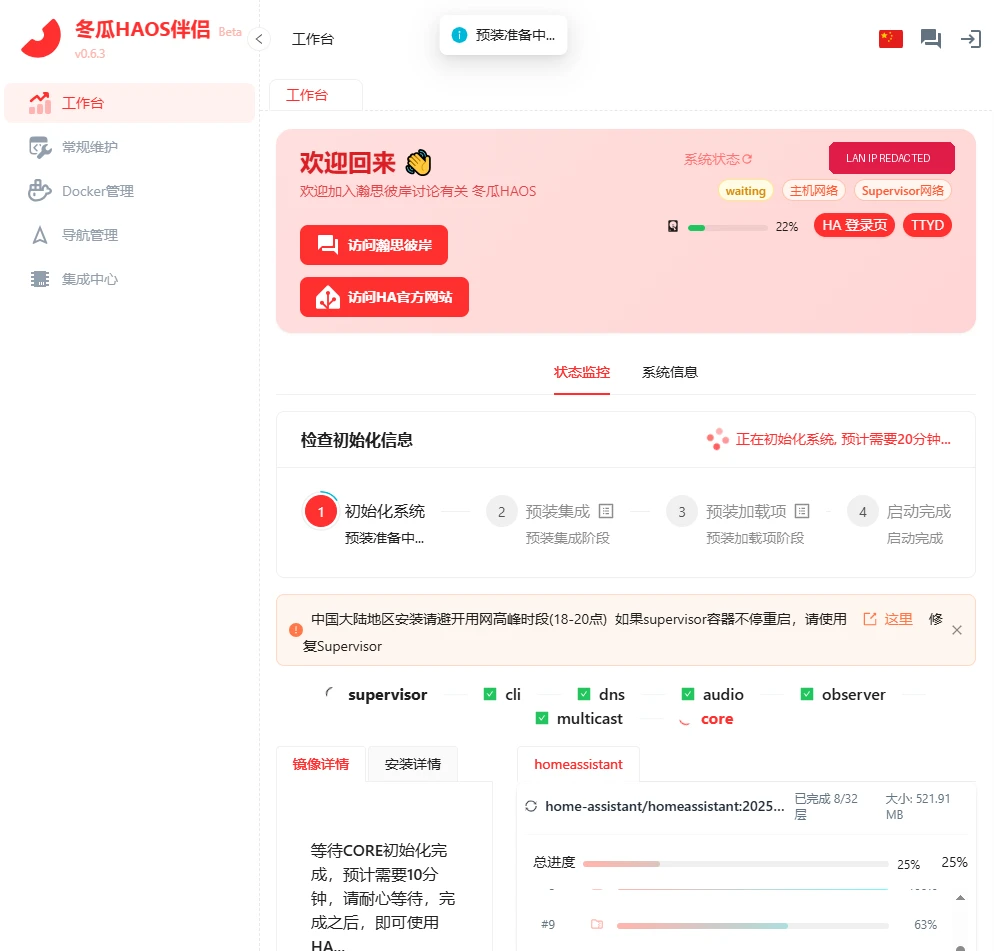
Figure 8. Actual Port 8124 Wintermelon Companion screenshot during first boot (LAN address redacted). Every stage, container health check, and layer download is visible in real time.
Notice how much anxiety this single page removes:
- Top Status Bar: Confirms whether Host networking and Supervisor networking are online, plus current disk usage percentage;
- Four-Stage Initialization Tracker: Breaks first boot into four clear milestones:
1 System Init→2 Pre-installed Integrations→3 Pre-installed Add-ons→4 Boot Complete; - Seven Container Health Indicators: Shows green checkmarks
✓assupervisor,cli,dns,audio,observer,multicast, andcorecome online one by one; - Granular Layer Progress: Displays exact layer counts (e.g.,
Completed 8/32 layers, 521.91 MB, 25%) in the bottom-right panel.
When all four milestones turn green, overall progress reaches 100%, and a modal pops up prompting you to reboot after initialization, click the red Reboot button and wait 60 seconds!
Stop 2: Port 7681 Web Terminal & The 19 One-Click Self-Healing Tools
What if you want to inspect low-level system logs or recover from a network hiccup without touching SSH clients? Wintermelon HAOS gives you two built-in power tools:
1. Port 7681: Browser-Based TTYD Command Line
Without installing PuTTY, Xshell, or configuring SSH keys, simply navigate to:
http://homeassistant.local:7681/
Your browser opens an interactive terminal session directly into the HAOS host:
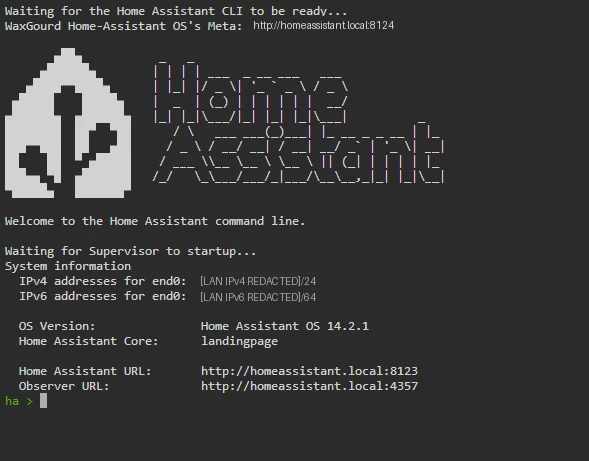
Figure 9. Actual Port 7681 TTYD web terminal screenshot (LAN addresses redacted). Inspect OS version, network interfaces, or live installation logs right inside your browser.
- To watch real-time background installation logs during first boot, type
login(if prompted) and runha-install -t; - Need a full Linux Bash shell instead of the
ha >CLI? Wintermelon HAOS also runs a twin TTYD service on Port7680that drops you straight into Bash!
2. Companion “Routine Maintenance”: 19 Red Buttons That Replace Complex CLI Commands
Click 常规维护 (Routine Maintenance) in the left sidebar of Port 8124 (sign in at the top-right using your HA account or create a local Companion admin account first). You will find 19 one-click self-healing utilities:
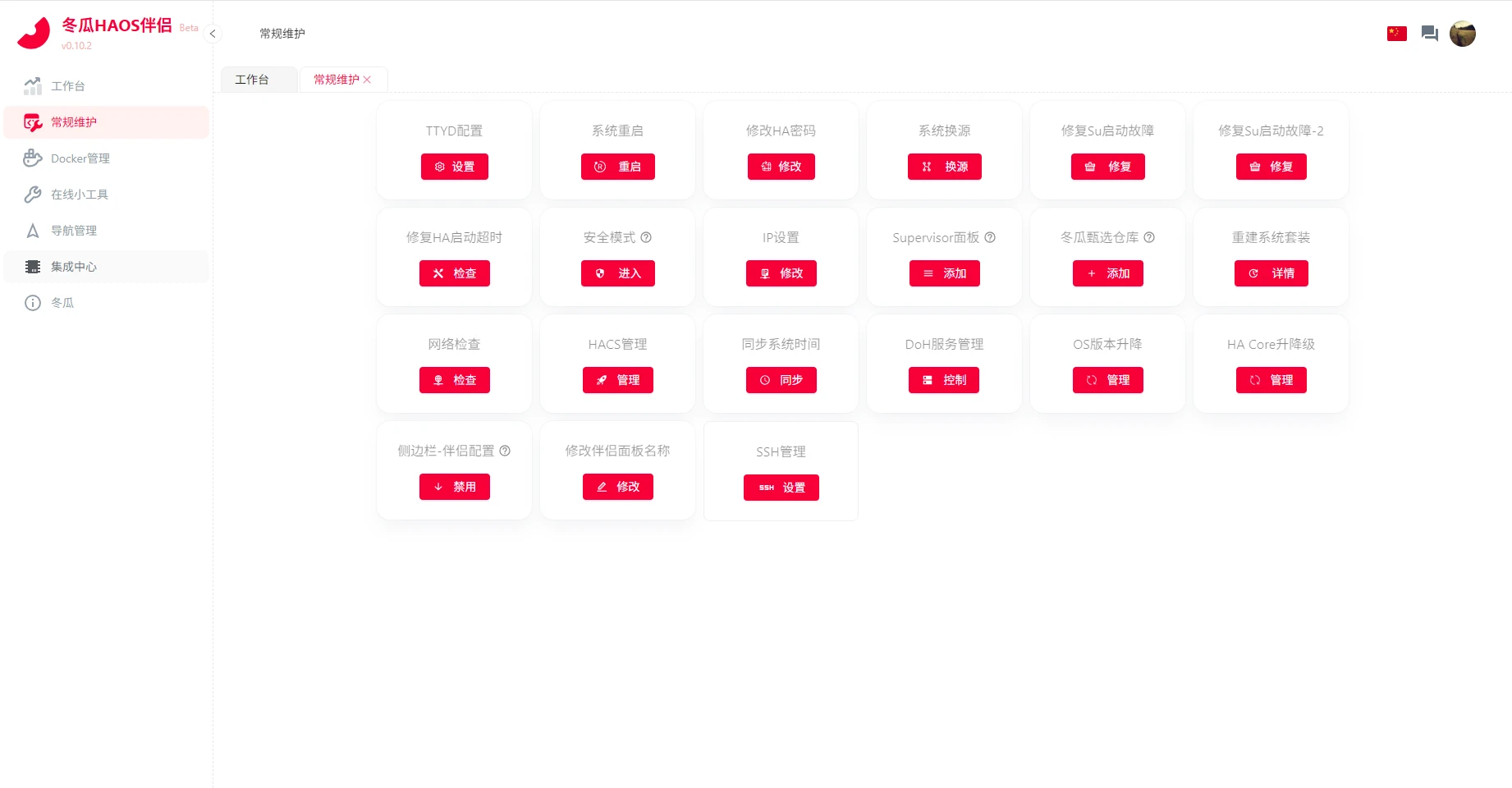
Figure 10. Actual screenshot of the Routine Maintenance panel in Wintermelon Companion. Tasks that normally require dozens of Linux commands are reduced to single-click actions.
Here are the most valuable buttons for everyday operation:
- System Mirror Switch (
系统换源): Instantly switch between domestic mirror nodes if downloads slow down during evening peak hours; - Sync System Time (
同步系统时间): Force an immediate NTP clock sync to fix TLS certificate validation errors; - HACS Management (
HACS管理): One-click install or repair either standard HACS or the domestic accelerated HACS edition; - Reset HA Password (
修改HA密码): Locked out of port8123? Reset any user’s password right here without touching a terminal; - Curated Add-on Store & Supervisor Panel (
冬瓜甄选仓库 / Supervisor面板): Pin the Supervisor panel and Wintermelon’s curated domestic add-on catalog directly to your Home Assistant sidebar; - Fix HA Boot Timeout & Safe Mode (
修复HA启动超时 / 安全模式): If a misbehaving custom integration prevents Core from starting, boot into Safe Mode or clear stuck compile tasks from Port8124.
Stop 3: Moving into Port 8123 & Three Essential Day-One Tasks
Once Companion finishes initialization and reboots the host, point your browser to:
http://homeassistant.local:8123/
The official Home Assistant onboarding screen will load immediately:
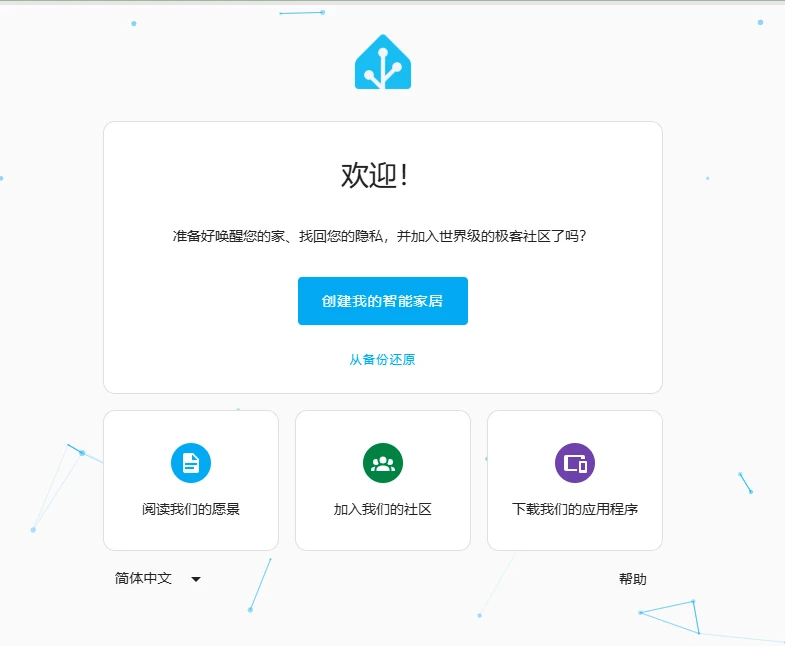
Figure 11. Actual screenshot of the Home Assistant onboarding screen on Port 8123. Click “Create my smart home” to set up your owner account, or restore directly from a backup archive.
As you complete the onboarding wizard, make sure to check off these three essential day-one tasks:
- Use a Pure Lowercase English Username:
Your display “Name” can be anything you like, but keep the login “Username” strictly lowercase ASCII letters (e.g.,
adminor your first name). This prevents subtle encoding bugs in older third-party add-ons and authentication hooks. - Verify Metric Units (
°C,kg,km) and Timezone: Ensure the timezone is set to your local region (e.g.,Asia/Shanghai) and the unit system is set to Metric. If temperatures accidentally show up in Fahrenheit (°F), go to Settings → System → General, switch to Metric, and click Save. - Create Your First Clean Baseline Backup:
While your system is fresh and HACS is cleanly initialized, navigate to Settings → System → Backups, create a full backup named
Clean-Baseline-18.3.1, and download the.tarfile to your computer. With this safety net in hand, you can experiment fearlessly knowing you can always restore to a pristine state in three minutes.
Cross-Platform Zero-Dependency Automation Toolkit: Verify, Probe & Onboard
Even with a streamlined image, beginners frequently run into practical friction before and after flashing: “Which exact 18.3.1 URL should I grab?" “Did I remember every UEFI and CPU flag in PVE?" “Is .local mDNS working on my Wi-Fi, and is port 8124 or 8123 awake yet?"
To make the entire journey effortless, I packaged firmware catalog matching, SHA256 download verification, PVE VM command generation, and concurrent 8124 / 7681 / 8123 readiness probing into an open-source, zero-dependency toolkit (wghaos-beginner-toolkit):

Figure 12. Original toolkit workflow diagram. Step 1 matches firmware and VM specs, Step 2 probes all three ports concurrently, and Step 3 watches until port 8123 is ready for onboarding.
Download the complete archive here: Wintermelon HAOS Beginner Installation & 3-Port Diagnostic Toolkit (ZIP).
Engineering & Privacy Guarantees
- Zero Third-Party Dependencies: Built exclusively on native shell wrappers and Python 3’s standard library—no
pip installrequired; - 100% Local Execution: Communicates only with the official firmware mirror (when downloading) and your local LAN Home Assistant host;
- Automatic Address Redaction & Disk Safety: Any generated readiness report automatically masks local LAN addresses, and the toolkit never runs destructive raw disk writes on your host machine.
Method 1: Manual One-Click Execution (Windows 11 / Ubuntu 26.04 / macOS 27)
Copy and run the snippet matching your operating system:
1. Windows 11 (PowerShell 7 / Windows PowerShell)
# 1. Download and extract the zero-dependency toolkit
$ToolkitUrl = "https://blog.margrop.net/downloads/home-assistant-wghaos-beginner-install-guide/wghaos-beginner-toolkit.zip"
Invoke-WebRequest -Uri $ToolkitUrl -OutFile "wghaos-beginner-toolkit.zip"
Expand-Archive -Path "wghaos-beginner-toolkit.zip" -DestinationPath ".\wghaos-toolkit" -Force
Set-Location ".\wghaos-toolkit"

# 2. Set target hostname via mDNS (no hardcoded private IP addresses)
$env:WGHAOS_HOST = "homeassistant.local"

# 3. Run the 3-step pipeline: Plan VM specs -> Probe 3 ports -> Wait for 8123 readiness
.\windows-11.ps1 plan --edition x86-64-pe
# Optional: Uncomment the next line to download the official 18.3.1 PE ISO and verify SHA256
# .\windows-11.ps1 fetch --edition x86-64-pe --out-dir .\downloads
.\windows-11.ps1 probe
.\windows-11.ps1 wait --timeout 1200 --interval 15
2. Ubuntu 26.04 LTS (Bash)
#!/usr/bin/env bash
set -euo pipefail

# 1. Download and unpack the toolkit
mkdir -p ./wghaos-toolkit && cd ./wghaos-toolkit
curl -fsSL "https://blog.margrop.net/downloads/home-assistant-wghaos-beginner-install-guide/wghaos-beginner-toolkit.zip" -o toolkit.zip
unzip -oq toolkit.zip

# 2. Configure target mDNS hostname
export WGHAOS_HOST="homeassistant.local"

# 3. Generate UEFI + host CPU spec plan, probe ports 8124/7681/8123, and wait for onboarding
bash ubuntu-26.04.sh plan --edition x86-64-pe
# Optional: Uncomment the next line to download the 18.3.1 firmware image with SHA256 verification
# bash ubuntu-26.04.sh fetch --edition x86-64-pe --out-dir ./downloads
bash ubuntu-26.04.sh probe
bash ubuntu-26.04.sh wait --timeout 1200 --interval 15
3. macOS 27 (Zsh)
#!/usr/bin/env zsh
set -euo pipefail

# 1. Fetch and extract the toolkit archive
mkdir -p ./wghaos-toolkit && cd ./wghaos-toolkit
curl -fsSL "https://blog.margrop.net/downloads/home-assistant-wghaos-beginner-install-guide/wghaos-beginner-toolkit.zip" -o toolkit.zip
unzip -oq toolkit.zip

# 2. Point to the target mDNS host
export WGHAOS_HOST="homeassistant.local"

# 3. Inspect VM parameters, probe all three ports, and wait for port 8123 onboarding
zsh macos-27.sh plan --edition x86-64-pe
# Optional: Uncomment the next line to fetch the official 18.3.1 ISO and compute SHA256
# zsh macos-27.sh fetch --edition x86-64-pe --out-dir ./downloads
zsh macos-27.sh probe
zsh macos-27.sh wait --timeout 1200 --interval 15
Method 2: Delegate to Your AI Operations Agent
If you use a local coding or operations agent (such as Claude Code, Codex, OpenClaw, or Gemini CLI), paste the following prompt to let your agent orchestrate the pre-flight checks and post-boot verification automatically:
You are my dedicated Home Assistant and Wintermelon HAOS (wghaos) deployment specialist.
Please execute the pre-flight verification and 3-port post-boot readiness workflow under strict safety rules:

1. Download and extract wghaos-beginner-toolkit, run the 'plan' command to verify local free disk space, and output the official 18.3.1 firmware URL along with the mandatory OVMF (UEFI) + CPU 'host' VM creation parameters;
2. If I ask to download the firmware locally, run 'fetch' to pull the image from the official mirror and verify its SHA256 digest (never execute raw destructive disk writes against the host OS boot drive);
3. Once my HAOS device powers on, run 'probe' against homeassistant.local to concurrently test Port 8124 (Wintermelon Companion), Port 7681 (TTYD Web CLI), and Port 8123 (Home Assistant Core);
4. If Port 8124 is online while Port 8123 is still initializing, run 'wait' to poll every 15 seconds until Port 8123 responds or prompt me to click Reboot in Companion once progress reaches 100%;
5. Generate the local wghaos-readiness-report.md file and remind me to configure a lowercase English username, Metric units, and an initial clean baseline backup;
6. Never print or persist any unredacted full LAN IP addresses or full computer hostnames in logs or markdown reports.
Deep Troubleshooting Q&A for Beginners
Q1: Why do both http://homeassistant.local:8124 and :8123 fail to open several minutes after power-on?
Check these three common culprits in order—99% of cases are resolved within one minute:
- Optical Modem vs. Secondary Wi-Fi Router Subnet Isolation (Most Common): Many homes have an ISP optical modem/router upstream and a personal Wi-Fi router downstream. If you plug the HAOS box into the optical modem while your laptop/phone is connected to the secondary Wi-Fi router, they sit on two separate subnets! Always connect your HAOS host, computer, and phone to the exact same router (and never plug into an ISP IPTV-dedicated port).
- Router Does Not Forward
.local(mDNS) Broadcasts: Some routers block mDNS resolution across Wi-Fi and wired LAN ports. Log into your router’s admin page, check the DHCP client list for a device namedhomeassistant, and connect using its assigned local address plus:8124. (If you use an ARM box with a front LCD display, it cycles through status screens every 90 seconds—look forLAN IPrather thanGATE IP). - VM Network Adapter Set to NAT Instead of Bridged: In VMware Workstation or VirtualBox, verify that the virtual NIC is set to Bridged Mode so the VM receives a real LAN address from your home router.
Q2: Why does my VM freeze on Booting from Hard Disk... or boot right back into the blue WinPE desktop?
- Frozen on
Booting from Hard Disk...orNo bootable device: Your VM firmware is still set to legacySeaBIOS. Shut down the VM, switch BIOS toOVMF (UEFI)under the System tab (or enable UEFI boot in physical motherboard BIOS), and start it again. - Boots back into the WinPE desktop: You forgot to unplug the Ventoy USB drive or unmount the
win10pe…isofile from the VM’s virtual CD/DVD drive after the installer finished.
Q3: What if initialization stalls at a specific layer during evening peak hours (18:00–20:00)?
Do not re-flash the disk! Instead, let Wintermelon Companion heal itself:
- Open
http://homeassistant.local:8124/and sign in at the top right; - Open the
常规维护(Routine Maintenance) tab on the left; - Click
同步系统时间(Sync System Time) first, then click系统换源(System Mirror Switch) to hop to an uncongested domestic mirror node; - If the
supervisorcontainer is stuck restarting, click修复Su启动故障(Repair Supervisor) and reboot—initialization will resume cleanly.
Q4: I imported the raw .img.xz virtual disk directly instead of using the WinPE ISO. Why is disk space almost full?
To keep download sizes small, raw .img.xz images ship with a compact partition layout.
- When you use the WinPE installer method covered in this guide, it writes onto your 32 GB virtual disk and automatically expands the data partition on first boot;
- If you manually imported
haos_x86-64-vm…img.xzinto PVE, VMware, VirtualBox, or Hyper-V, use your hypervisor’s disk resize setting to enlarge the virtual disk to 32 GB or 64 GB, then reboot HAOS. The operating system detects the unallocated space during boot and automatically expands theDatapartition without losing a single byte.
Q5: What happens if I forget my Home Assistant login password later on?
You never need to reinstall!
While stock HAOS requires attaching a physical monitor and keyboard to run CLI auth resets, Wintermelon HAOS lets you open Port 8124 Companion, navigate to 常规维护 (Routine Maintenance) → 修改HA密码 (Change HA Password), and reset any local account password in seconds.
Q6: Any pitfalls to watch out for when setting a Static IP for Home Assistant?
Locking in a fixed local address prevents dashboard bookmarks from breaking after a router reboot. You can either bind a static DHCP lease on your router (recommended) or configure a static IPv4 address inside Home Assistant under Settings → System → Network.
[!WARNING] Critical Reminder Before Replacing Your Home Router: If you hardcode a static IPv4 address inside Home Assistant and later buy a new router that uses a different subnet, always switch Home Assistant back to Automatic (DHCP) before unplugging your old router! Otherwise, the box will cling to the old subnet and become unreachable on the new router. (If you ever get locked out this way, attach a monitor and keyboard, type
net up end0 –ipv4-method autoat the prompt, and press Enter to restore DHCP).
References & Open-Source Acknowledgments
- Wintermelon HAOS Official Portal (wghaos.com): Release notes, hardware compatibility announcements, and flashing guides
- Wintermelon HAOS Official Knowledge Base (wiki.wghaos.com): Official documentation for first-time setup, Companion features, static IP configuration, and device integrations
- Wintermelon HAOS Official Firmware Mirror (fw.wghaos.com): High-speed downloads for x86-64 PC, VM, Win10PE ISOs, and ARM board images
- Home Assistant Official Documentation: Installation & Operating System Architecture
- Hassbian Smart Home Community: Wintermelon HAOS Sub-forum
All Home Assistant and Wintermelon HAOS logos and product names belong to their respective open-source foundations and maintainers. All architectural diagrams in this article were originally designed in vector format, and all operational screenshots were captured from real installation environments and official documentation with all private LAN addresses and host identifiers strictly redacted.