The Self-Hosted Web Clipboard I Kept Is Just One Text Box
Short version
After trying many cross-device clipboard and note tools, the one I kept for personal use is almost embarrassingly small:
minimalist-web-notepad. When you open it, there is essentially one text box. It supports plain text only. There is no account system, no rich text editor, no image upload, no folder tree, no dashboard, and no collaboration layer.That is exactly why it works as a lightweight self-hosted web clipboard. It is good for moving a short command from one device to another, dropping a temporary note into a browser, reading or writing a tiny text value with
curl, or keeping a disposable piece of text for a few minutes. It is not a knowledge base. It is not a password vault. It is a piece of scratch paper on the network.This post uses the
ahfeil/minimalist-web-notepad:latestimage with Docker Compose. It also includes one-click scripts for Windows 11, Ubuntu 26.04, and macOS 26, plus two operating modes: manual automatic execution and agent-driven configuration. No private network address, private domain, full machine name, or real secret is shown in this article.
Figure 1: AI-generated cover. The value of this tool is not feature depth; it is a small surface area and predictable behavior.
1. Why I still need a web clipboard
There are already many ways to synchronize text. You can send a message to yourself. You can use a note app. You can open a cloud document. You can store secure notes in a password manager. At first glance, a web page with one text area does not look useful.
But the real workflow is different.
I often need to move small pieces of text around: a command from my phone to my laptop, a short explanation from a desktop to another device, a harmless diagnostic snippet from a server to a browser, or a throwaway draft while writing an article. These pieces of text are short, temporary, and not worth turning into permanent documentation. They just need a clean temporary place.
Messaging myself works, but it pollutes chat history. A knowledge base works, but creating a page for a temporary snippet feels like renting a warehouse for a sticky note. A cloud document works, but it usually brings accounts, permissions, formatting, sync states, and editor behavior. Most of the time I only want a sheet of plain paper in the browser.
The upstream minimalist-web-notepad project has exactly that mental model. Its README describes it as an open-source clone of the old notepad.cc idea: a piece of paper in the cloud. The URL path is the note name. The page body is a text area. The saved content is written as a plain text file under _tmp.
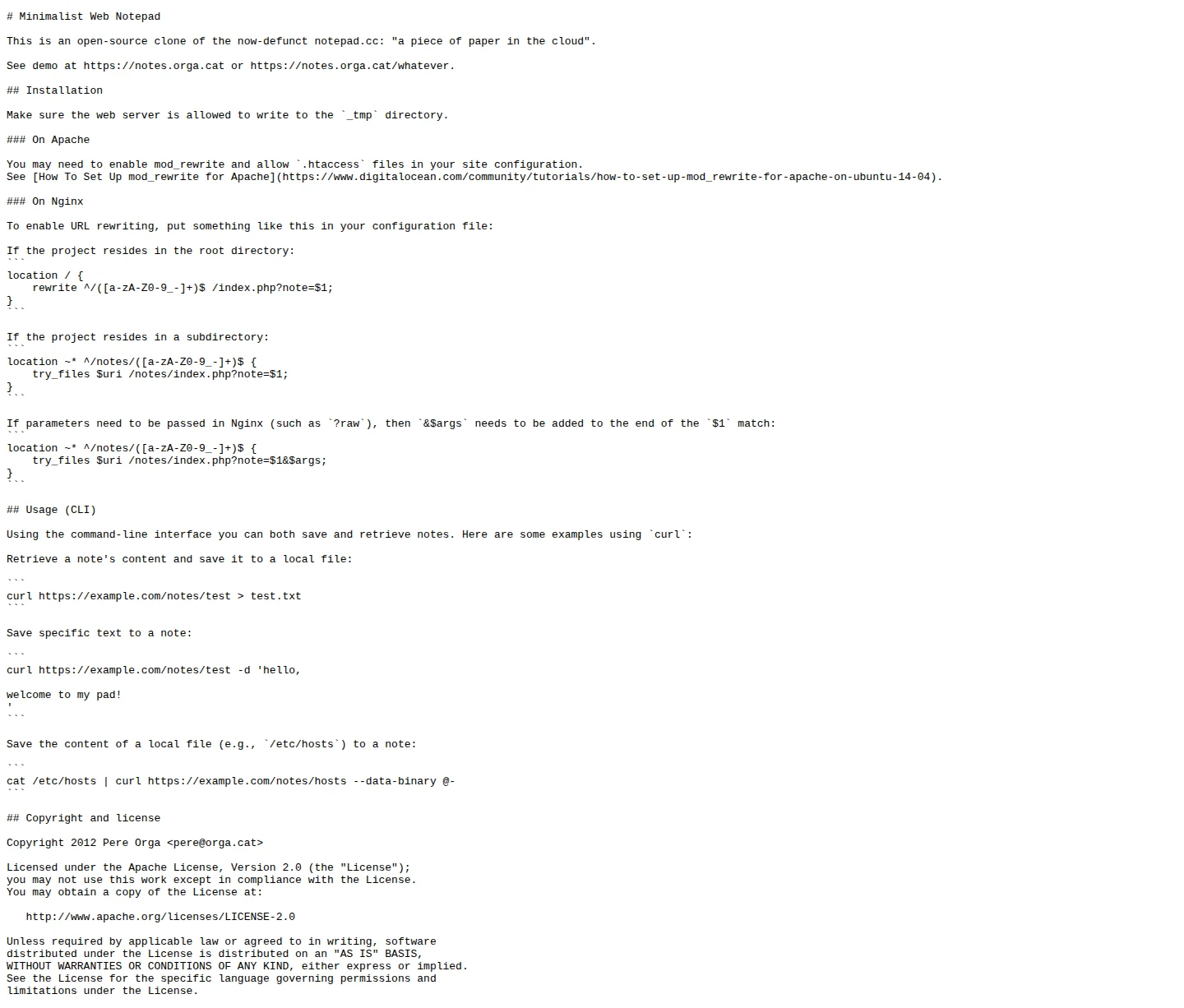
Figure 2: Real screenshot. The important deployment point is simple: the web server must be able to write to _tmp.
2. Why bigger tools can be worse for temporary text
My old expectation for a clipboard tool was too ambitious. It would be nice to have accounts, history, Markdown, images, search, encryption, desktop clients, mobile apps, browser extensions, and sharing controls. Each feature is reasonable by itself. Together, they become another note platform.
For temporary text, that often makes the tool worse.
First, the entry point becomes slower. If I only want to paste one command, I do not want to log in, choose a workspace, select a folder, and confirm formatting. That is like needing a full filing cabinet just to leave a note by the door.
Second, formatting gets in the way. Rich text editors may rewrite quotes, indentation, links, lists, or line breaks. That is fine for articles, but painful for commands, configuration snippets, and logs. For a clipboard, the most important promise is simple: what I put in is what I get out.
Third, the data boundary becomes blurry. A tool that looks like a knowledge base encourages people to store long-term and sensitive data in it. A scratchpad should not pretend to be a vault.
Fourth, maintenance cost becomes hard to justify. Databases, user systems, object storage, search indexes, and permission models are valuable, but they are not free. If the goal is to move a short plain text snippet, a file-backed note is often enough.
So my rule is strict: this tool is not a knowledge base, not a password manager, not a team document system, and not a production configuration store. It is a lightweight personal web clipboard.
3. Why minimalist-web-notepad fits this job
The best part of this project is not that it is powerful. The best part is that it is weak in the right way.
The interface is almost just a textarea. There is no toolbar, no sidebar, no dashboard, and no rich text editor. You open a note path and get an empty text box. You type text, it saves. You open the same path again, it reads the same text. Even a child can understand the model: it is a sheet of paper where you can write words, not a binder with folders and locks.
The data model is just as transparent. The _tmp directory is the drawer. Each note name is a piece of paper in that drawer. A note named demo can be understood as a text file named _tmp/demo. There is no database migration to learn, no hidden object store, and no complex state machine.
In my temporary test deployment, the browser page looked exactly like that: one large blank text area.
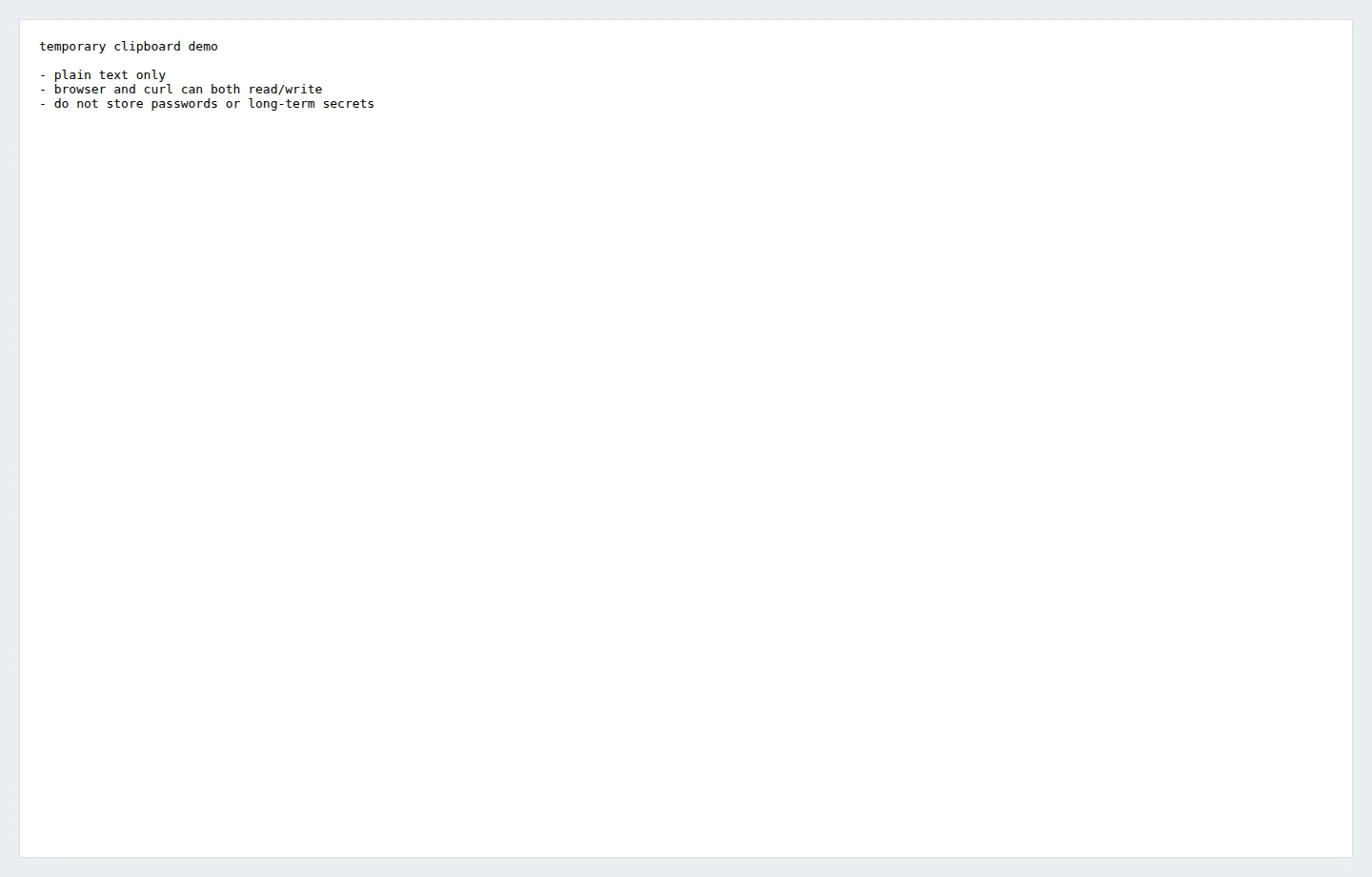
Figure 3: Real screenshot. There is no toolbar and no rich editor. The page is the clipboard.
It is also useful from the command line. The upstream README includes curl examples for saving and retrieving notes. That means one note can be edited in the browser and read by a script. For self-hosted workflows, this is useful: the tool is not only a web page for humans; it can also be a tiny plain text endpoint.
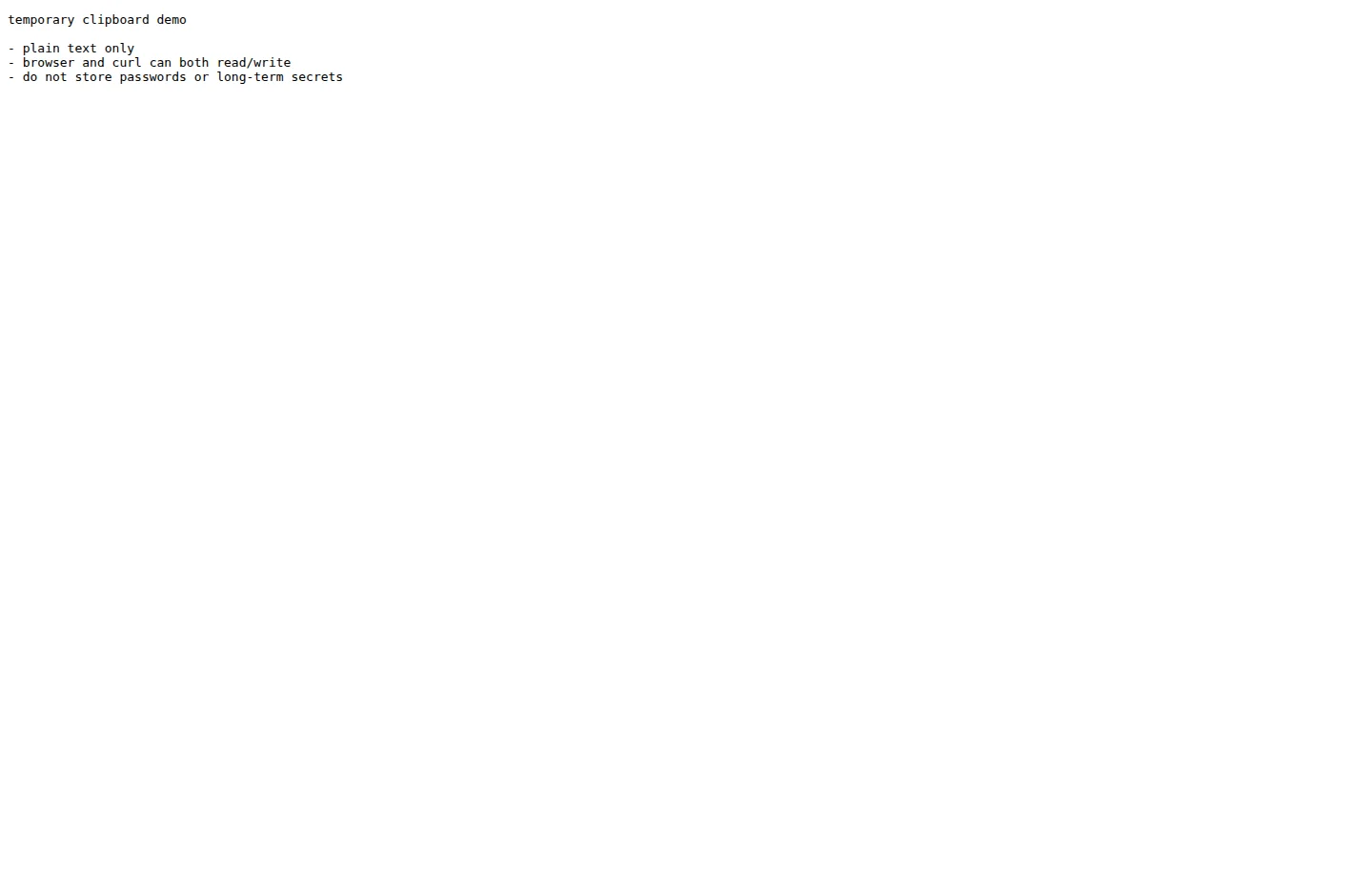
Figure 4: Real screenshot. Raw output is ideal for curl, scripts, and simple automation.
4. The Compose deployment is intentionally short
The Compose deployment method is:
services:
  minimalist-web-notepad:
    image: ahfeil/minimalist-web-notepad:latest
    container_name: webnote
    restart: always
    ports:
      - "8081:80"
    volumes:
      - /docker/minimalist-web-notepad/_tmp:/var/www/html/_tmp
There are three important parts.
The image is ahfeil/minimalist-web-notepad:latest. It packages the PHP application behind a web server so you do not have to manually configure Apache, PHP, and rewrite rules for the basic case.
The port mapping exposes the container’s web service through a host port. This article deliberately does not show any private access address. Use your own local, private, or reverse-proxy entry point.
The volume mapping is the critical part. _tmp is where note content is stored. Without a persistent mount, notes may disappear when the container is recreated. With the mount, notes live on the host.
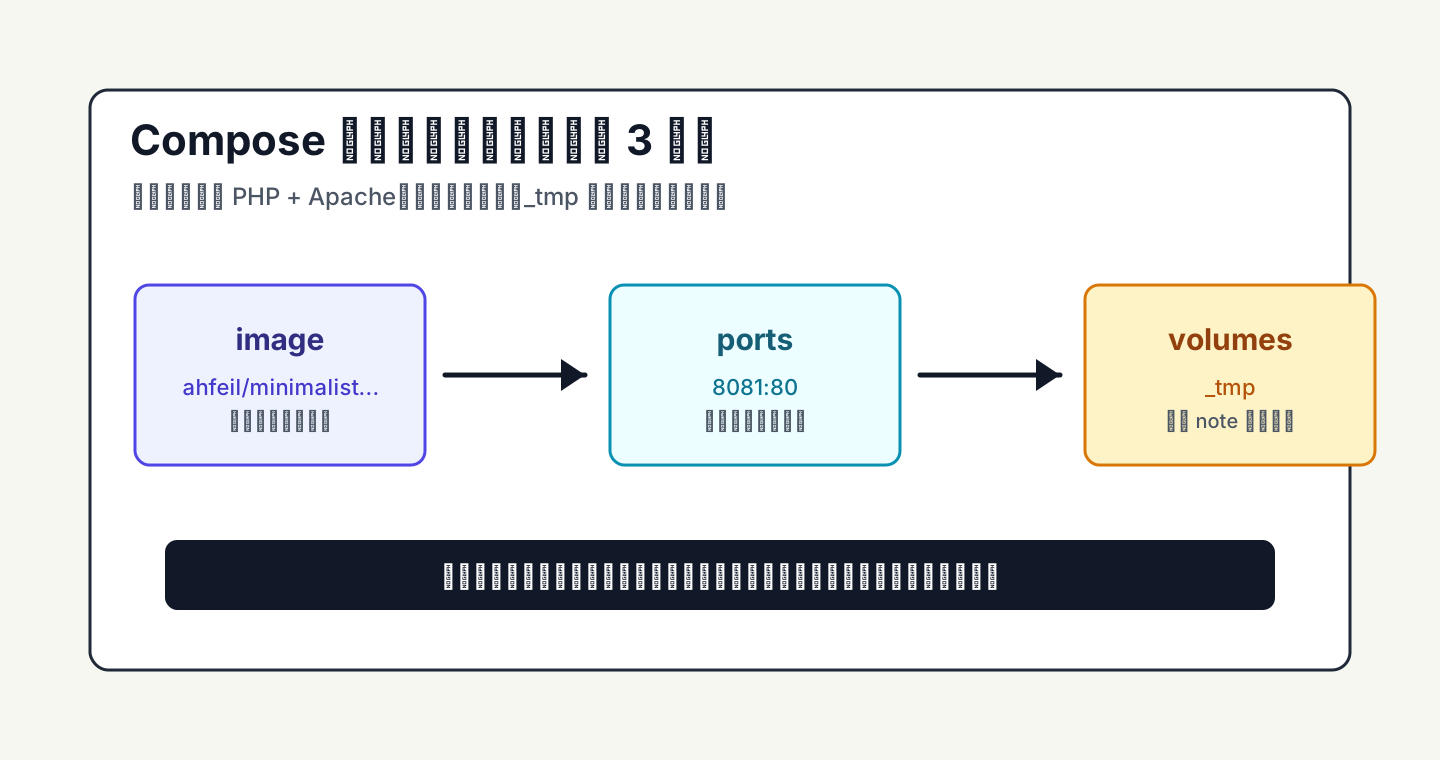
Figure 5: Do not only check whether the port opens. The _tmp mount decides whether the text survives.
Think of it like a tiny shop. The image is the shop itself. The port is the front door. _tmp is the drawer behind the counter. Opening the door only means people can enter. A writable drawer is what makes the note stay there.
5. What actually happens during read and write
The read/write flow is easy to reason about.
If you visit the root path without a note name, the application generates a random note name and redirects you. That is like taking a new sheet of paper with a short number on it.
If you visit a specific note name, the app validates that name. It rejects names that are too long or contain invalid characters. This matters because the note name becomes a file name.
When the browser saves text, the app writes the submitted text field into the matching file under _tmp. When the text is empty, the file can be removed. When a client requests ?raw, or when a command-line client reads it, the app returns plain text.
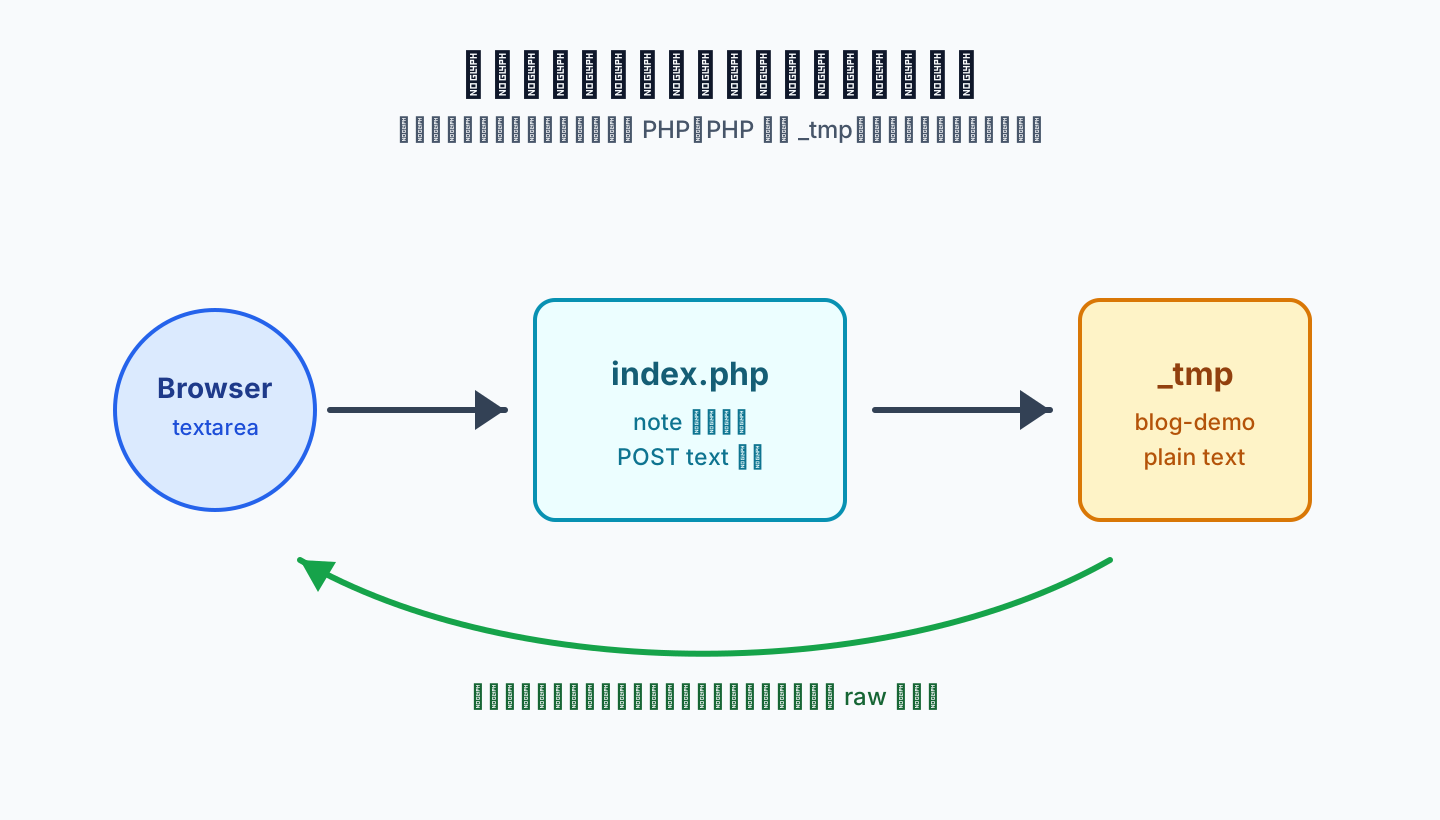
Figure 6: This is closer to putting named paper in a drawer than to running a database application.
This model is easy to debug:
docker ps --filter name=webnote
docker logs --tail=80 webnote
ls -la /docker/minimalist-web-notepad/_tmp
If the container is running, the page opens, and the note file exists under _tmp, there is not much hidden state left. If the page opens but saved content disappears, check the volume mount and write permission first.
6. Security boundary: small does not mean safe to expose
The biggest risk of a tool like this is convenience. It is so easy to use that you may start putting the wrong things into it.
My rule is clear: do not store passwords, long-lived tokens, private keys, cookies, database connection strings, production secrets, identity documents, customer data, or long-term business documents in this notepad. It is not a secure storage system.
What is appropriate? Short drafts, harmless command snippets, one-time explanations, public diagnostic output, or temporary text that will be deleted soon. A sticky note near the door can say “package at the front desk”. It should not say “vault password”.
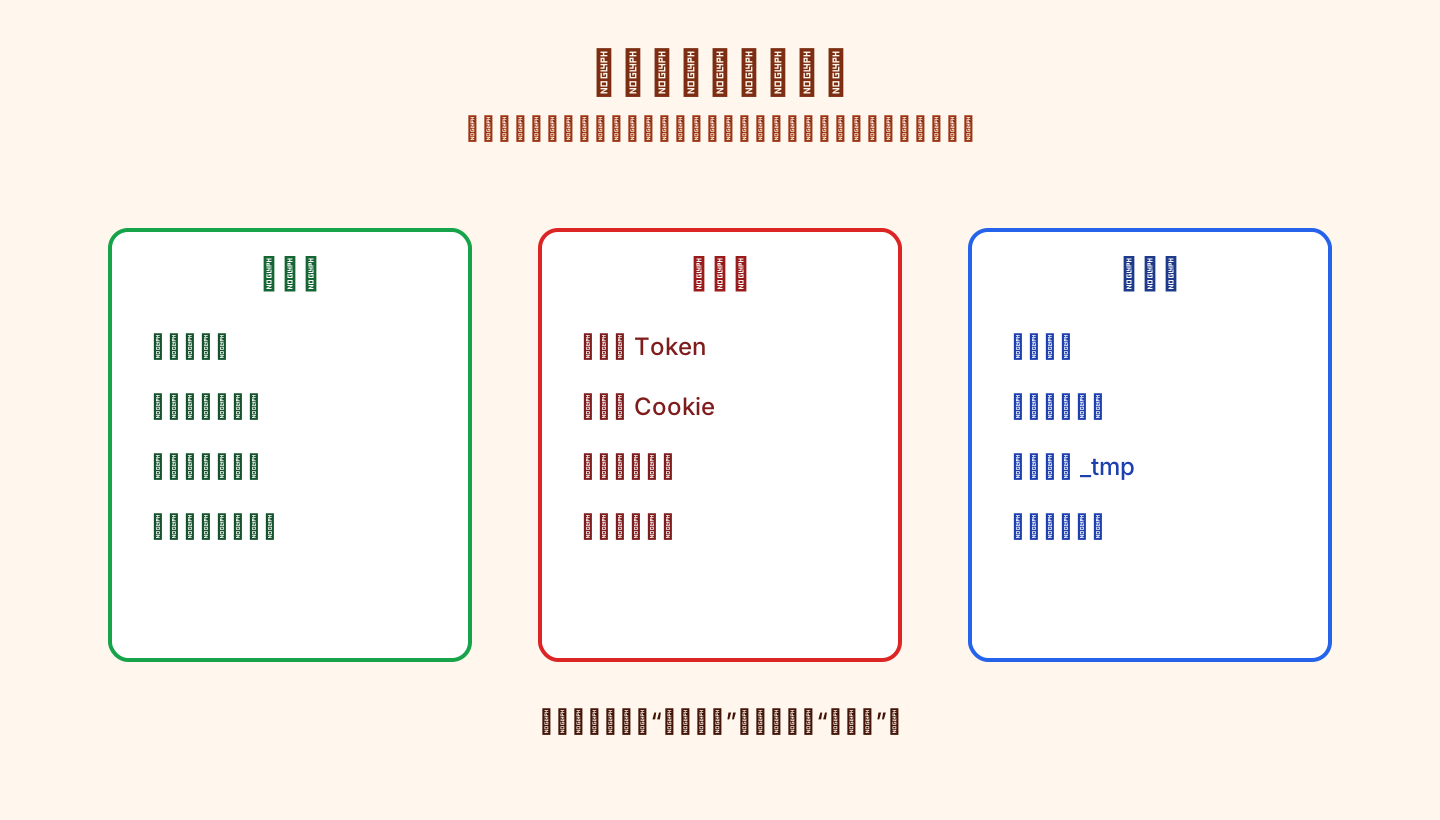
Figure 7: The right strategy is not to trust the tool with everything. Put only suitable data in it.
For longer-term use, I recommend these controls:
- Do not expose it directly to the public internet.
- Put it behind VPN, zero-trust access, a private tunnel with authentication, or reverse-proxy authentication.
- Clean
_tmpregularly. - Check for sensitive text before backing up the mounted directory.
- Do not use easy-to-guess note names for reusable notes.
- If several people use it, make the rule explicit: temporary plain text only.
7. One-click scripts for Windows 11, Ubuntu 26.04, and macOS 26
The following scripts create a local directory, write compose.yaml, start the container, and perform a minimal local verification. They do not require an external database, object storage, or SaaS service. They do require Docker and access to the public container image.
7.1 Windows 11 PowerShell
Save as Install-MinimalistWebNotepad.ps1 and run:
powershell -ExecutionPolicy Bypass -File .\Install-MinimalistWebNotepad.ps1
Script:
param(
    [string]$InstallDir = "$HOME\webnote",
    [int]$Port = 8081,
    [string]$ContainerName = "webnote"
)

$ErrorActionPreference = "Stop"

if (-not (Get-Command docker -ErrorAction SilentlyContinue)) {
    throw "Docker is required. Install Docker Desktop first."
}

New-Item -ItemType Directory -Force -Path $InstallDir | Out-Null
New-Item -ItemType Directory -Force -Path (Join-Path $InstallDir "_tmp") | Out-Null

$compose = @"
services:
  minimalist-web-notepad:
    image: ahfeil/minimalist-web-notepad:latest
    container_name: $ContainerName
    restart: always
    ports:
      - "$Port`:80"
    volumes:
      - ./_tmp:/var/www/html/_tmp
"@

$compose | Set-Content -Path (Join-Path $InstallDir "compose.yaml") -Encoding UTF8

Push-Location $InstallDir
docker compose up -d
Start-Sleep -Seconds 3
$url = "http://localhost:$Port"
$result = Invoke-WebRequest -UseBasicParsing -Uri $url -MaximumRedirection 0 -SkipHttpErrorCheck
Write-Host "Started $ContainerName in $InstallDir"
Write-Host "Open: $url"
Pop-Location
7.2 Ubuntu 26.04 Bash
Save as install-minimalist-web-notepad-ubuntu2604.sh and run:
chmod +x install-minimalist-web-notepad-ubuntu2604.sh
./install-minimalist-web-notepad-ubuntu2604.sh
Script:
#!/usr/bin/env bash
set -euo pipefail

INSTALL_DIR="${INSTALL_DIR:-$HOME/webnote}"
PORT="${PORT:-8081}"
CONTAINER_NAME="${CONTAINER_NAME:-webnote}"

if ! command -v docker >/dev/null 2>&1; then
  echo "Docker is required. Install Docker Engine first." >&2
  exit 1
fi

mkdir -p "$INSTALL_DIR/_tmp"
cd "$INSTALL_DIR"

cat > compose.yaml <<YAML
services:
  minimalist-web-notepad:
    image: ahfeil/minimalist-web-notepad:latest
    container_name: ${CONTAINER_NAME}
    restart: always
    ports:
      - "${PORT}:80"
    volumes:
      - ./_tmp:/var/www/html/_tmp
YAML

docker compose up -d

for i in $(seq 1 20); do
  if curl -fsS "http://localhost:${PORT}" >/dev/null 2>&1; then
    break
  fi
  sleep 1
done

echo "Started ${CONTAINER_NAME} in ${INSTALL_DIR}"
echo "Open: http://localhost:${PORT}"
7.3 macOS 26 Zsh
Save as install-minimalist-web-notepad-macos26.zsh and run:
chmod +x install-minimalist-web-notepad-macos26.zsh
./install-minimalist-web-notepad-macos26.zsh
Script:
#!/usr/bin/env zsh
set -euo pipefail

INSTALL_DIR="${INSTALL_DIR:-$HOME/webnote}"
PORT="${PORT:-8081}"
CONTAINER_NAME="${CONTAINER_NAME:-webnote}"

if ! command -v docker >/dev/null 2>&1; then
  print -u2 "Docker Desktop or a compatible Docker runtime is required."
  exit 1
fi

mkdir -p "$INSTALL_DIR/_tmp"
cd "$INSTALL_DIR"

cat > compose.yaml <<YAML
services:
  minimalist-web-notepad:
    image: ahfeil/minimalist-web-notepad:latest
    container_name: ${CONTAINER_NAME}
    restart: always
    ports:
      - "${PORT}:80"
    volumes:
      - ./_tmp:/var/www/html/_tmp
YAML

docker compose up -d

for i in {1..20}; do
  if curl -fsS "http://localhost:${PORT}" >/dev/null 2>&1; then
    break
  fi
  sleep 1
done

print "Started ${CONTAINER_NAME} in ${INSTALL_DIR}"
print "Open: http://localhost:${PORT}"
8. Manual automatic execution
If you run the deployment yourself, use this order:
- Confirm Docker and Docker Compose work.
- Choose a persistent directory, such as
~/webnote. - Write
compose.yaml. - Run
docker compose up -d. - Open the local page and confirm that the text area appears.
- Write a harmless test note.
- Read the same note through raw output or
curl. - Check that a file appeared under
_tmp. - Decide whether the service should be placed behind a protected private entry point.
- Add a cleanup rule for old temporary notes.
Minimal verification:
curl -fsS --data-urlencode "text=hello from webnote" "http://localhost:8081/demo" >/dev/null
curl -fsS "http://localhost:8081/demo"
If the second command prints hello from webnote, the plain text read/write path works.
9. Agent-driven configuration
If you ask an agent to configure it, do not only say “install this clipboard”. Give it the safety boundary:
Deploy minimalist-web-notepad as my personal lightweight web clipboard.
Requirements:
1. Use Docker Compose. Do not modify unrelated containers.
2. Use image ahfeil/minimalist-web-notepad:latest.
3. Use only the local port I specify, default 8081.
4. Persist _tmp under the current working directory, unless I provide another directory.
5. Check Docker and Compose before writing files.
6. After deployment, write a harmless test note and read it back with curl or a browser.
7. Report compose.yaml, container status, and verification result.
8. Do not print private network addresses, private domains, full machine names, or secrets.
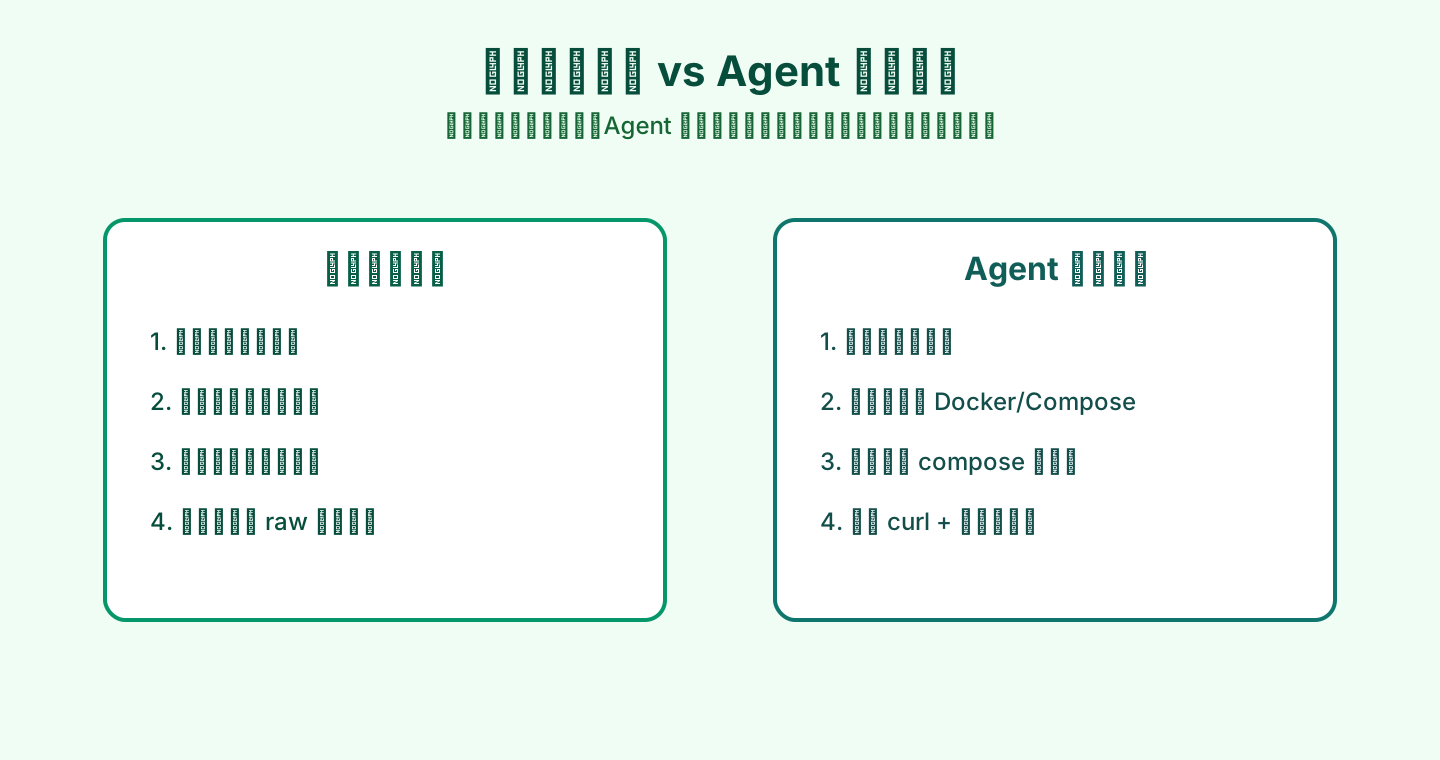
Figure 8: An agent should not skip verification. It should connect environment checks, config writing, startup, and proof.
If a reverse proxy is involved, add:
The entry point must sit behind an existing authentication layer. If no authentication layer exists, complete only local deployment and stop. Do not expose it publicly.
That sentence prevents the common “make it work first, secure it later” trap.
10. The real pitfalls
The first pitfall is _tmp permission. The upstream README is clear that the web server must be allowed to write to _tmp. If the mount belongs to a host user that the container process cannot write as, the page may open but saving will fail. Check logs and directory permissions first.
The second pitfall is note naming. A note name becomes part of a file path, so keep it simple. Do not treat the note name as a security token.
The third pitfall is using it as a secret box. It is not one. You can put authentication in front of the service, but the tool itself is still a temporary plain text scratchpad.
The fourth pitfall is cleanup. Temporary tools become risky when temporary text becomes permanent by accident. Clean old notes regularly.
The fifth pitfall is public exposure. A page with one text box may look harmless, but it is still a web entry point that writes files. It deserves access control.
11. My usage rules
I keep my own rules simple.
Only short text goes here. If it becomes a document, it moves to a document system.
Only low-sensitivity text goes here. Secrets go to a password manager or secret store.
Only temporary text goes here. This is not an archive.
Random note names are better than obvious fixed names.
Automation examples must never contain real secrets.
These rules match the nature of the tool. A good lightweight tool should not try to do everything. It should do one job without making the boundary confusing.
Q&A
Q1: Can it replace an online document system or knowledge base?
No. It is for temporary plain text, not long-term knowledge, collaboration, search, or permission management.
Q2: Does it support Markdown?
It can store Markdown source text, but it does not render Markdown as a rich document. That is useful for copy/paste because the content is not reformatted.
Q3: Why not use a database?
For this use case, files are enough. A database adds useful capabilities, but also backup, migration, and maintenance work. A scratch note does not always need an archive system.
Q4: Can I expose it to the public internet?
I do not recommend exposing it directly. Put it behind VPN, zero-trust access, private authenticated access, or a reverse proxy with authentication.
Q5: Will notes survive container recreation?
Yes, if _tmp is mounted to a persistent host directory. Without the mount, container recreation may lose the content.
Q6: Can a small group share it?
Yes, but set the rule first: temporary, low-sensitivity, plain text only. For long-term shared work, use a real document platform.
References
- Minimalist Web Notepad GitHub: https://github.com/pereorga/minimalist-web-notepad
- Minimalist Web Notepad raw README: https://raw.githubusercontent.com/pereorga/minimalist-web-notepad/master/README.md
- Docker Compose documentation: https://docs.docker.com/compose/
- Apache License 2.0: https://www.apache.org/licenses/LICENSE-2.0