MiniMax Shipped a CLI Too? I Spent an Afternoon Torture-Testing mcode on a Server, and It's Kind of Great
The AI coding-tool race is getting as crowded as a subway at rush hour. Claude Code, Codex CLI and Gemini CLI keep trading blows, and Chinese vendors haven’t been sitting still either. A few days ago MiniMax opened an invite-only beta of its own terminal coding tool, MiniMax Code CLI (invoked as mcode). I got an invite, installed it on a clean Ubuntu server, and spent an afternoon putting it through real work.
This is not a rehash of the official announcement. It’s a full field report: install pitfalls, remote-login gymnastics over SSH, four real timed tasks, and one genuine crash bug I caught along the way. Praise where due, complaints where earned — with real screenshots throughout.
What Is It, in One Sentence?
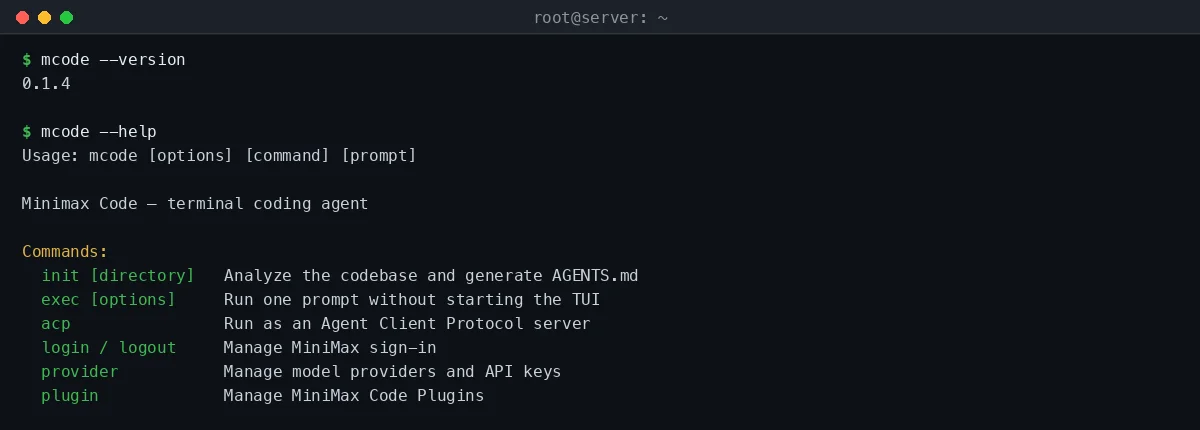
An analogy first. If AI IDEs like Cursor and Windsurf are “smart kitchens with everything built in” — the stove (AI) welded to the countertop (editor), great as long as you cook in that kitchen — then a terminal tool like MiniMax Code CLI is “a traveling chef who cooks wherever you are”: your own stove (local terminal), a friend’s kitchen (an SSH session into a remote server), or an industrial food line (CI/CD). Type mcode and it gets to work.
Per the official docs, it’s the terminal entry point of MiniMax Code for developer workflows, complementing the desktop client: the client handles graphical task management, while the CLI lives close to your repo, shell, scripts and CI.
It has three modes:
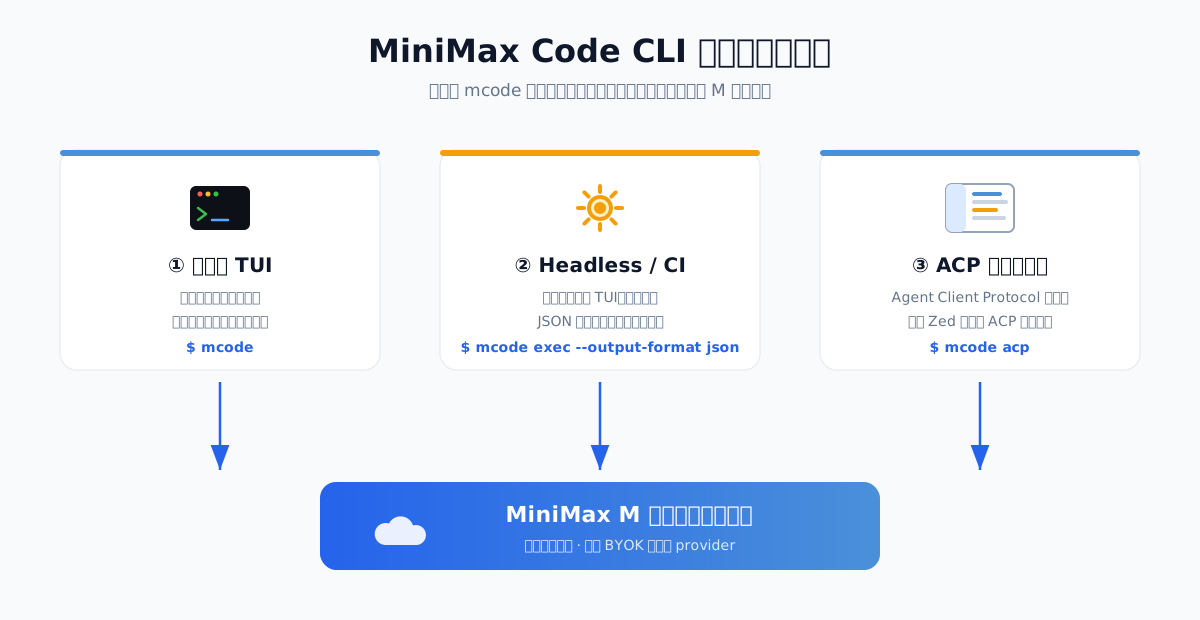
- Interactive TUI: run
mcodein a terminal for a full-screen chat-and-code interface; - Headless mode:
mcode exec "do the thing"runs one task with no UI and exits — built for scripts and CI, with optional JSON output for downstream tooling; - ACP protocol:
mcode acpturns it into an Agent Client Protocol server, so editors like Zed can plug in directly with no dedicated plugin.
I focused on the first two — especially headless, since unattended operation on servers is where a CLI really earns its keep.
Installation: One Official Command, Two Pits Fell Into
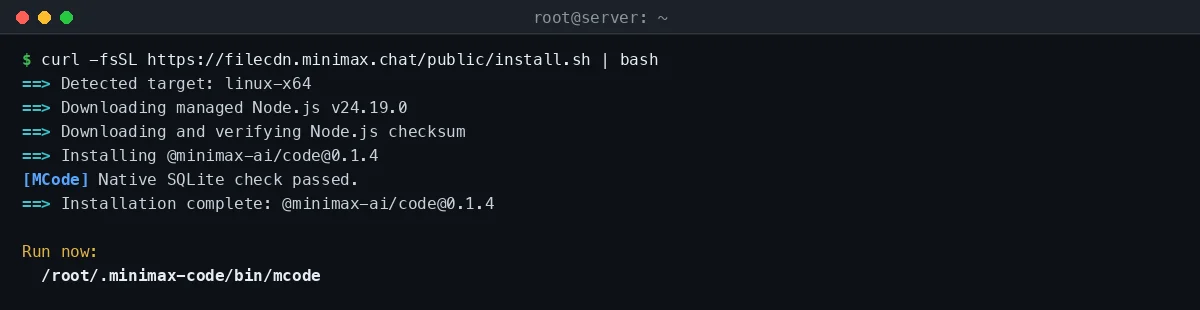
The official install command is satisfyingly “one-click”:
curl -fsSL https://filecdn.minimax.chat/public/install.sh | bash
That’s the ideal. In reality, on a server in China, it sat at Downloading managed Node.js v24.19.0 for 12 minutes and pulled only 2.7 MB — the installer fetches a managed Node runtime from nodejs.org, whose reachability from within China is, well, what it is.
Pit 1: The Node download source is slow
Thankfully the installer has an escape hatch (the good kind): an environment variable to override the Node download base URL. With a domestic mirror, the download finished in 30 seconds:
export MCODE_NODE_DIST_BASE=https://npmmirror.com/mirrors/node/v24.19.0
curl -fsSL https://filecdn.minimax.chat/public/install.sh | bash
Pit 2: No make on the server
Once Node was in place, npm started installing the main package — and the native module better-sqlite3 failed to build with a heartbreaking line: gyp ERR! stack Error: not found: make.
The cause is simple: this was a minimal Ubuntu 26.04 image with no toolchain at all. The CLI stores session data in SQLite, and better-sqlite3 is a C++ native extension that must be compiled locally. One line fixes it:
apt-get install -y build-essential python3
Re-running the installer after that went green all the way: [MCode] Native SQLite check passed., and @minimax-ai/code@0.1.4 was installed.
A suggestion for the team: the installer could check for
make/gccup front and print a clear hint, instead of letting the build explode and leaving users to dig through logs. To a newcomer, that wall ofgyp ERR!output might as well be hieroglyphics.
Login: A Relay Race Over SSH
First thing after installation is logging in. On a local Mac this is trivial — mcode login pops a browser, you authorize, done. On a remote server, things get interesting.
mcode login spins up a temporary local HTTP callback listener and prints an authorization link. You sign in to your MiniMax account in a browser and approve; the browser then redirects to http://127.0.0.1:<random-port>/auth/callback?... to complete the handshake. The catch: that 127.0.0.1 refers to the server itself, while my browser runs on my laptop — two very different 127.0.0.1s.
The official docs do anticipate this and suggest SSH port forwarding. But there’s a second gotcha: the callback port is random every time, so forwarding one fixed port won’t help. My solution was SSH dynamic forwarding (SOCKS5) to tunnel everything:
# Run locally: build a SOCKS5 tunnel to the server
ssh -N -D 127.0.0.1:45919 root@<your-server>
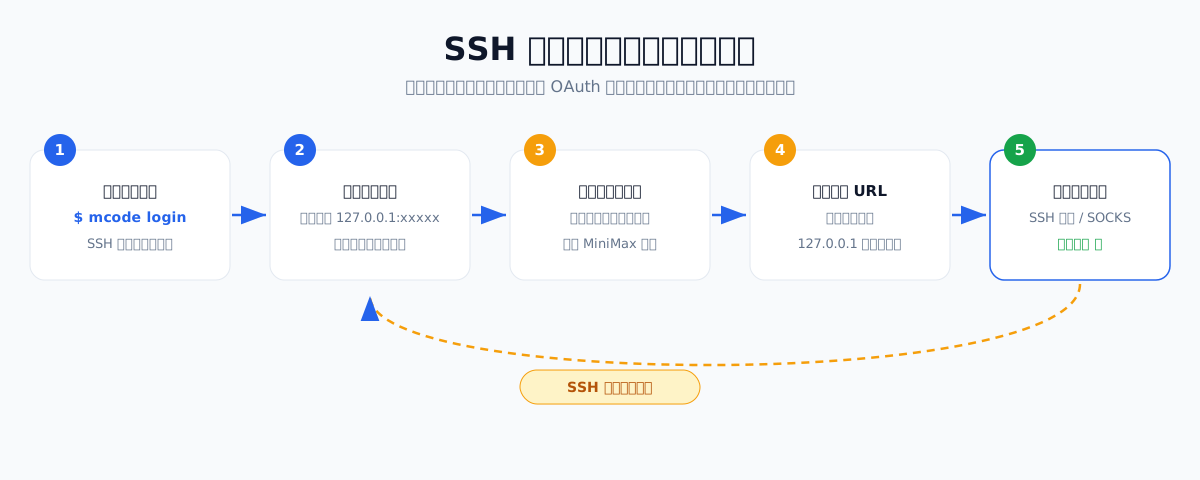
Then run mcode login on the server, open the auth link in your browser, approve — and the address bar lands on a 127.0.0.1:xxxxx/auth/callback?... URL that can’t load. Copy it and “hand it back” to the server through the SOCKS tunnel from your local shell:
curl -x socks5h://127.0.0.1:45919 "http://127.0.0.1:xxxxx/auth/callback?accessToken=...&state=..."
The terminal immediately returns a “You’re signed in” page, and the server side prints Signed in with MiniMax. — login complete. The whole thing is a relay race: the server starts the leg (generates the link) → you run leg two (browser authorization) → the tunnel runs the anchor leg (delivering the baton back to the server).
A true side story: my first callback forward failed because my local shell had a
no_proxyenvironment variable set, which madecurlbypass the SOCKS proxy and hit my laptop’s 127.0.0.1 — connection refused, and the login flow timed out. It only worked after I cleared that trap. If you reproduce this setup, rememberenv -u no_proxy curl ....
Hands-On: Four Real Tasks — Real Work or Party Trick?
Logged in, on to the main course. I created an 11-line Python demo repo (a calc function that crashes on division by zero) and fired four tasks at it in headless mode, timing everything.
Task 1: Fix a bug + add tests
mcode exec --permission full "In app.py, calc(10, 0, \"div\") raises ZeroDivisionError. Fix it: return None on divide-by-zero, and add test_app.py with pytest covering all four ops plus the zero case."
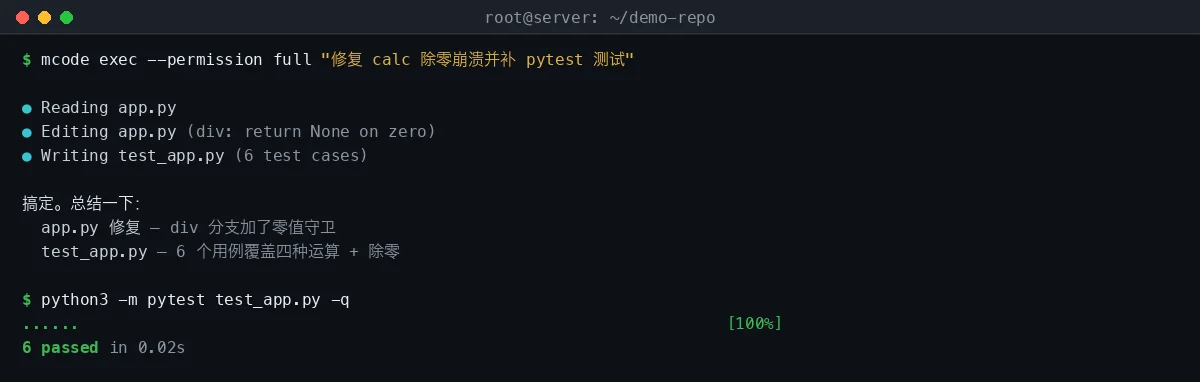
38 seconds later it had patched app.py (a zero guard in the div branch) and created test_app.py with 6 cases — it even thought to double-assert both the return value and the absence of an exception. I ran pytest myself: 6 passed, all green. At the end of its answer it asked me, “So what do you mainly work on? Backend, scripting, or something else?” This anthropomorphic touch is a matter of taste — endearing in a chat, noise in CI.
Task 2: Generate AGENTS.md
The core of mcode init is analyzing a repo and generating AGENTS.md — a “project manual for AI”. It took 30 seconds, and the content genuinely surprised me: it accurately summarized the contract of calc (including the just-fixed “return None instead of raising on divide-by-zero”), listed setup commands, project layout, code style, testing requirements, and even warned that “this repo is not yet a git repository — run git init and pick main as the default branch.”
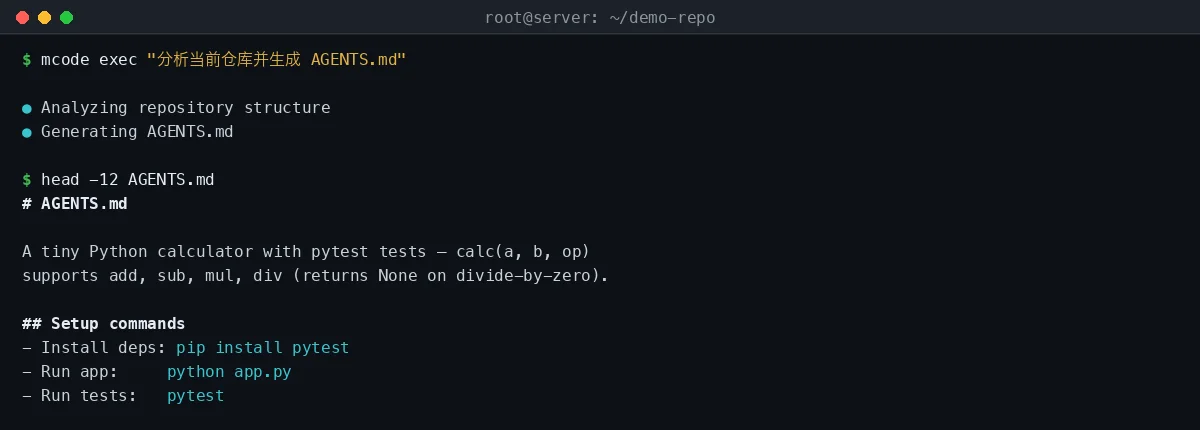
Honestly, the quality beats the first draft of AGENTS.md I would have written myself.
Task 3: Code Q&A
“Explain what calc does in one sentence” — an accurate answer in 11 seconds. For lightweight questions, the CLI beats opening a web chat by a mile.
Task 4: Add a feature + JSON output
Finally, some load: “Add pow (exponentiation) support to calc with tests” — plus --output-format json to verify CI-friendliness. It not only added the pow branch and three edge-case tests (positive, zero, and negative exponents), but also proactively updated the now-stale lines in AGENTS.md (“all four ops” → “all five ops”, “6 passed” → “9 passed”). pytest reported 9 passed, all green.
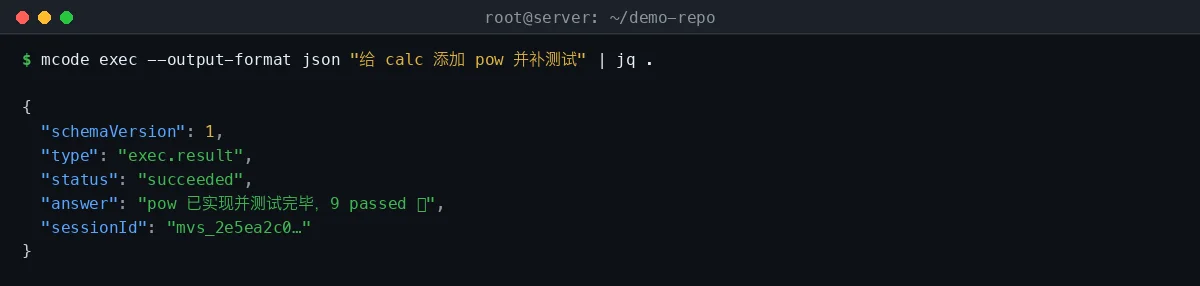
The JSON output is a proper structured envelope with schemaVersion, status, sessionId, answer and more — jq can consume it directly. That means you can drop it into any automation pipeline: “every night, auto-add tests for newly added code and post the JSON result to a bot.”
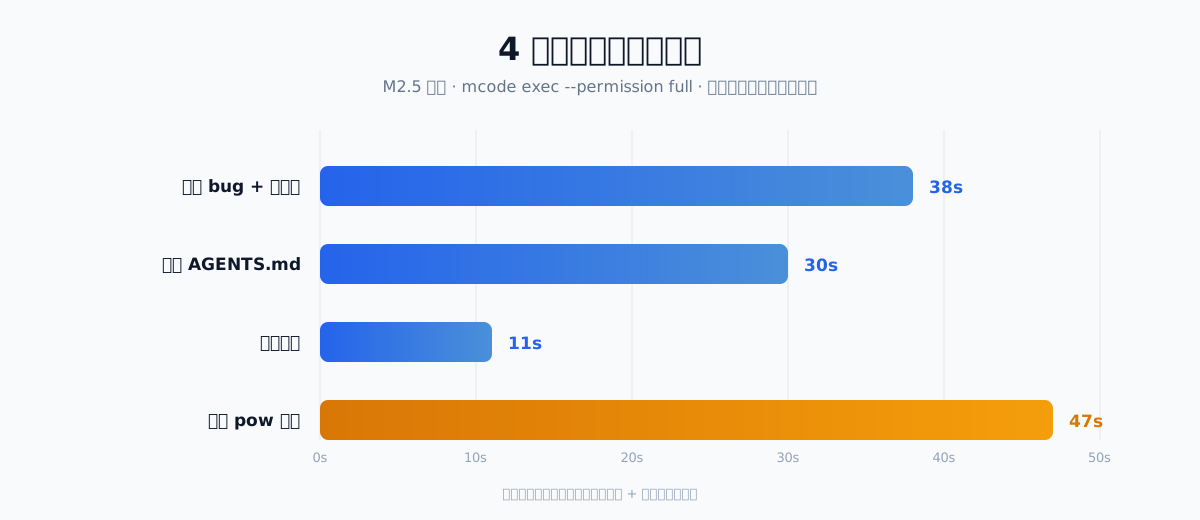
Across all four tasks, response speed is in the first tier (backed by MiniMax’s own M-series models), code quality is solid, and what impressed me most is its respect for repo conventions: it maintains AGENTS.md as it changes code, and generates tests in the existing style. That points to well-engineered context management — not just “ask a question, get an answer.”
Permission Design: Graded Like a Driver’s License
The scariest thing about a CLI agent is “AI with shell access doing something dumb.” MiniMax Code CLI splits permissions into four policy levels, and this design deserves explicit praise:
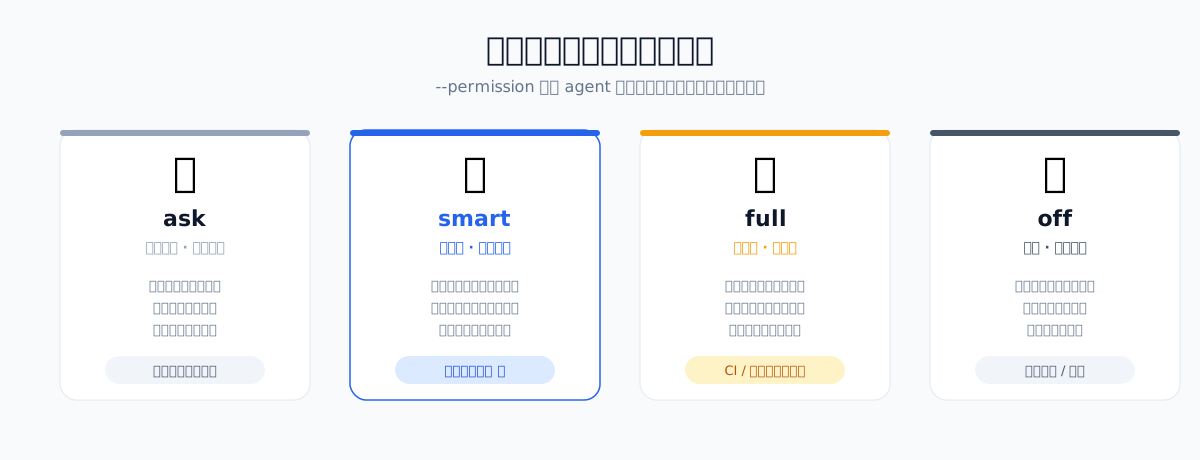
- ask (default): confirms every operation — a learner driver with you riding the brake;
- smart: auto-approves read-only operations, confirms writes — good for daily use;
- full: fully automatic — for CI or sandboxes you completely trust; I used it throughout this test, since the demo repo was disposable;
- off: read-only — the AI can look but not touch, ideal for “code review only” duty.
And the permission system is orthogonal to Plan Mode (propose a plan before acting) — you can have it draft a plan in Plan Mode, review it, then switch to full to execute. That combination maps nicely onto real development rhythm.
Caught a Bug: A Native Crash at Shutdown
Praise done — here’s a real issue from testing. During the “generate AGENTS.md” run, the task itself succeeded, but the process threw a Node native-layer assertion failure while shutting down:
minimax-code[42068]: void node::RemoveEnvironmentCleanupHook(...) at ../src/api/hooks.cc:142
Assertion failed: (env) != nullptr
  ... Statement::~Statement() [better_sqlite3.node]
From the stack, a better-sqlite3 Statement object is being destructed after the Node environment is torn down — a classic native-module cleanup-ordering bug. The task result is unaffected (AGENTS.md was already written to disk), but the exit code and stderr are polluted, which could cause false failures in a strict CI gate. For a 0.1.4 invite beta, this is an understandable rough edge — and frankly, the overall quality is already decent for an internal test build.
Who Is It For? My Honest Verdict
After an afternoon of abuse, here’s my judgment:
Give it a try if: you’re an ops/backend engineer who frequently SSHes into servers to change things; a team wanting AI coding inside CI pipelines; or a Claude Code / Codex CLI user looking for a domestic alternative (or a backup). Its first-class support for repo conventions (AGENTS.md), clean JSON output, and four-tier permission design are all aimed at serious engineering use, not toy demos.
Wait a bit if: you’re a pure local-IDE person (the desktop client or ACP integration suits you better), or your production CI demands rock-solid stability — let the 0.1.x native crash get fixed first.
Zooming out, the CLI coding-tool race has moved past “does it exist” into “whose details are better”: smarter context management, finer permission models, friendlier CI behavior. For a 0.1.4, MiniMax Code CLI’s answer exceeds my expectations. When the stable release lands, I’ll probably add it to my standard server toolbox — after all, who says no to a traveling chef who’s always on call and writes its own project documentation?
Q&A
Q1: Is MiniMax Code CLI free? During the invite beta you just sign in with a MiniMax account (Token Plan). Pricing for the stable release hasn’t been announced; expect a free tier plus subscription, like its peers.
Q2: How does it compare to Claude Code and Codex CLI? The interaction paradigm is nearly identical (TUI + headless + tiered permissions) — the “agent in your terminal” school of thought. MiniMax’s differentiators: native ACP support (zero-friction editor integration), integration with the domestic model ecosystem, and deep maintenance of AGENTS.md conventions. Underneath it runs MiniMax’s M-series models, whose long context is a strength.
Q3: Installation stuck downloading Node?
Use a mirror: export MCODE_NODE_DIST_BASE=https://npmmirror.com/mirrors/node/v24.19.0, then run the official install command.
Q4: Getting gyp ERR! not found: make?
Your system lacks a build toolchain. On Debian/Ubuntu: apt-get install -y build-essential python3; on CentOS/RHEL: yum groupinstall "Development Tools". Then re-run the installer.
Q5: How do I log in on an SSH server?
Run mcode login on the server to get the auth link → approve in your local browser → copy the resulting 127.0.0.1:port/auth/callback?... URL → deliver it back through SSH dynamic forwarding: curl -x socks5h://127.0.0.1:45919 "callback URL" (after establishing the tunnel with ssh -N -D 45919 root@server). Watch out for a local no_proxy variable making curl bypass the proxy.
Q6: Can I use my own API key or other models instead of the official account?
Yes. mcode provider manages custom providers and API keys (set-minimax-key or compatible endpoints), and --model provider/model overrides the model per run.
Q7: How do I use it non-interactively (CI)?
Use mcode exec --output-format json "task": machine output goes to stdout, diagnostics to stderr. Add --timeout and --max-steps to bound resources, and --permission full or off to avoid interactive prompts. It only reads stdin with an explicit --input -, so CI never hangs waiting for input.
Q8: Is Windows supported?
Yes — run irm https://filecdn.minimax.chat/public/install.ps1 | iex in PowerShell. Alpine/musl Linux is not supported yet.