RAID Is Not Backup: How to Choose the Right NAS Layout for Synology, fnOS, and Unraid
The short answer
RAID primarily keeps a NAS available when one or more drives fail. Backup restores data after deletion, ransomware, filesystem damage, theft, fire, or a failed NAS. You normally need both.
On Synology, SHR-1 is the practical default for many homes, while larger and more critical arrays deserve SHR-2 consideration. On fnOS, choose the filesystem, storage mode, drive count, and backup destination as one design. On Unraid, understand that the classic Array is not a conventional striped RAID: data disks keep independent filesystems while one or two parity disks provide failure recovery.
A useful starting rule is: mirror two-drive systems; use single-drive redundancy when capacity matters and a separate backup exists; seriously consider dual-drive redundancy as drive count and individual drive capacity grow. Anything irreplaceable still needs an offline or off-site copy.
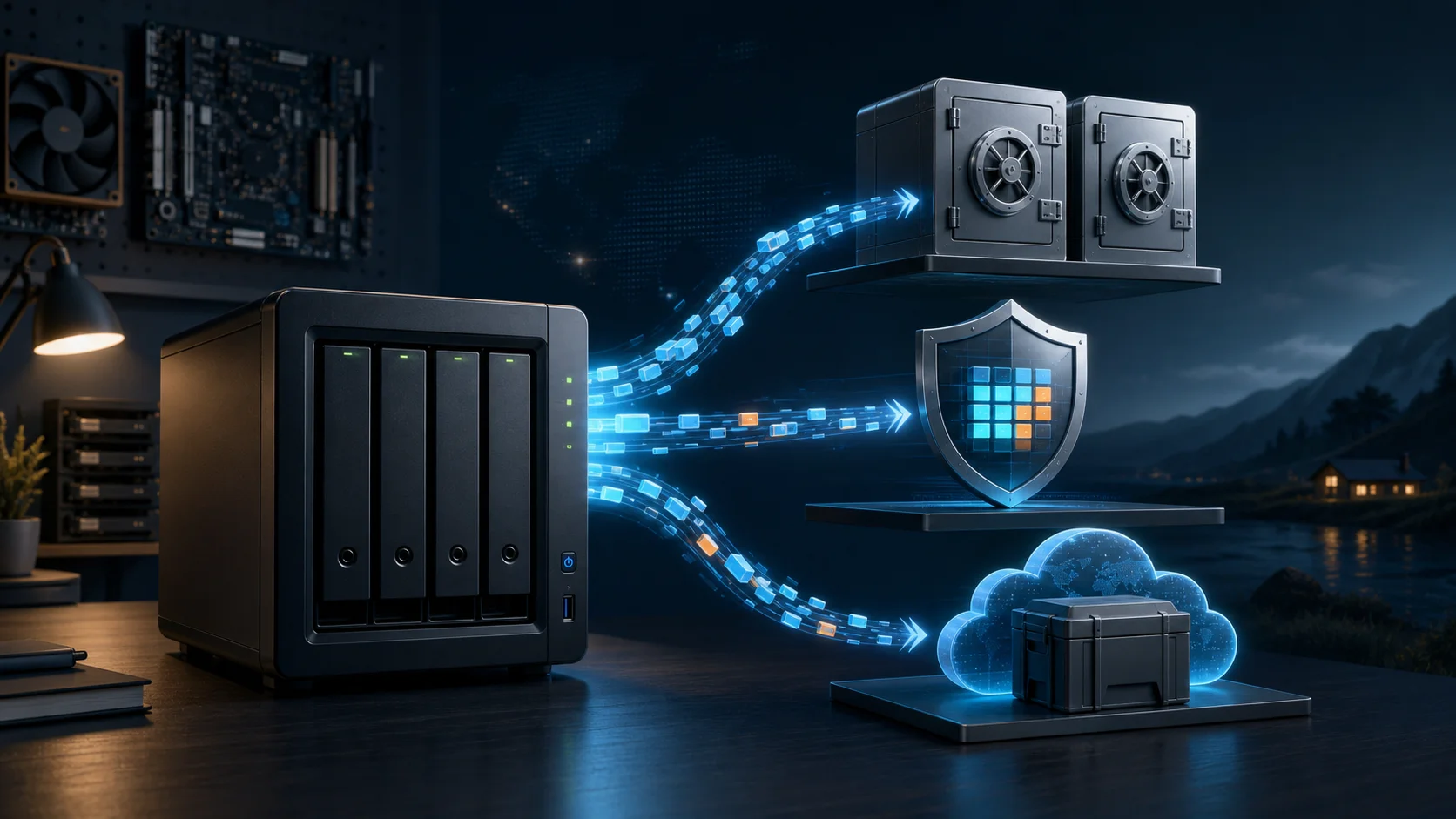
Figure 1: AI-generated cover. Reliable storage combines online redundancy, version protection, and an independent copy.
Why a NAS can create a false sense of safety
A four-bay NAS looks much safer than a portable drive. The dashboard is green, several disks are spinning, and every photo and document appears to live in a professional-looking box. That often leads to a dangerous conclusion: “My files are in RAID, so they are backed up.”
Then phone synchronization deletes the NAS copy after a mistaken deletion. Ransomware encrypts the mounted share. An administrator removes the wrong storage pool. RAID faithfully repeats the same logical change across healthy drives.
Think of RAID as staffing a shop with a backup cashier. If one cashier becomes ill, the other keeps the shop open. Backup is yesterday’s verified price list stored somewhere else. Two cashiers entering the same wrong prices do not recreate yesterday’s correct list.
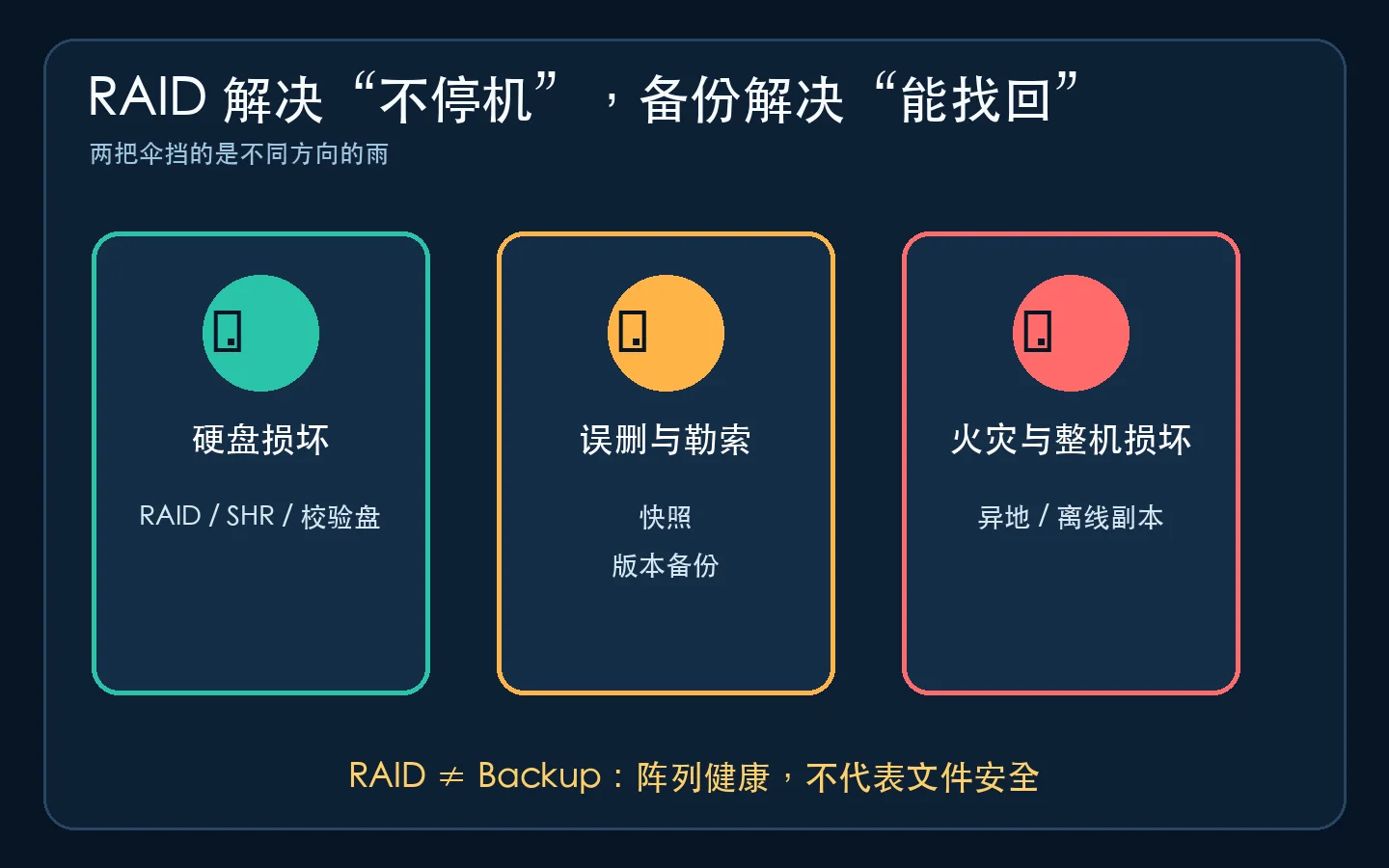
Figure 2: RAID, snapshots, and off-site backup are different umbrellas for different storms.
RAID levels without the intimidating vocabulary
Every RAID discussion comes down to three questions: how data is distributed, where redundancy is stored, and how many failures the layout can tolerate.
RAID 0 divides work across disks. It is fast and uses all capacity, but any member failure can destroy the whole set. It is not appropriate for the only copy of valuable data.
RAID 1 stores a complete copy on each side of a mirror. A two-drive mirror usually provides the capacity of the smaller disk. It is simple, predictable, and often the safest starting point for a two-bay NAS.
RAID 5 distributes data and parity across at least three disks. It loses roughly one disk of raw capacity and survives one member failure. Its capacity efficiency is attractive, but a second failure during rebuild can destroy the array.
RAID 6 uses dual parity and survives two member failures. It needs at least four disks and sacrifices roughly two disks of capacity. Large drives, long rebuild windows, and larger arrays make this extra margin increasingly valuable.
RAID 10 stripes across mirrored pairs. It offers strong performance and relatively direct rebuild behavior, but commonly uses only half of the raw capacity. Its exact failure tolerance depends on which mirror members fail.
| Layout | Minimum drives | Approximate usable capacity | Typical trade-off |
|---|---|---|---|
| RAID 0 | 2 | Sum of all drives | Fast, no redundancy |
| RAID 1 | 2 | Smallest drive | Simple mirror, 50% efficiency with two equal drives |
| RAID 5 | 3 | (drive count - 1) × smallest drive |
Single-drive redundancy |
| RAID 6 | 4 | (drive count - 2) × smallest drive |
Dual-drive redundancy |
| RAID 10 | 4 | About half of raw capacity | Performance and straightforward mirrors |
These are estimates. Decimal TB versus binary TiB, filesystem metadata, reserved space, and mixed-drive allocation all change the displayed result. Verify capacity with the target platform before buying drives.
Rebuild risk matters more than simultaneous-failure slogans
The common question “How likely are two drives to fail at exactly the same time?” misses the rebuild window. Replacing an 18 TB disk does not restore protection instantly. The NAS must read a large amount of data from the remaining members, calculate the missing content, and write it to the replacement. This can take many hours or longer under load.
Drives bought together often have similar age, temperature history, vibration exposure, and workload. They are more like tires installed on the same day than independent lottery tickets. Once one tire fails, the condition of the others deserves attention.
More disks, larger disks, higher uptime requirements, and heavier rebuild workloads strengthen the case for dual redundancy. A downloadable media library with a tested backup has a very different risk profile from client work, family photos, or a production VM datastore.
Synology: why SHR is the practical first option
Synology Hybrid RAID is not magic and it does not remove the need to understand backups. It is a management layer built on established Linux storage mechanisms that simplifies common layouts and can use mixed-capacity drives more flexibly than a conventional array in many upgrade paths.
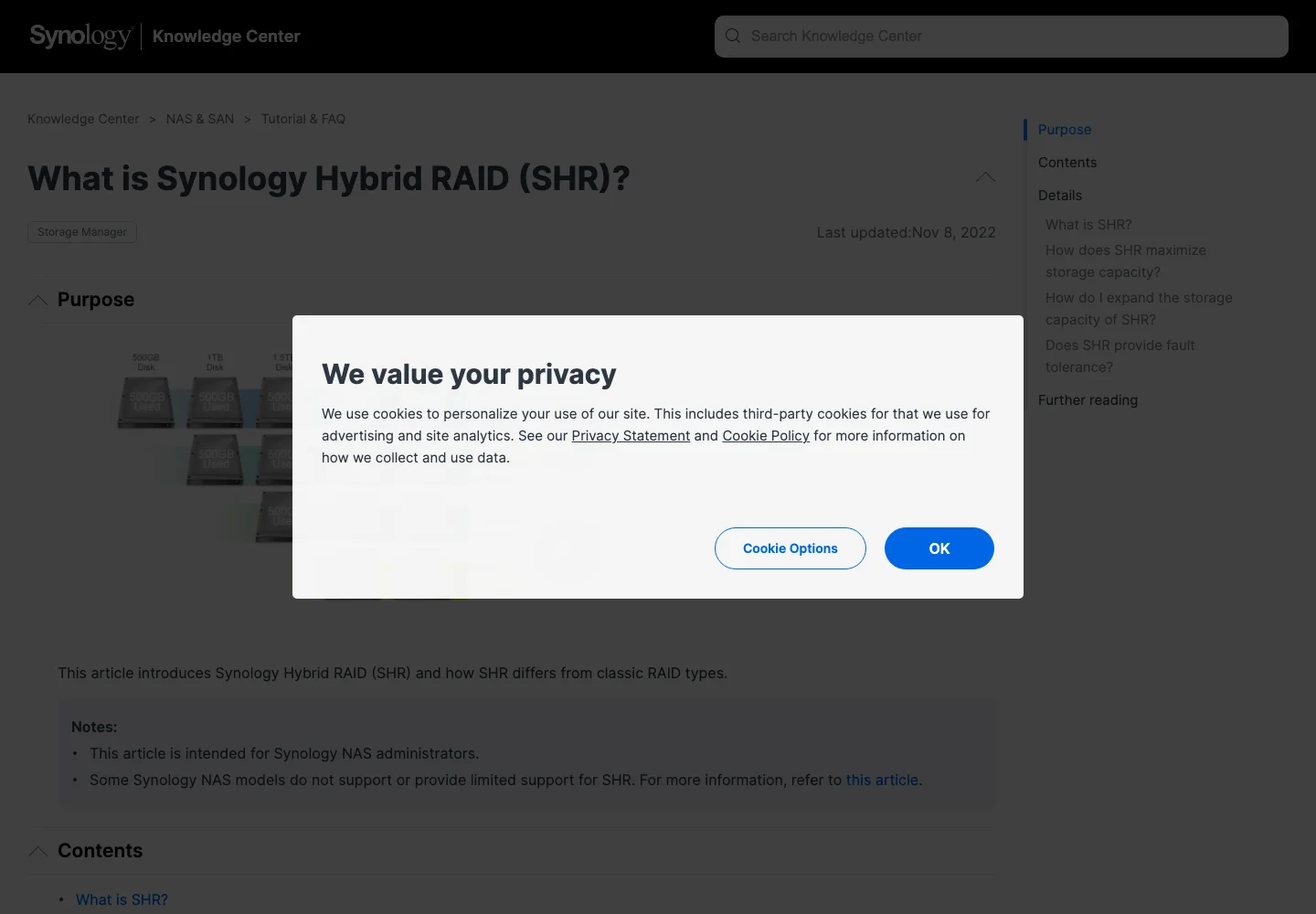
Figure 3: A real screenshot from Synology’s SHR documentation, which focuses on simplified management and flexible capacity use.
Practical recommendations:
- Two bays: choose SHR-1 or RAID 1. With equal-size drives, both provide a mirror-like result; SHR is often friendlier for future Synology upgrades.
- Three to five bays: SHR-1 is a reasonable home default for photos, media, and documents when an independent backup also exists.
- Six or more bays, or very large drives: seriously evaluate SHR-2 when downtime and a long rebuild window matter.
- Databases and virtual machines: capacity efficiency is not the only goal. RAID 10, SSD pools, memory, and networking may matter more than squeezing out another drive of usable space.
SHR improves convenience and upgrade flexibility. It does not protect against deletion, ransomware, theft, a destroyed enclosure, or every form of storage-pool corruption. Synology users should treat snapshots, Hyper Backup, detachable drives, and replication to another location as separate layers.
fnOS: choose filesystem and redundancy together
Many fnOS systems are DIY builds assembled from repurposed desktops, mini PCs, custom cases, varied controllers, and mixed disks. That flexibility is useful, but it means the storage decision must include hardware compatibility, filesystem, caching, storage mode, and future expansion.

Figure 4: A real fnOS Help Center screenshot. The workflow selects filesystem, drives, and storage mode, demonstrating that RAID is only one part of the design.
The current official documentation shows choices including ext4, Btrfs, and ZFS. Available options may vary by release, drive count, and hardware, so the live confirmation screen is the final authority before formatting disks.
Useful starting points include:
- Two equal drives for family documents and photos: use a mirrored mode and keep another copy on a detachable drive or second device.
- Three to five equal drives for media and general storage: single-drive redundancy is capacity-efficient, but it remains only the availability layer.
- Many large drives with long rebuild time: consider dual redundancy when data cannot be recreated or the system stays busy.
- ZFS plans: learn the topology, memory, expansion, and operational implications first. Checksums, self-healing, and snapshots are valuable, but snapshots on the same machine do not survive theft or physical disaster.
- Mixed capacities and gradual upgrades: verify the expansion rules of the exact fnOS version instead of assuming Synology SHR or Unraid behavior applies.
DIY builders should also remember that a power supply, SATA cable, backplane, or HBA problem can make several disks disappear together. Multiple offline reports do not always mean multiple failed platters. Preserve logs, check power and connections, and never initialize a suspicious pool in panic.
Unraid: the classic Array is not RAID 5
Despite the name, the classic Unraid Array differs from conventional striped RAID 5 or RAID 6. Data disks normally keep independent filesystems. Files are not split into stripes across every data disk. One or two parity disks let the system reconstruct a failed data disk.
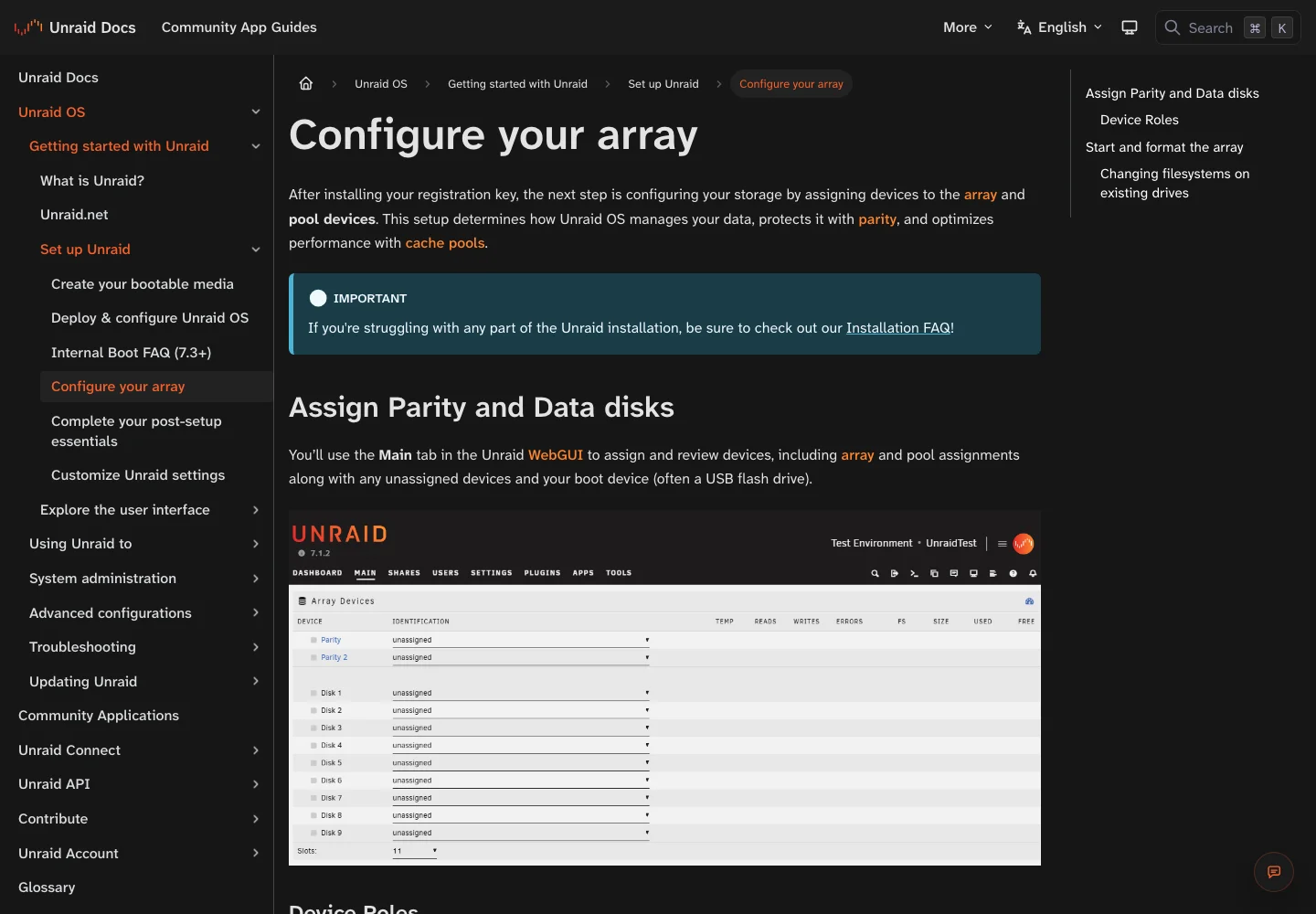
Figure 5: A real screenshot from Unraid documentation. Parity, data, and cache or pool roles are explicitly separated.
Imagine independent bookcases containing complete books. The parity disk is a special ledger that can help reconstruct one missing bookcase. Conventional RAID 5 is more like tearing every book into pages and distributing the pages across all bookcases.
The design has compelling strengths:
- Data disks can have different capacities, while parity must be at least as large as the largest data disk.
- Capacity can often grow one disk at a time instead of requiring a complete matched set.
- Inactive array disks can spin down, which suits media and archive workloads.
- Because each healthy data disk retains its own filesystem, data on surviving disks may remain accessible even after failures exceed parity protection, depending on the exact incident.
The trade-offs are equally important:
- Classic Array writes must update parity and should not be confused with the aggregate write throughput of a striped array.
- Single parity protects against one failed data disk; dual parity protects against two. Parity disks do not store ordinary files.
- Cache and pools are different layers from the Array. Docker, VMs, and high-speed ingestion require deliberate SSD pool, filesystem, and mover planning.
- Parity reconstructs what a failed disk should contain. It does not restore yesterday’s version of a deleted or encrypted file.
Unraid is particularly attractive when drives differ in size, expansion will be gradual, and the main workload is large media or archive files. High-concurrency databases, demanding virtualization, or maximum sequential performance may fit a ZFS pool, mirrored pool, or conventional striped layout better.
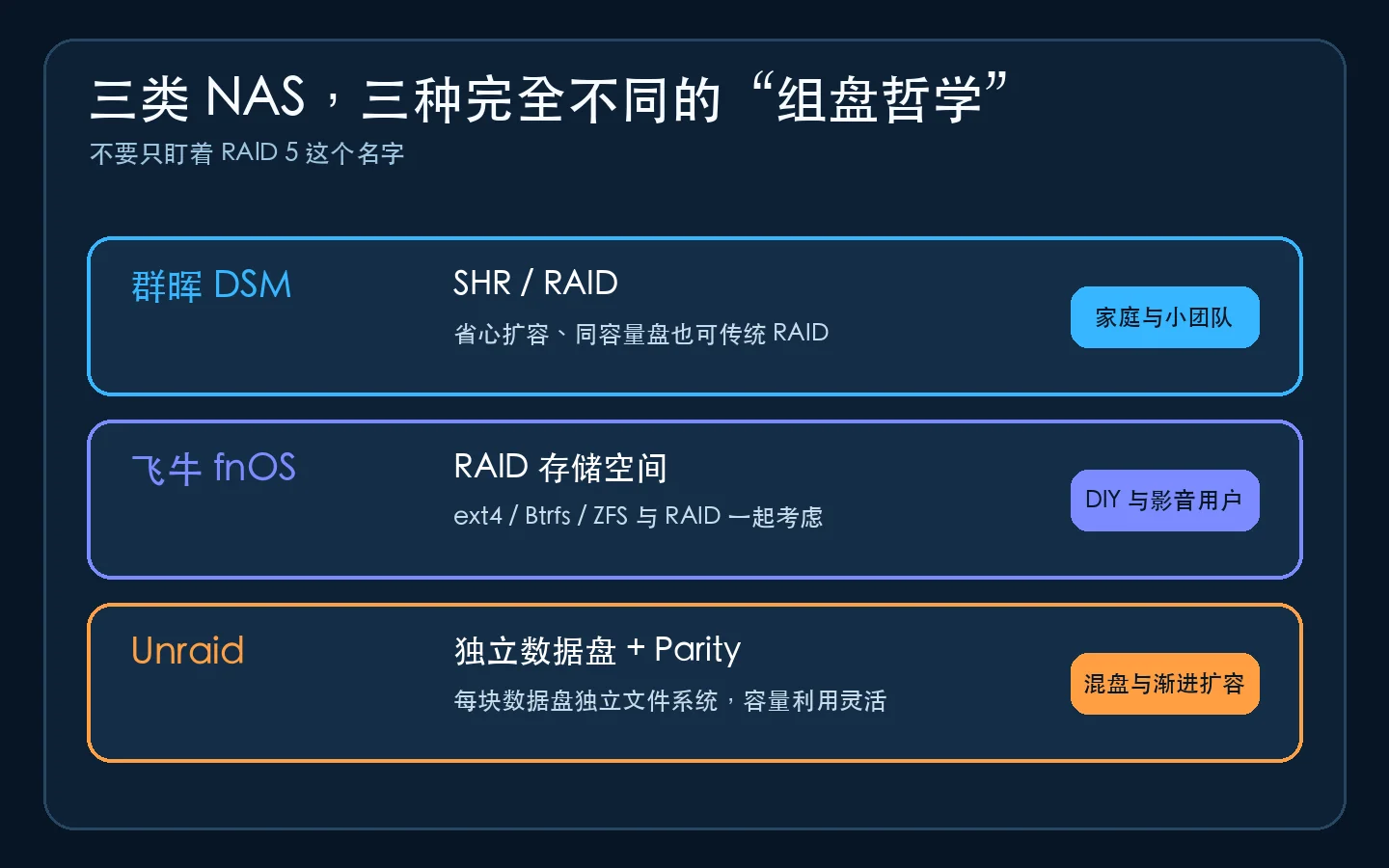
Figure 6: Synology, fnOS, and Unraid approach multi-disk storage from different starting points.
Scenario-based recommendations
Entry-level two-bay NAS
Use RAID 1, SHR-1, or the equivalent mirror. Do not use RAID 0 for the only copy of family photos. If budget is limited, a mirror plus a modest detachable backup disk protects more failure types than a capacity-only stripe.
Four-bay primary home NAS
Single-drive redundancy is often reasonable when much of the content can be downloaded again and a tested backup exists. Synology users can start with SHR-1. fnOS users can select an equivalent redundant layout after choosing the filesystem. Unraid users can use one parity disk plus data disks and plan an SSD pool for applications and fast writes.
Six to eight bays with large disks
Evaluate dual-drive redundancy. The reason is not a claim that two drives always fail together; it is the longer rebuild window, larger failure surface, and possible correlation among same-age disks. Consider SHR-2 or RAID 6 on Synology, a supported dual-redundancy topology on fnOS, or dual parity on Unraid. Performance-focused workloads may instead favor mirrored vdevs or RAID 10.
Downloadable media archive
Capacity and expansion flexibility can take priority. Unraid is attractive, SHR-1 is easy to operate, and fnOS can make a cost-effective DIY platform. Be honest about what is replaceable: personal videos, edited metadata, subtitles, and project files are not necessarily downloadable.
Photos, work, and financial records
RAID supplies online availability only. Add versioned snapshots, scheduled backup, and a copy that is not permanently mounted by the same system. A 3-2-1 strategy remains useful: at least three copies, two different storage types, and one copy off-site.
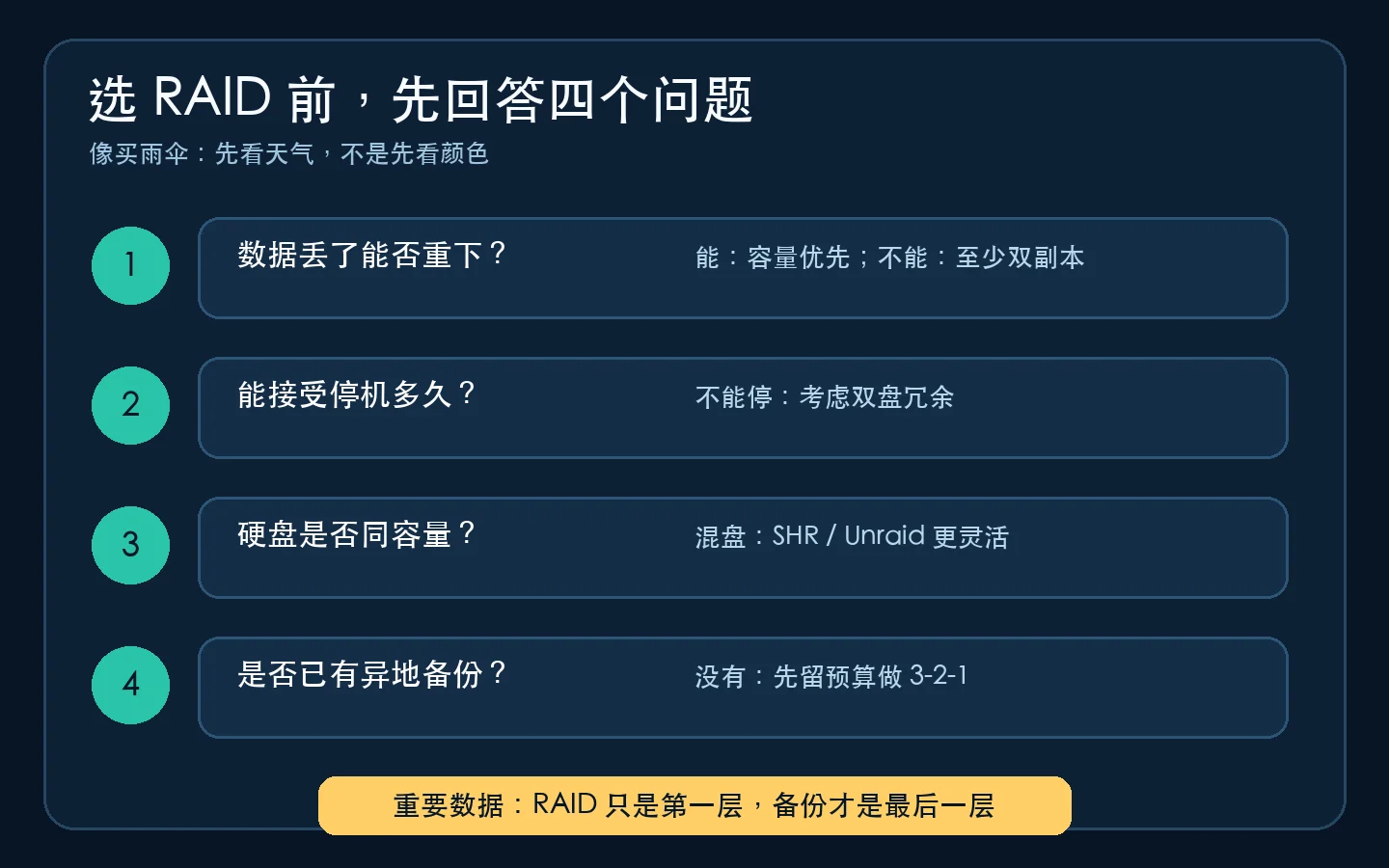
Figure 7: Ask about data value, downtime, drive sizes, and backup location before asking for a RAID number.
A practical layered home protection plan
A four-bay NAS can use a simple layered design:
- Online redundancy: SHR-1, RAID 5, a mirror, or Unraid parity limits immediate downtime after a drive failure.
- Version protection: snapshots or file history provide quick rollback. Restrict ordinary accounts from deleting protected snapshots.
- Independent local backup: copy to a USB disk and disconnect or safely eject it after the job.
- Off-site copy: encrypt and replicate the most important, manageable dataset to another trusted location.
- Restore testing: every few months, restore a random folder and verify that the files open.
A restore drill is like a fire drill. It does not claim that a fire will happen; it proves that the door opens and the route works. A backup that has never been restored is still a hope, not evidence.
Common misconceptions and their root causes
“The dashboard is green, so the data is safe”
Green health indicators mean the system has not detected a current fault. They do not prove that historical versions exist or that a backup is restorable. A drive with normal SMART data can still fail suddenly.
“Snapshots eliminate the need for backup”
Snapshots are excellent for rollback, but snapshots and original data stored in the same pool may disappear together if the pool is destroyed, stolen, or physically damaged.
“RAID 6 is always better than RAID 5”
RAID 6 provides more failure tolerance but consumes more capacity and has additional write overhead. A replaceable media collection and irreplaceable client work should not use the same risk model.
“Mixed-size drives always waste space”
Conventional RAID is generally constrained by the smallest member. SHR and Unraid improve flexibility under different rules. Flexible does not mean rule-free: expansion order, maximum drive limits, parity sizing, and support matrices still matter.
“Rebuild is automatically safe after inserting a new disk”
Rebuild stresses the remaining members with sustained reads. Confirm the backup first, investigate any other warning, record bay positions and masked serial suffixes, and avoid removing the wrong healthy drive.
Q&A
Does RAID stop ransomware?
No. If ransomware has normal write access, RAID reliably stores the encrypted result across the array. Use access isolation, protected or immutable snapshots, offline backup, and off-site versions.
Is RAID 1 two backups?
No. It is two synchronized copies of one logical dataset. Deletion, overwrite, and some forms of corruption can affect both.
Should a four-bay home NAS use single or dual redundancy?
Single redundancy is reasonable when capacity matters, downtime is acceptable, and a reliable backup exists. Dual redundancy is more attractive with very large drives, long rebuilds, business workloads, or delayed replacement response.
Do SSDs need RAID?
The same availability questions apply. SSDs fail too, and same-model devices can share correlated risks. RAID still does not replace backup. Also consider endurance, power-loss protection, TRIM, and platform support.
Can old, new, and different-brand disks be mixed?
Some layouts support it. Mixed batches may reduce one form of correlated failure, but capacity, speed, health, and latency differences can make the set behave like its weakest members. Test every disk and do not promote a drive with a history of bad sectors into a critical array.
Is another redundancy disk or a backup disk the better purchase?
If there is no independent backup today, the backup disk usually covers more incident types. Extra array redundancy mainly reduces downtime and rebuild risk; backup also covers deletion, ransomware, and enclosure loss.
Final checklist
Before clicking “Create storage pool,” confirm:
- which files can be downloaded again and which can never be recreated;
- how many disk failures and how much downtime are acceptable;
- whether a restorable copy exists before a rebuild begins;
- whether future growth will replace a full set or add drives gradually;
- which RAID, filesystem, and expansion paths the current software version actually supports;
- who maintains snapshots, detachable backups, and off-site copies;
- whether a real restore test has succeeded.
If you remember only one sentence, remember this: RAID helps the machine keep working after a drive fails; backup helps you get home after the data is gone. Once data value, downtime, and recovery requirements are clear, choosing among Synology SHR, fnOS RAID or ZFS, and Unraid parity becomes much easier.