A Free Science Lab from a Nobel Laureate: 173 PhET Simulations That Even Work Offline (One-Click Kits Included)
Want students to see electrons circling a nucleus, a cannonball tracing a parabola, or ice melting into water? Traditionally you needed a teacher with good chalk skills or a fully equipped lab.
There is an easier way: open a browser and go to PhET Interactive Simulations. It was founded by a Nobel laureate, it is completely free, and its home page lists 173 interactive simulations, 132 languages and 1.8 billion uses.
This post first shows you how to use PhET, then tackles the problem teachers hit most often: the computer lab has no internet, or the school network crawls. I turned PhET’s single-file sims into one-click offline kits for three platforms, and found a small detail along the way: even when opened offline, a sim still tries to send home a few “receipts”.
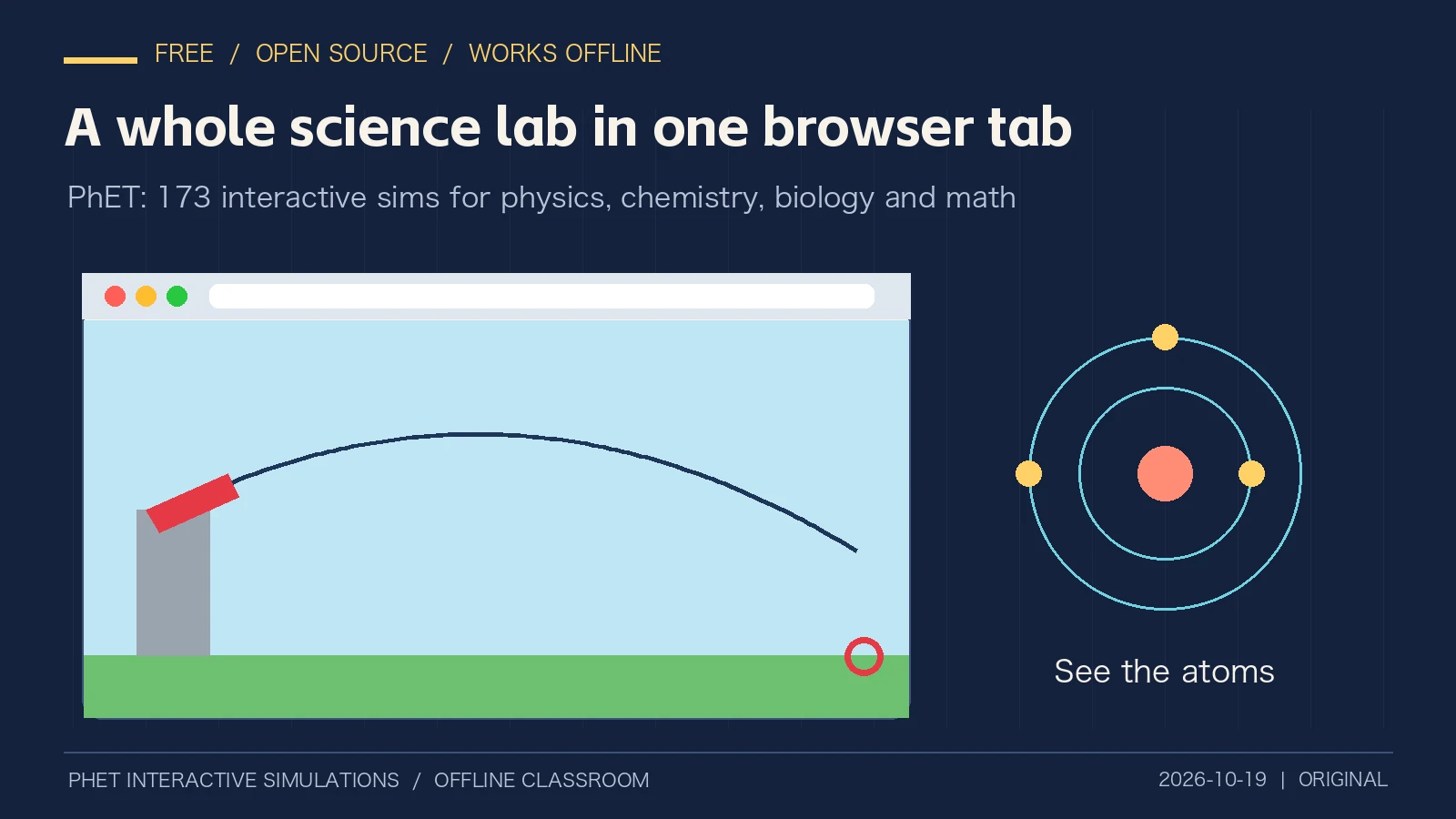
Figure 1: Original illustration for this post.
1. What is PhET: a free lab from a Nobel laureate
PhET Interactive Simulations lives at phet.colorado.edu; the Simplified Chinese site is phet.colorado.edu/zh_CN. It was founded in 2002 by Carl Wieman, winner of the 2001 Nobel Prize in Physics, and is run by a team at the University of Colorado Boulder.
The idea is simple: take classic experiments in physics, chemistry, biology, earth science and math, and turn them into small programs you can drag, click and adjust. Students are not watching an animation. They change the parameters themselves and see the result immediately.

Figure 2: Real screenshot of the PhET Chinese home page, captured 2026-10-19.
Further down the home page are three numbers: 173 interactive simulations, 132 languages, and 3,702 lessons contributed by teachers.

Figure 3: Real screenshot of the PhET Chinese home page, captured 2026-10-19.
One detail is worth clarifying. I checked PhET’s official metadata API: there are currently 122 HTML5 sims that run directly in a browser, and 106 of them have a Simplified Chinese translation. The 173 figure also counts older Java sims and other formats. For most teachers and students, the 122 HTML5 sims already cover the core concepts from primary school to early university.
Another small observation: the Simplified Chinese home page mixes in a fair amount of Traditional Chinese text. That is just an unfinished translation and does not affect use; inside the sims, the interface is standard Simplified Chinese.
2. Why “playing” teaches science: an analogy first
Many parents hear “learn physics with simulations” and worry that it is just gaming.
Look at it another way. Many learner drivers start on a driving-school simulator: crash and nothing happens, just try again. Once they have the feel, they get into a real car.
PhET plays exactly that role for science class.
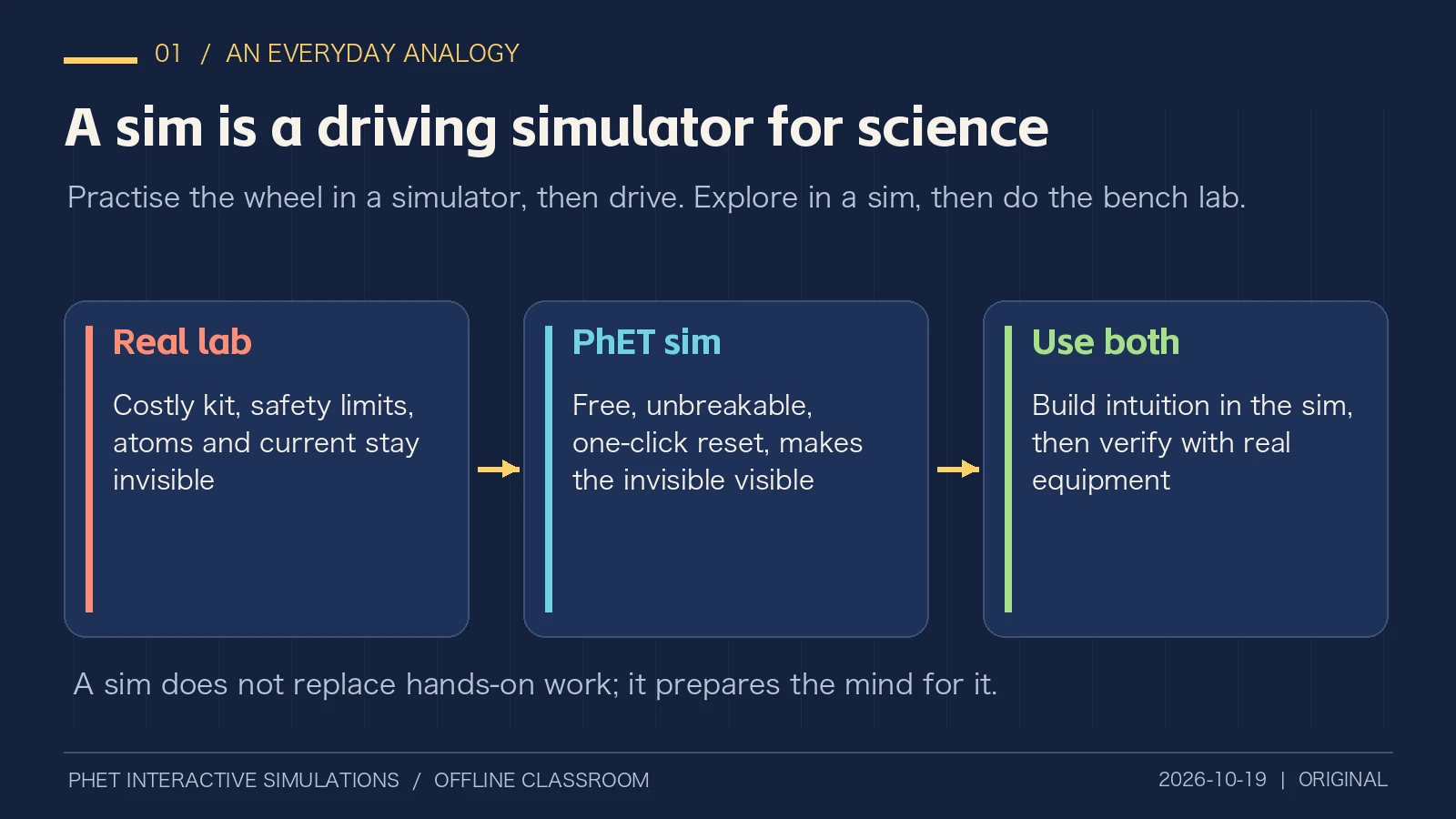
Figure 4: Original illustration. A sim does not replace hands-on work; it prepares the mind for it.
Real labs have three built-in limits. Equipment is expensive; not every school can afford an oscilloscope or a spectrometer. Some experiments are dangerous; strong acids, high voltage and radioactivity are not for casual trial and error. And much of what matters is invisible: atoms, current, molecular motion.
PhET’s About page lists its design principles, and one of them is key: make the invisible visible. Electrons flowing in a wire, molecules speeding up as they heat; in a sim you simply see them.
Each sim is also tested with student interviews and classroom observation before release. These are not throwaway games but teaching tools refined through education research.
3. Get started in three minutes: find your experiment
On the site, click Simulations at the top to browse everything by subject: physics, math, chemistry, earth science and biology.
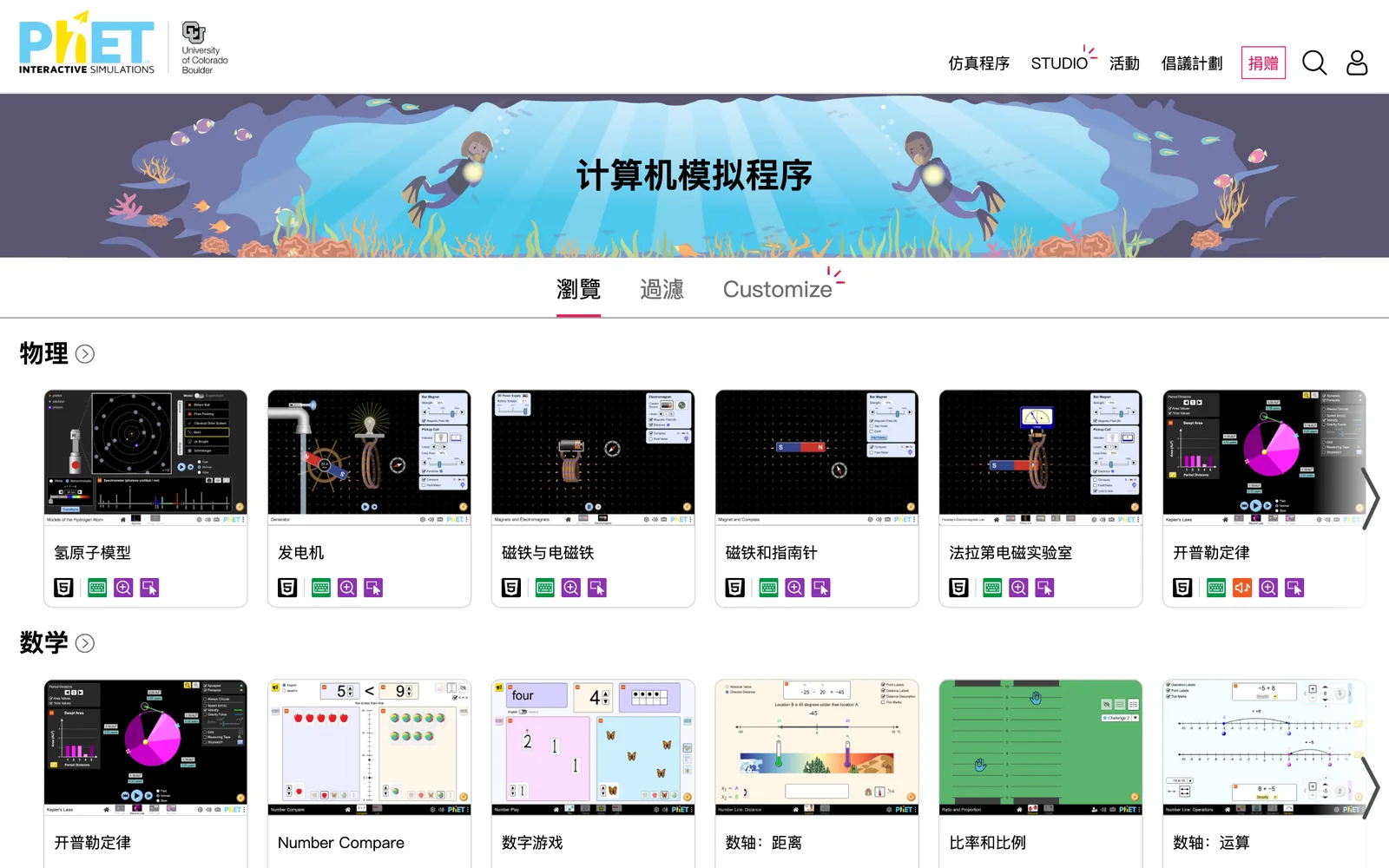
Figure 5: Real screenshot of the PhET browse page, captured 2026-10-19.
Open any sim, for example Projectile Motion, and you land on its detail page. Three things are worth noticing.
First, the big play button in the middle runs the sim right in your browser.
Second, the row of small icons under the title starts with a download button that saves the sim as one HTML file.
Third, the sample learning goals and teacher resources below tell you what the sim can teach, and link to lessons shared by other teachers.
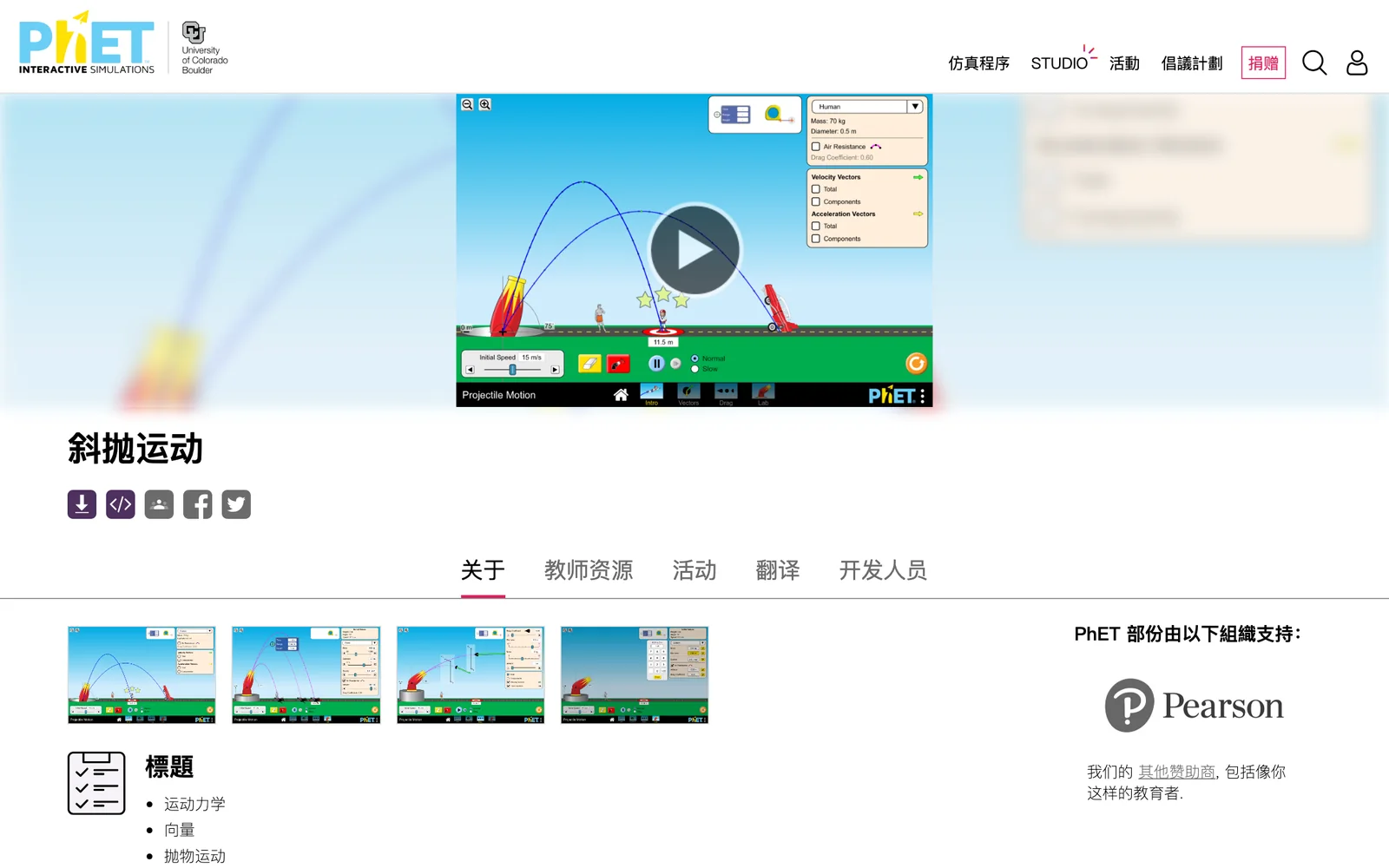
Figure 6: Real screenshot of the Projectile Motion page, captured 2026-10-19. The page shows version 1.0.34.
The requirements are modest: PhET says HTML5 sims run on iPads, Chromebooks, Windows PCs, Macs and Linux. No plugins, just a modern browser.
4. Three experiments, and how to use them in class
Experiment 1: Projectile Motion, why a cannonball curves
On the Intro screen of Projectile Motion, a cannon sits on a platform. You can adjust the launch speed at the bottom and choose the projectile on the right, from a pumpkin to a baseball to a car. Press the red fire button to see the full trajectory, then measure the range with the tape measure.
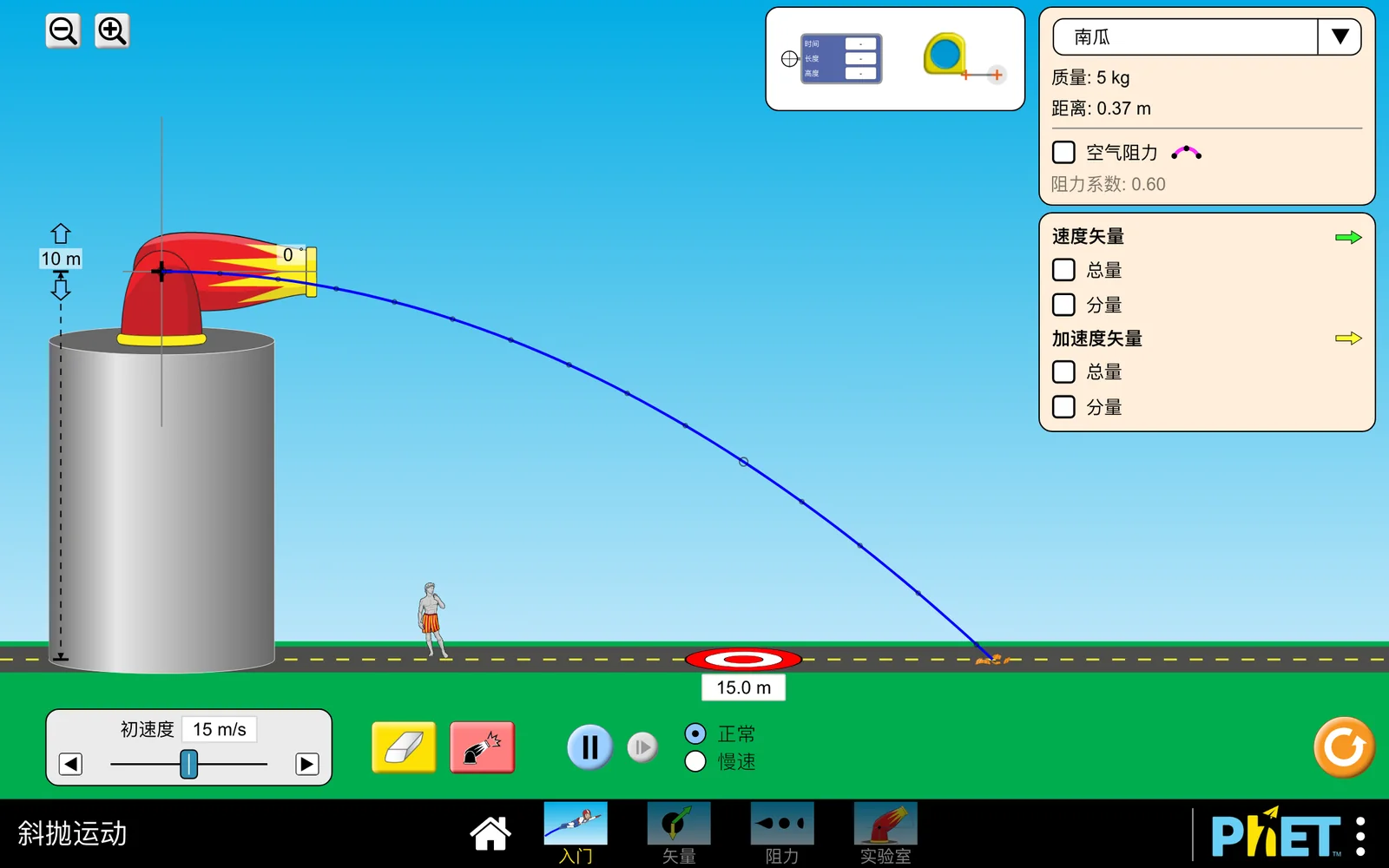
Figure 7: Real sim screenshot, running from this post’s offline kit with the network blocked. Simulation by PhET Interactive Simulations, University of Colorado Boulder, licensed under CC BY-NC 4.0.
This sim is ideal for a four-step lesson: predict, play, observe, explain.
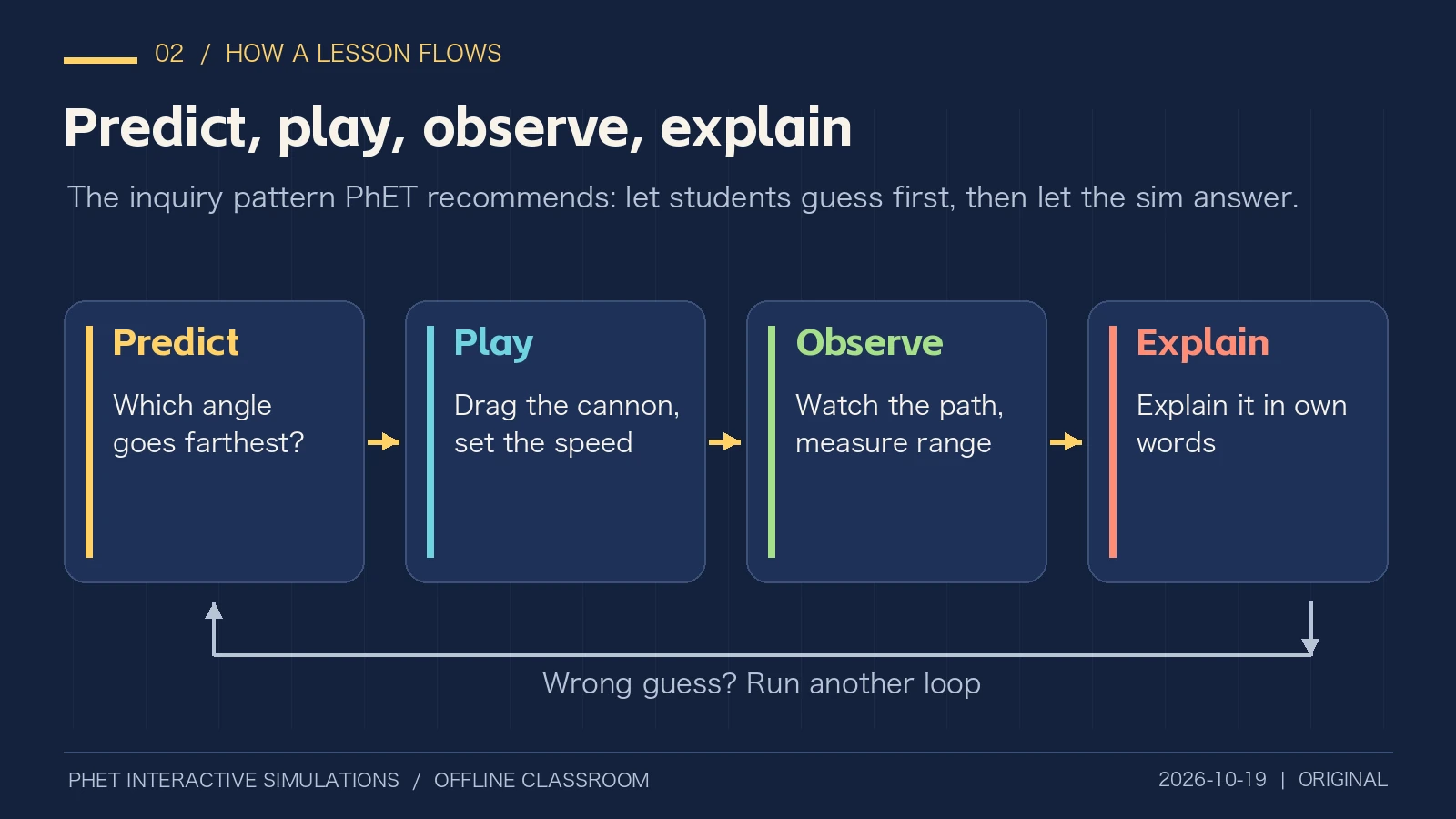
Figure 8: Original illustration.
Ask students first: “At what angle does the cannonball go farthest?” Many say 60 degrees, because “higher means farther”. Then let them drag the barrel and try. Without air resistance, launched from ground level, 45 degrees wins; tick Air Resistance and the best angle drops a little. Finally, ask them to explain why in their own words.
That is the power of a sim: a wrong guess is not embarrassing, because the sim is showing them, not the teacher correcting them.
Experiment 2: States of Matter, how ice turns into water
In States of Matter, a container holds a cluster of small balls, each one an atom or molecule. Below it is a heat and cool control; on the right you can switch instantly between solid, liquid and gas.
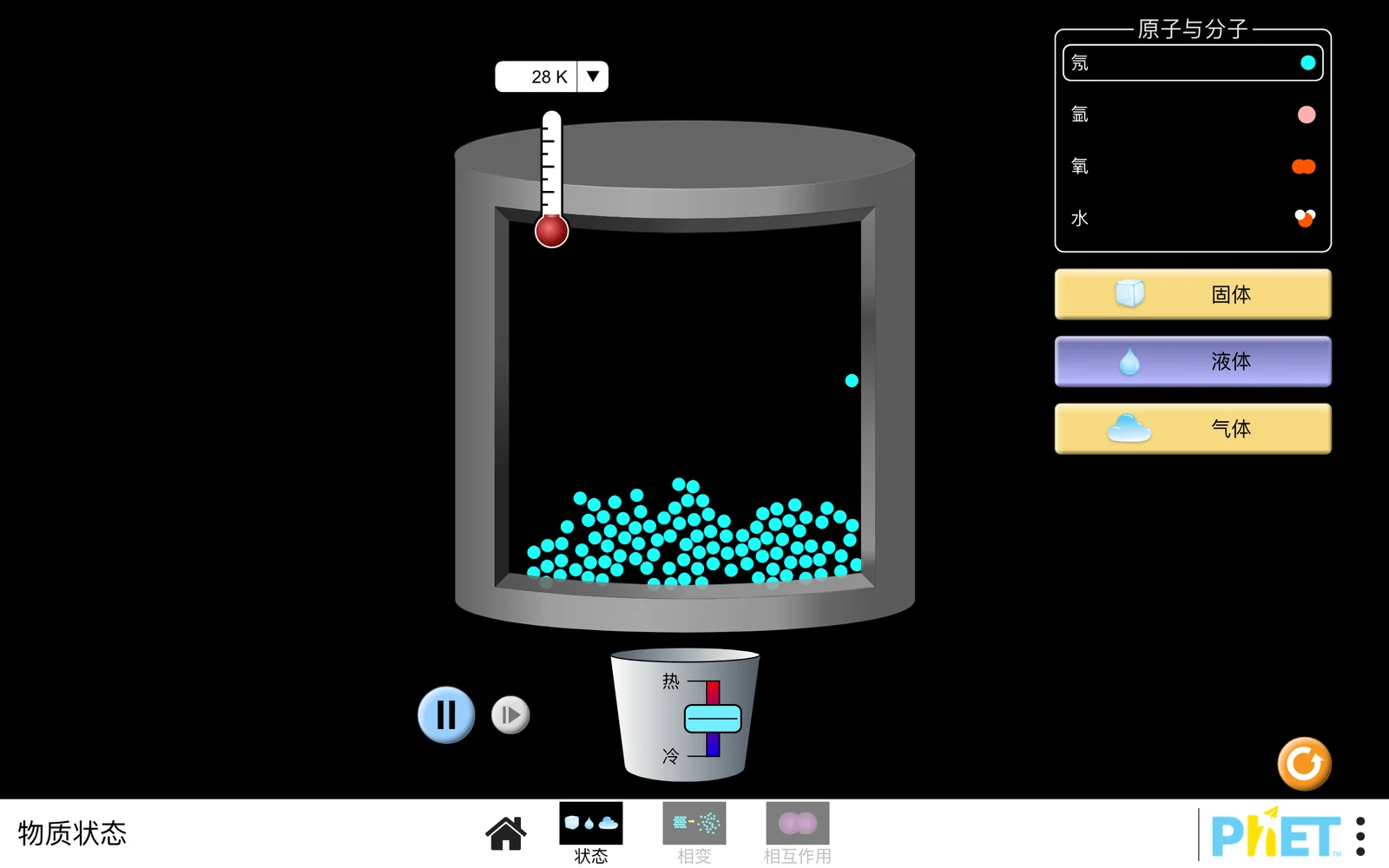
Figure 9: Real sim screenshot, running offline. Simulation by PhET Interactive Simulations, University of Colorado Boulder, licensed under CC BY-NC 4.0.
An analogy: a solid is like students lined up for morning assembly, only able to sway on the spot. A liquid is like students at break time, crowded together but free to move around. A gas is like students rushing out the school gate at home time, running everywhere. Adding heat is like ringing the bell: the balls move faster and the line breaks up.
For a primary student, that is far easier than memorising “intermolecular forces”. Older students can turn on the thermometer and connect temperature with particle speed.
Experiment 3: Build an Atom, assemble one yourself
Build an Atom has three buckets: protons, neutrons and electrons. Drag them into the middle and the periodic table in the corner tells you, live, which element you have built and whether it is neutral or an ion.
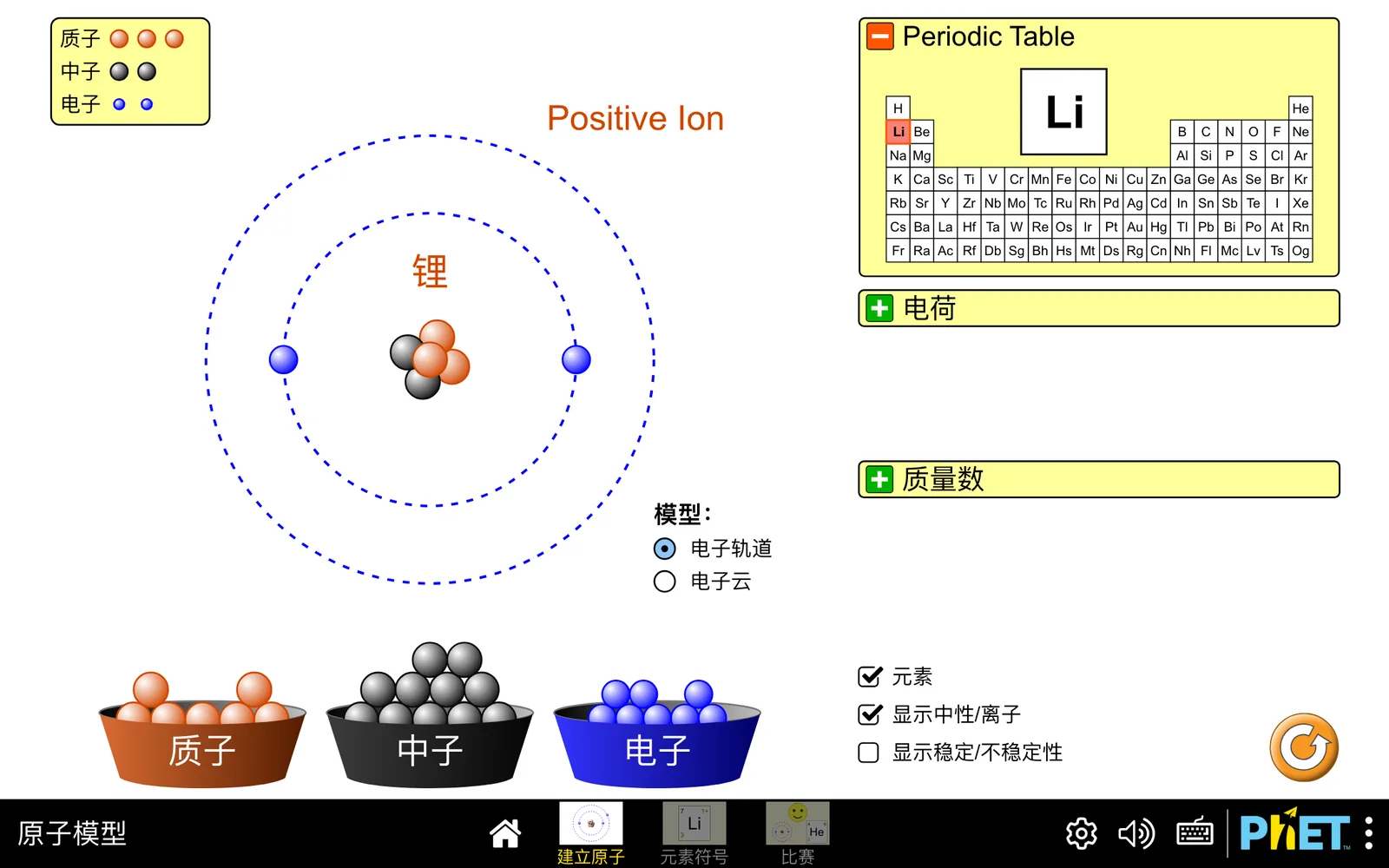
Figure 10: Real sim screenshot, running offline. I dragged in 3 protons, 2 neutrons and 2 electrons; the sim identifies lithium and labels it a positive ion. Simulation by PhET Interactive Simulations, University of Colorado Boulder, licensed under CC BY-NC 4.0.
That screenshot is a good quiz in itself: why a positive ion? Protons are positive and there are 3; electrons are negative and there are only 2; one extra positive charge makes the whole thing positive. Students who drag the particles themselves remember this far better than after ten explanations.
5. The real-world problem: no network in the computer lab
Symptoms
Many school computer labs either cannot reach the internet, or dozens of PCs hit the same site at once and crawl. PhET’s servers are overseas for many schools, and each sim file is about 3 to 6 MB. On a shaky network, the first ten minutes of a lesson can be spent watching spinners.
PhET’s three official routes
PhET’s Offline Access page lists three options.
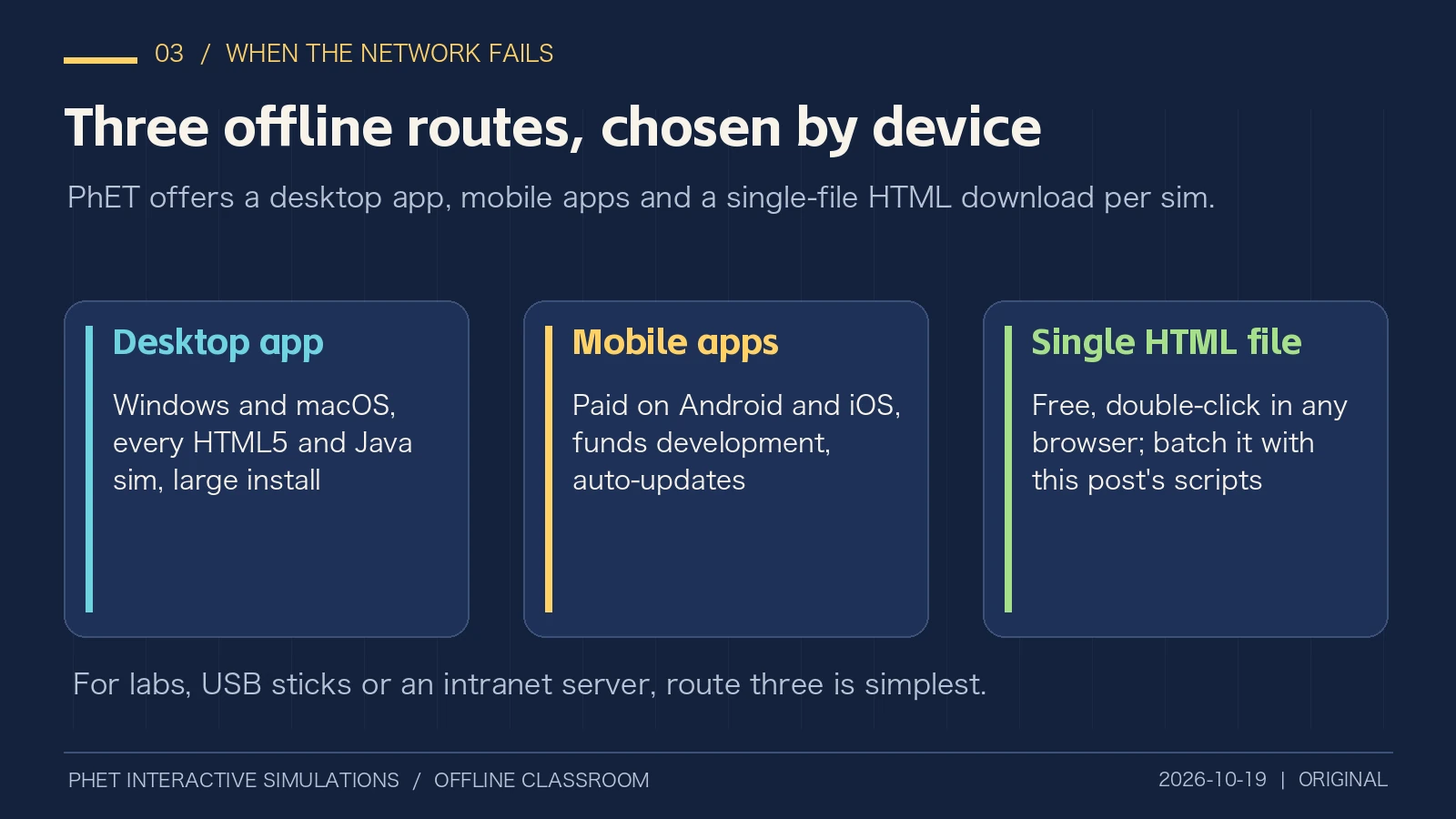
Figure 11: Original illustration, based on PhET’s Offline Access page.
Route one, the desktop app: for Windows and macOS, it includes every HTML5 and Java sim with translations. Java sims additionally need the Java SE Development Kit 8.
Route two, the mobile apps: paid apps for Android and iOS. Proceeds fund new sims, and the apps download new HTML5 sims automatically.
Route three, individual downloads: every sim page has a download button under the title, which gives you one HTML file.
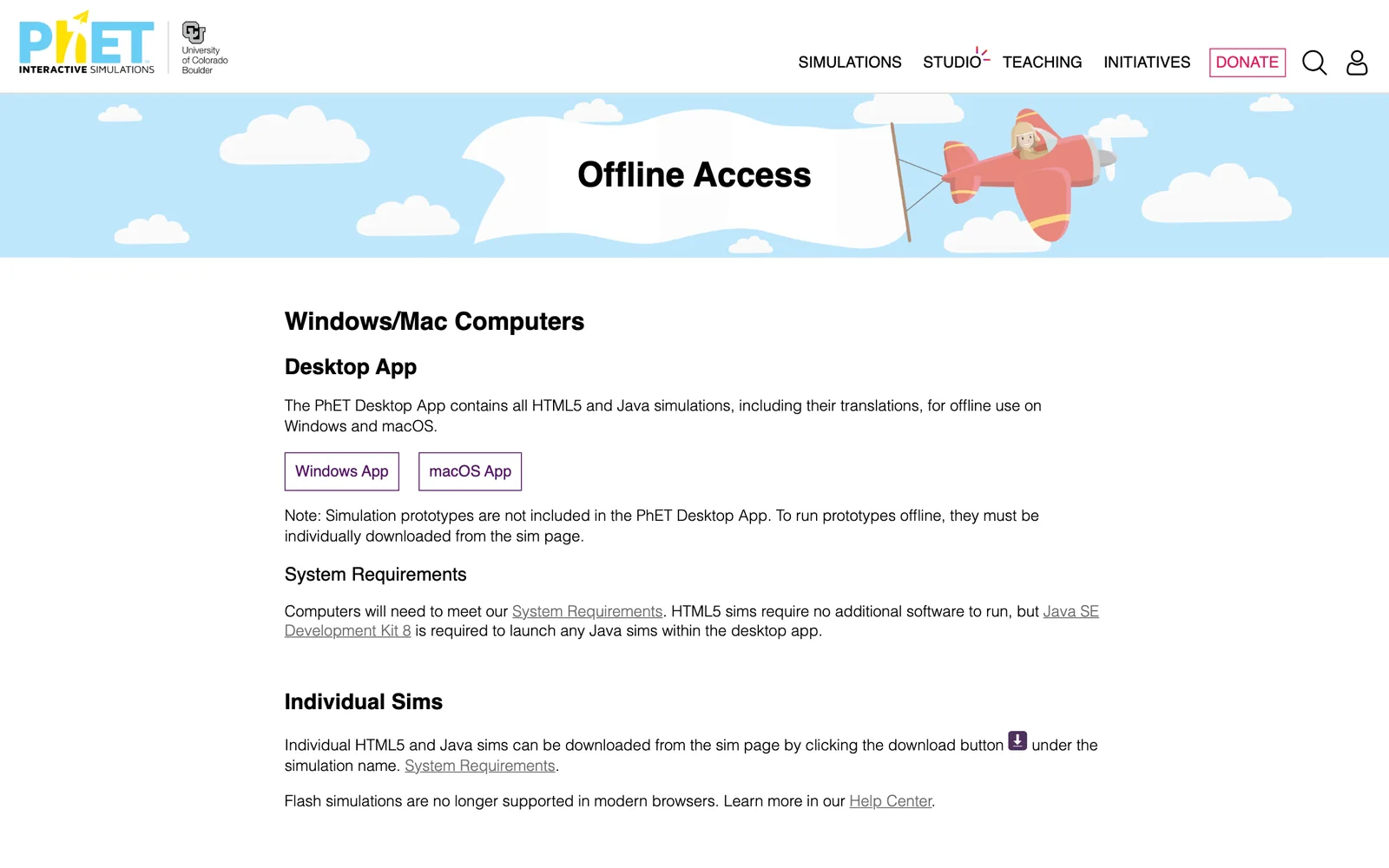
Figure 12: Real screenshot of PhET Offline Access, captured 2026-10-19.
Analysis: why the single HTML file suits schools best
The desktop app must be installed machine by machine, and lab administrators do not always have the rights. The mobile apps need payment and an app store. The single HTML file has one great property: everything is packed into it.
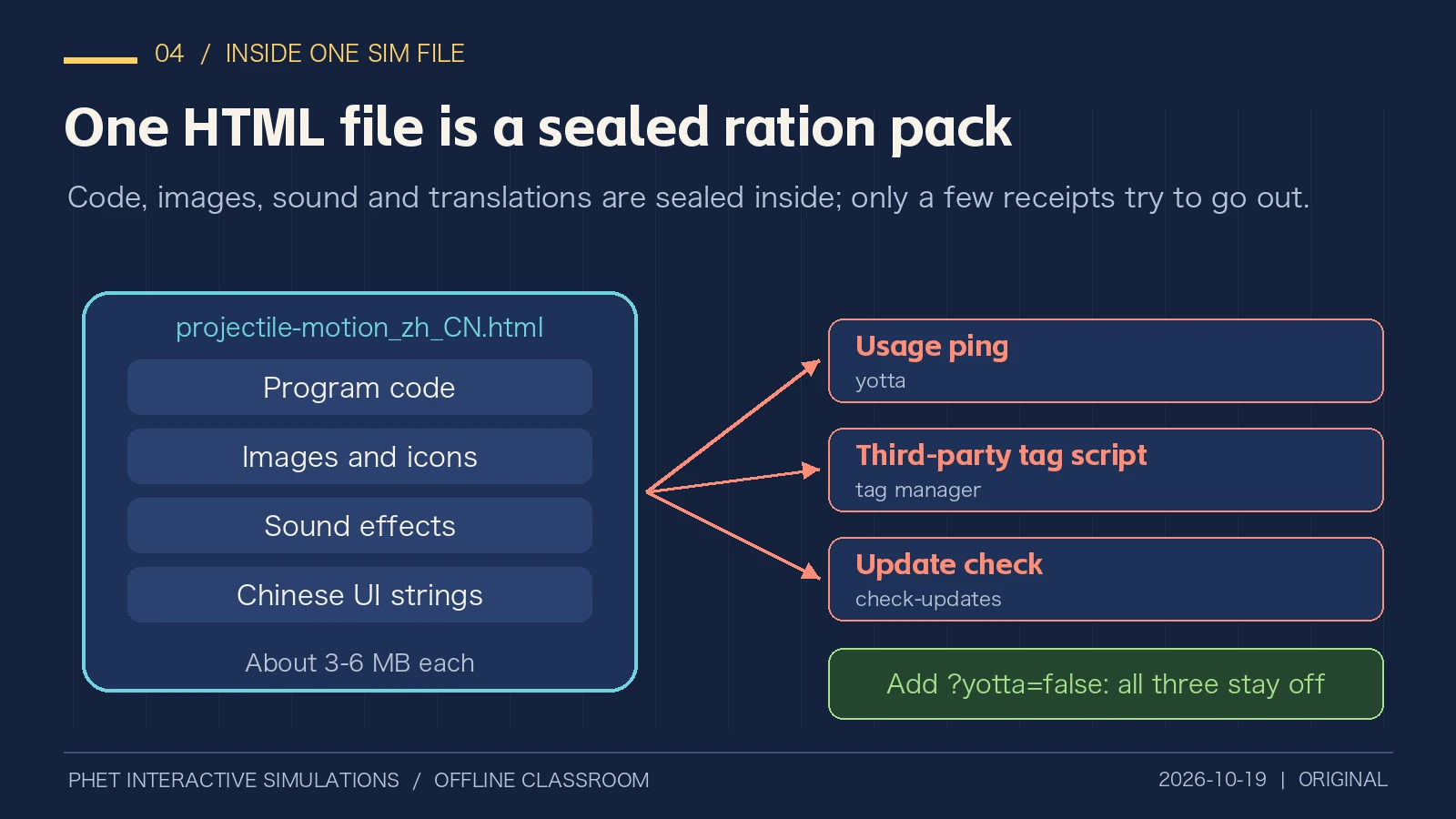
Figure 13: Original illustration, based on this post’s offline test of the Chinese Projectile Motion file.
Think of it as a sealed ration pack: program code, images, sound effects and interface text are all sealed inside. Copy it to a USB stick, plug it into any computer, double-click, done. No installation, no server.
But even a sealed pack comes with a few receipts.
Root cause: offline sims still try to reach the network
During testing I intercepted every network request the browser made and opened the Chinese Projectile Motion file from local disk. On start-up, the sim tried to contact three kinds of addresses:
First, PhET’s own usage statistics, as two small image requests.
Second, a third-party tag-manager analytics script.
Third, a check for a newer version of the sim.
More notably, the statistics requests include the full address of the current page. When opened from a local file, that address is the file path on your computer, which may contain the computer’s user name.
Offline, all of these requests simply fail and the sim works normally, so you never notice. But for schools that care about student privacy, or labs with strict network auditing, it is worth knowing.
The fix: PhET’s built-in switch
Reading the code inside the sim file reveals that PhET already provides a switch: append ?yotta=false to the address.
projectile-motion_zh_CN.html?yotta=false
I re-ran the same interception test: with this parameter, none of the three kinds of requests were sent, and the sim worked perfectly.
To be fair, these statistics are how PhET understands usage and secures funding. If your school is online and happy to support this free project, keep them. The scripts below turn them off by default but offer an option to keep them on.
6. One-click offline classroom kits: Windows 11, Ubuntu 26.04, macOS 27
I turned the above into three scripts. They contact only PhET’s official site, phet.colorado.edu, with no third-party download sites or cloud services. Once finished, the whole folder runs offline.
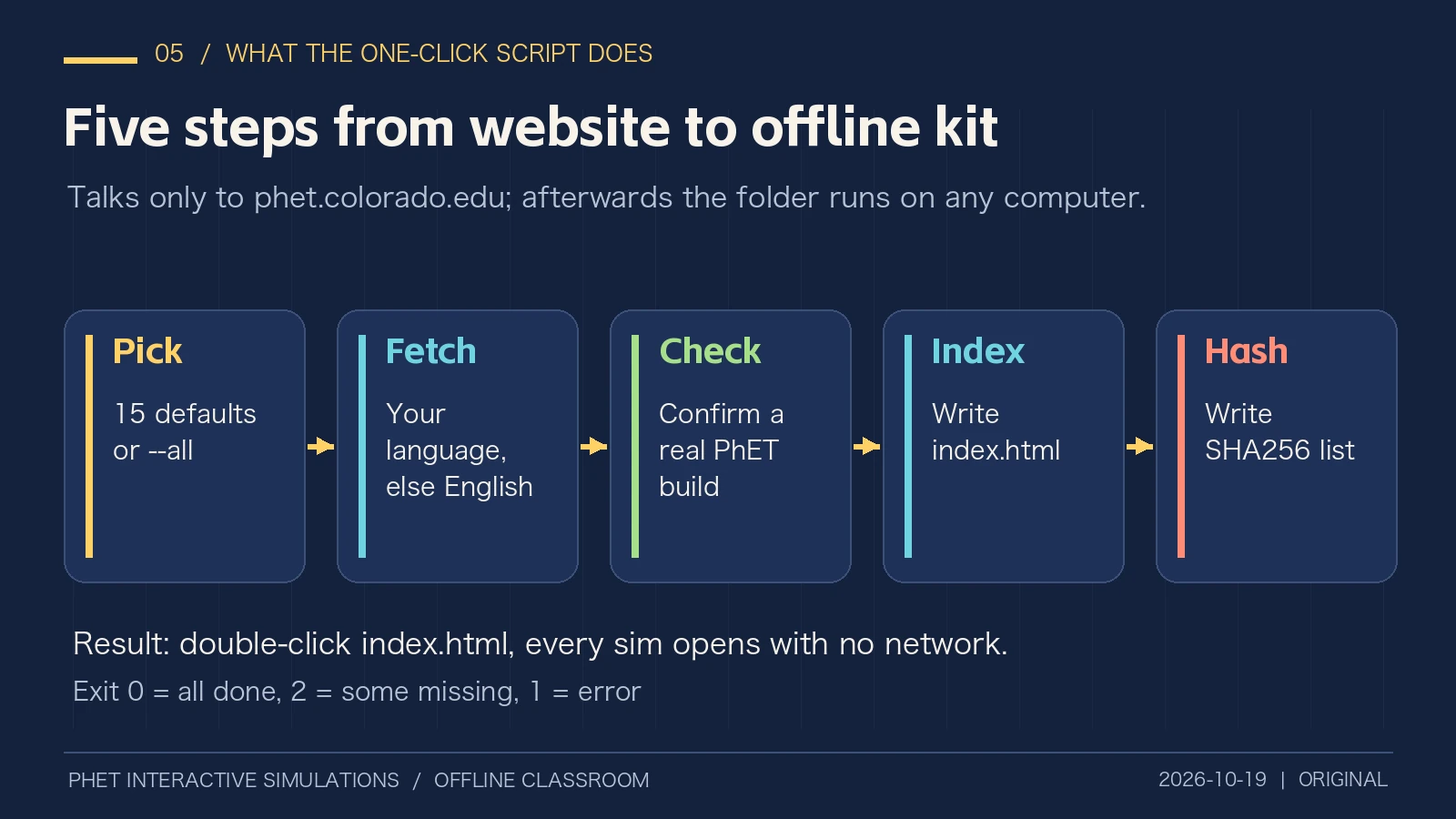
Figure 14: Original illustration.
What the scripts do, plainly:
- Pick: by default 15 classroom favourites covering mechanics, electricity, optics, heat, atoms, chemistry, math and biology; add
--allto download every HTML5 sim PhET lists, about 0.5 GB. - Fetch: download your chosen language, Simplified Chinese by default; if a sim has no translation, fall back to English automatically.
- Check: confirm the file carries PhET’s production-build marker, so an error page is never saved as a sim.
- Index: write an index.html launcher page; every link gets
?yotta=false. - Hash: write SHA256SUMS.txt so you can verify files after copying them to other machines.
Downloads: the complete kit zip, or individually the Windows script, Ubuntu script and macOS script. Use the SHA-256 list to verify them.
Method A: run it yourself, one command
Create a dedicated folder for the kit, put the script in it, and open a terminal there.
Windows 11, in PowerShell:
powershell -NoProfile -ExecutionPolicy Bypass -File .\phet-offline-windows.ps1 -Open
The execution policy applies only to this one PowerShell process; system settings are not changed.
Ubuntu 26.04:
bash phet-offline-ubuntu.sh --open
macOS 27:
zsh phet-offline-macos.zsh --open
Common options, identical on all three (PowerShell spells them -Lang, -Sims, -All, -Out, -Open, -AllowStats):
--lang zh_CN        Language, e.g. zh_TW, en
--sims a,b,c        Only these sims; names are the last part of the sim URL
--all               Every HTML5 sim PhET lists
--out DIR           Output folder, default ./phet-offline-<lang>
--open              Open the launcher page when finished
--allow-stats       Keep PhET usage statistics (off by default)
For example, three experiments for an eighth-grade physics class:
bash phet-offline-ubuntu.sh --sims projectile-motion,forces-and-motion-basics,circuit-construction-kit-dc
When it finishes, double-click index.html and you get this launcher page:
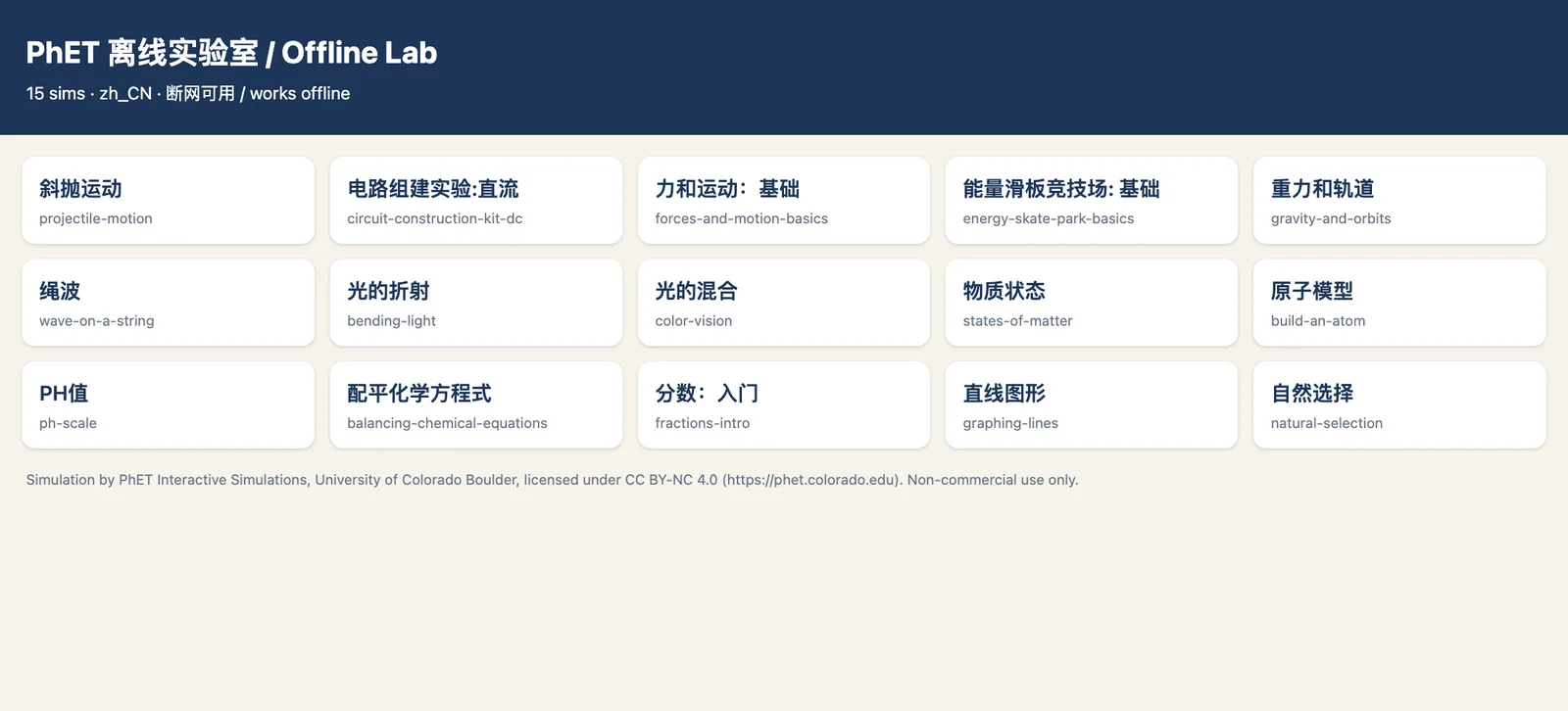
Figure 15: Real screenshot of the launcher page generated by this post’s macOS script, opened in a browser with all network requests blocked.
Exit codes: 0 means everything succeeded; 2 means finished but some sims are missing, listed in the log; 1 means an error. To deploy in a computer lab, copy the whole folder to a USB stick; there is no need to run the script on every PC.
Method B: let an AI agent do it
If you use a local agent such as Claude Code or Codex, put the agent instructions next to the scripts and tell it:
First read AGENT-INSTRUCTIONS.txt in this folder and the script for this OS.
Verify the script against SHA256SUMS.txt.
Build a Chinese PhET offline classroom kit in the folder I name, using the default list.
Report the result from the exit code, listing sims that fell back to English or are missing.
Finally open index.html with the network off and confirm at least one sim reaches its home screen.
Do not change system settings, install software or upload any files.
The instructions set the agent’s boundaries: talk only to PhET’s site, change no system configuration, keep the license attribution, and warn you that paid courses need a commercial license.
What was verified
The macOS script ran end to end on macOS 27 and downloaded all 15 sims, about 58 MB in total. The Ubuntu script was tested on an Ubuntu 24.04 server, covering Chinese downloads, automatic English fallback and exit code 2 for a missing sim; no Ubuntu 26.04 machine was used this time. The Windows script was tested in a PowerShell 7 container on the same branches; it was not run on Windows 11’s built-in PowerShell 5.1, though it is written for 5.1 syntax and saved with a UTF-8 BOM to avoid garbled Chinese.
7. Can you use it freely? Read the license
Many articles skip this: PhET sims are now licensed CC BY-NC 4.0, Attribution-NonCommercial.
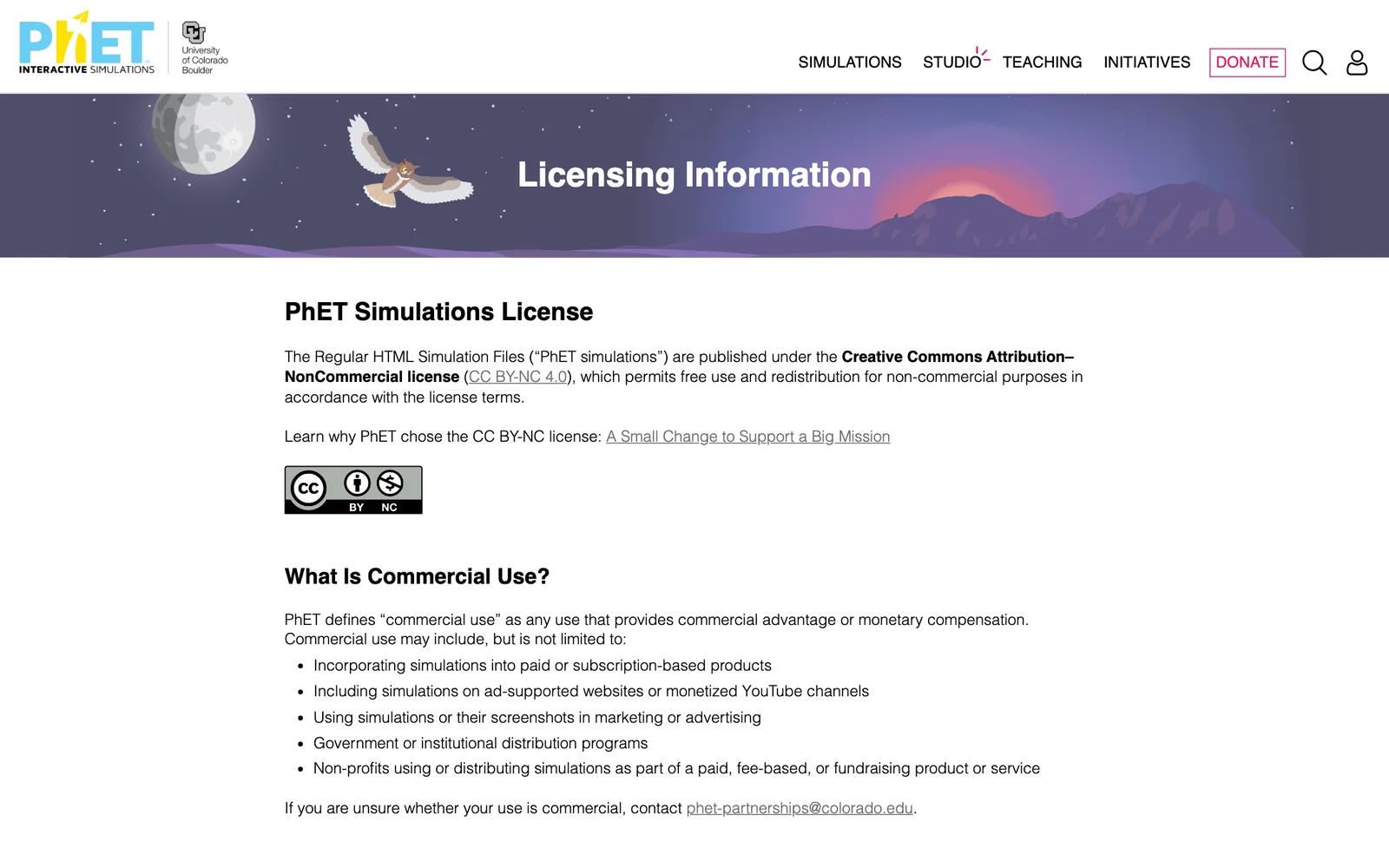
Figure 16: Real screenshot of PhET Licensing, captured 2026-10-19.
In plain words:
Classroom teaching, homework, student projects and education research are free, with no further permission needed, as long as you give attribution.
Paid courses, subscription products, ad-supported websites, monetised video channels and marketing all count as commercial use under PhET’s definition, and need a commercial license from the University of Colorado Boulder.
The standard attribution is:
Simulation by PhET Interactive Simulations, University of Colorado Boulder,
licensed under CC BY-NC 4.0 (https://phet.colorado.edu)
The launcher page generated by the scripts already carries this attribution in its footer. Screenshots and screen recordings are derivative works, so include it when sharing them too.
8. Q&A: what teachers and parents ask most
A sim says “Running with low graphics quality”. What now?
The browser does not have WebGL acceleration enabled, so the sim falls back to a slower renderer. It is usually fine for class. On old machines, update the graphics driver or use a current Chrome, Edge or Firefox.
Why do some sims lack Chinese?
Translations come from volunteers worldwide and progress varies. When this post was checked, 106 of 122 HTML5 sims had Simplified Chinese. For the rest, the scripts download English and mark it “(en)” on the launcher page.
Can an iPad use the sims offline?
Yes: open a sim in Safari and add it to the Reading List, or buy the official iOS app. The scripts here target computers; you can also put the generated folder on a web server inside the school network and let tablets open it in a browser.
Do downloaded sims expire?
They do not stop working, but they also do not update. PhET occasionally fixes bugs and adds translations, so rerun the script each term; complete files already downloaded are skipped. Note that this also skips older versions, so use a fresh output folder to force an update.
What about the old Java and Flash sims?
Flash is gone from all modern browsers and PhET no longer supports it. Java sims need the desktop app with Java 8, or run online through PhET’s own conversion route. The scripts handle HTML5 sims only, which is what PhET currently focuses on.
Is it suitable for primary school?
Yes. Math has fractions, number lines and area models; science has States of Matter, Color Vision and Balancing Act. Many sims support keyboard navigation and screen readers, which helps students with additional needs. The key is the “guess first, then try” approach, so children discover the rules themselves.
Is turning off statistics unfriendly to PhET?
?yotta=false is a parameter PhET itself provides in its code; it is not a hack. Offline, the statistics could not be sent anyway; turning them off just avoids pointless requests and keeps local paths from leaking. If your school is online, feel free to use --allow-stats, or donate on PhET’s site to support the project.
Closing thoughts
A fully equipped lab can cost a small fortune; a PhET sim needs only a browser. It cannot replace wiring a real circuit or watching a real reaction, but it gives every student, in a city or a village, a chance to experiment boldly in a “simulator” first.
Copy the offline kit to a USB stick, and in your next lesson, let students discover for themselves why a cannonball curves.
References and verification date
All sources were checked on 2026-10-19.
- PhET Chinese home page: project overview, usage count, number of sims and languages.
- About PhET: design principles, research testing and awards.
- PhET browse page: sims listed by subject.
- Projectile Motion page: learning goals, version and system requirements.
- PhET Offline Access: desktop app, mobile apps and individual downloads.
- PhET Licensing: CC BY-NC 4.0, definition of commercial use and attribution.
- PhET Help Center: system requirements, connectivity and the WebGL notice.
- PhET metadata API: the HTML5 sim list and translation status; the scripts’
--alloption reads it.