Stop Treating Passkeys as SSH Passwords: The Right Way to Use SSH Keys and Phone/Desktop Passkeys
Short version
SSH passwordless login and passkeys on phones, Macs, and Windows PCs both use the public-key idea, but they are not the same tool. SSH keys are for logging in to servers, Git remotes, jump boxes, and automation endpoints. Passkeys are for signing in to websites, apps, and account systems. They are like two modern key rings: one opens the machine-room door, the other opens your online account door. The cryptographic idea is related, but the locks are different.
The practical rule is simple: generate a separate SSH key on each client device, keep the private key only on that device or inside a hardware security key, and put only the public key on the server. Verify public-key login before disabling password login. Use passkeys through iPhone, Android, macOS 26, Windows 11, system password managers, or hardware security keys for website and app sign-in. Do not try to paste a phone passkey into
authorized_keys. This post includes one-click scripts for Windows 11, Ubuntu 26.04, and macOS 26, plus a manual automation path and an Agent-driven configuration path. The examples do not depend on any third-party service and do not contain real internal addresses, full computer names, private domains, or secrets.
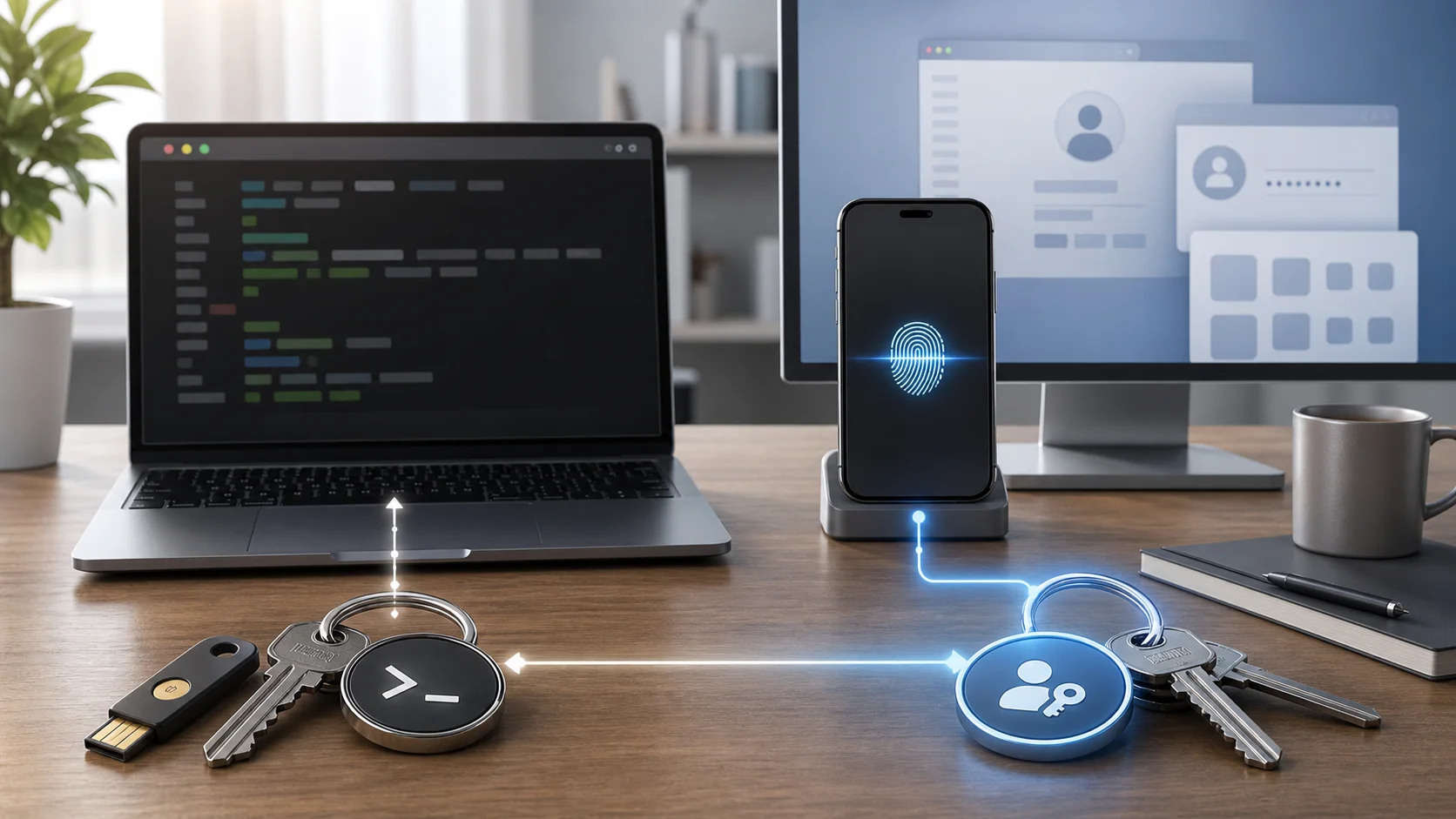
Figure 1: AI-generated cover. SSH keys and passkeys are both keys, but they should not be merged into one mental model.
1. Background: why SSH keys and passkeys are so easy to confuse
The phrase “passwordless login” is now used everywhere. Websites ask you to create passkeys. Phones let you approve sign-ins with face unlock, fingerprint unlock, or the device passcode. Windows 11 has Windows Hello. macOS and iPhone have iCloud Keychain. Android has a system password manager. At the same time, developers and operators have used SSH passwordless login for years: generate a key, place the public key on the server, and stop typing the server password for every login.
So the confusion is natural. If a phone passkey is secure, can an iPhone or Android phone SSH into a server? If Windows Hello is enabled, why does ssh user@<ssh-target> still ask for a password? If a Mac can unlock passwords with Touch ID, why do we still generate id_ed25519?
This looks like a tooling question, but the real issue is that three layers are being mixed together. The first layer is identity: a website account, a server user, or a Git account. The second layer is protocol: WebAuthn, SSH, HTTPS, and so on. The third layer is secret storage: a file, a system keychain, a TPM, a secure enclave, a phone, or a hardware security key. Passkeys mainly belong to the WebAuthn/FIDO2 world for websites and apps. SSH keys belong to the SSH protocol. Both can be hardware-backed, but they are not interchangeable buttons.
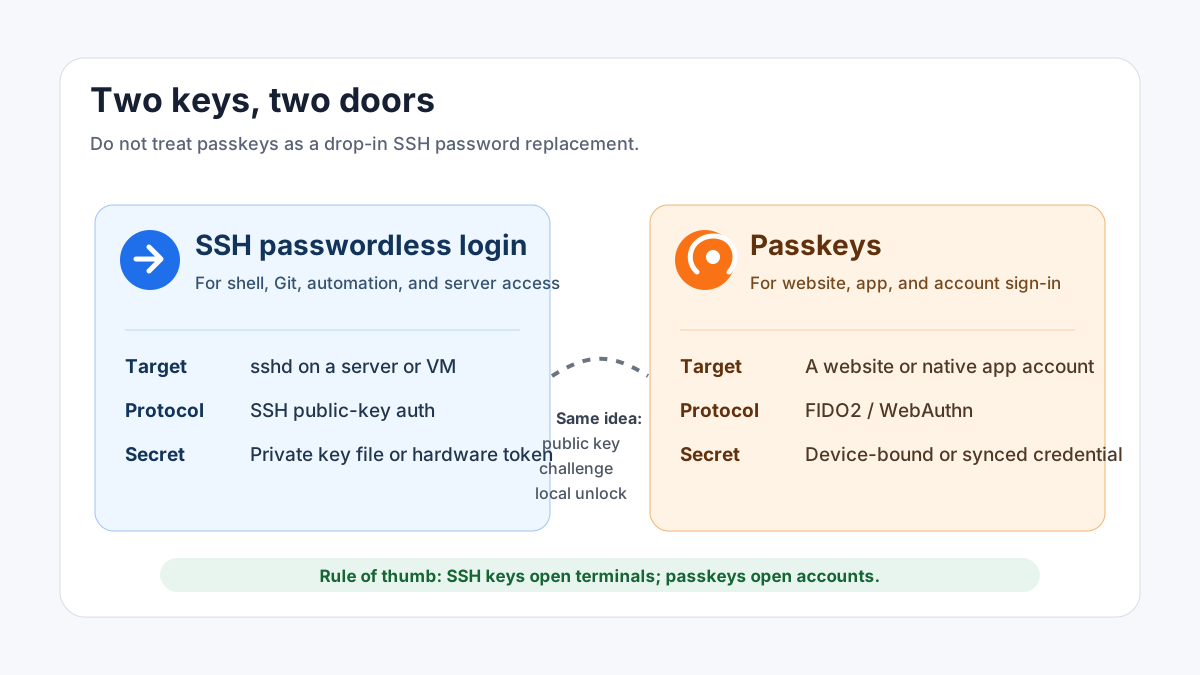
Figure 2: The easiest boundary to remember: SSH keys open terminal doors; passkeys open account doors.
2. Symptoms: it all looks passwordless, but the failures are different
The most common symptoms fall into six groups.
First: “I enabled a phone passkey, but SSH still asks for a password.” That is expected. Browser sign-in uses a WebAuthn flow between the browser and the website. SSH login uses the SSH public-key flow between the client and sshd. A phone passkey does not automatically become an SSH public key on a server.
Second: “I copied my public key to the server, but SSH still asks for a password.” That is usually a basic SSH setup issue, not a passkey issue. You may have copied the private key instead of the public key, installed the key for the wrong user, left authorized_keys with unsafe permissions, disabled PubkeyAuthentication, failed to load the correct private key on the client, or connected to a different account than the one you configured.
Third: “I copied the same private key to every computer, and now I cannot tell which one leaked.” This is the classic wrong way to do passwordless login. A private key is like a house key. Do not clone one key everywhere just because it is convenient. Generate one key per client device, place multiple public keys on the server, and remove the specific public key when a device is retired or lost.
Fourth: “SSH passwordless login worked once, so I immediately disabled password login and locked myself out.” Disabling password login is not the first step. It is the final step. Keep an existing session open, start a second session that forces public-key-only authentication, verify that the second session works, confirm there is another admin or console path, and only then change sshd_config.
Fifth: “Can Windows Hello or Touch ID protect my SSH key?” They can help with parts of the experience, but they are not the same as SSH authentication itself. Windows ssh-agent can cache keys. macOS can store an SSH key passphrase in Keychain. Some hardware security keys can generate ed25519-sk or ecdsa-sk SSH keys. But website passkeys and SSH private keys remain separate credentials.
Sixth: “I want an Agent to configure passwordless SSH, but I do not want it to leak internal details into a blog post or logs.” That concern is valid. An Agent can generate keys, install public keys, and verify login, but the prompt must explicitly forbid printing internal addresses, full hostnames, private domains, and private key material.
3. Analysis: same cryptographic idea, different destination
SSH keys and passkeys share a useful principle: the real secret should not be sent to the other side. The server or website sends a challenge, the client signs it with a private key, and the other side verifies the result with a public key. It is like showing a valid ID at the school gate: the guard checks that the ID is valid, but does not keep the original ID card.
The difference is the lock. SSH’s lock is sshd on a server, and the keyhole is usually authorized_keys. A passkey’s lock is the account system of a website or native app, usually through WebAuthn/FIDO2. Trying to use a website passkey as an SSH key is like using an apartment access card to unlock a bicycle lock. The card may be excellent, but the lock is not built for it.
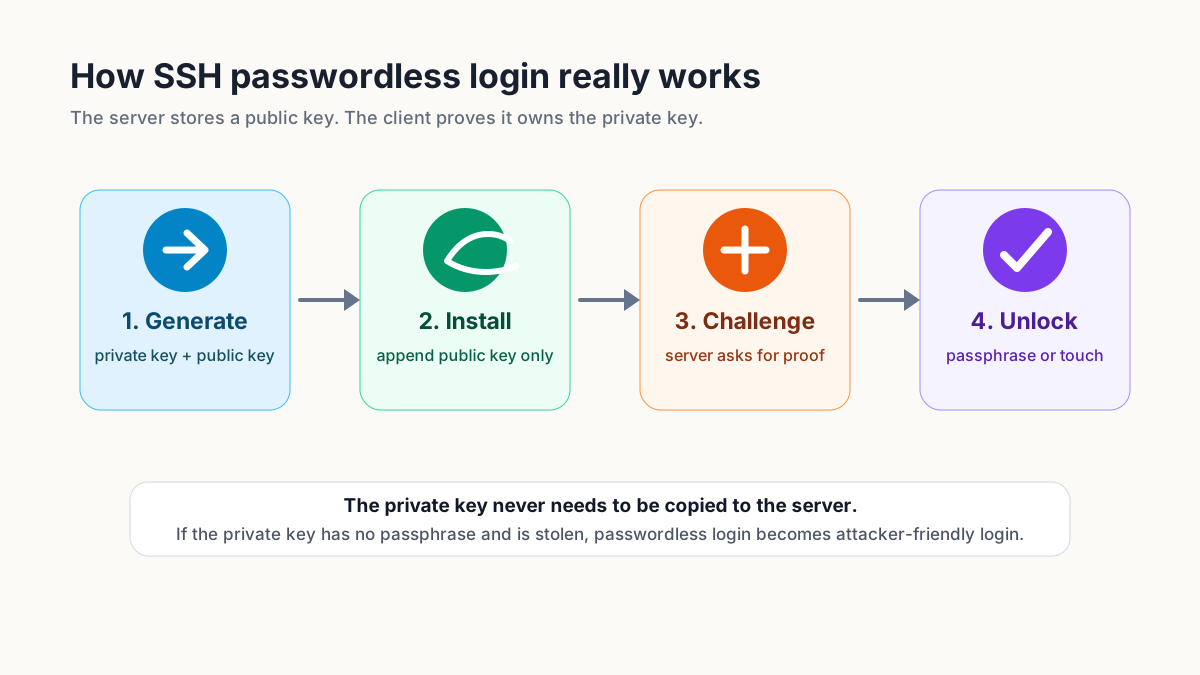
Figure 3: SSH passwordless login does not mean the server “remembers” you. It means the server can verify that you hold the matching private key.
OpenSSH 8.2 added support for FIDO/U2F hardware authenticators and introduced security-key-backed key types such as ecdsa-sk and ed25519-sk. The -sk suffix matters: it means an SSH key backed by a security key inside the SSH protocol. It does not mean the website passkey stored on your phone can be pasted into SSH. The same class of hardware capability may be involved, but the credentials are not reused as the same object.

Figure 4: Real screenshot. OpenSSH 8.2 made FIDO/U2F security keys usable for SSH keys, but they are still SSH keys.
On the passkey side, FIDO Alliance describes a passkey as a FIDO credential that lets a user sign in with the same process used to unlock the device. Apple Support presents passkeys as a replacement for passwords. Microsoft Learn explains passkeys as part of the Windows identity-protection experience. The shared point is that a passkey is an account sign-in credential, not a string that you paste into a server file.
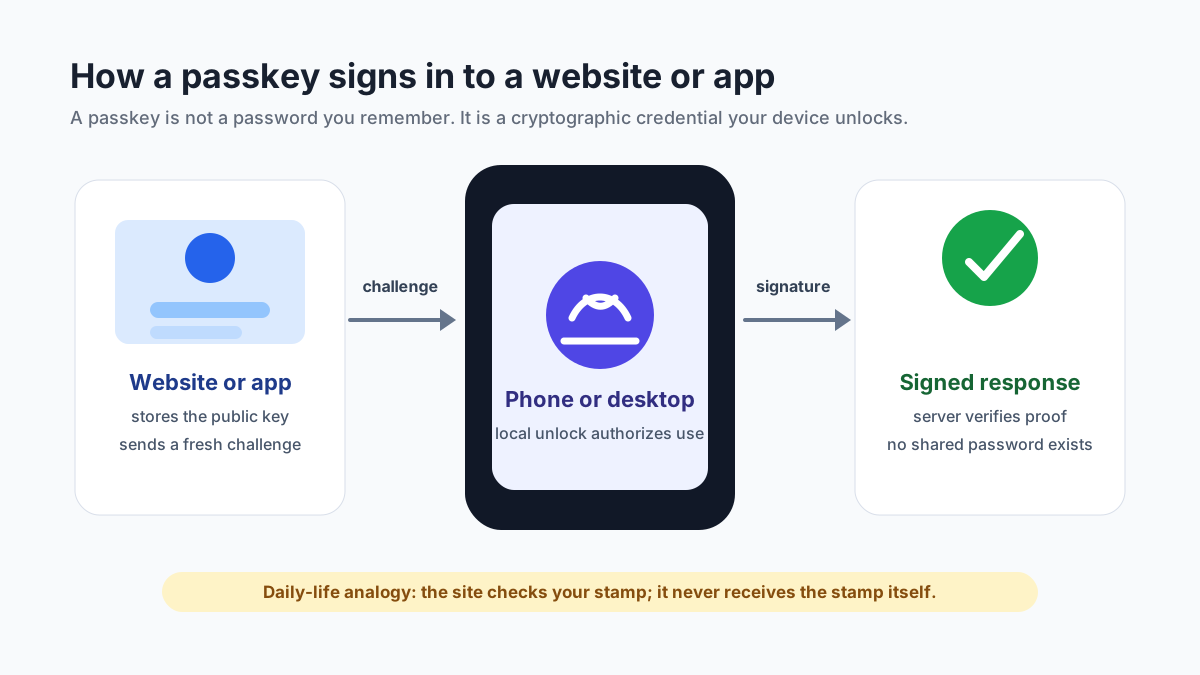
Figure 5: Passkey sign-in is like stamping a challenge. The website verifies the stamp result, but never receives the stamp itself.
4. Root cause: “passwordless” does not mean “secretless”
Many incidents come from one mistaken idea: passwordless login is treated as if there is no secret anymore. In reality, the secret still exists. It has moved to a better storage and verification model.
With traditional passwords, the secret is in your head. It can be phished, reused, guessed, dumped, or copied. With SSH keys, the secret is a private key file or a hardware security key. The risk changes to stolen key files, missing passphrases, copied private keys, and messy server-side public-key management. With passkeys, the secret is in a secure device module, system password manager, or hardware security key. The risk changes to account recovery, sync scope, missing backup authenticators, and weak fallback methods.
A home-key analogy helps. A password is a spoken door code. Anyone who tricks you into saying the code can enter. An SSH private key is a physical key; the server stores only the matching tooth pattern, not the key itself. A passkey is closer to a building access system with local device unlock. The building checks that you can perform the unlock action, but does not ask you to reveal a shared password. All of these are stronger than a spoken code, but keys can still be lost, backup access can still be missing, and recovery can still be the weak link.
5. Fix: use SSH keys correctly first, then use passkeys correctly
5.1 Recommended rules for SSH passwordless login
My preferred rule set is conservative.
Use a separate SSH key on every client device. Do not copy one private key to every computer. Protect the private key with a passphrase unless it is generated inside a hardware security key with touch or PIN protection. Store only .pub public keys on servers. Avoid putting full hostnames, internal addresses, or private domains in public-key comments; use low-sensitivity labels such as work-laptop-2026. Before disabling server password login, verify a public-key-only login from a second session.
The server-side verification command should look like this, with placeholders rather than real targets:
ssh -o PreferredAuthentications=publickey -o PasswordAuthentication=no <ssh-target> 'echo publickey-ok'
After that succeeds, review the server-side intent:
PubkeyAuthentication yes
PasswordAuthentication no
KbdInteractiveAuthentication no
Run sshd -t before restarting SSH. Never disconnect your only working session before the new path is verified.
5.2 Recommended rules for passkeys
Passkeys are mainly for websites and apps. For personal accounts, synced platform passkeys are convenient: iPhone and Mac through iCloud Keychain, Android through the system password manager, and Windows 11 through Windows Hello and the system passkey manager. For high-value accounts, register at least two authenticators, such as a phone plus a hardware security key, or a desktop platform authenticator plus a phone.
Do not create one passkey and immediately delete every other recovery method. Passkeys are strong, but weak account recovery can bypass them, and missing recovery can lock you out when you replace a phone, reinstall an operating system, or hand over work accounts. A safer approach is to enable passkeys, keep secure recovery codes or recovery email, remove weak reused passwords, enable login alerts, and periodically review registered devices.
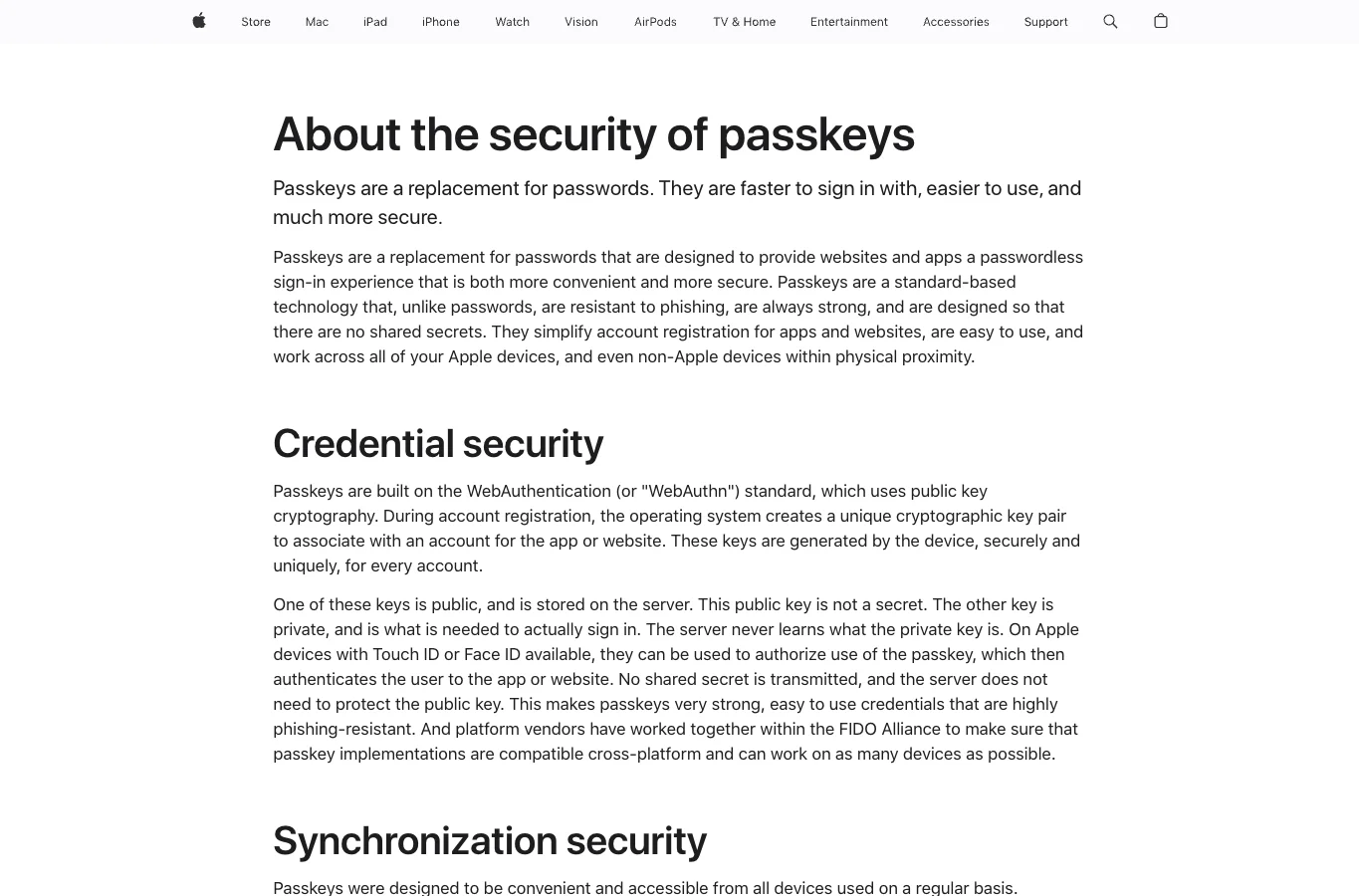
Figure 6: Real screenshot. Apple positions passkeys as a password replacement, but still inside the website and app sign-in world.
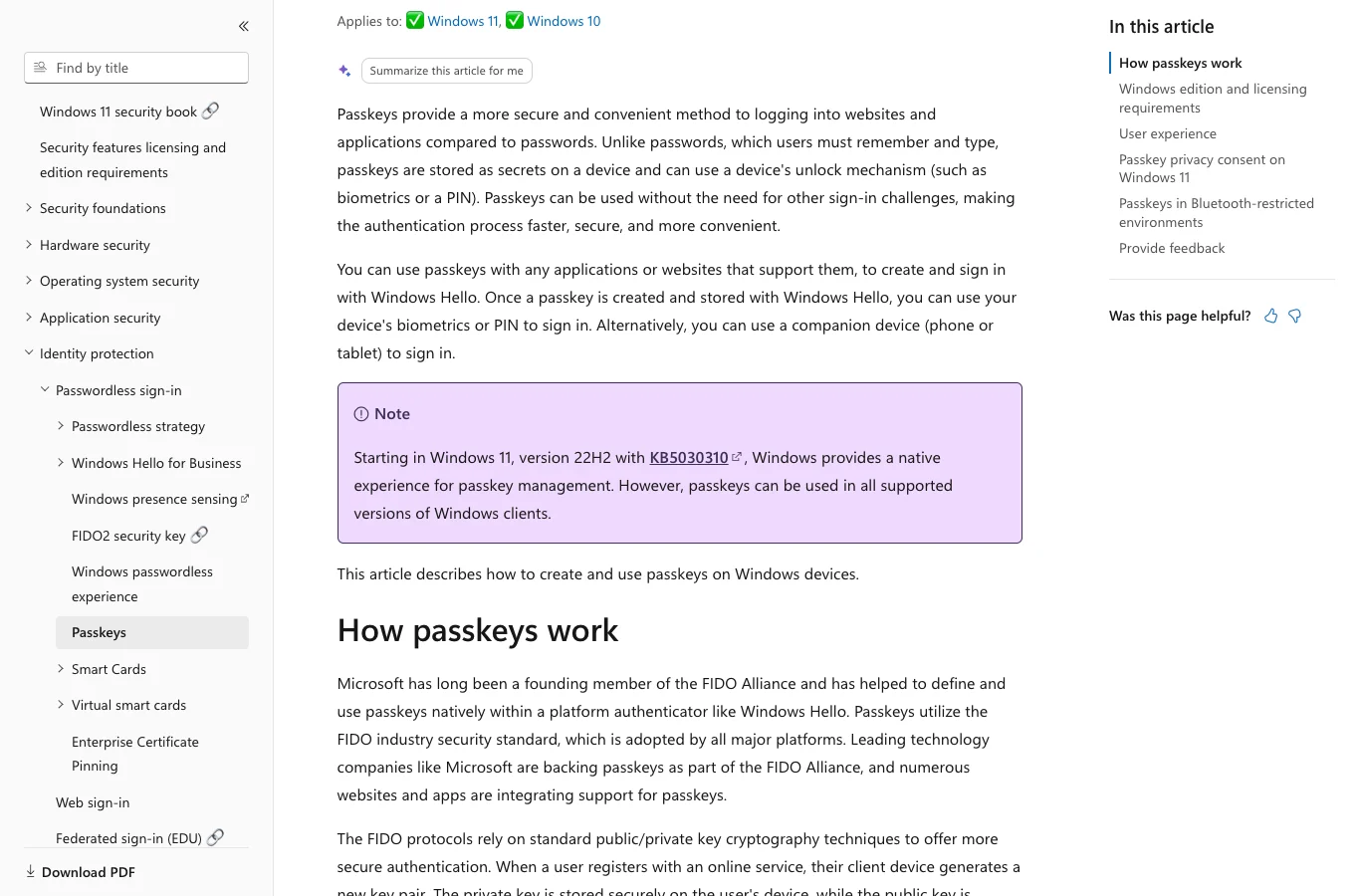
Figure 7: Real screenshot. Windows passkeys are tied to Windows Hello, device unlock, and account sign-in experiences.
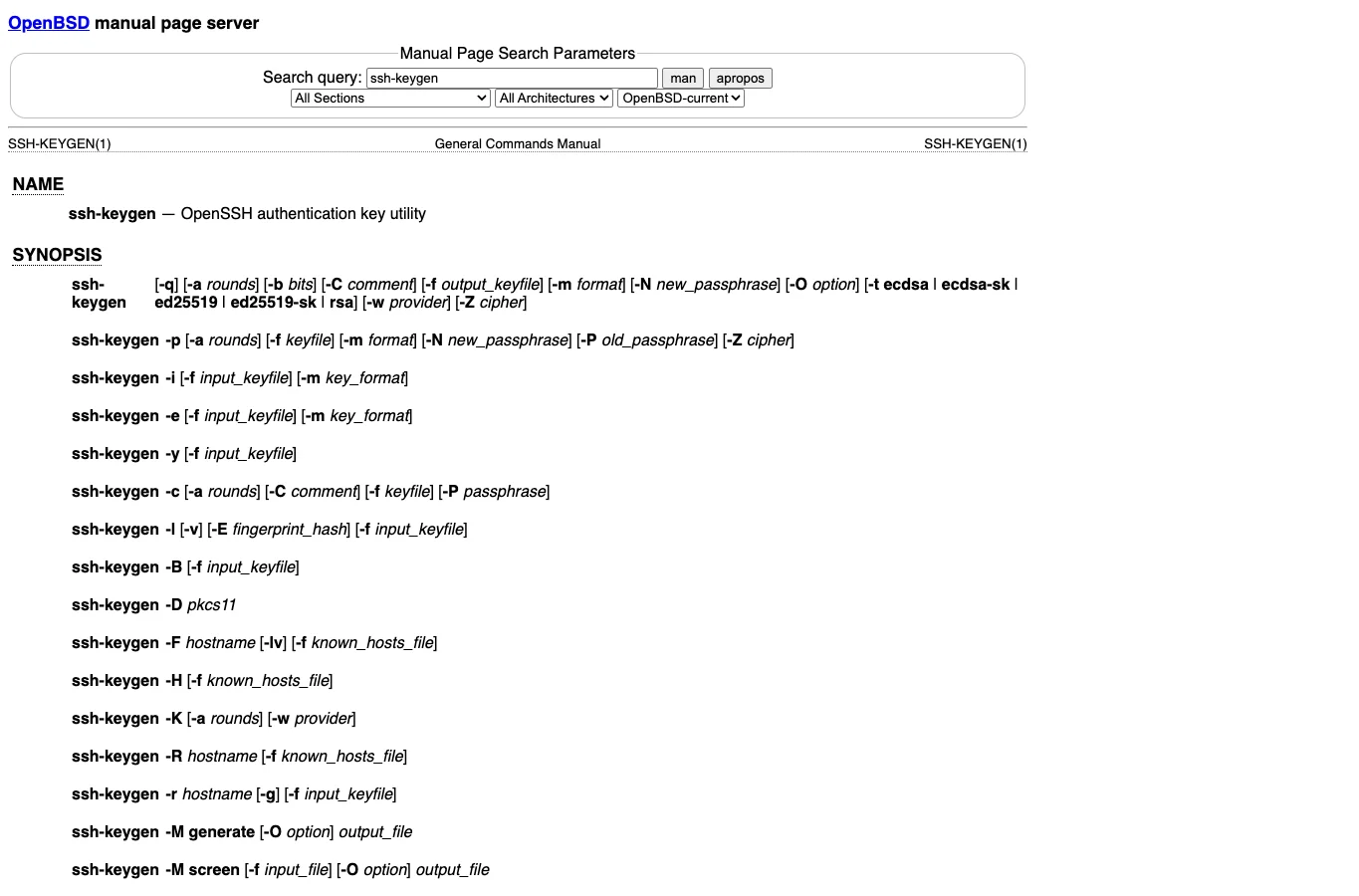
Figure 8: Real screenshot. The ssh-keygen manual shows SSH security-key types such as ed25519-sk; these are not the same credentials as website passkeys.
6. Manual automation: three one-click scripts
The following scripts configure SSH passwordless login. They do not create website passkeys for you. Passkeys must be registered through the target website, app, or operating-system account flow, because the account provider must participate. The scripts use only system OpenSSH components and local OS capabilities.
6.1 Windows 11: PowerShell
Save this as Setup-SshPasswordless-Windows11.ps1. Generate a key only:
powershell -ExecutionPolicy Bypass -File .\Setup-SshPasswordless-Windows11.ps1
Install the public key to a Unix-like SSH server and verify login:
powershell -ExecutionPolicy Bypass -File .\Setup-SshPasswordless-Windows11.ps1 -InstallPublicKey -Target "<ssh-target>"
Script:
param(
    [string]$KeyName = "id_ed25519_login",
    [string]$Target = "",
    [switch]$InstallPublicKey,
    [switch]$UseSecurityKey
)

$ErrorActionPreference = "Stop"
$ssh = Get-Command ssh -ErrorAction SilentlyContinue
$sshKeygen = Get-Command ssh-keygen -ErrorAction SilentlyContinue
if (-not $ssh -or -not $sshKeygen) {
    throw "OpenSSH Client is not available. Enable the Windows OpenSSH Client optional feature first."
}

$sshDir = Join-Path $HOME ".ssh"
New-Item -ItemType Directory -Force -Path $sshDir | Out-Null
$keyPath = Join-Path $sshDir $KeyName
$pubPath = "$keyPath.pub"
$keyType = $(if ($UseSecurityKey) { "ed25519-sk" } else { "ed25519" })

if (-not (Test-Path $keyPath)) {
    Write-Host "Generating $keyType key at $keyPath"
    & ssh-keygen -t $keyType -a 100 -f $keyPath -C "ssh-login-key"
} else {
    Write-Host "Key already exists: $keyPath"
}

try {
    Set-Service ssh-agent -StartupType Automatic
    Start-Service ssh-agent
    & ssh-add $keyPath
} catch {
    Write-Warning "Could not add key to ssh-agent automatically: $($_.Exception.Message)"
}

Write-Host "`nPublic key:"
Get-Content $pubPath

if ($InstallPublicKey) {
    if ([string]::IsNullOrWhiteSpace($Target)) {
        throw "Pass -Target '<ssh-target>' when using -InstallPublicKey."
    }
    Write-Host "`nInstalling public key to $Target"
    Get-Content $pubPath | ssh $Target 'umask 077; mkdir -p ~/.ssh; touch ~/.ssh/authorized_keys; cat >> ~/.ssh/authorized_keys; sort -u ~/.ssh/authorized_keys -o ~/.ssh/authorized_keys; chmod 700 ~/.ssh; chmod 600 ~/.ssh/authorized_keys'
    Write-Host "`nTesting publickey-only login"
    ssh -o PreferredAuthentications=publickey -o PasswordAuthentication=no $Target 'echo publickey-ok'
}

Write-Host "`nDone. For website and app passkeys, use Windows Settings > Accounts > Passkeys or the target website security page."
6.2 Ubuntu 26.04: Bash
Save this as setup-ssh-passwordless-ubuntu2604.sh. Generate a key:
bash setup-ssh-passwordless-ubuntu2604.sh
Install the public key and verify login:
INSTALL_PUBLIC_KEY=1 REMOTE="<ssh-target>" bash setup-ssh-passwordless-ubuntu2604.sh
If a FIDO2 security key that works with OpenSSH is connected, you can try:
USE_SECURITY_KEY=1 bash setup-ssh-passwordless-ubuntu2604.sh
Script:
#!/usr/bin/env bash
set -euo pipefail

KEY_NAME="${KEY_NAME:-id_ed25519_login}"
REMOTE="${REMOTE:-}"
INSTALL_PUBLIC_KEY="${INSTALL_PUBLIC_KEY:-0}"
USE_SECURITY_KEY="${USE_SECURITY_KEY:-0}"
SSH_DIR="$HOME/.ssh"
KEY_PATH="$SSH_DIR/$KEY_NAME"
PUB_PATH="$KEY_PATH.pub"
KEY_TYPE="ed25519"

if [ "$USE_SECURITY_KEY" = "1" ]; then
  KEY_TYPE="ed25519-sk"
fi

command -v ssh >/dev/null || { echo "ssh is missing"; exit 1; }
command -v ssh-keygen >/dev/null || { echo "ssh-keygen is missing"; exit 1; }

mkdir -p "$SSH_DIR"
chmod 700 "$SSH_DIR"

if [ ! -f "$KEY_PATH" ]; then
  echo "Generating $KEY_TYPE key at $KEY_PATH"
  ssh-keygen -t "$KEY_TYPE" -a 100 -f "$KEY_PATH" -C "ssh-login-key"
else
  echo "Key already exists: $KEY_PATH"
fi

chmod 600 "$KEY_PATH"
chmod 644 "$PUB_PATH"

if command -v ssh-agent >/dev/null && command -v ssh-add >/dev/null; then
  if [ -z "${SSH_AUTH_SOCK:-}" ]; then
    eval "$(ssh-agent -s)" >/dev/null
  fi
  ssh-add "$KEY_PATH" || true
fi

echo
echo "Public key:"
cat "$PUB_PATH"

if [ "$INSTALL_PUBLIC_KEY" = "1" ]; then
  [ -n "$REMOTE" ] || { echo "Set REMOTE='<ssh-target>' first."; exit 1; }
  echo
  echo "Installing public key to $REMOTE"
  if command -v ssh-copy-id >/dev/null; then
    ssh-copy-id -i "$PUB_PATH" "$REMOTE"
  else
    cat "$PUB_PATH" | ssh "$REMOTE" 'umask 077; mkdir -p ~/.ssh; touch ~/.ssh/authorized_keys; cat >> ~/.ssh/authorized_keys; sort -u ~/.ssh/authorized_keys -o ~/.ssh/authorized_keys; chmod 700 ~/.ssh; chmod 600 ~/.ssh/authorized_keys'
  fi
  echo
  echo "Testing publickey-only login"
  ssh -o PreferredAuthentications=publickey -o PasswordAuthentication=no "$REMOTE" 'echo publickey-ok'
fi

echo
echo "Done. Create website/app passkeys from each account security page; do not copy passkeys into SSH files."
6.3 macOS 26: zsh
Save this as setup-ssh-passwordless-macos26.zsh. Generate a key:
zsh setup-ssh-passwordless-macos26.zsh
Install the public key and verify login:
INSTALL_PUBLIC_KEY=1 REMOTE="<ssh-target>" zsh setup-ssh-passwordless-macos26.zsh
Script:
#!/usr/bin/env zsh
set -euo pipefail

KEY_NAME="${KEY_NAME:-id_ed25519_login}"
REMOTE="${REMOTE:-}"
INSTALL_PUBLIC_KEY="${INSTALL_PUBLIC_KEY:-0}"
USE_SECURITY_KEY="${USE_SECURITY_KEY:-0}"
SSH_DIR="$HOME/.ssh"
KEY_PATH="$SSH_DIR/$KEY_NAME"
PUB_PATH="$KEY_PATH.pub"
CONFIG_PATH="$SSH_DIR/config"
KEY_TYPE="ed25519"

if [[ "$USE_SECURITY_KEY" == "1" ]]; then
  KEY_TYPE="ed25519-sk"
fi

command -v ssh >/dev/null || { echo "ssh is missing"; exit 1; }
command -v ssh-keygen >/dev/null || { echo "ssh-keygen is missing"; exit 1; }

mkdir -p "$SSH_DIR"
chmod 700 "$SSH_DIR"

if [[ ! -f "$KEY_PATH" ]]; then
  echo "Generating $KEY_TYPE key at $KEY_PATH"
  ssh-keygen -t "$KEY_TYPE" -a 100 -f "$KEY_PATH" -C "ssh-login-key"
else
  echo "Key already exists: $KEY_PATH"
fi

chmod 600 "$KEY_PATH"
chmod 644 "$PUB_PATH"
touch "$CONFIG_PATH"
chmod 600 "$CONFIG_PATH"

if ! grep -q "UseKeychain yes" "$CONFIG_PATH"; then
  cat >> "$CONFIG_PATH" <<'EOF'

Host *
  AddKeysToAgent yes
  UseKeychain yes
EOF
fi

if command -v ssh-add >/dev/null; then
  ssh-add --apple-use-keychain "$KEY_PATH" 2>/dev/null || ssh-add -K "$KEY_PATH" 2>/dev/null || ssh-add "$KEY_PATH" || true
fi

echo
echo "Public key:"
cat "$PUB_PATH"

if [[ "$INSTALL_PUBLIC_KEY" == "1" ]]; then
  [[ -n "$REMOTE" ]] || { echo "Set REMOTE='<ssh-target>' first."; exit 1; }
  echo
  echo "Installing public key to $REMOTE"
  cat "$PUB_PATH" | ssh "$REMOTE" 'umask 077; mkdir -p ~/.ssh; touch ~/.ssh/authorized_keys; cat >> ~/.ssh/authorized_keys; sort -u ~/.ssh/authorized_keys -o ~/.ssh/authorized_keys; chmod 700 ~/.ssh; chmod 600 ~/.ssh/authorized_keys'
  echo
  echo "Testing publickey-only login"
  ssh -o PreferredAuthentications=publickey -o PasswordAuthentication=no "$REMOTE" 'echo publickey-ok'
fi

echo
echo "Done. macOS passkeys are managed from Passwords and account security pages, not from ~/.ssh."
7. Agent-driven configuration
For Codex, Claude, OpenClaw, HermesAgent, or a similar Agent, do not just say “configure passwordless SSH.” Use a prompt with boundaries. Provide the real target only in the private session, not in a blog post, script, or public repository.
You are a local operations Agent. Configure SSH passwordless login for this client.
Requirements:
1. Detect whether the system is Windows 11, Ubuntu 26.04, or macOS 26.
2. Use only built-in OpenSSH capabilities. Do not install third-party cloud services or unknown tools.
3. Generate a separate ed25519 SSH key for this device. Only try ed25519-sk if I explicitly request it and a hardware security key is connected.
4. The private key must have a passphrase. Never copy the private key to any remote machine.
5. Append only the public key to authorized_keys on the server. Do not overwrite existing content.
6. Do not print real internal IP addresses, full computer names, private domains, private keys, or sensitive material beyond non-secret fingerprints.
7. After installation, verify with PreferredAuthentications=publickey and PasswordAuthentication=no.
8. Suggest disabling server password login only after I explicitly confirm the verified result.
The important part is the acceptance test. Agents are good at repetitive work, but the forbidden actions must be explicit: do not copy private keys, do not overwrite authorized_keys, do not expose targets, and do not automatically disable password login.
8. Q&A
Q1: Can I directly use an iPhone or Android passkey to SSH into a server?
Usually no. Phone passkeys are for WebAuthn/FIDO2 website and app sign-in. Standard OpenSSH login needs an SSH key. You can use a compatible hardware security key to generate ed25519-sk, but that is not the same as reusing a website passkey from your phone.
Q2: Are Touch ID, Face ID, and Windows Hello useless for SSH?
No. They can help unlock the operating system, protect system password stores, sign in to websites with passkeys, and sometimes improve SSH key passphrase management. But SSH authentication still depends on whether the SSH client can sign the challenge with the matching private key.
Q3: Should my SSH private key have a passphrase?
Yes in most cases. A private key without a passphrase is like a house key dropped on the street with a label attached. If automation truly requires non-interactive login, use a low-privilege account, restricted commands, short-lived certificates, or hardware-backed protection instead of spreading a high-privilege raw key.
Q4: Can a server hold multiple public keys?
Yes, and it should. Use one public key per client device. When a laptop is replaced or lost, remove only that line. Do not share one private key among multiple people or machines.
Q5: When is it safe to disable password login on the server?
Only after public-key login works, a new terminal succeeds with publickey-only authentication, another admin or console path exists, and you know how to roll back. Otherwise, wait.
Q6: Will a passkey disappear when I replace my phone?
It depends on storage. Synced passkeys usually follow the platform account and password manager. Device-bound or hardware-key credentials do not automatically appear on a new device. Register at least two authenticators and keep recovery codes for important accounts.
Q7: Why does this post avoid real IP addresses and hostnames?
SSH tutorials are very easy to turn into accidental inventory leaks: internal addresses, jump host names, user names, key comments, and private domains often appear together. Public posts should use placeholders such as <ssh-target>. Real values belong only in private terminals.
9. Final advice
If you remember only one sentence, remember this: SSH keys protect server entry; passkeys protect account entry.
For developers and operators, the SSH baseline is: never copy private keys to servers, make public keys revocable, use one key per device, and verify before disabling passwords. For normal accounts, the passkey baseline is: let the OS or hardware store the credential, register a backup authenticator, keep reliable recovery, and review unknown devices regularly.
Passwordless does not mean keyless. It means moving away from “humans memorizing shared secrets” toward “devices storing private keys, local unlock approving use, and public keys verifying proof.” Once that is clear, SSH passwordless login and phone/desktop passkeys stop fighting each other. They each do their own job: safer server access, more phishing-resistant account login, and fewer passwords in daily use.
References
- OpenSSH 8.2 release notes: https://www.openssh.com/txt/release-8.2
- OpenBSD
ssh-keygen(1)manual: https://man.openbsd.org/ssh-keygen - FIDO Alliance Passkeys: https://fidoalliance.org/passkeys/
- Apple Support, About the security of passkeys: https://support.apple.com/en-us/102195
- Microsoft Learn, Support for Passkeys in Windows: https://learn.microsoft.com/en-us/windows/security/identity-protection/passkeys/
- Google Developers, Passkeys: https://developers.google.com/identity/passkeys