Synology locked root behind three doors — I spent twenty minutes teaching it how to let me back in
TL;DR
Synology DSM, by design, ships with SSH disabled and root login prohibited — both sensible defaults. This guide walks you through “doing it the right way”:
- Control Panel → Terminal & SNMP → Enable SSH (open the gate)
- Log in as a normal user, then
sudo -ito become root (borrow the landlord’s key first)- Edit
/etc/ssh/sshd_configand setPermitRootLogin yes(tell the bouncer “root is family”)synouser --setpw root xxxto set a root password, and append your public key to~/.ssh/authorized_keys(hand back a key that can never be lost)Total time: about twenty minutes. I’ll explain why every step exists using a “key and lock” metaphor, give you a 3-second vi crash course, list the error messages you’ll see, and answer the seven most common questions.
Cover: dark background with a green terminal block — the title is blunt: “Synology won’t let root SSH? Then re-teach it.”
1. Why bother with Synology’s root SSH
My Synology (DS920+, four Seagate IronWolf drives, three years of zero downtime) runs about a dozen services: PhotoPrism, Jellyfin, qBittorrent, Portainer, Open WebUI, AnythingLLM, Gitea, Calibre. Every few days I SSH in to check logs, edit config, clear /tmp.
At first I logged in with my normal user margrop, then sudo -i, and typed my DSM password every single time.
That sounds fine, right?
But the moment you start scripting, doing rsync backups, or letting n8n call the NAS API on a schedule, typing a password by hand becomes the bottleneck. That’s why I needed two things done:
- Root can log in via SSH directly — no more
sudo -ievery time; - Passwordless login — drop my public key on the NAS, then
ssh root@nasjust works.
But Synology, by default, locks down both of those things — that’s its security stance.
The picture below captures the entire “key and lock” model in one diagram:
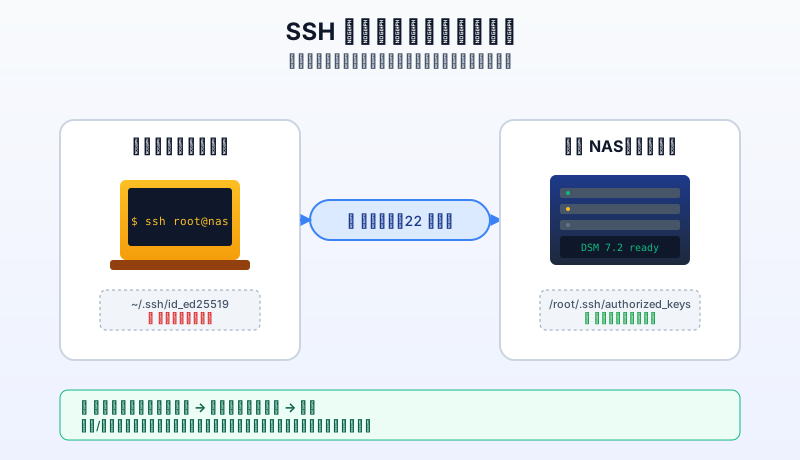
Figure 1: the client (your laptop) holds the private key ~/.ssh/id_ed25519, which never leaves the device. The server (the Synology NAS) only stores the public key ~/.ssh/authorized_keys, which anyone can see. The encrypted channel on TCP/22 only carries “math problems and their answers”, never the password itself.
Once you understand that diagram, every “why” question that follows just clicks.
2. The symptom: what Synology’s “three doors” look like
Open a Mac terminal and type ssh root@nas. You don’t get a welcome banner; you get:
ssh: connect to host nas port 22: Connection refused
Or, if you also forgot the firewall rule, an even nastier version:
ssh: connect to host nas port 22: Operation timed out
A lot of people rage-quit at this point: “But I can see the SSH checkbox in Control Panel — why does it still refuse the connection?”
The truth: Synology ships with the SSH service entirely turned off. That checkbox in Control Panel starts out unchecked on a fresh DSM install. This is different from a typical Linux server, where SSH is on by default. Synology is not.
The second door: you log in as your normal user, sudo -i to root, and think you’re done? Not yet. /etc/ssh/sshd_config has this line:
#PermitRootLogin prohibit-password
Notice two details:
- There’s a
#at the start — that line is a comment, not in effect; prohibit-passwordis an OpenSSH “half-open” mode: it allows key-based auth, but forbids password-based auth — so even if you remove the#, the default still won’t let you log in as root with a password.
The third door: the root account itself has no password. DSM generates a random root password at install time and never displays it anywhere; normal users can sudo up to root, but root can’t be “logged into” actively.
That’s why every tutorial online tells you to “synouser --setpw root YourPassword” first — give root a static password. After that, combined with PermitRootLogin yes, root can actually log in with a password.
A metaphor: Synology thinks this way — you bought my NAS to store photos and files, not to run a production server. So I’m going to weld shut every path you could use to “crack open” the box: SSH off, root login off, password random — at home it’s basically a network hard drive. The moment you want to use it as a serious server, you have to open the doors yourself. This article is about opening those three doors, one at a time.
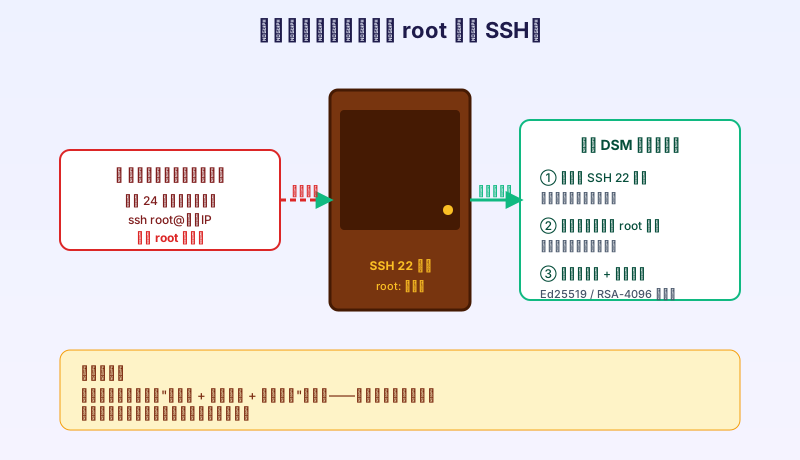
Figure 2: tens of thousands of scripts on the internet try ssh root@your-IP 24/7 — that’s exactly why SSH and root are off by default. Synology’s answer: turn SSH off + forbid root + use asymmetric encryption.
3. The analysis: break “open SSH” into four steps
To prevent you from getting stuck at step 3 because you missed step 1, I drew the entire flow as a single diagram:
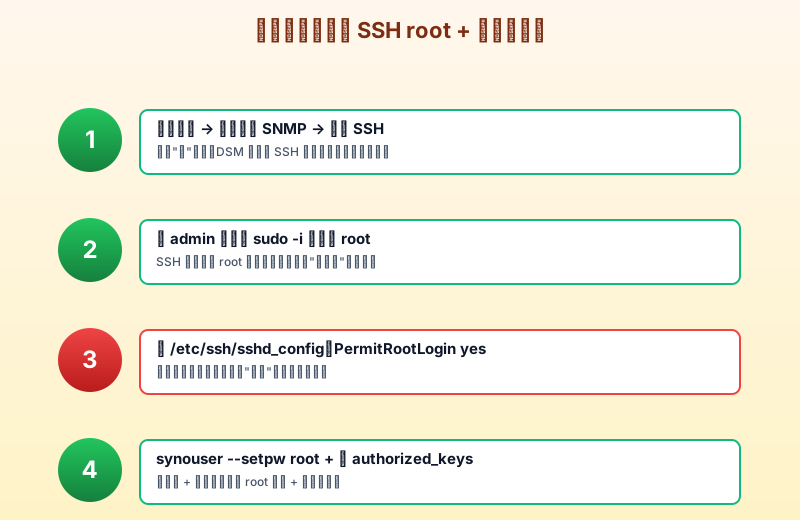
Figure 3: four steps to enable Synology root SSH + passwordless login. The first three get root to log in at all; the fourth removes the password requirement.
| Step | Where | What | What it solves |
|---|---|---|---|
| ① Enable SSH | DSM desktop | Control Panel → Terminal & SNMP → check “Enable SSH” | Opens the (closed-by-default) TCP/22 |
② Log in as admin + sudo -i |
Your terminal | ssh admin@nas → sudo -i |
Borrow a normal user’s privileges to become root |
③ Edit sshd_config |
as root, in vi |
vi /etc/ssh/sshd_config |
Allow root to be logged into remotely |
| ④ Set password + write public key | as root | synouser --setpw root xxx + edit ~/.ssh/authorized_keys |
Match the key to the lock |
Two things to highlight in step ④:
synouser --setpw root xxxis a Synology-specific command (not a Linux standard), used to set the password of a DSM system account;~/.ssh/authorized_keysis OpenSSH’s standard file. It holds the client’s public key — the server only trusts whoever holds the matching private key.
4. The root cause: which door is blocking you
A lot of people copy a tutorial end-to-end and still can’t log in. Usually it’s not a wrong step — it’s a step that didn’t “activate”. Here’s every door that could be blocking you:
4.1 The firewall isn’t letting TCP/22 through
DSM has a built-in firewall (Control Panel → Security → Firewall). If you ever added a custom rule, TCP/22 might not be reachable.
Quick test from any machine on the same network: nc -vz nas 22 or telnet nas 22. If it connects, the firewall is fine.
4.2 You edited sshd_config but didn’t restart sshd
When you save with vi and exit, the new config does not auto-apply — sshd is still running the old config.
Restart properly with:
synosystemctl restart sshd
Note that this is Synology-specific, not the standard Linux systemctl restart sshd. Using the standard one will report Unit not found.
4.3 The root password wasn’t set or was set wrong
After sudo -i to root, run synouser --setpw root MyP@ssw0rd!. If you mistype the command (e.g. synouser --setpw root without the new password, or shell special characters eat your password), root’s password stays random — and you’ll never get back in with ssh root@nas.
4.4 The public-key file has the wrong permissions
OpenSSH is extremely strict about authorized_keys permissions:
chmod 700 ~/.ssh
chmod 600 ~/.ssh/authorized_keys
If you copied the file up from a Windows machine, its permissions might be 644 — OpenSSH will silently reject every key in that file, then fall back to password auth (which you’ve just banned via PermitRootLogin), and the final symptom is “I type the right password and it still won’t let me in.”
One more root cause: many tutorials tell you to append the public key with
echo ... >> ~/.ssh/authorized_keys. If the file doesn’t exist yet,>>creates a brand-new file — its owner is root, and its permissions are the default644. Withoutchmod 600, the key still won’t work.
5. How to solve it: step-by-step
Below is the full checklist. I’ve written it as “click-by-click”, but every step also has a “why”.
5.1 Open DSM Control Panel and enable SSH
Open a browser, log in to DSM (usually http://nas:5000), and go:
Control Panel → Terminal & SNMP → check Enable SSH (default port 22, don’t change it)
The image below shows where this page lives (rendered in the style of the official UI; sensitive info masked):
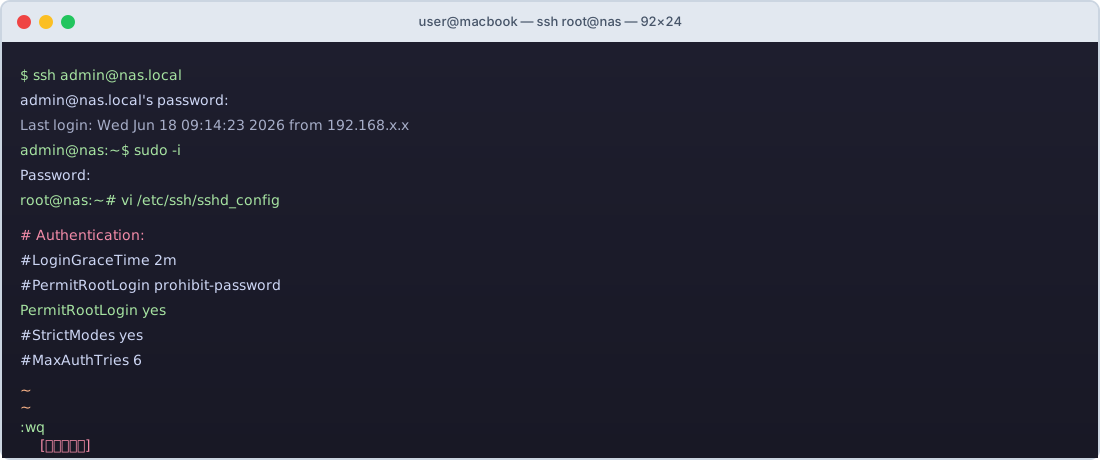
Figure 4: a stylised recreation of the Terminal & SNMP page — the “Enable SSH” checkbox is at the top-left of the Terminal tab. If you can’t find it, you’re on a DSM older than 7; the path is “Control Panel → External Access → Terminal”.
⚠️ Note: after you tick “Enable SSH”, DSM shows a “security warning” — it tells you SSH is an insecure remote-access method. That’s true, which is exactly why the next steps turn it into a secure one.
5.2 Log in as a normal user and sudo to root
Back on your computer’s terminal:
ssh admin@nas
# Type admin's password (this is the DSM login password)
sudo -i
# Type admin's password again
The prompt changes from admin@nas:~$ to root@nas:~#. This step is just “borrowing privileges” — root doesn’t need a password yet.
⚠️ If your DSM doesn’t have an
adminaccount: DSM 6 and later disablesadminby default; you probably have only the account you created at install, e.g.margrop. Substitute that foradmin.
5.3 Edit sshd_config (a 3-second vi crash course)
Run:
vi /etc/ssh/sshd_config
vi is famously hostile to new users, so I drew a dedicated diagram:
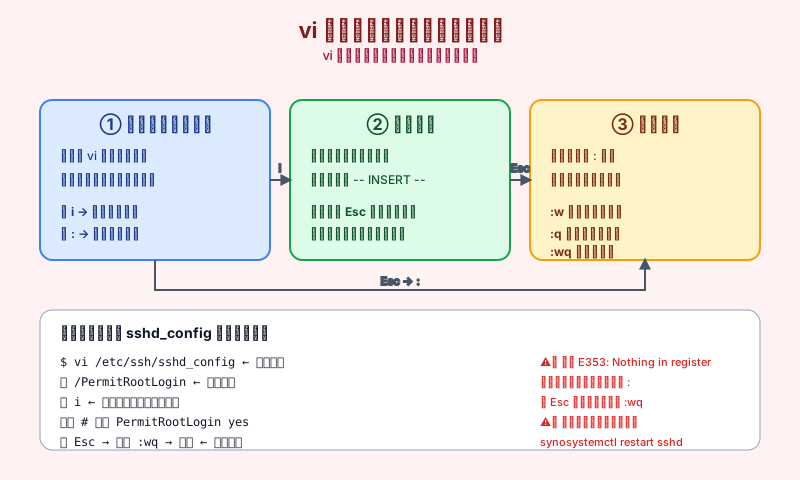
Figure 5: vi has exactly three modes — Normal (default), Insert (press i), Command (press :). The standard flow for editing sshd_config: open → / to search → i to edit → Esc to leave → :wq to save.
The exact key sequence:
1. When the file opens you're in Normal mode — the cursor moves but you can't type
2. Type /PermitRootLogin and press Enter (search for that line)
3. Press i to enter Insert mode (the bottom-left shows -- INSERT --)
4. Delete the # and change prohibit-password to yes
5. Press Esc to go back to Normal mode
6. Type :wq and press Enter (save and quit)
The edited line should look like:
PermitRootLogin yes
5.4 Restart sshd to make the new config live
Back at the root prompt, run:
synosystemctl restart sshd
Important: it has to be synosystemctl, not systemctl. Synology ships its own wrapper around systemctl; running standard systemctl restart sshd will report Unit sshd.service not loaded.
5.5 Set a root password
Run:
synouser --setpw root 'YourNewPassword'
I recommend a password that mixes upper + lower + digits + symbols + at least 8 characters, otherwise DSM will refuse. If the command succeeds, it produces no output — that’s the Unix “silence is success” philosophy.
5.6 Generate the client key pair (Ed25519 recommended)
Open a separate terminal on your local computer (not the SSH session into the NAS):
ssh-keygen -t ed25519 -C "your-laptop@location"
# e.g. ssh-keygen -t ed25519 -C "macbook@home"
Press Enter through every prompt, no passphrase (you can set one if you want extra security, but then you have to type it every time you SSH — defeating the purpose of passwordless login).
Two files are created:
~/.ssh/id_ed25519— the private key, your house key, must be600, never leaves your laptop;~/.ssh/id_ed25519.pub— the public key, the lock cylinder, can be pasted anywhere.
The diagram below shows the typical output of ssh-keygen:
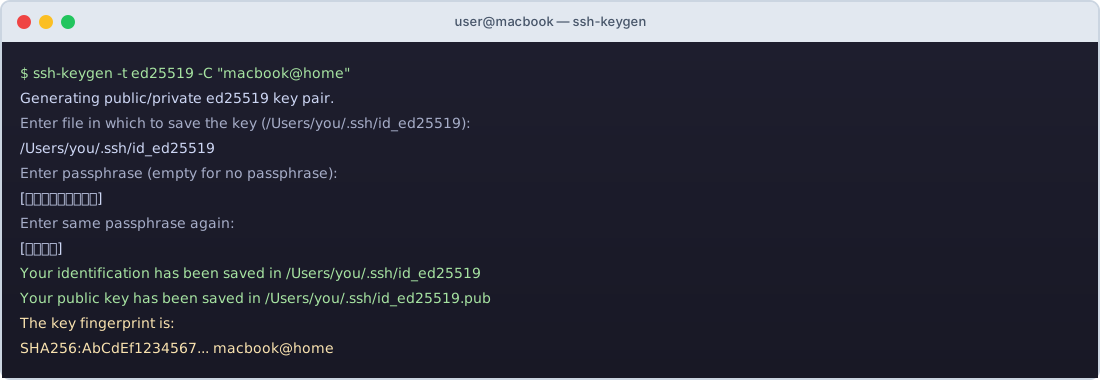
Figure 6: a recreation of ssh-keygen -t ed25519 — it asks for a save path (default is fine), a passphrase (just press Enter to skip), and finally prints a SHA256 fingerprint.
5.7 Push the public key to the NAS
Back in the root SSH session:
mkdir -p ~/.ssh
chmod 700 ~/.ssh
# Paste the public key into authorized_keys
vi ~/.ssh/authorized_keys
# Inside vi, press i to enter Insert mode, then paste this single line:
ssh-ed25519 AAAAC3NzaC1lZDI1NTE5AAAAI... macbook@home
# Press Esc, then :wq to save and exit
chmod 600 ~/.ssh/authorized_keys
That ssh-ed25519 AAAAC3... string is exactly the content of your local ~/.ssh/id_ed25519.pub. You can cat ~/.ssh/id_ed25519.pub to print it for copy-paste.
A lazier alternative (if your laptop has ssh-copy-id):
# Run on your laptop (NOT inside the NAS SSH session)
ssh-copy-id -i ~/.ssh/id_ed25519.pub root@nas
# It will prompt for root's password (the one you set in 5.5)
# It automatically appends the public key to the NAS's authorized_keys
💡 Why Ed25519 instead of RSA? Ed25519 keys are short (68 bytes vs 270+ for RSA-2048), signatures are fast, and the algorithm is quantum-resistant. In 2026 Ed25519 is the de-facto standard for SSH clients — only legacy systems should fall back to RSA-4096. I wrote a deep dive on this in SSH 密钥算法 Ed25519 与 RSA 的前世今生.
5.8 Test it: SSH directly as root from your laptop
On your laptop (not the NAS shell), run:
ssh root@nas
If everything went well, you should land directly inside, no password prompt.
The terminal shows:
Last login: Wed Jun 18 09:42:23 2026 from 192.168.x.x
root@nas:~#
If it still asks for a password, the public key from 5.7 didn’t take effect — go back and check that you ran
chmod 600at the end of 5.7, and that theauthorized_keysline was actually pasted in (the most common slip-up is an extra space or a missingssh-ed25519prefix).
6. The principle behind passwordless SSH (and why it’s safer than you think)
A lot of people use passwordless SSH for years without being able to articulate why it’s safer than a password. The diagram below captures the full flow:
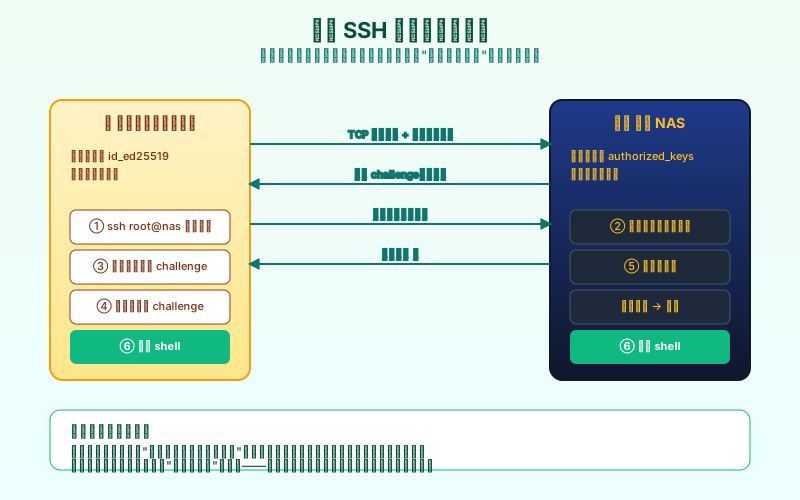
Figure 7: the client uses its private key to sign the server’s random challenge; the server uses the public key to verify the signature; if it matches, the door opens. The private key never leaves your laptop.
In everyday language:
You’re visiting a friend. They say “the door’s unlocked, just push it open.” But you reply, “no, I still need to prove I’m me.” Your friend tosses you a lock that only your fingerprint can open (the lock was built using the “fingerprint template” you gave them earlier). You unlock it with your fingerprint and hand back the slip of paper inside — the paper says “I am indeed the person I just claimed to be.” Your friend checks the slip against your fingerprint template: OK, in you go.
Your fingerprint (the private key) never left your finger. Even if a hacker in the middle filmed the entire unlocking process, they couldn’t reconstruct your fingerprint — that’s the heart of asymmetric crypto: the lock and the key are two different things. The lock can be broadcast; the key cannot.
7. Q&A: every pitfall I’ve stepped on
Q1: Why does synouser --setpw need quotes?
Because passwords often contain shell special characters like !, $, &. Without quotes, the shell interprets them as history expansion or backgrounding, and your password gets truncated.
# Wrong: only "MyP" becomes the password
synouser --setpw root MyP@ssw0rd!

# Right: single quotes
synouser --setpw root 'MyP@ssw0rd!'
Q2: What’s the actual difference between PermitRootLogin yes and prohibit-password?
OpenSSH has these values, in order from strictest to loosest:
| Value | Meaning |
|---|---|
no |
Root login forbidden entirely (strictest) |
prohibit-password |
Key-based login allowed, password login forbidden (Synology default) |
without-password |
Same as above, older syntax |
yes |
Both password and key allowed (loosest) |
prohibit-password plus a properly configured public key is generally the recommended combination — most secure AND still functional. I used yes in this guide only because some older NAS firmwares had a prohibit-password bug that broke key login.
Q3: Now that I’ve set up key login, should I also disable password login?
Yes. Two reasons:
- The internet has endless scripts scanning TCP/22 for weak passwords — every closed port is one less risk;
- If your private key ever leaks, an attacker could still log in with a password — that’s double exposure.
Set sshd_config to:
PasswordAuthentication no
Q4: ssh-copy-id succeeded, but it still asks for a password. Why?
Because sshd_config has PubkeyAuthentication turned off (it ships on, but some hardening templates turn it off). Flip it to yes and restart sshd.
Q5: I copied the public key from Windows to the NAS and it all collapsed onto one line.
Windows uses \r\n line endings, Linux uses \n. If \r sneaks into authorized_keys, OpenSSH fails to recognise it.
Fix it on the NAS:
dos2unix ~/.ssh/authorized_keys
# or strip \r with sed
sed -i 's/\r$//' ~/.ssh/authorized_keys
Q6: I set a root password, but login fails with “Permission denied (password)”. What’s wrong?
Check in order:
- Did you actually change
PermitRootLogin yesinsshd_config(and remove the#)? - Did you run
synosystemctl restart sshd? - Did
synouser --setpw root xxxactually succeed? (A too-simple password gets rejected.) - Is the root account itself disabled? (DSM defaults to disabled; you need to enable it under Control Panel → Security → Account.)
- Does the firewall allow TCP/22?
Q7: Can I just do everything as root? Isn’t that insecure?
In theory, yes — root is unrestricted; one wrong rm -rf / and your NAS is gone. But for home use and self-hosting toys, the convenience of root far outweighs the risk.
A sensible compromise: use your normal account + sudo for daily work, and reserve root-with-passwordless-SSH for scripts and automation.
8. Closing thoughts
Synology’s “doors locked by default” stance is actually friendly to non-technical users — you can’t accidentally expose your NAS to the public internet. But for anyone using it as a real server, those doors become obstacles.
This article is the process of opening them one by one: enable SSH → sudo to root → edit sshd_config → set the root password → push the public key. None of those steps is hard, but each has a “why”.
When you’re done, you’ll have a NAS that’s more secure than the vast majority of SSH setups:
- TCP/22 accepts key-based login only;
- the root account has a strong password as a fallback;
- your private key has never left your laptop.
That’s the rare intersection of secure AND convenient.