Hard-Upgrading Ubuntu 22.04 to 26.04: A 6 KB/s Download, a Half-Synced Mirror, and a 'Closed for Business' Sign
Short version
There is no direct flight from Ubuntu 22.04 to 26.04; the official path is a relay: 22.04 to 24.04, then 24.04 to 26.04. I recently upgraded a small server running Portainer and a few self-hosted tools this way. The two reboots and roughly 1.5 GB of downloads were not what cost time — three surprises were: a 37.8 MB third-party package crawling at 6 KB/s; a mirror mid-sync that served an upgrade tool with mismatched size, which apt flatly rejected; and the subtlest one of all — 26.04 was long released, yet the upgrader claimed no LTS was available, because one flag in the release metadata had not been flipped. This post walks through all three pits (symptoms, analysis, root cause, fix), then gives a one-command relay upgrade script that works both for manual runs and for handing the whole thing to an AI Agent.
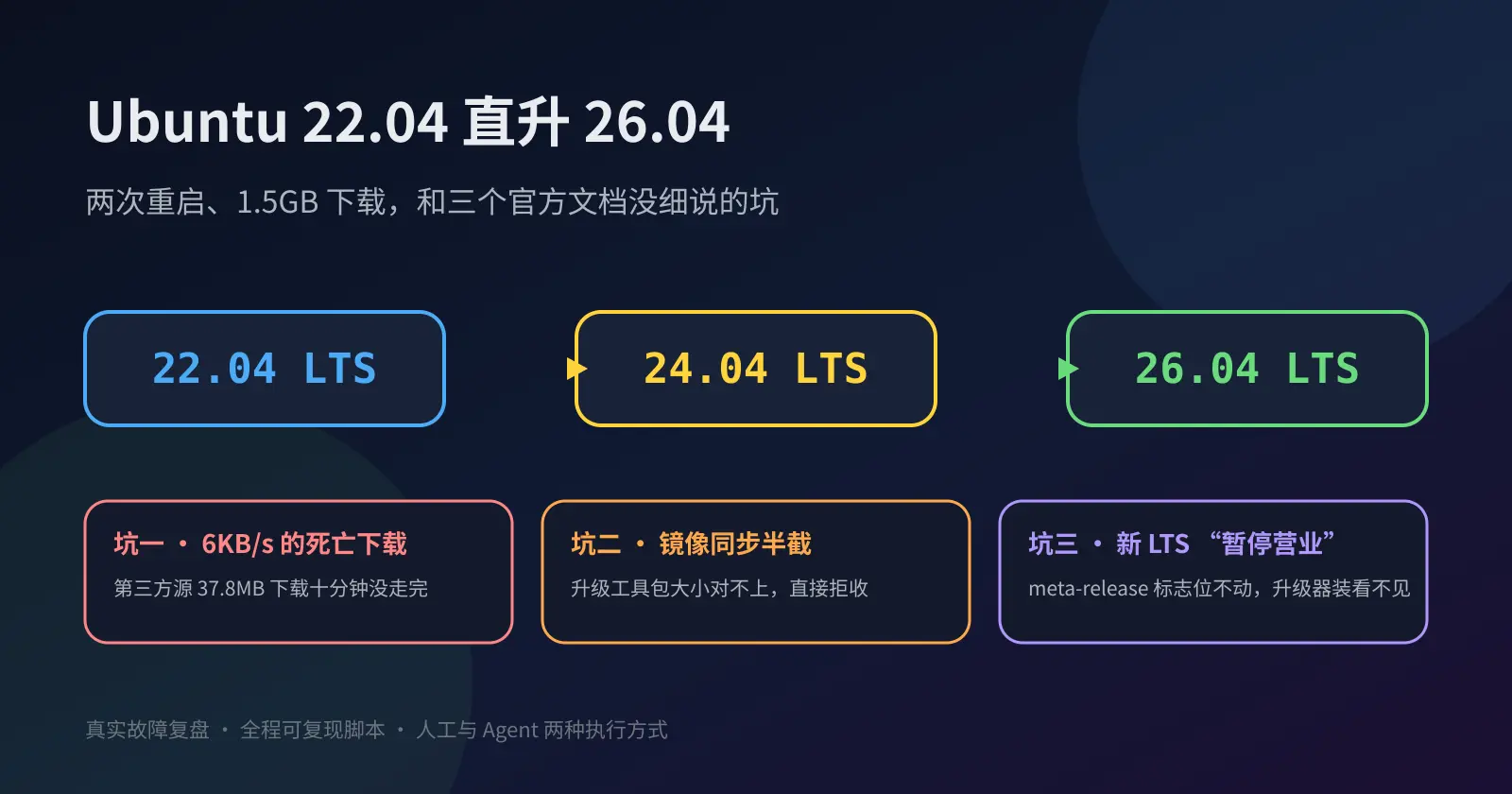
Figure 1: cover art. Three stalls, three kinds of silence, one relay baton.
1. Background: an old 22.04 box and a relay track
The machine in question is a small server installed with Ubuntu 22.04 LTS back in 2022, running Portainer, a start page, a note-taking app and a few small tools inside Docker. It always followed apt upgrade, so the system itself was a healthy 22.04.5.
At the finish line, Ubuntu 26.04 LTS was released in April 2026, and the official download page had been offering the new images for months.
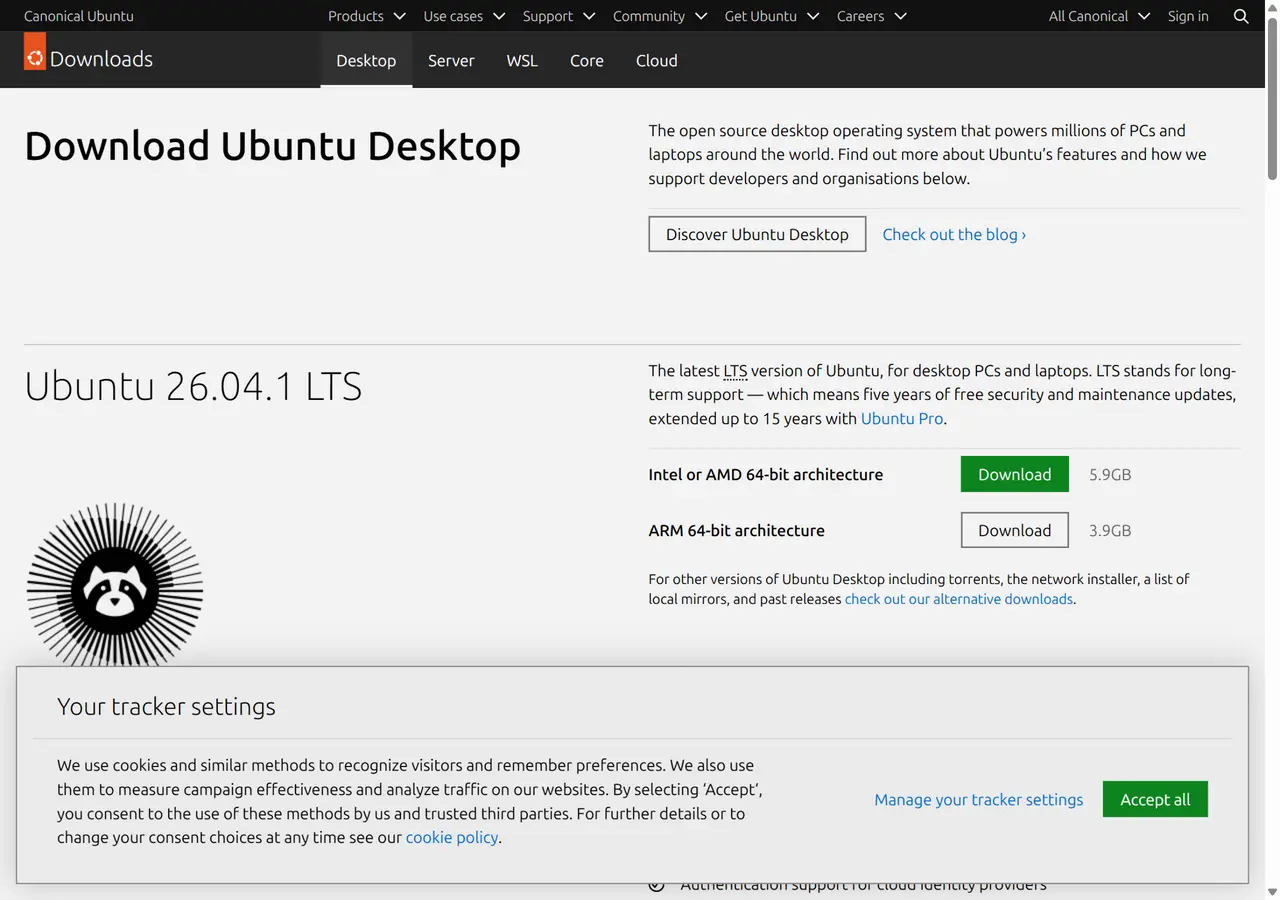
Figure 2: ubuntu.com desktop download page, with 26.04 LTS as the default recommendation.
One rule matters here: LTS-to-LTS upgrades must go step by step. Ubuntu’s lifecycle pages are explicit — each LTS is supported for five years, and the upgrader only recognizes the adjacent next LTS.
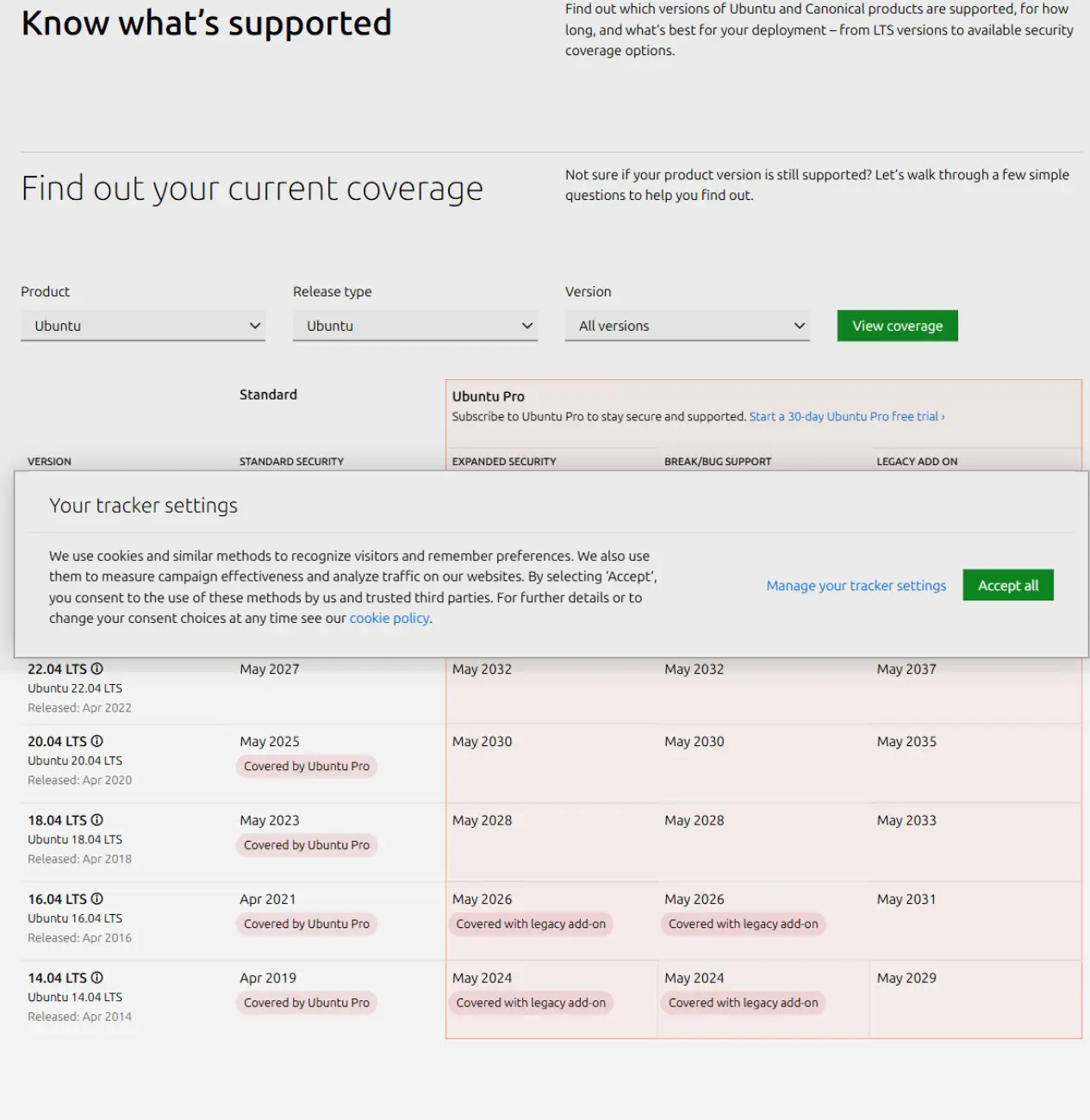
Figure 3: Ubuntu’s official release cycle. 24.04 sits between 22.04 and 26.04, and the upgrade path must pass through it.
Think of an LTS upgrade as a relay race. You run the first leg (22.04), the finish is the third leg (26.04), but the baton must be handed to the second runner (24.04), who completes their own leg before passing it on. You cannot throw the baton from the start line straight to the finish — the rules forbid it, and the drop risk is highest that way.
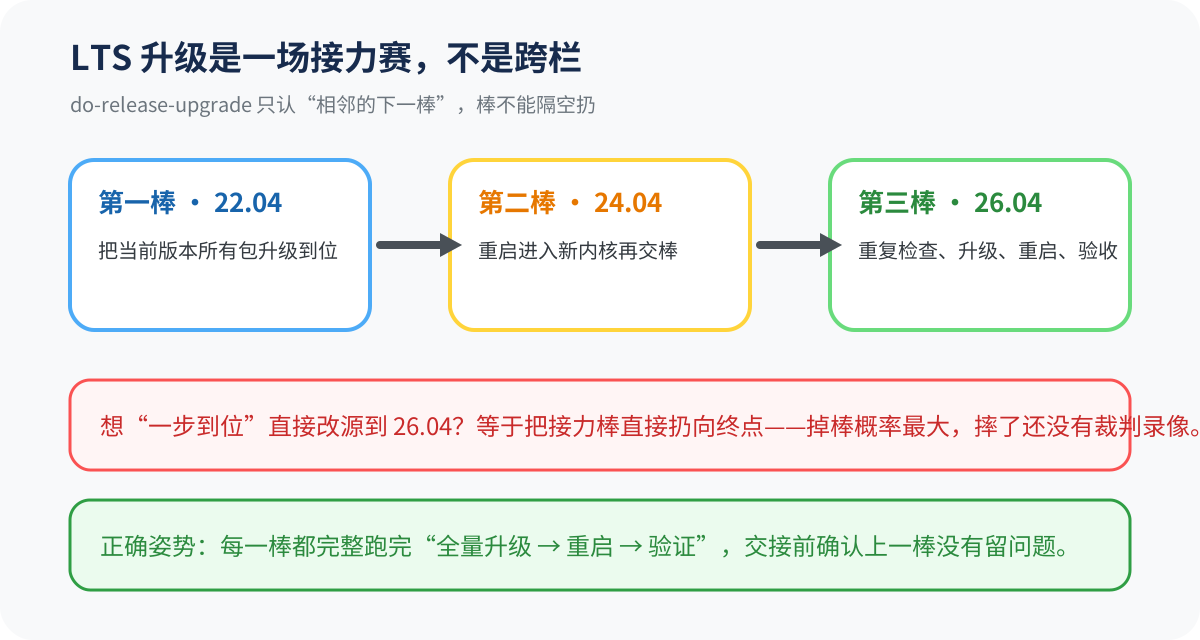
Figure 4: the relay analogy. Every leg must fully run “full upgrade, reboot, verify”; do-release-upgrade only takes the adjacent next leg.
So the plan was plain: full-upgrade 22.04, first do-release-upgrade, reboot; full-upgrade 24.04, second do-release-upgrade, reboot; acceptance checks. It sounded like thirty minutes. It took over two — the difference was tuition, paid at the three pits below.
2. Symptoms: three stalls, three kinds of silence
The process “stalled” three times, each differently, and each silently:
First, apt full-upgrade on 22.04 froze on one 37.8 MB package for over ten minutes with no error at all.
Second, do-release-upgrade quit within a minute, leaving only “fetching the upgrade failed, there may be a network problem”. No retry count, no detail — the culprit was only visible in the log.
Third, the subtlest: the upgrader simply said there is no LTS available. Yet 26.04 had been out for months. No network fault, no permission issue, not even an error message — it just could not “see” the release.
The common thread: all three blocks happen at the very front of the upgrade chain, with minimal default output. On a late night I would likely have given up at step two — or worse, forced it by hand-editing sources.list. So each pit below gets the same treatment: symptom, analysis, root cause, fix.
3. Pit one: a third-party repo drags the full upgrade into 6 KB/s mud
Symptom
The routine pre-upgrade full upgrade stalled at the NodeSource nodejs package during download. Ten minutes later, a look from a second terminal showed this:
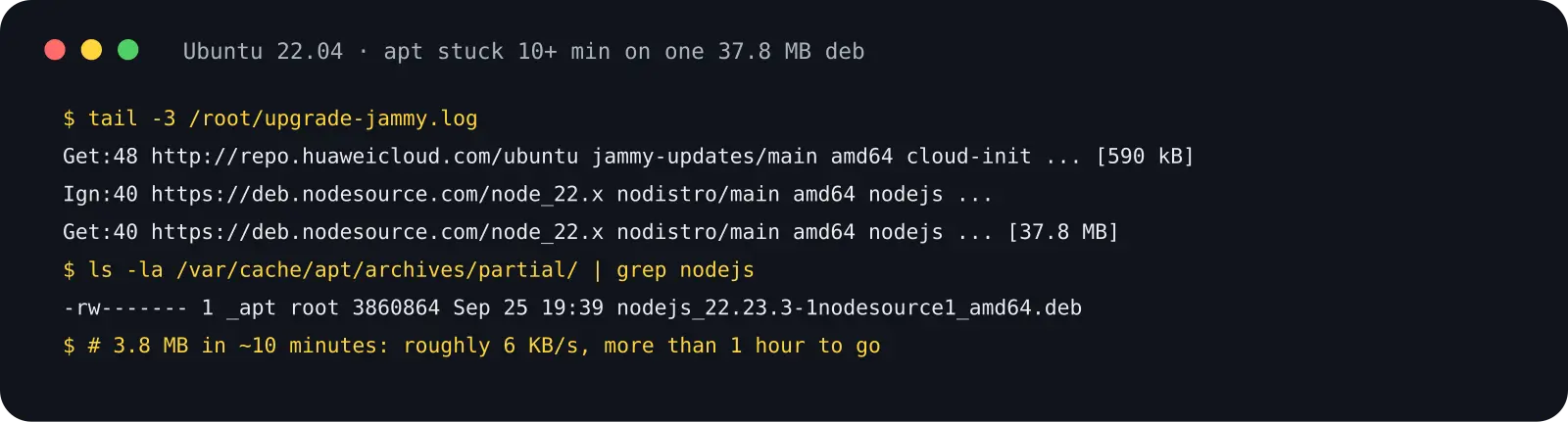
Figure 5: real logs. The same 37.8 MB deb gained 3.8 MB in ten minutes — roughly 6 KB/s.
Analysis
Access to Chinese mirrors (Huawei Cloud, Aliyun and friends) is usually fast, but third-party repos like NodeSource or Docker’s official repo ride overseas CDNs, and at peak times on some networks the speed can drop to unusable. apt downloads serially: stuck on one package, everything behind it — even from a fast mirror — waits in line.
It is like a neighborhood group-buy: most goods come from the local warehouse and arrive that evening, but one item ships from overseas and is stuck at customs, so the whole delivery waits for it.
Root cause
The root cause is not “apt is slow” but “uncontrollable external dependencies sit on the upgrade path”. The 22.04 full upgrade itself pulls about 1 GB from a domestic mirror in minutes; one 37.8 MB package from a slow third-party repo jammed the entire pipeline.
Fix
A release upgrade disables third-party repos anyway (do-release-upgrade comments them out), so I did it myself first: back up, move aside, restore afterwards. The full upgrade then ran on the domestic mirror only and finished in minutes:
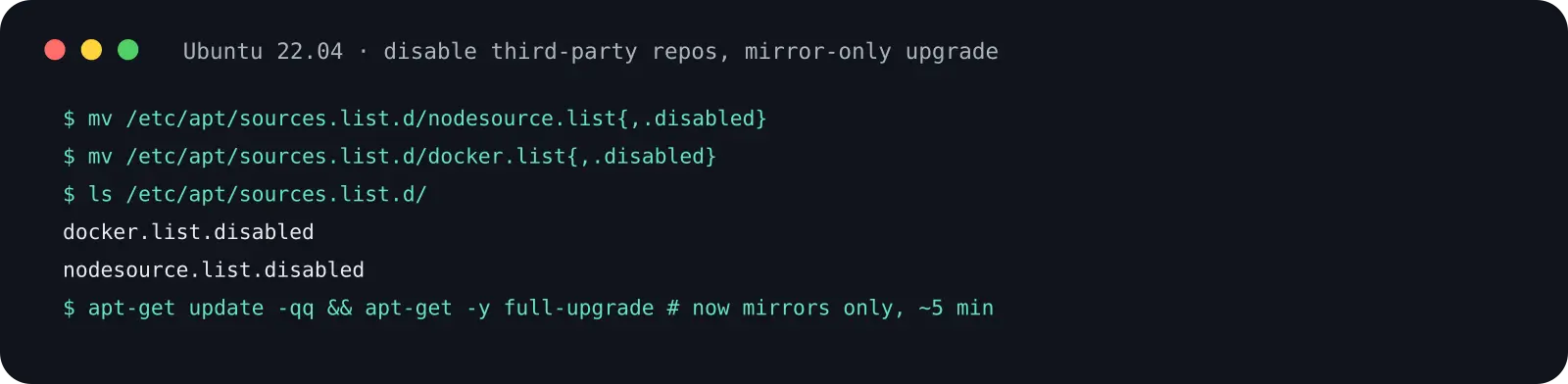
Figure 6: renaming the NodeSource and Docker lists to .disabled temporarily, the full upgrade ran clean.
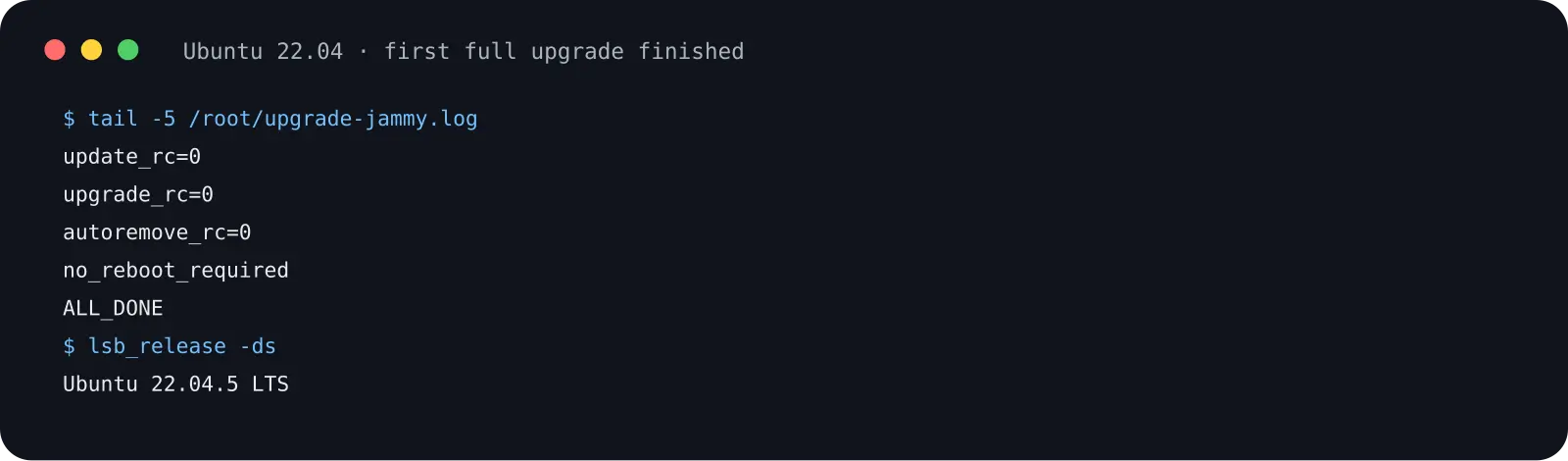
Figure 7: update, upgrade, autoremove all returned 0, no reboot required — the first leg is ready.
Note the detail: files are “mv-stashed”, not deleted. Rename them back after the upgrade. Node and Docker binaries are untouched — only their update checks pause for a few minutes.
4. Pit two: a half-synced mirror gets the upgrade tool rejected
Symptom
The first leg handed over, do-release-upgrade started and exited within a minute:
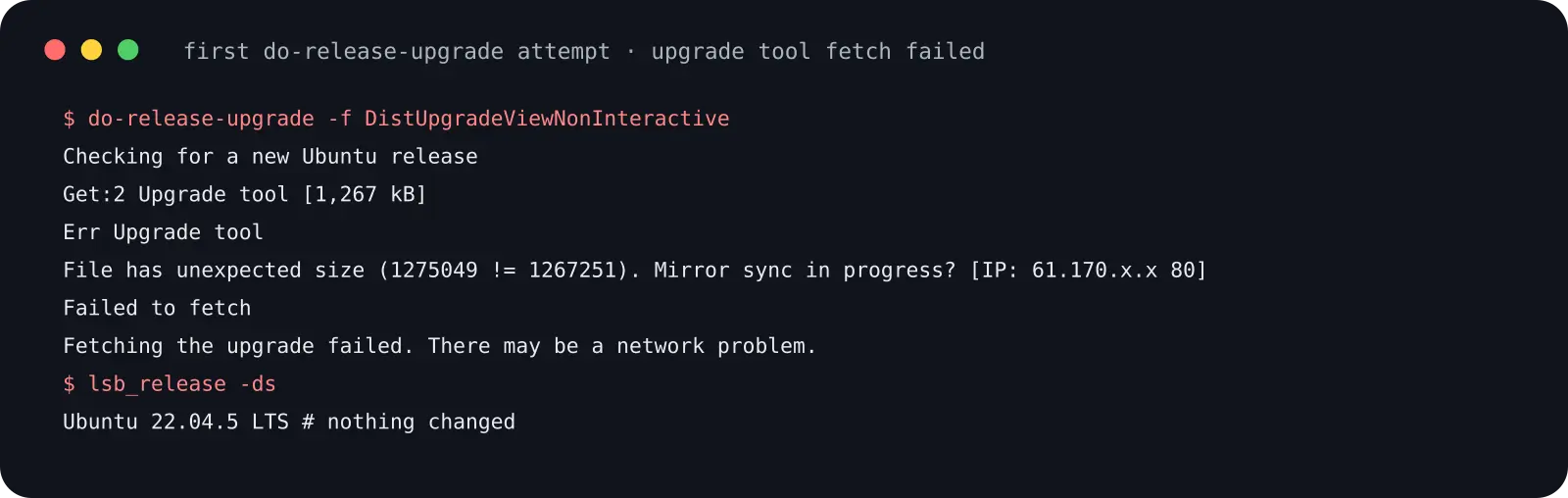
Figure 8: real error. The tool was expected at 1,267,251 bytes, the mirror served 1,275,049 — size mismatch, immediate Err.
Analysis
do-release-upgrade works in two steps: fetch a release catalog (meta-release) from changelogs.ubuntu.com to learn what the next release is and where its upgrade tool lives; then download a few-MB upgrade tool tarball (noble.tar.gz) from your configured package mirror, verify its signature, and run it. Step two stalled.
The key phrase is “File has unexpected size … Mirror sync in progress?”. The index says the package should be 1,267,251 bytes; the mirror delivered 1,275,049. Neither number looks like garbage — they look like two versions of the same file. The mirror was mid-sync: half old, half new, and I caught the inconsistent pair.
Root cause
My sources.list pointed to a mirror that syncs upstream non-atomically; between index and package files there is a window where you can get a mismatched combination. It is a transient fault on the mirror side, but for you it means the whole upgrade is blocked.
Fix
If the shop is restocking, shop at one that finished restocking. I switched sources.list to another large mirror (Aliyun in my case), re-ran apt update, and the upgrade tool downloaded instantly and passed signature verification. I kept the faster mirror and backed up the old configuration as .bak.
A diagnostic tip: “unexpected size” or “Hash Sum mismatch” is almost always mirror sync — waiting half an hour or switching mirrors beats retrying. A “Timeout” is your own network instead.
5. Pit three: 26.04 was long released, but the upgrader says otherwise
Symptom
The most interesting pit. Stage two was ready — 24.04.5 on the new 6.8 kernel — and do-release-upgrade answered:
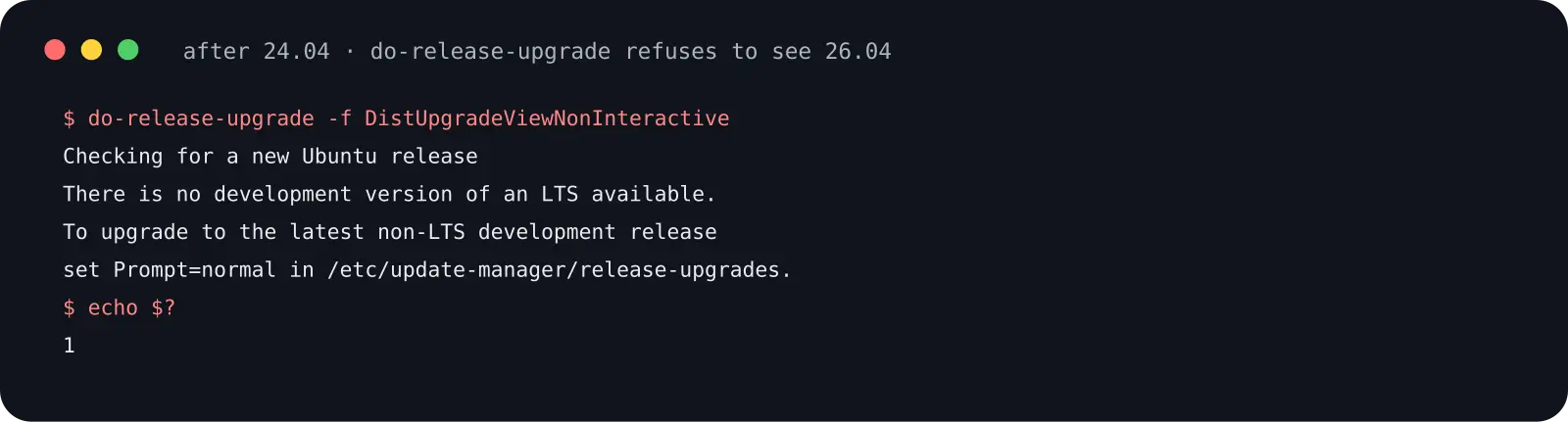
Figure 9: real output. “There is no development version of an LTS available”, exit code 1.
There was no error to inspect — the network was fine, the mirror fresh, 24.04 brand new. The upgrader simply did not “believe in” the target release.
Analysis
An earlier post on this blog (the Ubuntu 26.04 upgrade guide, see related reading) noted that the regular LTS-to-LTS prompt usually opens after the first point release (26.04.1). That date had passed. So what was the upgrader looking at? The release catalog configured in /etc/update-manager/meta-release. Pulling it down showed the resolute entry (26.04’s development codename) right there:

Figure 10: the official meta-release-lts page. The resolute entry sits at the end: version 26.04.1 LTS.
The entry carries a field named Supported, and the copy I fetched said 0. That is the whole truth: when deciding whether to offer an upgrade, the tool does not look at how new the version is — it looks at that flag. Supported 0 reads as “closed for business”.
Root cause
Think of meta-release as the “opening hours” sign on the shop door, and the upgrader as a customer who only reads signs. The shelves are full (26.04.1 released, full package sets on the mirrors), but the sign says closed (Supported: 0), so the customer turns away without a word. In the metadata my network served me, resolute’s sign had not been flipped — whether from mirror sync lag or the official rollout schedule, from where I stood it was 0.
Fix
The fix is not to break into a closed shop, but — after confirming the goods truly arrived — to set up your own sign. Three steps:
- Download a local copy of meta-release-lts;
- In the copy, flip resolute’s Supported from 0 to 1;
- Point URI_LTS in
/etc/update-manager/meta-releaseat the local copy (file://), clear the upgrader’s cached marker, and run again.
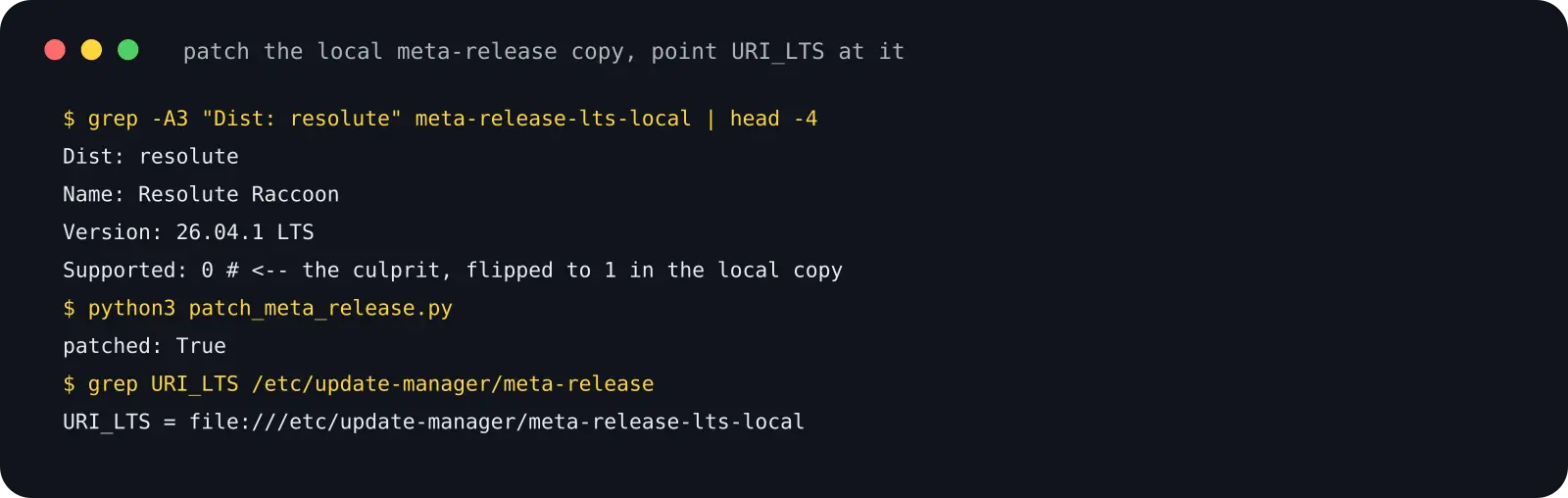
Figure 11: the real procedure. Three lines of Python flip the flag; URI_LTS points at the local copy.
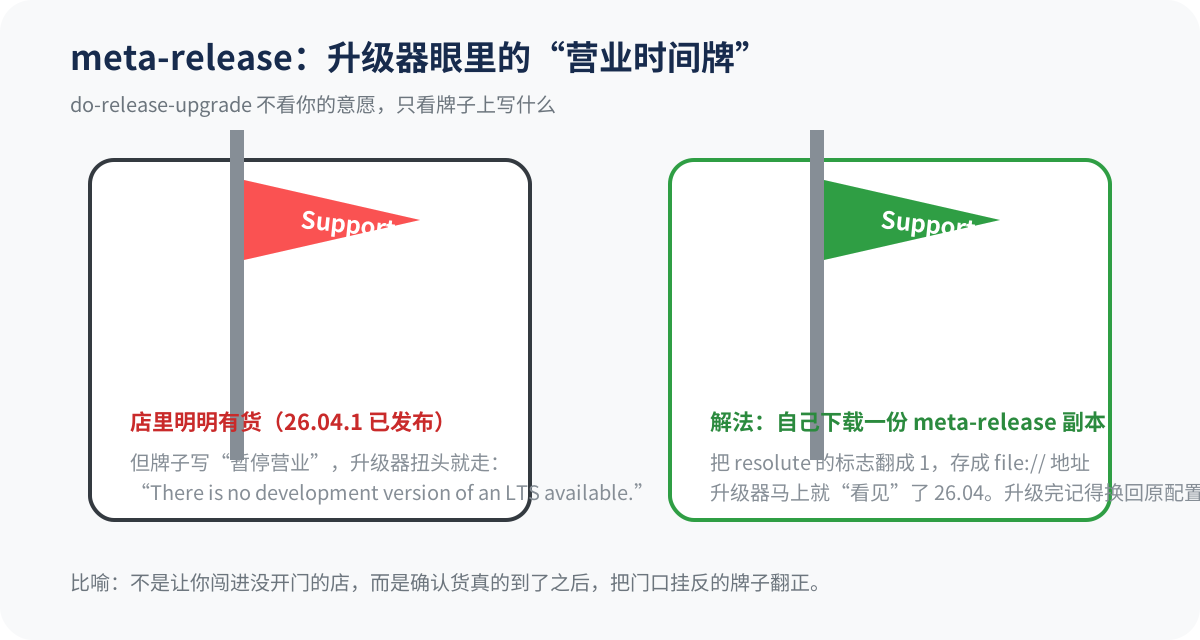
Figure 12: the Supported flag is the sign on the shop door. The upgrader does not care how much you want in — only what the sign says.
Two safety boundaries must be clear. First, the patch only flips a recommendation switch: it fakes no packages, and the upgrade tool and every deb still pass official GPG verification — a signature mismatch still aborts everything. Second, it is a temporary bridge, not a permanent modification: after the upgrade, URI_LTS must be restored to the official address, or your system keeps reading a stale timetable forever. In the script below, the patch is applied and reverted automatically.
6. Crossing the line: after two reboots
With the patch in place, the second leg handed over cleanly. Stage one finished with a reboot into the new kernel:
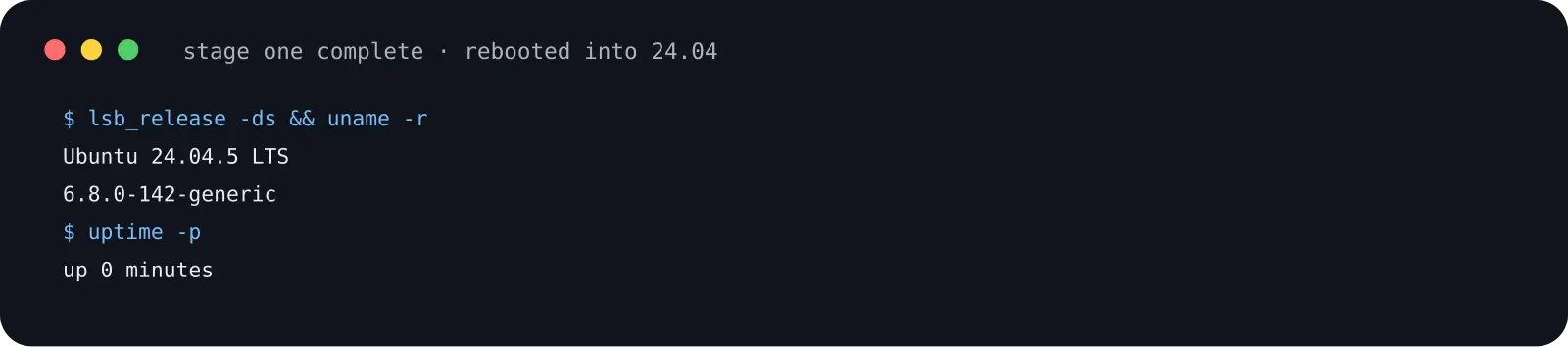
Figure 13: end of leg one. Ubuntu 24.04.5, kernel 6.8.0, uptime 0 minutes.
Stage two took about 45 minutes, two thirds of it downloading 1.2 GB of packages, the rest unpacking and configuring. Then:
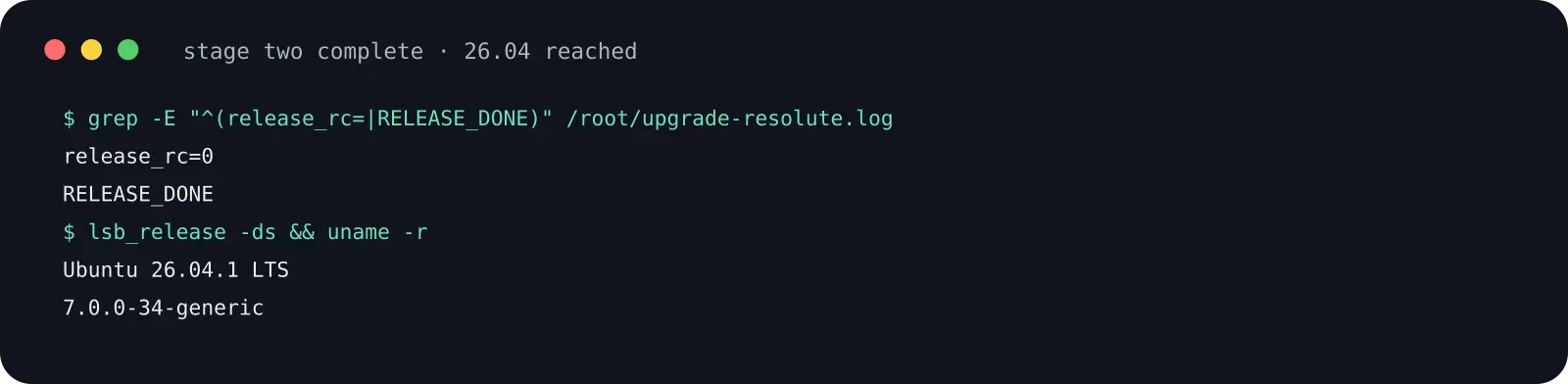
Figure 14: the finish line. Ubuntu 26.04.1 LTS, kernel 7.0.0, release_rc=0.
The Docker fleet came back on its own after the reboot — six containers, fully self-healed — and node upgraded once its repo was restored:
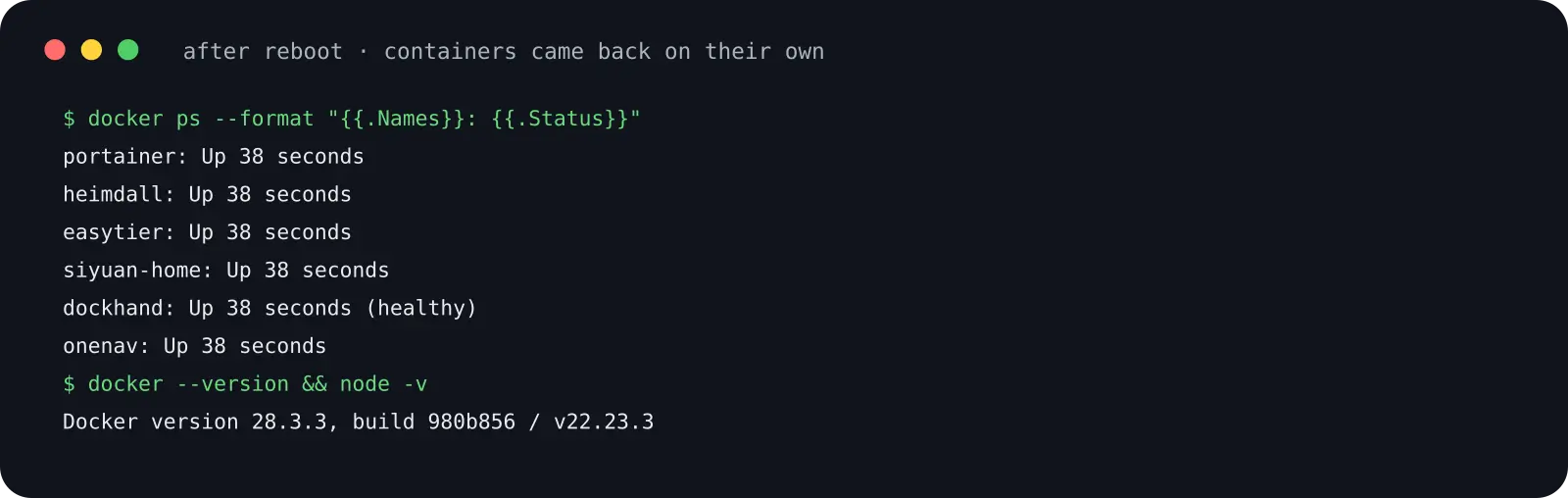
Figure 15: docker ps after reboot, six containers Up, zero manual intervention.
Finally I restored the two third-party repos: Docker’s repo codename moved to the new release’s, NodeSource’s distro-agnostic nodistro channel re-enabled as-is, then one more full upgrade to confirm everything is clean.
7. One command: manual run or hand it to an Agent
The lessons above are consolidated into one script. It depends only on tools Ubuntu already ships (bash, apt, do-release-upgrade, systemd, curl) — no third-party services. Every stage logs to disk, state is resumable, reboots auto-continue, third-party repos are stashed and restored, and the meta-release bridge is applied only when genuinely needed and reverted at the end.
Manual run: save as ubuntu-lts-relay.sh, then sudo bash ubuntu-lts-relay.sh. Add --target 24.04 to climb one level. Ctrl-C anytime to watch; re-running resumes from the breakpoint.
#!/usr/bin/env bash
# ubuntu-lts-relay.sh -- one-command Ubuntu LTS relay upgrade (official path only)
# Requires only: bash / apt / do-release-upgrade / systemd / curl (all built-in)
set -euo pipefail

TARGET_VER="${2:-26.04}"                       # target version, e.g. 24.04 or 26.04
STATE=/var/lib/lts-relay.state                 # breakpoint state file
UNIT=/etc/systemd/system/lts-relay.service     # systemd unit to resume after reboot
LOG=/var/log/lts-relay.log
META_SRC=https://changelogs.ubuntu.com/meta-release-lts
declare -A CODE=( ["22.04"]=jammy ["24.04"]=noble ["26.04"]=resolute )
declare -A NEXT=( [jammy]=noble [noble]=resolute [focal]=jammy )

log(){ echo "[$(date '+%F %T')] $*" | tee -a "$LOG"; }
die(){ log "FATAL: $*"; exit 1; }

preflight(){
  [[ $(id -u) -eq 0 ]] || die "run as root"
  command -v do-release-upgrade >/dev/null || die "update-manager-core missing"
  local cur; cur=$(lsb_release -rs)
  [[ -n "${CODE[$cur]:-}" ]] || die "unknown version $cur"
  local free; free=$(df --output=avail -BG / | tail -1 | tr -dc 0-9)
  (( free >= 8 )) || die "only ${free}G free on /, need at least 8G"
  if [[ -f /var/run/reboot-required ]]; then die "a reboot is pending; reboot first"; fi
  log "preflight ok: $cur -> $TARGET_VER, ${free}G free"
}

stash_third_party(){                 # third-party repos sit out during the upgrade
  shopt -s nullglob
  local f
  for f in /etc/apt/sources.list.d/*.list /etc/apt/sources.list.d/*.sources; do
    mv "$f" "$f.stash"; log "stashed $f"
  done
}

restore_third_party(){               # put them back when finished
  shopt -s nullglob
  local f
  for f in /etc/apt/sources.list.d/*.stash; do mv "$f" "${f%.stash}"; done
  log "third-party repos restored"
}

full_upgrade(){                      # full upgrade within the current release
  export DEBIAN_FRONTEND=noninteractive NEEDRESTART_MODE=a
  apt-get update -qq
  apt-get -y -q -o Dpkg::Options::=--force-confdef \
    -o Dpkg::Options::=--force-confold full-upgrade
  apt-get -y -q autoremove
}

bridge_meta_release(){               # pit-three bridge: only when the target is
  local cur next codename            # released but its Supported flag is still 0
  cur=$(lsb_release -rs); next=${NEXT[${CODE[$cur]}]}
  [[ "$next" == "${CODE[$TARGET_VER]}" ]] || return 0
  codename=$next
  curl -fsSL "$META_SRC" -o /etc/update-manager/meta-release-lts.local
  if ! grep -A5 "^Dist: $codename" /etc/update-manager/meta-release-lts.local \
      | head -6 | grep -q "Supported: 0"; then
    rm -f /etc/update-manager/meta-release-lts.local
    log "target already open to regular users, no bridge needed"
    return 0
  fi
  python3 - "$codename" <<'PY'
import sys
codename = sys.argv[1]
path = "/etc/update-manager/meta-release-lts.local"
out = []
for b in open(path).read().split("Dist: "):
    if b.startswith(codename):
        b = b.replace("Supported: 0", "Supported: 1", 1)
    out.append(b)
open(path, "w").write("Dist: ".join(out))
PY
  cp -n /etc/update-manager/meta-release /etc/update-manager/meta-release.bak
  sed -i "s|^URI_LTS = .*|URI_LTS = file:///etc/update-manager/meta-release-lts.local|" \
    /etc/update-manager/meta-release
  rm -f /var/lib/ubuntu-release-upgrader/release-upgrade-available
  echo "bridge=on" >> "$STATE"
  log "meta-release bridge enabled (auto-reverted at the end)"
}

revert_meta_release(){               # undo the bridge, restore the official URI
  grep -q "^bridge=on" "$STATE" 2>/dev/null || return 0
  if [[ -f /etc/update-manager/meta-release.bak ]]; then
    mv /etc/update-manager/meta-release.bak /etc/update-manager/meta-release
  fi
  rm -f /etc/update-manager/meta-release-lts.local
  sed -i '/^bridge=on/d' "$STATE"
  log "meta-release bridge reverted"
}

install_resume_unit(){               # auto-resume after each reboot
  cat > "$UNIT" <<UNIT
[Unit]
Description=LTS relay upgrade resume
After=network-online.target

[Service]
Type=oneshot
ExecStart=$PWD/$(basename "$0") --resume
TimeoutSec=7200

[Install]
WantedBy=multi-user.target
UNIT
  systemctl daemon-reload && systemctl enable lts-relay.service
}

run_release_stage(){                 # one leg: non-interactive do-release-upgrade
  export DEBIAN_FRONTEND=noninteractive NEEDRESTART_MODE=a
  do-release-upgrade -f DistUpgradeViewNonInteractive </dev/null \
    | tee -a "$LOG"
}

main(){
  [[ "${1:-}" == "--resume" ]] || { : > "$STATE"; preflight; }
  while true; do
    local cur; cur=$(lsb_release -rs)
    [[ "$cur" == "$TARGET_VER" ]] && break
    local stage; stage=${CODE[$cur]}
    if ! grep -q "^done_$stage" "$STATE" 2>/dev/null; then
      full_upgrade
      stash_third_party
      bridge_meta_release
      log "starting release upgrade: $cur"
      run_release_stage
      echo "done_$stage" >> "$STATE"
    fi
    install_resume_unit
    log "$stage leg done, rebooting in 10s to continue"
    sleep 10 && systemctl reboot
  done
  restore_third_party
  revert_meta_release
  systemctl disable --now lts-relay.service 2>/dev/null || true
  rm -f "$UNIT"; systemctl daemon-reload
  log "upgrade complete: $(lsb_release -ds), kernel $(uname -r); verify your services"
}
main "$@"
Design notes: bridge_meta_release acts only when the target is released but its flag still reads 0 — if the official channel is open, it changes nothing; a systemd unit resumes the run after each reboot and deletes itself at the end; all logs live in /var/log/lts-relay.log.
When handing this to an AI Agent, the point is not whether it can type commands but whether your acceptance criteria and boundaries are explicit. Paste-ready prompt:
Please upgrade host <HOST> to Ubuntu 26.04 LTS via the official relay path:
1. Run preflight first (version, disk, reboot-required, Docker service state) and show me the results;
2. After my confirmation, run ubuntu-lts-relay.sh under nohup or tmux, logging everything;
3. After each stage's reboot, check the resume state and read /var/log/lts-relay.log to confirm progress;
4. Accept at the end: lsb_release, uname -r, docker ps all healthy, apt update error-free;
5. Never delete business data, container volumes, or config files; third-party repos may only be stashed and restored, never removed;
6. If do-release-upgrade fails, show me the raw error and analyze from logs first — never skip releases by editing sources.
8. Q&A
Q: Why not just point sources.list at 26.04 and full-upgrade?
A: Because do-release-upgrade carries hundreds of handover moves inside — library renames, config merge policies, bootloader updates, transitional package cleanup. Bare-editing sources means you carry all of them yourself. To reuse the analogy: hurdles can be trained; throwing the relay baton across two legs is pure prayer.
Q: Is the Supported-flag patch safe? Should I keep it?
A: It only affects whether the upgrader recommends the target; it touches no packages and bypasses no signatures. But it does step around the official rollout rhythm, so use it only when 26.04.1 is officially out and you accept the gray-window risk. The script reverts it automatically; URI_LTS goes back to the official address, leaving nothing behind.
Q: If SSH drops mid-upgrade, will the box end up bricked?
A: No. apt/dpkg transactions mean a package is either installed or not; after reconnecting, dpkg --configure -a picks up the pieces. In this very incident, the SSH service was upgraded and restarted mid-run — the connection died for ten minutes while the upgrade behind it continued untouched. That is exactly why the script insists on logs on disk, a state file, and resume-after-reboot.
Q: Will third-party software like Docker or Node.js be lost?
A: No. Only the repos are stashed; the binaries stay, container data lives in volumes. When restoring, update the repo codename where needed (Docker yes, NodeSource no), then apt update. In this upgrade, six containers self-healed within 38 seconds of the reboot.
Q: Can I follow this post before 26.04.1?
A: You can, but read the earlier post first (linked under related reading): while the regular channel is closed, production machines should wait; test machines may bridge early. The script handles the distinction — the bridge only triggers when the flag is 0 and the target is released.
Q: How do I confirm the upgrade truly succeeded?
A: Four acceptance lines: lsb_release -ds shows the target version; uname -r shows the new kernel after a reboot; docker ps (or your core services) all healthy; apt update error-free and /var/run/reboot-required absent. All four green — you have crossed the line.
Related reading
- Ubuntu 26.04 Upgrade Guide: Let an Agent Do It, or Run It by Hand (this blog)
- Ubuntu official docs: Upgrade your Ubuntu release
- Ubuntu release cycle and meta-release notes (changelogs.ubuntu.com)