Ubuntu 26.04 Upgrade Guide: Let an Agent Do It, or Run It by Hand
The short version
Upgrading Ubuntu 22.04 or 24.04 to Ubuntu 26.04 is not about memorizing one command. It is about following the supported upgrade path. Ubuntu 22.04 LTS should not be jumped directly to Ubuntu 26.04 LTS. Upgrade 22.04 LTS to 24.04 LTS first, then move from 24.04 LTS to 26.04 LTS. As of 2026-05-12, Ubuntu 26.04 LTS has already been released, but the normal LTS-to-LTS upgrade prompt from 24.04 LTS to 26.04 LTS is typically enabled after the first point release. The official 26.04 schedule lists the 26.04.1 point release on 2026-07-09. Production systems should usually wait for the regular upgrade path; test systems can evaluate an early upgrade only with explicit risk acceptance.
If you already use agents such as Code, Claude, OpenClaw, HermesAgent, Codex, or OpenCode, this is a good task to delegate. But do not just say “upgrade Ubuntu.” Give the agent a bounded job: inspect first, back up, follow the supported path, keep logs, ask before risky choices, reboot, verify services, and report evidence. This article gives both a ready-to-copy agent prompt and a manual procedure.
All examples in this article are generic. No private hostnames, internal addresses, accounts, credentials, tokens, business system names, or personal paths are included. Replace placeholders such as <HOST>, <SERVICE>, and <BACKUP_DIR> with values from your own environment.
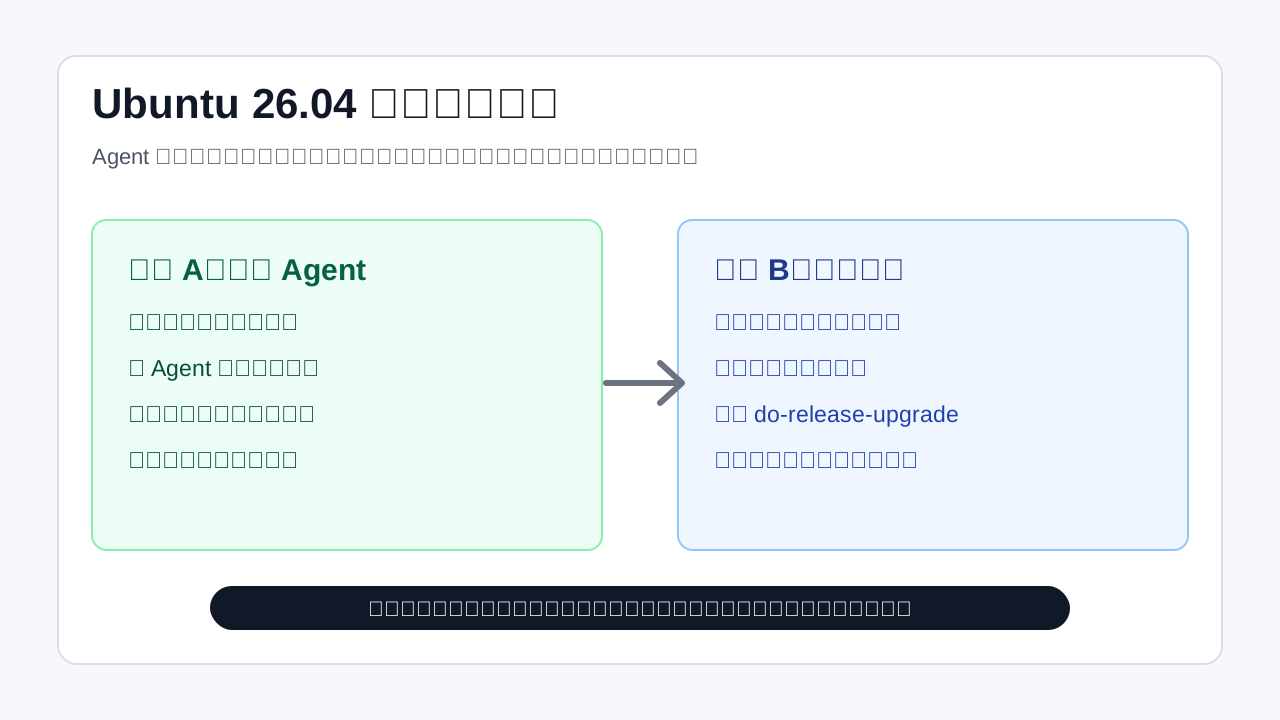
Figure 1: You can delegate the upgrade to an agent, or run it by hand. Both paths start with backup, inspection, and validation.
1. First, this is not apt upgrade
Ubuntu users often mix up four different operations:
apt updaterefreshes package indexes.apt upgradeupdates packages inside the current Ubuntu release.apt full-upgradeorapt dist-upgradeperforms a fuller package upgrade inside the current release, including dependency changes.do-release-upgradeupgrades the system from one Ubuntu release to the next.
Moving from 22.04 to 24.04, or from 24.04 to 26.04, belongs to the fourth category. It changes the distribution release itself: package sources, base libraries, kernel, Python, systemd, OpenSSL, server components, and desktop components may all move to newer versions. The visible command may be short, but the operation is a system migration.
Treat it as a maintenance window. Before the upgrade, confirm the path, backup state, free space, third-party repositories, kernel situation, and application health. During the upgrade, respond carefully to interactive prompts. After the reboot, verify the OS version, kernel, services, listening ports, logs, third-party packages, and real application behavior.
2. The supported path: 22.04 does not jump directly to 26.04
Ubuntu’s upgrade model is sequential. LTS users upgrade from one LTS release to the next LTS release. If the target is further away, you move in stages.
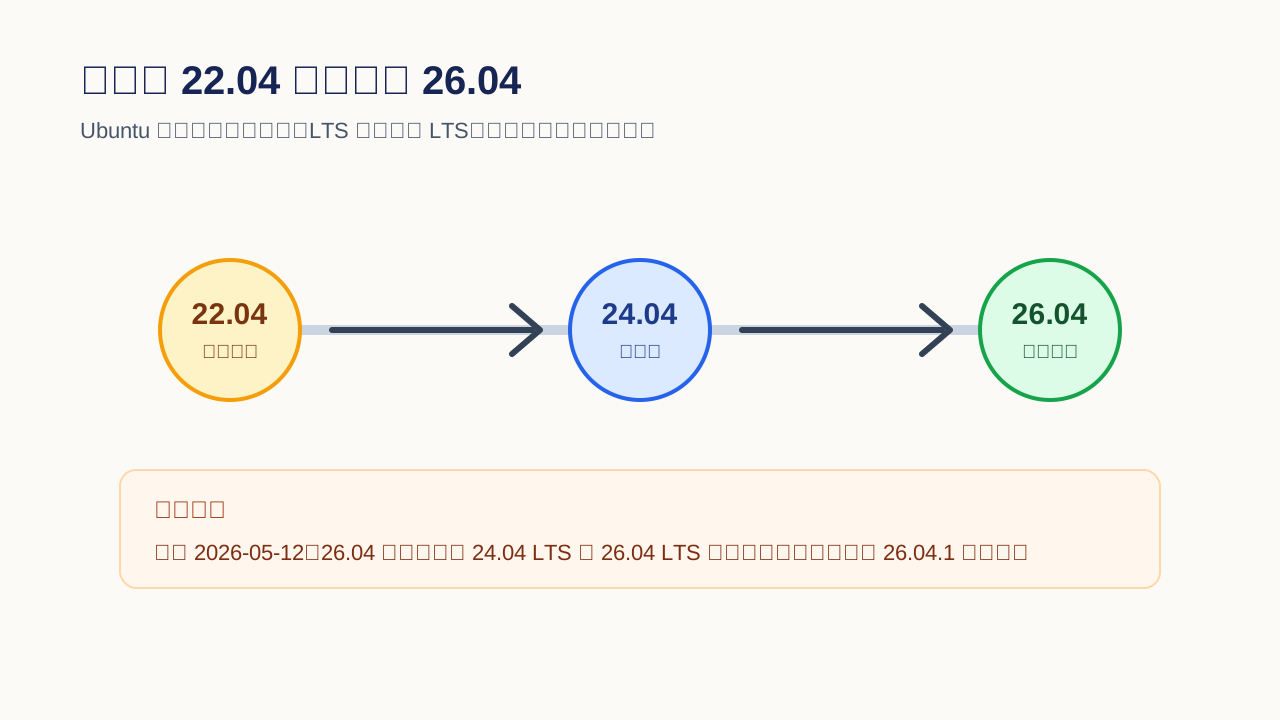
Figure 2: 22.04 upgrades to 24.04 first. 24.04 then moves to 26.04.
For this cycle:
- Ubuntu 22.04 LTS users should first upgrade to Ubuntu 24.04 LTS.
- Ubuntu 24.04 LTS users can then upgrade to Ubuntu 26.04 LTS.
- Users on interim releases, such as 25.10, follow the adjacent-release path instead.
- If you do not want multiple in-place upgrades, back up and perform a clean 26.04 installation, then restore applications and data.
This is why one-line “22.04 to 26.04” recipes should be treated with caution. They may actually run two upgrades, rewrite repositories manually, rely on interim releases, or assume a disposable test system. On servers, workstations, development machines, and core home-lab nodes, skipping the supported path usually moves risk into a place that is harder to diagnose.
There is also a timing gate. As of 2026-05-12, Ubuntu 26.04 LTS has been released, but Ubuntu’s desktop upgrade documentation still describes the normal LTS-to-latest-LTS path as becoming available after the first point release. The 26.04 schedule lists 26.04.1 on 2026-07-09. For production machines, the practical recommendation is to wait for the regular do-release-upgrade path after 26.04.1. For test machines, an early upgrade can be used to evaluate compatibility, but it should be an explicit decision.
3. Upgrade in place, or reinstall?
An in-place upgrade is convenient. It preserves users, packages, configuration, services, logs, directories, and much of the operational shape of the machine. The cost is that old third-party repositories, manually installed packages, stale configuration, old service units, Python virtual environments, Docker data, drivers, and DKMS modules may become upgrade obstacles.
My usual rule is simple:
- In-place upgrade is reasonable for ordinary servers, development machines, VMs, cloud hosts, and systems with manageable service counts.
- Clean install is often better when the system has years of manual changes, many third-party repositories, driver complexity, a small root partition, or a containerized workload that can be restored cleanly from volumes and Compose files.
- A rehearsal is mandatory for databases, storage nodes, gateways, firewalls, CI/CD infrastructure, monitoring, reverse proxies, and the only remote-entry machine.
Reinstallation is not a failure. For many containerized services, the safer path is to back up /etc, application data, Compose files, systemd units, certificates, and secrets; install 26.04 cleanly; restore services; and validate behavior. That may be cleaner than carrying a decade of package history through another release upgrade.
The rest of this article focuses on in-place upgrades because that is what most people want and where most mistakes happen.
4. Option A: delegate the upgrade to an agent
Agents such as Code, Claude, OpenClaw, HermesAgent, Codex, and OpenCode are useful for this task because release upgrades involve many repetitive checks, long logs, and post-upgrade validation. The agent can save time by running the checklist, collecting evidence, and reporting what changed.
But there is a big difference between these two prompts:
Bad prompt: Upgrade this machine to Ubuntu 26.04.

Better prompt: Inspect the current Ubuntu version, supported upgrade path, disk space, backup state, third-party repositories, held packages, key services, and remote console availability first. Only upgrade after the preflight passes. Keep logs, do not delete application data, ask before overwriting configuration files, reboot, then verify OS version, kernel, services, ports, logs, and application health.
The first prompt gives a goal but no guardrails. The second prompt describes an auditable workflow.
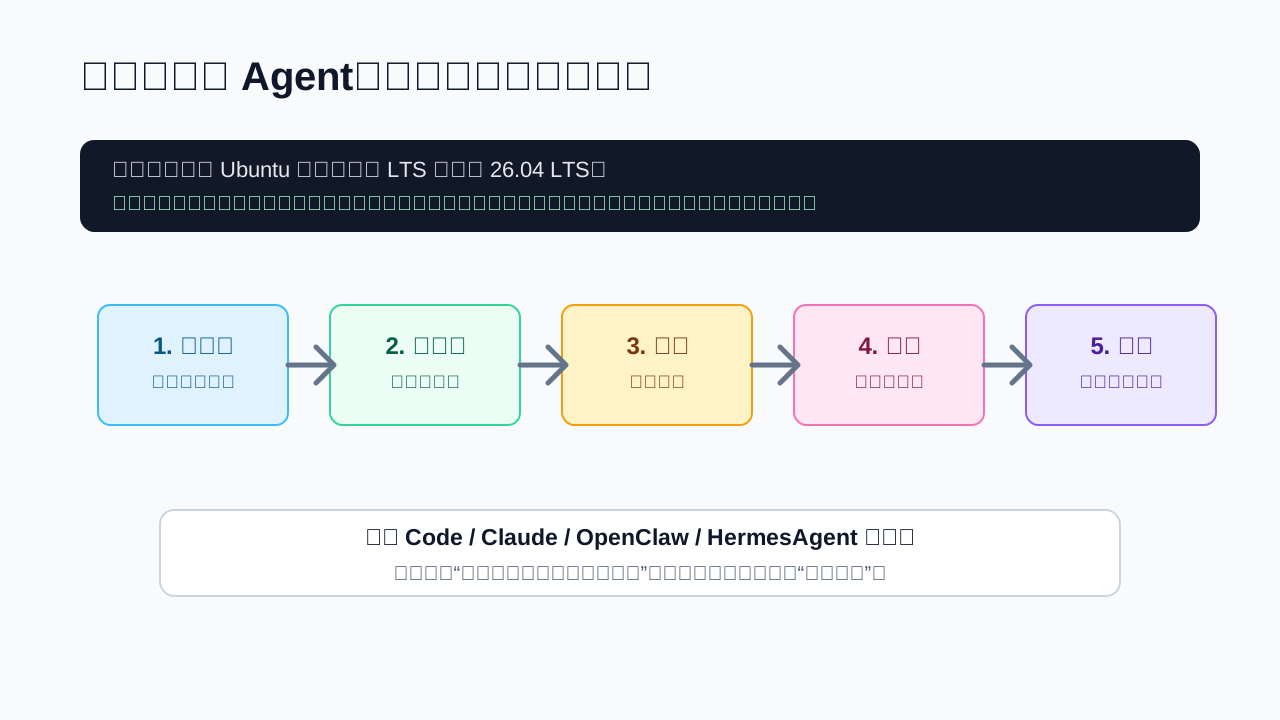
Figure 3: The value of an agent is not that it can type commands. The value is that it can follow checkpoints and preserve evidence.
4.1 A ready-to-copy agent prompt
Use this prompt as a starting point:
Please help me upgrade Ubuntu host <HOST> from its current LTS release to Ubuntu 26.04 LTS.

Requirements:
1. First perform inspection only. Do not start the upgrade yet.
2. Check the current version, kernel, architecture, disk space, /boot space, memory, network, DNS, package sources, third-party repositories, PPAs, held packages, dpkg/apt health, reboot-required state, key services, and application status such as Docker, databases, and reverse proxies.
3. Determine the supported upgrade path. If the system is on 22.04 LTS, upgrade to 24.04 LTS before 26.04 LTS. If it is on 24.04 LTS, confirm whether the normal 26.04 LTS upgrade path is currently enabled. If not, stop and explain whether we should wait for 26.04.1 or explicitly choose an early upgrade.
4. Before upgrading, create a backup or confirm that a recoverable backup exists. Do not delete application data, databases, container volumes, certificates, secrets, or user files.
5. Keep a complete log. Run the upgrade inside tmux, screen, or a console session. When configuration file prompts appear, show the diff and recommendation before choosing.
6. After the upgrade, reboot and verify: lsb_release, /etc/os-release, uname -a, systemctl --failed, key services, key ports, health checks, apt update, and journal errors.
7. End with a report: original version, target version, commands executed, important prompt choices, validation evidence, failures, and manual follow-up items.
The most important line is the first requirement: inspection only before upgrade. It forces the agent to produce a preflight report before it changes the system.
4.2 What the agent should inspect
Ask the agent to run read-only checks first:
lsb_release -a
cat /etc/os-release
uname -a
dpkg --print-architecture
df -h
df -h /boot || true
free -h
apt-mark showhold
sudo dpkg --audit
sudo apt update
sudo apt -s full-upgrade
systemctl --failed
systemctl list-units --type=service --state=running --no-pager
find /etc/apt/sources.list /etc/apt/sources.list.d -maxdepth 1 -type f -print
For servers, include application state:
ss -lntup
docker ps --format 'table {{.Names}}\t{{.Image}}\t{{.Status}}\t{{.Ports}}' 2>/dev/null || true
sudo journalctl -p warning..alert -n 100 --no-pager
These commands will not upgrade anything. They expose common problems: low root space, low /boot space, broken package configuration, unreachable repositories, failed services, broken containers, or a system that already needs a reboot.
4.3 Common agent mistakes
Do not let the agent make these mistakes silently:
- Treating
do-release-upgrade -das the default. The-doption is useful for early evaluation in certain periods, but it is not a production default. - Accepting configuration prompts without review. Keeping the old file is often safer, but some packages need new configuration. Overwriting everything is also risky.
- Verifying only the OS version. A system can report 26.04 while applications are broken.
- Cleaning old packages immediately after reboot. Validate services first, then clean up.
- Running over a fragile single SSH session. Use tmux, screen, or a console, and make sure there is a fallback access path.
An agent is best used for execution and evidence gathering. You still own the decision about maintenance windows, backups, early upgrade risk, configuration choices, and application downtime.
5. Option B: manual upgrade procedure
The manual path below can be used directly or broken into tasks for an agent.
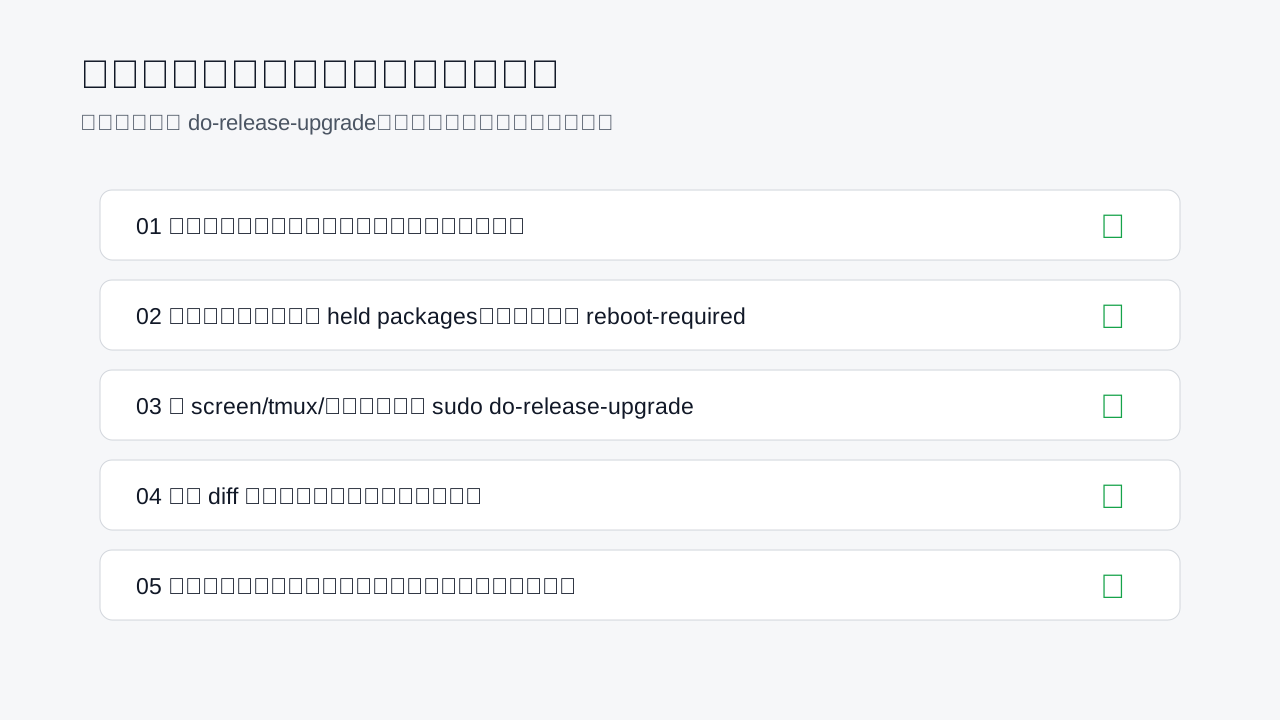
Figure 4: The upgrade command is the middle of the process, not the whole process.
5.1 Confirm the current release
Run:
lsb_release -a
cat /etc/os-release
uname -a
If the system is 22.04 LTS:
22.04 LTS -> 24.04 LTS -> 26.04 LTS
If the system is 24.04 LTS:
24.04 LTS -> 26.04 LTS
If it is not an LTS release, check the adjacent release path for that version.
5.2 Back up what cannot be recreated
Backups should include four classes of data:
- User and application data: uploads, database dumps, persistent volumes.
- System configuration:
/etc, systemd units, web server configuration, SSH, cron, and network configuration. - Deployment files: Compose files, environment templates, scripts, certificate renewal configuration.
- Recovery path: VM snapshots, cloud disk snapshots, image backups, and restoration notes.
Example:
sudo mkdir -p <BACKUP_DIR>
sudo tar --xattrs --acls -czf <BACKUP_DIR>/etc-before-ubuntu-upgrade.tar.gz /etc
dpkg --get-selections > <BACKUP_DIR>/dpkg-selections.txt
apt-mark showmanual > <BACKUP_DIR>/apt-manual-packages.txt
systemctl list-unit-files > <BACKUP_DIR>/systemd-unit-files.txt
For databases, use the backup method recommended by the database engine. For containerized services, back up volumes, bind mounts, Compose files, and image versions, not just docker ps output.
5.3 Check disk space, package health, and repositories
Check free space:
df -h
df -h /boot || true
free -h
Check package health:
sudo dpkg --audit
sudo apt update
sudo apt -f install
sudo apt-mark showhold
List software sources:
find /etc/apt/sources.list /etc/apt/sources.list.d -maxdepth 1 -type f -print -exec sed -n '1,120p' {} \;
Third-party repositories and PPAs are often disabled during the upgrade. That is expected. Record what they are now, then re-enable only versions that support 26.04 after the upgrade.
5.4 Fully update the current release
Update the current system before changing releases:
sudo apt update
sudo apt full-upgrade
For server systems, also consider the phased-update-aware command recommended in Ubuntu server documentation:
sudo apt dist-upgrade -o APT::Get::Always-Include-Phased-Updates=true
If a reboot is required, reboot before continuing:
if [ -f /run/reboot-required ]; then
  sudo reboot
fi
After reboot:
lsb_release -a
systemctl --failed
sudo apt update
Do not enter a release upgrade from an already broken package state.
5.5 Start the release upgrade
On remote servers, use tmux or screen:
tmux new -s ubuntu-upgrade
Install the release upgrade tool if needed:
sudo apt install update-manager-core
Confirm the upgrade prompt policy:
grep -R '^Prompt=' /etc/update-manager/release-upgrades
For LTS systems, this is usually:
Prompt=lts
Start the upgrade:
sudo do-release-upgrade
If you run this from 24.04 LTS before the regular 26.04 LTS path is enabled, it may say that no new release is available. That can be normal. Production systems should wait. Test systems may explicitly accept the risk and evaluate:
sudo do-release-upgrade -d
Do not make -d your default production command.
5.6 Handle interactive prompts carefully
During the upgrade, you may be asked about:
- Whether to start the upgrade.
- How many packages will be installed, upgraded, or removed.
- Third-party repositories being disabled.
- Configuration file conflicts.
- Removing obsolete packages.
- Rebooting.
Configuration file prompts deserve attention. Use the diff option when available. If you customized SSH, Nginx, database, network, firewall, or system limit files, usually keep your current file and merge needed changes manually. If the file is unmodified, accepting the package maintainer’s version is often reasonable. Be especially careful with bootloader and kernel-related prompts.
5.7 Two-stage upgrade from 22.04 to 26.04
From 22.04 LTS, first move to 24.04 LTS:
sudo apt update
sudo apt full-upgrade
sudo reboot
sudo do-release-upgrade
After reboot, verify:
lsb_release -a
cat /etc/os-release
systemctl --failed
sudo apt update
Do not immediately start the second stage. Confirm SSH, networking, key services, logs, repositories, and disk space first. Then move from 24.04 LTS to 26.04 LTS. If the normal LTS upgrade is not yet enabled, pause on production systems and wait for the point release gate.
5.8 Verify after reboot
After the final reboot:
lsb_release -a
cat /etc/os-release
uname -a
sudo apt update
sudo apt list --upgradable
systemctl --failed
Check logs:
sudo journalctl -p warning..alert -b --no-pager | tail -n 200
sudo dmesg -T | tail -n 100
Check ports and applications:
ss -lntup
systemctl status <SERVICE> --no-pager
curl -I http://127.0.0.1:<PORT>/health
For Docker hosts:
docker ps
docker compose ps
docker logs --tail=100 <CONTAINER>
If the machine is monitored externally, validate it externally too: website, API, certificate, scheduled tasks, reverse proxy, and real application health checks.
5.9 Restore repositories and clean up
Find repositories disabled during upgrade:
grep -R "disabled on upgrade" /etc/apt/sources.list /etc/apt/sources.list.d 2>/dev/null || true
Re-enable only repositories that support 26.04. Do not blindly change old release names inside third-party repository files.
After service validation, clean up:
sudo apt autoremove --purge
sudo apt autoclean
Be conservative when removing old kernels. Keep the running kernel and at least one fallback kernel:
uname -r
dpkg -l 'linux-image*' | awk '/^ii/{print $2}'
6. Common problems
6.1 do-release-upgrade says no new release is available
If you are on 24.04 LTS before the normal 26.04 LTS path opens, this can be expected. Wait for the point-release gate on production systems. Use early upgrade parameters only for test systems. If you are on 22.04 LTS, first confirm whether the 24.04 LTS upgrade is available.
6.2 Third-party repositories fail
Disable them, finish the base system upgrade, then find 26.04-compatible repository instructions from the software vendor. Do not just replace the old Ubuntu codename in a repository file and hope it works.
6.3 /boot is too small
Inspect installed kernels, keep the running kernel, and remove only clearly unused old kernels. Be cautious on cloud hosts, encrypted systems, multi-boot machines, and custom boot environments.
6.4 Configuration file prompts are unclear
Look at the diff. Keep customized files when they contain local changes, then merge necessary new options manually. Accept maintainer versions for unmodified default files when appropriate. Treat SSH, networking, bootloader, firewall, and database configuration as high-risk prompts.
6.5 Services fail after upgrade
Start with evidence:
systemctl status <SERVICE> --no-pager
journalctl -u <SERVICE> -b --no-pager
Failures often come from configuration syntax changes, dependency name changes, Python/Node/Ruby version changes, OpenSSL policy changes, stale PPA packages, permissions, or AppArmor behavior. Pin the exact error before deciding whether to fix configuration, upgrade the application, restore packages, or roll back.
7. Recommended strategy
For disposable test machines, temporary VMs, and development environments, using an agent to evaluate an early upgrade can be useful. The goal is to discover compatibility issues before your important machines reach the maintenance window.
For production servers, home-lab core services, monitoring, gateways, databases, reverse proxies, CI/CD, or the only remote-entry host, I recommend:
- Bring 22.04 systems to 24.04 first, or confirm that 24.04 systems are healthy.
- Clone a VM or create a test machine and rehearse the 24.04 to 26.04 path.
- Record configuration choices, third-party repository changes, and application fixes.
- Wait for 26.04.1 before using the normal
do-release-upgradepath on real machines. - Use an agent for preflight, logging, execution, and validation reports, while keeping human approval at risky decision points.
This looks slower, but it usually saves time. The expensive part of a failed upgrade is not the command itself. The expensive part is not knowing which layer failed. A rehearsal and checklist turn unknown failure into repeatable work.
8. Short manual command list
For experienced users, here is the condensed checklist:
# 1. Confirm release
lsb_release -a
cat /etc/os-release

# 2. Back up configuration and package lists
sudo mkdir -p <BACKUP_DIR>
sudo tar --xattrs --acls -czf <BACKUP_DIR>/etc-before-upgrade.tar.gz /etc
dpkg --get-selections > <BACKUP_DIR>/dpkg-selections.txt
apt-mark showmanual > <BACKUP_DIR>/apt-manual-packages.txt

# 3. Check health
df -h
df -h /boot || true
sudo dpkg --audit
apt-mark showhold
systemctl --failed

# 4. Update current release
sudo apt update
sudo apt full-upgrade
sudo reboot

# 5. Start release upgrade
tmux new -s ubuntu-upgrade
sudo apt install update-manager-core
sudo do-release-upgrade

# If the regular LTS path is not yet enabled, production systems should wait.
# Test systems may explicitly evaluate:
# sudo do-release-upgrade -d

# 6. Verify after upgrade
lsb_release -a
cat /etc/os-release
uname -a
sudo apt update
systemctl --failed
ss -lntup
sudo journalctl -p warning..alert -b --no-pager | tail -n 200
If you are starting from 22.04, run the process to reach 24.04 first. Validate that system, then proceed from 24.04 to 26.04 when the path is appropriate. Do not compress both stages into one magic command.
Sources
Checked on 2026-05-12:
- Ubuntu 26.04 LTS release notes:
https://documentation.ubuntu.com/release-notes/26.04/ - Ubuntu 26.04 release schedule:
https://documentation.ubuntu.com/release-notes/26.04/schedule/ - Ubuntu Desktop upgrade documentation:
https://documentation.ubuntu.com/desktop/en/latest/how-to/upgrade-ubuntu-desktop/ - Ubuntu Server upgrade documentation:
https://documentation.ubuntu.com/server/how-to/software/upgrade-your-release/ - Ubuntu 24.04 LTS release notes:
https://documentation.ubuntu.com/release-notes/24.04/