Stop Letting Agents Guess UI: Installing and Using UI UX Pro Max the Right Way
The short version
UI UX Pro Max is not a magic prompt that suddenly gives an agent taste. It is a searchable UI/UX design intelligence Skill for AI coding assistants such as Claude Code, Codex, Cursor, Windsurf, Gemini, OpenCode, and similar tools. It packages product patterns, UI styles, color palettes, typography pairings, landing page structures, chart recommendations, UX guidelines, and stack-specific implementation advice into files and scripts that an agent can actually query.
The right way to use it is not to install it and keep asking for “a beautiful page.” The right way is to make the agent generate a design system first, then query UX, chart, web, or stack-specific guidance, and only then implement the page. That workflow reduces generic AI gradients, weak contrast, crowded mobile layouts, decorative dashboards, missing focus states, and many other common agent-generated UI problems.
This article uses only public references, a public repository, and a clean temporary verification directory. Commands, paths, project names, and examples are generic. No private addresses, credentials, internal project names, account names, or personal configuration are included. Screenshots are taken from public reference pages and sanitized verification work.
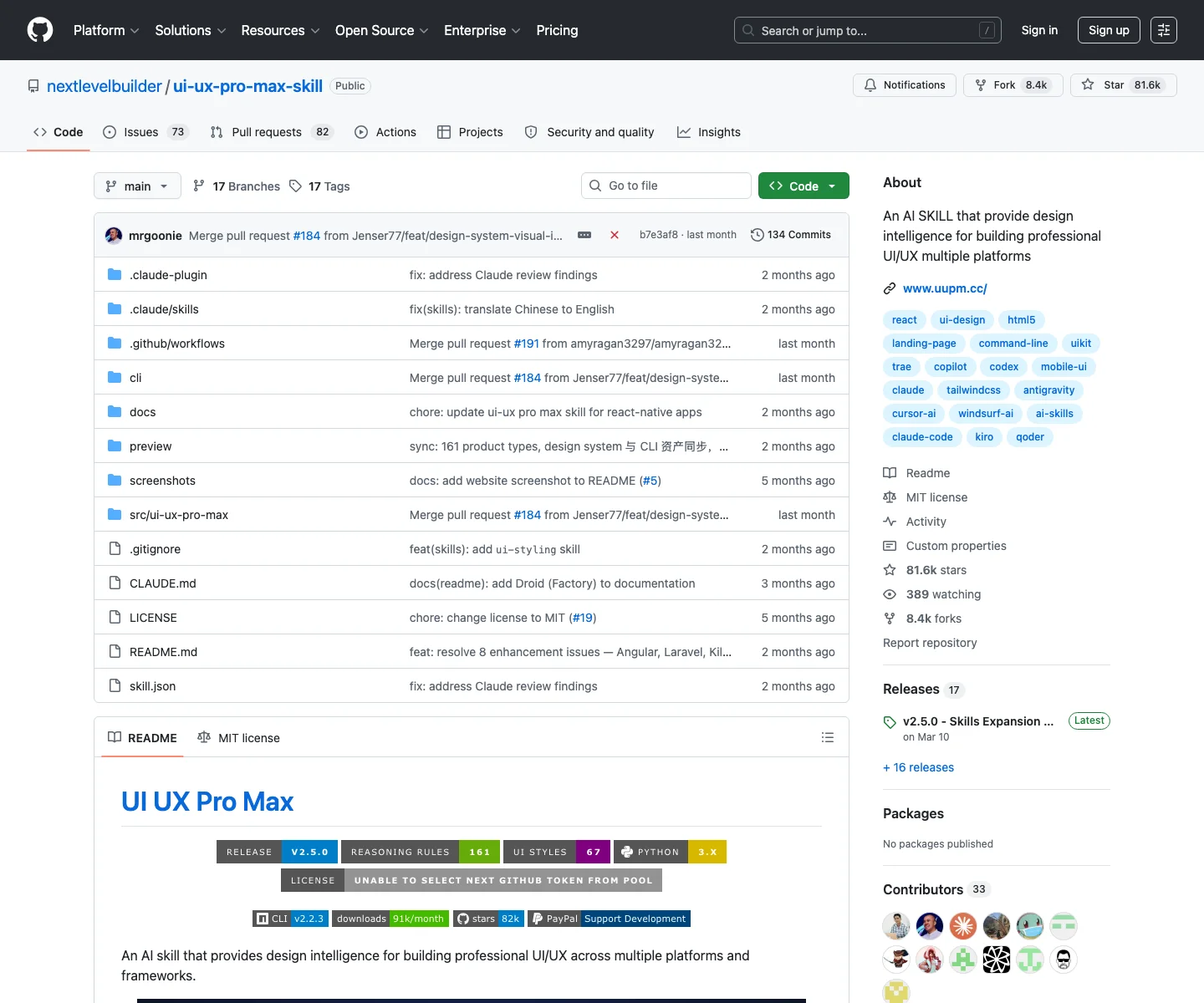
Figure 1: UI UX Pro Max is a design intelligence Skill for AI coding assistants. Its purpose is to make agents query a design knowledge base before writing UI.
1. Why agents need this kind of Skill
Most people who ask an agent to build a frontend experience see the same pattern. The first result appears quickly. The agent creates a hero section, a few feature cards, a pricing block, an FAQ, a CTA, some Tailwind classes, and maybe a dark gradient background. At first glance it looks usable. After a few projects, it also starts to look strangely familiar.
The usual symptoms are easy to recognize: purple-blue gradients, blurred decorative blobs, oversized hero typography, generic feature cards, dashboards that look like landing pages, charts used as decoration, weak mobile behavior, poor text contrast, missing focus states, and buttons that only work visually for mouse users. Asking the agent to make it “more premium” often just adds more shadow, more blur, or more motion.
The problem is not that every model is bad at CSS. The deeper problem is that the agent is often designing without a structured design basis. It knows what many websites look like, but it does not always decide what the product actually needs. A B2B operations dashboard, a healthcare appointment flow, a fintech billing console, a portfolio, a mobile checkout page, and a SaaS landing page should not all start from the same visual template.
UI UX Pro Max addresses that gap. Instead of relying on the model’s vague memory of attractive websites, it gives the agent a searchable source of design guidance. The repository describes it as an AI Skill for building professional UI/UX across multiple platforms and frameworks. The data includes UI styles, industry color palettes, font pairings, UX guidelines, chart recommendations, stack-specific rules, and reasoning rules.
That makes it useful for two groups.
The first group is people who frequently ask agents to build product prototypes, dashboards, marketing pages, settings screens, or frontend components. They may not want to become visual designers, but they still want the agent to avoid the obvious AI-generated look.
The second group is frontend engineers who already know how to build interfaces but want the agent to converge before coding. In that case, UI UX Pro Max works like a design-system draft generator: it proposes visual direction, typography, palette, effects, anti-patterns, and pre-delivery checks before implementation starts.
2. What actually gets installed
In a clean Codex verification directory, the CLI installed the Skill into a Codex-style skill folder. The structure looked like this:
.codex/skills/ui-ux-pro-max/SKILL.md
.codex/skills/ui-ux-pro-max/scripts/search.py
.codex/skills/ui-ux-pro-max/scripts/core.py
.codex/skills/ui-ux-pro-max/scripts/design_system.py
.codex/skills/ui-ux-pro-max/data/*.csv
.codex/skills/ui-ux-pro-max/data/stacks/*.csv
Three parts matter most.
SKILL.md is the agent-facing entry point. It tells the assistant when the Skill should be used, how to analyze the user’s UI request, how to generate a design system, how to run additional searches, and how to retrieve stack-specific guidance.
scripts/search.py is the operational search interface. It can generate a full design system with --design-system, search specific domains with --domain, and return implementation advice with --stack.
data/ contains the CSV knowledge base. The project documentation describes resources such as UI styles, color palettes, typography combinations, UX guidelines, chart types, technology stacks, and reasoning rules. DeepWiki summarizes the project as a searchable design intelligence system that guides AI coding assistants through a systematic UI/UX workflow.
That is why it is more useful than a paragraph in a system prompt. A prompt can say “make this professional.” UI UX Pro Max lets the agent query what professional means for a specific product type, surface, industry, and stack.
3. Installation prerequisites
Before installing, confirm three things.
First, decide which agent you are installing it for. Claude Code, Codex, Cursor, Windsurf, Gemini, OpenCode, and other assistants do not necessarily read the same skill directory. Installing it for Codex does not automatically make it available in Claude Code. If you use multiple assistants, install and verify each one separately.
Second, make sure Node.js and npm are available. The recommended path is the CLI:
npm install -g uipro-cli
uipro init --ai codex
You can also run it without a global install:
npx uipro-cli@latest init --ai codex
Third, make sure Python is available, because the installed search interface is a Python script:
python3 --version
If the environment cannot reach GitHub or you are working behind a restrictive firewall, the CLI supports offline installation:
npx uipro-cli@latest init --ai codex --offline
For this article, I verified installation in a temporary directory and used offline mode to avoid touching any real project. The output confirmed that the installer generated the Codex skill folder and the expected Skill files.
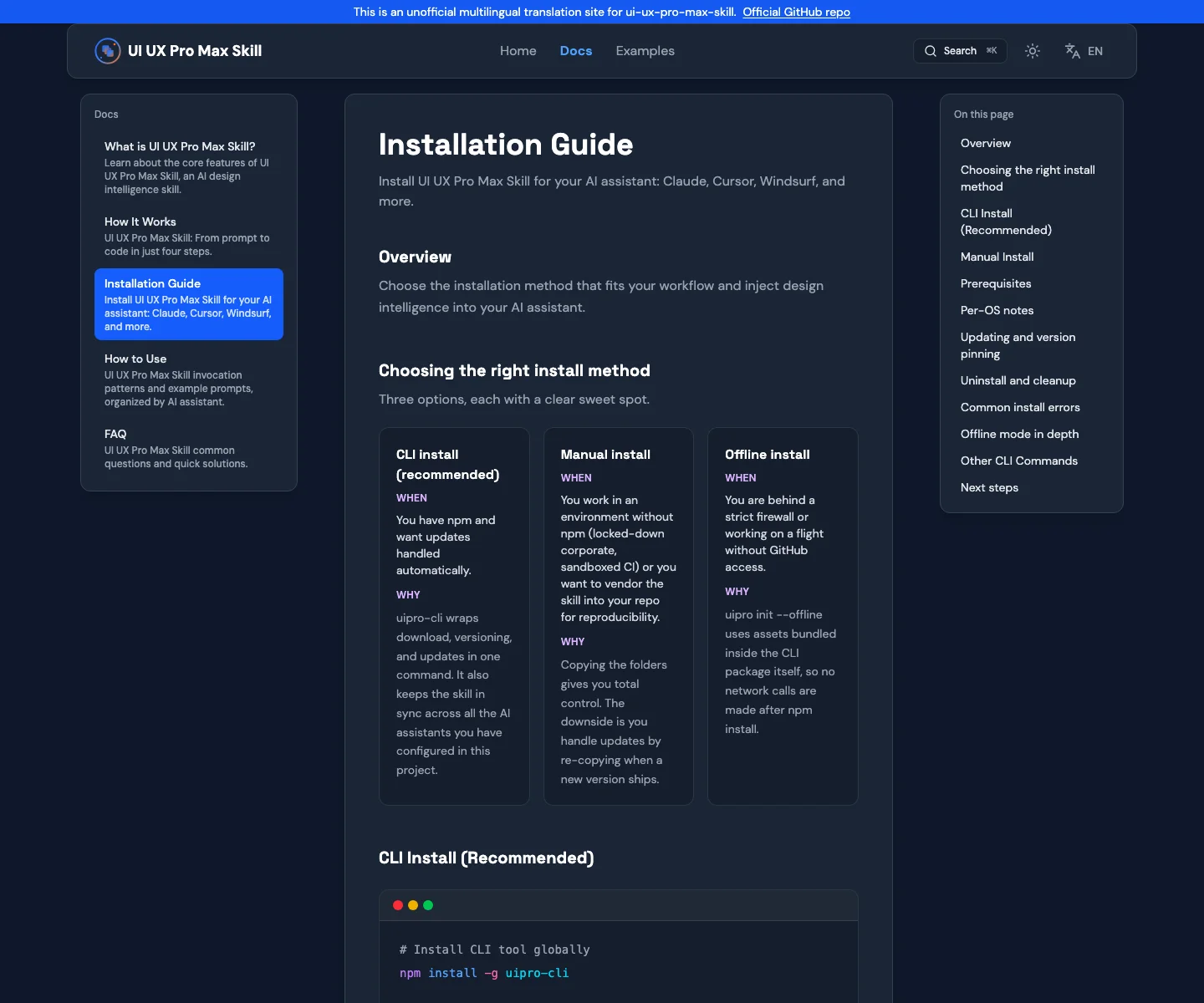
Figure 2: Choose the install method based on network access, reproducibility, and the assistant you actually use.
4. Recommended installation path
For personal use, start with the CLI. It is less error-prone than copying folders by hand because it can place files for the target assistant.
Common commands look like this:
# Claude Code
npx uipro-cli@latest init --ai claude

# Codex
npx uipro-cli@latest init --ai codex

# Cursor
npx uipro-cli@latest init --ai cursor

# Windsurf
npx uipro-cli@latest init --ai windsurf

# Multiple assistants
npx uipro-cli@latest init --ai all
The CLI help shows support for assistant types including claude, cursor, windsurf, antigravity, copilot, roocode, kiro, codex, qoder, gemini, trae, opencode, continue, codebuddy, and all. If in doubt, inspect the current help output:
npx uipro-cli@latest init --help
Two flags are especially useful.
--force overwrites existing files. Use it when you intentionally want to reinstall or repair the Skill. Do not use it casually if you have edited the local Skill files.
--offline skips GitHub download after the CLI package is available. It is useful for locked-down networks, CI, temporary workspaces, and reproducible installs.
For team projects, I prefer committing the installed Skill or at least a project-level design-system output to the repository. That makes the workflow reproducible. The team can then document a rule such as: before editing UI, run UI UX Pro Max design-system generation and store the result in design-system/MASTER.md or in project documentation.
5. Codex installation and verification
A Codex install can be tested like this:
mkdir demo-ui-project
cd demo-ui-project
npx uipro-cli@latest init --ai codex
Then inspect the files:
find .codex/skills/ui-ux-pro-max -maxdepth 2 -type f | sort
You should see SKILL.md, scripts/search.py, and CSV files under data/. Before asking the agent to build anything, run a design-system query manually:
python3 .codex/skills/ui-ux-pro-max/scripts/search.py "AI SaaS analytics dashboard" --design-system -p "DemoAgent" -f markdown
In a real verification run, this produced a full design-system response with pattern, style, colors, typography, effects, anti-patterns, and a pre-delivery checklist. For an AI analytics dashboard, the recommendation leaned toward data density, KPI cards, grid layout, chart interactions, row hover states, readable typography, contrast checks, focus states, and responsive verification.
Then run a focused UX query:
python3 .codex/skills/ui-ux-pro-max/scripts/search.py "accessibility dashboard" --domain ux -n 3
The results highlighted basics such as image alternatives, announced error messages, and color contrast. Those are not exotic design ideas, but they are exactly the details agents often miss when they rush from prompt to code.
6. How to invoke it correctly inside an agent
Installing the Skill does not guarantee good output. The user prompt still matters.
A weak prompt looks like this:
Build a beautiful SaaS landing page.
A stronger prompt gives the agent enough signals:
Use UI UX Pro Max to design and implement a B2B SaaS analytics dashboard.
Product type: AI analytics SaaS.
Surface: dashboard home.
Style: professional, restrained, data-dense. Avoid purple gradients and decorative glow blobs.
Stack: React + Tailwind.
Constraints: no horizontal overflow at 375px, WCAG AA text contrast, hover and focus states for all clickable controls.
Generate the design system first, then implement.
The important difference is not length. The important difference is structure. The agent can extract product type, surface, style, industry, stack, and constraints. Then it should run a command like:
python3 .codex/skills/ui-ux-pro-max/scripts/search.py "B2B SaaS AI analytics dashboard professional data dense" --design-system -p "Project Name" -f markdown
After that, ask it to supplement with UX, chart, and stack guidance:
python3 .codex/skills/ui-ux-pro-max/scripts/search.py   "dashboard accessibility loading error states"   --domain ux

python3 .codex/skills/ui-ux-pro-max/scripts/search.py   "analytics dashboard trend comparison funnel"   --domain chart

python3 .codex/skills/ui-ux-pro-max/scripts/search.py   "dashboard responsive state performance"   --stack react
Only then should it implement. This gives you an opportunity to review the design direction before the code exists.
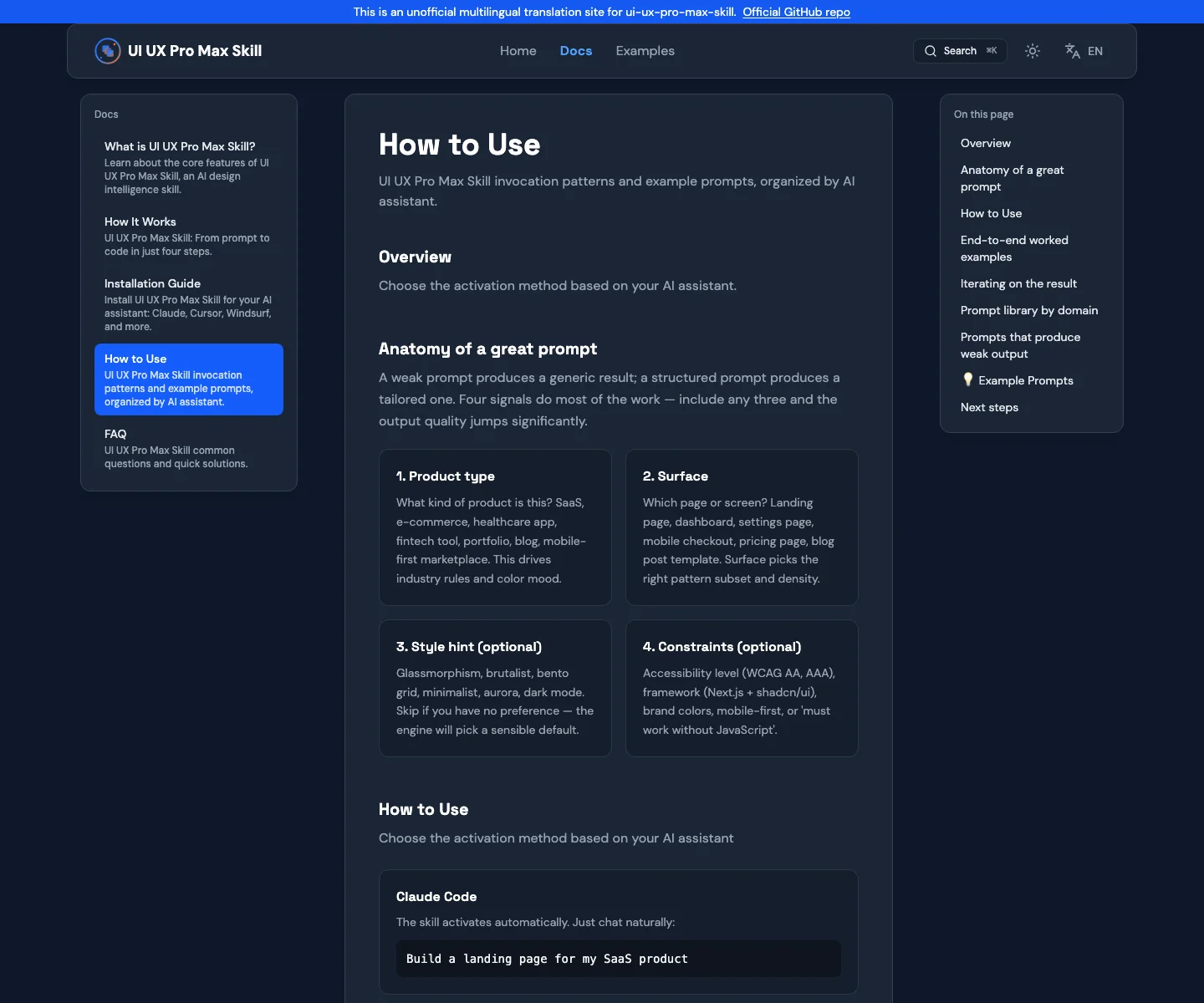
Figure 3: The Skill works best when the prompt gives the agent clear product, surface, style, and constraint signals.
7. A practical five-step workflow
7.1 Ask the agent to restate the UI goal
Before coding, ask it to restate the product type, target user, page type, main task, technology stack, and visual constraints. This catches many mismatches early. If you asked for an operations dashboard and the agent describes a marketing landing page, stop there and correct it.
7.2 Force design-system generation
Require a real --design-system call and a summary of the results. Do not accept vague statements such as “I will follow UI UX Pro Max.” Ask for pattern, style, colors, typography, effects, anti-patterns, and checklist.
If you want the design system to survive across sessions, use --persist:
python3 .codex/skills/ui-ux-pro-max/scripts/search.py "fintech billing dashboard" --design-system --persist -p "Billing Console"
This creates a master design-system document and page-level overrides that future agent sessions can read.
7.3 Add targeted searches
The generated design system is the foundation, not the entire process. For dashboards, search chart guidance. For forms and settings screens, search UX and web guidelines. For React, Next.js, Vue, Svelte, or mobile stacks, search stack-specific implementation guidance.
The point is not to paste search results into the UI. The point is to make the agent aware of the risks before it writes code.
7.4 Turn the design system into code constraints
Agents often generate a design system and then forget it while coding. Prevent that by turning recommendations into implementation constraints:
- Colors must come from the chosen palette.
- Typography must match the density of the surface.
- Buttons, menus, inputs, and tooltips need hover, focus, loading, empty, and error states where relevant.
- Mobile width must be checked at 375px.
- Avoid nested cards, decorative blobs, and one-note palettes unless the design system explicitly justifies them.
- Prefer the project’s existing icon library, such as lucide, over random hand-written SVGs.
- Contrast, wrapping, and target size are acceptance criteria, not polish.
These constraints are more useful than asking for a page to be “modern” or “premium.”
7.5 Verify before delivery
UI verification is not just a build command. Ask the agent to check responsive screenshots, overflow, focus states, contrast, loading, empty states, error states, and the anti-pattern list. If the app has a dev server, the agent should open the page and inspect it visually.
8. When not to blindly trust it
UI UX Pro Max is useful, but it is not a designer, a product manager, or a user research program.
If your organization already has a mature design system, that system wins. UI UX Pro Max can provide suggestions, but it should not override brand colors, typography, spacing, interaction rules, or component behavior.
The design-system output is not a final design. It is a structured starting point. Real pages still need content hierarchy, business priority, task analysis, data density decisions, and state design.
It also cannot replace user testing. A page can use a good palette and still fail if users cannot complete the task, understand errors, recover from failure, or navigate with a keyboard.
Finally, version awareness matters. GitHub releases show that the project continues to change, and the npm CLI version is not necessarily the same number as the Skill release. Check uipro versions before standardizing a team workflow, and pin or commit the Skill files if reproducibility matters.
9. Troubleshooting
The agent does not use the Skill after installation.
Check whether the files landed in the correct assistant-specific directory. Restart the assistant so it rescans skills. In the prompt, explicitly say: “Use UI UX Pro Max and generate the design system first.”
python3 is missing.
Install Python and reopen the terminal. The search interface depends on Python.
npx is slow or fails.
Check npm registry access and network policy. If GitHub access is restricted after package download, try --offline. Do not put internal proxy addresses or credentials into project documentation.
The recommendation is good but the implementation is still ugly.
Make the agent bind the design system to code: palette tokens, typography scale, component states, responsive constraints, and anti-pattern checks. Then require screenshots or visual verification.
The result conflicts with an existing product design system.
Use the existing product system as the source of truth. Treat UI UX Pro Max as supplemental design intelligence.
10. A prompt you can reuse
Please use UI UX Pro Max for this UI/UX task.

Goal: design and implement the dashboard home for a B2B SaaS product.
Users: enterprise operations users and managers who need to scan KPIs, trends, alerts, and tasks quickly.
Surface: in-app dashboard, not a marketing landing page.
Style: professional, restrained, information-dense, suitable for repeated daily use. Avoid large purple gradients, decorative glow blobs, nested cards, and meaningless illustrations.
Stack: React + Tailwind + lucide icons.
Constraints:
- First run search.py --design-system and summarize the design system.
- Then query ux, chart, and react stack guidance.
- During implementation, colors, typography, spacing, and component states must follow the design system.
- No horizontal overflow at 375px.
- All clickable controls need hover and focus states.
- Loading, empty, and error states must be explicit.
- Before delivery, run the pre-delivery checklist and report what was verified.
The key is ordering: understand, query, design, implement, verify. UI UX Pro Max pays off only when the agent follows that order.
11. My positioning for UI UX Pro Max
I would describe UI UX Pro Max as the design intelligence layer in an agent frontend workflow. It is not Figma, not a component library, not a visual designer, and not a universal template. It is a structured UI/UX knowledge base that an agent can consult before writing code.
If you already have a design team, it helps keep agent output closer to the intended direction. If you do not have a design team, it at least prevents many generic AI UI mistakes. If you are prototyping, it can turn the first output into something worth discussing instead of something that obviously came from a generic prompt.
Most importantly, it turns vague taste requests into a checkable process. In agent-driven frontend work, that is far more useful than repeatedly asking for something to look “more modern.”
12. Sources
- UI UX Pro Max GitHub repository: https://github.com/nextlevelbuilder/ui-ux-pro-max-skill
- UI UX Pro Max installation documentation: https://ui-ux-pro-max-skill.com/en/docs/cli-reference/
- UI UX Pro Max usage documentation: https://ui-ux-pro-max-skill.com/en/docs/examples/
- DeepWiki project structure notes: https://deepwiki.com/nextlevelbuilder/ui-ux-pro-max-skill/3-uiux-pro-max-skill
- npm package
uipro-cli: https://www.npmjs.com/package/uipro-cli