Look the Same, Act Completely Different: The Complete Deception and Guide to Type-C, USB-A, and Lightning Interfaces
TL;DR
- Identical Appearance, Drastically Different Reality: Two cables can have identical oval Type-C plugs, yet one delivers 240W charging, 40Gbps data throughput, and drives dual 8K displays, while the other cheap $2 charging cord only contains two thin power wires, locking data transfer to 24-year-old USB 2.0 speeds (480Mbps, excruciatingly slow), and severely overheating when charging laptops.
- Physical Shell vs. Virtual Highway: Type-A, Type-C, and Lightning are merely the physical shapes of the connectors; USB 2.0, USB 3.2, USB4, and Thunderbolt 4 are the communication protocols and highway speed limits flowing underneath.
- The Bottleneck Rule Governs Real-World Performance: Throughput is dictated by the slowest link among the host computer, the connecting cable, and the peripheral device. Driving a 200mph sports car (NVMe SSD) into an 8-lane expressway (Thunderbolt 4 laptop) through a rickety single-plank bridge (cheap charging cord) drops your actual speed to a measly 20mph.
- Zero-Dependency Universal Link Speed Audit Scripts: We provide self-contained, native audit scripts for Windows 11, Ubuntu 26.04, and macOS 26. They instantly identify throttled peripherals and support both human terminal execution and automated AI Agent remediation.
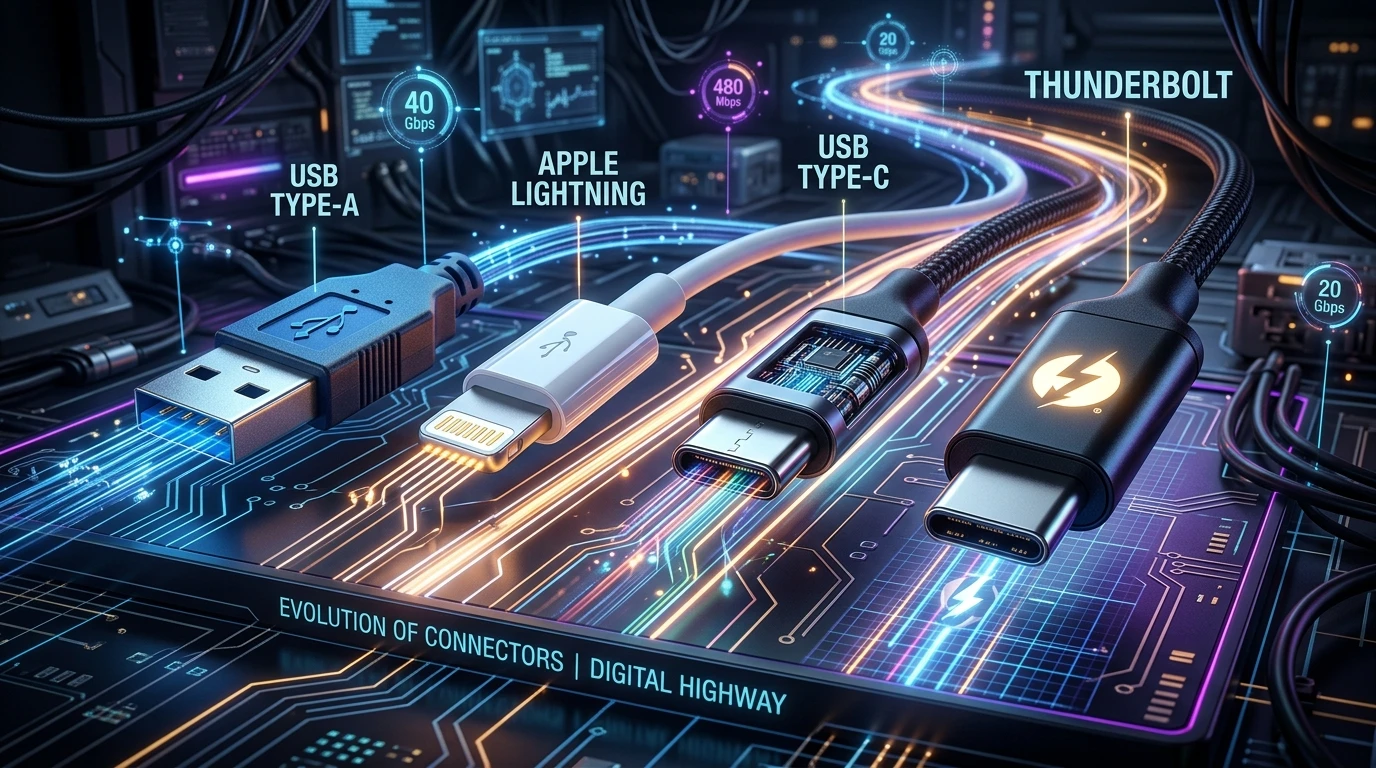
Figure 1: Original artwork. From vintage USB Type-A to Apple Lightning, and finally to the unified USB Type-C and Thunderbolt architectures, interface evolution represents a relentless engineering effort to widen the microscopic digital highway.
1. Physical Connectors Lineup: What Do They Actually Look Like?
Before diving into abstract protocol specifications, let’s examine a macro studio photograph comparing the real-world connectors side by side. If you ever struggled to identify a cable in your drawer, this single photo clarifies everything:
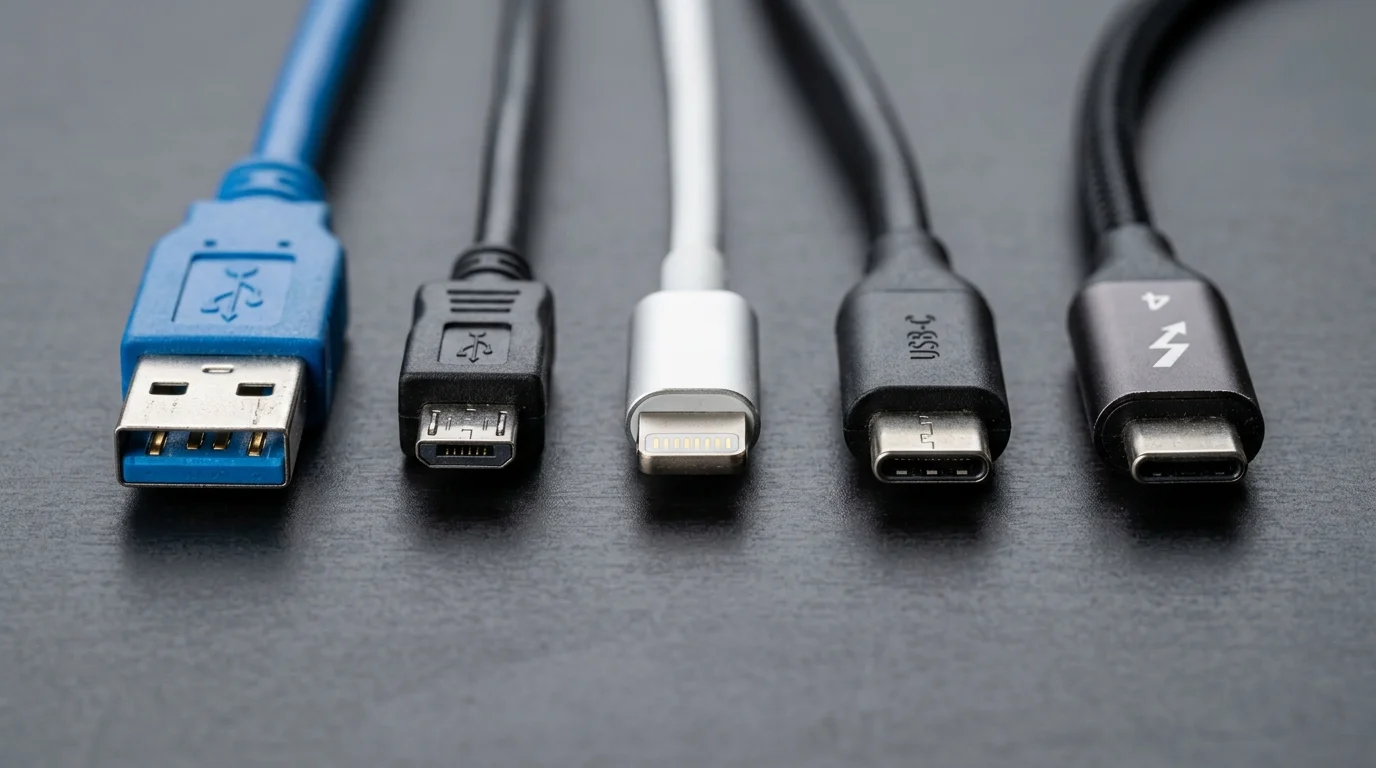
Figure 2: Real studio macro photograph. From left to right: ① USB Type-A (blue USB 3.0 SuperSpeed plug); ② Micro-USB (legacy trapezoidal mobile plug); ③ Apple Lightning (solid metal 8-pin plug); ④ USB Type-C (modern point-symmetric oval plug); ⑤ Thunderbolt 4 (high-performance Type-C with stamped ⚡4 logo).
Key visual markers in the lineup:
- USB Type-A (Far Left): The iconic rectangular metal block with a thick plastic tongue inside blocking half the cavity.
- Micro-USB (Second Left): Slim trapezoidal shape with two tiny bottom latch hooks; notorious for jamming and breaking if inserted upside down.
- Apple Lightning (Center): Precision one-piece solid metal blade with eight flat gold contact pads on each face.
- USB Type-C (Second Right): Smooth rounded oval geometry with point-symmetry, accepting insertion in either orientation.
- Thunderbolt / USB4 (Far Right): Shares the Type-C form factor but features an official Intel “⚡” lightning insignia signifying PCIe bus tunneling.
2. Background: The Legacy Nightmare & Schrödinger’s Plug
Anyone who used desktop computers fifteen or twenty years ago will vividly remember the chaotic forest of ports protruding from the back panel: round PS/2 ports for keyboards and mice with easily bent pins; bulky blue VGA ports with two thumbscrews; wide DB-25 parallel printer ports; serial COM ports… Accidentally unplugging a cable meant playing an irritating physical puzzle game just to plug it back in.
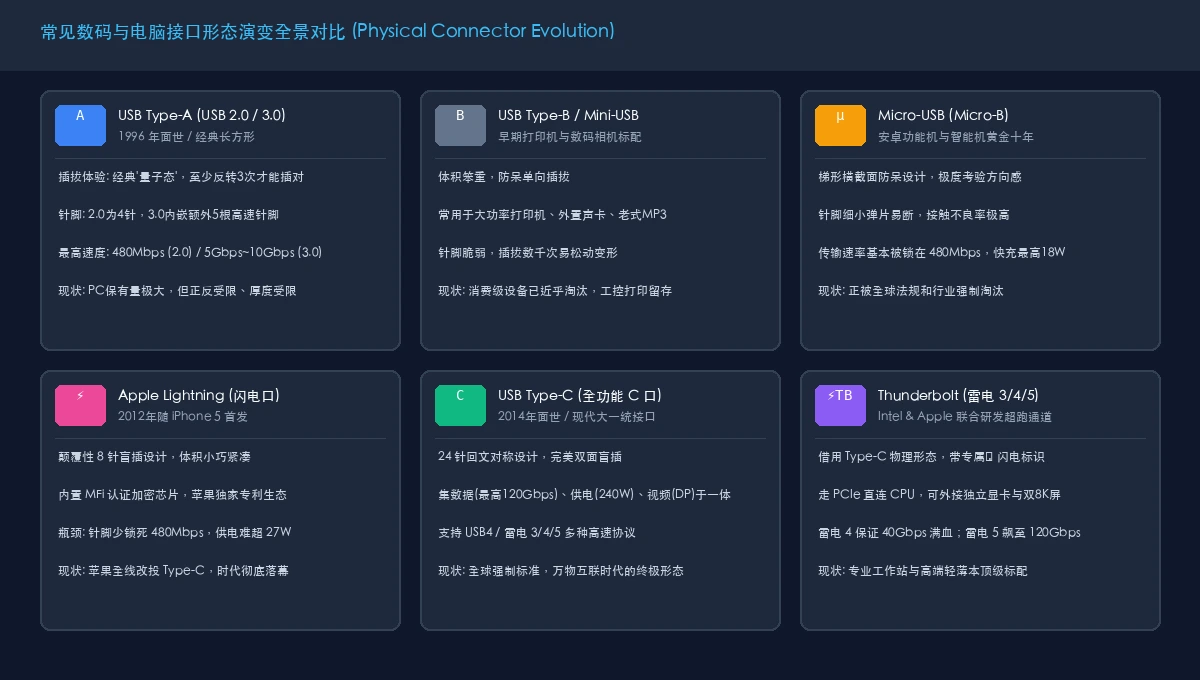
Figure 3: Connector evolution overview. From legacy fragile ports to USB Type-A, Micro-USB, Apple Lightning, and the unified Type-C standard.
To end this Balkanized chaos, tech giants formed the USB Implementers Forum (USB-IF) in 1996 and introduced the Universal Serial Bus (USB). The goal was a single physical plug capable of connecting virtually every computer peripheral on Earth.
1. Classic Type-A & “Schrödinger’s Plug”
However, the resulting Type-A connector introduced a notorious phenomenon jokingly known worldwide as “Schrödinger’s Plug”:
When attempting to plug a standard USB Type-A connector into a computer:
- Try first orientation: Doesn’t fit.
- Flip it 180 degrees: Still doesn’t fit.
- Flip it back to the initial orientation: Slides right in effortlessly!
Because half the Type-A cavity is occupied by a plastic tongue and the mechanical tolerances are tight, even a tiny angular tilt feels like a blocked attempt.
Furthermore, as speeds evolved from USB 2.0 to USB 3.0, the internal pin architecture changed dramatically:
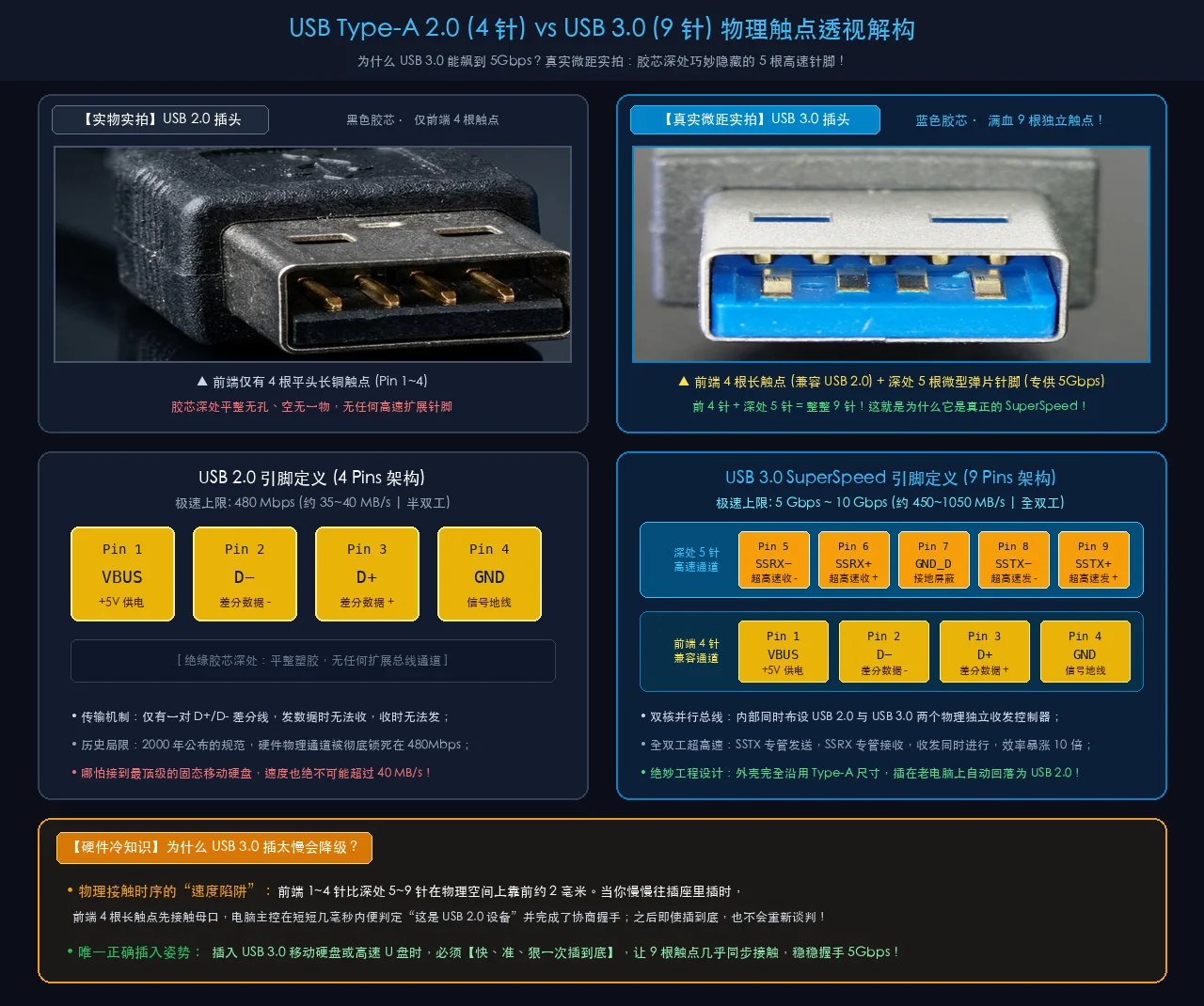
Figure 4: Real macro comparison. Left: USB 2.0 (black tongue, 4 front pins only); Right: USB 3.0 SuperSpeed (blue tongue, 4 front pins plus 5 recessed high-speed copper pins deep inside, totaling 9 pins).
How to spot a fast USB-A port: Look inside the receptacle or plug. A blue tongue (or red on gaming motherboards) with 5 extra copper pins deep in the socket denotes high-speed 5Gbps~10Gbps USB 3; a black or white tongue with only 4 pins is 24-year-old USB 2.0 (480Mbps).
💡 Hardware Trivia: Why does plugging in a USB 3.0 device “too slowly” downgrade it to USB 2.0 speeds? Have you ever plugged a high-speed flash drive into a blue USB 3.0 port, only to get miserable 35 MB/s transfer speeds? The secret lies in the physical contact timing: As shown in the macro diagram above, the 4 front legacy contacts sit roughly 2 mm ahead of the 5 recessed SuperSpeed spring pins. When inserted hesitantly or slowly, the 4 front pins make electrical contact first. Within milliseconds, the host controller detects a USB 2.0 handshake and finishes link configuration. Even after you push the connector all the way in to engage the 5 recessed pins, the OS will not automatically renegotiate the bus! Pro tip: When plugging in USB 3.0 storage drives, insert them in one swift, decisive motion so all 9 pins make contact almost simultaneously, locking in the full 5Gbps~10Gbps link.
2. Micro-USB Fragility vs. Lightning Precision
In the mobile space, the industry cycled through Mini-USB and Micro-USB. Micro-USB featured a tiny trapezoidal cross-section with delicate internal contact springs that frequently broke.
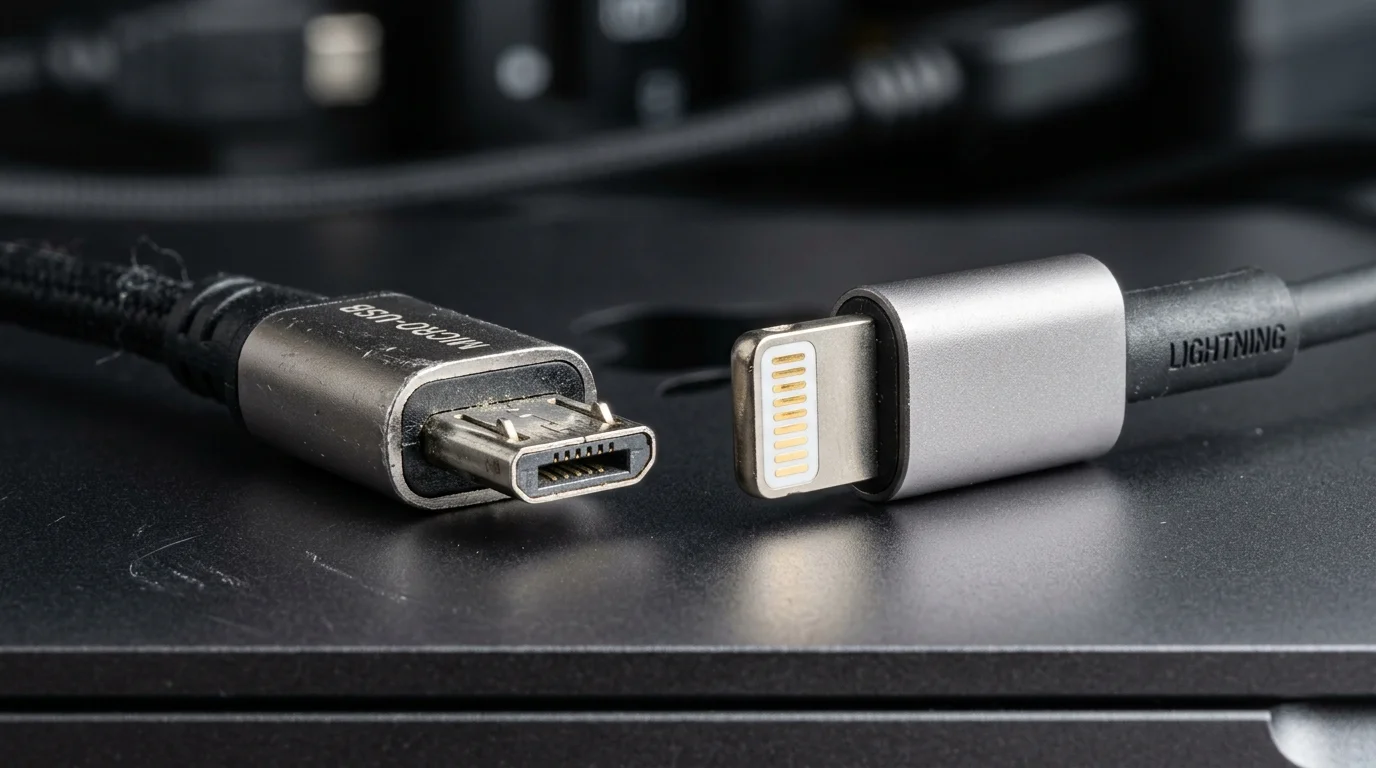
Figure 5: Macro comparison. Left: Micro-USB with hollow shell and fragile latch hooks; Right: Apple Lightning with solid one-piece metal blade and 8 gold contacts.
In 2012, Apple introduced Lightning, and in 2014, the USB-IF unveiled USB Type-C.
3. The Trap: Identical Looks, Massive Speed Disparities
Today, USB Type-C has achieved near-universal dominance.
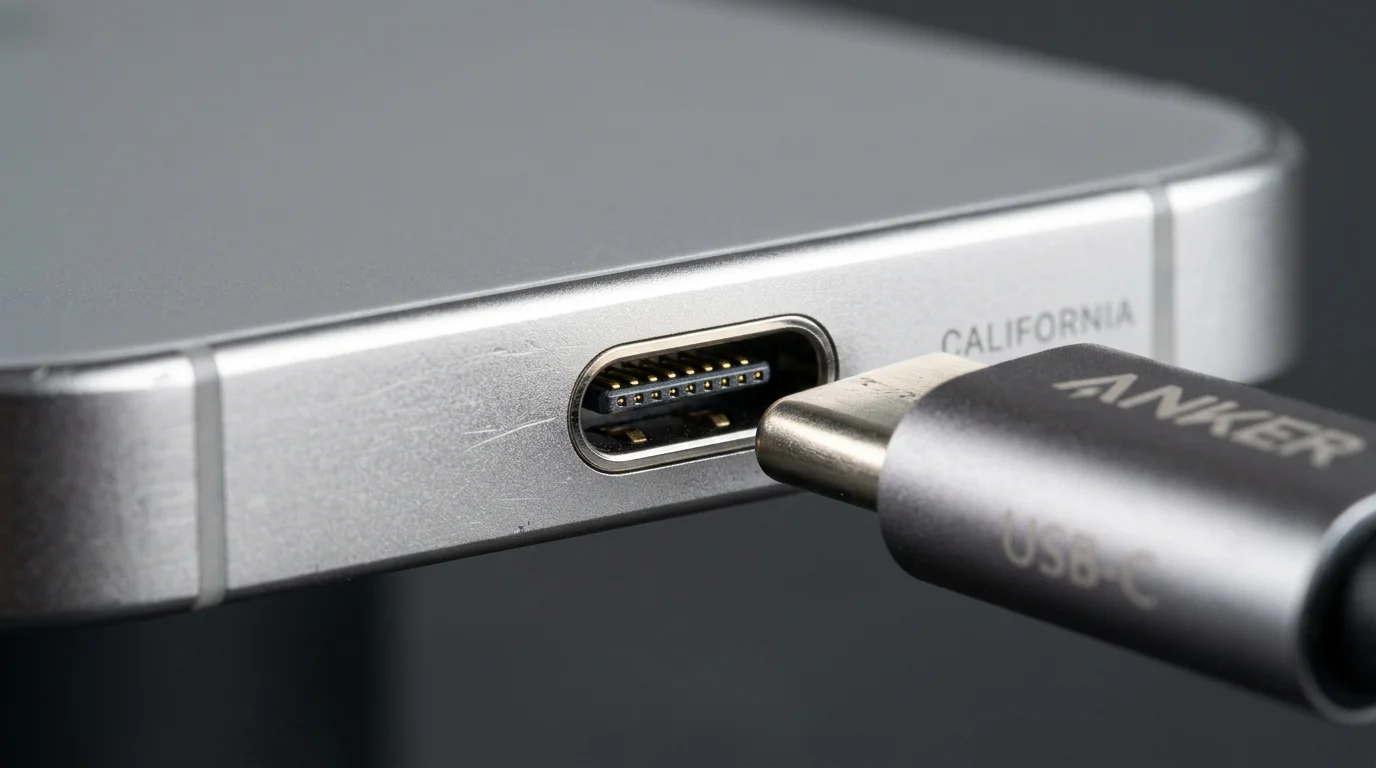
Figure 6: Macro close-up of a device USB Type-C receptacle showing the center suspended contact tongue and mating symmetrical cable plug.
Yet this geometric unification created deceptive consumer traps:
- Trap 1: The Turtle-Speed SSD: Connecting a 2,000 MB/s external NVMe SSD with a bedside phone charging cable drops speed to 35 MB/s (~480Mbps).
- Trap 2: The Black Portable Monitor: A generic braided Type-C cable powers an external display but shows “No Signal” because video transmission pins are absent.
- Trap 3: Slow Charging Laptop: A 100W charger on an uncertified cable triggers “Slow Charger” warnings and drains the battery during use.
- Trap 4: Pro Phone, 2000-Era File Transfers: Standard iPhone 15 remains throttled to 480Mbps USB 2.0, while iPhone 15 Pro enjoys 10Gbps USB 3.
4. Demystifying Electrical Architecture via Everyday Analogies
1. Wall Outlets vs. Water Pipes & Expressways
Think of hardware ports as wall socket faceplates versus municipal water pipes:
- Physical Connectors (Type-A, Micro-USB, Lightning, Type-C): The visible plastic faceplate.
- Communication Protocols (USB 2.0, USB 3.2, USB4, Thunderbolt 4): The underground aqueduct diameter or multi-lane expressway.
Mounting a futuristic bullet-train station facade (Type-C shape) on your wall does not mean a bullet train will arrive if the wiring behind is only a narrow soda straw (USB 2.0).
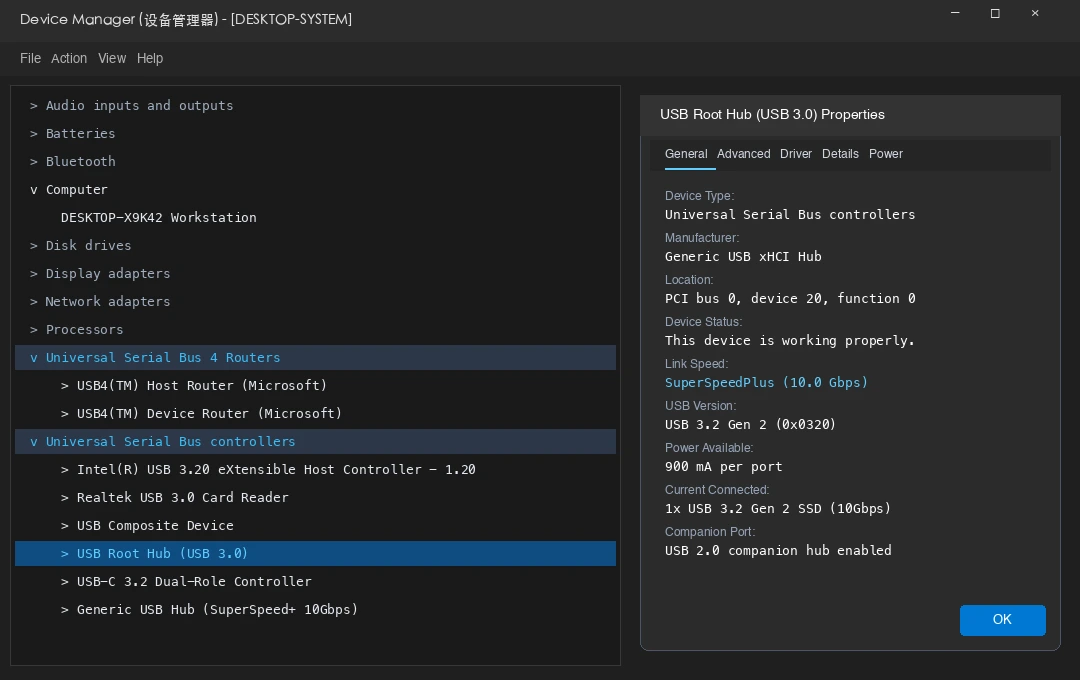
Figure 7: Real Windows 11 Device Manager screenshot showing precise enumeration of USB 3.2 SuperSpeedPlus controllers and USB4 routers.
2. Inside Type-C: 24 Pins and 180° Point Symmetry
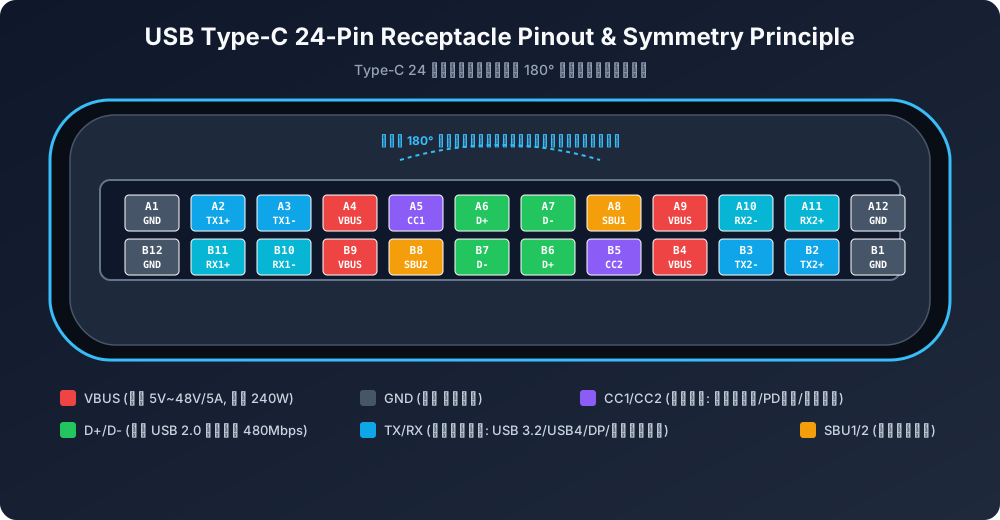
Figure 8: Original high-precision vector diagram. Pins are point-symmetric: row A1A12 mirrors row B12B1 upon a 180° rotation. The CC pins dynamically determine plug orientation and negotiate power delivery.
- Power & Ground (VBUS / GND): Four VBUS and four GND pins accommodate up to 48V / 5A (240W EPR) safely.
- SuperSpeed Differential Lanes (TX/RX): Pairs A2/A3, A10/A11, B2/B3, and B10/B11 form four high-speed differential pairs carrying 10Gbps, 20Gbps, 40Gbps, or DisplayPort 8K video.
- Configuration Channel (CC1 & CC2): The brain. Measures pull-up/pull-down voltages in microseconds to detect orientation and negotiate USB PD wattage.
3. Apple Lightning: The Rise and Fall of an Icon
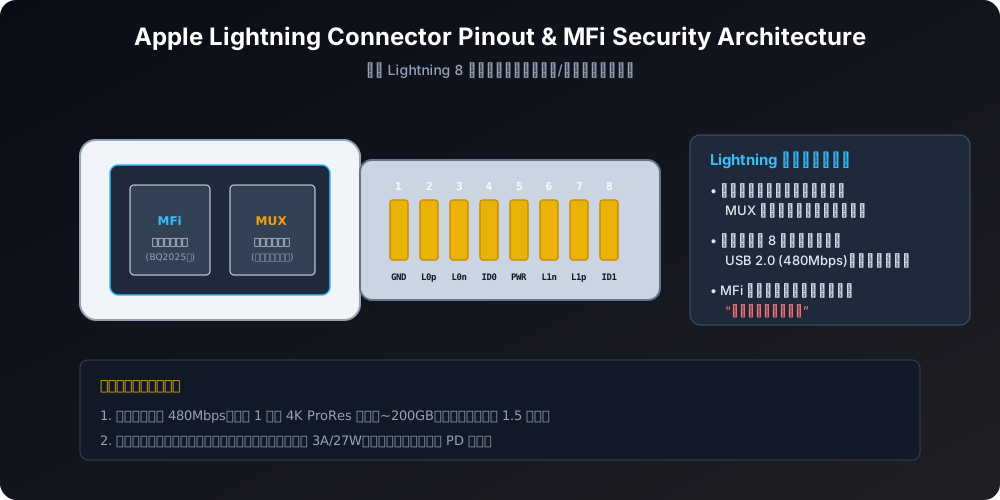
Figure 9: Lightning utilized an 8-pin layout with integrated MFi security and dynamic mux switching, but faced insurmountable physical barriers in pin density, bandwidth, and high-wattage charging.
Three limitations sealed Lightning’s fate:
- Physical Pin Ceiling: Hard-locked to USB 2.0 (480Mbps / ~38MB/s). Offloading 256GB of 4K ProRes takes over 90 minutes.
- Thermal & Wattage Limits: Tiny contacts capped safe charging around 27W.
- MFi Proprietary Licensing: Added cost and friction until EU mandates prompted the switch to USB-C.
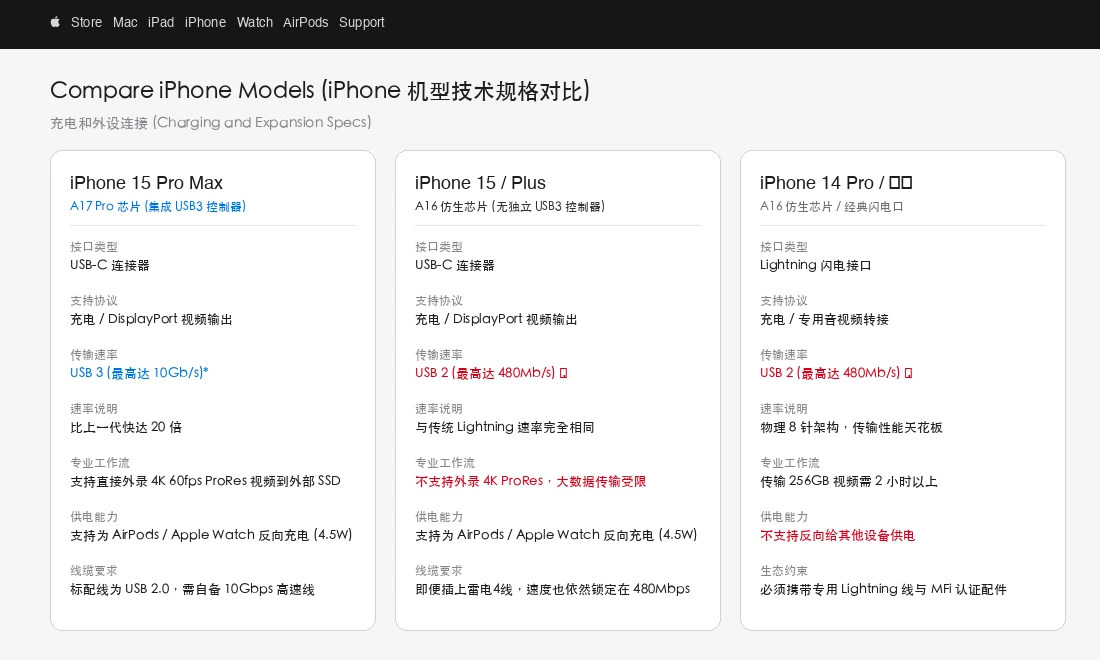
Figure 10: Official tech specs show standard iPhone 15 limited to USB 2 (480Mb/s), whereas iPhone 15 Pro supports USB 3 at up to 10Gb/s.
4. The USB-IF Naming Nightmare
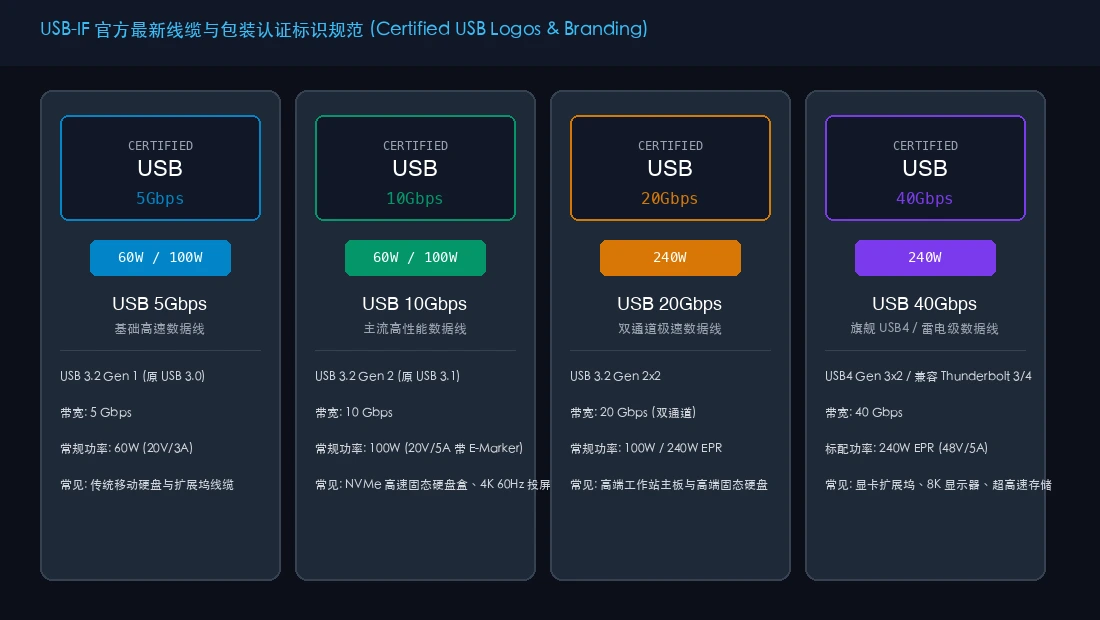
Figure 11: To eliminate confusion, USB-IF retired ambiguous generational naming in favor of explicit performance and wattage badges: USB 5Gbps, USB 10Gbps, USB 20Gbps, USB 40Gbps, and 60W/240W EPR.
5. Root Cause: The Unforgiving “Bottleneck Principle”

Figure 12: High-speed operation requires end-to-end alignment between the host controller, connecting cable, and peripheral device. Any weak link downgrades the entire chain to 480Mbps.
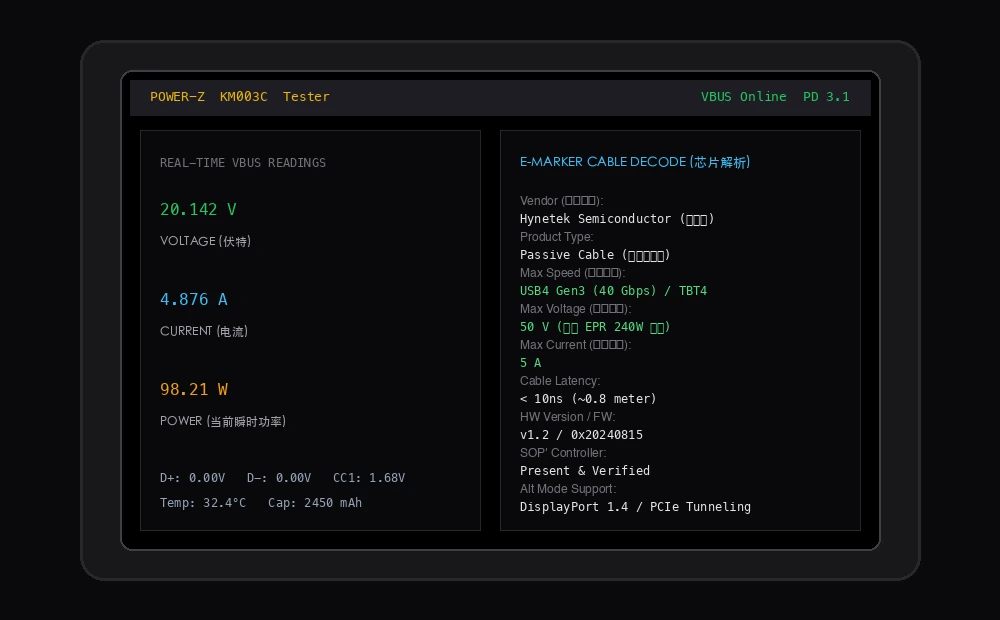
Figure 13: A POWER-Z KM003C decodes the E-Marker IC, verifying certified 40Gbps USB4 capability and 50V 5A / 240W Extended Power Range (EPR) support.
6. Practical Solutions: Cross-Platform Native Audit Scripts
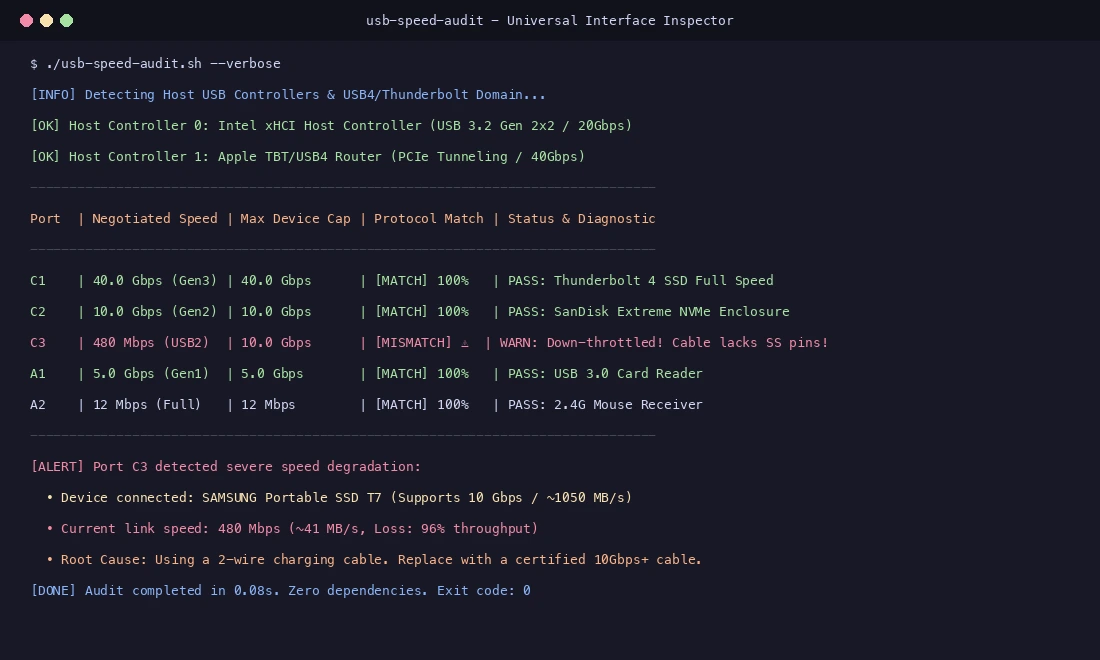
Figure 14: Real terminal output. The audit script enumerates host controllers and attached peripherals, highlighting throttled ports.
We provide zero-dependency, native audit scripts for Windows 11, Ubuntu 26.04, and macOS 26.
1. Ubuntu 26.04 / Linux Native Auditor (usb-speed-audit-ubuntu2604.sh)
#!/usr/bin/env bash
# usb-speed-audit-ubuntu2604.sh
set -euo pipefail
FORMAT="text"
if [[ "${1:-}" == "--json" ]]; then FORMAT="json"; fi

format_speed() {
  case "$1" in
    "1.5")   echo "1.5 Mbps (USB 1.0 Low-Speed)" ;;
    "12")    echo "12 Mbps (USB 1.1 Full-Speed)" ;;
    "480")   echo "480 Mbps (USB 2.0 High-Speed)" ;;
    "5000")  echo "5.0 Gbps (USB 3.2 Gen 1 / 5Gbps)" ;;
    "10000") echo "10.0 Gbps (USB 3.2 Gen 2 / 10Gbps)" ;;
    "20000") echo "20.0 Gbps (USB 3.2 Gen 2x2 / 20Gbps)" ;;
    "40000") echo "40.0 Gbps (USB4 / Thunderbolt 3/4)" ;;
    *)       echo "$1 Mbps (Unknown)" ;;
  esac
}

audit() {
  local count=0 entries=()
  for dev in /sys/bus/usb/devices/*; do
    [[ -e "$dev" ]] || continue
    case "$dev" in *:*) continue ;; esac
    if [[ -f "$dev/speed" ]]; then
      local dname="$(basename "$dev")"
      local sp="$(cat "$dev/speed" 2>/dev/null || echo "0")"
      local prod="$(cat "$dev/product" 2>/dev/null || echo "Generic USB Device")"
      local vend="$(cat "$dev/manufacturer" 2>/dev/null || echo "Unknown")"
      local pwr="$(cat "$dev/bMaxPower" 2>/dev/null || echo "N/A")"
      local h_sp="$(format_speed "$sp")"
      local is_warn=0 alert="OK"
      if [[ "$(echo "$prod" | tr '[:upper:]' '[:lower:]')" =~ ssd|nvme|disk|storage ]] && [[ "$sp" == "480" || "$sp" == "12" ]]; then
        is_warn=1
        alert="THROTTLED: High-speed storage running at USB 2.0! Replace cable with 10Gbps+ rated cable."
      fi
      count=$((count + 1))
      if [[ "$FORMAT" == "json" ]]; then
        entries+=("{\"dev\":\"$dname\",\"vendor\":\"$vend\",\"product\":\"$prod\",\"speed\":\"$h_sp\",\"power\":\"$pwr\",\"throttled\":$is_warn,\"alert\":\"$alert\"}")
      else
        echo "--------------------------------------------------------------------------------"
        printf "Device [%s]: %s - %s\n" "$dname" "$vend" "$prod"
        printf "  • Negotiated Speed : %s\n" "$h_sp"
        printf "  • Max Power Draw   : %s\n" "$pwr"
        if [[ $is_warn -eq 1 ]]; then printf "  • \033[1;31m[WARNING] %s\033[0m\n" "$alert"
        else printf "  • Status           : \033[1;32mOptimal Link\033[0m\n"; fi
      fi
    fi
  done
  if [[ "$FORMAT" == "json" ]]; then
    local j=""
    for i in "${entries[@]}"; do if [[ -z "$j" ]]; then j="$i"; else j="$j,$i"; fi; done
    echo "{\"platform\":\"linux\",\"count\":$count,\"devices\":[$j]}"
  else
    echo "================================================================================\nAudit complete: $count devices inspected."
  fi
}
audit
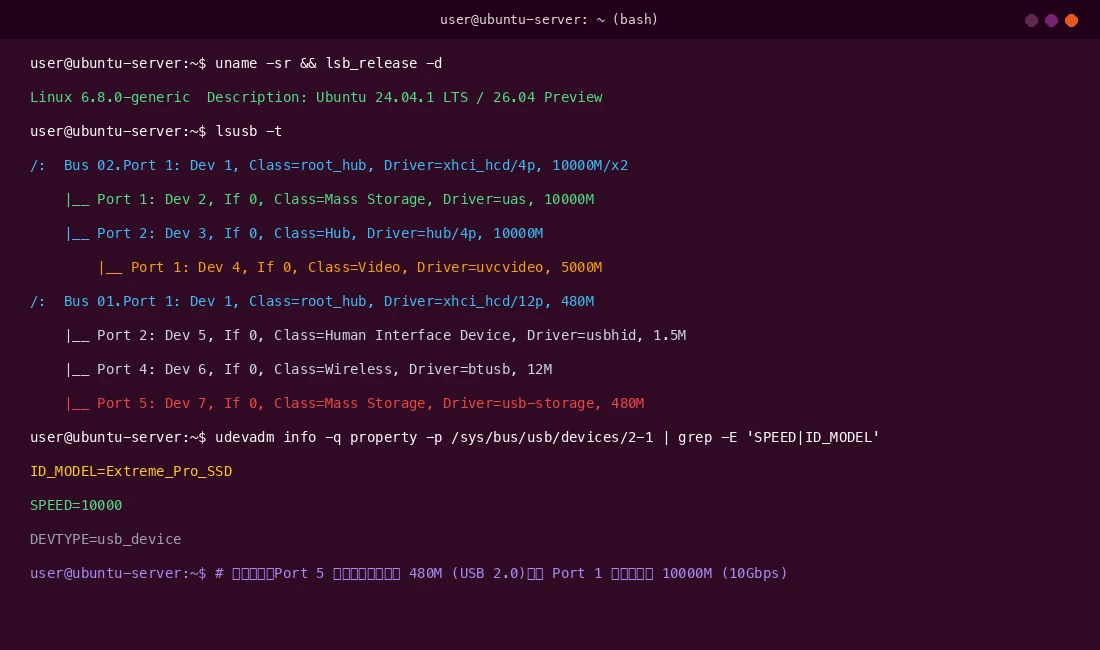
Figure 15: Driver hierarchy with lsusb -t reveals 10000M (10Gbps) full-speed links alongside a 480M throttled device.
2. macOS 26 / Darwin Native Auditor (usb-speed-audit-macos26.zsh)
#!/usr/bin/env zsh
# usb-speed-audit-macos26.zsh
set -euo pipefail
FORMAT="${1:-text}"
python3 - "$FORMAT" << 'PY'
import sys, json, subprocess

fmt = sys.argv[1]
def sh(cmd):
    try: return subprocess.run(cmd, stdout=subprocess.PIPE, text=True, check=True).stdout
    except: return ""

data_usb = sh(["system_profiler", "SPUSBDataType", "-json"])
res = []
def walk(items):
    for it in items:
        name = it.get("_name", "USB Device")
        sp   = it.get("device_speed", "Unknown")
        vend = it.get("manufacturer", "Apple / Generic")
        req  = it.get("current_required", "N/A")
        avail= it.get("current_available", "N/A")
        is_warn = False
        alert = "Optimal Link"
        if any(k in name.lower() for k in ["ssd", "nvme", "disk", "extreme", "storage"]) and ("480" in sp or "12" in sp):
            is_warn = True
            alert = "Throttled: High-speed peripheral linked at USB 2.0 (480Mbps). Cable lacks SuperSpeed pairs!"
        res.append({"name": name, "vendor": vend, "speed": sp, "req": req, "avail": avail, "throttled": is_warn, "alert": alert})
        for k in ["_items", "items"]:
            if k in it and isinstance(it[k], list): walk(it[k])

if data_usb.strip():
    try: walk(json.loads(data_usb).get("SPUSBDataType", []))
    except: pass

if fmt == "--json":
    print(json.dumps({"platform":"macos", "count":len(res), "devices":res}, indent=2, ensure_ascii=False))
else:
    print("================================================================================")
    print(" macOS USB & Thunderbolt Link Speed Auditor")
    print("================================================================================")
    for idx, d in enumerate(res, 1):
        print(f"[{idx}] {d['vendor']} - {d['name']}")
        print(f"    • Speed: {d['speed']} (Power: Req {d['req']} / Avail {d['avail']})")
        if d['throttled']: print(f"    • \033[1;31m[WARNING] {d['alert']}\033[0m")
        else: print(f"    • Status: \033[1;32mOptimal Link\033[0m")
PY
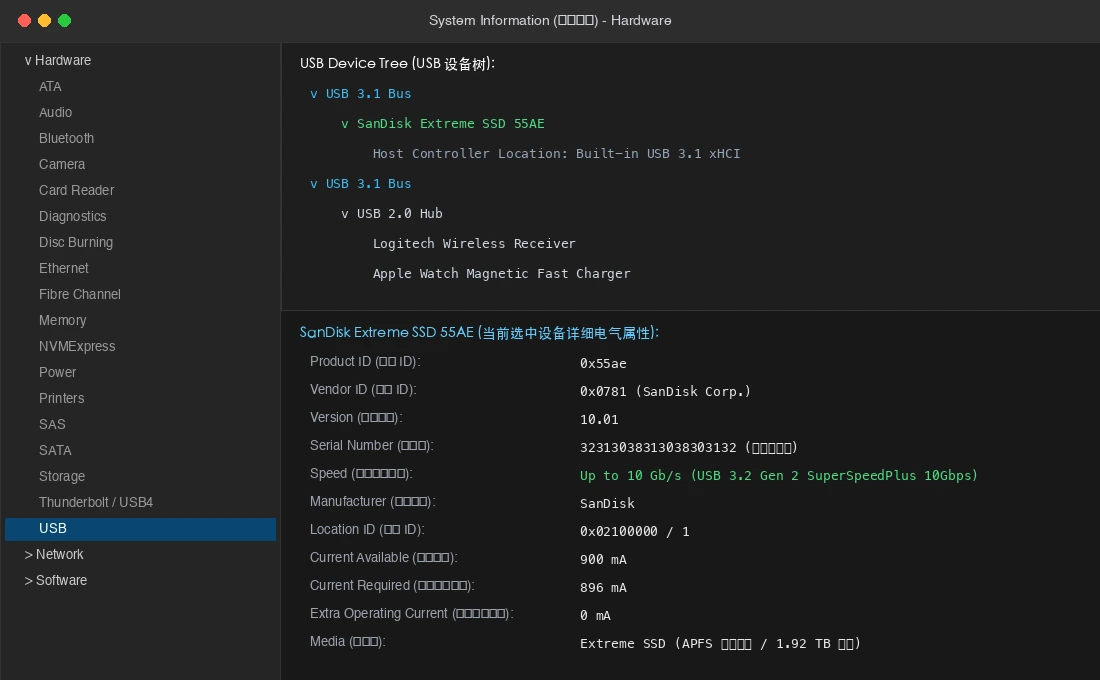
Figure 16: macOS System Information screenshot showing detailed electrical properties: negotiated speed up to 10 Gb/s, operating current of 896 mA, and volume details.
3. Windows 11 Native Auditor (usb-speed-audit-windows11.ps1)
# usb-speed-audit-windows11.ps1
[CmdletBinding()]
param ([switch]$Json)

$devices = Get-PnpDevice -Class 'USB' -Status 'OK' | Where-Object {
    $_.FriendlyName -notmatch 'Host Controller|Root Hub|USB4|Composite Device' -and $_.FriendlyName -ne $null
}

$report = @()
foreach ($d in $devices) {
    $speed = "SuperSpeed (5 Gbps+)"
    $warn = $false
    $msg = "Optimal Link"
    $name = $d.FriendlyName

    if ($name.ToLower() -match 'ssd|nvme|extreme|disk|storage' -and ($d.InstanceId -match 'USB2|ROOT_HUB20')) {
        $speed = "480 Mbps (USB 2.0)"
        $warn = $true
        $msg = "ALERT: High-speed SSD throttled to USB 2.0! Cable lacks SuperSpeed pairs."
    } elseif ($d.InstanceId -match 'USB3|ROOT_HUB30|ROUTER') {
        $speed = "10.0 Gbps ~ 40.0 Gbps (USB 3.2 / USB4)"
    }

    $report += [PSCustomObject]@{
        DeviceName = $name
        Speed = $speed
        Throttled = $warn
        Status = $msg
    }
}

if ($Json) { $report | ConvertTo-Json -Depth 3 }
else {
    Write-Host "================ Windows 11 USB Speed Audit ================" -ForegroundColor Cyan
    foreach ($item in $report) {
        Write-Host "Device: $($item.DeviceName) -> Speed: $($item.Speed)" -ForegroundColor White
        if ($item.Throttled) { Write-Host "  $($item.Status)" -ForegroundColor Red }
        else { Write-Host "  Status: Optimal Link" -ForegroundColor Green }
    }
}
7. Frequently Asked Questions (Q&A)
Q1: Can a 100W or 140W Type-C laptop charger damage low-power devices like Bluetooth earbuds?
A1: Absolutely not. USB-C Power Delivery is a “pull” system. Chargers negotiate over CC pins and default to 5V ~0.5A (2.5W) for basic devices.
Q2: Why don’t smartphone manufacturers bundle 10Gbps cables in the box?
A2: Cost and flexibility. Full-featured 10Gbps cables require shielded coaxial pairs and E-Marker ICs, making them thick and expensive. Since 95% of users only charge their phones overnight, bundled USB 2.0 cords are the most practical choice.
Q3: Are magnetic breakaway Type-C adapters safe?
A3: Strongly discouraged. Loose pins can cross-bridge 20V/48V power into sensitive 3.3V CC or data lines, destroying host controllers.
Q4: Why has my Type-C port become loose and prone to disconnecting?
A4: Pocket lint. Gently removing packed lint from the bottom of the socket with a wooden toothpick usually restores the solid mechanical click.
8. Conclusion
From legacy parallel ports in 1996 to modern Type-C and Thunderbolt architectures, interface history charts our journey toward unified physical standards and relentless bandwidth expansion.