Stop Clicking Remote Desktop: Let AI Agents SSH into Windows Instead
The short version
An AI agent does not need Remote Desktop, VNC, or a proprietary remote-control tool to operate a Windows machine. For many workstations, lab machines, development PCs, and internal servers, the cleanest path is to enable the built-in OpenSSH Server on Windows and connect from Linux or macOS with a normal command:
ssh <user>@<windows-host>.There are only three things to get right. First, install and enable OpenSSH Server on Windows 10 or Windows 11. Second, generate an SSH key on Linux or macOS and place the public key on Windows. Third, if the target account belongs to the Windows Administrators group, put the public key in
C:\ProgramData\ssh\administrators_authorized_keysand lock down the ACL withicacls. After that, an AI agent can run PowerShell, copy scripts, collect logs, install tools, and perform repeatable maintenance through the same SSH workflow it already uses for Linux.
All hostnames, addresses, usernames, screenshots, and commands in this article use generic placeholders. No real internal addresses, usernames, machine names, tokens, keys, or private paths are included. Replace placeholders such as <user>, <windows-host>, and <windows-ip> with values from your own environment.
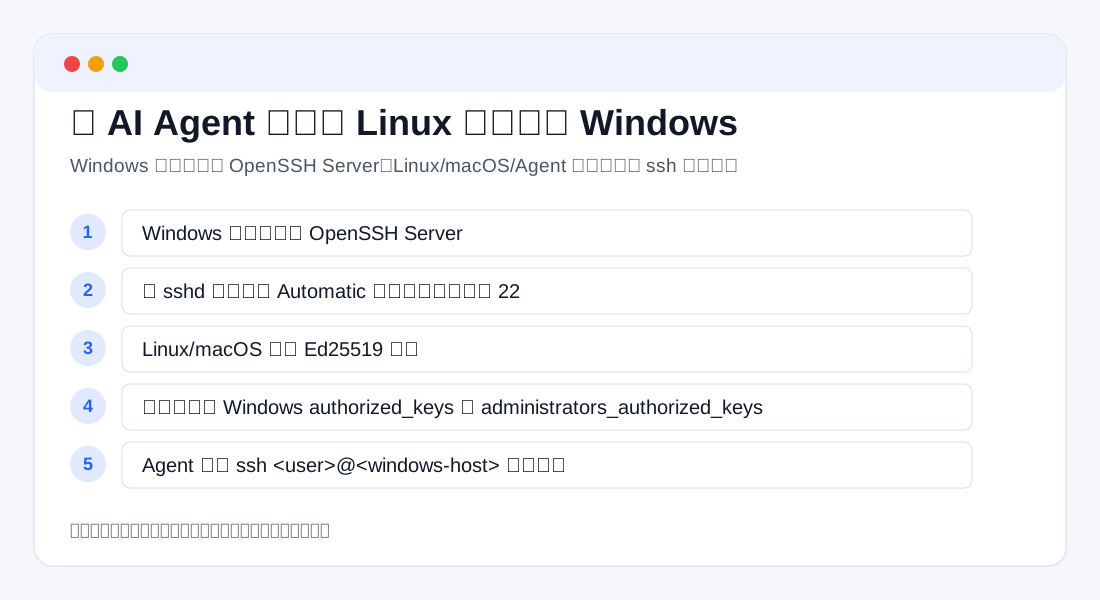
Figure 1: Windows runs OpenSSH Server. Linux, macOS, and the agent only need a standard SSH client.
1. Why SSH instead of Remote Desktop?
Remote Desktop is useful when you need a graphical session. It is good for checking a desktop app, handling a visual prompt, or changing a setting that has no clean command-line interface. But an AI agent usually does not work by looking at pixels and clicking buttons. It reads files, runs commands, edits configuration, executes scripts, gathers logs, and verifies results. For that workflow, SSH is often a better fit.
SSH has several practical advantages. First, it is command-line native. The agent does not need to understand screen scaling, button positions, window focus, keyboard layout, or a remote clipboard. It can run Get-Service, Get-EventLog, Get-WinEvent, winget, scoop, choco, or any PowerShell script and then reason over the resulting text.
Second, it supports key-based automation. Generate a key pair on Linux or macOS, keep the private key on the client, and place the public key on Windows. The agent no longer needs the Windows password for every login, and you do not need to store that password inside prompts or scripts.
Third, it is cross-platform. Linux, macOS, Windows, NAS devices, CI runners, containers, and development machines all understand SSH. Once Windows exposes a standard SSH endpoint, it becomes another host in the same automation graph.
Fourth, it is auditable. You can choose which users may log in, inspect the firewall rule, review Windows events, and adjust sshd_config when you need tighter restrictions. The behavior is clearer than many opaque remote-control tools.
SSH is not a replacement for the GUI. It will not solve tasks that require a visual desktop prompt, and it does not bypass the Windows permission model. If you log in as a normal user, you get normal-user permissions. If you log in as an administrator, you are creating a high-privilege remote entry point. The goal is not to expose Windows carelessly. The goal is to make Windows manageable through a standard, scriptable, and reviewable channel.
2. Confirm the Windows version and network boundary
Windows 10 version 1809 and later provide OpenSSH as an optional feature, and Windows 11 supports the same model. You do not need a random third-party SSH server, Cygwin, or WSL just to accept SSH logins. The recommended path is the built-in Windows OpenSSH Server feature.
Before installing it, confirm three things. First, the Windows machine should be inside a trusted network boundary, such as a home network, lab network, VPN, office network, or another controlled segment. Do not expose port 22 directly to the public internet. Second, you need an elevated PowerShell session. Installing the feature, enabling the service, adjusting the firewall, and configuring administrator keys require administrator privileges. Third, decide which Windows account should be used. Start with a local Windows user or a domain user. Do not assume an online account is the correct path for this OpenSSH setup; Windows OpenSSH authentication should be treated as password and publickey authentication.
The examples use these placeholders:
<windows-host>    Windows hostname or resolvable name
<windows-ip>      Windows host address
<user>            Normal Windows user
<admin-user>      Windows user that belongs to local Administrators
The final command is simple:
ssh <user>@<windows-host>
# or
ssh <user>@<windows-ip>
The rest of the article prepares Windows so that this command works reliably.
3. Enable OpenSSH Server on Windows 11 using Settings
On Windows 11, OpenSSH Server is installed from Optional features. Button labels may vary slightly between builds and languages, but the flow is stable.
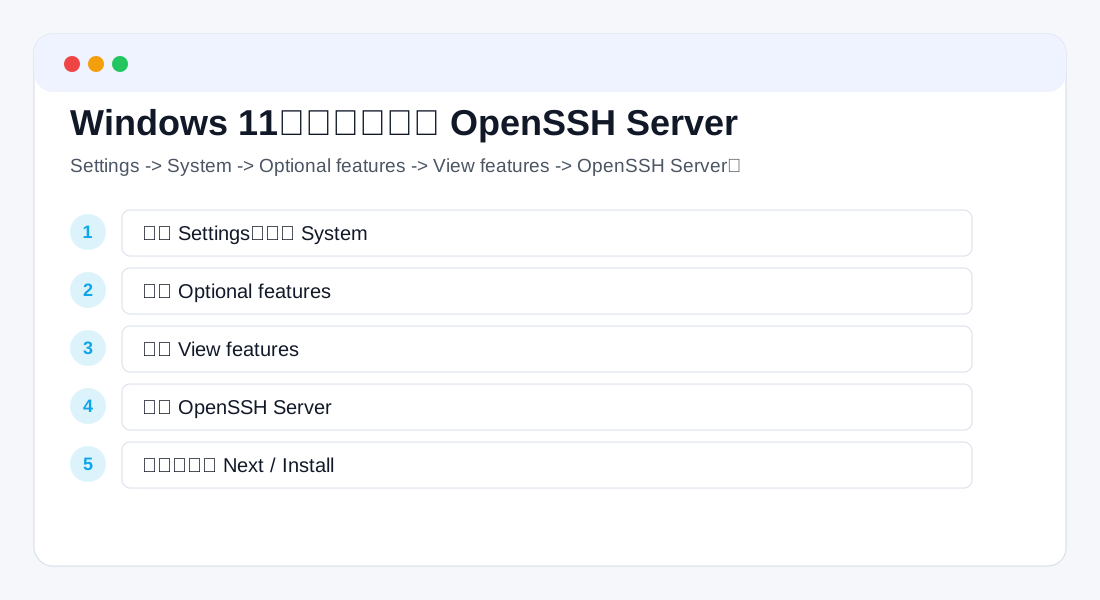
Figure 2: On Windows 11, install OpenSSH Server from Settings -> System -> Optional features.
Steps:
- Open Settings.
- Go to System.
- Open Optional features.
- Select View features.
- Search for
OpenSSH Server. - Select OpenSSH Server.
- Click Next, then Install.
- Wait for installation to finish.
Installation alone is not enough. Press Win + R, type:
services.msc
Find OpenSSH SSH Server, open its properties, set Startup type to Automatic, and click Start.
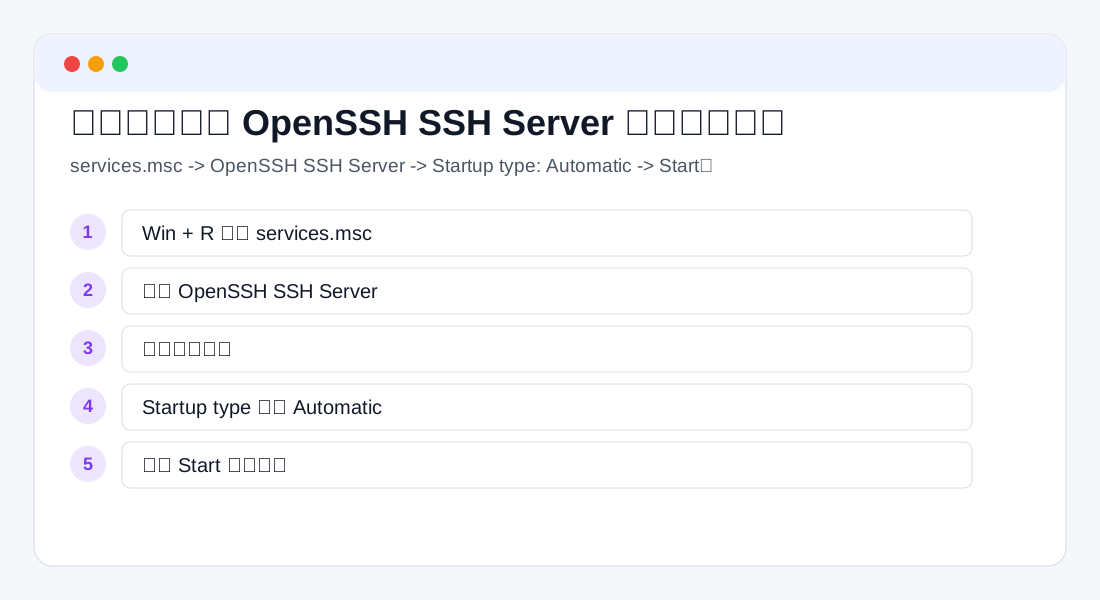
Figure 3: After installing the feature, start the sshd service and make it automatic.
Windows usually creates an inbound firewall rule named OpenSSH-Server-In-TCP during installation. It allows TCP port 22. If the client cannot connect, check the service, firewall rule, and network profile before blaming the SSH client.
4. Enable OpenSSH Server on Windows 10 using Settings
Windows 10 uses a similar path, but the UI often says Add a feature. If the Windows 10 build is very old, upgrade to a supported build first. OpenSSH as a Windows optional feature is a stable path starting with Windows 10 version 1809.
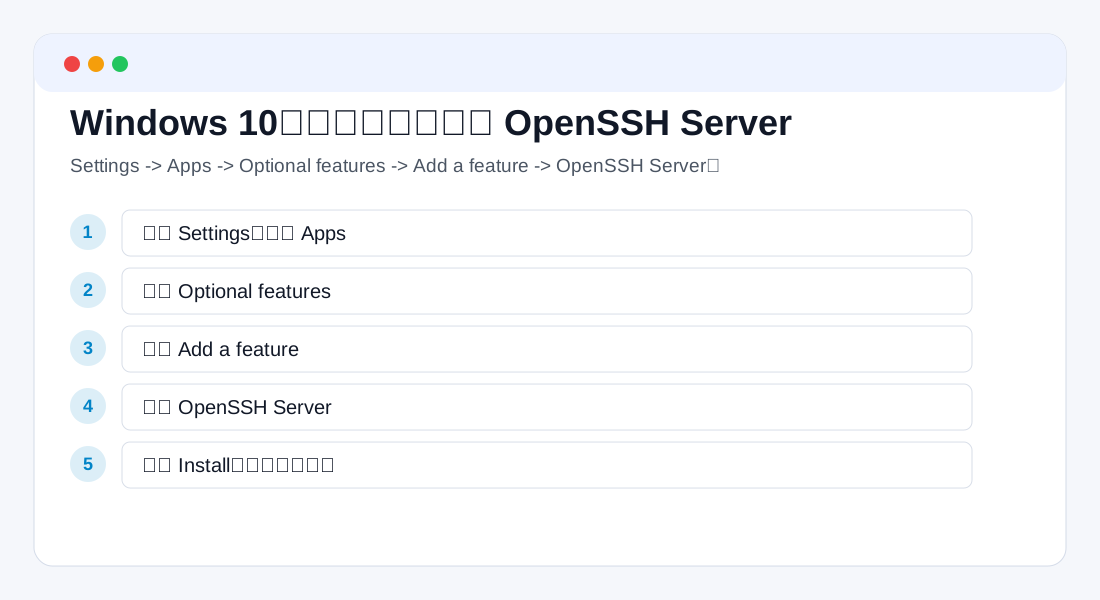
Figure 4: On Windows 10, add OpenSSH Server from Apps -> Optional features.
Steps:
- Open Settings.
- Go to Apps.
- Open Optional features.
- Select Add a feature.
- Search for
OpenSSH Server. - Select OpenSSH Server and click Install.
- Wait for installation to finish.
- Open
services.msc. - Find OpenSSH SSH Server.
- Set it to Automatic and click Start.
If you also see OpenSSH Client, remember the difference. The client lets this Windows machine connect to other hosts. The server lets Linux, macOS, and agents connect into this Windows machine. You can install both, but this article depends on the server component.
5. Install and enable it with PowerShell
If you prefer the command line or want a repeatable procedure, use an elevated PowerShell session. Right-click Start and choose Windows PowerShell (Admin) or Terminal (Admin).
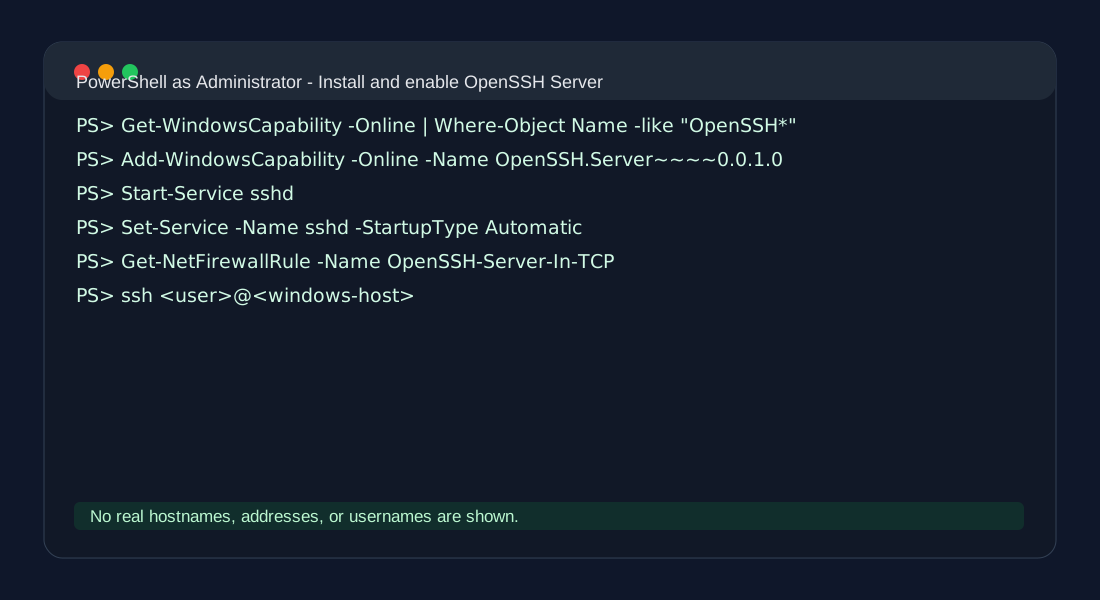
Figure 5: PowerShell can install the feature, start the service, set automatic startup, and verify the firewall rule.
Get-WindowsCapability -Online | Where-Object Name -like 'OpenSSH*'

Add-WindowsCapability -Online -Name OpenSSH.Server~~~~0.0.1.0

Start-Service sshd
Set-Service -Name sshd -StartupType Automatic

Get-NetFirewallRule -Name 'OpenSSH-Server-In-TCP'
If the firewall rule does not exist, create it:
New-NetFirewallRule `
  -Name 'OpenSSH-Server-In-TCP' `
  -DisplayName 'OpenSSH Server (sshd)' `
  -Enabled True `
  -Direction Inbound `
  -Protocol TCP `
  -Action Allow `
  -LocalPort 22
Now test password login from Linux or macOS:
ssh <user>@<windows-host>
On first connection, confirm the host key only if you are sure this is your Windows machine. If password login works, the basic path is ready: network, service, account, and firewall.
6. Generate an SSH key on Linux or macOS
Linux and macOS usually include OpenSSH. Generate an Ed25519 key:
ssh-keygen -t ed25519 -C "agent-client"
The default files are:
~/.ssh/id_ed25519      private key, keep it on the client
~/.ssh/id_ed25519.pub  public key, place this on Windows
For cleaner separation, create a dedicated Windows key:
ssh-keygen -t ed25519 -f ~/.ssh/id_ed25519_windows -C "agent-windows"
Connect with it explicitly:
ssh -i ~/.ssh/id_ed25519_windows <user>@<windows-host>
The private key stays on the Linux or macOS client where the agent runs. Windows only receives the public key. If an agent will use this key, keep it in a controlled location and lock down permissions:
chmod 700 ~/.ssh
chmod 600 ~/.ssh/id_ed25519_windows
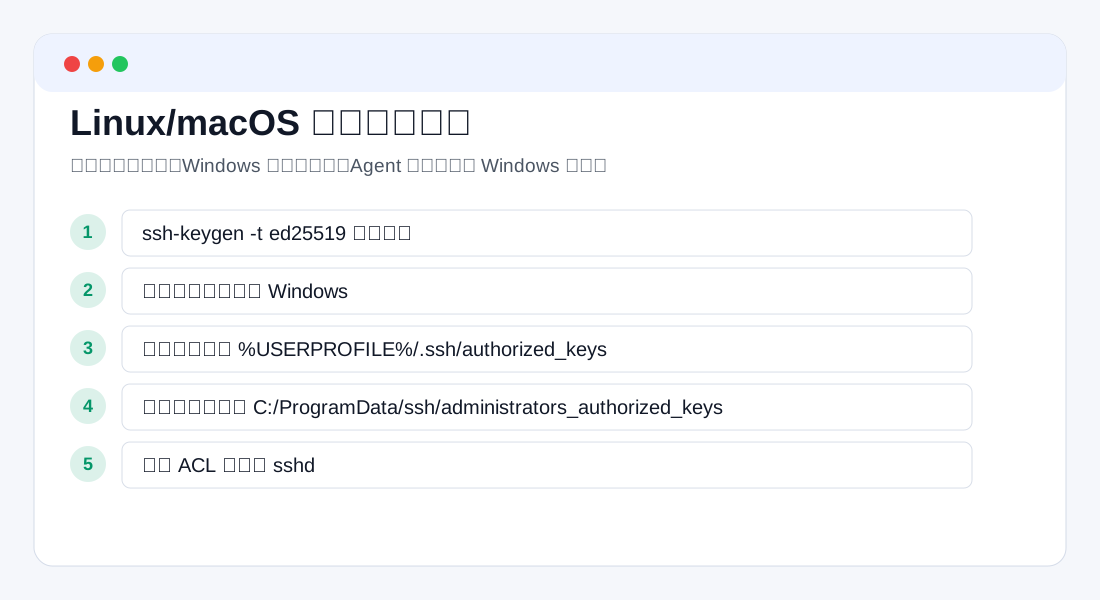
Figure 6: The client keeps the private key. Windows stores only the public key.
7. Configure authorized_keys for a normal Windows user
For a Windows account that is not a member of the local Administrators group, place the public key under the user profile. First log in with a password:
ssh <user>@<windows-host>
Then run PowerShell on Windows:
New-Item -ItemType Directory -Force $env:USERPROFILE\.ssh
notepad $env:USERPROFILE\.ssh\authorized_keys
Paste the public key from Linux or macOS. You can print it with:
cat ~/.ssh/id_ed25519.pub
Save the file and test from the client:
ssh -i ~/.ssh/id_ed25519 <user>@<windows-host> hostname
If the hostname returns without a password prompt, key-based login works for the normal user.
A client-side SSH alias makes agent usage cleaner:
Host winbox
    HostName <windows-host>
    User <user>
    IdentityFile ~/.ssh/id_ed25519_windows
    IdentitiesOnly yes
Then the agent can run:
ssh winbox hostname
8. Administrator users are different: administrators_authorized_keys
This is the part that causes the most confusion. If the Windows account belongs to the local Administrators group, Windows OpenSSH does not use that user’s .ssh\authorized_keys by default. It uses this file instead:
C:\ProgramData\ssh\administrators_authorized_keys
That is intentional. Administrator public keys are centralized under ProgramData, and the ACL must be strict. Otherwise you may see a frustrating situation: password login works, the public key looks correct, but key login is ignored.
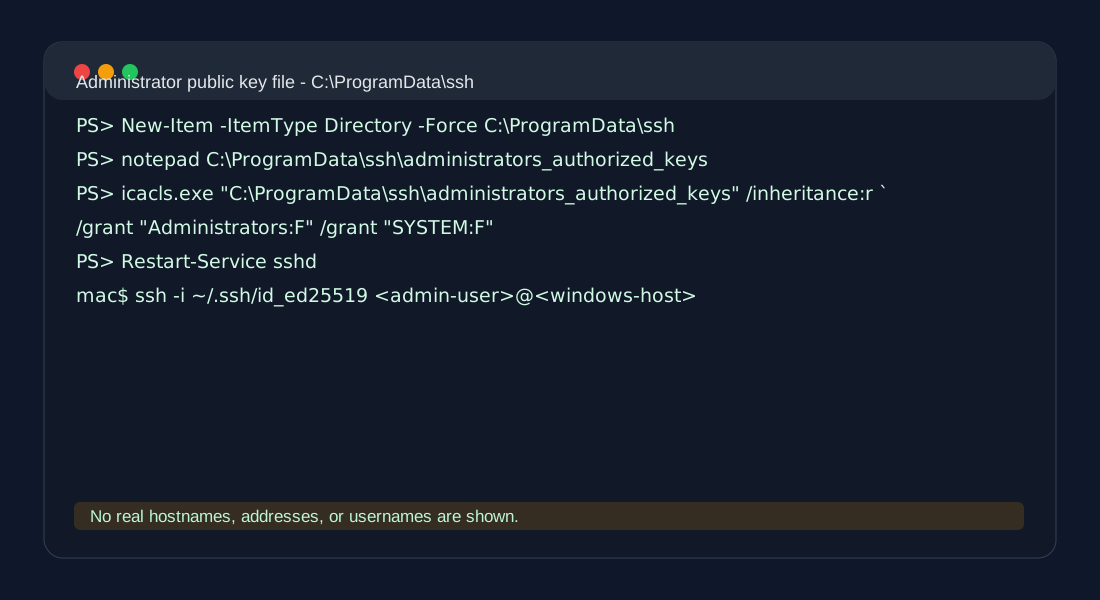
Figure 7: Administrator key login uses a different file and strict ACLs.
Open PowerShell as Administrator:
New-Item -ItemType Directory -Force C:\ProgramData\ssh
notepad C:\ProgramData\ssh\administrators_authorized_keys
Paste the public key, then set permissions:
icacls.exe "C:\ProgramData\ssh\administrators_authorized_keys" /inheritance:r /grant "Administrators:F" /grant "SYSTEM:F"
Restart the service:
Restart-Service sshd
Test from Linux or macOS:
ssh -i ~/.ssh/id_ed25519_windows <admin-user>@<windows-host> whoami
If it returns the account name without asking for a password, administrator key login is working.
If it still fails, check these items in order: the public key is one complete line; the target user really belongs to Administrators; you did not put an administrator key only in the normal user profile; the ACL on administrators_authorized_keys grants access only as required; you restarted sshd after changing the file; and the client is using the intended private key.
9. Let the AI agent operate Windows through SSH
At this point, Windows behaves like a normal SSH target.
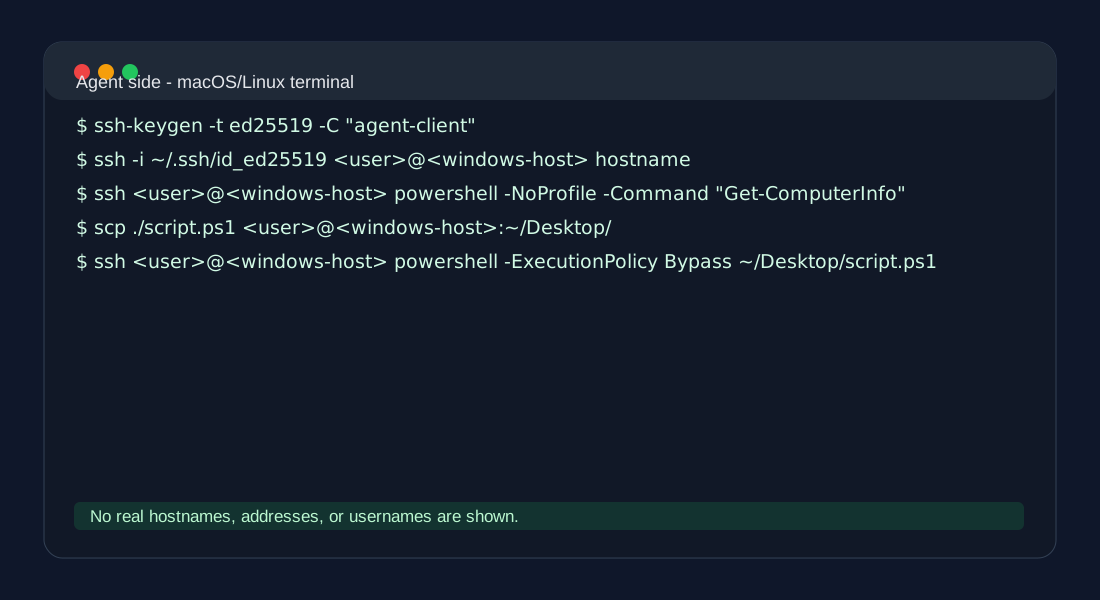
Figure 8: The agent can use ssh and scp instead of a remote desktop session.
Useful commands:
ssh winbox hostname
ssh winbox whoami
ssh winbox powershell -NoProfile -Command "Get-Service sshd"
ssh winbox powershell -NoProfile -Command "Get-ComputerInfo | Select-Object WindowsProductName, WindowsVersion, OsBuildNumber"
Copy a script:
scp ./check-windows.ps1 winbox:~/Desktop/check-windows.ps1
Run it:
ssh winbox powershell -ExecutionPolicy Bypass -File ~/Desktop/check-windows.ps1
A good read-only agent prompt might look like this:
Connect to SSH Host winbox. Run read-only checks only: Windows version, OpenSSH Server service status, firewall rule, free disk space, and system errors from the last 24 hours. Do not modify configuration, do not read personal user files, and do not output keys or private information. Report command evidence and remaining risks.
For a repair task, make the allowed scope explicit:
Connect to SSH Host winbox and fix OpenSSH Server not starting automatically. You may change the sshd service startup type and the OpenSSH firewall rule. Do not modify user data, do not install third-party remote-control tools, and do not expose the host to the public internet. Verify with a fresh ssh command and report every change.
The point is not to say “take over Windows.” The point is to tell the agent which SSH host to use, what it may change, what it must not touch, what to verify, and what evidence to report.
10. Security notes: passwordless does not mean boundaryless
Key-based login is convenient, but it creates a simple trust rule: whoever has the private key can log in. Treat it accordingly.
Recommended practices:
- Do not expose Windows port 22 directly to the public internet. Use VPN, a zero-trust tunnel, a bastion host, or source restrictions when remote access is required.
- Give the agent a dedicated key instead of reusing your personal primary SSH key.
- Use a normal Windows user when administrator rights are not required.
- For administrator accounts, use
administrators_authorized_keysand strict ACLs. - Never publish real hostnames, internal addresses, usernames, private keys, or sensitive paths in articles, scripts, logs, or screenshots.
- Back up or snapshot important Windows machines before enabling new remote-management paths.
- If access is temporary, remove the public key or disable
sshdafter the task.
Useful checks on Windows:
Get-Service sshd
Get-NetFirewallRule -Name 'OpenSSH-Server-In-TCP'
Useful client-side debugging:
ssh -vvv winbox hostname
The -vvv output helps identify which key is used, whether the server accepts public-key authentication, and whether the client falls back to password authentication. Do not publish full debug logs casually; they may contain usernames, local paths, host fingerprints, and other environment details.
11. Common problems
Password login works, but key login fails.
First check whether the Windows account is an administrator. Normal users use %USERPROFILE%\.ssh\authorized_keys. Administrator users use C:\ProgramData\ssh\administrators_authorized_keys.
The administrator key file exists, but login still fails.
The ACL is often the cause. Re-run:
icacls.exe "C:\ProgramData\ssh\administrators_authorized_keys" /inheritance:r /grant "Administrators:F" /grant "SYSTEM:F"
Restart-Service sshd
The client reports connection refused.
Usually sshd is not running, or the firewall rule is missing or disabled. Check Get-Service sshd and Get-NetFirewallRule -Name OpenSSH-Server-In-TCP.
The client reports permission denied.
Check the username, password, public-key file location, private-key selection, and whether the Windows account is allowed to log in. Use ssh -vvv to see which key the client is offering.
PowerShell commands behave strangely over SSH.
Prefer powershell -NoProfile -Command "..." or pwsh -NoProfile -Command "...". Quote paths with spaces. For complex work, upload a .ps1 file with scp and execute the script remotely instead of squeezing everything into one line.
12. Summary
With OpenSSH Server enabled, Windows becomes much easier for AI agents to manage. The agent does not need a remote desktop session or pixel-level UI automation. It only needs a standard SSH path, a key, and clearly bounded instructions.
The power of this approach is that it is boring and standard: OpenSSH client, public-key authentication, PowerShell commands, Windows service management, and a firewall rule. Standard tools are easier to automate, audit, debug, and explain.
My recommendation is to treat this as infrastructure. Test it on a non-critical Windows machine first. Verify both normal-user and administrator-user key locations. Create a clean SSH config alias. Keep the Windows host behind a trusted network boundary. Then let the agent use that SSH entry point with explicit scope and verification requirements. Windows stops being a GUI-only island and becomes another manageable host in the same command-line workflow as Linux and macOS.