Stop Installing Another PC Cleaner: What Desktop Software Can an AI Agent Actually Replace?
The short answer
An AI Agent can replace many desktop utilities whose main job is clicking the same buttons over and over. It does not turn every application into a chat box, and it is not a magical “computer doctor.” Its real advantage is orchestration: it can inspect the machine, understand the goal, combine built-in tools, execute a sequence, and explain the evidence.
Across five categories—file conversion, junk scanning, performance optimization, configuration changes, and computer repair—the replacement level is different. File conversion and reporting are highly automatable. Performance work and configuration changes are semi-automatic. Hardware repair remains a human job, with the Agent acting as a diagnostic assistant.
The safety rule for every script in this article is simple: read first, write second; back up first, change second; verify before claiming success. All three scripts are local-only and start in report mode. Destructive actions require an explicit flag and a second confirmation.

Figure 1: An original illustration for this article. An Agent is useful when it connects observation, planning, execution, and verification.
1. Why people are questioning the desktop utility pile
A typical computer may have a compression tool, a converter, a cleaner, a driver updater, a registry optimizer, a startup booster, a disk checker, and several “security assistants.” Each tool may solve one narrow problem, while also adding startup entries, pop-ups, advertisements, permissions, and duplicate scans.
It is like owning ten brooms: one for the floor, one for the table, one for the window, and one for every room. The real problem is not that any broom is bad. The problem is that you need to find the correct tool before you can start cleaning.
An Agent can understand a broader request such as “help me make this computer healthier.” It can inspect storage, startup programs, logs, and memory pressure, then propose a sequence. But a computer is not a living room. Deleting the wrong directory can lose data, and changing the wrong service can break remote access. The Agent needs brakes.
2. The five categories and their real boundaries
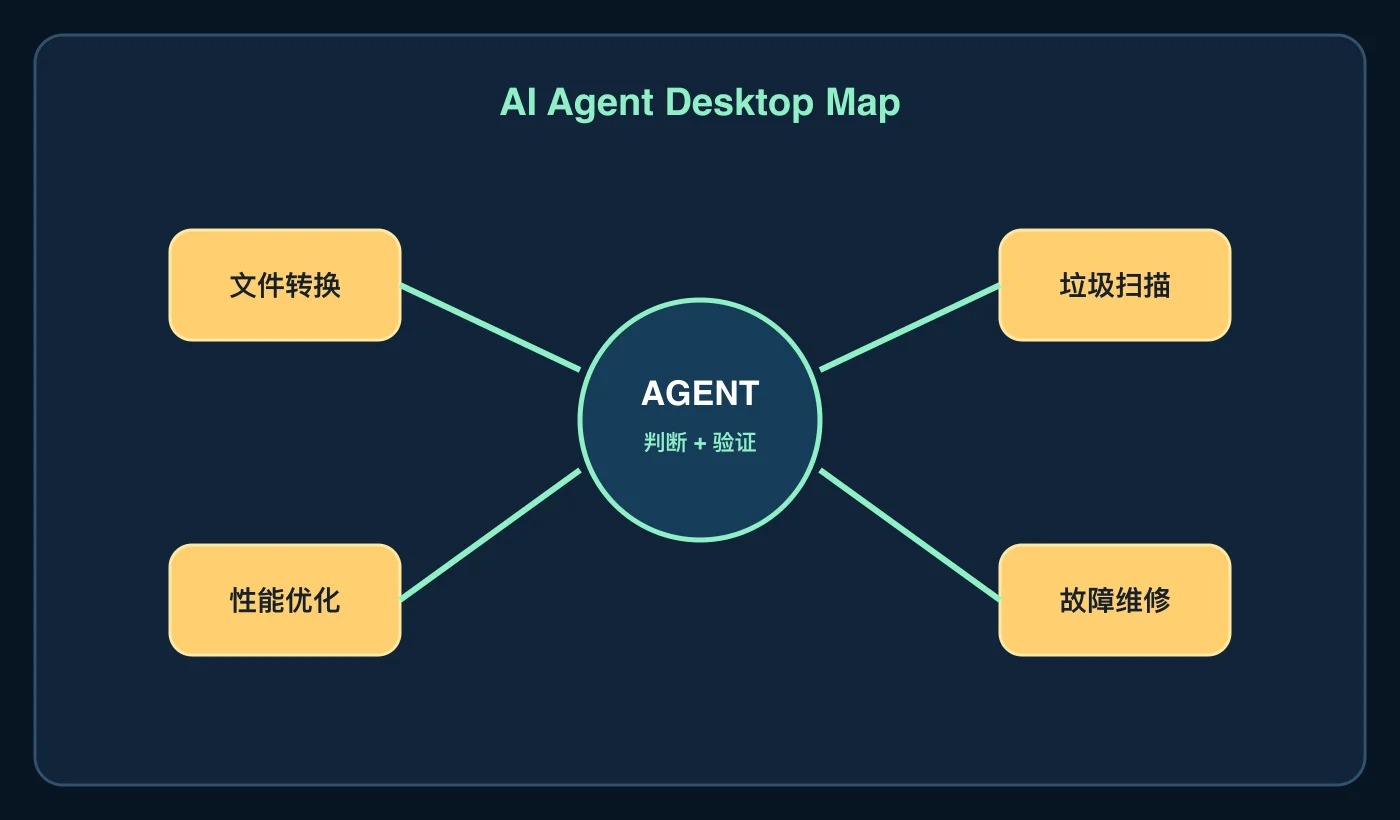
Figure 2: “Can it replace the tool?” is not a yes-or-no question. Each category has a different boundary.
File conversion: the strongest replacement case
A traditional converter often means input, output, and a Start button. An Agent can add the surrounding work: discover the real file type, batch files by extension, preserve originals, choose a target naming convention, convert, and verify that every output exists.
Renaming report.docx to report.pdf is not conversion. It is putting a different label on the same box. Real conversion reads the source structure and creates a new target document.
This is where an Agent is especially useful: repetitive batches, folder organization, naming, and failure reports. Human review is still necessary for missing fonts, complex tables, encrypted documents, and professional layouts.
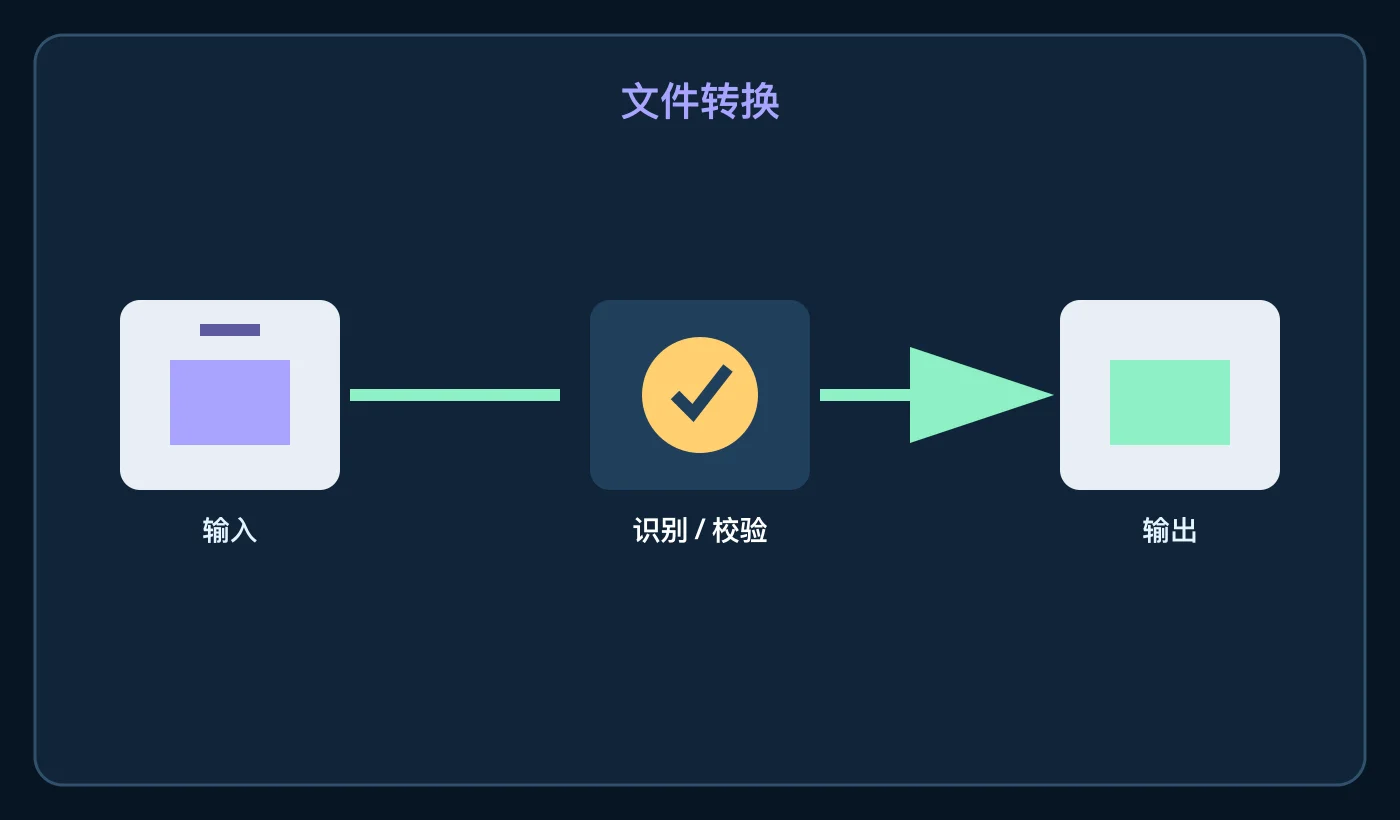
Figure 3: A safe conversion workflow identifies, reads, rebuilds, and verifies.
Junk scanning: it can replace a scanner, not your judgment
A cleaner that finds 40 GB of files creates a tempting story: everything can be removed. In reality, caches, logs, temporary files, downloaded installers, developer artifacts, and personal documents have different risk levels.
Windows 11 provides built-in storage controls. Ubuntu exposes package-cache, system journal, and filesystem data through local commands. macOS provides storage management and cache locations. An Agent can turn those signals into a report with three buckets: safe to remove, review first, and do not touch.
A real macOS 26 check produced an instructive result: the root volume was only about two percent full, while the user cache directory was about 7.2 GB. A large cache is not automatically a storage emergency, and an almost-empty disk does not mean every cache should be deleted.
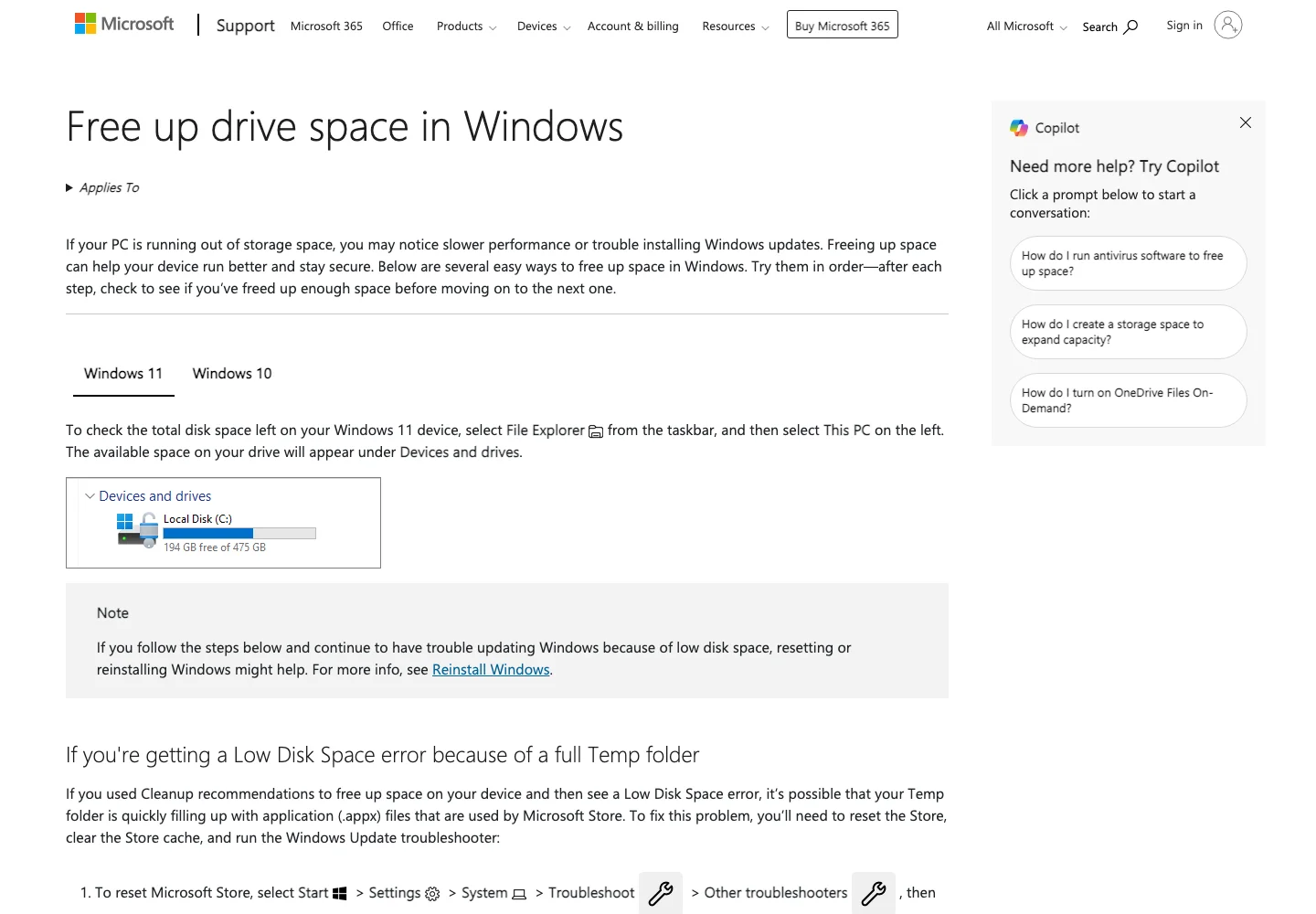
Figure 4: An official Microsoft Support page capture. The operating system provides cleanup entry points, but the user still decides what is disposable.
Performance optimization: health check, not a “ten times faster” promise
Optimization utilities often describe disabling a few startup entries as a dramatic speed boost. Real bottlenecks may be CPU saturation, memory pressure, insufficient storage, background synchronization, too many browser tabs, thermal throttling, or a failing drive.
The correct Agent behavior is closer to a doctor than a magician: measure temperature before recommending treatment. Collect CPU, memory, disk, startup, and log evidence. If CPU usage is low and storage is healthy, but one application is slow, deleting caches is probably not the answer.
An Agent can replace blind optimization. It cannot replace benchmarks and observation over time. Every performance claim should have a before-and-after measurement.
Configuration changes: treat the Agent like an electrician with a fuse
Environment variables, default applications, proxy settings, startup entries, power policies, services, and developer configuration are all reasonable Agent targets. The Agent can explain the current state, back up the file, generate a small patch, and show how to roll back.
The danger is interaction. A proxy variable can affect package managers, browsers, and Git. Removing a startup entry can disable synchronization. Stopping a service can remove remote administration. A configuration change is not just a text edit; it is a change in the machine’s behavior.
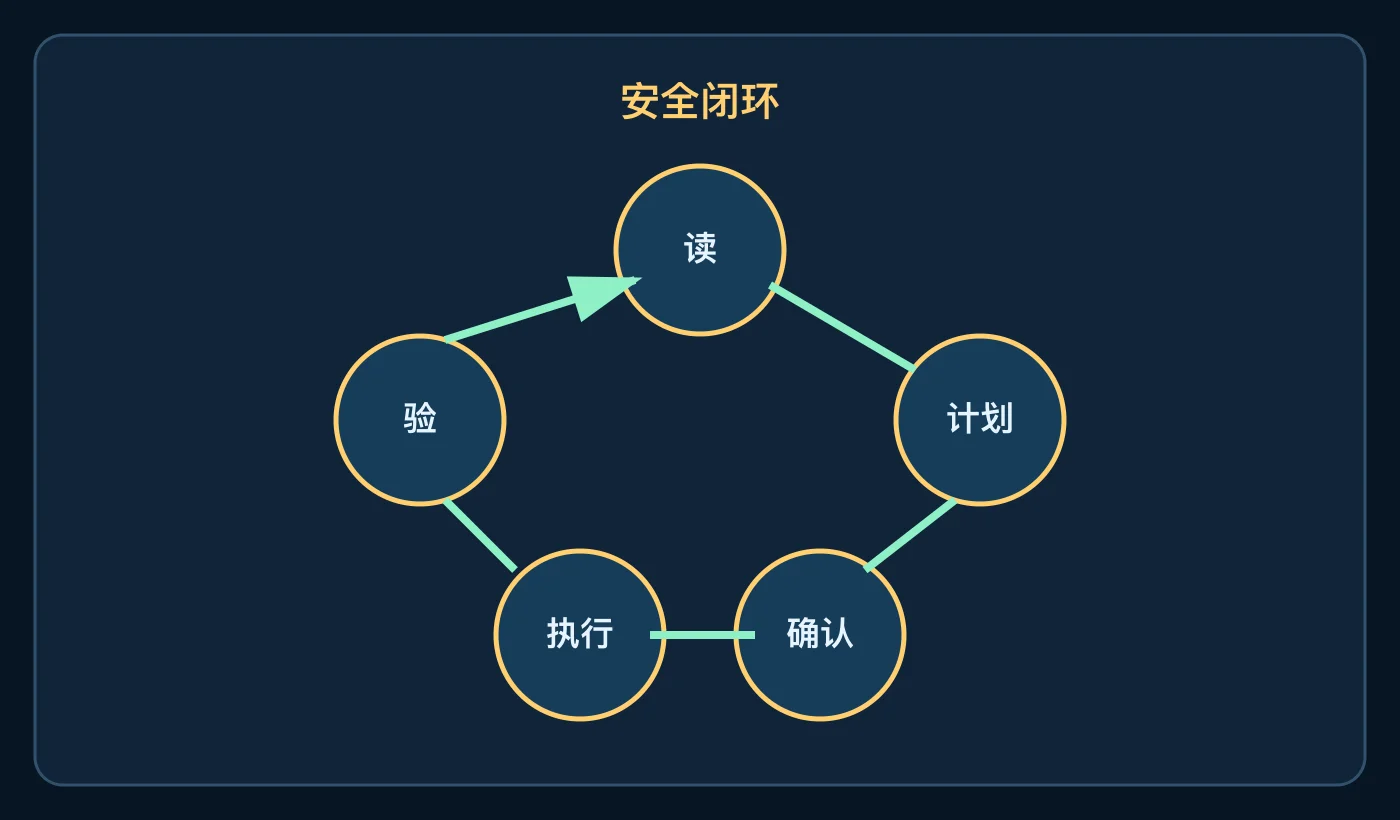
Figure 5: A trustworthy Agent leaves evidence rather than only saying “done.”
Computer repair: software remotely, hardware carefully
Software faults are good Agent candidates: an application will not open, a permission is wrong, a port is occupied, a service is stopped, a log reports an error, or a configuration file is malformed. The Agent can gather evidence, inspect dependencies, restore a backup, and run a minimal verification.
Hardware is different. Fan noise, battery swelling, loose connectors, bad memory, drive errors, and board failures may require temperature data, SMART data, battery health, and eventually a technician. An Agent can say “stop charging this device,” but it should not encourage an inexperienced user to open a power supply or short a motherboard.
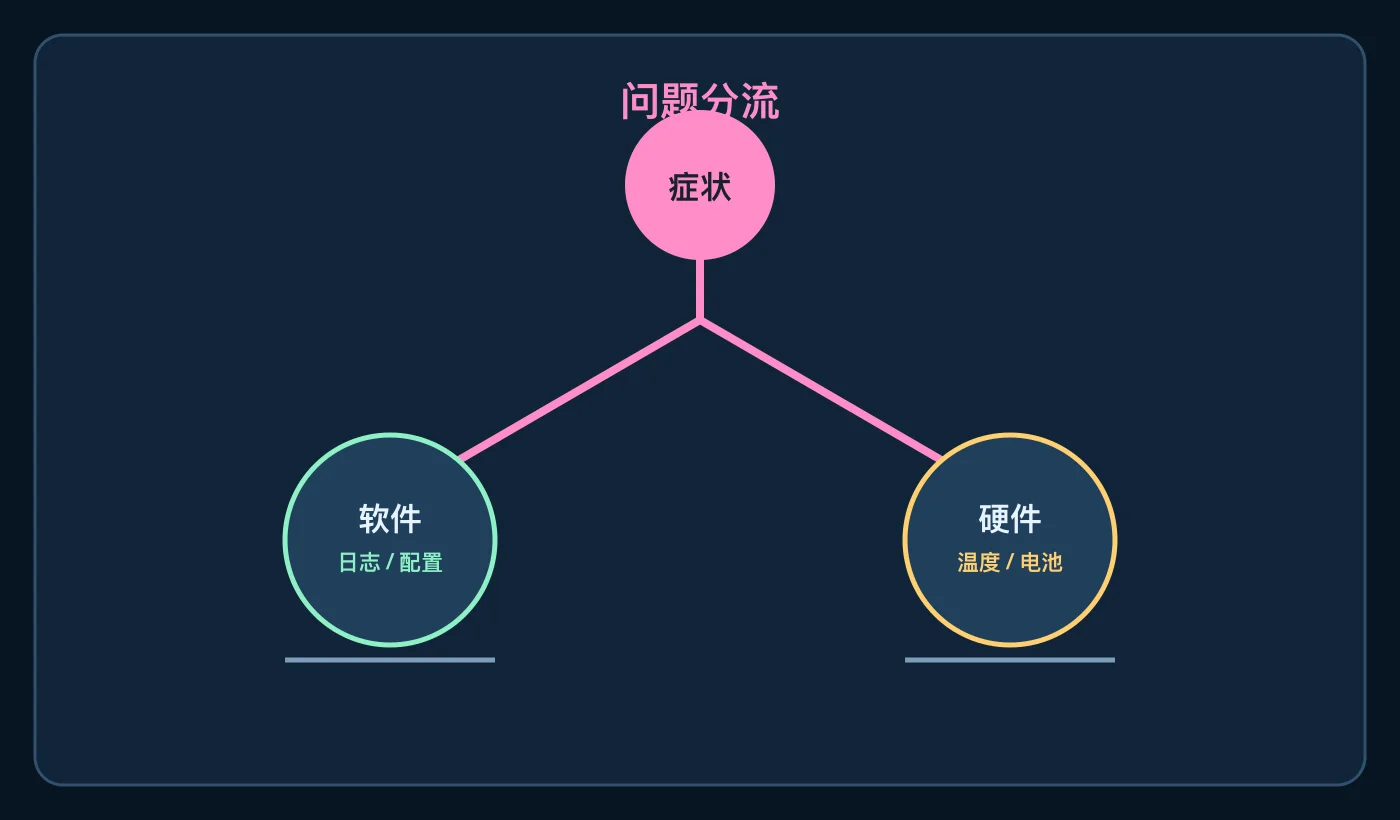
Figure 6: The first repair step is classification, not reinstalling the operating system.
3. What the real page captures demonstrate
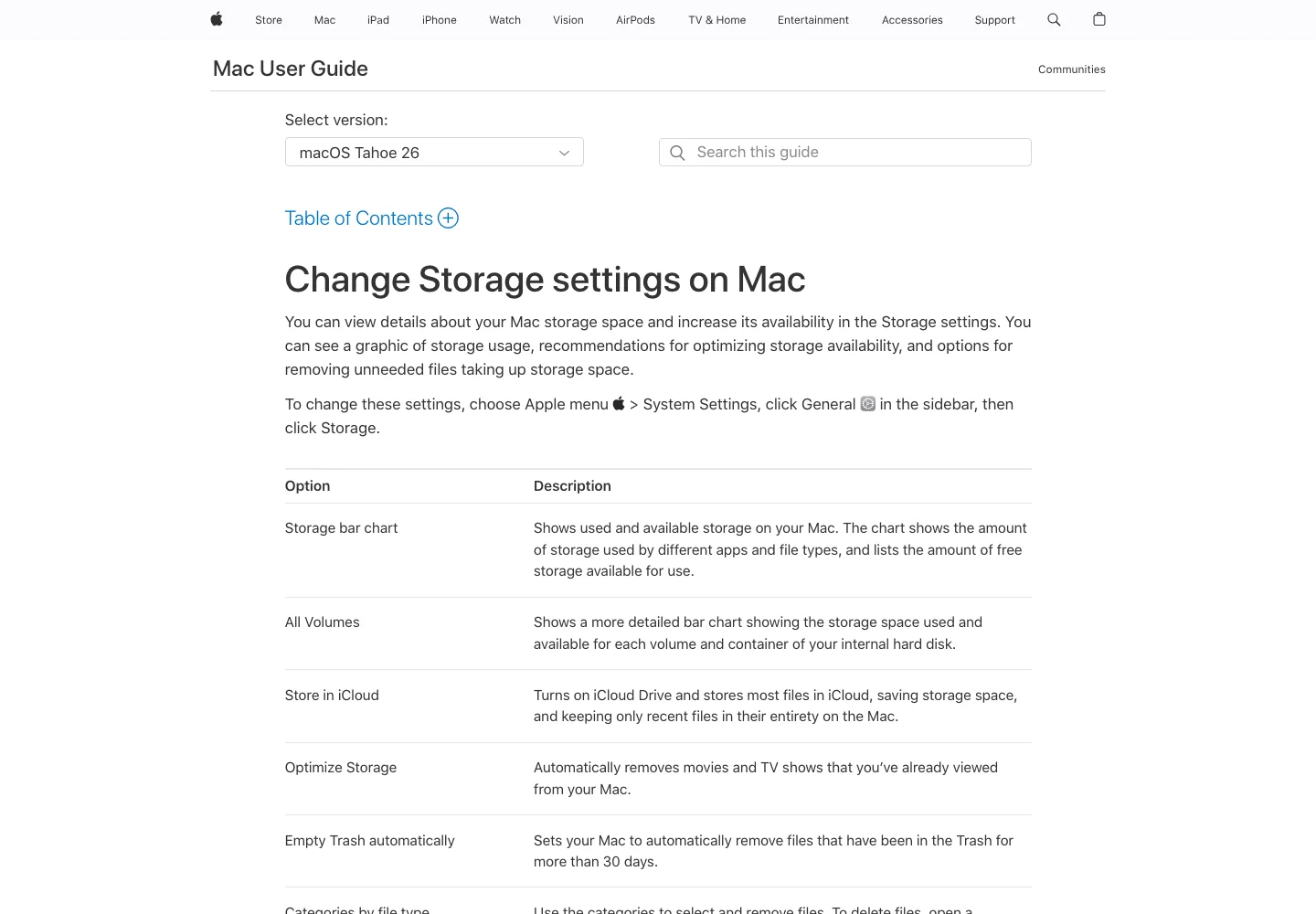
Figure 7: An official Apple Support page capture. An Agent can turn the settings categories into an actionable checklist.
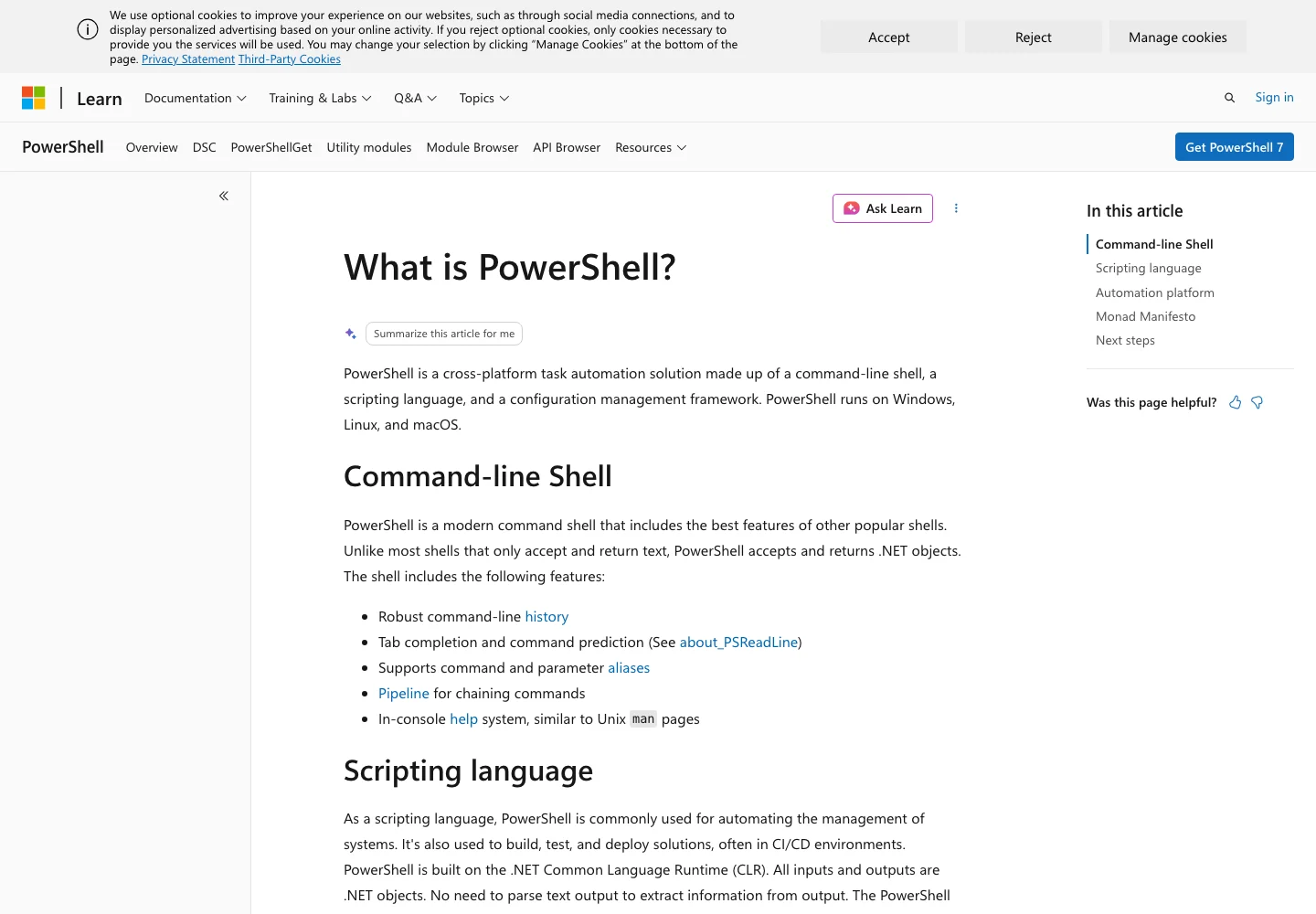
Figure 8: An official Microsoft Learn page capture. Native tools such as PowerShell are the execution layer an Agent can orchestrate.
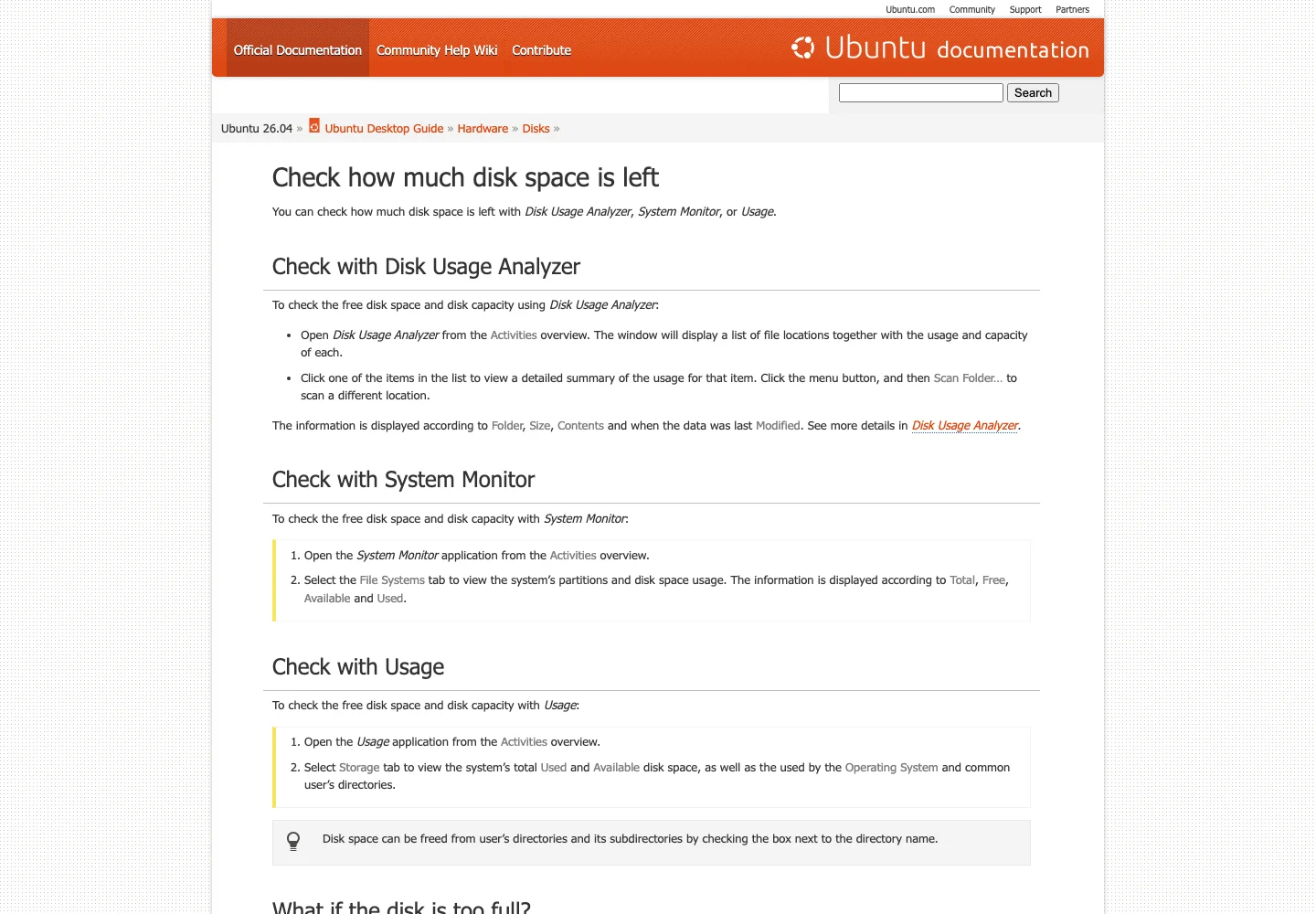
Figure 9: An official Ubuntu documentation page capture. Check disk space before deciding to clean.
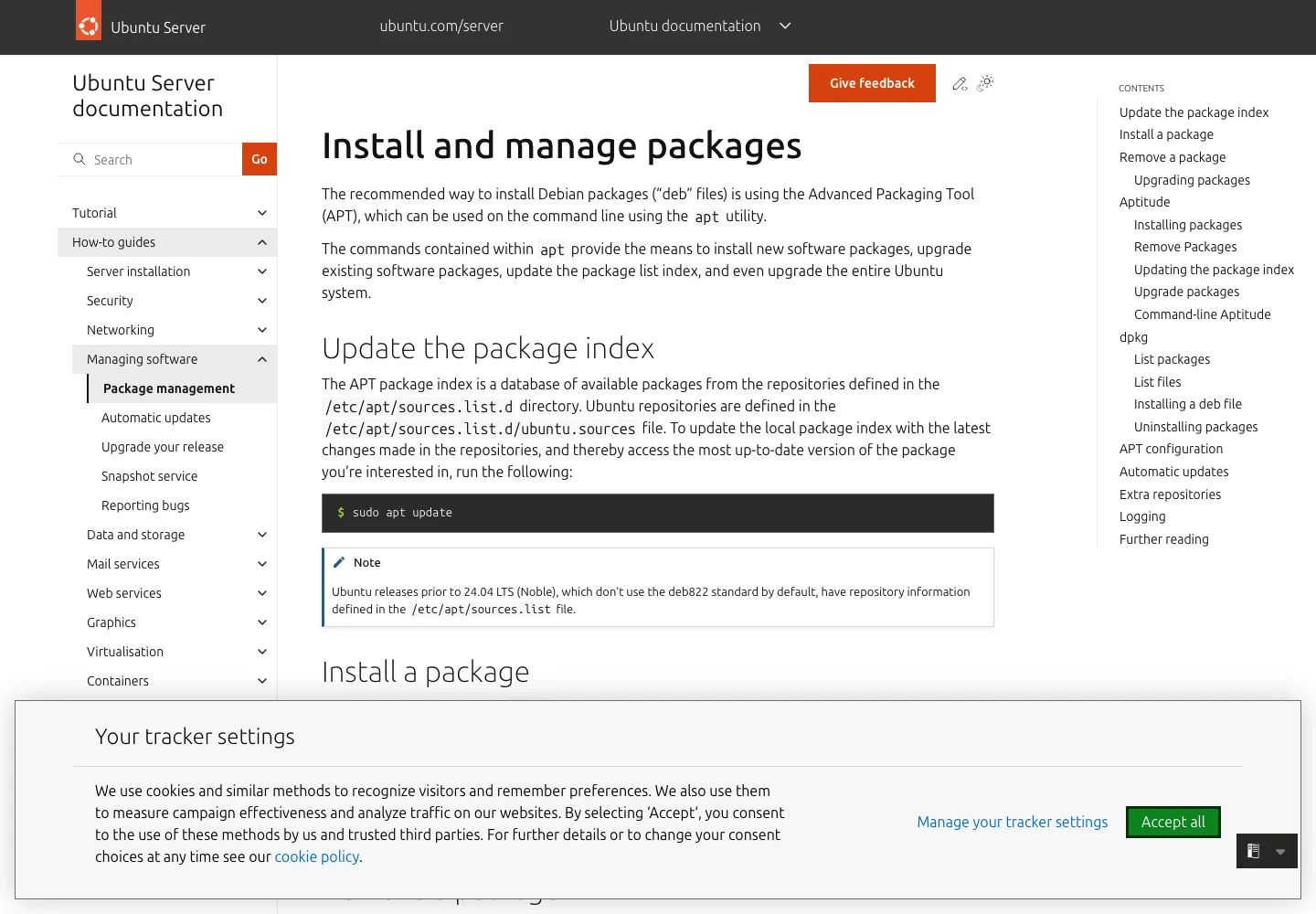
Figure 10: An official Ubuntu documentation page capture. The script uses native APT commands and requires simulation plus confirmation before deletion.
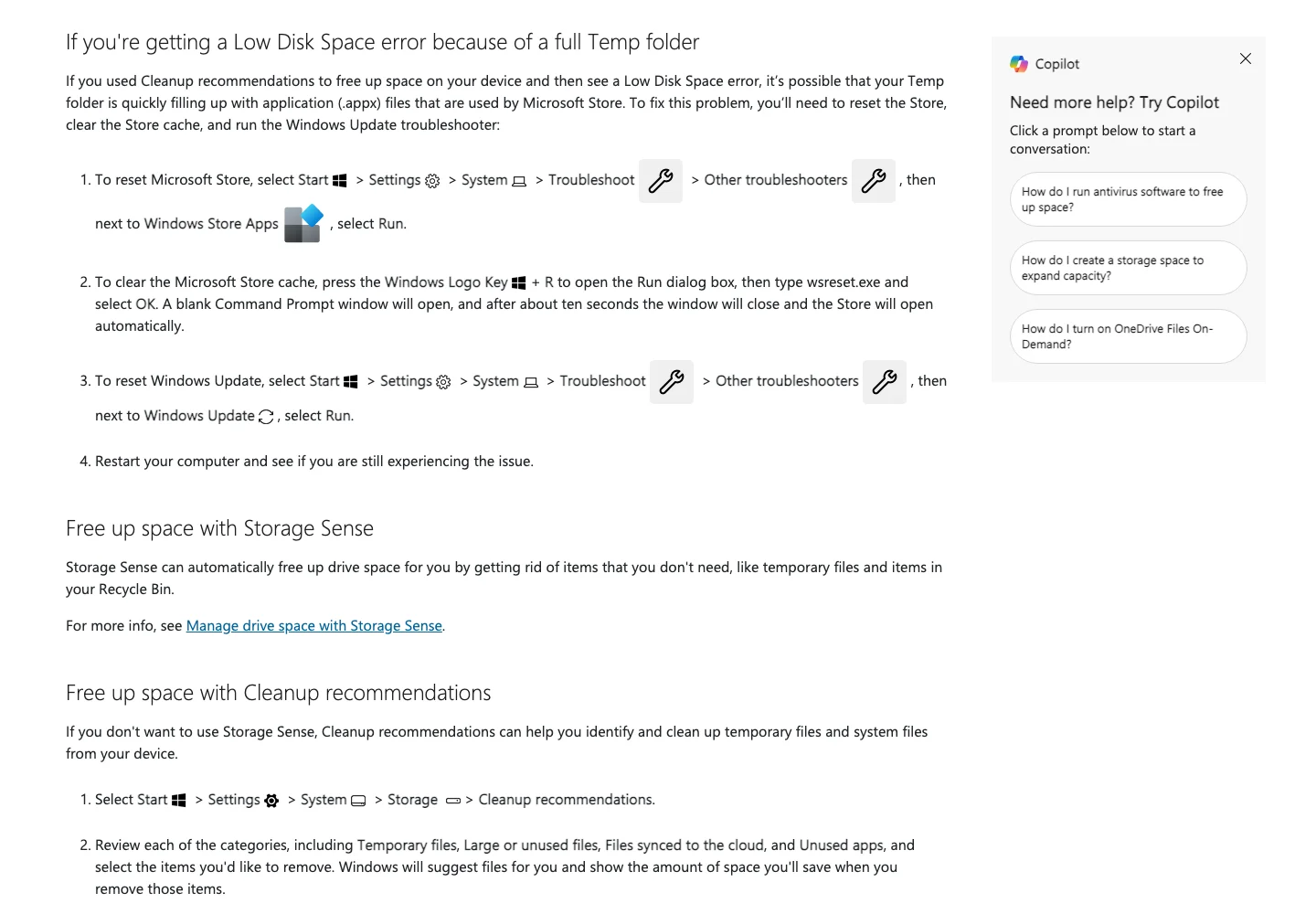
Figure 11: A second scroll position from the official Microsoft Support page, showing Windows storage-cleanup and troubleshooting entry points.
4. Three one-click scripts, with a deliberate safety stop
Windows 11 PowerShell
File: scripts/desktop_agent_windows11.ps1
Manual execution:
Set-ExecutionPolicy -Scope Process Bypass
.\desktop_agent_windows11.ps1
# Review the report first
.\desktop_agent_windows11.ps1 -Apply
Agent-driven configuration:
Run desktop_agent_windows11.ps1 without -Apply first.
Classify the report into removable, review-required, and protected items.
Do not use -Apply until I explicitly reply CLEAN.
After cleanup, run the report again and compare disk and cache sizes.
The script only targets temporary files older than seven days. Documents, Downloads, and the Recycle Bin are outside its default scope.
Ubuntu 26.04 Bash
File: scripts/desktop_agent_ubuntu2604.sh
Manual execution:
chmod +x desktop_agent_ubuntu2604.sh
./desktop_agent_ubuntu2604.sh
./desktop_agent_ubuntu2604.sh --apply
Agent-driven configuration:
Run ./desktop_agent_ubuntu2604.sh without --apply.
Explain disk usage, journal usage, and the APT simulation.
Do not clean until I explicitly confirm CLEAN.
After cleanup, re-check df -h /, journalctl --disk-usage, and APT state.
The apply mode runs apt-get clean, vacuums journals older than fourteen days, and runs apt-get autoremove -y. Those actions change system state, so a second confirmation is required.
macOS 26 Zsh
File: scripts/desktop_agent_macos26.zsh
Manual execution:
chmod +x desktop_agent_macos26.zsh
./desktop_agent_macos26.zsh
./desktop_agent_macos26.zsh --apply
Agent-driven configuration:
Run ./desktop_agent_macos26.zsh without --apply.
Explain disk usage, user-cache size, memory, and the largest cache folders.
Only use --apply after I explicitly reply CLEAN.
Run the scan again afterward, show the before/after difference, and keep both reports.
The macOS script only removes ordinary files older than fourteen days under the user cache directory. It does not touch system directories, security controls, or user documents.
5. Why “Agent plus built-in tools” beats a universal cleaner
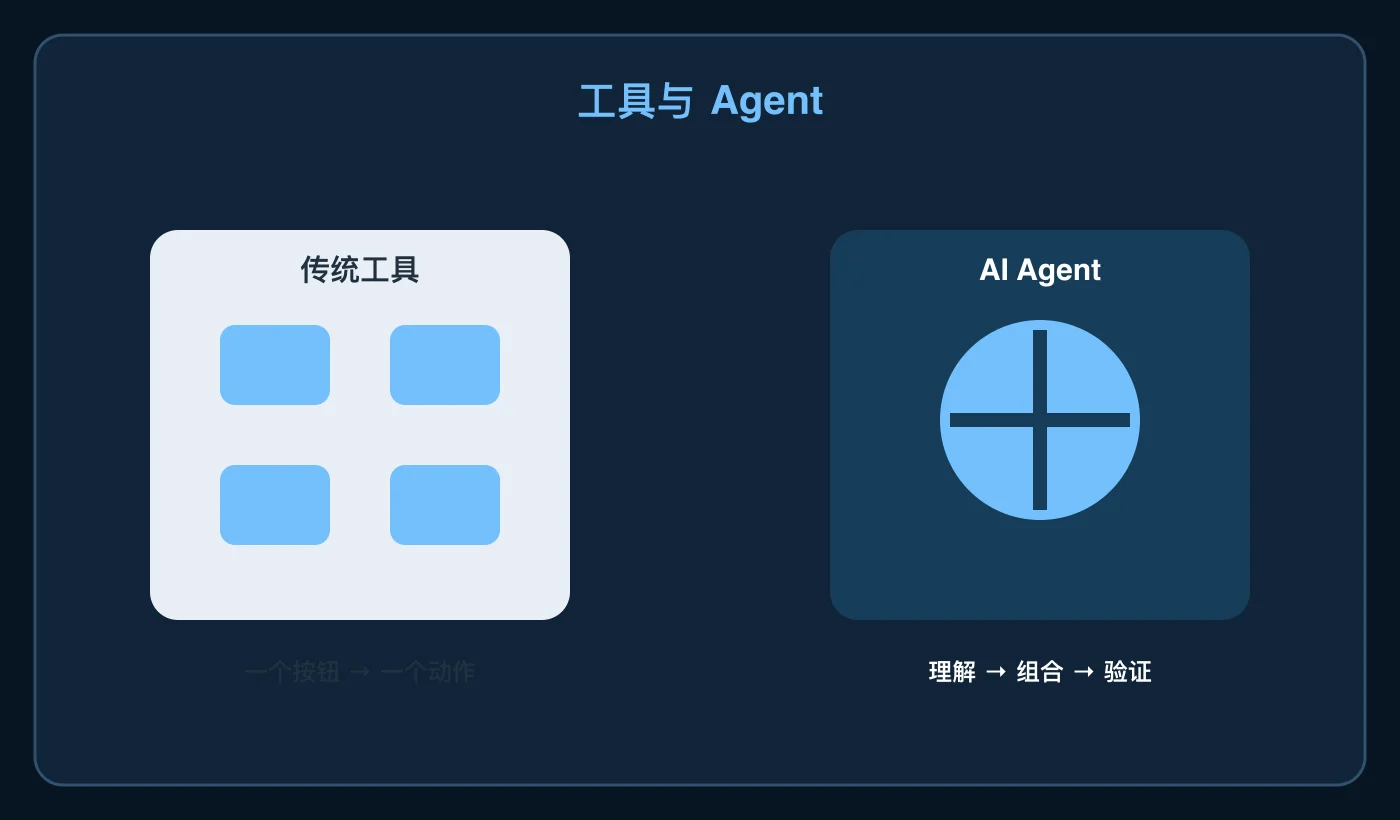
Figure 12: The most dependable design lets the operating system execute and the Agent reason.
Traditional utilities are easy to understand and predictable within their narrow scope. Their weakness is that each utility sees only one part of the machine. An Agent can connect several tools, understand a natural-language goal, and adapt when the evidence changes. Its weakness is that it can misunderstand the goal or combine unsafe commands.
The best architecture is therefore: system tools execute, the Agent reasons, and the human authorizes. It is similar to driving assistance: the system can warn about an obstacle and help keep a lane, but the driver must know where the brake is.
6. Operations an Agent should not perform without a human
- Delete unknown directories merely because they are large.
- Overwrite system or production configuration without a backup.
- Reset all network settings just to “fix the network.”
- Uninstall drivers, security software, or remote-management tools automatically.
- Treat “no error returned” as proof that the issue is fixed.
- Put secrets, complete paths, full hostnames, private addresses, or personal data into reports.
A child-friendly test is this: if an action is like throwing away an entire drawer, do not automate it by default. If it is like sweeping loose paper into a visible pile, it is a reasonable first automation target.
7. Capability table
| Task | Replacement level | Best Agent role | Human checkpoint |
|---|---|---|---|
| File conversion | High | Batch, rename, validate, report failures | Layout, fonts, encryption, originals |
| Junk scanning | High | Classify caches, logs, and temporary files | User files, downloads, developer caches |
| Performance | Medium-high | Collect metrics and compare before/after | Disabling services or startup items |
| Configuration | Medium | Back up, patch, and provide rollback | Network, permissions, remote access |
| Repair | Medium-low | Read logs and triage symptoms | Hardware, recovery, board-level faults |
Q&A
Does an Agent replace every PC cleaner?
No. It replaces repetitive clicks and simple reporting, not professional repair, data recovery, or years of diagnostic experience.
Why not let it clean automatically?
Because “junk” is not defined by file size. A cache may be rebuildable, but it may also contain offline data. A log may be compressible, but it may be the only evidence of a failure. Report first and confirm second.
Does changing an extension convert a file?
No. The extension is a label; the format is the content. Changing the label does not translate the book inside the box.
Do the scripts need an online service or third-party account?
No. They use PowerShell, Bash, Zsh, and native operating-system commands. The Agent is only the planner and interpreter.
What if Ubuntu 26.04 changes command output?
Run report mode first. Never add --apply until you have inspected the actual output. The Ubuntu visuals in this article are official documentation captures; the script uses native tools and is intended for Ubuntu 26.04.
What should a beginner automate first?
Start with file batches, disk reports, and journal reports. They are reversible and easy to verify. Move to configuration edits only after you understand the reports.
Conclusion: replacement is not a chat box replacing every icon
An AI Agent does not replace every desktop application. It replaces the repetitive and composable parts: batch conversion, evidence-based scanning, measured optimization, backed-up configuration edits, and first-line software triage.
The boundary matters. An Agent can fetch the tools, read the gauges, write the steps, and show the evidence. The final authorization, risk judgment, and physical repair still belong to a person.
Reference families:
- Microsoft Learn: Manage drive space with Storage Sense
- Ubuntu Documentation: APT package management
- Ubuntu Documentation: View and analyze logs with journalctl
- Apple Support: Optimize storage space on Mac
The page captures in this article come from Microsoft Support, Microsoft Learn, Ubuntu Documentation, and Apple Support, all listed above.