Chrome Ate 4GB of Disk Space? Delete the Local AI Model and Stop It Coming Back
Short version
Some Google Chrome installations now download several gigabytes of local generative AI model data in the background. This is usually not malware and not a broken cache. It is Chrome preparing on-device AI models for browser and web features. Deleting the folder only frees disk space temporarily. The durable fix is to disable the local GenAI foundational model download with Chrome policy, then remove the already downloaded model folders.
This guide covers Windows 11, Ubuntu 26.04, and macOS 26. It includes one-click scripts, manual steps, and an agent prompt you can hand to Codex, Claude, OpenClaw, Gemini CLI, or another local operator. The scripts use native OS policy mechanisms and Chrome’s documented policy. They do not depend on third-party services and do not include real IP addresses, hostnames, internal domains, or secrets.

Figure 1: AI-generated cover. The goal is not just to kill a cache folder. The goal is to stop Chrome from bringing the local model back.
1. Why Chrome Suddenly Has a 4GB Model Folder
Most users discover this problem indirectly. The system drive loses several gigabytes, package updates begin to fail, a VM image no longer fits, or Docker and development tools start complaining about disk space. On a large desktop SSD, 4GB may not matter. On a small laptop system partition, it can be exactly the difference between a healthy machine and a noisy one.
Google’s help page explains the behavior clearly: Chrome may download on-device generative AI models in the background so features that rely on them stay ready for use. If those models are deleted, only the features that rely on them become unavailable; other AI features may still work.
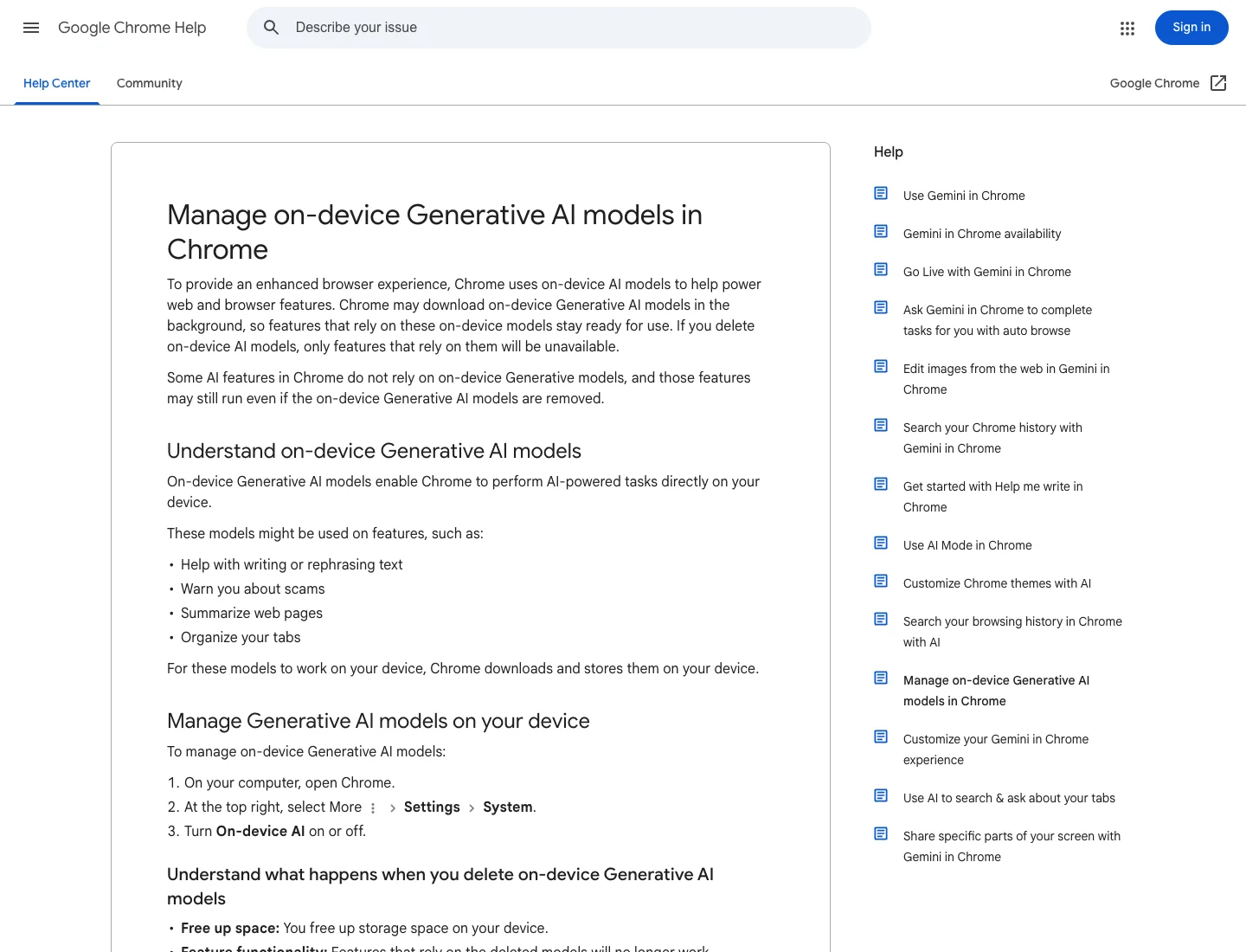
Figure 2: Real screenshot. Google’s help page states that Chrome can download and store on-device generative AI models locally.
Think of it like a store delivering a large box of supplies to your front door before you ask for them. It can be convenient if you need them later, but it is annoying if your hallway is small. If you only move the box away and never cancel the delivery rule, another box can appear again.
That is the core idea of this fix: deleting files removes the box; setting policy cancels the delivery.
2. Symptoms
Common signs include:
- Several gigabytes disappear from the system drive without a recent large install.
- Chrome’s user data folder contains names such as
OptGuideOnDeviceModel. - The folder comes back after manual deletion.
- Turning off a visible AI setting does not immediately remove the model data.
- The machine does not actively use Gemini, writing help, tab organization, or page summary features, but the model is still prepared.
On one checked machine, OptGuideOnDeviceModel alone was about 4.0G. Smaller related folders may also exist, such as classifier models and optimization model stores. The exact size and folder set can vary by Chrome version and enabled features.
3. Root Cause: Chrome Is Becoming a Local AI Runtime
Chrome’s Built-in AI documentation says the browser provides and manages foundation and expert models; in Chrome, that includes Gemini Nano. Web applications can use APIs such as the Prompt API to perform AI-powered work with browser-managed models.
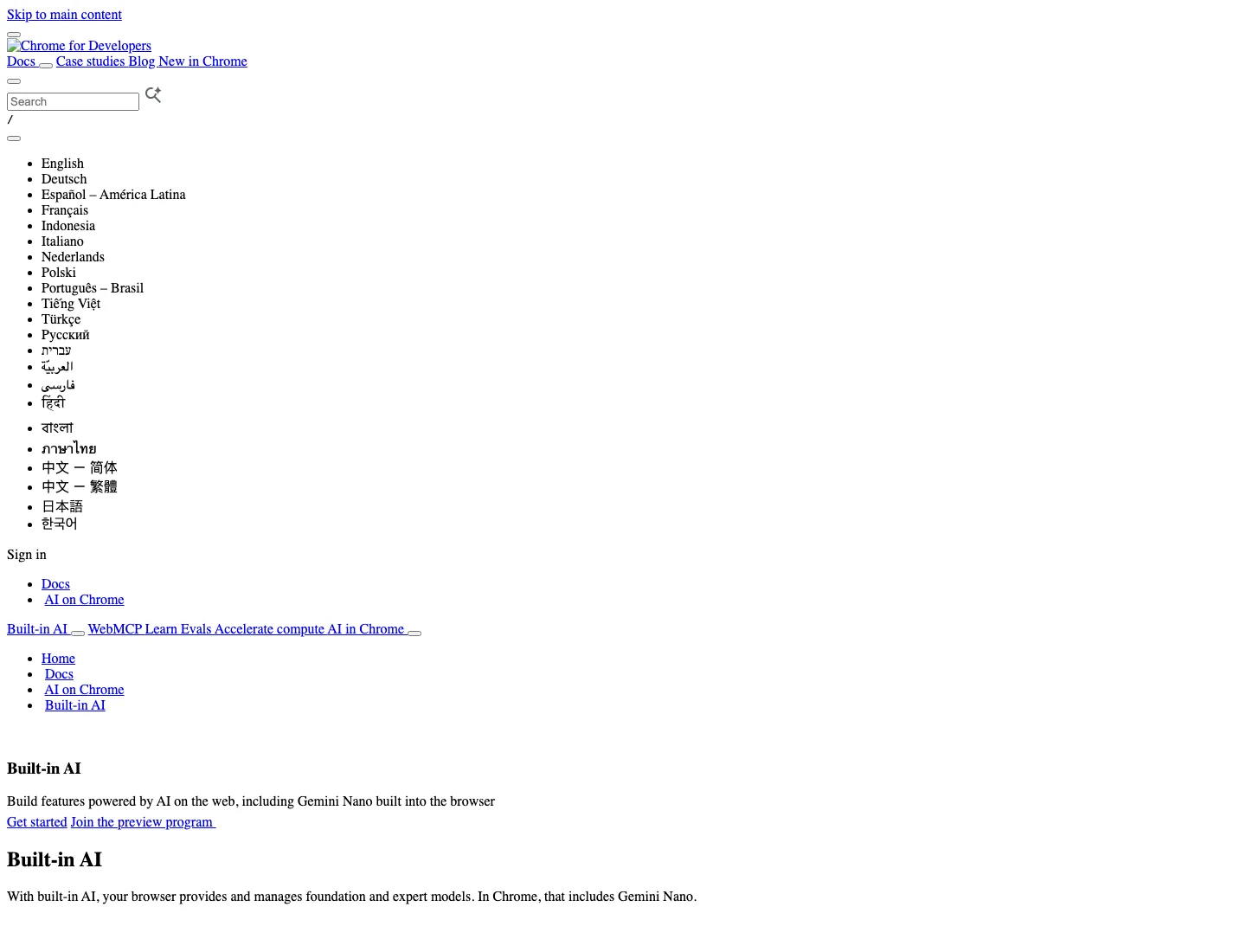
Figure 3: Real screenshot. The captured developer page loaded with incomplete styling, but the visible text is from Chrome’s official Built-in AI documentation.
For users, the experience can feel surprising. A browser used to be mostly a page renderer. Now it may also behave like a small AI runtime: downloading models, updating them, exposing APIs, checking capability, and clearing model data. The benefit is lower latency and more local processing. The cost is disk space and network traffic.
The important policy is GenAILocalFoundationalModelSettings. Chrome Enterprise’s policy description says that when the policy is allowed or not set, the model is downloaded automatically and used for local inference. When it is disabled, the model will not be downloaded and an existing downloaded model will be deleted.
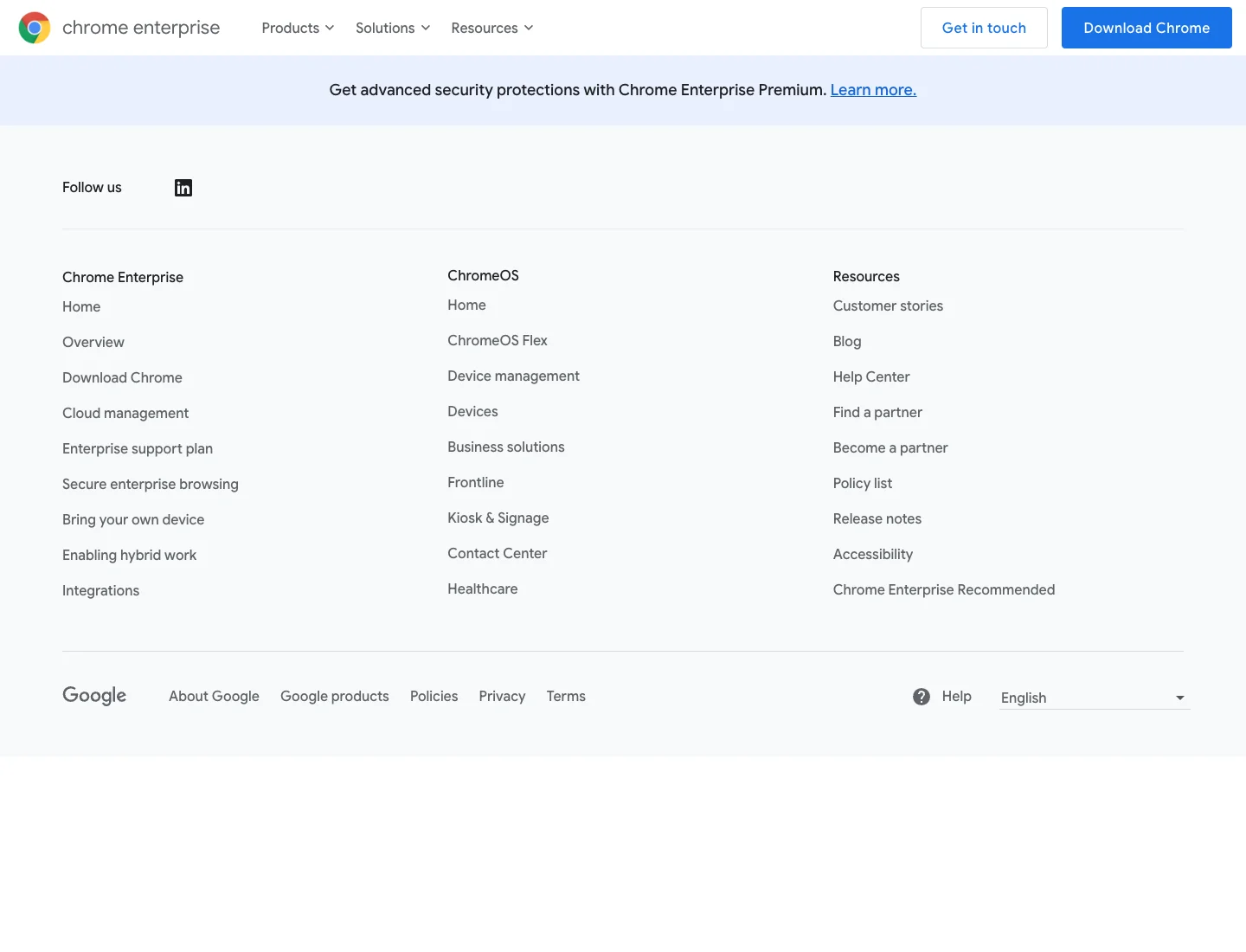
Figure 4: Real screenshot. This Chrome Enterprise policy page is the basis for the policy key used in this guide.
4. The Correct Order: Turn Off the Tap, Then Mop the Floor
Deleting the model directory alone is like mopping while the tap is still open. The disk looks clean for a while, but the source of the download remains.
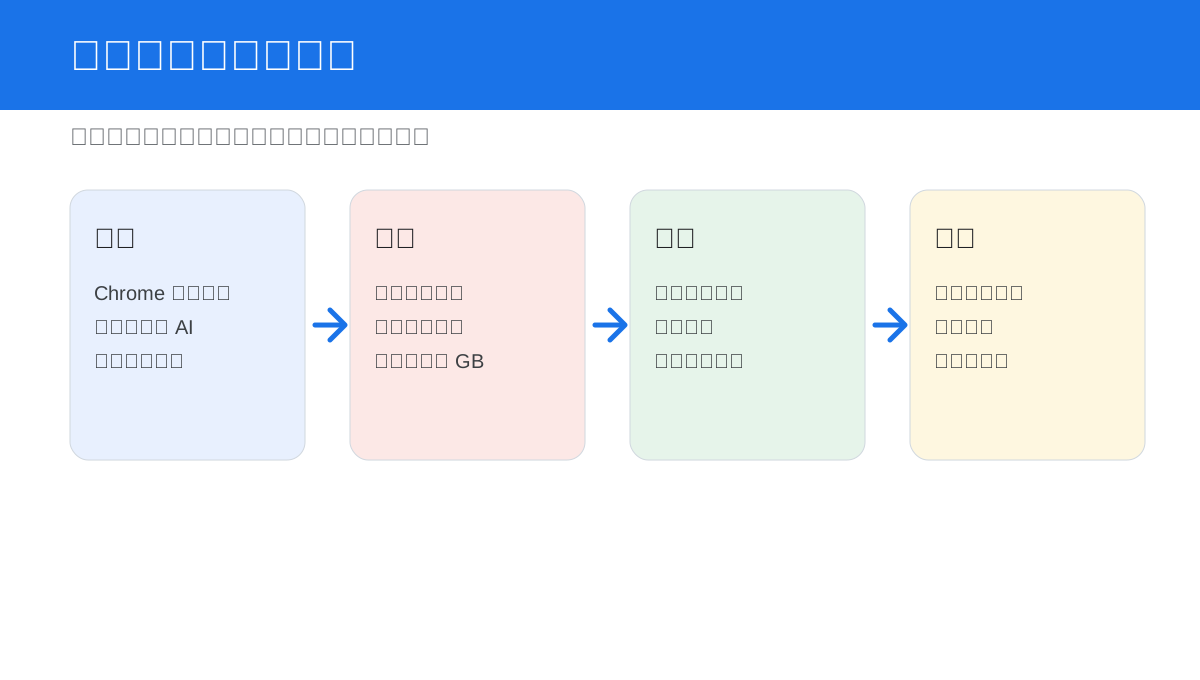
Figure 5: Deleting the folder clears inventory. Setting policy stops restocking.
Use this sequence:
- Quit Chrome so files are not locked.
- Set
GenAILocalFoundationalModelSettingsto1, which means Disabled. - Remove the already downloaded model folders.
- Reopen Chrome and verify
chrome://policy. - Watch for a while and confirm the model folder does not return.
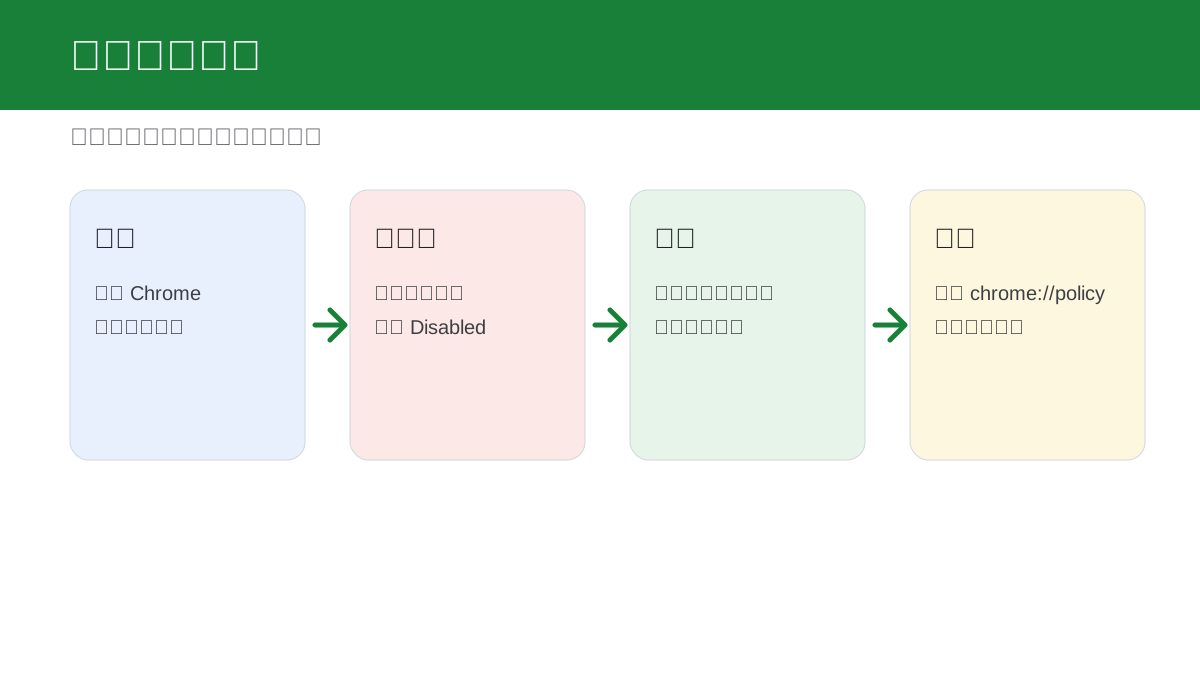
Figure 6: Close Chrome, write policy, clean the model folders, and verify policy.
The scripts below target Google Chrome. If you use Chromium, Chrome Beta, Chrome Dev, or Chrome Canary, adjust the paths accordingly.
5. Windows 11 One-Click Script
Run this in an elevated PowerShell window. It writes the machine-level Chrome policy and removes local model folders from the current user’s Chrome data directory.
$ErrorActionPreference = "Stop"

Write-Host "Closing Chrome..."
Get-Process chrome -ErrorAction SilentlyContinue | Stop-Process -Force
Start-Sleep -Seconds 2

$policyPath = "HKLM:\SOFTWARE\Policies\Google\Chrome"
if (-not (Test-Path $policyPath)) {
    New-Item -Path $policyPath -Force | Out-Null
}

New-ItemProperty `
    -Path $policyPath `
    -Name "GenAILocalFoundationalModelSettings" `
    -PropertyType DWord `
    -Value 1 `
    -Force | Out-Null

$userData = Join-Path $env:LOCALAPPDATA "Google\Chrome\User Data"
$targets = @(
    "OptGuideOnDeviceModel",
    "OptGuideOnDeviceClassifierModel",
    "optimization_guide_model_store"
)

foreach ($target in $targets) {
    $path = Join-Path $userData $target
    if (Test-Path $path) {
        Write-Host "Removing $path"
        Remove-Item $path -Recurse -Force
    }
}

Write-Host "Done. Open chrome://policy, click Reload policies, and confirm GenAILocalFoundationalModelSettings = 1."
Manual path: create GenAILocalFoundationalModelSettings as a DWORD (32-bit) value under HKEY_LOCAL_MACHINE\SOFTWARE\Policies\Google\Chrome, set it to 1, quit Chrome, delete the model directories under %LOCALAPPDATA%\Google\Chrome\User Data, and verify in chrome://policy.
6. Ubuntu 26.04 One-Click Script
Google Chrome reads managed Linux policy from /etc/opt/chrome/policies/managed/. Chromium commonly uses /etc/chromium/policies/managed/.
#!/usr/bin/env bash
set -euo pipefail

echo "Closing Chrome/Chromium..."
pkill -x chrome 2>/dev/null || true
pkill -x google-chrome 2>/dev/null || true
pkill -x google-chrome-stable 2>/dev/null || true
pkill -x chromium 2>/dev/null || true
sleep 2

policy_json='{"GenAILocalFoundationalModelSettings": 1}'

sudo install -d -m 0755 /etc/opt/chrome/policies/managed
printf '%s\n' "$policy_json" | sudo tee /etc/opt/chrome/policies/managed/disable-genai-local-model.json >/dev/null

sudo install -d -m 0755 /etc/chromium/policies/managed
printf '%s\n' "$policy_json" | sudo tee /etc/chromium/policies/managed/disable-genai-local-model.json >/dev/null

for root in "$HOME/.config/google-chrome" "$HOME/.config/chromium"; do
  [ -d "$root" ] || continue
  for name in OptGuideOnDeviceModel OptGuideOnDeviceClassifierModel optimization_guide_model_store; do
    if [ -e "$root/$name" ]; then
      echo "Removing $root/$name"
      rm -rf "$root/$name"
    fi
  done
done

echo "Done. Open chrome://policy and confirm GenAILocalFoundationalModelSettings = 1."
Manual version: write {"GenAILocalFoundationalModelSettings": 1} to /etc/opt/chrome/policies/managed/disable-genai-local-model.json, quit Chrome, remove ~/.config/google-chrome/OptGuideOnDeviceModel, and reload policies.
7. macOS 26 One-Click Script
On managed Macs, a configuration profile or MDM policy is the cleanest method. For a personal machine, this script writes a system-level managed preference plist and removes model folders from the current user’s Chrome data directory.
#!/usr/bin/env bash
set -euo pipefail

echo "Closing Chrome..."
osascript -e 'tell application "Google Chrome" to quit' 2>/dev/null || true
sleep 2
pkill -x "Google Chrome" 2>/dev/null || true

sudo mkdir -p "/Library/Managed Preferences"
sudo defaults write "/Library/Managed Preferences/com.google.Chrome" GenAILocalFoundationalModelSettings -int 1
sudo plutil -convert xml1 "/Library/Managed Preferences/com.google.Chrome.plist"
sudo chmod 0644 "/Library/Managed Preferences/com.google.Chrome.plist"

chrome_root="$HOME/Library/Application Support/Google/Chrome"
for name in OptGuideOnDeviceModel OptGuideOnDeviceClassifierModel optimization_guide_model_store; do
  if [ -e "$chrome_root/$name" ]; then
    echo "Removing $chrome_root/$name"
    rm -rf "$chrome_root/$name"
  fi
done

echo "Done. Open chrome://policy, click Reload policies, and confirm GenAILocalFoundationalModelSettings = 1."
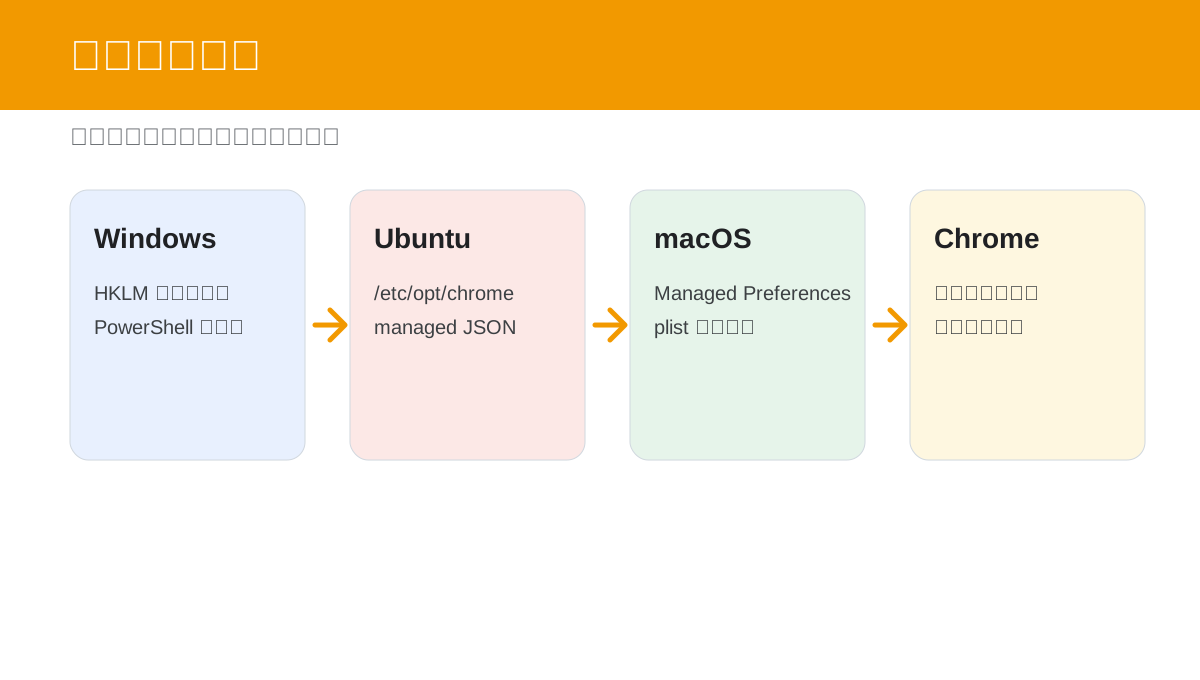
Figure 7: Same Chrome policy, different native policy locations.
8. Agent Prompt
Use this prompt when delegating to a local agent:
Please disable Google Chrome's automatic local GenAI foundational model download and remove any already downloaded model data on this machine.
Requirements:
1. First identify whether the OS is Windows 11, Ubuntu 26.04, or macOS 26, and confirm Google Chrome is installed.
2. Start with read-only checks: locate Chrome user data and measure OptGuideOnDeviceModel, OptGuideOnDeviceClassifierModel, and optimization_guide_model_store.
3. Do not print full hostnames, IP addresses, internal domains, usernames, tokens, or private paths. Use ~ or placeholders in the report.
4. Before modifying anything, state that the policy key will be GenAILocalFoundationalModelSettings=1.
5. After confirmation, quit Chrome, write the OS-specific machine policy, and delete the downloaded local model directories.
6. Ask me to verify chrome://policy or open it if you have browser automation available.
7. Do not disable all Chrome component updates unless I explicitly request that, because it affects more than this model.
9. Verification
After cleanup, verify policy rather than only disk usage:
- Open
chrome://policy. - Click
Reload policies. - Confirm
GenAILocalFoundationalModelSettingsis present and set to1. - Confirm the model folder does not return later.
Disk commands are useful, but secondary:
# macOS
du -sh "~/Library/Application Support/Google/Chrome/OptGuideOnDeviceModel" 2>/dev/null

# Ubuntu
du -sh ~/.config/google-chrome/OptGuideOnDeviceModel 2>/dev/null
On Windows:
$path = "$env:LOCALAPPDATA\Google\Chrome\User Data\OptGuideOnDeviceModel"
if (Test-Path $path) { (Get-ChildItem $path -Recurse | Measure-Object Length -Sum).Sum / 1GB }
10. Q&A
Does this break normal Chrome updates?
No. This guide sets GenAILocalFoundationalModelSettings=1, which targets the local GenAI foundational model. It is not the same as disabling all component updates.
Will Gemini on the web still work?
Usually yes. Web Gemini, cloud AI services, and Chrome’s local model are different layers. This mainly affects browser or web features that depend on Chrome’s on-device model.
Why do some AI features still work after deletion?
Because not every AI feature uses this exact local model. Some use cloud services, some use other components, and some depend on on-device generative models.
Can I just turn off On-device AI in settings?
For a single personal machine, that may be enough. For repeatable, auditable, or multi-machine control, policy is better.
Is Chrome wrong to do this?
It is better described as a product direction with a real resource cost. Browser-managed AI can be useful, but users should know when large models are downloaded and how to opt out.
References
- Google Chrome Help: Manage on-device Generative AI models in Chrome
- Chrome Enterprise Policy: GenAILocalFoundationalModelSettings
- Chrome for Developers: Built-in AI
- Chrome for Developers: The Prompt API