Just Installed Home Assistant and Completely Lost? The Ultimate Beginner Blueprint: Deconstructing the Butler, Diplomat & Knobs to Build Your First Automation in 10 Minutes (With 3-OS Toolkit)
Have you ever experienced that exhilarating yet paralyzing moment?
After watching countless smart-home videos showcasing seamless whole-home lighting scenes, custom 3D floorplans, and cross-brand ecosystem bridges, you finally set up an old PC, mini-host, or virtual machine and completed the Home Assistant (HA) installation. You opened the browser, registered your owner profile, and logged into the web portal with high expectations.
Instead of Jarvis or a neat consumer app like Apple Home or Xiaomi Mi Home, you were greeted by absolute chaos:
The dashboard was either an empty white canvas or a dumping ground overrun by 60 incomprehensible technical entities automatically discovered by your router.
Cryptic entity identifiers like switch.living_room_socket_1, sensor.sun_next_dawn, and binary_sensor.updater cluttered the view. When you clicked into the Automations editor to configure something as simple as “turn on hallway lights when dark,” you were confronted with “Triggers,” “Conditions,” “Service Actions,” and “State Changes.” When you attempted to connect smart appliances in the Add-on Store, search queries came back completely empty, and community threads insisted that “Add-ons are not Integrations and you need to edit YAML code.”
At that exact moment, almost every beginner asks: “Who built this? I cannot even understand the terminology, let alone build automations. How do I start?"
Take a deep breath. This guide is crafted specifically for anyone who has just discovered, touched, or installed Home Assistant. We avoid academic jargon in favor of relatable, elementary-school everyday metaphors to unpack the underlying architecture, organize your entity registry, design an elegant modern dashboard, and launch your first rock-solid automation rule in under 10 minutes.

Figure 1. Original title diagram. A panoramic blueprint deconstructing Home Assistant core concepts, the 5-step onboarding workflow, and zero-code automation architecture.
Symptoms & Background: The Empty Canvas Shock & Terminology Maze
Why does connecting a smart switch in a commercial app feel straightforward, while doing so in Home Assistant feels like solving a puzzle? Let us examine the four classic obstacles every beginner encounters:
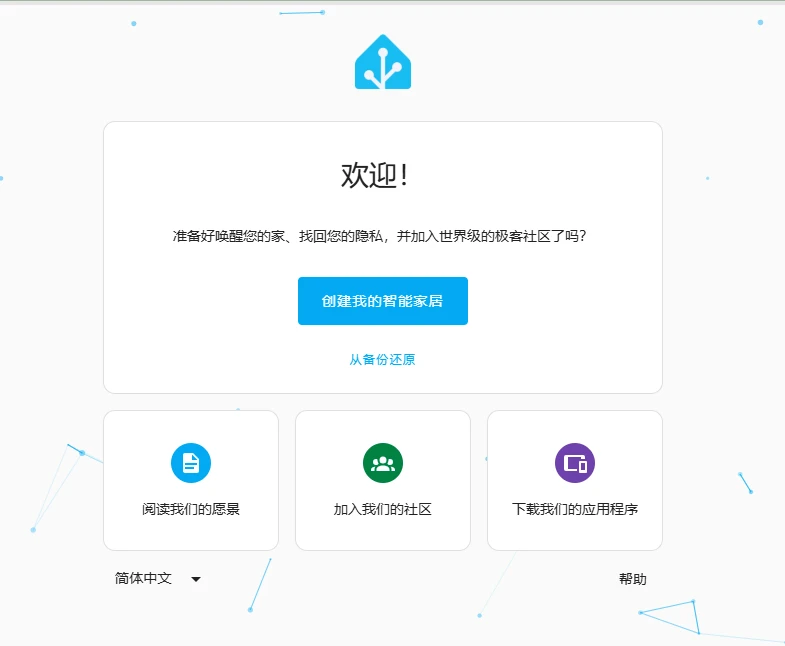
Figure 2. Authentic system screenshot. The initial onboarding screen on Port 8123 after booting Home Assistant. Clicking “Create my smart home” is merely the starting line; the true challenge lies in understanding the conceptual taxonomy that follows.
1. The Empty Canvas Shock & Entity Overload
Upon completing the initial setup wizard, the default Lovelace overview typically swings to one of two extremes:
- Extreme A (The Barren Void): With no cloud accounts linked, the screen resembles an abandoned blank sheet with zero apparent controls.
- Extreme B (The Digital Junkyard): The local router broadcasts dozens of raw network entities (router ports, bridge statistics, UPnP endpoints), flooding the dashboard with technical identifiers that take minutes to scroll past.
2. The Device vs. Entity Identity Split
A user purchases an air conditioner or a multi-outlet smart power strip, links it to Home Assistant, and searches for a single “Air Conditioner” switch.
Instead, the device summary displays an entire roster of separate items: climate.bedroom_ac (thermostat panel), sensor.bedroom_ac_temperature (indoor temperature meter), sensor.bedroom_ac_power (real-time wattage draw), and switch.bedroom_ac_display (screen backlight toggle). Beginners are immediately bewildered: Which item do I actually control?
3. The Fatal Mix-up: Add-ons vs. Integrations
This is the single most common stumbling block. A new user reads online that they should install an integration for their specific brand, heads straight into the left-hand menu under “Add-on Store”, searches for their brand name, and receives a cold “No results found” error. The reality: an Add-on is not an Integration. Visiting the Add-on Store to find an appliance integration is like walking into a lumber yard expecting to purchase cell phone airtime.
4. Inverted Automation Logic
A beginner wants to configure: “When I open the front door at night, turn on the hallway light.” They assign both “Sunset” and “Door Open” as separate Triggers. When sunset occurs at 6:00 PM, the lights abruptly illuminate in an empty hallway, startling the household. Alternatively, they place the door contact into Conditions, causing the automation to ignore door openings entirely.
Architectural Analysis: Why Was Home Assistant Engineered This Way?
To overcome initial confusion, recognize that Home Assistant was not designed to be difficult; its conceptual framework is the exact foundation that allows it to bridge tens of thousands of heterogeneous hardware models with local, sub-second execution.
Commercial smart-home apps (such as Apple Home, Google Home, or vendor apps) feel simpler because they are monolithic, closed vertical silos. Their UI cards are hardcoded for specific proprietary devices: a smart plug card only exposes an on/off toggle because the vendor defined that boundary. However, vendor silos rarely cross ecosystem boundaries natively, and when upstream cloud servers experience outages, automation logic fails.
In contrast, Home Assistant orchestrates an open universal hardware aggregate:
- Wi-Fi appliances speaking local REST, MQTT, or proprietary binary protocols;
- Low-power Zigbee, Z-Wave, and Thread sensors communicating over local radio mesh;
- Bluetooth LE beacons, Tuya microcontrollers, and HomeKit accessories.
To allow disparate devices to collaborate seamlessly, Home Assistant relies on two fundamental decoupling layers:

Figure 3. Elementary school metaphor. The Grand Butler (HA Core), The Diplomat (Integrations), The Physical Appliance (Device), and Functional Knobs (Entities).
- Decoupling Layer 1: Protocol Translation (Integrations) HA Core does not directly manipulate raw device circuits. It utilizes Integrations as translators, converting proprietary network packets into standardized internal schema models.
- Decoupling Layer 2: Hardware vs. Capabilities (Device vs. Entity) A physical casing is merely a container. What automations interact with are specific meter readings and actuators. A smart plug with built-in metering must have its power sensor detached from its relay switch so its wattage reading can feed into the energy dashboard without inadvertently toggling the socket power.
Core Concepts Demystified: The Smart Mansion Metaphor
Imagine that instead of wrestling with software containers, you are managing a grand, technologically advanced Smart Mansion.
1. Home Assistant Core: The Grand Butler & Master Scribe
Home Assistant Core is the experienced Grand Butler stationed in the central command office. The Butler holds a comprehensive Master Ledger (The State Engine) recording the real-time status of every corner in the estate:
- Hallway Ceiling Light: ON
- Bedroom AC: 24°C
- Front Door Contact: CLOSED
- Daily Power Usage: 4.8 kWh
The Butler is wired to every room through a network of acoustic chimes: The Event Bus. Whenever an event happens (a door opens, sunset arrives, temperature drops), the chime rings, the Butler updates the ledger, and consults your written house rules.
2. Integrations: The Diplomats & Interpreters
Appliances in the mansion hail from various international manufacturers:
- Air conditioners speaking vendor dialects;
- Smart switches speaking Zigbee mesh radio;
- Mobile phones communicating via HomeKit.
The Butler cannot learn every proprietary dialect. Instead, he maintains a staff of Resident Diplomats: Integrations. When you activate a vendor integration, you assign a dedicated diplomat who speaks that specific protocol. The diplomat handles network handshakes and delivers standardized status reports directly to the Butler.
3. Device vs. Entity: Hardware Enclosures vs. Individual Control Knobs
This distinction forms the heart of Home Assistant:
Device = The physical appliance chassis mounted on your wall. You do not tell the Butler to “execute the air conditioner block” because a physical machine represents multiple functions.
Entity = The specific functional dials, switches, and meters exposed on the machine faceplate!
- Dial A: Thermostat mode and temperature target (
climate.bedroom_ac); - Meter B: Ambient temperature probe (
sensor.bedroom_temperature); - Meter C: Electrical power gauge (
sensor.bedroom_ac_power); - Switch D: Front display LED toggle (
switch.bedroom_ac_display).
Each functional dial or meter is an Entity, identified by a globally unique Entity ID structured as:
domain.name (e.g., light.living_room, switch.balcony_plug).
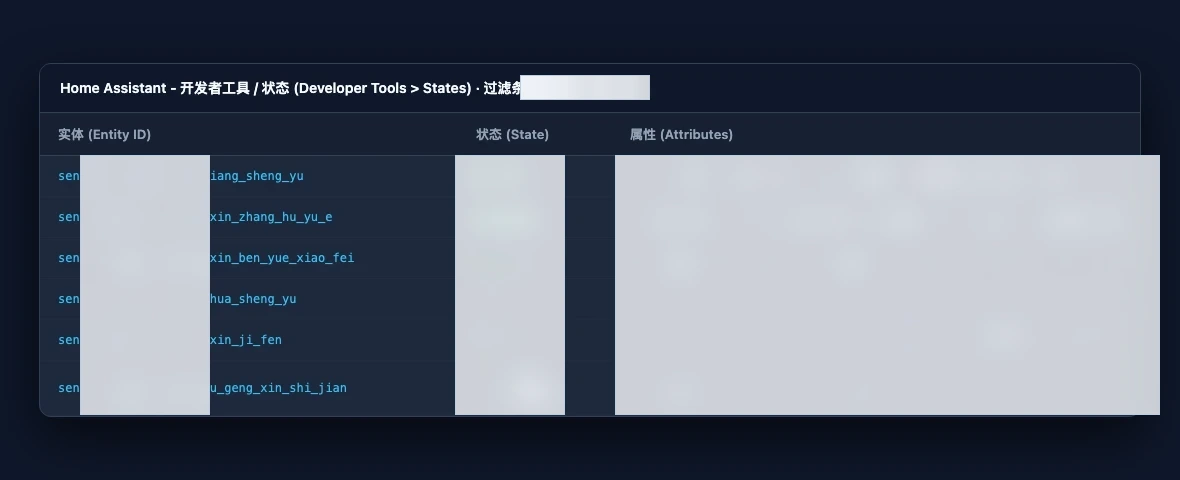
Figure 4. Authentic system screenshot. Developer Tools → States view. Each row represents an individual entity (knob or meter), displaying its unique ID, real-time State reading, and detailed Attributes metadata.
4. State vs. Attributes: Current Dial Reading vs. Specification Plate
- State: The primary value currently displayed on the dial face. It is concise:
on,off,24.5, orbelow_horizon. - Attributes: The technical specification sheet attached to the back of the dial. For instance, while a climate entity’s primary state is
cool, its attributes detail current fan speed, vertical swing status, target temperature presets, and minimum/maximum thermal boundaries.
5. Services / Actions: The Butler’s Direct Orders
The Butler never touches internal hardware wires. To alter reality, the Butler signs and dispatches an Action (historically termed a Service Call):
light.turn_on: Illuminate a target bulb;climate.set_temperature: Adjust target climate to 24°C;notify.mobile_app: Push an alert to your mobile handset.
Architectural Comparison: Add-ons vs. Integrations Explained
As shown in Figure 5, conflating Add-ons with Integrations is the primary point of failure for newcomers:

Figure 5. Conceptual architecture comparison. Add-ons are standalone Docker workshop cottages in the backyard; Integrations are resident Python diplomats inside the main mansion.
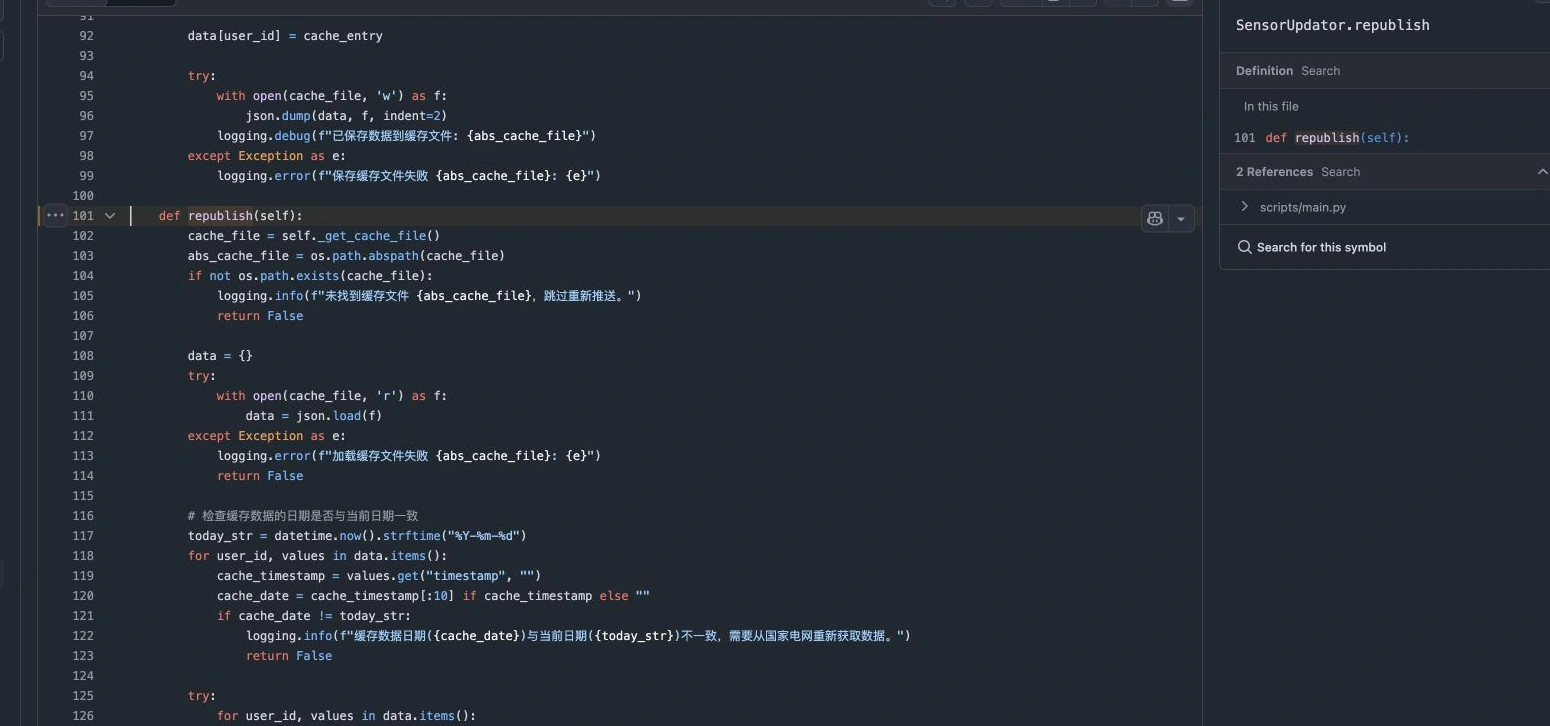
Figure 6. Authentic system screenshot. Settings → Add-ons → Add-on Store. This catalog manages standalone container sidecars such as Mosquitto MQTT Broker, Node-RED, and File Editor. Physical appliances are never installed from this store!
Clear Distinction Matrix
| Dimension | Add-on (Sidecar) | Integration (Driver) |
|---|---|---|
| Metaphor | Standalone workshop cottage in the backyard | Resident diplomat inside the command office |
| Technical Nature | Isolated Docker container application | In-process Python driver module |
| Network Profile | Binds its own ports and isolated memory | Injects entities directly into the State Engine |
| Where to Find | Settings → Add-ons → Add-on Store | Settings → Devices & Services → Add Integration |
| Examples | Mosquitto (MQTT Server), Node-RED, File Editor | Xiaomi Miot, Midea AC, Apple HomeKit, Weather |
| Availability | Native to HAOS and Supervised installs only | Universal across all install types |
Rule of thumb: To connect smart switches, lights, and sensors → Add an Integration! To host an MQTT server, terminal console, or code editor → Install an Add-on!
The Automation Engine: The Golden Trio (Trigger → Condition → Action)
Every automated behavior in Home Assistant follows a structured three-stage pipeline:

Figure 7. Original architectural logic. The Golden Trio: Trigger (The Spark: When to evaluate?) → Condition (The Guard: Is it allowed to run?) → Action (The Order: What commands to execute?).
1. Trigger: The Spark (“When does it wake up?”)
A trigger is an instantaneous event that awakens the Butler:
- Nature: A dynamic state transition (from state A to state B).
- Examples:
- Front door contact sensor transitions from
offtoon; - Sun position crosses below the horizon (Sunset);
- Room humidity climbs above 75%.
- Front door contact sensor transitions from
2. Condition: The Guard (“Must it proceed?”)
Once awakened, the Butler does not act blindly; he validates pre-requisites:
- Nature: A static check assessing current reality.
- Examples:
- Although the door opened, illuminance is currently above 100 Lux (broad daylight); the guard blocks execution.
- If the sun is below the horizon AND the user is marked ‘home’, the guard permits passage.
3. Action: The Order (“What to execute!”)
Upon clearing the guards, the Butler signs official orders:
- Nature: Service calls dispatched to target entities.
- Examples:
- Call
light.turn_onto illuminate the entryway to 70%; - Call a smart speaker to chime a welcome tone;
- Set a timer to shut off the light after 5 minutes of no motion.
- Call
Hands-On 5-Step Quickstart: From Scratch to First Automation
Follow these 5 progressive steps to build your foundation in under 10 minutes:
Step 1: Declutter by Defining Areas
Before building automations, establish your rooms:
- Navigate to Settings → Areas, Labels & Zones → Areas;
- Create your actual physical zones:
Living Room,Master Bedroom,Kitchen,Entrance; - Go to Devices and assign each detected hardware unit to its respective area. This instantly groups unruly entities into organized spaces.
Step 2: Add Your First Native Integration
Even without physical IoT hardware, you can test powerful built-in sources:
- Sun: Automatically computes solar azimuth, elevation, and sunset timing.
- Weather: Add the default weather integration to stream local forecasts and temperature sensors. If you own smart plugs or bulbs, click Add Integration, select your brand, and authenticate via local network or cloud login.
Step 3: Construct Your First Zero-Code Automation
Create a classic sunset lighting routine:
- Navigate to Settings → Automations & Scenes → Create Automation;
- Under When (Trigger): Select
Sun→Sunset→ Offset:-00:15:00(15 minutes prior to dusk); - Under And if (Condition): Select
State→ Entity:zone.home→ State:> 0(someone is home); - Under Then do (Action): Select
Call Service→light.turn_on→ Target:light.hallway_light. Click Save and name it “Dusk Entryway Lighting.” You have deployed your first true whole-home rule!
Step 4: Craft a Modern Lovelace Dashboard
Avoid the default auto-generated card dump:
- In the Overview dashboard, click the three-dot menu in the upper right → Edit Dashboard;
- Create a new View using the modern Sections layout;
- Insert Tile cards to represent essential lights, climate controls, and door contacts.
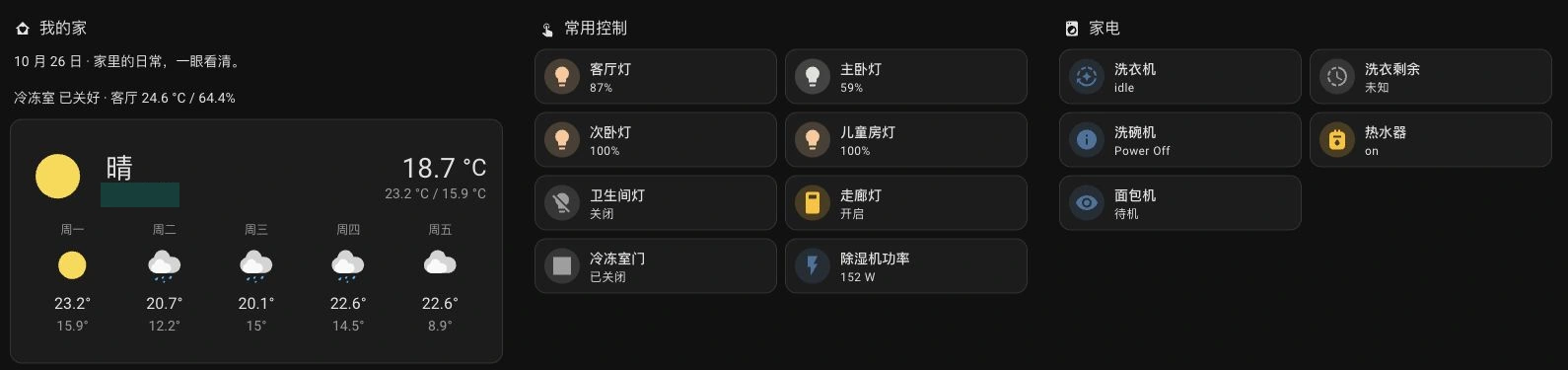
Figure 8. Authentic system screenshot. A streamlined dashboard using Sections layout. Environmental forecasts sit up top while essential switches rest in compact tile cards below.
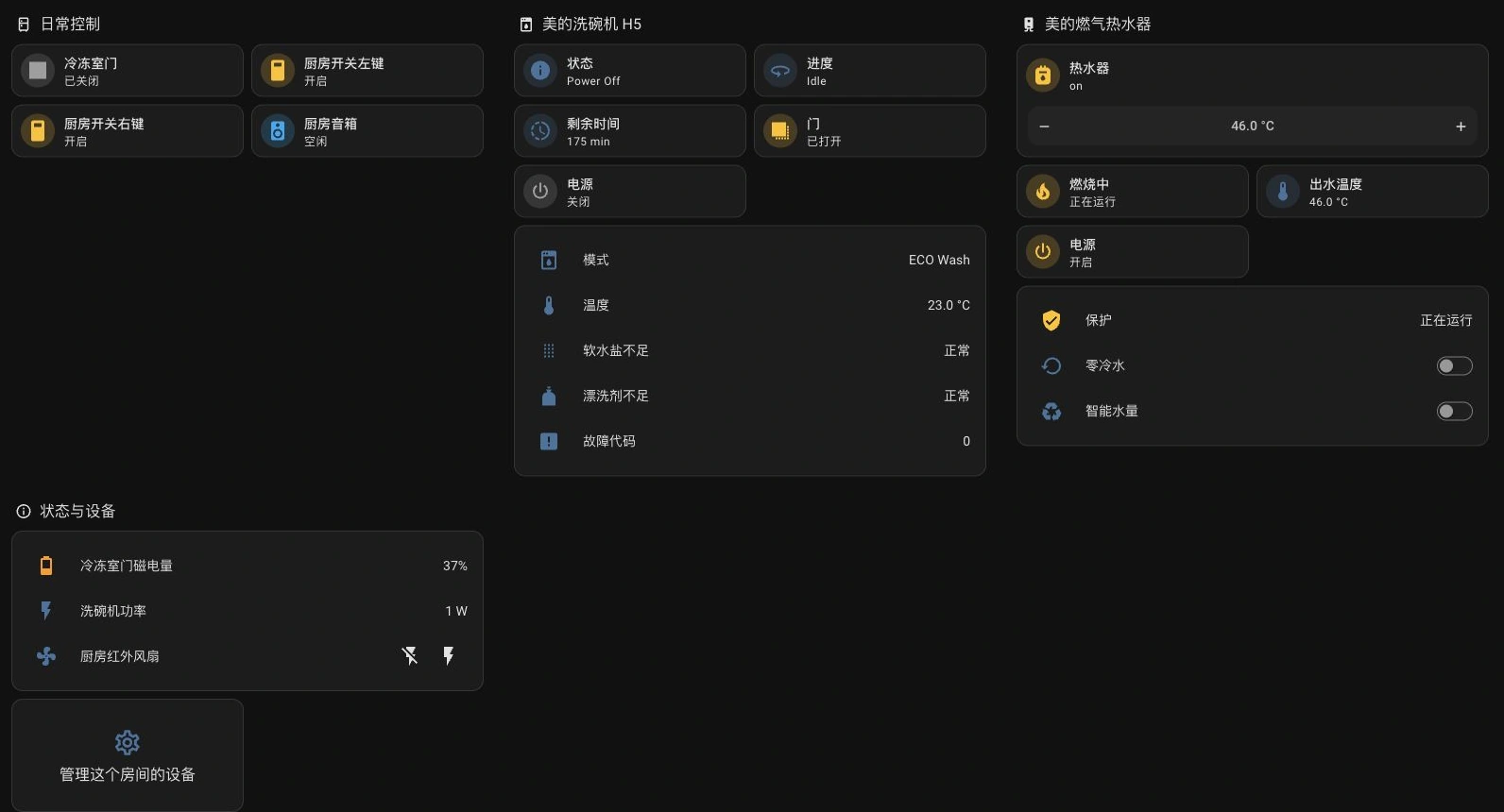
Figure 9. Authentic system screenshot. Dedicated Room View (Kitchen). Devices are logically compartmentalized by task (lighting, water heating, appliances).
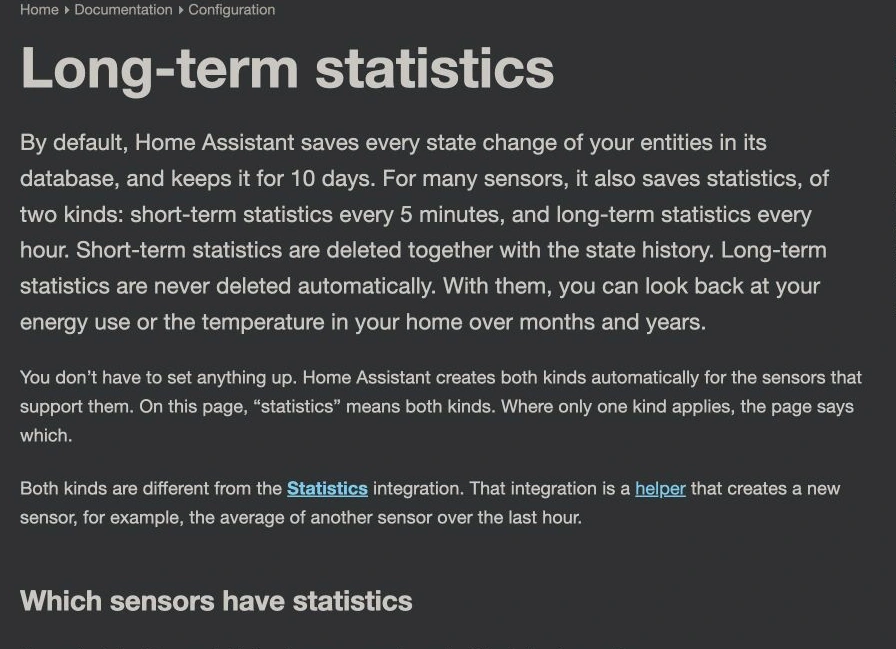
Figure 10. Authentic system screenshot. Every state update is logged by the local Recorder engine into SQLite/PostgreSQL, rendering continuous historical performance curves.
Step 5: Establish Your Safety Net — The First Backup
Protect your setup before installing community extensions:
- Go to Settings → System → Backups;
- Click Create Backup, select
Full Backup, and label itDay1_Clean_State; - Download the resulting
.tararchive to local storage. Any misconfiguration can now be reverted in minutes.
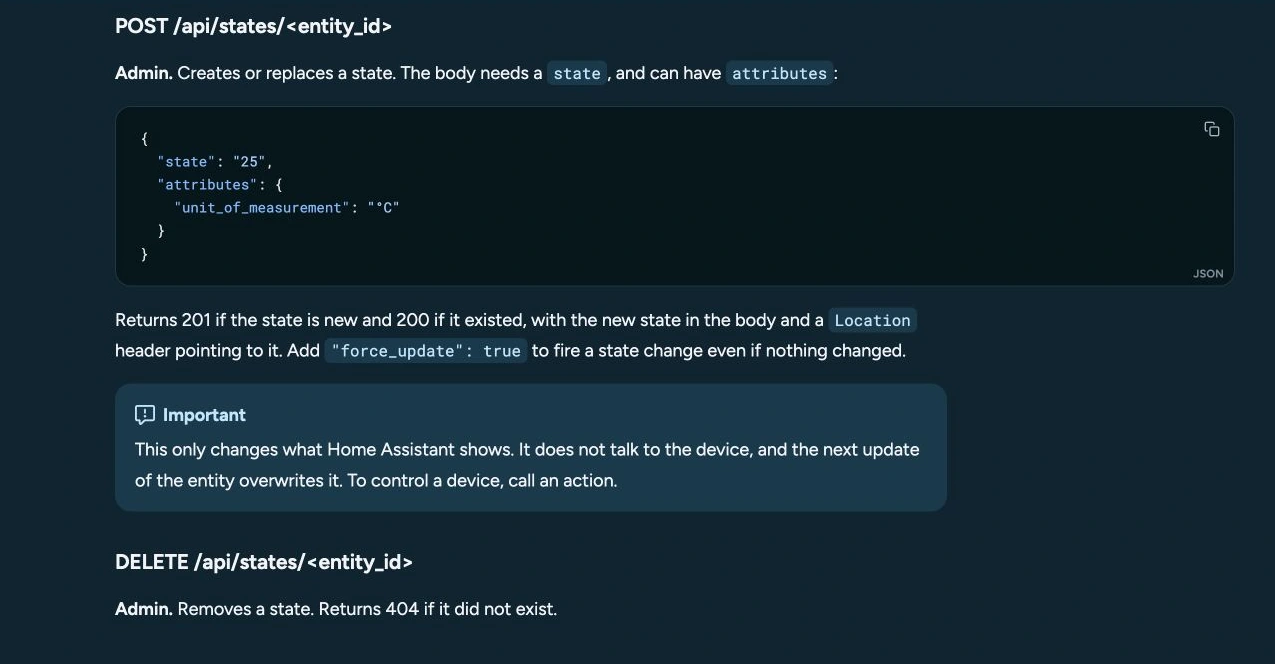
Figure 11. Authentic system screenshot. The Developer Tools → Actions panel. Here you can simulate and test service calls directly before committing them to production automations.
3-OS Beginner Diagnostic & Governance Toolkit
To eliminate network guesswork, local IP hunting, and ghost entity detection, we provide a zero-dependency, cross-platform diagnostic kit tailored for Windows 11, Ubuntu 26.04, and macOS 27.

Figure 12. Original architecture diagram. The cross-platform diagnostic toolkit: local subnet discovery, entity health audit, and starter template generation across Windows 11, Ubuntu 26.04, and macOS 27.
Download & Archive Structure
The toolkit relies solely on the Python 3 standard library:
- Download: ha-beginner-toolkit.zip
Included files:
windows-11.ps1: PowerShell execution wrapper;ubuntu-26.04.sh: Bash execution wrapper;macos-27.sh: Zsh execution wrapper;ha_beginner_kit.py: Core discovery and audit engine;config.example.json: API token configuration template.
Method 1: Manual Execution
1. Windows 11 (PowerShell)
# 1. Discover local Home Assistant instance on ports 8123 / 8124
powershell -ExecutionPolicy Bypass -File .\windows-11.ps1 discover

# 2. Audit entity health and flag disconnected unavailable entities
powershell -ExecutionPolicy Bypass -File .\windows-11.ps1 audit --url http://homeassistant.local:8123 --token <YOUR_TOKEN>

# 3. Bootstrap starter dashboard and automation YAML templates
powershell -ExecutionPolicy Bypass -File .\windows-11.ps1 bootstrap
2. Ubuntu 26.04 (Bash)
chmod +x ubuntu-26.04.sh
./ubuntu-26.04.sh discover
./ubuntu-26.04.sh audit --url http://homeassistant.local:8123 --token <YOUR_TOKEN>
./ubuntu-26.04.sh bootstrap
3. macOS 27 (Zsh)
chmod +x macos-27.sh
./macos-27.sh discover
./macos-27.sh audit --url http://homeassistant.local:8123 --token <YOUR_TOKEN>
./macos-27.sh bootstrap
Method 2: AI Agent Automated Execution
AI coding agents (e.g., Claude Code, Codex, Antigravity CLI) can invoke the engine directly in JSON audit mode:
python3 ha_beginner_kit.py audit --url http://homeassistant.local:8123 --token "$HA_TOKEN"
The tool produces a structured ha_health_report.json diagnostic:
{
  "status": "needs_attention",
  "latency_ms": 14.28,
  "total_entities": 76,
  "domain_breakdown": {
    "sensor": 38,
    "switch": 14,
    "light": 12,
    "binary_sensor": 10,
    "climate": 2
  },
  "unavailable_count": 2,
  "unavailable_entities": [
    "switch.balcony_plug_relay",
    "sensor.kitchen_air_quality"
  ]
}
If unavailable_count > 0, the agent pauses automation deployments and alerts the administrator to inspect hardware power and local Wi-Fi connectivity.
Frequently Asked Questions (Q&A)
Q1: If home internet goes down, will local automations still function?
Yes, completely! Local execution is Home Assistant’s greatest structural advantage. HA Core, the automation engine, and local integrations (such as Zigbee, Matter, HomeKit Device, and local LAN drivers) communicate within your home router’s subnet. Even with external fiber disconnected, presence detection and lighting respond instantly.
Q2: Do I still need to handcraft YAML files in 2026?
For 95% of everyday use, no! Home Assistant operates on a strict UI-first philosophy. Adding integrations, designing cards, mapping areas, and building automations are executed entirely via visual builders. YAML is reserved only for advanced custom template sensors or complex package definitions.
Q3: Can I continue using Siri, Google Assistant, or smart speakers alongside HA?
Yes, seamlessly.
With the built-in Apple HomeKit Bridge or cloud assistants, Home Assistant acts as a universal bridge, exposing third-party devices directly into Apple Home and smart speakers for unified voice commands.
Q4: Why do certain entities display “unavailable” or “unknown”?
unavailable: The device has disconnected from the network, lost power, or exhausted battery reserves.unknown: Common immediately following a system reboot while waiting for the first telemetry polling cycle.
Q5: Can I rename an Entity ID later? Does it break automations?
Yes, under Settings → Entities. However, ensure that any scripts or dashboards referencing the old entity ID are updated to match the new identifier.
Q6: What is a Long-Lived Access Token?
It is a cryptographic bearer token generated under your user profile, valid for up to 10 years, allowing local tools and scripts to query the REST API securely without entering account passwords.
Q7: What is the difference between Full Backup and Partial Backup?
- Full Backup: Archives the complete OS, all container Add-ons, database records, and configuration files. Recommended prior to major version upgrades.
- Partial Backup: Archives only selected folders (such as the configuration directory). Compact and fast for daily checkpointing.
Q8: Why does an installed Add-on not appear on my dashboard?
Add-ons are standalone server processes. If an Add-on features a graphical management interface, toggle “Show in sidebar” in its configuration.
Q9: How can I access my Home Assistant remotely without a public IPv4 address?
Consider Home Assistant Cloud (Nabu Casa), zero-trust overlay networks (such as Tailscale, EasyTier, or WireGuard), or Cloudflare Tunnels for encrypted remote ingress.
Q10: What is the golden rule for system upgrades?
- Skip day-one
.0monthly releases in favor of stabilized.2point releases; - Always generate a verified backup before upgrading;
- Skim the release notes for Breaking Changes affecting your active integrations.
Conclusion: Taking Command of Your Physical Reality
Moving from the paralysis of an empty screen to the clarity of the Grand Butler, Diplomats, and Control Knobs unlocks the true potential of self-hosted home automation.
True smart living is not about scrolling through dozens of colorful phone apps. It is the quiet luxury of opening your front door late at night to find the entryway bathed in warm light, the temperature balanced, and the house operating in effortless harmony.
Download the 3-OS toolkit and start building your smart home today!