Why Is Your Gigabit Network Underperforming? The Ultimate Practical Guide to ImmortalWrt Router Firmware: From Hardware Acceleration to Automated Operations
The Executive Summary
Many users eagerly upgrade to a gigabit (or multi-gigabit) fiber plan, buy a high-performance Wi-Fi 6/7 router or even invest in a multi-port x86 soft router, only to hit a frustrating wall: throughput fails to max out the link, the router CPU spikes to 100%, gaming latency jitters wildly, and installing packages fails with constant connection timeouts.
The true root cause is rarely the physical fiber line or the router’s raw silicon. Rather, vanilla upstream OpenWrt prioritizes strict open-source purism, omitting proprietary hardware flow offloading (PPE / WED) drivers from SoC vendors. Coupled with high-latency connections to overseas package mirrors, this forces packets that should glide across a dedicated hardware expressway straight into the CPU for exhausting, software-based packet copying.
ImmortalWrt is an open-source distribution specifically engineered to solve these pain points. By integrating native MediaTek (Filogic/MT798x), Rockchip, and x86 hardware acceleration drivers out of the box, standardizing TurboACC, Full Cone NAT1, modern responsive themes, and localized high-speed mirrors, it enables low-cost hardware to run gigabit and 2.5G speeds at wire rate with negligible CPU overhead. This article breaks down the underlying architecture using intuitive everyday analogies and provides native 1-click automation scripts across Windows 11 / Ubuntu 26.04 / macOS 26 for both human operators and autonomous AI Agents.

Figure 1: AI Generated Cover. Equipping your router with optimized firmware is like converting congested city roads into multi-tier elevated expressways with automated ETC express lanes.
1. Background: Why Gigabit Connections Underperform
Back in the 100 Mbps broadband era, consumer routing was trivial. Even an aging MIPS router running at a few hundred megahertz could easily keep pace with tens of megabits of throughput.
However, as home and lab broadband speeds surge to 1000 Mbps (or 2.5 Gbps) with dozens of concurrent devices (smart home peripherals, NAS, workstations, smartphones, consoles, and streaming appliances), network architecture stresses compound exponentially:
- Massive Packet Rates: Full gigabit line rate translates to more than 1.488 million packets per second (Mpps) for 64-byte frames.
- Conntrack Table Exhaustion: Concurrent peer-to-peer transfers, 4K/8K video streaming, online conferences, and multiple microservices strain the Linux connection tracking state table.
- Locked Stock Firmware: Commercial vendor firmware operates like an impenetrable black box—no custom DNS split tunneling, no Docker container support, no Full Cone NAT, and zero automated health inspection or backups.
- Mainline OpenWrt Friction: Users who flash official upstream OpenWrt often find Wi-Fi throughput dropping from 1000M to barely 300M, thermal throttling under speed tests, and package installations failing repeatedly due to remote mirror timeouts.
2. Problem Symptoms: Three Frequent Pain Points
If your network exhibits any of the following symptoms, your router is likely throttled by firmware-level bottlenecks:
Symptom 1: 100% CPU Load During Throughput Spikes
When launching Speedtest or downloading games via Steam or torrent clients, checking the router console reveals CPU usage spiking to 98%~100% alongside soaring load averages. Meanwhile, household members experience buffering videos, and online multiplayer games suffer 400ms latency spikes or packet drops.
Symptom 2: Inverted Wi-Fi Throughput
Despite owning a dual-band AX3000 or AX6000 Wi-Fi 6 access point, testing with iperf3 right beside the router yields barely 300Mbps~400Mbps, with noticeable stutter under multi-client loads.
Symptom 3: Persistent opkg Package Download Timeouts
Inside LuCI’s Software management page, refreshing package lists spins endlessly before throwing connection timeouts:
Failed to download ... Connection timed out
Signature check failed
Collected errors: opkg_download: Failed to download ...
Even when third-party mirrors are configured manually, kernel mismatches frequently corrupt dependencies or force root partitions into read-only recovery mode.
3. Architecture Deconstructed: Everyday Analogies Anyone Can Understand
To help explain technical networking concepts intuitively, let’s explore three vivid everyday analogies:
Analogy 1: Software Routing vs. Hardware Flow Offloading (PPE/WED) — The Manual Toll Booth vs. The ETC Express Lane
A modern router contains two primary silicon domains: the Host CPU and the Dedicated Packet Processing Engine (PPE / Switch ASIC).
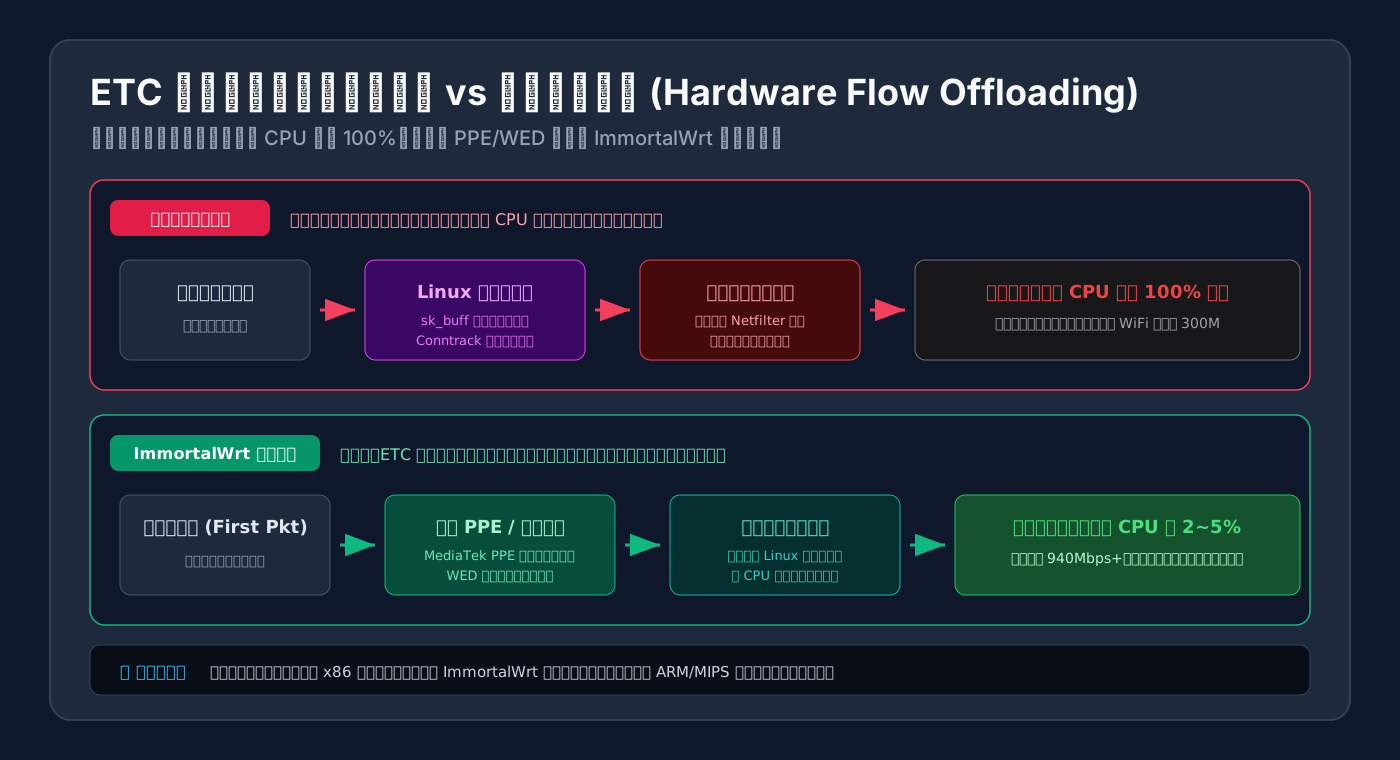
Figure 2: Software routing requires the CPU to manually inspect every packet (manual toll booth), whereas hardware flow offloading (ETC lane) programs the switch ASIC on the first packet, allowing all subsequent traffic to glide through at line rate.
-
Vanilla OpenWrt Software Routing (Manual Toll Booth): Every packet is like a car approaching a highway toll plaza. The toll collector (the CPU) must open the window, inspect the driver’s license (IP header), look up a thick paper logbook (routing & firewall tables), manually stamp the ticket, and raise the barrier. At 100 Mbps, several thousand cars per second can be handled. At gigabit speeds (1.4 million packets per second), the collector collapses from exhaustion (CPU 100%), creating gridlock across the highway (high latency and packet loss).
-
ImmortalWrt Hardware Acceleration (ETC Express Lane): When a new data stream arrives, only the very first packet (the handshake) is checked by the CPU. The CPU instantly programs an entry into the switch chip’s hardware lookup table (PPE / WED). All subsequent millions of packets pass through automated ETC RFID express lanes (hardware flow offload) at full line rate! The CPU sits idle at 2%~5% load, while the network screams along at maximum wire speed.
Analogy 2: Upstream OpenWrt vs. ImmortalWrt — Bare-Shell Apartment vs. Fully Furnished Smart Home
- Upstream OpenWrt: Like buying a bare-shell concrete apartment. The foundational concrete and wiring meet pristine engineering standards, but there are no light fixtures, stove, or heating. Installing a kitchen faucet requires ordering parts from an overseas warehouse thousands of miles away, which often get lost in transit.
- ImmortalWrt: A fully furnished smart home tailored for high-performance domestic networks. Proprietary hardware offloading drivers (air conditioning), TurboACC acceleration (underfloor heating), and the responsive Argon UI (smart touchscreen controls) are pre-installed. High-speed local mirror centers ensure any additional tools install in seconds.
Analogy 3: Symmetric NAT vs. Full Cone NAT (NAT1) — The Strict Gatekeeper vs. The Open Intercom
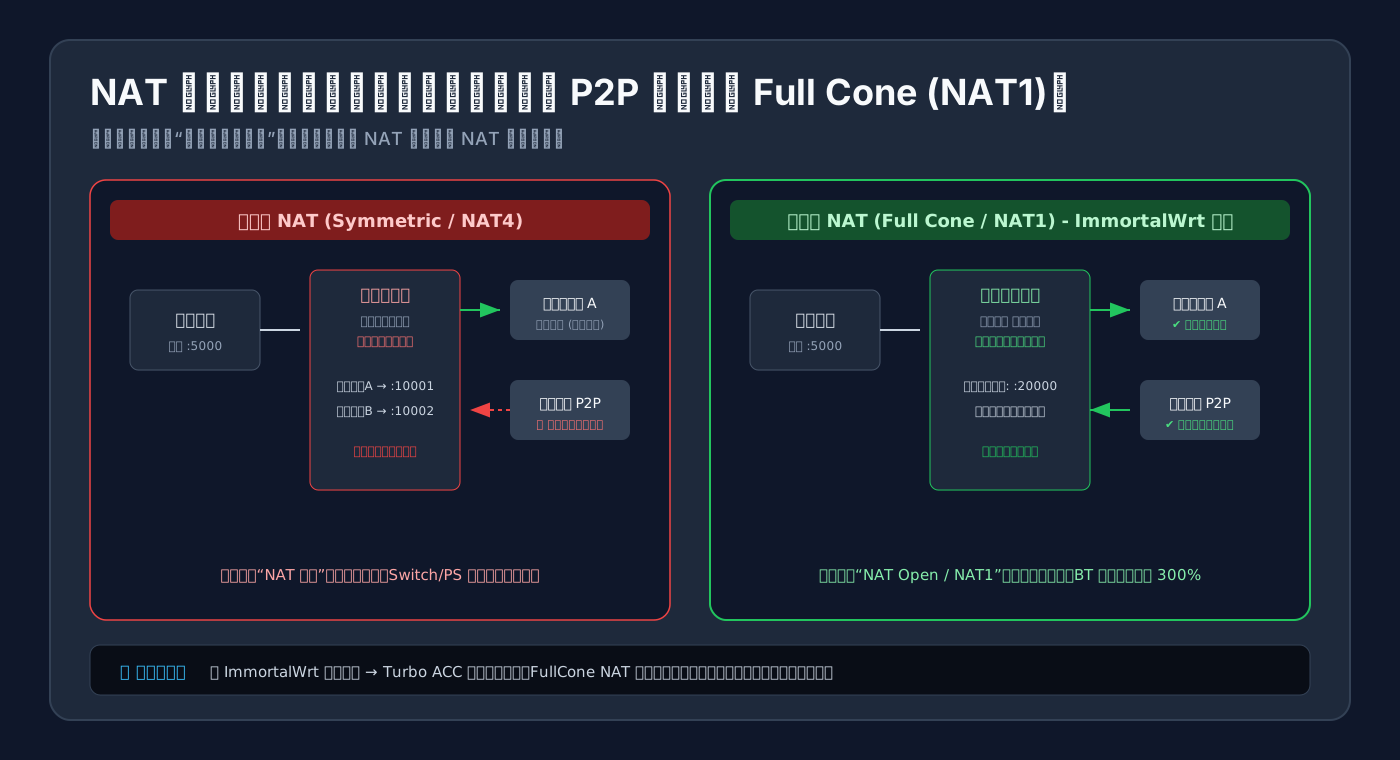
Figure 3: Symmetric NAT drops incoming peer packets from unlisted remote ports, resulting in “Strict NAT” warnings in multiplayer games. Full Cone NAT1 opens a persistent mapping that allows instant peer-to-peer connectivity.
- Symmetric NAT (NAT4 / The Strict Gatekeeper): A stubborn guard sits at your community gate. Even though you sent a message to game server A, if a teammate’s peer client tries to send voice chat packets back to that same port, the guard rejects them: “You are not on my pre-approved sender list!” This causes matchmaking delays and “Strict NAT” warnings on consoles.
- Full Cone NAT (NAT1 / The Open Family Intercom): Once your client initiates an outbound connection, the router installs an open intercom at the public gateway. Any remote peer or gaming server can deliver packets directly into your session without renegotiating handshakes, unlocking peer-to-peer throughput and seamless multiplayer connectivity.
4. Root Causes: Why Upstream OpenWrt Doesn’t Include These Out of the Box
Technologists often ask: if hardware offloading is so crucial, why hasn’t upstream OpenWrt merged it directly?
The tension stems from open-source licensing philosophy versus practical commercial engineering:
- Licensing Purity vs. Vendor Binary Blobs: Upstream OpenWrt strictly enforces GPL compliance and Linux kernel coding standards. Silicon vendors like MediaTek and Qualcomm frequently provide acceleration code tied to proprietary binary blobs or custom kernel hooks that fail upstream acceptance criteria.
- Regional Hardware Optimization: Upstream maintainers focus heavily on standard x86 architectures and Western market appliances. In contrast, Asian consumer markets widely deploy cost-effective MediaTek Filogic SoCs (MT7981, MT7986) and Rockchip SBCs, which domestic community developers have heavily patched and optimized.
- Physical Latency to Upstream Mirrors: Default OpenWrt repositories are hosted on European and North American CDN clusters. Without international routing optimization, package syncs frequently suffer TCP handshake drops and connection resets.
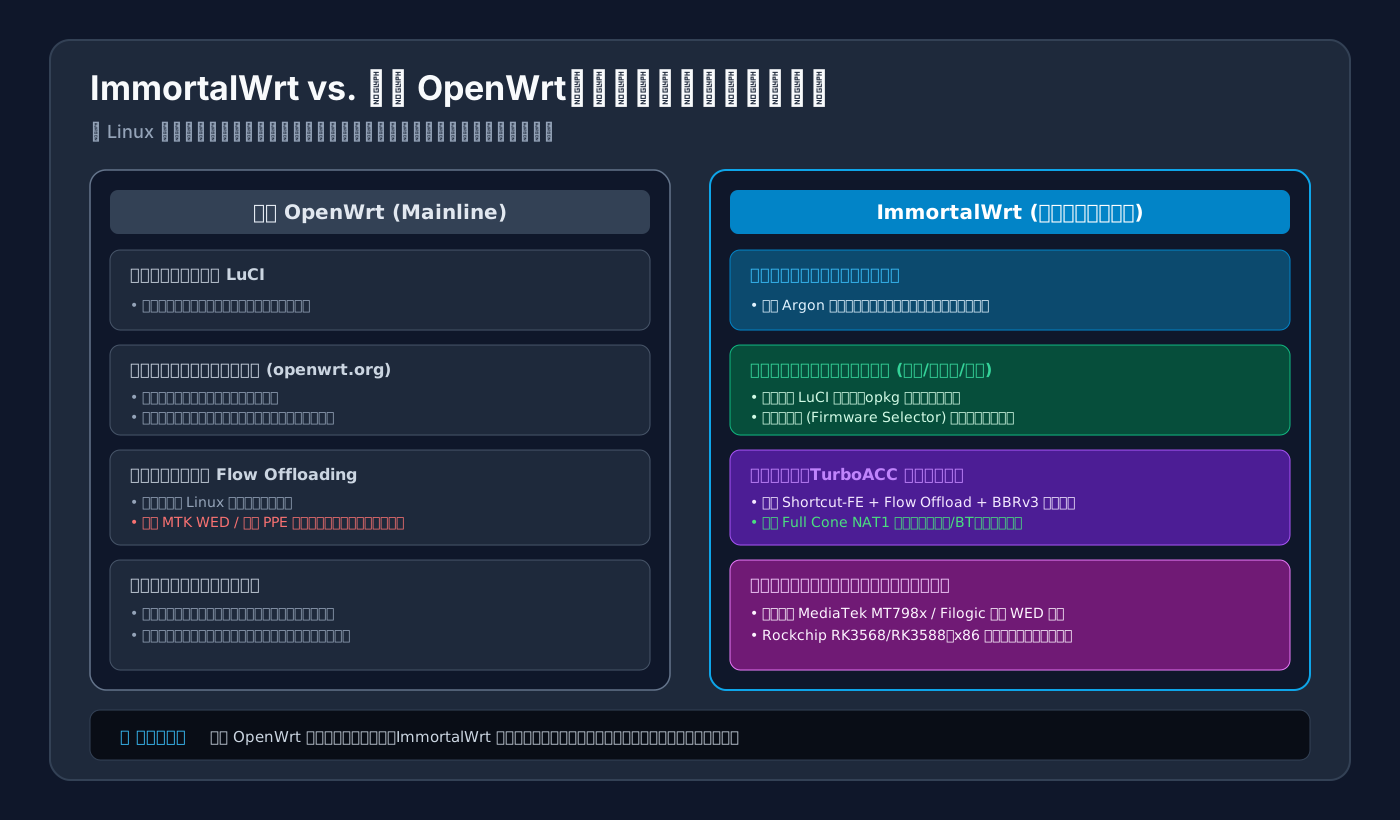
Figure 4: Architectural comparison. ImmortalWrt overhauls the kernel driver layer, network acceleration stack, and repository mirrors for peak hardware performance.
5. Why Choose ImmortalWrt: Core Strengths & Architectural Advantages
ImmortalWrt (championed by Tianling Shen and a vibrant open-source community) has earned widespread acclaim through four standout capabilities:
1. Native MediaTek WED + PPE Offloading
For popular SoCs like MT7981/MT7986 (featured in Redmi AX6000, GL.iNet MT3000/MT6000, and Banana Pi BPI-R3):
- WED (Wireless Ethernet Dispatcher): Bridges Wi-Fi MAC directly to Ethernet hardware, routing wireless packets without host CPU intervention.
- PPE (Packet Processing Engine): Offloads IPv4/IPv6 NAT translation and routing table lookups into hardware registers. Enabling these features allows 1 Gbps and 2.5 Gbps transfers while router CPU utilization hovers at just 2% to 5%.
2. The Integrated TurboACC Acceleration Suite
TurboACC combines four proven performance enhancements:
- Flow Offloading: Software fastpath with automatic fallback to hardware NAT.
- Shortcut-FE (SFE): Qualcomm’s lightweight fast-forwarding engine that slashes packet latency on constrained SoCs.
- BBRv2 / BBRv3 Congestion Control: Replaces Cubic to maintain high throughput across congested or high-jitter WAN links.
- Full Cone NAT & DNS Caching Acceleration.
3. Accelerated Local Mirror Ecosystem
- Pre-configures high-speed university and cloud provider mirrors (Tsinghua, USTC, Tencent, and Aliyun).
- Packages dozens of localized LuCI modules: Docker containers, Samba4 high-throughput file sharing, parental controls, hardware temperature sensors, and ad-blocking.
4. Cloud Firmware Selector (Attended Sysupgrade)
Users do not need to spend hours setting up complex Linux cross-compilation toolchains. Visiting the web-based ImmortalWrt Firmware Selector allows searching for your exact router model, selecting desired packages, and downloading a custom build on demand.
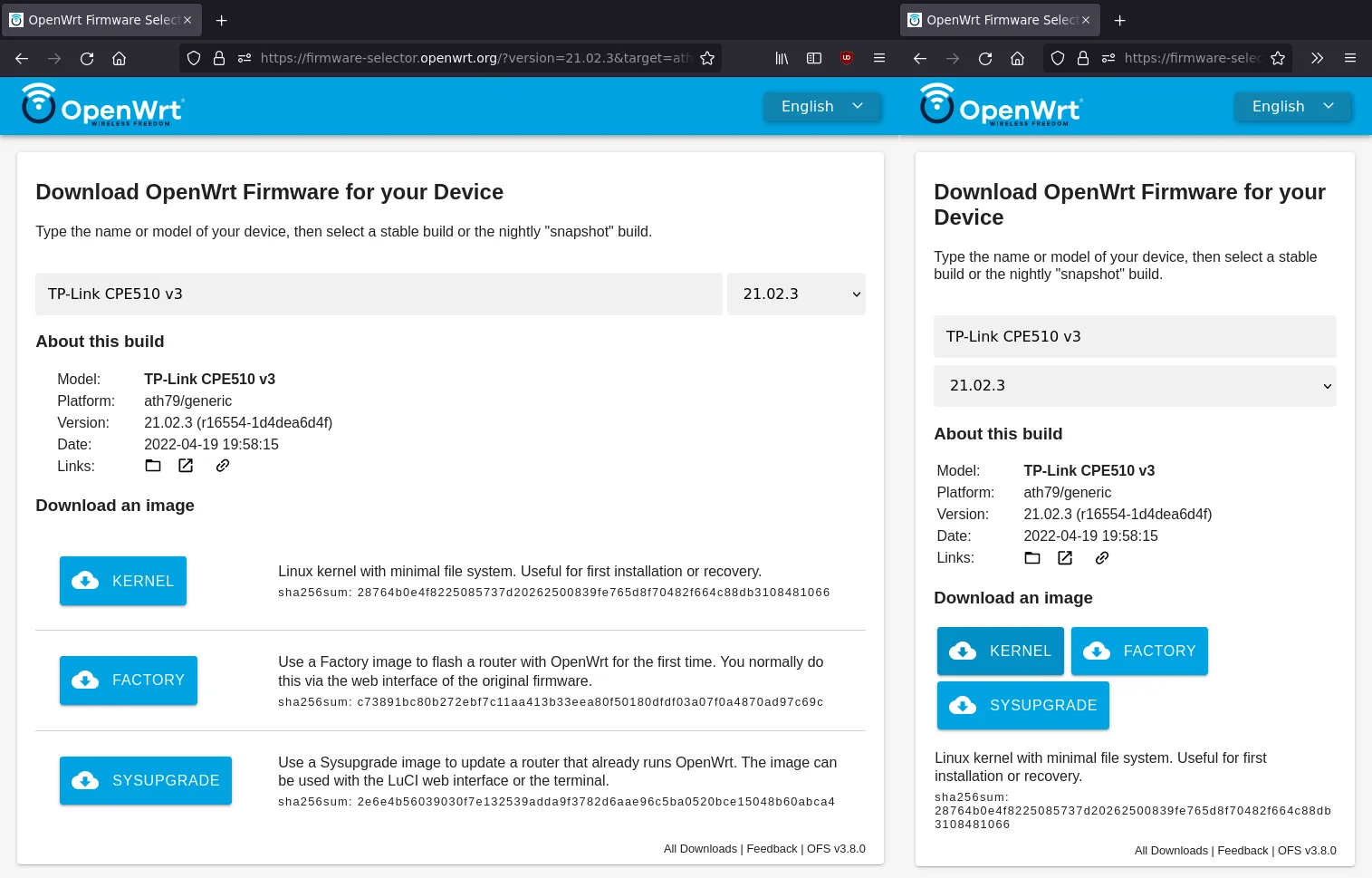
Figure 5: ImmortalWrt Firmware Selector. Allows instant device lookup, custom package additions, and generating clean Sysupgrade and Factory images.
6. Practical Setup Guide: Flashing, Interface, and Core Configuration
1. Firmware Types: Factory vs. Sysupgrade
When obtaining firmware, distinguish between two formats:
factory.bin: For initial flashing from the original vendor stock interface or via recovery loaders (U-Boot / TFTP).sysupgrade.bin: For upgrading an existing OpenWrt / ImmortalWrt installation.
[!WARNING] Never flash a
sysupgrade.binimage directly through a vendor’s stock web interface. Doing so risks corrupting partition tables and bricking the router!
2. Exploring the Modernized LuCI Interface (Argon Theme)
After flashing, connect via Ethernet to a LAN port and navigate to the default gateway address (typically 192.168.xx.1):
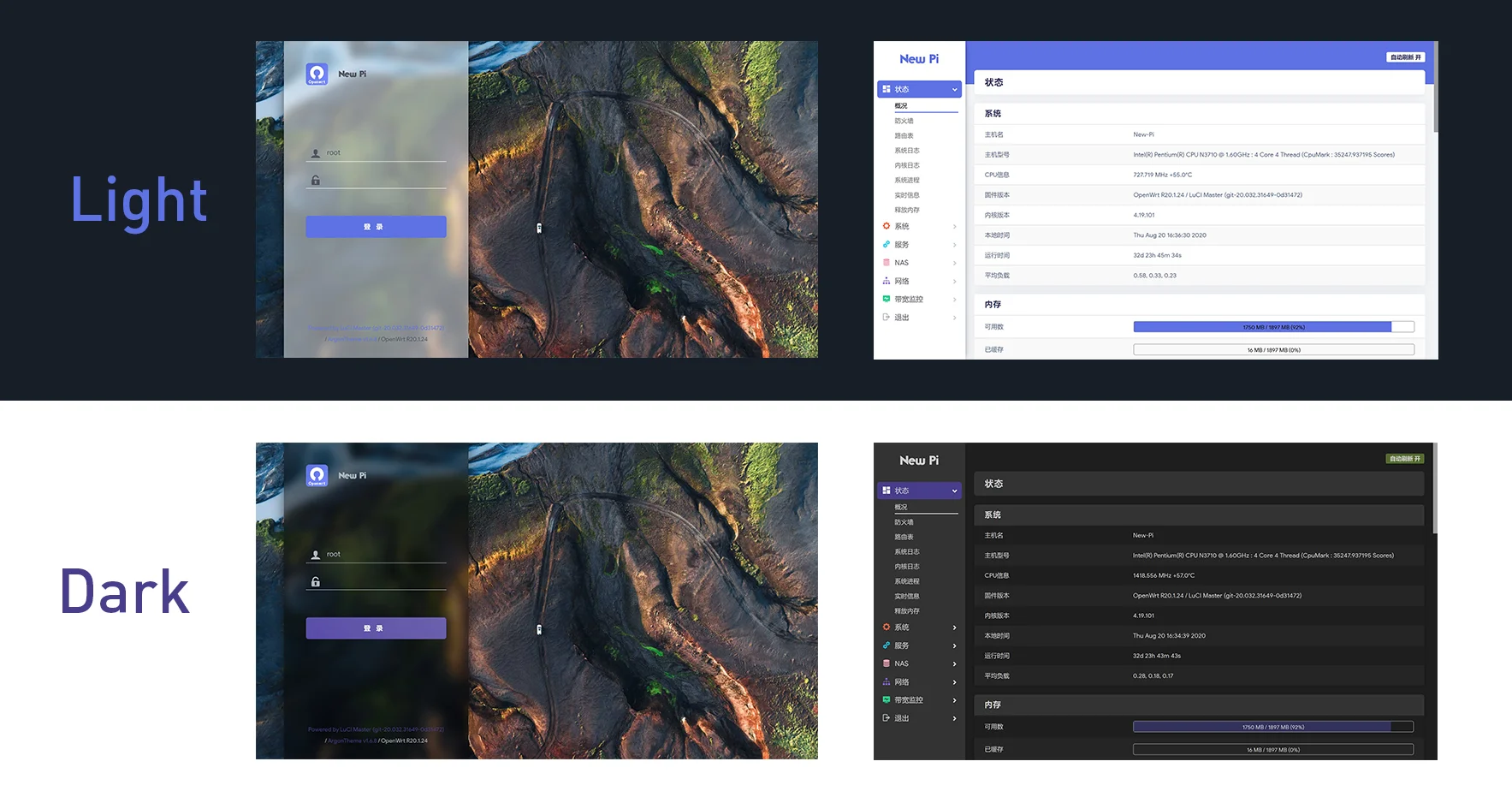
Figure 6: PC Desktop View of LuCI Argon. The dashboard highlights live CPU utilization, memory allocation, and real-time bandwidth graphs.
The responsive theme adapts gracefully to mobile browsers, enabling full administrative control from a smartphone:
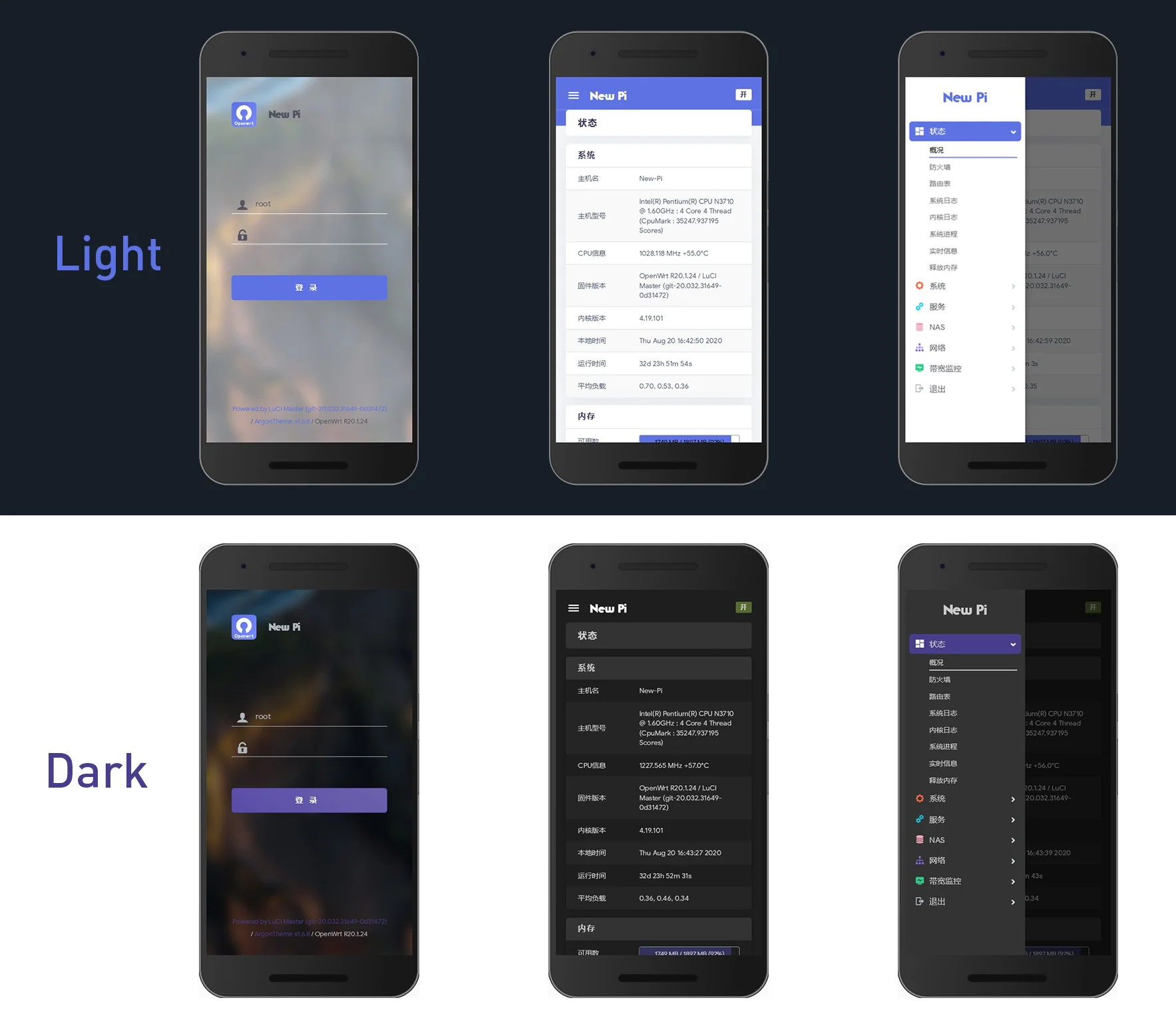
Figure 7: Mobile View of LuCI Argon. Clean card layouts and collapsible menus enable streamlined parameter adjustments on handheld devices.
3. Enabling TurboACC Hardware Acceleration
Navigate to Network → Turbo ACC Network Acceleration:
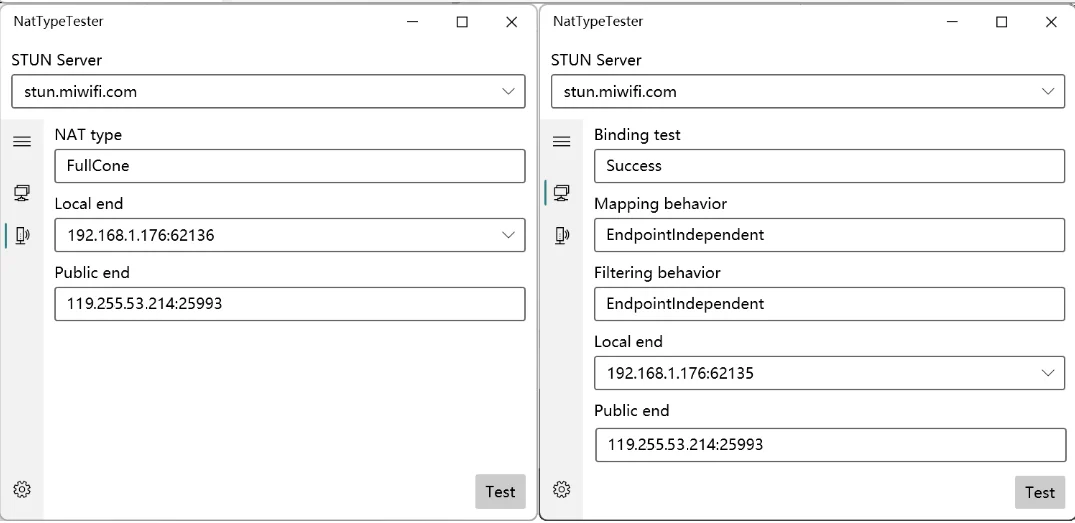
Figure 8: Turbo ACC Configuration Page. Enable Flow Offload, Hardware Offloading, BBR, and FullCone NAT.
- Software Flow Offloading: Check “Enable”.
- Hardware Flow Offloading (HW NAT): Check “Enable” if supported by your SoC (e.g., MT7621, MT798x).
- FullCone NAT: Check “Enable” to accelerate peer-to-peer connections and gaming lobbies.
- BBR Congestion Control: Check “Enable” for enhanced congestion management.
- Click Save & Apply to activate.
4. Network Interfaces & Firewall Zones
Navigate to Network → Interfaces to review physical link status, MAC bindings, and IP assignments:
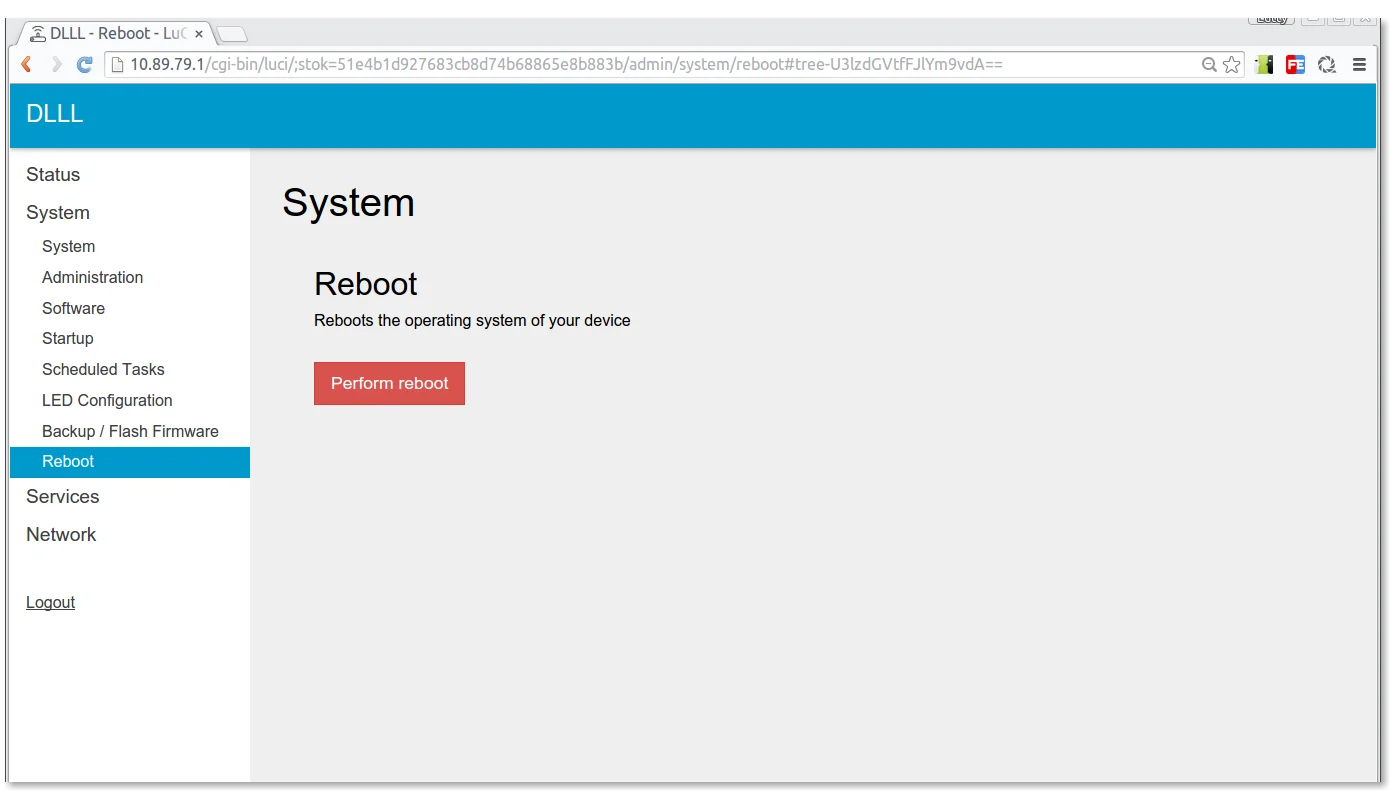
Figure 9: Network Interfaces Page. Displays port link speeds (1000M/2.5G Full Duplex), MAC addresses, and firewall zone associations.
5. Package Management & Software Repository
Navigate to System → Software to browse available packages and inspect flash storage capacity:
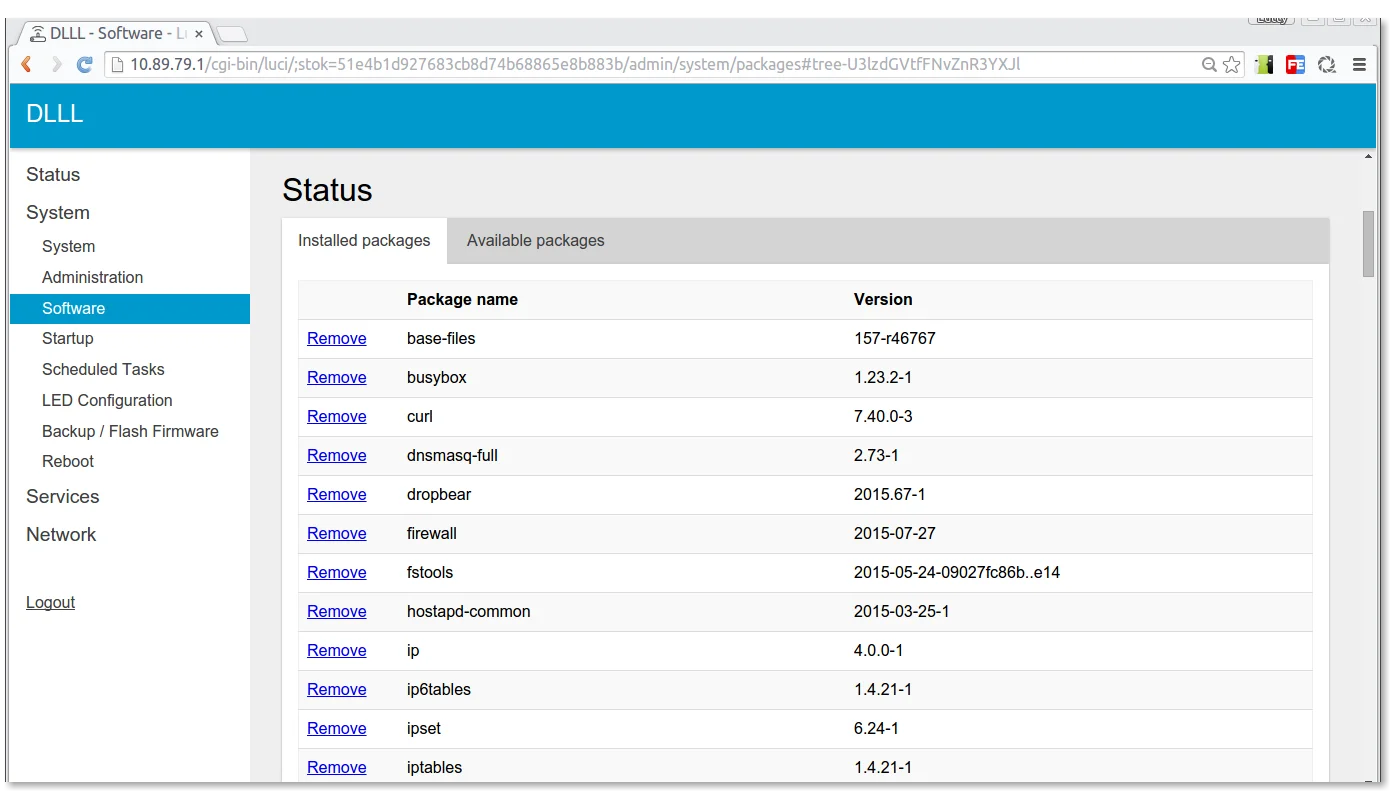
Figure 10: Software Management Page. Search, install, or update packages with clear storage indicators.
System uptime, kernel details, and process health can be verified at any time under Status → Overview:
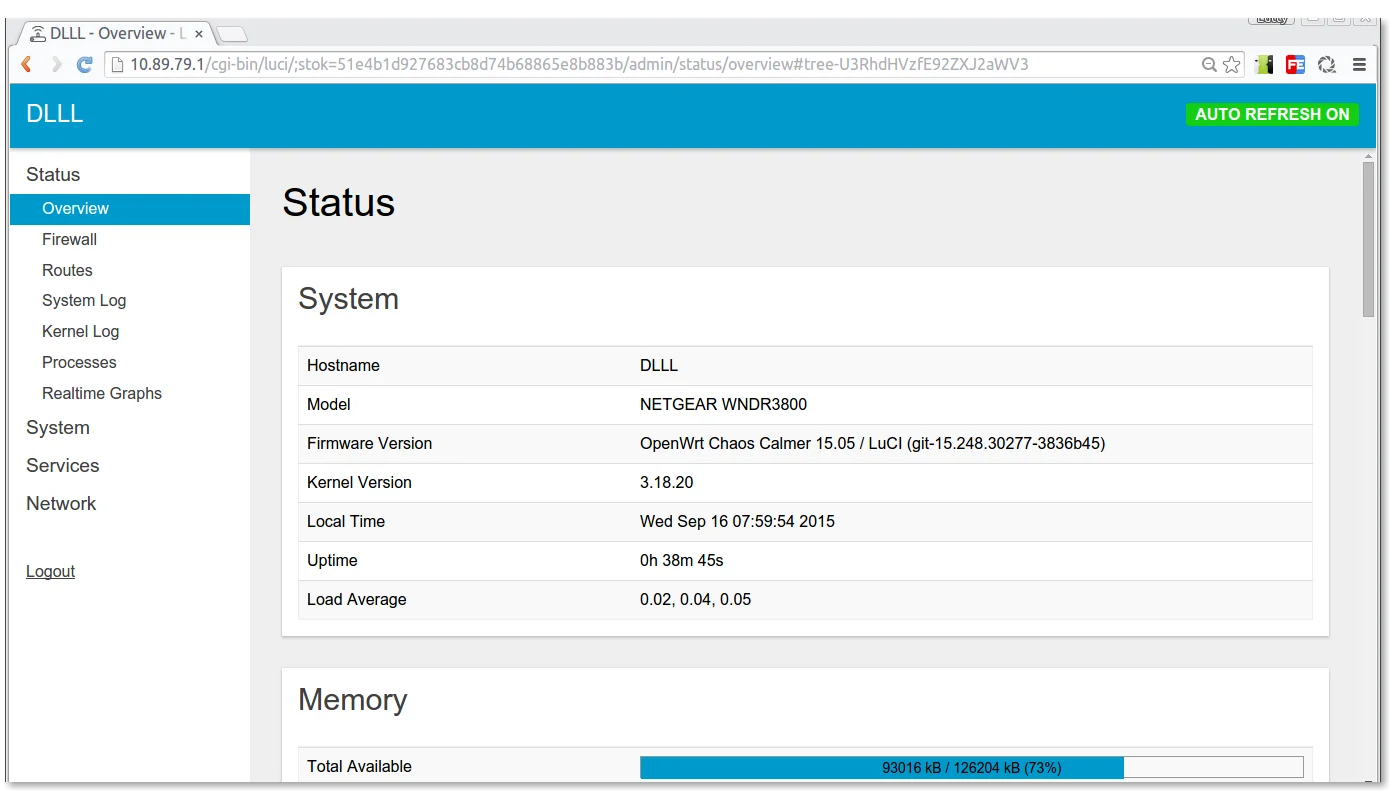
Figure 11: System Status Overview. Displays kernel version, memory utilization, and active network connections.
7. 1-Click Automation Scripts: Health Checks, Backups & Mirror Acceleration
Managing a router shouldn’t require memorizing complex terminal commands or worrying about manual configuration backups.
Below are three zero-dependency, native automation scripts tailored for Windows 11 / Ubuntu 26.04 / macOS 26:
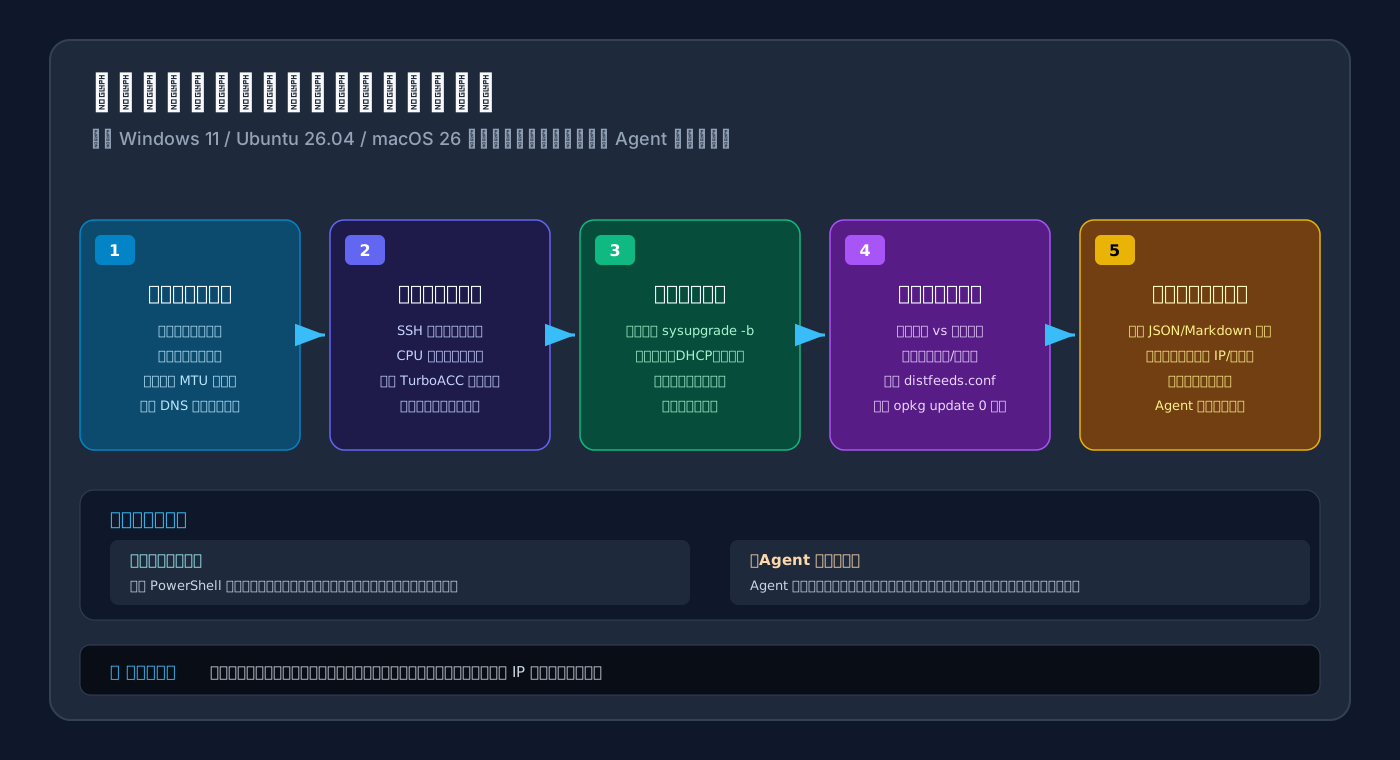
Figure 12: Cross-Platform Automation Pipeline. Combines network reconnaissance, router telemetry, automated configuration archival, and sanitized reporting.
1. Windows 11 Native Automation Script (audit_immortalwrt.ps1)
Runs natively in standard Windows 11 PowerShell 5.1 / 7+ without third-party dependencies:
<#
.SYNOPSIS
    ImmortalWrt / OpenWrt Automated Health Check & Backup Tool (Windows 11 Native)
.DESCRIPTION
    Leverages native NetTCPIP and OpenSSH to audit router health and pull configuration backups.
#>
param (
    [string]$RouterHost = "",
    [string]$SshUser = "root",
    [switch]$AutoBackup = $true,
    [switch]$SwitchMirror = $false
)

$ErrorActionPreference = "Continue"

Write-Host "=================================================" -ForegroundColor Cyan
Write-Host "  ImmortalWrt Health Check & Backup Pipeline" -ForegroundColor Cyan
Write-Host "  Platform: Windows 11 (Native PowerShell)" -ForegroundColor Cyan
Write-Host "=================================================" -ForegroundColor Cyan

# 1. Discover Default Gateway
if ([string]::IsNullOrWhiteSpace($RouterHost)) {
    $DefaultRoute = Get-NetRoute -DestinationPrefix "0.0.0.0/0" | Sort-Object RouteMetric | Select-Object -First 1
    if ($DefaultRoute) {
        $RouterHost = $DefaultRoute.NextHop
    } else {
        $RouterHost = "192.168.xx.1"
    }
}

$MaskedHost = $RouterHost -replace '(\d+\.\d+)\.\d+\.\d+', '$1.xx.xx'
Write-Host "[*] Auditing local gateway: $MaskedHost" -ForegroundColor Yellow

# 2. Probe Gateway Latency
$PingRes = Test-Connection -ComputerName $RouterHost -Count 4 -ErrorAction SilentlyContinue
if ($PingRes) {
    $AvgLatency = ($PingRes | Measure-Object -Property ResponseTime -Average).Average
    Write-Host "[+] Gateway responsive. Average RTT: $AvgLatency ms" -ForegroundColor Green
} else {
    Write-Host "[-] Warning: Gateway unreachable via ICMP" -ForegroundColor Red
}

# 3. Benchmark DNS Recursion Latency
$DnsDuration = Measure-Command {
    Resolve-DnsName -Name "mirrors.tuna.tsinghua.edu.cn" -Server $RouterHost -ErrorAction SilentlyContinue
}
Write-Host "[+] Local router DNS recursion latency: $($DnsDuration.TotalMilliseconds.ToString('0.00')) ms" -ForegroundColor Green

# 4. Remote Health Inspection & Backup
Write-Host "[*] Checking router internals via SSH (User: $SshUser)..." -ForegroundColor Yellow
$RemoteCheckCmd = @"
echo '---SYSINFO---'
uptime
free -m
echo '---ACCEL---'
lsmod | grep -E 'flow_offload|fast_path|shortcut_fe|mtk_wed' || echo 'OFFLOAD_NOT_DETECTED'
"@

$SshOutput = ssh -o BatchMode=yes -o StrictHostKeyChecking=accept-new -o ConnectTimeout=4 "$SshUser@$RouterHost" $RemoteCheckCmd 2>$null

if ($LASTEXITCODE -eq 0 -and $SshOutput) {
    Write-Host "[+] SSH connection established successfully!" -ForegroundColor Green
    if ($SshOutput -match "OFFLOAD_NOT_DETECTED") {
        Write-Host "[-] Notice: Offloading modules not active. Check TurboACC in LuCI." -ForegroundColor Yellow
    } else {
        Write-Host "[+] Hardware flow offloading / fastpath active!" -ForegroundColor Green
    }

    if ($AutoBackup) {
        $BackupDir = Join-Path $PSScriptRoot "immortalwrt_backups"
        if (!(Test-Path $BackupDir)) { New-Item -ItemType Directory -Path $BackupDir | Out-Null }
        $DateStr = Get-Date -Format "yyyyMMdd_HHmmss"
        $RemoteTar = "/tmp/backup_$DateStr.tar.gz"
        $LocalTar = Join-Path $BackupDir "router_backup_$DateStr.tar.gz"

        Write-Host "[*] Triggering remote configuration backup (sysupgrade -b)..." -ForegroundColor Yellow
        ssh "$SshUser@$RouterHost" "sysupgrade -b $RemoteTar" 2>$null
        scp "$SshUser@$RouterHost:$RemoteTar" "$LocalTar" 2>$null
        ssh "$SshUser@$RouterHost" "rm -f $RemoteTar" 2>$null

        if (Test-Path $LocalTar) {
            $Size = (Get-Item $LocalTar).Length
            Write-Host "[+] Backup archive safely stored at: $LocalTar ($Size bytes)" -ForegroundColor Green
        }
    }
} else {
    Write-Host "[!] Notice: SSH key-based authentication not configured. Network audit complete." -ForegroundColor Gray
}

Write-Host "=================================================" -ForegroundColor Cyan
Write-Host "  Health audit complete. Gateway operational!" -ForegroundColor Cyan
Write-Host "=================================================" -ForegroundColor Cyan
2. Ubuntu 26.04 Native Automation Script (audit_immortalwrt_ubuntu.sh)
Engineered for Linux / Ubuntu 26.04 LTS environments using native standard tooling:
#!/usr/bin/env bash
# ==============================================================================
# ImmortalWrt / OpenWrt Health Check & Backup Tool (Ubuntu 26.04 LTS Native)
# Zero external packages required. Enforces strict bash safety flags.
# ==============================================================================
set -euo pipefail

ROUTER_HOST="${1:-}"
SSH_USER="${2:-root}"
BACKUP_DIR="${HOME}/immortalwrt_backups"

echo "================================================="
echo "  ImmortalWrt Audit & Archival (Ubuntu 26.04)"
echo "================================================="

# 1. Discover Default Gateway
if [[ -z "$ROUTER_HOST" ]]; then
    ROUTER_HOST="$(ip route show default 2>/dev/null | awk '/default/ {print $3}' | head -n1 || true)"
    if [[ -z "$ROUTER_HOST" ]]; then
        ROUTER_HOST="192.168.xx.1"
    fi
fi

MASKED_HOST="$(echo "$ROUTER_HOST" | sed -E 's/([0-9]+\.[0-9]+)\.[0-9]+\.[0-9]+/\1.xx.xx/')"
echo "[*] Auditing local default gateway: ${MASKED_HOST}"

# 2. Check Network Connectivity & Average RTT
if ping -c 3 -W 2 "$ROUTER_HOST" >/dev/null 2>&1; then
    AVG_RTT="$(ping -c 3 -q "$ROUTER_HOST" | awk -F'/' 'END {print $5}')"
    echo "[+] Gateway connectivity verified. Average latency: ${AVG_RTT} ms"
else
    echo "[-] Warning: Gateway unreachable via ICMP" >&2
fi

# 3. Discover Optimal MTU
echo "[*] Probing optimal MTU envelope..."
MTU_TEST_VAL=1472
if ping -c 1 -M do -s "$MTU_TEST_VAL" "$ROUTER_HOST" >/dev/null 2>&1; then
    echo "[+] Standard 1500-byte Ethernet MTU verified without fragmentation"
else
    echo "[-] Packet fragmentation detected. Verify PPPoE MTU settings (1492 or 1480)"
fi

# 4. SSH Remote Health Audit
echo "[*] Inspecting router acceleration status via SSH..."
SSH_OPTS="-o BatchMode=yes -o StrictHostKeyChecking=accept-new -o ConnectTimeout=3"

if ssh ${SSH_OPTS} "${SSH_USER}@${ROUTER_HOST}" "true" 2>/dev/null; then
    echo "[+] SSH authentication successful!"

    ROUTER_LOAD="$(ssh ${SSH_OPTS} "${SSH_USER}@${ROUTER_HOST}" "cat /proc/loadavg | awk '{print \$1, \$2, \$3}'")"
    echo "[+] Router load averages (1/5/15 min): ${ROUTER_LOAD}"

    ACCEL_STATUS="$(ssh ${SSH_OPTS} "${SSH_USER}@${ROUTER_HOST}" "lsmod | grep -E 'flow_offload|fast_path|mtk_wed' | wc -l")"
    if (( ACCEL_STATUS > 0 )); then
        echo "[+] Detected ${ACCEL_STATUS} offloading/fastpath modules operating!"
    else
        echo "[!] Notice: Offloading modules absent. Enable TurboACC in LuCI."
    fi

    # Automated Configuration Archive
    mkdir -p "$BACKUP_DIR"
    TIMESTAMP="$(date +%Y%m%d_%H%M%S)"
    REMOTE_PKG="/tmp/sysupgrade_backup_${TIMESTAMP}.tar.gz"
    LOCAL_PKG="${BACKUP_DIR}/router_backup_${TIMESTAMP}.tar.gz"

    echo "[*] Packaging non-destructive configuration archive..."
    ssh ${SSH_OPTS} "${SSH_USER}@${ROUTER_HOST}" "sysupgrade -b ${REMOTE_PKG}" 2>/dev/null
    scp ${SSH_OPTS} "${SSH_USER}@${ROUTER_HOST}:${REMOTE_PKG}" "${LOCAL_PKG}" 2>/dev/null
    ssh ${SSH_OPTS} "${SSH_USER}@${ROUTER_HOST}" "rm -f ${REMOTE_PKG}" 2>/dev/null

    if [[ -f "$LOCAL_PKG" ]]; then
        PKG_SIZE="$(du -h "$LOCAL_PKG" | cut -f1)"
        echo "[+] Backup archive successfully saved to: ${LOCAL_PKG} (${PKG_SIZE})"
    fi
else
    echo "[!] Notice: SSH key login not configured. Internal audit skipped."
fi

echo "================================================="
echo "  Ubuntu 26.04 audit pipeline completed!"
echo "================================================="
3. macOS 26 Native Automation Script (audit_immortalwrt_macos.zsh)
Tailored for modern macOS 26 (Sequoia and subsequent releases) leveraging native Zsh:
#!/usr/bin/env zsh
# ==============================================================================
# ImmortalWrt / OpenWrt Health Check & Backup Tool (macOS 26 Native)
# Pure native Zsh implementation without external tool dependencies.
# ==============================================================================
set -e

ROUTER_HOST="${1:-}"
SSH_USER="${2:-root}"
BACKUP_DIR="${HOME}/Documents/immortalwrt_backups"

print -P "%F{cyan}=================================================%f"
print -P "%F{cyan}  ImmortalWrt Audit & Archival (macOS 26)%f"
print -P "%F{cyan}=================================================%f"

# 1. Discover Default Gateway
if [[ -z "$ROUTER_HOST" ]]; then
    ROUTER_HOST="$(route -n get default 2>/dev/null | awk '/gateway:/ {print $2}' || true)"
    if [[ -z "$ROUTER_HOST" ]]; then
        ROUTER_HOST="192.168.xx.1"
    fi
fi

MASKED_HOST="$(echo "$ROUTER_HOST" | sed -E 's/([0-9]+\.[0-9]+)\.[0-9]+\.[0-9]+/\1.xx.xx/')"
print -P "%F{yellow}[*] Auditing macOS default gateway: ${MASKED_HOST}%f"

# 2. Test Gateway RTT
if ping -c 3 -t 2 "$ROUTER_HOST" >/dev/null 2>&1; then
    AVG_PING="$(ping -c 3 -q "$ROUTER_HOST" | awk -F'/' 'END {print $5}')"
    print -P "%F{green}[+] Gateway responsive. Average RTT: ${AVG_PING} ms%f"
else
    print -P "%F{red}[-] Warning: Gateway unreachable via ICMP%f"
fi

# 3. Measure DNS Latency
DNS_RESOLVE_MS="$(python3 -c "
import socket, time
t0 = time.time()
try:
    socket.gethostbyname('mirrors.tuna.tsinghua.edu.cn')
    print(f'{(time.time() - t0)*1000:.2f}')
except Exception:
    print('TIMEOUT')
")"
print -P "%F{green}[+] Local DNS resolution latency: ${DNS_RESOLVE_MS} ms%f"

# 4. SSH Remote Telemetry & Archival
SSH_OPTS=(-o BatchMode=yes -o StrictHostKeyChecking=accept-new -o ConnectTimeout=3)

if ssh "${SSH_OPTS[@]}" "${SSH_USER}@${ROUTER_HOST}" "true" 2>/dev/null; then
    print -P "%F{green}[+] Established secure SSH session with router!%f"

    ROUTER_MEM="$(ssh "${SSH_OPTS[@]}" "${SSH_USER}@${ROUTER_HOST}" "free -m | awk '/Mem:/ {print \$7}'")"
    print -P "%F{green}[+] Router available free memory: ${ROUTER_MEM} MB%f"

    mkdir -p "$BACKUP_DIR"
    TIME_TAG="$(date +%Y%m%d_%H%M%S)"
    REMOTE_FILE="/tmp/cfg_backup_${TIME_TAG}.tar.gz"
    LOCAL_FILE="${BACKUP_DIR}/mac_router_backup_${TIME_TAG}.tar.gz"

    print -P "%F{yellow}[*] Archiving configuration snapshot...%f"
    ssh "${SSH_OPTS[@]}" "${SSH_USER}@${ROUTER_HOST}" "sysupgrade -b ${REMOTE_FILE}" 2>/dev/null
    scp "${SSH_OPTS[@]}" "${SSH_USER}@${ROUTER_HOST}:${REMOTE_FILE}" "${LOCAL_FILE}" 2>/dev/null
    ssh "${SSH_OPTS[@]}" "${SSH_USER}@${ROUTER_HOST}" "rm -f ${REMOTE_FILE}" 2>/dev/null

    if [[ -f "$LOCAL_FILE" ]]; then
        FILE_SIZE="$(ls -lh "$LOCAL_FILE" | awk '{print $5}')"
        print -P "%F{green}[+] Backup saved locally: ${LOCAL_FILE} (${FILE_SIZE})%f"
    fi
else
    print -P "%F{black}%B[!] SSH key-based access not enabled. Internal audit skipped.%b%f"
fi

print -P "%F{cyan}=================================================%f"
print -P "%F{cyan}  macOS 26 audit pipeline completed!%f"
print -P "%F{cyan}=================================================%f"
8. Dual Operational Modes: Manual Execution vs. Agent Configuration
An effective management workflow accommodates both hands-on network engineers and autonomous AI Agents:
Method A: Manual Execution (Human-in-the-Loop)
- Save the respective script to a local folder.
- Launch PowerShell or Terminal.
- Execute the script with your router’s gateway IP:
# Windows 11 powershell -ExecutionPolicy Bypass -File .\audit_immortalwrt.ps1 -RouterHost "192.168.xx.1" # Ubuntu 26.04 bash audit_immortalwrt_ubuntu.sh "192.168.xx.1" # macOS 26 zsh audit_immortalwrt_macos.zsh "192.168.xx.1" - Review the formatted telemetry metrics and locate your backup archive.
Method B: Autonomous Agent Configuration (Agent-Driven)
When delegating router audits and optimizations to a coding agent, supply structured guardrails:
Agent Guardrail Directive Template:
“You are an automated network operations agent. Execute router audits under the following five mandatory safety guardrails:
- Strict Sanitization: Never expose complete private IPs, public egress addresses, or physical hostnames in reports. Always mask addresses to the format
192.168.xx.xx.- Read-Only Inspection First: Default exclusively to non-destructive inspection (ping, MTU probes, load average, module checks). Never execute flash wipes (
mtd write), partition formatting, or destructive upgrades without explicit human confirmation.- Archival Precedence: Before modifying firewall rules or installing packages, generate a snapshot with
sysupgrade -band compute its SHA256 checksum.- Acceptance Gates: Verify post-change health metrics: DNS recursion latency must remain below 20ms and packet loss must be 0%. Roll back immediately if metrics regress.
- Structured Delivery: Conclude with a JSON summary detailing: gateway latency, MTU status, offload module state, and backup artifact path.”
9. Troubleshooting & FAQ
Q1: Does enabling TurboACC HW NAT disable certain traffic shaping or monitoring plugins?
A: Yes, in specific cases. Because hardware flow offloading hands active connections directly to the switch ASIC, traffic bypasses Linux kernel Netfilter and iptables chains. Plugins that rely on deep packet inspection (DPI), per-IP byte quotas, or detailed real-time bandwidth accounting will not see accelerated traffic.
- Recommendation: For home and gaming networks, maximum throughput and low latency take precedence—enable TurboACC. In corporate environments requiring strict audit logs, maintain software routing.
Q2: How can I immediately resolve slow opkg update commands?
A: Connect via SSH and switch the package mirror to a high-speed regional university mirror:
# Backup original package configuration
cp /etc/opkg/distfeeds.conf /etc/opkg/distfeeds.conf.bak

# Replace repository URL with Tsinghua University mirror
sed -i 's#https\?://downloads.immortalwrt.org#https://mirrors.tuna.tsinghua.edu.cn/immortalwrt#g' /etc/opkg/distfeeds.conf

# Refresh package lists
opkg update
Lists will synchronize in 2 seconds rather than hanging on overseas connections.
Q3: Why is Wi-Fi disabled or invisible after a fresh flash?
A:
- Regulatory Domain Unset: Open Network → Wireless, set Country Code to your regional jurisdiction (e.g.,
CN - ChinaorUS - United States), and fix the 5GHz channel to36or149. - Disabled by Default: For safety, OpenWrt distributions boot with radio transmitters set to
Disabled. Enable the radio interfaces manually and set a strong WPA2/WPA3 passphrase.
Q4: Main Router vs. Bypass Gateway (Sidecar Router): Which is better?
- Main Router Mode: The optical modem runs in bridge mode while ImmortalWrt manages PPPoE dialup, DHCP, and hardware offload. Offers optimal latency and peak line-rate throughput.
- Bypass Gateway Mode: The existing commercial router handles Wi-Fi and dialup, while ImmortalWrt runs as a secondary gateway on the LAN. Ensure “SYN-flood defense” is disabled in the bypass firewall to avoid asymmetric routing issues.
10. Conclusion: Unleashing Your Router’s True Potential
A network device is much like a sports car: the silicon is its engine, but the operating firmware is its transmission and ECU.
Even if your router boasts a powerful multi-core SoC and multi-gigabit ports, running firmware that cannot engage higher hardware offload gears will leave your connection idling in first gear.
ImmortalWrt strikes an exceptional balance: it preserves the open modularity of vanilla OpenWrt while eliminating upstream friction, delivering production-grade hardware acceleration, high-speed mirrors, and refined user experience tailored for modern high-speed connectivity.
By applying these architectural insights and leveraging our cross-platform automation scripts, you can permanently eliminate gigabit bottlenecks and enjoy seamless, line-rate networking across all your connected devices!