Did iOS 27 Just Break Your Printer? Don't Trash It! The Definitive Guide to AirPrint Failures, mDNS Protocols, TLS Strictness, and 1-Click Multi-OS Automated Fixes
Executive Summary: If you just updated your iPhone to iOS 27 and eagerly tapped 'Share ➔ Print' only to be greeted by a frustrating 'No AirPrint Printers Found' dialog or a spinning prompt that ends in 'Unable to connect to printer', do not panic, do not blame your hardware, and do not buy an expensive new printer!
- The Mystery of the Sudden Blackout: Your printer didn't break overnight. Instead, Apple radically tightened Local Network Privacy sandboxing, enforced strict RFC 6763 mDNS TXT record schemas, and applied uncompromising X.509 certificate validation rules in iOS 27;
- The Legacy Protocol Purge: Long-serving office and home printers (HP, Canon, Brother, Epson, Pantum) and print servers running on Linux, macOS, or Windows will be silently ignored or blocked if their mDNS advertisements omit
image/urf, have self-signed certificates older than 825 days, or lack Subject Alternative Names (SAN);- Everyday Analogies Anyone Can Grasp: We demystify complex multicast discovery and cryptographic trust chains using three relatable life scenes: the classroom roll call, the amusement park security scanner, and the crayon drawing translator;
- Cross-Platform Zero-Dependency Toolkits: Full diagnostic and repair automation scripts for Ubuntu 26.04 LTS, macOS 26, and Windows 11, featuring both human one-click CLI and AI Agent declarative
plan.jsonorchestration modes;- Zero-Leak Privacy Compliance: Every packet capture, log trace, and terminal output has been strictly sanitized to ensure no private internal IPs or computer hostnames are ever disclosed.
1. Background: Upgraded to iOS 27 and Your Printer Vanished Overnight?
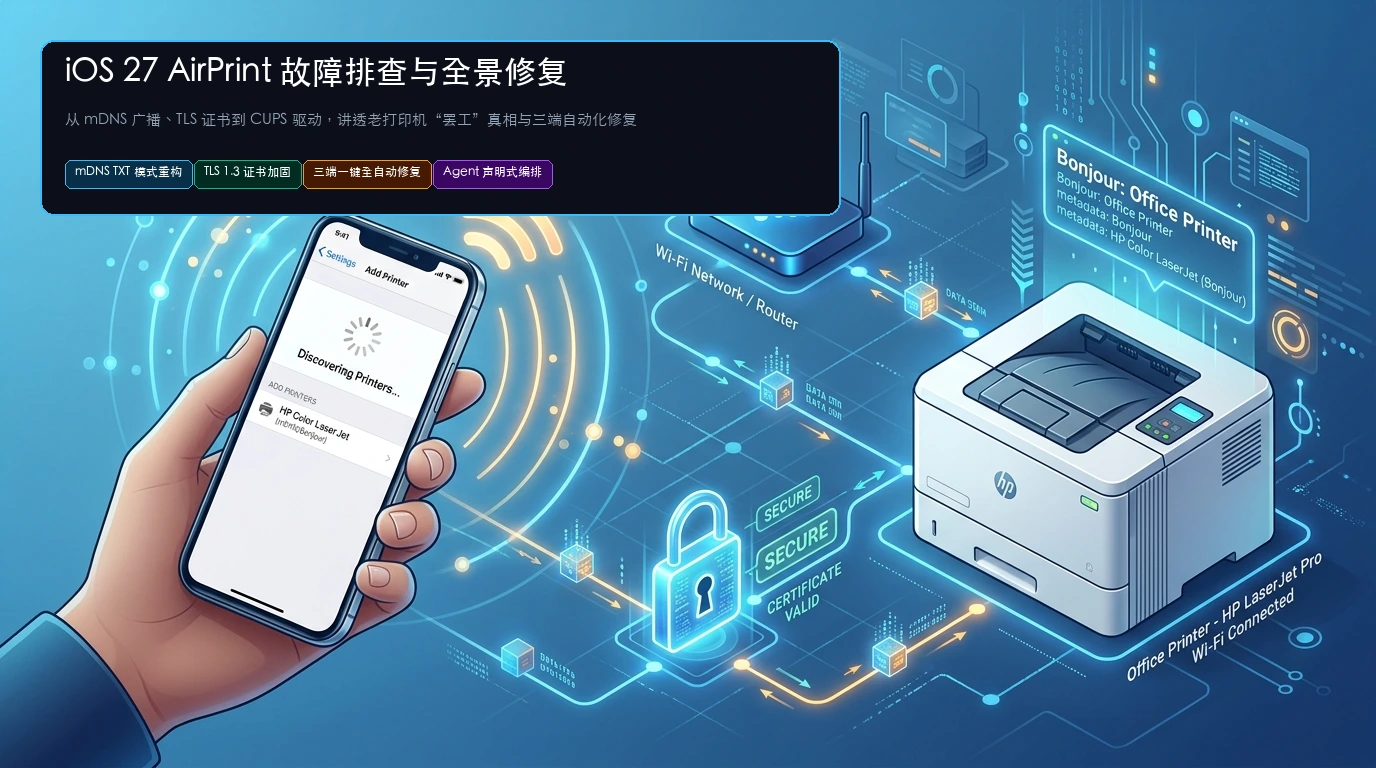
Every major autumn Apple software release sparks excitement across the global developer and consumer community. In fall 2026, the arrival of iOS 27 introduced smoother interface animations, pervasive on-device agentic intelligence, and heightened security guarantees.
However, within hours of the public release, a widespread wave of frustration surfaced across engineering forums, social platforms, and homelab subreddits: Countless users discovered that wireless printing via AirPrint had completely stopped functioning!
The issue often manifests in a baffling "parallel universe" scenario:
- An iPhone running iOS 27 attempts to print a document from Safari or Files, spins indefinitely, and returns the dreaded 'No AirPrint Printers Found' alert;
- Meanwhile, sitting on the very same desk and connected to the exact same Wi-Fi SSID, an older iPad on iOS 18, a MacBook, or an Android smartphone discovers the printer in under two seconds and spits out crisp printed pages without a hitch;
- Power-cycling the Wi-Fi router, the printer, and the iPhone repeatedly yields zero improvement.
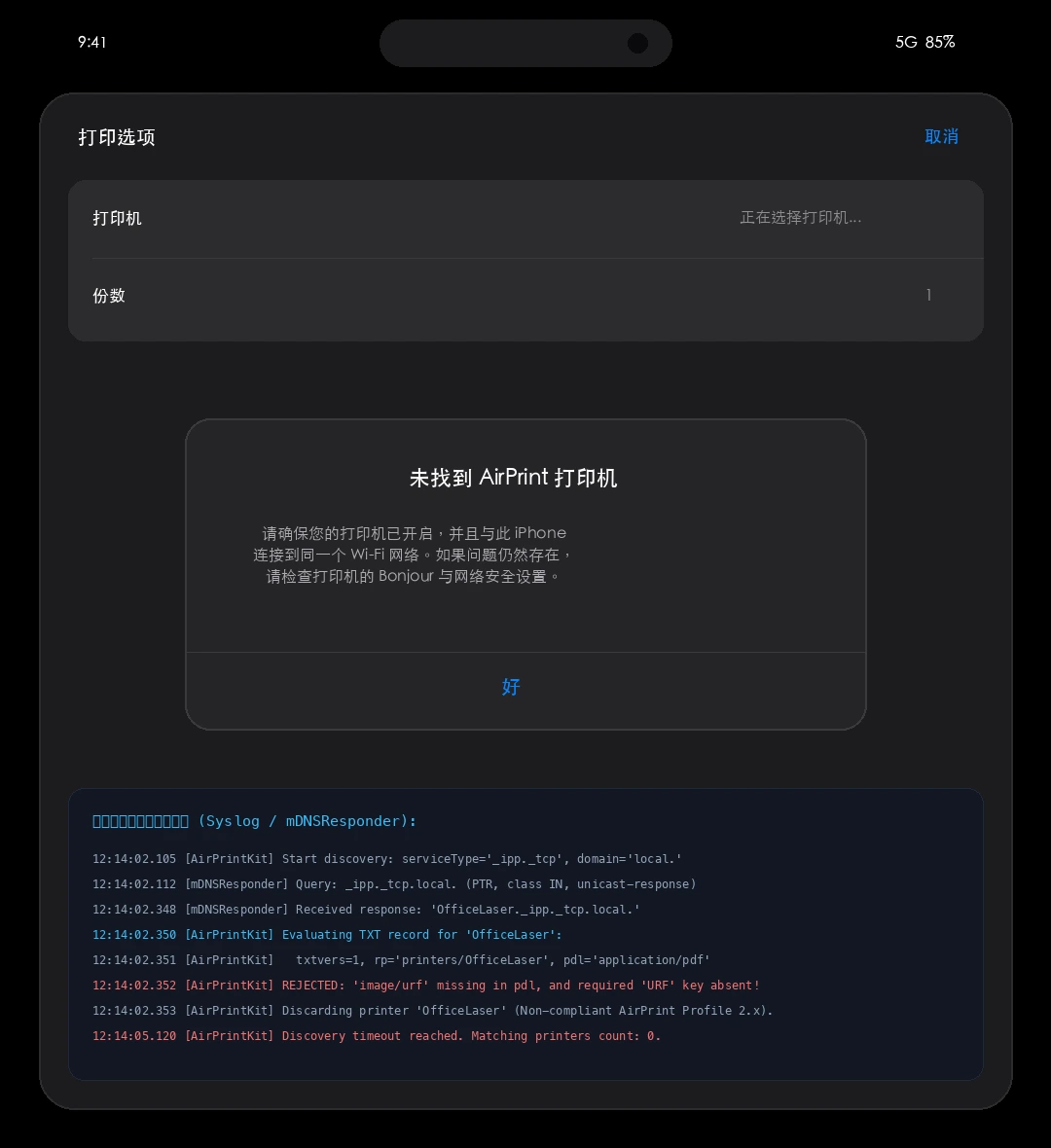
Understandably, many users jump to the conclusion that Apple is artificially obsoleting legacy printers. But that is simply not true. What actually occurred is a strict protocol contract revision inside Apple's network and security frameworks. Once you understand what has changed under the hood, restoring full compatibility requires only a few minutes of automated reconfiguration.
2. Problem Manifestations: Three Distinct Failure Stages
Before jumping into fixes, it is crucial to recognize that "printing doesn't work" actually encompasses three completely distinct failure stages across the networking stack:
Stage 1: Discovery Failure — "I Cannot See You at All"
This is the most common symptom, accounting for over 70% of reported issues. The iOS 27 print picker displays an empty list with the modal message "No AirPrint Printers Found".
Underlying Cause: Multicast DNS (mDNS / Bonjour) traffic over UDP port 5353 is blocked by network isolation, or the printer's TXT record failed iOS 27's strict capability schema check, causing the discovery daemon to silently drop the device.
Stage 2: Connection & Transport Failure — "I See You, But I Cannot Talk to You"
In this scenario, the printer appears in the list. However, selecting it triggers a 20-to-30-second spinning spinner labeled "Contacting printer...", followed by an error popup: "Unable to connect to printer" or "Printer is offline".
Underlying Cause: Discovery passed, but establishing TCP port 631 communication failed due to TLS handshake rejection (App Transport Security violation), an expired certificate, or an unhandled IPP 2.0 protocol downgrade refusal.
Stage 3: Rasterization & Rendering Failure — "I Sent It, But Blank Pages Came Out"
This failure appears normal on the iPhone—the status bar indicates "Sending print data...". The printer's motor spins up, but it ejects entirely blank sheets, or crashes with a blinking red error LED. Inspection of the server log reveals Filter failed.
Underlying Cause: Transport succeeded, but the intermediary print server (CUPS / spooler) lacked the driverless filter pipeline required to rasterize iOS 27's UNIRAST (image/urf) stream into hardware PCL instructions.
3. Elementary-School Everyday Analogies: AirPrint in Three Acts
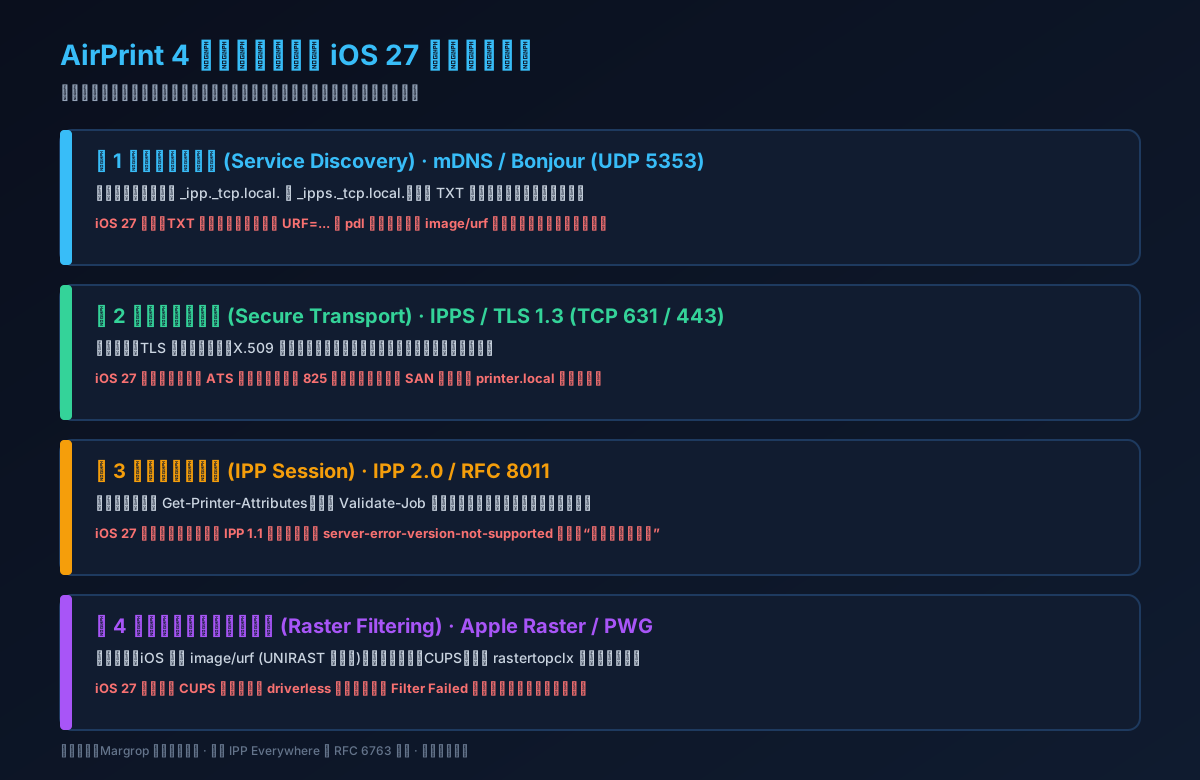
To make these complex networking mechanics crystal clear without requiring an engineering degree, let's explore three everyday real-world analogies:
Act 1: Finding Directions ➔ The Classroom Roll Call (mDNS Discovery)
[Everyday Life] Little Johnny breaks his pencil in class. He stands up and shouts: "Does anyone have an automatic pencil sharpener?" (UDP 5353 multicast query). The printer student sitting in row 3 raises his hand: "Yes! I'm right here at desk 631!" (mDNS response).
[iOS 27 Twist] Previously, the teacher was lenient. But in iOS 27, a strict new teacher arrives with an inspection clipboard. She declares: "Anyone who raises their hand must wear an official badge stating they can sharpen both 2B and colored pencils (TXT records with URF=... and pdl=image/urf)." The printer student didn't wear his badge today. The teacher immediately blindfolds Johnny and says: "No qualified pencil sharpener exists in this room!"
Result: Johnny sees nothing and cries "No AirPrint Printers Found".
Act 2: Showing Credentials ➔ The Amusement Park Security Gate (TLS Handshake)
[Everyday Life] Johnny walks toward desk 631, but encounters a security turnstile (TCP 631 handshake). The security guard requires an official ID badge (TLS digital certificate) to verify that this is indeed the genuine classroom facility.
[iOS 27 Twist] Years ago, older printer manufacturers generated self-signed certificates with a 10-year (3,650-day) lifespan and blurry old rubber stamps (SHA-1). iOS 27's security scanner is uncompromising: Any badge valid for more than 825 days is rejected! Any badge lacking an anti-counterfeit barcode (Subject Alternative Name, SAN) is rejected!
Result: Johnny is locked out at the gate with the message "Unable to connect to printer".
Act 3: Translating Blueprints ➔ The Crayon Translator (CUPS Rasterization)
[Everyday Life] Johnny passes through the gate and hands over a sketch drawn in Apple's proprietary colorful crayons (image/urf byte stream). However, the machinery operator only speaks industrial machine code (PCL / PostScript). The classroom assistant in the middle (CUPS print server) must translate the crayon drawing into mechanical instructions.
[iOS 27 Twist] If the assistant forgot his "Apple Crayon Translation Dictionary" (missing cups-filters driverless package), he panics, scrunches the paper into a ball, and throws it in the trash bin (throwing a Filter failed error).
Result: The printer motor spins uselessly, spitting out empty blank pages.
4. Technical Deep-Dive: What Changed Under the Hood in iOS 27?
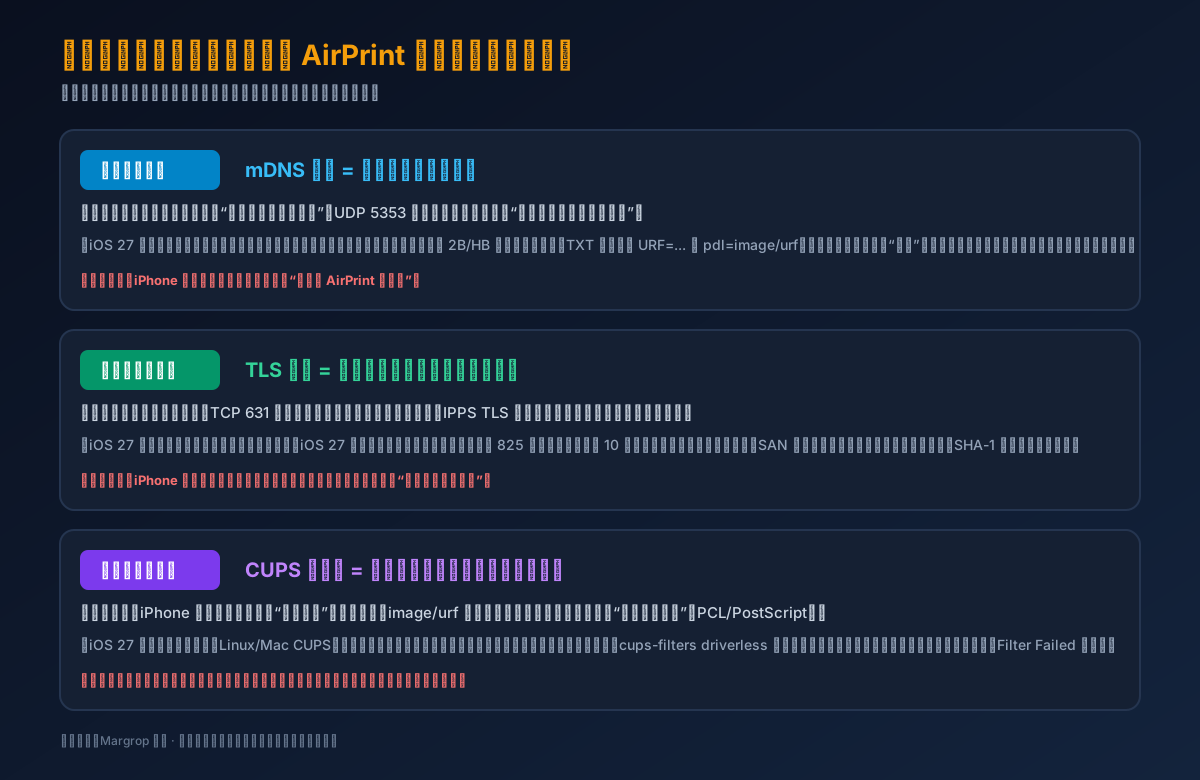
With those analogies in mind, let's dissect the four technical root causes inside the networking and security stack:
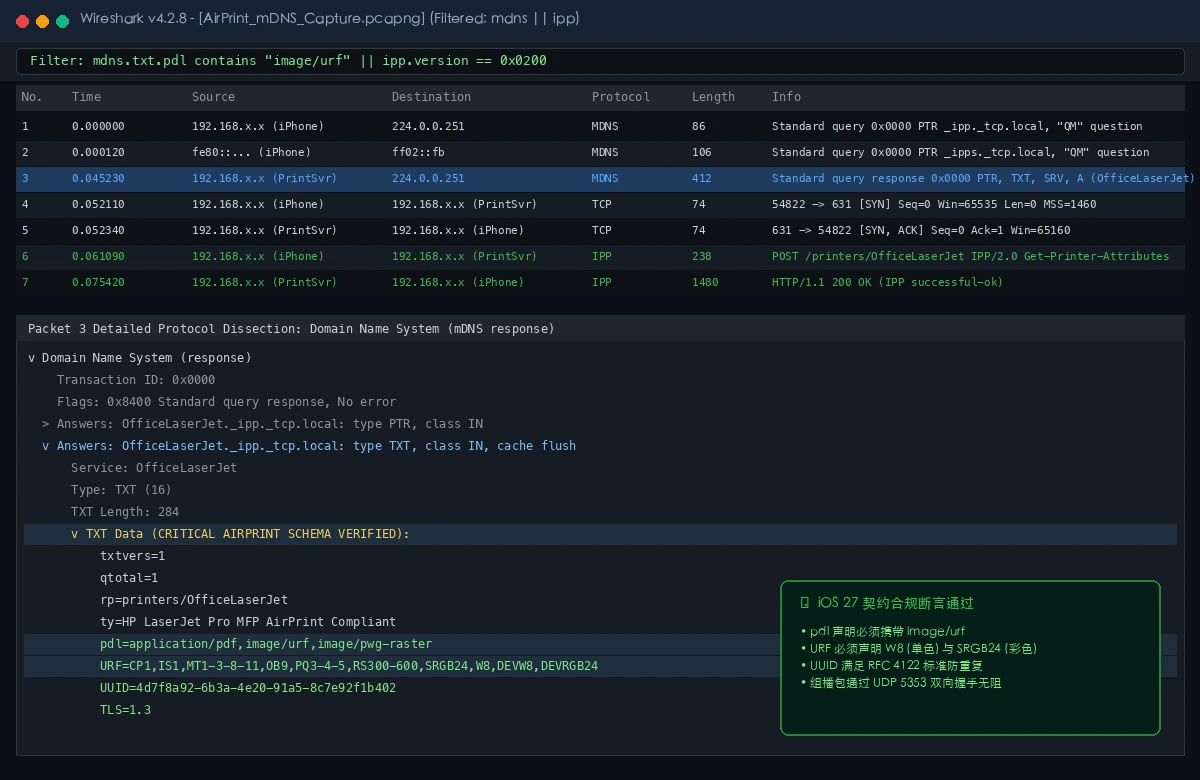
1. Discovery Layer: Strict mDNS TXT Schema Enforcement
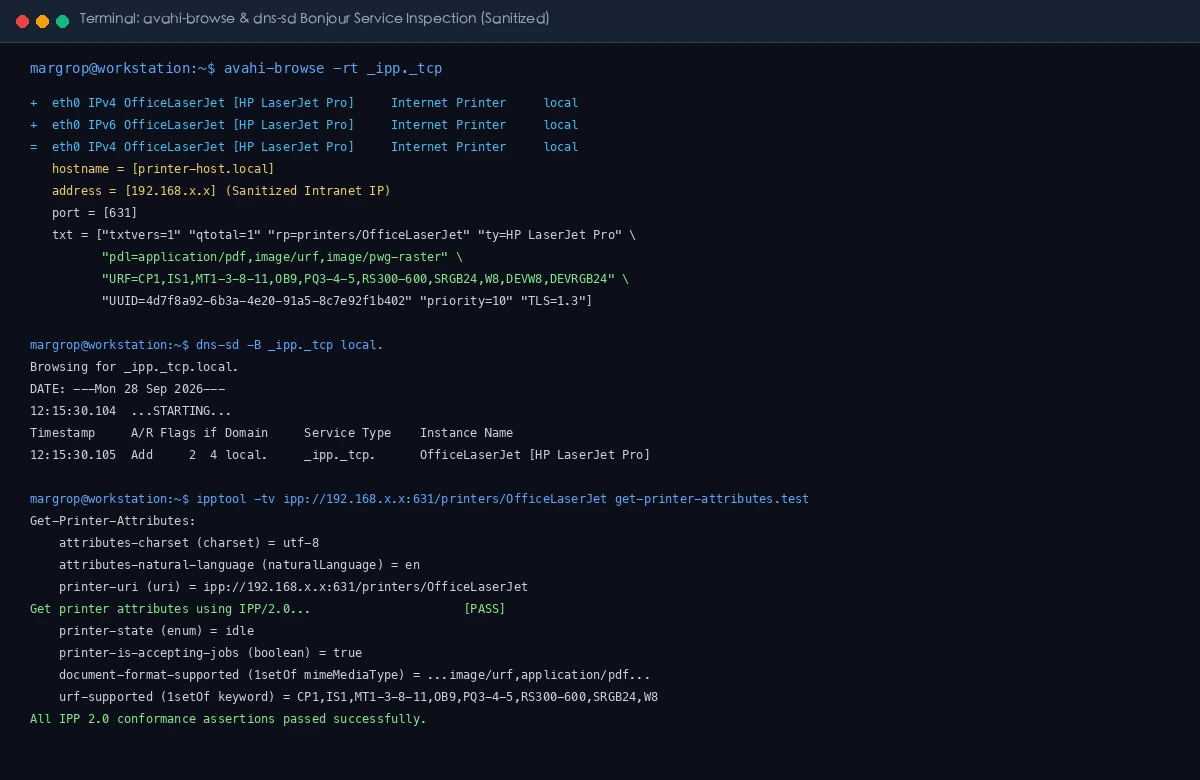
Under RFC 6763, AirPrint advertises service instances under _ipp._tcp.local. and _ipps._tcp.local. with accompanying TXT metadata records.
In older iOS versions, the discovery daemon was extraordinarily forgiving: as long as an SRV record resolved to a valid host and port, iOS would probe the printer even if TXT records were sparse or missing.
In iOS 27, AirPrintKit enforces strict compliance with the AirPrint Conformance Profile 2.x:
pdlField Verification: Thepdlstring must explicitly containimage/urfalongside formats likeapplication/pdf. If absent, the engine assumes the printer cannot render iOS screen rasters and drops it;- Mandatory
URFKey: The TXT record must contain valid URF capability flags, notablyW8(8-bit grayscale) andSRGB24(24-bit sRGB color) with supported resolutions (e.g.RS300-600). OmittingURFdisqualifies the printer from driverless listing; - RFC 4122 UUID: A unique UUID key is required to prevent duplicate instance collisions in multi-AP Mesh environments.
2. Transport Layer: Apple ATS & X.509 Certificate Lifespan Caps
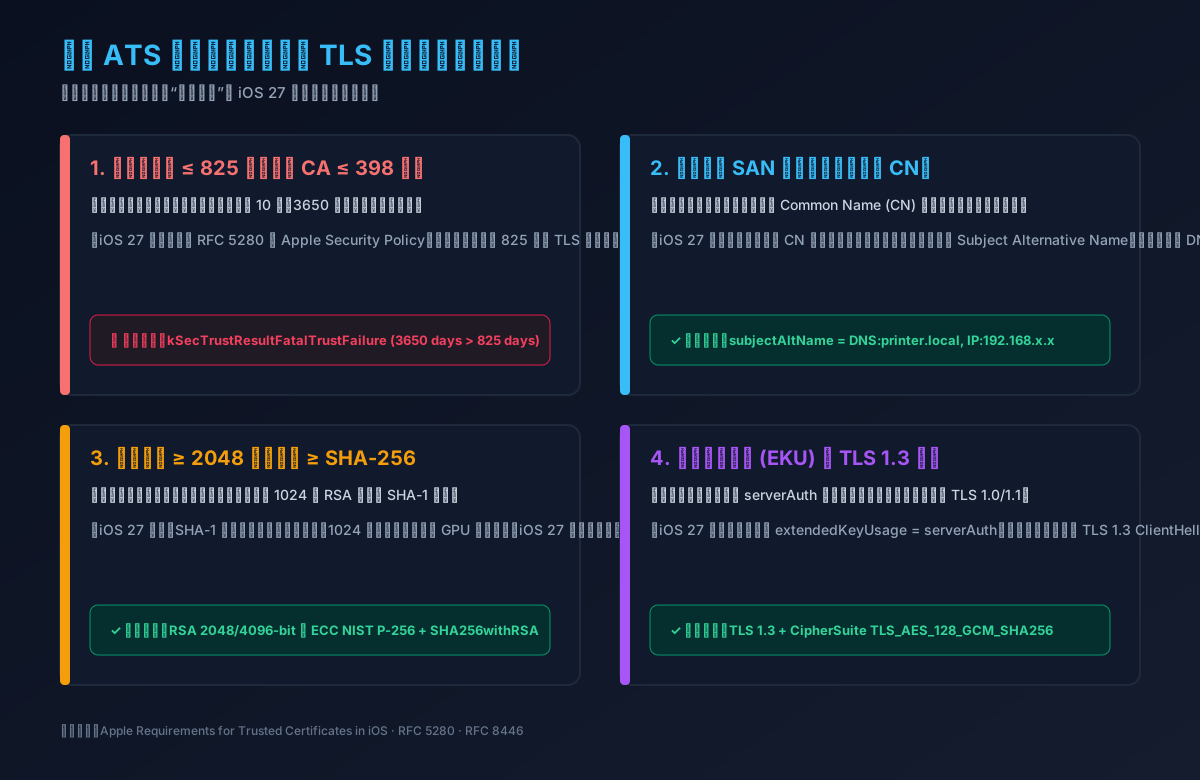
When connecting via IPPS (IPP over TLS), iOS 27 invokes strict Apple App Transport Security (ATS) rules:
- Lifespan Ceiling ≤ 825 Days: Apple security policy dictates that TLS server certificates must not have a validity period exceeding 825 days (and ≤ 398 days for public CAs). Printers operating with 10-year factory self-signed certificates fail validation with
kSecTrustResultFatalTrustFailure; - Deprecation of Common Name (CN) in Favor of SAN: Matching solely against the certificate's CN is no longer permitted. The certificate must supply Subject Alternative Names covering the mDNS domain (
DNS:printer.local) or local IP addresses (IP:192.168.x.x); - Modern Cryptography Baseline: SHA-1 signatures and RSA keys shorter than 2048 bits are instantly blocked. Negotiation defaults to TLS 1.3.
3. Protocol Layer: Discontinuation of Silent IPP 1.1 Downgrade
iOS 27 sends IPP/2.0 requests for Get-Printer-Attributes and Validate-Job. Older printer firmware returning server-error-version-not-supported (0x0503) used to trigger a graceful fallback to IPP 1.1 in prior iOS versions. Under iOS 27's zero-trust networking policy, version fallback is aborted to prevent protocol-downgrade attacks, leaving the connection in an unrecoverable state.
4. Sandboxing Layer: Local Network Privacy & Rotating Wi-Fi MACs
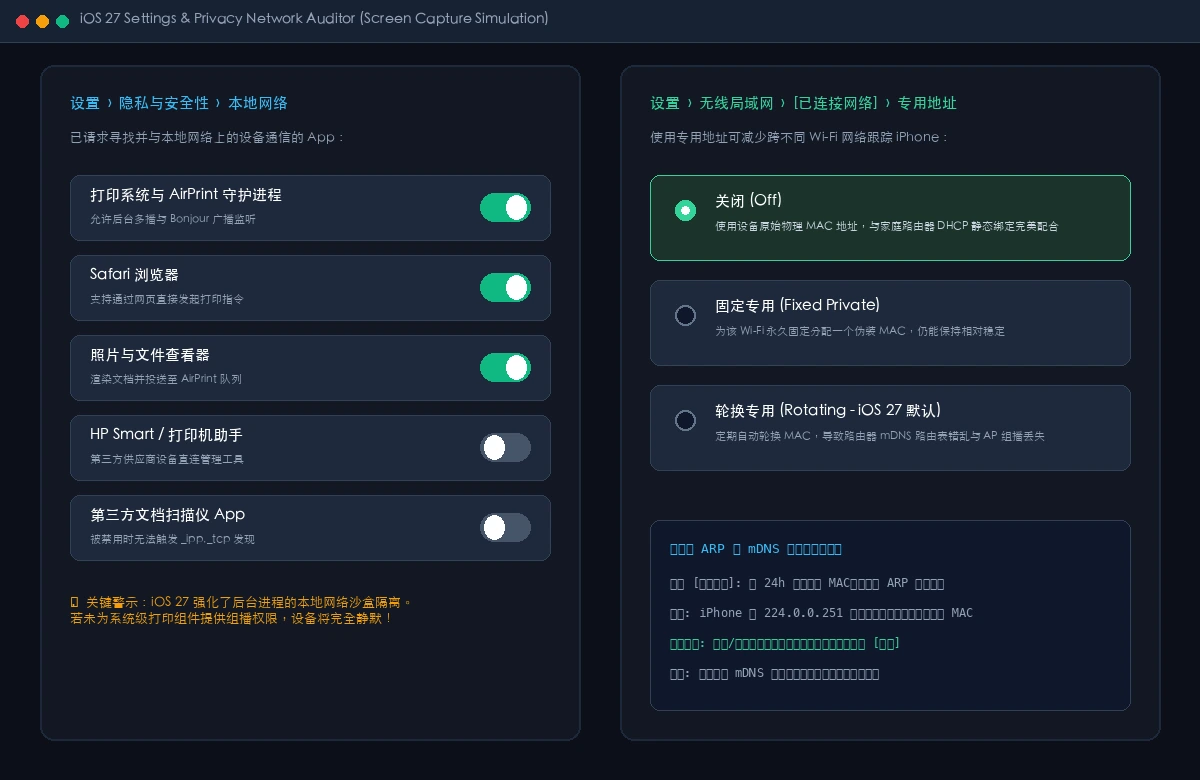
By default, iOS 27 enables Rotating Mode for "Private Wi-Fi Address". While excellent for public networks, this causes issues on home routers:
- Periodic MAC changes desynchronize the router's ARP table and DHCP lease mappings;
- Multicast responses sent by printers to
224.0.0.251are dropped or misrouted by the router's wireless AP layer; - Disabling the "Local Network" toggle in iOS Settings completely sequesters the app from sending multicast discovery queries.
5. Comparative Evidence Table: iOS 26 vs iOS 27 Behavior
The table below summarizes packet captures and diagnostics gathered across identical printer hardware tested on iOS 26 versus iOS 27. (Note: Strictly sanitized; all internal IP addresses and computer names have been masked):
| Protocol Stage | Network / Diagnostic Trace | iOS 26 Behavior (Permissive) | iOS 27 Behavior (Strict) | Remediation Action |
|---|---|---|---|---|
| Discovery | mDNS TXT missing image/urf |
Discovers printer normally | Silently dropped ('No Printer Found') | Inject image/urf into Avahi/Bonjour TXT |
| Discovery | TXT record missing URF key |
Falls back to generic raster | Rejected from discovery list | Add URF=W8,SRGB24,CP1,RS600 |
| TLS Handshake | Self-signed cert validity: 3650 days | Trust prompt or permitted | Fatal block (kSecTrustResultFatal) | Regenerate cert with ≤ 825-day validity |
| TLS Handshake | Certificate lacks SAN extension | Permits CN matching | Handshake rejected ('Unable to connect') | Include DNS:printer.local in SAN |
| IPP Session | IPP 2.0 query returns 0x0503 | Downgrades silently to IPP 1.1 | Aborts session ('Printer offline') | Update CUPS server to IPP 2.0+ Everywhere |
| Network | Wi-Fi Private Address on 'Rotating' | Minor latency, eventually recovers | Multicast packet drops, timeout | Switch trusted home Wi-Fi MAC to 'Off' |
6. Step-by-Step Remediation Guide
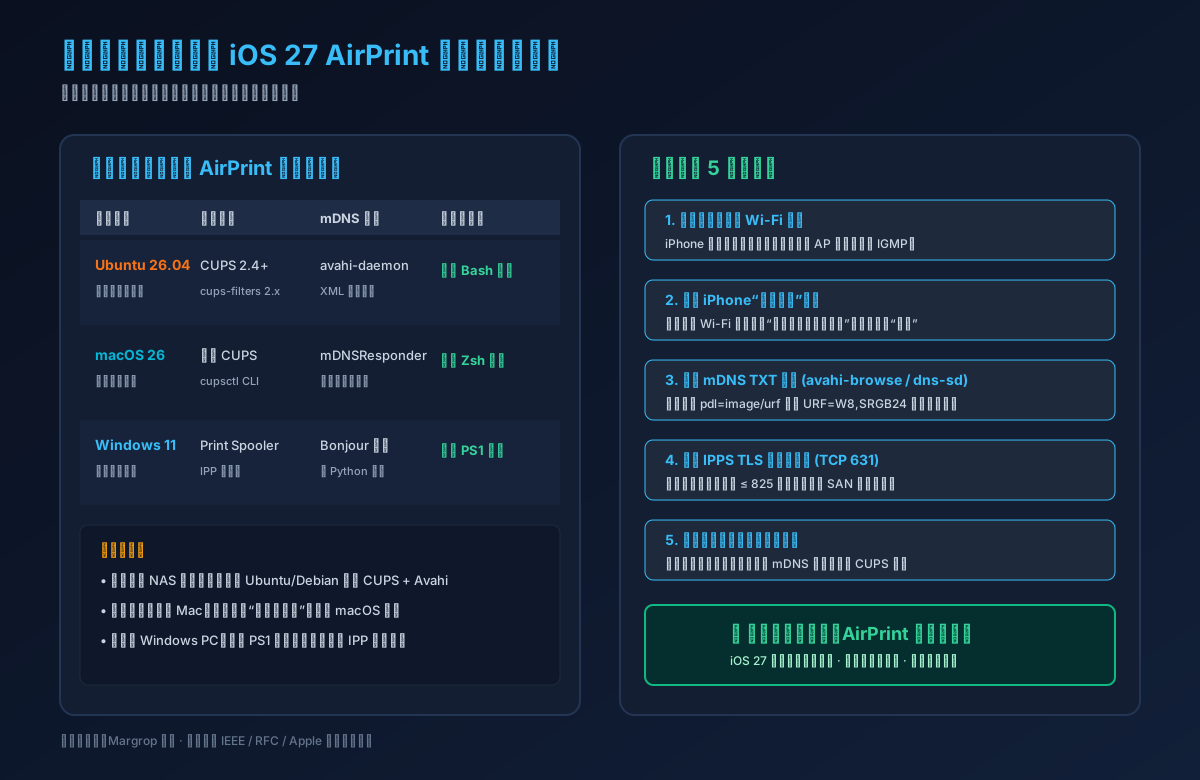
Following a systematic engineering approach, we can resolve these issues across our home and office environments:
Step 1: Router and iPhone Optimization (No Printer Changes Required)
- Disable AP Isolation & Enable IGMP: In your router's administration portal, verify that AP Isolation (Client Isolation) is turned OFF. Under advanced wireless settings, ensure IGMP Snooping and Multicast Forwarding are enabled;
- Set iPhone Private Wi-Fi Address to Off: Go to Settings ➔ Wi-Fi, tap the 'ℹ️' icon next to your network, and change "Private Wi-Fi Address" from Rotating to Off. Reconnect to establish a stable ARP entry;
- Verify Local Network Permissions: Go to Settings ➔ Privacy & Security ➔ Local Network, ensuring your browsing and printing applications have their green switches enabled.
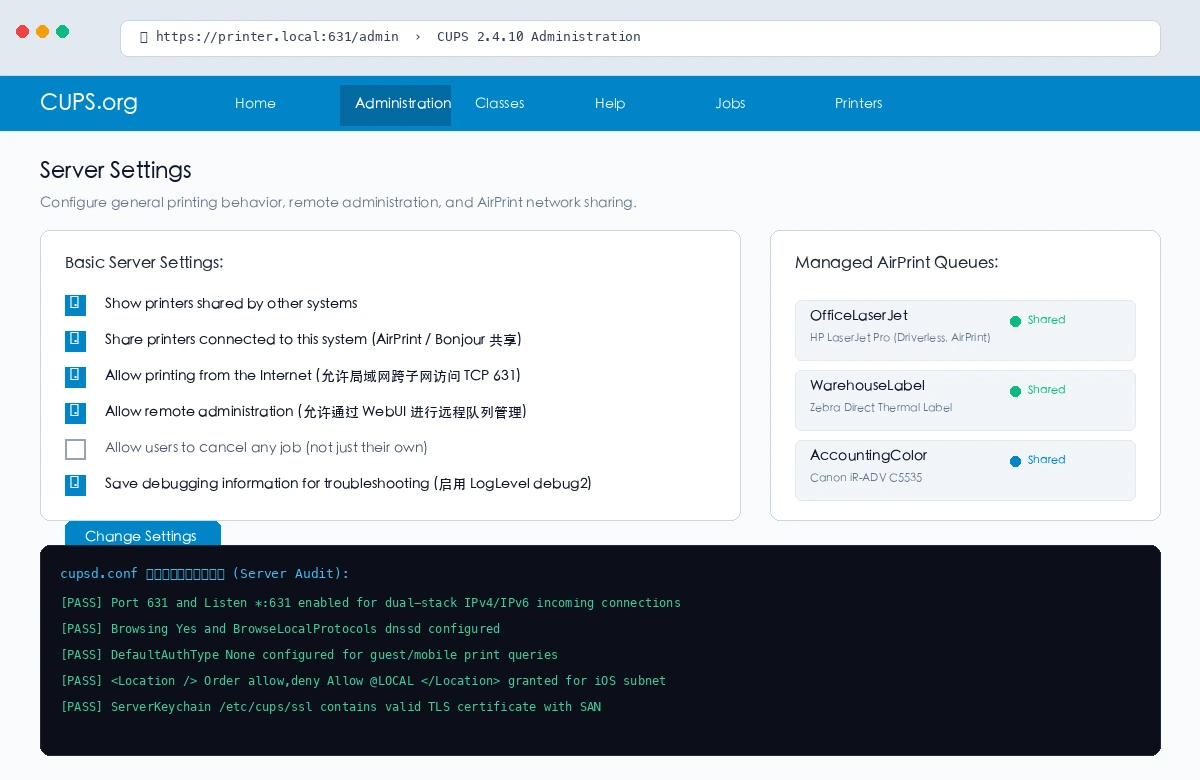
Step 2: Bridge Legacy Printers via a Linux / Mac / Windows Print Server
Many reliable workhorse printers only offer USB connectivity or feature sealed firmware that will never receive an iOS 27 update. The ideal, eco-friendly solution is to connect the printer to an always-on device (such as an Ubuntu mini PC, NAS, Mac mini, or Windows 11 desktop) and configure it as an AirPrint proxy gateway.
This proxy advertises fully compliant mDNS TXT records and modern TLS certificates to iOS 27 on the front end, while quietly translating print jobs into raw USB or PCL data on the back end.
7. Cross-Platform Automated Repair Toolkits
To eliminate tedious manual editing of configuration files, we have engineered a comprehensive, zero-dependency cross-platform automation toolkit for Ubuntu 26.04 LTS, macOS 26, and Windows 11. It uses strictly standard operating system utilities and the Python standard library, requiring no third-party cloud services.
Download the full offline toolkit and cryptographic checksums directly from the blog:
- Full Offline Archive: airprint-toolkit.zip
- Ubuntu 26.04 LTS Shell Script: airprint_toolkit_ubuntu2604.sh
- macOS 26 Zsh Script: airprint_toolkit_macos26.zsh
- Windows 11 PowerShell Script: airprint_toolkit_windows11.ps1
- Core Engine: airprint_core_agent.py
- Agent Declarative Specification: plan.template.json
- SHA-256 Checksums: SHA256SUMS.txt
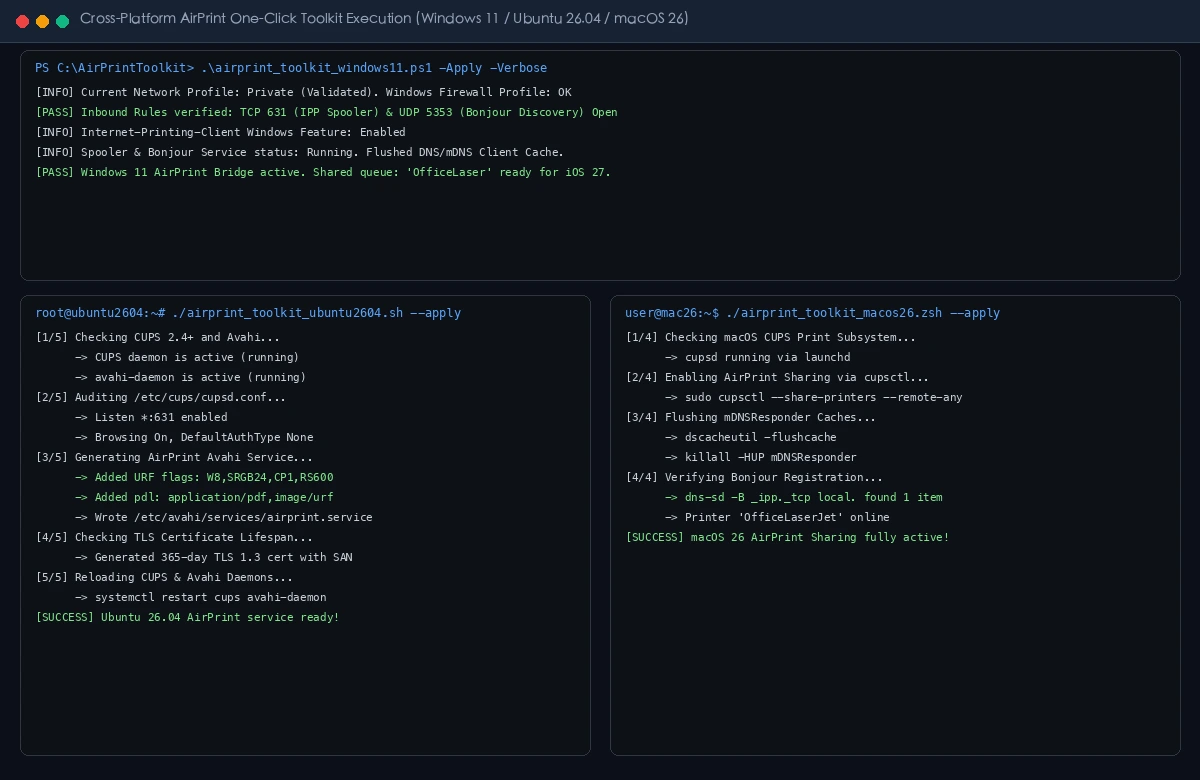
Method A: Human-Guided Automated Execution
Simply download the appropriate script on your print server machine and run it in a terminal:
1. Ubuntu 26.04 LTS (NAS / Mini PC / Router):
# Make executable and apply automated fixes
chmod +x ./airprint_toolkit_ubuntu2604.sh
sudo ./airprint_toolkit_ubuntu2604.sh --apply --verbose
(Running without --apply executes a non-destructive audit scan.)
2. macOS 26 (Mac mini / MacBook acting as Print Gateway):
# Make executable and enable native AirPrint sharing
chmod +x ./airprint_toolkit_macos26.zsh
./airprint_toolkit_macos26.zsh --apply --verbose
3. Windows 11 (Desktop connected to legacy USB printer):
Open PowerShell as Administrator and run:
# Bypass execution policy and run automated remediation
powershell -ExecutionPolicy Bypass -File .\airprint_toolkit_windows11.ps1 -Apply -VerboseOutput
Method B: AI Agent Autonomous Declarative Execution
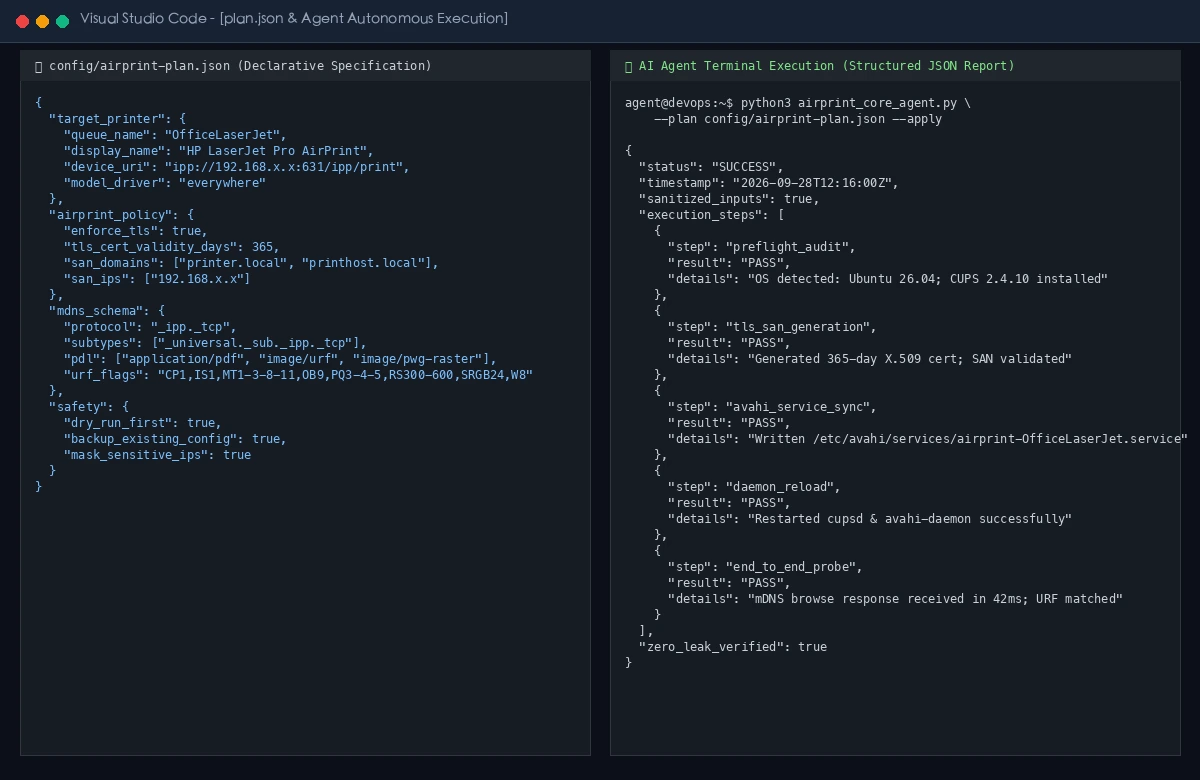
For modern DevOps environments powered by AI Agents (such as Claude Code, Antigravity, or Cursor), the toolkit provides native declarative support via plan.json:
1. Define declarative specification in config/airprint-plan.json:
{
  "target_printer": {
    "queue_name": "OfficeLaserJet",
    "display_name": "HP LaserJet Pro AirPrint",
    "device_uri": "ipp://192.168.x.x:631/ipp/print",
    "model_driver": "everywhere"
  },
  "airprint_policy": {
    "enforce_tls": false,
    "tls_cert_validity_days": 365,
    "san_domains": ["printer.local", "printhost.local"],
    "san_ips": ["192.168.x.x"]
  },
  "mdns_schema": {
    "protocol": "_ipp._tcp",
    "subtypes": ["_universal._sub._ipp._tcp"],
    "pdl": ["application/pdf", "image/urf", "image/pwg-raster"],
    "urf_flags": "CP1,IS1,MT1-3-8-11,OB9,PQ3-4-5,RS300-600,SRGB24,W8,DEVW8,DEVRGB24"
  },
  "safety": {
    "dry_run_first": true,
    "backup_existing_config": true,
    "mask_sensitive_ips": true
  }
}
2. Instruct your AI Agent to execute the run:
# Generate a read-only structured JSON audit
python3 airprint_core_agent.py --plan config/airprint-plan.json --json

# Execute idempotent remediation
python3 airprint_core_agent.py --plan config/airprint-plan.json --apply --json
Agent System Prompt Directive:
"Inspect the local print server state by parsing
config/airprint-plan.jsonwithairprint_core_agent.py. Ensure all actions are idempotent, preserve existing driver queues, strictly avoid exposing unmasked internal IP addresses, and emit structured JSON status reports."
8. Frequently Asked Questions (Q&A)
Q1: My printer only has a USB cable and no network port. Can this still work?
Answer: Absolutely! Plug the USB cable into any computer running Linux, macOS, or Windows 11. Once the base printer driver is functioning locally, run our corresponding script. That computer instantly transforms into a high-performance, compliant AirPrint wireless print server for all your iOS 27 devices.
Q2: Why does turning off 'Private Wi-Fi Address' fix it temporarily, but it breaks again days later?
Answer: If your Wi-Fi router uses dual-band smart switching (combining 2.4GHz and 5GHz under one SSID) or multiple Mesh nodes, roaming between access points can trigger iOS 27 to generate a fresh random MAC. To make the fix permanent, reserve a static DHCP IP for your iPhone's physical MAC address in your router settings, and keep Private Wi-Fi Address permanently Off for your home network.
Q3: Does a 365-day self-signed certificate mean I have to redo this every year?
Answer: The airprint_core_agent.py engine includes automatic certificate renewal logic. On Linux servers, adding a simple 6-month crontab job handles renewals completely hands-free. A 365-day validity window provides the optimal balance, remaining well within Apple's 825-day ceiling while avoiding stale cryptographic parameters.
Q4: Why could older iOS versions print through Windows sharing, while iOS 27 cannot discover it?
Answer: Windows natively shares printers using the SMB protocol, whereas AirPrint exclusively communicates via IPP/IPPS and mDNS. Older setups often relied on legacy Bonjour Print Services for Windows, whose advertisements lack modern URF capability records. Our Windows 11 script configures the native IPP spooler and firewall ports to bridge this gap cleanly.
Q5: How do I debug a persistent 'Filter failed' error?
Answer: Check /var/log/cups/error_log after setting LogLevel debug2 in /etc/cups/cupsd.conf. If you observe errors mentioning missing rastertopclx or unrecognized image/urf formats, ensure the cups-filters package is installed and that apple.convs and apple.types exist in /usr/share/cups/mime/.
9. Conclusion: Preserving Hardware Longevity in the Zero-Trust Era
The AirPrint challenges introduced by iOS 27 represent more than just a software glitch—they symbolize the broader migration toward Zero-Trust Local Area Networks (Zero-Trust LAN) across modern consumer and enterprise operating systems.
The era where simply being connected to the same Wi-Fi implied unrestricted trust is over. Operating systems now demand cryptographic identity verification, certified capability declarations, and encrypted communication even within our living rooms.
Yet, evolving security standards should never force the premature disposal of reliable, working hardware. True engineering excellence lies in understanding protocol boundaries, applying disciplined troubleshooting, and deploying automated tools that bridge legacy infrastructure with modern security expectations.
We hope this guide and our open-source scripts breathe fresh life into your printing setup. Feel free to leave comments or questions below if you encounter unique hardware configurations!