Integrating Synology Operations as an OpenClaw / HermesAgent Skill: From One Sentence to Auditable NAS Automation
I have already written two Synology CLI references on this blog:
Those posts answer the question: “What commands can a human run on a Synology NAS?” This article answers a different question: if I already use OpenClaw / HermesAgent, how can I turn those commands into an operations Skill so that I can ask the agent, in one sentence, to inspect the NAS, summarize evidence, prepare a maintenance plan, and execute approved commands only when the risk is acceptable?
The short answer is: yes, but the Skill must not become an unrestricted root shell. The right design is:
- Make Synology SSH access controlled, testable, and revocable.
- Put common Synology CLI operations into a Skill, together with command categories, risk levels, and output rules.
- Allow read-only diagnostics by default.
- Require explicit approval for service restarts, permission changes, user changes, network changes, deletion, and storage operations.
- Preserve commands, output, and reasoning so each operation remains auditable.
If you only want the big picture, the diagram below summarizes the whole article.
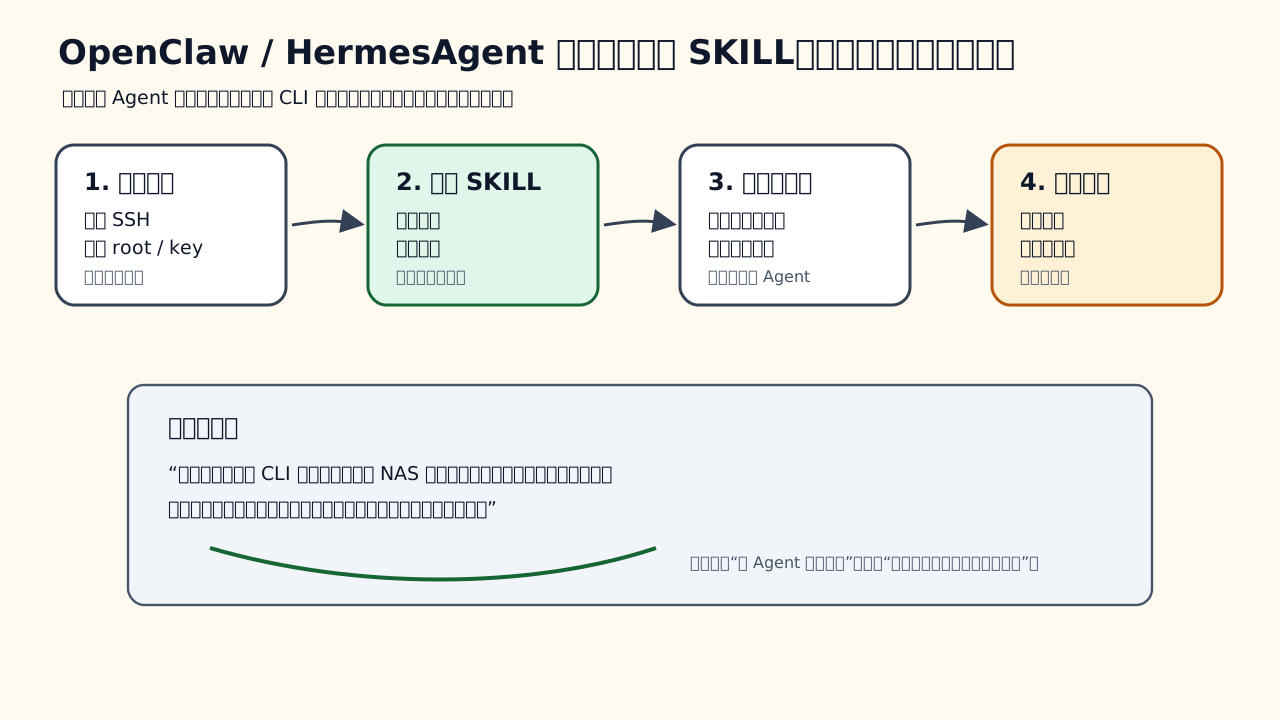
1. Why Turn Synology Operations into a Skill
DSM already has a good web interface, so why connect Synology operations to an agent at all?
The goal is not novelty. The goal is to shorten repetitive operational workflows without losing control. Many NAS tasks naturally fit agent assistance:
- A single health check often requires storage, volume, share, service, network, and log information.
- Synology CLI commands are numerous, and many of them are hard to remember when you do not use them every day.
- Real incidents usually require correlating several command outputs, not just running one command.
- Some work should begin with read-only inspection before deciding whether a change is necessary.
- In a home lab or small team, people often want fewer manual logins and fewer DSM menu hops, but they still need safe boundaries.
For example, you can tell OpenClaw / HermesAgent:
Please refer to my Synology CLI operation notes. Check NAS storage usage, shared folders, network state, and recent error logs. Run read-only commands only. If a configuration change is needed, prepare a plan first and do not execute it yet.
Without a Skill, an agent may only give generic instructions such as “log in to DSM and check Control Panel.” With a Synology operations Skill, it can know:
- Which SSH target to use.
- Which commands are safe read-only diagnostics.
- Which commands are medium or high risk and require confirmation.
- How to format output as findings, evidence, risk, and next steps.
- What to do when permissions are insufficient, commands differ across DSM versions, or the target is unreachable.
That is the value of a Skill. It does not turn the agent into an unconstrained shell. It packages a professional operating procedure into a reusable and reviewable capability.
2. The Required Foundation: Safe SSH Administration
Before integrating OpenClaw / HermesAgent, make sure Synology SSH access is correct. This step should not be skipped, because all later automation depends on it.
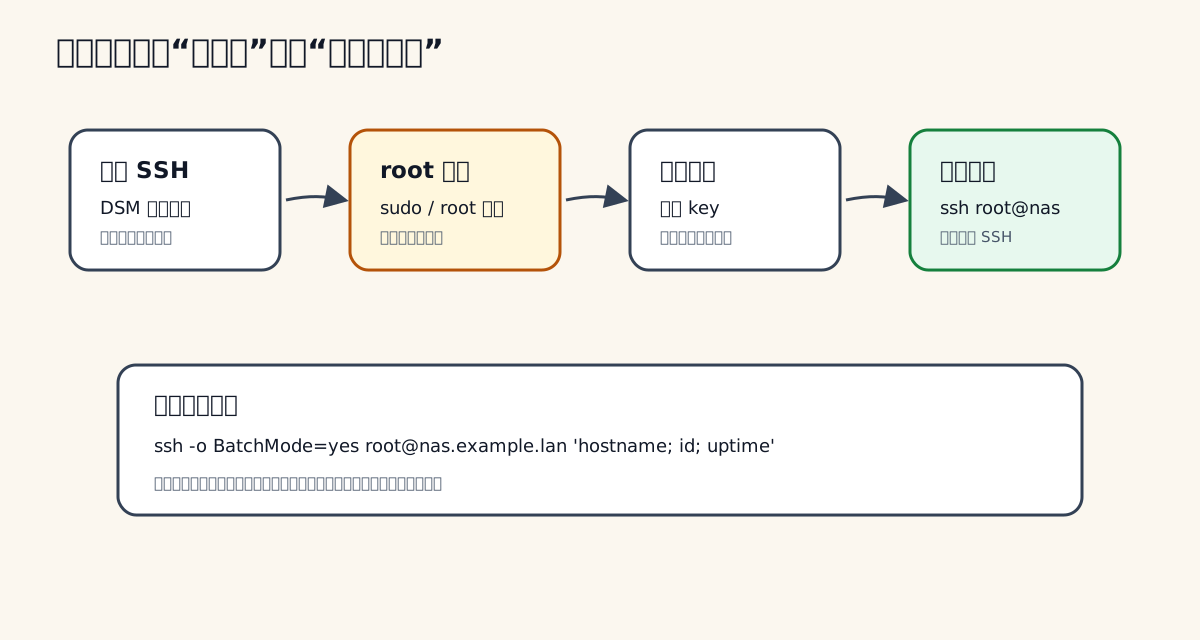
The minimum preparation usually has four parts.
2.1 Enable SSH
In DSM, open the terminal-related settings in Control Panel and enable SSH. Do not expose SSH directly to the public internet. If remote access is necessary, prefer VPN, a jump host, an allowlisted tunnel, or firewall rules that restrict source addresses.
When the target is agent automation, open SSH should be treated even more carefully. Convenience is not a reason to expose the NAS management interface to the world.
2.2 Configure Root Capability or a Sudo-Capable Administrator
Many low-level Synology maintenance commands require root privileges. You can either allow root login or log in with an administrator account and use sudo. The better choice depends on your environment, audit requirements, and how your agent executes commands.
For readability, the examples in this article use root@nas.example.lan as a placeholder target. It is not a real host. In your own environment, use a private hostname or internal DNS name, and do not publish real IP addresses, real usernames, real key paths, or internal topology in articles, public repositories, screenshots, or prompts.
2.3 Generate a Dedicated SSH Key
Do not give the agent the same SSH key that you use for all personal server access. Generate a dedicated key for Synology operations:
ssh-keygen -t ed25519 -f ~/.ssh/synology_agent_ed25519 -C "synology-agent"
Then add the public key to the target account’s authorized_keys. If your workflow requires root passwordless login, verify that DSM SSH configuration allows it and that file permissions are correct.
2.4 Validate Passwordless Login
Before writing the Skill, run a minimal read-only validation:
ssh -i ~/.ssh/synology_agent_ed25519 -o BatchMode=yes root@nas.example.lan 'hostname; id; uptime'
This checks several things:
BatchMode=yesprevents the command from hanging on an interactive password prompt.hostnameconfirms that the agent is talking to the expected device.idconfirms the current identity and privilege.uptimeconfirms that commands can return normally.
If this command is not reliable, do not connect the agent yet. Fix SSH, DNS, keys, permissions, firewalls, and DSM settings first. Agent automation amplifies both reliability and unreliability.
3. Risk Must Be Designed Up Front
Some Synology commands only inspect state. Some restart services. Some change users and permissions. Some can affect data. Putting all of them into a single “automatically execute” bucket is dangerous.
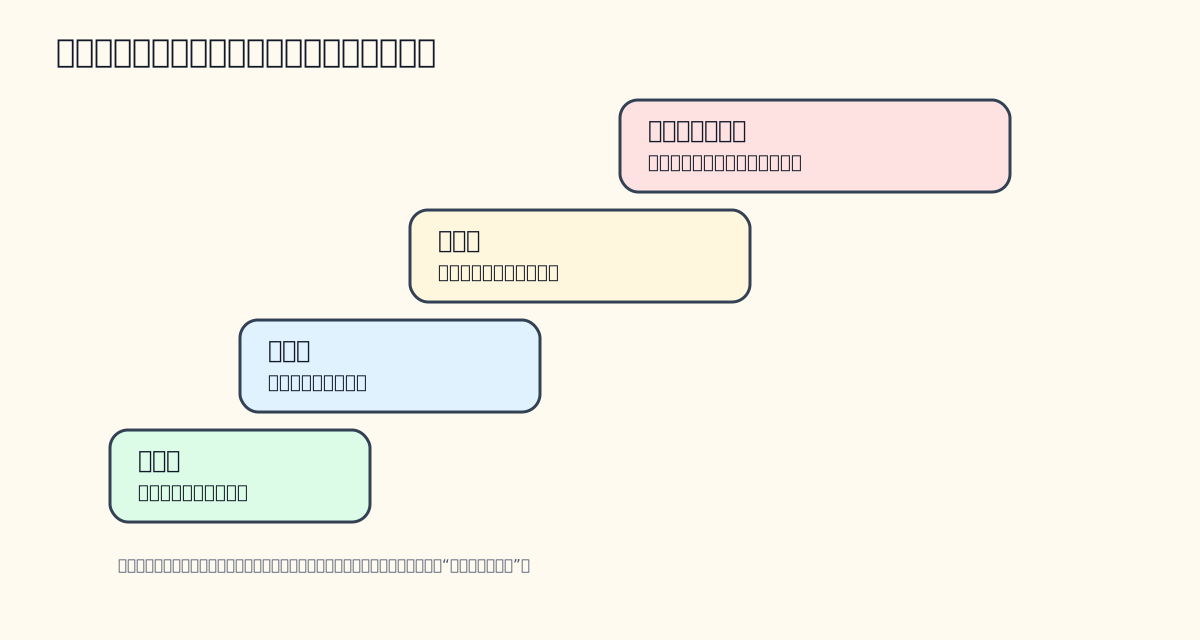
I recommend at least four risk levels.
Low Risk: Read-Only Diagnostics
These commands can usually be allowed by default:
- Inspect hostname, uptime, kernel, and DSM-related state.
- Inspect disk, volume, and space usage.
- Inspect service status.
- Inspect network configuration.
- Read recent logs with a narrow line limit.
Low risk is not zero risk. Logs may include usernames, paths, internal addresses, device names, or share names. Summaries should redact sensitive details unless raw output is explicitly needed.
Medium Risk: Service Reloads and Restarts
Restarting a service, reloading configuration, or refreshing a network-related service may not delete data, but it can interrupt file sharing, sync tasks, media services, download jobs, containers, or package services.
The recommended rule is: the agent may propose the command and explain the impact, but it must wait for approval before execution.
High Risk: Users, Permissions, Network, and Shares
Changing user passwords, modifying share permissions, adjusting gateways or DNS, changing firewall rules, or editing SSH configuration can lock you out or expose data to the wrong audience.
The rule here should be stricter: produce a plan, explain rollback, provide verification commands, and wait for confirmation.
Not for Default Automation: Deletion, Formatting, Rebuilds, and Destructive Storage Work
Deleting data, formatting disks, rebuilding storage pools, clearing directories, bulk-changing permissions, or overwriting private certificate keys should not be part of one-sentence automation.
If you ever want an agent to assist with such operations, use a separate high-risk workflow: verify backups, generate a plan, ask for human approval, execute step by step, and verify after every step.
4. What “One-Sentence Integration” Really Means
One-sentence integration does not mean one sentence replaces all security preparation. SSH, root capability, dedicated keys, and target restrictions still need careful setup.
It means that after the foundation is ready, one natural-language instruction can create or invoke the Synology Skill.
For example:
Create an OpenClaw / HermesAgent operations Skill named synology-nas-ops. Please refer to https://blog.margrop.net/post/synology-ssh-commands/ and https://blog.margrop.net/post/synology-diskstation-cli-administration-guide/ to integrate Synology CLI operations. By default, execute read-only checks only. For any restart, deletion, permission change, user change, network change, or storage change, first list the command, risk, rollback path, and verification step, then wait for my approval.
After that, daily usage can also be one sentence:
Use synology-nas-ops to check NAS storage usage, shared folders, network state, and recent system errors. Run read-only diagnostics only and format the result as symptoms, evidence, recommendations, and next steps.
Or:
Use synology-nas-ops to diagnose why SMB access is slow. Start with read-only checks. Do not restart services or modify configuration; if you think a change is needed, prepare a plan first.
The user experience stays simple, but the underlying behavior is not “run anything.” The Skill gives the agent references, categories, approval gates, and output structure.
5. A Copyable Skill Template
Below is a generic SKILL.md template. You can place it in the skills directory supported by OpenClaw / HermesAgent, or ask the agent to create a Skill named synology-nas-ops from this template.
The template intentionally uses placeholders. Do not put real IPs, real usernames, or real private key paths in a public file. Keep the real connection details in private local configuration.
---
name: synology-nas-ops
description: Use this skill when the user asks OpenClaw / HermesAgent to inspect, diagnose, or plan operations for a Synology DSM NAS through SSH and Synology CLI commands.
---

# Synology NAS Operations Skill

## Purpose

This skill helps inspect and operate a Synology DSM NAS through SSH. It should prefer read-only diagnostics, summarize evidence, and require explicit user approval before any disruptive or destructive command.

## Connection

- Target alias: `nas.example.lan`
- SSH user: `root` or a sudo-capable administrator
- SSH key: use a dedicated private key configured outside this file
- Never print private keys, passwords, tokens, or full internal topology in the final answer.

Example connection command:

```bash
ssh -i ~/.ssh/synology_agent_ed25519 -o BatchMode=yes root@nas.example.lan '<command>'
```

## References

When command details are needed, refer to:

- https://blog.margrop.net/post/synology-ssh-commands/
- https://blog.margrop.net/post/synology-diskstation-cli-administration-guide/

## Default Rules

1. Start with read-only commands.
2. Before running commands, briefly state the diagnostic goal.
3. Do not run commands that delete data, format disks, rebuild storage pools, rewrite certificates, change passwords, modify network settings, modify SSH settings, or change share permissions without explicit user approval.
4. For any medium-risk or high-risk operation, first provide:
   - exact command
   - expected impact
   - rollback or recovery path
   - verification command
5. If the command output includes private hostnames, internal IPs, usernames, share names, serial numbers, or tokens, redact them in summaries unless the user explicitly asks to inspect raw output.

## Read-Only Diagnostic Commands

Use these for initial inspection when relevant:

```bash
hostname
id
uptime
df -h
mount
synoservice --status
synonet --show
synonet --get_hostname
synopartition --list
```

For logs, prefer narrow reads:

```bash
tail -n 120 /var/log/messages
```

Do not dump large logs unless the user asks for raw evidence.

## Output Format

Respond with:

1. Summary
2. Commands executed
3. Findings and evidence
4. Risk assessment
5. Recommended next steps

If no write action was taken, say so explicitly.
This template is not meant to cover every Synology command. It is a safety frame. The important rules are:
- The target is fixed.
- Read-only behavior is the default.
- Command sources are traceable.
- Risky actions require confirmation.
- Output includes evidence.
- Sensitive data is redacted by default.
Build the minimum version first. Add more commands only after you know the agent follows the boundaries.
6. Use Existing CLI Articles as the Agent’s Reference Manual
The two previous posts can serve different roles.
Synology SSH Commands Cheatsheet is a quick reference. It helps when the agent knows the general area, such as hostname, gateway, shares, encrypted shares, users, notifications, storage, or upgrades, but needs the command name.
Synology NAS CLI Administration Guide is closer to a detailed manual. It helps when the agent needs parameter meanings, restrictions, return behavior, or the semantics of users and shared folders.
Writing “refer to these two posts” in the Skill is better than copying every command into the prompt:
- The Skill stays short.
- Command details are maintained in one place.
- The agent can focus on the relevant section instead of ingesting a large manual every time.
However, references are not authorization. A command appearing in a reference article does not mean the agent may execute it automatically. Authorization rules belong in the Skill.
7. What a Healthy Execution Flow Looks Like
A good execution path should look like this:
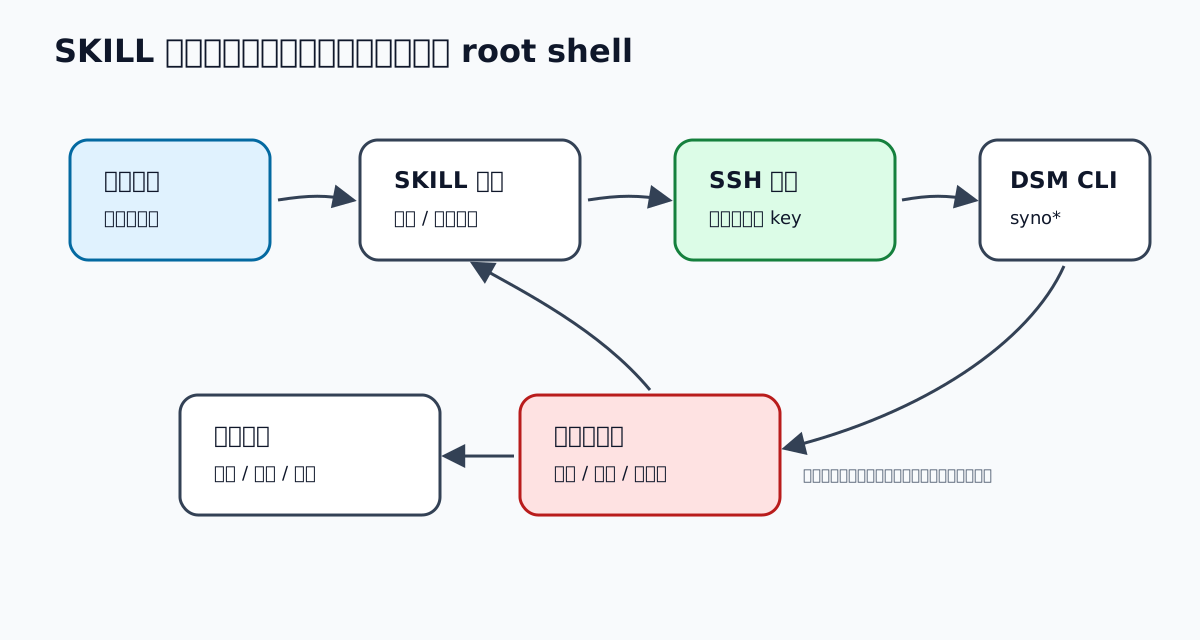
User request:
Use synology-nas-ops to check whether the NAS has recent disk or service problems. Read-only checks only.
The agent should first state the scope:
I will run read-only SSH commands to check host identity, uptime, disk usage, service status, and recent system logs. I will not restart services, delete files, change permissions, or modify network settings.
Then it can run commands such as:
ssh -i ~/.ssh/synology_agent_ed25519 -o BatchMode=yes root@nas.example.lan 'hostname; uptime; df -h; synoservice --status; tail -n 80 /var/log/messages'
The final answer should look like:
Summary:
- The NAS is reachable. The current identity is root. All commands were read-only.
- No obvious storage exhaustion risk was found.
- One service has repeated restart records and needs further inspection.

Evidence:
- df -h shows enough free space on the main volume.
- synoservice --status reports one suspicious service state.
- /var/log/messages contains related errors in the last 80 lines.

Recommendation:
- Inspect the service-specific logs first.
- If the service is confirmed stuck, consider a service restart after approval.
If the user then says:
Restart that service for me.
The agent should not execute immediately. It should stop and ask for approval:
This is a medium-risk action and may interrupt the related feature briefly. I plan to run:

<exact command>

Impact:
- The related service may be temporarily unavailable.

Rollback:
- If it does not recover, inspect logs and restore configuration through DSM if needed.

Verification:
- Query service status and recent logs after restart.

Please confirm whether to proceed.
That is the balance: a simple entry point with explicit operational boundaries.
8. Useful One-Sentence Prompts
Here are practical prompt patterns.
8.1 Health Check
Use synology-nas-ops to run a NAS health check: inspect storage usage, service status, network state, and recent system errors. Read-only checks only. Format the result as summary, evidence, risk, and recommendations.
8.2 Slow SMB Diagnosis
Use synology-nas-ops to diagnose slow SMB access. Start with system load, network state, related service status, and recent logs. Do not restart services or modify configuration; if a change is needed, prepare a plan first.
8.3 Share Permission Review
Use synology-nas-ops to review the permission state of a specific shared folder. Only read share and permission configuration. Do not modify users, groups, or share permissions.
8.4 Network Configuration Check
Use synology-nas-ops to inspect the NAS hostname, gateway, DNS, and network interface status. Read-only checks only and explain any obvious configuration risks.
8.5 Change Plan Only
Use synology-nas-ops to prepare a plan for restarting an abnormal service. List the command, impact, rollback path, and verification steps, but do not execute it.
All of these prompts say either “read-only” or “plan first.” Avoid vague requests such as “fix my NAS.” Vague requests encourage guessing and unsafe execution.
9. Recommended Skill Directory Structure
If your OpenClaw / HermesAgent environment supports directory-based skills, a simple structure is enough:
synology-nas-ops/
  SKILL.md
  commands/
    readonly.md
    risky.md
  examples/
    health-check.md
    smb-slow-diagnosis.md
Suggested responsibilities:
SKILL.mdcontains rules, connection notes, risk boundaries, and output format.commands/readonly.mdcontains safe diagnostic commands.commands/risky.mddocuments command classes that require approval or are not allowed by default.examples/contains common prompts and expected answer shapes.
Do not over-engineer the first version. The most important thing is clarity: what the agent may do, what it must not do, and when it must stop.
10. Privacy and Security
When writing a NAS Skill, it is easy to leak details accidentally:
- Real internal IPs.
- Real public domains.
- Real usernames.
- Real share names.
- SSH private key paths.
- Device serial numbers in logs.
- Backup directory structures.
- Business or personal folder names.
Individually, these may not be passwords. Together, they describe your attack surface. Good defaults:
- Put only aliases and placeholders in
SKILL.md. - Keep real connection configuration in private local settings or environment variables.
- Redact final summaries by default.
- Trim logs before pasting them into prompts.
- Do not publish raw agent execution logs in public articles or repositories.
Home NAS environments often contain highly personal names in paths, shares, and usernames. The agent should generalize them unless you explicitly ask for raw details.
11. What Should Not Be One-Sentence Automation
I do not recommend putting these actions into the default execution range of a daily Synology Skill:
- Deleting shared folders.
- Bulk deleting files.
- Bulk changing permissions.
- Formatting disks.
- Rebuilding storage pools.
- Changing the default gateway or DNS.
- Editing SSH configuration and immediately restarting SSH.
- Overwriting certificate private keys.
- Changing the root password.
- Upgrading without verified backups.
These actions are not impossible to automate, but they should not be handled through casual one-sentence automation. They need backup checks, plans, impact analysis, human approval, execution windows, rollback paths, and post-change verification.
The agent is strongest when it shortens inspection, turns command output into structured conclusions, and writes clear plans. It should not take responsibility for data safety away from you.
12. My Recommended Rollout
If I were starting from scratch, I would roll it out in this order:
- Validate SSH access manually first.
- Write the smallest Skill with connection notes, the two reference posts, read-only commands, and risk rules.
- Test health-check tasks three to five times.
- Check whether the agent ever tries to perform medium-risk or high-risk actions without approval.
- Add focused command groups for SMB, shares, network, logs, and services.
- Add one or two examples for each command group.
- Keep the approval-required actions in a separate list.
- Review execution logs periodically and remove commands that are unused or too dangerous.
The minimum viable version can be one sentence:
Create a synology-nas-ops Skill: manage a Synology NAS through SSH; refer to my two Synology CLI posts for command details; run read-only checks by default; restarts, deletions, permission changes, user changes, network changes, and storage changes must be planned first and wait for confirmation; output commands, evidence, risk, and recommendations; redact sensitive details by default.
The important words are: read-only by default, plan first, wait for confirmation, evidence, and redaction.
13. Conclusion
Integrating Synology operations as an OpenClaw / HermesAgent Skill is not about “letting AI control the NAS.” It is about turning your approved Synology CLI practices into a workflow that is easier to invoke, easier to audit, and less likely to cause accidental damage.
A good Synology Skill should have:
- A simple user entry point: one sentence can start inspection or diagnosis.
- Traceable command sources: existing articles and templates remain the reference.
- Conservative defaults: read-only first.
- Strong risk gates: plan, confirm, then execute.
- Structured output: commands, evidence, judgment, and next steps.
- Active privacy protection: no unnecessary leakage of real environment details.
Once those boundaries are in place, the agent becomes more than a chat window that can run commands. It becomes an operations assistant that helps manage the NAS with short paths, clear evidence, and controlled risk.