I Run 5 AI Coders in Parallel — They Don't Fight Anymore
TL;DR
If you subscribe to multiple AI coding agents like Claude Code, Codex, or OpenCode, and often think “let them all try this task and I’ll pick the best result,” you’ve probably hit these walls: agents overwriting each other’s files in the same directory, git history turning into spaghetti, terminal windows multiplying beyond control, and finished tasks sitting unnoticed.
Orca (https://www.onorca.dev/) solves this. It’s not another AI model, nor does it replace your existing agents. It’s an Agentic Development Environment (ADE) — treating git worktrees as first-class citizens, letting each agent work in its own isolated directory while you manage everything from one desktop app: dispatch tasks, compare results, merge the winner.
This article covers: why Orca exists, what pain points it kills, how it works under the hood, real hands-on experience, and most importantly — is it for you?
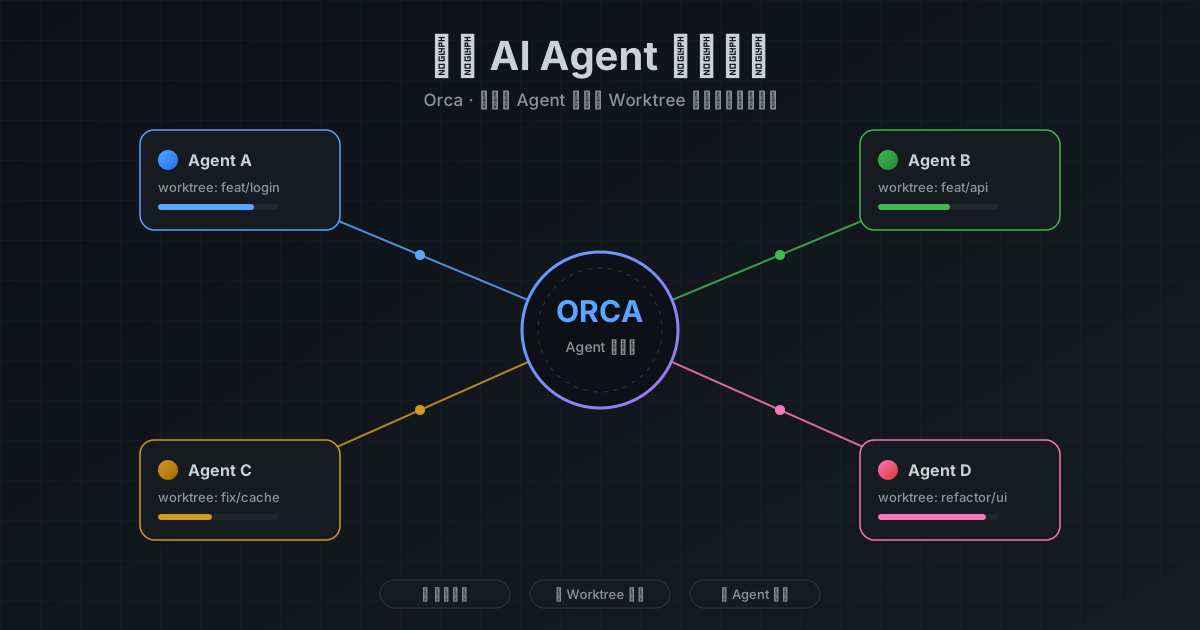
Figure 1: AI-generated cover. Orca is like an air traffic control tower — multiple “planes” (agents) take off and land on their own runways without interference.
1. The Problem: More AI Agents, More Management Overhead
Over the past year, AI coding agents evolved from “cool toys” to “daily drivers.” Like many developers, I have Claude Code, Codex, OpenCode, Cursor CLI, and more installed. Each has its own subscription, quota, and strengths.
This creates a new bottleneck: management overhead.
1.1 Three Pain Points of the Old Way
Pain Point 1: File Collisions
You ask Claude Code to fix a bug while Codex optimizes the same module. Both work in the same directory. Claude edits auth.ts; Codex overwrites it seconds later. Both efforts wasted.
Pain Point 2: Git Chaos
Multiple agents running git add and git commit in the same checkout produce interleaved commit history. You can’t tell which agent made which change. Rolling back becomes guesswork.
Pain Point 3: Context Pollution
Agents read the working directory as ground truth. If one agent reads a file another agent just half-edited, it builds on broken state and confidently makes things worse.
1.2 An Everyday Analogy
Imagine hiring several contractors to renovate your home. The old way: all workers in the same room — electrician wiring, tiler laying tiles, carpenter building cabinets. The electrician’s wires get buried under cement, the carpenter’s boards block the electrician’s access panel. Everyone’s working hard, but they trip over each other.
Orca’s approach: give each contractor their own room (git worktree). They work independently. You inspect each room, pick the best renovation, and apply it to the master bedroom.
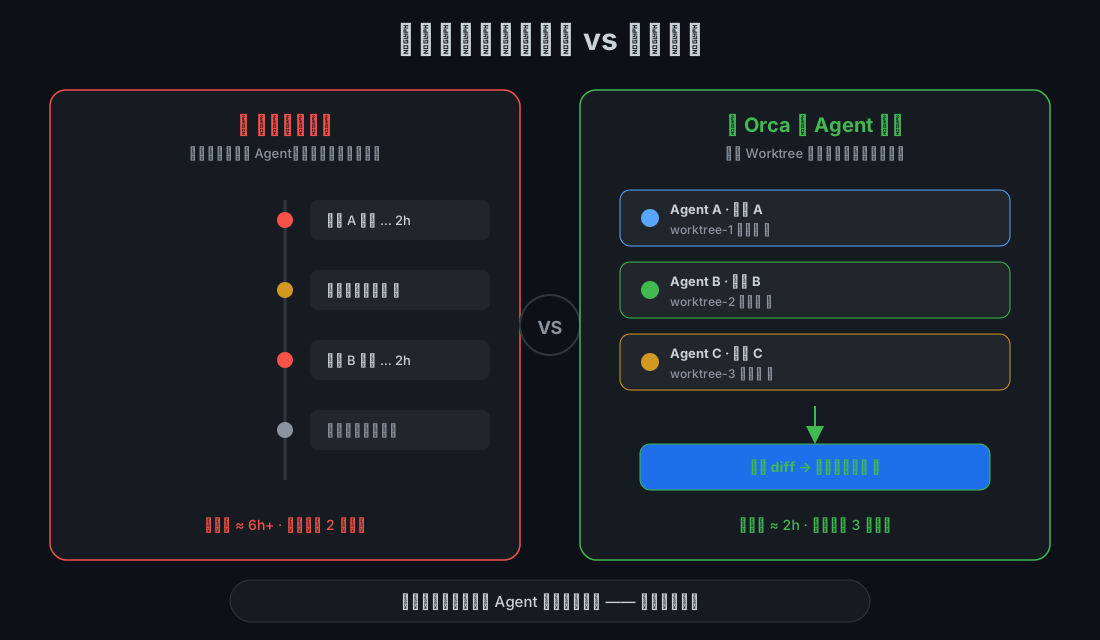
Figure 2: Traditional approach tests one solution at a time; Orca validates multiple solutions in parallel. AI-generated illustration.
2. What Is Orca: Not an IDE, an ADE
Orca positions itself as an ADE (Agentic Development Environment), not a traditional IDE. This distinction matters.
| Dimension | Traditional IDE | Orca (ADE) |
|---|---|---|
| Core assumption | One human editing files | Multiple agents working in parallel |
| Unit of work | File / Project | Agent session + Worktree |
| Terminal | Auxiliary tool | First-class citizen |
| Git | Version control | Physical isolation mechanism |
| Goal | Help humans write code | Help humans manage agents |
2.1 Core Mechanism: Worktree-First
Git worktree is an official Git feature allowing one repository to check out multiple branches in separate directories. Each worktree has independent working files but shares the same .git object database.
Orca elevates this CLI tool into the IDE’s central object:
- Each task = one worktree = one isolated directory
- Each worktree has its own agent terminal, editor, browser
- Complete isolation across worktrees
2.2 Orca’s Six Subsystems
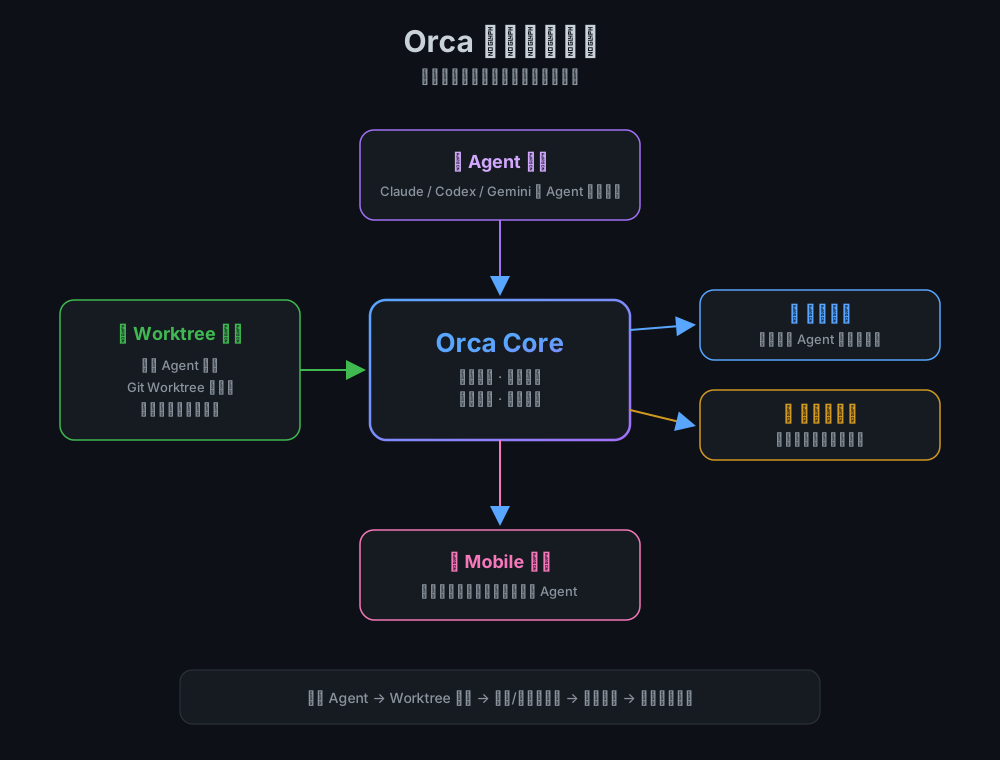
Figure 2: Orca’s architecture. The worktree engine is the foundation; agent scheduling, terminal, editor, browser, and mobile companion all build on top.
- Worktree Engine: Create, manage, destroy git worktrees
- Agent Scheduler: Supports 25+ CLI agents (Claude Code, Codex, OpenCode, Grok, Gemini, etc.)
- Terminal: Ghostty-class WebGL rendering, infinite splits
- Editor: VS Code-level file editing experience
- Browser + Design Mode: Embedded Chromium, click any element to send to agent
- Mobile Companion: iOS/Android app for remote monitoring and intervention
3. Core Features Deep Dive
3.1 Parallel Worktrees: Racing 5 Agents
Orca’s flagship feature:
- Create 5 worktrees:
bug-fix-Athroughbug-fix-E - Launch a different agent in each (Claude Code, Codex, OpenCode, Grok, Pi)
- Give them the same prompt: “Fix this login race condition”
- Five agents work in parallel in five isolated directories
- Compare the five diffs, merge the best
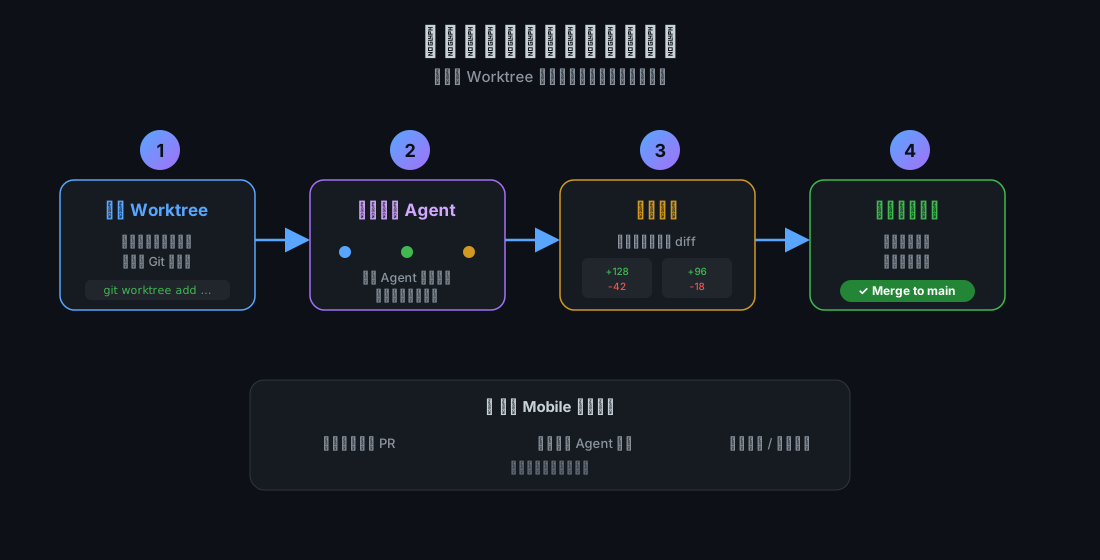
Figure 3: Parallel worktree workflow. Same task dispatched to multiple agents, each working independently, then compare and pick the winner.
The cost? Five agents means 5x token consumption. But often it’s worth it: a bug with multiple valid fixes, or a refactor with several defensible architectures. Having five agents explore beats iterating one agent five times.
3.2 Design Mode: Click to Describe
Frontend developers know this pain: you see a styling issue in the browser, but describing it to an agent is tedious — “that blue button, the right margin is slightly off, and the hover color is wrong.”
Orca’s Design Mode fixes this:
- Open the embedded Chromium browser
- Click any element on the page
- Orca captures the element’s HTML, CSS, and a cropped screenshot
- Packages it into the agent’s prompt
The agent receives precise context, not vague descriptions.
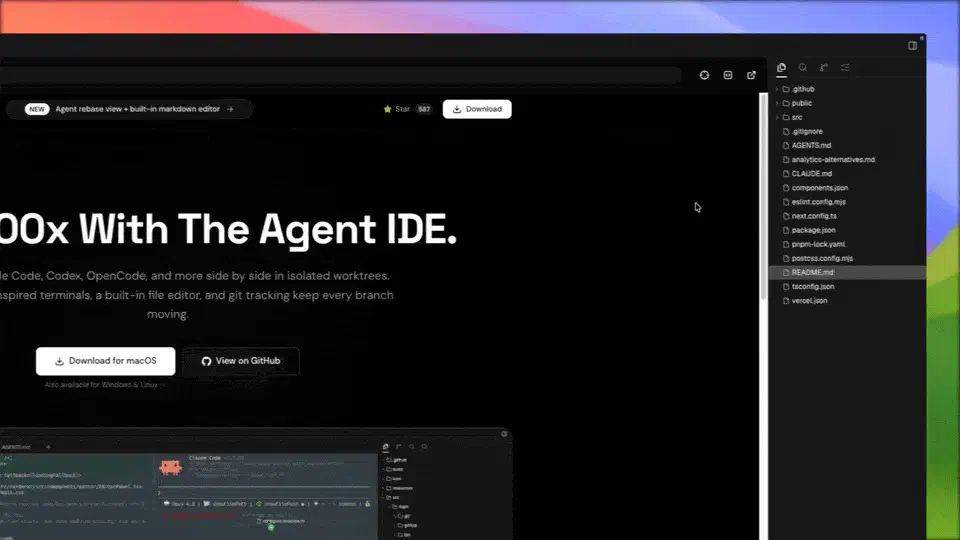
Figure 4: Design Mode. Click to describe instead of typing descriptions. Image source: Orca official docs.
3.3 Mobile Companion: Manage Agents Away from Your Desk
Complex agent tasks can run for minutes or hours. You can’t sit at your computer waiting.
Orca’s mobile companion (iOS/Android) lets you:
- Receive notifications when agents finish
- Check agent status in real-time
- Send follow-up instructions remotely
- Monitor usage and rate limits
This means: start an agent before leaving home, get a completion notification on the subway, review the diff, merge if good, or send follow-up instructions — all from your phone.
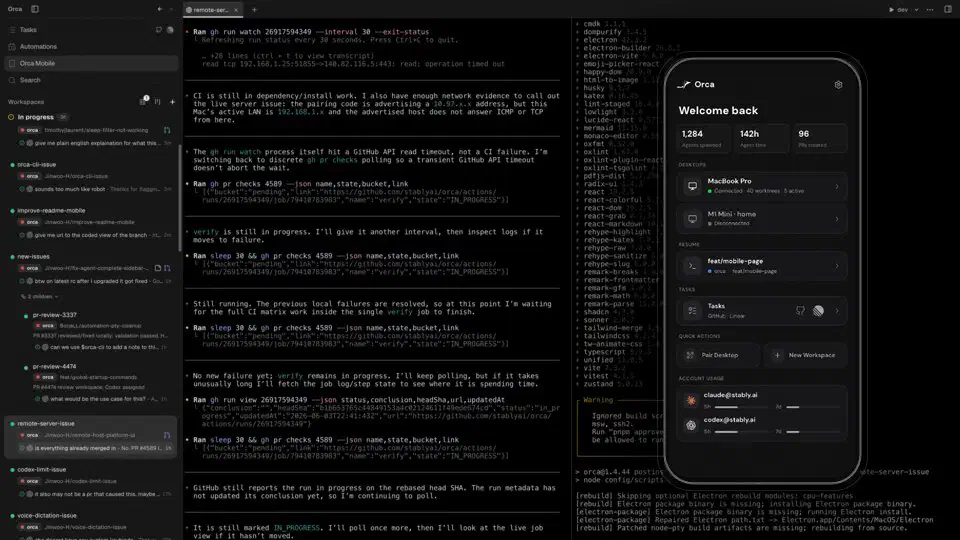
Figure 5: Orca mobile companion. Check agent status and send follow-ups from your phone. Image source: Orca official docs.
3.4 SSH Worktrees: Code Locally, Run Remotely
If your laptop lacks horsepower, or you want to leverage a remote server’s GPU/memory, Orca supports SSH Worktrees:
- Local Orca acts as editor + terminal view
- Actual working directory lives on the remote server
- Auto-reconnect and port forwarding included
This enables “write code on MacBook, run agents on the server.”
3.5 Annotate AI Diffs: Review Like Commenting
Agent-generated code needs human review. Orca’s diff view supports:
- Commenting on any line
- Sending comments directly back to the agent
- Agent iterates based on feedback
It’s like commenting in Google Docs, but for code diffs.
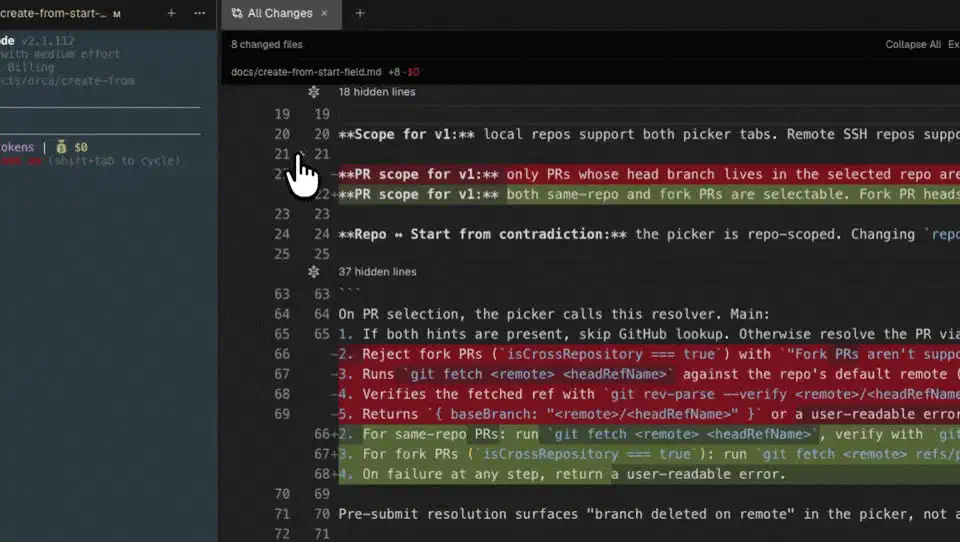
Figure 6: Annotate AI Diffs. Comment on any diff line and the agent receives it directly. Image source: Orca official docs.
4. Hands-On Experience
4.1 Installation and Setup
Orca supports macOS, Windows, and Linux. Installation is straightforward:
# macOS (Homebrew)
brew install --cask stablyai/orca/orca

# Or download from https://www.onorca.dev/
On first launch, Orca auto-detects installed CLI agents (Claude Code, Codex, etc.). Just log in to your accounts.
4.2 My First Parallel Task
I tested a real scenario: fixing a React component memory leak.
Steps:
- Open project in Orca
- Click “New Worktree,” create
fix-memory-leak-claudeandfix-memory-leak-codex - Assign different agents to each
- Same prompt: “Fix the memory leak in
UserListcomponent — timers not cleaned up on unmount” - Wait for results
Results:
- Claude Code found the
setIntervalleak and addeduseEffectcleanup - Codex fixed the same issue, plus found another
setTimeoutleak, and suggesteduseRefoptimization
Both solutions had merit. I merged the best of both.
4.3 Resource Consumption
| Scenario | Memory | CPU | Disk |
|---|---|---|---|
| 1 agent | ~2GB | Low | Project size × 1 |
| 3 agents parallel | ~6GB | Medium | Project size × 3 |
| 5 agents parallel | ~10GB | High | Project size × 5 |
Note: Each worktree needs its own node_modules or dependency directory. Large projects consume significant disk space.

Figure 7: Orca main UI layout. Manage all worktrees on the left, code and terminals on the right. Image source: Orca official docs.
5. Orca vs Alternatives
| Option | Pros | Cons | Best For |
|---|---|---|---|
| Orca | Full-featured, friendly UI, mobile support | Resource-heavy, learning curve | Multi-agent power users |
| git worktree + tmux | Zero cost, full control | Manual management, no UI, no mobile | Terminal purists, single-agent users |
| Claude Squad | Terminal-native, lightweight | Terminal-only, no GUI | Terminal enthusiasts |
| Cursor / Windsurf | Great single-agent experience | Weak multi-agent support | Single-agent users |
6. Problem Analysis and Root Causes
6.1 Why Didn’t This Exist Before?
Technical reasons:
- Git worktree existed but was CLI-cumbersome
- Multi-agent management needed unified UI abstraction — insufficient demand before
- Mobile push notifications and remote control require dedicated backend support
Demand reasons:
- Pre-2024: most people used one agent
- 2025-2026: multi-agent parallel became common workflow
- AI coding evolved from “assistant” to “primary” — management tools followed
6.2 What Essential Problem Does Orca Solve?
The core issue: “Parallel management” of AI agents is an order of magnitude more complex than “serial execution”
Serial: one agent finishes, next one starts. Simple but slow.
Parallel: multiple agents simultaneously. Fast but requires:
- Physical isolation (worktree)
- State tracking (which agent is doing what)
- Result comparison (which solution is better)
- Conflict prevention (no simultaneous edits to same file)
Orca packages these solutions, letting users focus on “dispatching tasks” and “picking winners.”
7. Solutions: One-Click Scripts
While Orca is a GUI application, installation and setup can be scripted. Here are one-click installers for all three platforms.
7.1 Manual Execution
Windows 11
# Install-Orca-Windows.ps1
# Run PowerShell as Administrator

Write-Host "Installing Orca for Windows..." -ForegroundColor Green

# Download latest release
$downloadUrl = "https://github.com/stablyai/orca/releases/latest/download/orca-windows-setup.exe"
$installerPath = "$env:TEMP\Orca-Setup.exe"

Invoke-WebRequest -Uri $downloadUrl -OutFile $installerPath

# Silent install
Start-Process -FilePath $installerPath -ArgumentList "/S" -Wait

# Cleanup
Remove-Item $installerPath

Write-Host "Orca installed successfully!" -ForegroundColor Green
Write-Host "Launch Orca from Start Menu and configure your AI agents."
Ubuntu 26.04
#!/bin/bash
# install-orca-ubuntu.sh

set -e

echo "Installing Orca for Ubuntu..."

# Download latest .deb package
DEB_URL=$(curl -fsSL https://api.github.com/repos/stablyai/orca/releases/latest | grep -o 'https://[^"]*_amd64\.deb' | head -1)
wget -q "$DEB_URL" -O /tmp/orca.deb

# Install
sudo dpkg -i /tmp/orca.deb || sudo apt-get install -f -y

# Cleanup
rm /tmp/orca.deb

echo "Orca installed successfully!"
echo "Launch Orca from applications menu and configure your AI agents."
macOS 26
#!/bin/bash
# install-orca-macos.sh

set -e

echo "Installing Orca for macOS..."

# Method 1: Homebrew (recommended)
if command -v brew &> /dev/null; then
    brew install --cask stablyai/orca/orca
else
    # Method 2: Direct download
    ARCH=$(uname -m); [ "$ARCH" = "arm64" ] || ARCH=x64
    curl -L "https://github.com/stablyai/orca/releases/latest/download/orca-macos-$ARCH.dmg" -o /tmp/Orca.dmg
    MNT=$(hdiutil attach -nobrowse /tmp/Orca.dmg | awk -F'\t' '/\/Volumes\//{print $NF}' | tail -1)
    cp -R "$MNT"/*.app /Applications/
    hdiutil detach "$MNT"
    rm /tmp/Orca.dmg
fi

echo "Orca installed successfully!"
echo "Launch Orca from Launchpad and configure your AI agents."
7.2 Agent Auto-Configuration
If you already have an AI agent (Claude Code, Codex, etc.), let it configure Orca for you:
# Have your agent execute these commands
# 1. Install Orca
# 2. Detect installed CLI agents
# 3. Create first test worktree

# Example prompt:
"Please install and configure Orca for me. Steps:
1. Detect my OS and install Orca
2. Check which AI coding agents I have installed (Claude Code, Codex, OpenCode, etc.)
3. Create a test worktree to verify Orca works
4. Tell me what to do next"
8. Q&A
Q1: Is Orca free?
A: Yes, Orca itself is open-source and free (MIT License). But you pay for your own agent subscriptions (Claude Code, Codex, etc.). Orca is just the management layer.
Q2: Which agents does Orca support?
A: Officially 25+, including Claude Code, Codex, OpenCode, Grok, Gemini, Cursor CLI, GitHub Copilot CLI, and more. Any CLI agent that runs in a terminal can be integrated.
Q3: Does 5-agent parallel mean 5x token consumption?
A: Yes. That’s the inherent cost of parallel strategy. Use it only for tasks with multiple valid solutions — architecture design, bug fix exploration. For mechanical tasks (renaming, formatting), one agent suffices.
Q4: What’s the difference between Orca and Cursor?
A: Cursor is an “AI-enhanced editor” — core mission is helping humans write code. Orca is an “agent management environment” — core mission is helping humans manage multiple agents. Cursor for single-agent, Orca for multi-agent parallel.
Q5: My computer isn’t powerful. Can I use Orca?
A: Yes, but consider:
- Limit parallel agents (1-2)
- Use SSH Worktrees to offload computation to remote servers
- Disable unused features (like Design Mode browser)
Q6: Is my data safe with Orca?
A: Orca is a local application — code doesn’t pass through third-party servers. But note:
- Agent API calls still go through their respective providers
- Orca sends anonymous usage stats by default (can disable in settings)
- For sensitive projects, use in isolated network environments
9. Conclusion
Orca represents the maturation of the AI coding toolchain: from “how does one agent write good code” to “how do multiple agents collaborate well.”
Use Orca if:
- You already subscribe to multiple AI coding agents
- You frequently compare solutions across agents
- You need long-running agent monitoring with remote access
- Your team needs unified multi-agent management
Skip Orca if:
- You use one agent for simple tasks
- Your hardware can’t handle multiple instances
- You prefer pure terminal workflows
My recommendation: Start with single-worktree workflows to feel the worktree-native mental model. Add more agents only when you genuinely need parallelism. Orca is powerful, but powerful tools demand discipline — more parallel code generation means more review work.
References:
- Orca Official Site
- GitHub - stablyai/orca
- Orca Review: The IDE Built for Parallel Coding Agents
- StablyAI Orca Deep Dive
- Orca runs five AI coders at once and four of them lose
All screenshots in this article are from Orca official documentation or public review articles, used under their respective terms.