Docker Container Crash Loop After v3.7.0? You're Missing One Word: serve
TL;DR
After upgrading Siyuan (SiYuan Note) from v3.6.x to v3.7.0, the Docker container entered an infinite restart loop.
docker logsshowedError: unknown flag: --accessAuthCode. The root cause: v3.7.0 introduced a CLI subcommand architecture. The old top-level flags now require aservesubcommand. The fix is adding one word —'serve'— to the beginning of thecommandarray in docker-compose.yml. Seven characters. From crash loop to running.This article covers the complete troubleshooting process, one-command fix scripts for Windows 11, Ubuntu 26.04, and macOS 26, plus both manual and AI Agent approaches. All scripts use only Docker CLI and SSH — no third-party services required.
Figure 1: AI-generated cover. Sometimes a container crash loop needs only a one-line fix.
1. Background: Siyuan and Docker Deployment
SiYuan Note is an open-source personal knowledge management system with Markdown editing, bidirectional linking, data sync, and Docker support. Many users run it in Docker on a home server or VPS to access their notes from any device via a browser.
A typical Docker Compose configuration looks like this:
version: "3.9"
services:
  main:
    image: b3log/siyuan:v3.7.0
    command: ['--workspace=/siyuan/workspace/', '--accessAuthCode=xxx']
    ports:
      - 6806:6806
    volumes:
      - /docker/siyuan_data:/siyuan/workspace
    restart: always
    environment:
      - PUID=1001
      - PGID=1002
      - SIYUAN_LANG=zh-CN
This worked perfectly in v3.6.x and earlier. However, v3.7.0, released on June 30, 2026, is a major update that brings a redesigned UI, a kernel plugin system, and — critically — a CLI subcommand architecture. That last one is what broke many Docker deployments.
What v3.7.0 brought
According to the official release notes, v3.7.0 is a comprehensive overhaul:
- Redesigned UI: more polished visual hierarchy
- Mobile shorthands: long-press the app icon to capture ideas instantly
- Kernel plugin system: plugins run resident in the kernel, eliminating multi-window data conflicts
- Command Line Interface (CLI): connect to the kernel’s data layer without launching the desktop app — for batch import/export, scheduled processing, and external-system integration
- AI knowledge base: SiYuan Agent and vector embedding search in public testing
Item four — the CLI — is our “culprit.” It brings powerful automation capabilities but also introduces a breaking change.
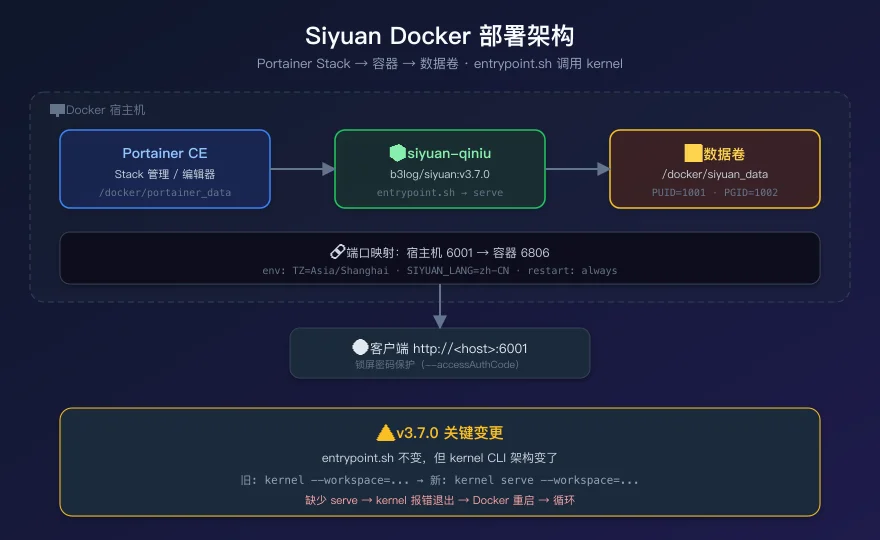
Figure 2: Siyuan Docker deployment architecture. Portainer manages the stack; entrypoint.sh launches kernel inside the container; kernel needs the serve subcommand to start the HTTP server.
2. Symptoms: Infinite Restart Loop
After upgrading the Siyuan image from v3.6.1 to v3.7.0 in Portainer and clicking “Re-deploy,” the container status looked wrong:
$ docker ps --filter name=siyuan
NAMES          STATUS
siyuan-qiniu   Restarting (1) 8 seconds ago
The container cycled endlessly through start → exit (code 1) → Docker auto-restart → exit again. The port mapping existed but the service was unreachable. The browser just spun.
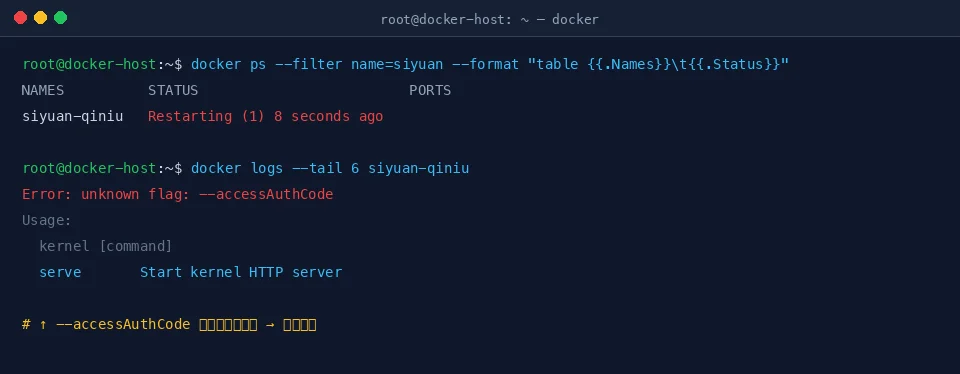
Figure 3: Real terminal screenshot — docker ps shows the Siyuan container in Restarting state.
Understanding the Restart Loop with an Analogy
Think of it like a car that won’t start:
You swapped in a new engine (upgraded the image), but the ignition sequence changed. Every time you turn the key, the engine coughs once and dies. The onboard computer auto-retries (restart: always), so you hear “cough-cough-cough” on repeat. To fix it, don’t just pull the battery — read the error codes. For containers, error codes are docker logs.
3. Analysis: docker logs Is Your First Clue
When a container misbehaves, the first instinct should not be to restart, roll back, or reinstall. It should be: read the logs.
$ docker logs --tail 40 siyuan-qiniu
Error: unknown flag: --accessAuthCode
Usage:
  kernel [command]

Available Commands:
  asset       Manage assets
  attr        Manage block attributes
  block       Block operations
  bookmark    Manage bookmarks
  completion  Generate the autocompletion script
  serve       Start kernel HTTP server
  export      Export documents
  ...
Flags:
      --dry-run            dry run mode
  -h, --help               help for kernel
  -w, --workspace string   workspace path
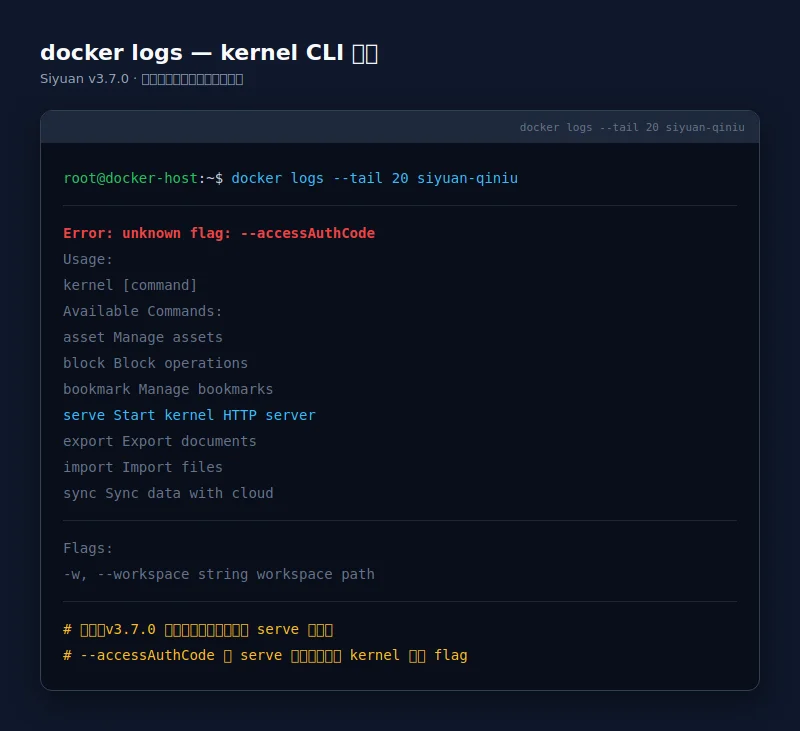
Figure 4: Real screenshot — docker logs showing the kernel CLI error with available subcommands.
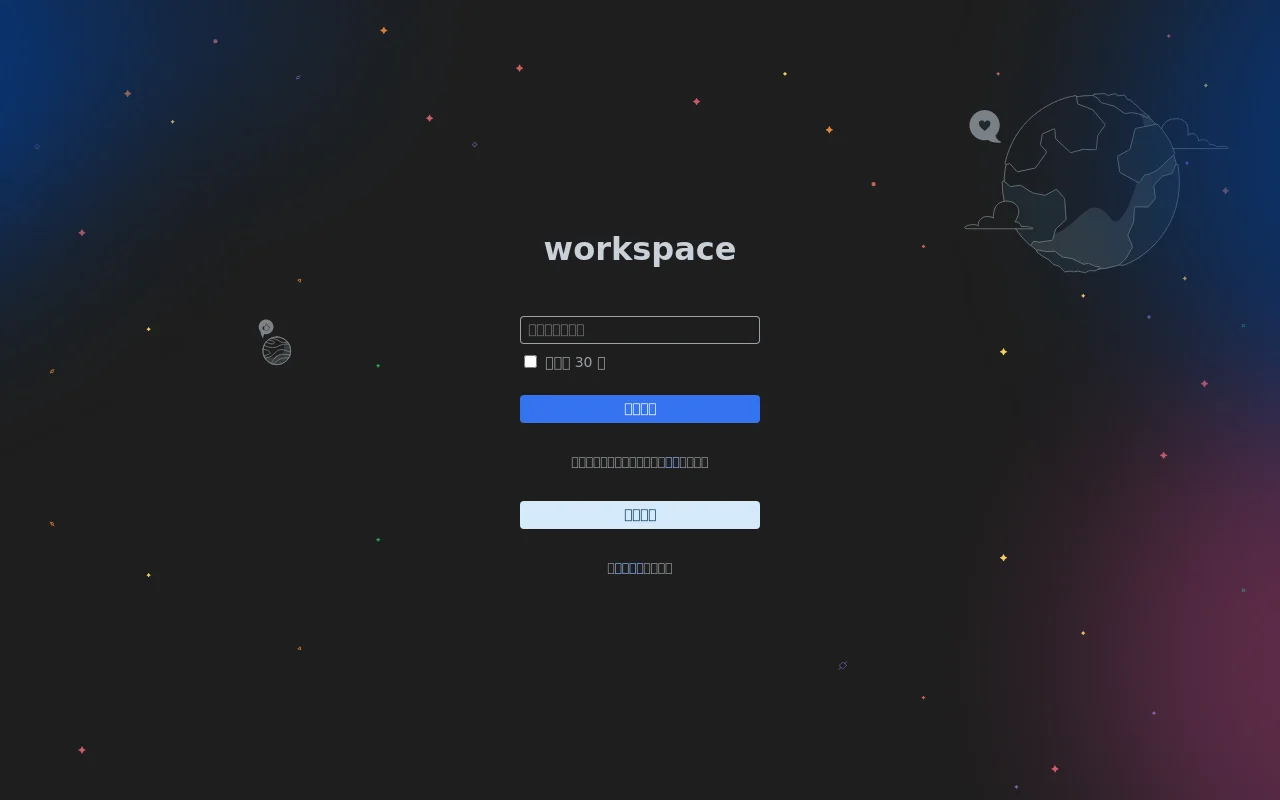
Figure 5: Real screenshot — Siyuan v3.7.0 lock screen after the fix. Enter your accessAuthCode to access your notes.
The log tells us clearly: --accessAuthCode is an unknown flag. And kernel lists all the subcommands it recognizes — serve, asset, block, etc. — with serve described as “Start kernel HTTP server.”
This output is a giant hint: kernel expects the first argument to be a subcommand, not a --workspace or --accessAuthCode flag.
The Troubleshooting Chain
docker ps -a→ container isRestartingdocker logs→unknown flag: --accessAuthCodedocker inspect→ confirm compose config path andcommandfield- Read official README → v3.7.0 requires explicit
servesubcommand - Root cause identified →
commandis missingserve
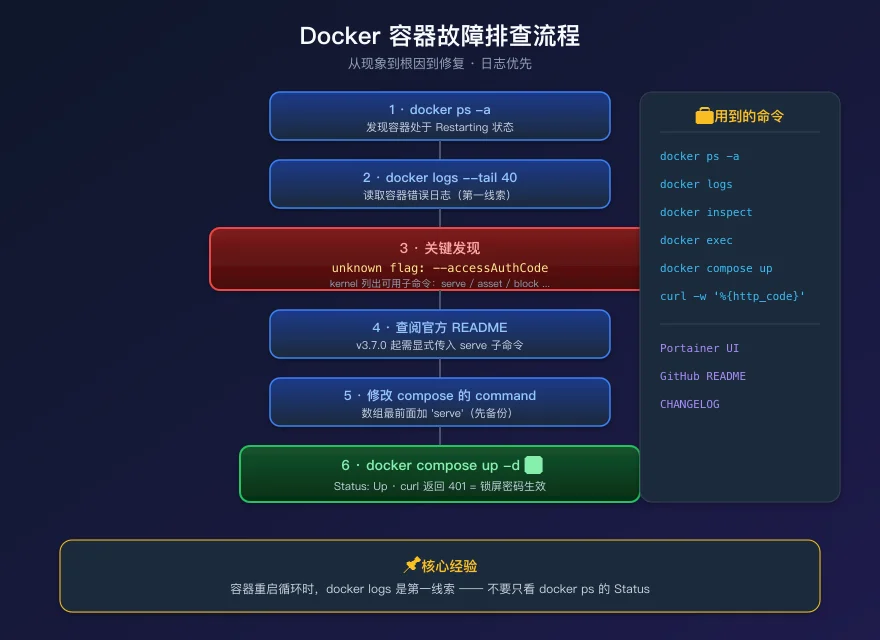
Figure 6: Standard Docker container troubleshooting flow. docker logs is the first clue — don’t just stare at docker ps.
4. Root Cause: v3.7.0 CLI Subcommand Architecture
The Restaurant Analogy
Old system (v3.6.x and earlier): You walk into a restaurant and say “Kung Pao chicken, rice, cola.” The waiter knows you’re ordering food and places the order.
New system (v3.7.0): The restaurant installed a new POS. Now you must first say “Order”, then “Kung Pao chicken, rice, cola.” If you jump straight to “Kung Pao chicken,” the system is confused: “What operation is ‘Kung Pao chicken’? I only know ‘Order,’ ‘Pay,’ ‘Takeout.’”
Here, “Order” is the serve subcommand. “Kung Pao chicken” is --workspace and --accessAuthCode.
Technical Details
Before v3.7.0, the kernel entrypoint accepted top-level flags directly:
kernel --workspace=/siyuan/workspace/ --accessAuthCode=xxx
v3.7.0 introduced a full CLI subcommand architecture (implementing Issue #17674). The kernel now requires a subcommand:
kernel serve --workspace=/siyuan/workspace/ --accessAuthCode=xxx
The Docker image’s ENTRYPOINT is /opt/siyuan/entrypoint.sh. This script sets PUID/PGID and then calls kernel. But it does not automatically add serve — that responsibility falls on CMD or the compose command field.
In docker-compose.yml, the original config was:
command: ['--workspace=/siyuan/workspace/', '--accessAuthCode=xxx']
These arguments were passed to entrypoint.sh, then to kernel. Kernel tried to parse --workspace as a subcommand name, failed, and exited with an error. Docker’s restart: always policy pulled it back up, and the cycle repeated.
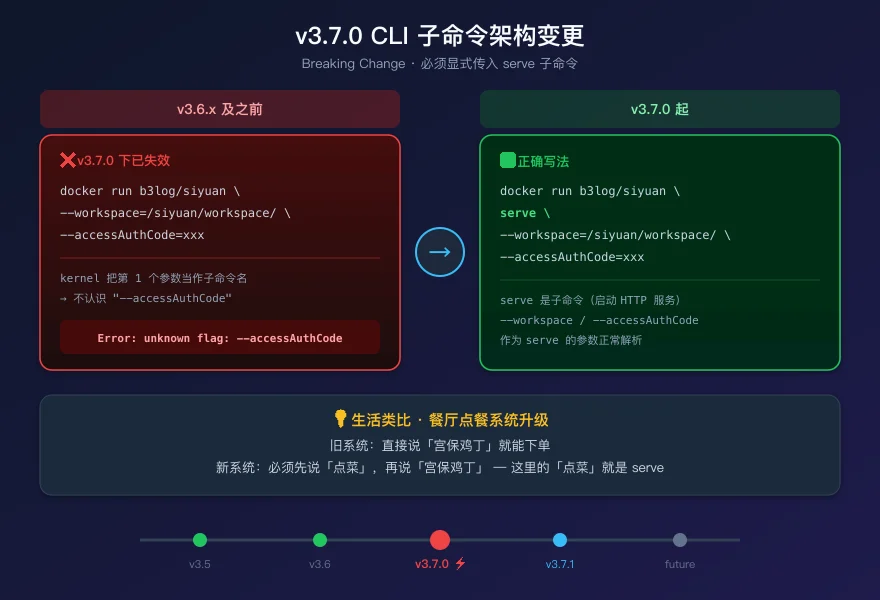
Figure 7: v3.6.x vs v3.7.0 CLI argument structure comparison. The new serve subcommand is the only difference.
Note: The official README (line 216) explicitly documents this change: “Since v3.7.0, you must explicitly pass the
servesubcommand (e.g.,docker run b3log/siyuan serve --workspace=...).”But when upgrading an existing deployment, many people (myself included) don’t re-read the entire README, which leads to this pitfall.
5. How to Fix It
5.1 The Fix
The fix is trivial: add 'serve' to the beginning of the command array in your compose file.
- command: ['--workspace=/siyuan/workspace/', '--accessAuthCode=xxx']
+ command: ['serve', '--workspace=/siyuan/workspace/', '--accessAuthCode=xxx']
Seven characters. From infinite restart loop to running normally.
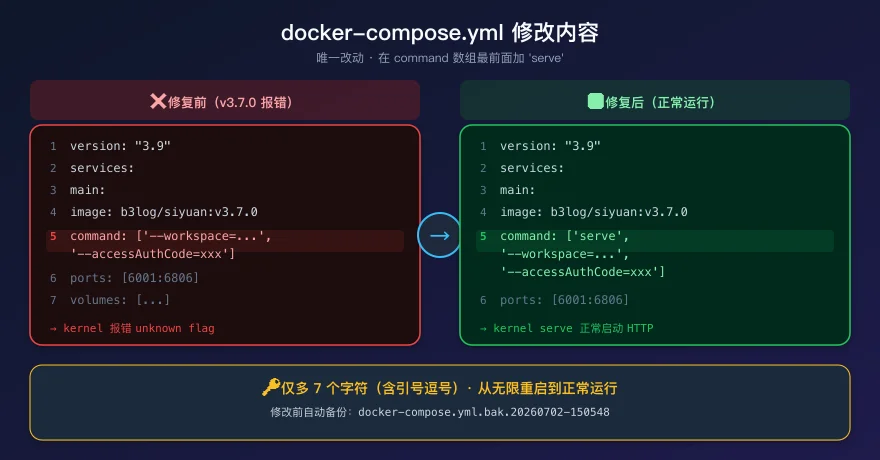
Figure 8: The docker-compose.yml change — just add ‘serve’ at the beginning of the command array.
5.2 One-Click Fix Scripts
The following scripts work on three operating systems. They SSH into the Docker host, auto-detect the Siyuan container, back up the original config, patch the command field, and recreate the container.
Safety note: The scripts auto-backup the original docker-compose.yml (with timestamp). They never touch the data volume. Safe to roll back.
Windows 11 (PowerShell)
# siyuan-fix.ps1 — Siyuan v3.7.0 container fix script
# Usage: .\siyuan-fix.ps1 -ServerHost <docker-host> -ServerUser root -StackName siyuan-note-qiniu
param(
    [Parameter(Mandatory=$true)][string]$ServerHost,
    [string]$ServerUser = "root",
    [string]$StackName = "siyuan-note-qiniu"
)

$ErrorActionPreference = "Stop"

Write-Host "=== Siyuan v3.7.0 Docker Container Fix ===" -ForegroundColor Cyan

# 1. Check container status
Write-Host "[1/5] Checking container status..." -ForegroundColor Yellow
$status = ssh "${ServerUser}@${ServerHost}" "docker ps --filter name=$StackName --format '{{.Status}}'"
Write-Host "  Container status: $status"

# 2. Verify the error in logs
Write-Host "[2/5] Checking container logs..." -ForegroundColor Yellow
$logs = ssh "${ServerUser}@${ServerHost}" "docker logs --tail 20 `$(docker ps -a --filter name=siyuan --format '{{.Names}}' | head -1) 2>&1"
if ($logs -match "unknown flag.*accessAuthCode") {
    Write-Host "  ✓ Confirmed: v3.7.0 CLI breaking change" -ForegroundColor Green
} else {
    Write-Host "  ⚠ Unexpected error. Manual inspection needed." -ForegroundColor Red
    Write-Host $logs
    exit 1
}

# 3. Locate compose file
Write-Host "[3/5] Locating docker-compose.yml..." -ForegroundColor Yellow
$composePath = ssh "${ServerUser}@${ServerHost}" "docker inspect --format '{{index .Config.Labels \"com.docker.compose.project.config_files\"}}' `$(docker ps -a --filter name=siyuan --format '{{.ID}}' | head -1) 2>/dev/null"
if (-not $composePath) {
    $composePath = ssh "${ServerUser}@${ServerHost}" "grep -rl 'siyuan' /docker/portainer_data/compose/*/docker-compose.yml 2>/dev/null | head -1"
}
Write-Host "  Compose file: $composePath"

# 4. Backup and fix
Write-Host "[4/5] Backing up and fixing compose file..." -ForegroundColor Yellow
$fixCmd = @"
cp '$composePath' '$composePath.bak.'`$(date +%Y%m%d-%H%M%S) && \
sed -i "s|command: \\[\"--workspace|command: \\[\"serve\", \"--workspace|g" '$composePath' && \
echo 'FIXED' && grep -A 2 'command:' '$composePath'
"@
$result = ssh "${ServerUser}@${ServerHost}" $fixCmd
Write-Host $result
if ($result -match "FIXED") {
    Write-Host "  ✓ Compose file patched" -ForegroundColor Green
} else {
    Write-Host "  ⚠ Patch may have failed. Check manually." -ForegroundColor Red
    exit 1
}

# 5. Recreate container
Write-Host "[5/5] Recreating container..." -ForegroundColor Yellow
$composeDir = Split-Path $composePath -Parent
$rebuildResult = ssh "${ServerUser}@${ServerHost}" "cd '$composeDir' && docker compose -p $StackName up -d --force-recreate 2>&1"
Write-Host $rebuildResult

# Verify
Start-Sleep -Seconds 5
$finalStatus = ssh "${ServerUser}@${ServerHost}" "docker ps --filter name=siyuan --format 'table {{.Names}}\t{{.Status}}\t{{.Ports}}'"
Write-Host "`n=== Final Status ===" -ForegroundColor Cyan
Write-Host $finalStatus

$healthCheck = ssh "${ServerUser}@${ServerHost}" "curl -sf -o /dev/null -w '%{http_code}' http://127.0.0.1:6001/ 2>&1 || echo 'port may differ'"
Write-Host "HTTP status: $healthCheck (401 = healthy, access code active)"
Write-Host "`n✅ Fix complete!" -ForegroundColor Green
Ubuntu 26.04 / Debian
#!/usr/bin/env bash
# siyuan-fix.sh — Siyuan v3.7.0 container fix script
# Usage: bash siyuan-fix.sh <docker-host> [ssh-user] [stack-name]
set -euo pipefail

SERVER_HOST="${1:?Please specify Docker host address}"
SERVER_USER="${2:-root}"
STACK_NAME="${3:-siyuan-note-qiniu}"

RED='\033[0;31m'; GREEN='\033[0;32m'; YELLOW='\033[1;33m'; CYAN='\033[0;36m'; NC='\033[0m'
ssh_cmd() { ssh -o StrictHostKeyChecking=accept-new "${SERVER_USER}@${SERVER_HOST}" "$@"; }

echo -e "${CYAN}=== Siyuan v3.7.0 Docker Container Fix ===${NC}"

# 1. Check status
echo -e "${YELLOW}[1/5] Checking container status...${NC}"
ssh_cmd "docker ps -a --filter name=siyuan --format 'table {{.Names}}\t{{.Status}}\t{{.Ports}}'"

# 2. Confirm error in logs
echo -e "${YELLOW}[2/5] Confirming error in logs...${NC}"
CONTAINER_NAME=$(ssh_cmd "docker ps -a --filter name=siyuan --format '{{.Names}}' | head -1")
LOGS=$(ssh_cmd "docker logs --tail 20 ${CONTAINER_NAME} 2>&1" || true)
if echo "$LOGS" | grep -q "unknown flag.*accessAuthCode"; then
    echo -e "${GREEN}  ✓ Confirmed: v3.7.0 CLI breaking change${NC}"
else
    echo -e "${RED}  ⚠ Unexpected error. Manual inspection needed.${NC}"
    echo "$LOGS"
    exit 1
fi

# 3. Locate compose file
echo -e "${YELLOW}[3/5] Locating docker-compose.yml...${NC}"
COMPOSE_PATH=$(ssh_cmd "docker inspect --format '{{index .Config.Labels \"com.docker.compose.project.config_files\"}}' \$(docker ps -a --filter name=siyuan --format '{{.ID}}' | head -1) 2>/dev/null" || true)
if [[ -z "$COMPOSE_PATH" ]]; then
    COMPOSE_PATH=$(ssh_cmd "grep -rl 'siyuan' /docker/portainer_data/compose/*/docker-compose.yml 2>/dev/null | head -1" || true)
fi
if [[ -z "$COMPOSE_PATH" ]]; then
    echo -e "${RED}Cannot locate docker-compose.yml. Please specify manually.${NC}"
    exit 1
fi
echo "  Compose file: $COMPOSE_PATH"

# 4. Backup and fix
echo -e "${YELLOW}[4/5] Backing up and fixing...${NC}"
TIMESTAMP=$(date +%Y%m%d-%H%M%S)
ssh_cmd "cp '$COMPOSE_PATH' '$COMPOSE_PATH.bak.$TIMESTAMP'" && echo "  ✓ Backed up to .bak.$TIMESTAMP"
ssh_cmd "sed -i \"s|command: \\\\[\\\"--workspace|command: \\\\[\\\"serve\\\", \\\"--workspace|g\" '$COMPOSE_PATH'"
echo -e "${GREEN}  ✓ Compose file patched${NC}"

# 5. Recreate container
echo -e "${YELLOW}[5/5] Recreating container...${NC}"
COMPOSE_DIR=$(dirname "$COMPOSE_PATH")
ssh_cmd "cd '$COMPOSE_DIR' && docker compose -p $STACK_NAME up -d --force-recreate 2>&1"

# Verify
sleep 5
echo -e "\n${CYAN}=== Final Status ===${NC}"
ssh_cmd "docker ps --filter name=siyuan --format 'table {{.Names}}\t{{.Status}}\t{{.Ports}}'"
HTTP_CODE=$(ssh_cmd "curl -sf -o /dev/null -w '%{http_code}' http://127.0.0.1:6001/ 2>&1" || echo "N/A")
echo -e "HTTP status: ${HTTP_CODE} (401 = healthy, access code active)"
echo -e "\n${GREEN}✅ Fix complete!${NC}"
macOS 26
#!/usr/bin/env bash
# siyuan-fix-mac.sh — Siyuan v3.7.0 container fix script (macOS)
# Usage: bash siyuan-fix-mac.sh <docker-host> [ssh-user] [stack-name]

set -euo pipefail

SERVER_HOST="${1:?Please specify Docker host address}"
SERVER_USER="${2:-root}"
STACK_NAME="${3:-siyuan-note-qiniu}"

RED='\033[0;31m'; GREEN='\033[0;32m'; YELLOW='\033[1;33m'; CYAN='\033[0;36m'; NC='\033[0m'
ssh_cmd() { ssh -o StrictHostKeyChecking=accept-new "${SERVER_USER}@${SERVER_HOST}" "$@"; }

echo -e "${CYAN}=== Siyuan v3.7.0 Docker Container Fix (macOS) ===${NC}"

if ! command -v ssh &>/dev/null; then echo -e "${RED}SSH client required${NC}"; exit 1; fi

# 1. Check
echo -e "${YELLOW}[1/5] Checking container status...${NC}"
ssh_cmd "docker ps -a --filter name=siyuan --format 'table {{.Names}}\t{{.Status}}\t{{.Ports}}'"

# 2. Confirm error
echo -e "${YELLOW}[2/5] Confirming error...${NC}"
CONTAINER_NAME=$(ssh_cmd "docker ps -a --filter name=siyuan --format '{{.Names}}' | head -1")
LOGS=$(ssh_cmd "docker logs --tail 20 ${CONTAINER_NAME} 2>&1" || true)
if echo "$LOGS" | grep -q "unknown flag.*accessAuthCode"; then
    echo -e "${GREEN}  ✓ Confirmed: v3.7.0 CLI breaking change${NC}"
else
    echo -e "${RED}  ⚠ Unexpected error${NC}"; echo "$LOGS"; exit 1
fi

# 3. Locate compose
echo -e "${YELLOW}[3/5] Locating compose file...${NC}"
COMPOSE_PATH=$(ssh_cmd "docker inspect --format '{{index .Config.Labels \"com.docker.compose.project.config_files\"}}' \$(docker ps -a --filter name=siyuan --format '{{.ID}}' | head -1) 2>/dev/null" || true)
[[ -z "$COMPOSE_PATH" ]] && COMPOSE_PATH=$(ssh_cmd "grep -rl 'siyuan' /docker/portainer_data/compose/*/docker-compose.yml 2>/dev/null | head -1" || true)
[[ -z "$COMPOSE_PATH" ]] && { echo -e "${RED}Cannot locate compose file${NC}"; exit 1; }
echo "  Compose: $COMPOSE_PATH"

# 4. Backup and fix (using python3 to avoid macOS sed quirks)
echo -e "${YELLOW}[4/5] Backing up and fixing...${NC}"
TIMESTAMP=$(date +%Y%m%d-%H%M%S)
ssh_cmd "cp '$COMPOSE_PATH' '$COMPOSE_PATH.bak.$TIMESTAMP'" && echo "  ✓ Backed up"
ssh_cmd "python3 -c \"
import re
p = '$COMPOSE_PATH'
c = open(p).read()
c = c.replace('command: [\\\"--workspace', 'command: [\\\"serve\\\", \\\"--workspace')
open(p, 'w').write(c)
print('FIXED')
\""
echo -e "${GREEN}  ✓ Compose file patched${NC}"

# 5. Recreate
echo -e "${YELLOW}[5/5] Recreating container...${NC}"
COMPOSE_DIR=$(dirname "$COMPOSE_PATH")
ssh_cmd "cd '$COMPOSE_DIR' && docker compose -p $STACK_NAME up -d --force-recreate 2>&1"

sleep 5
echo -e "\n${CYAN}=== Final Status ===${NC}"
ssh_cmd "docker ps --filter name=siyuan --format 'table {{.Names}}\t{{.Status}}\t{{.Ports}}'"
HTTP_CODE=$(ssh_cmd "curl -sf -o /dev/null -w '%{http_code}' http://127.0.0.1:6001/ 2>&1" || echo "N/A")
echo -e "HTTP: ${HTTP_CODE} (401 = healthy)"
echo -e "\n${GREEN}✅ Fix complete!${NC}"
5.3 Manual Fix (No Scripts)
If you prefer to do it by hand:
# 1. SSH to the Docker host
ssh root@<your-docker-host>

# 2. Find the compose file (usually in Portainer's data directory)
grep -rl "siyuan" /docker/portainer_data/compose/*/docker-compose.yml

# 3. Back up the original
cp /path/to/docker-compose.yml /path/to/docker-compose.yml.bak.$(date +%Y%m%d-%H%M%S)

# 4. Edit the command line (add 'serve' at the beginning of the array)
# Before: command: ['--workspace=/siyuan/workspace/', '--accessAuthCode=xxx']
# After:  command: ['serve', '--workspace=/siyuan/workspace/', '--accessAuthCode=xxx']

# One-liner sed:
sed -i "s|command: \\[\"--workspace|command: \\[\"serve\", \"--workspace|g" /path/to/docker-compose.yml

# 5. Verify the change
grep "command:" /path/to/docker-compose.yml

# 6. Recreate the container
cd $(dirname /path/to/docker-compose.yml)
docker compose -p siyuan-note-qiniu up -d --force-recreate

# 7. Verify
docker ps --filter name=siyuan
curl -o /dev/null -w "%{http_code}\n" http://127.0.0.1:6001/
# 401 = access code is active, service is healthy!
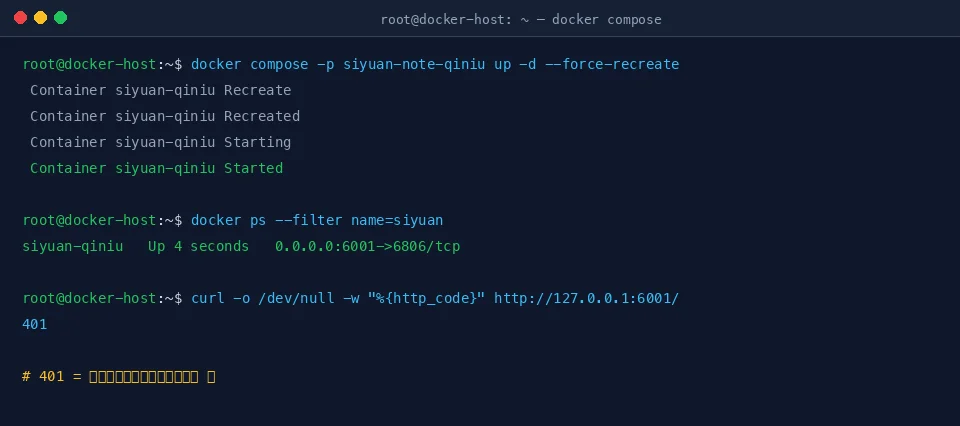
Figure 9: Real terminal screenshot — after recreating the container, Status shows Up, and curl returns 401 (access code active).
6. Manual vs. AI Agent Fix
6.1 Manual Fix
The estimated time for a human to fix this is 15–30 minutes:
- Notice the restart loop (1 min)
docker logsto see the error (1 min)- Don’t understand the error, search Google (5–15 min)
- Find the official README or GitHub issue (5 min)
- Edit compose and recreate (3 min)
- Verify (2 min)
In practice, most of the time is spent on “what does this error mean?” The unknown flag message is not immediately intuitive for someone unfamiliar with CLI subcommand design.
6.2 AI Agent Fix
If you let an AI Agent handle it, the prompt might look like:
My Siyuan Docker container keeps restarting. Please diagnose and fix it.

Constraints:
1. Do not perform major OS upgrades
2. Do not download unknown installers
3. Do not output real private IPs, full computer names, private domains, or keys
4. Back up config files before modifying them
5. Verify container status and HTTP reachability after the fix
The Agent’s execution flow:
docker ps -a→ finds Restarting containerdocker logs→ seesunknown flag: --accessAuthCodedocker inspect→ confirms compose config and image version- Reads official README → discovers v3.7.0
servesubcommand requirement - Backs up → patches compose → recreates container → verifies
Real-world result: From start to fix, the Agent took about 10 minutes. A human, accounting for searching, reading docs, and understanding CLI architecture changes, would typically need 20–30 minutes.
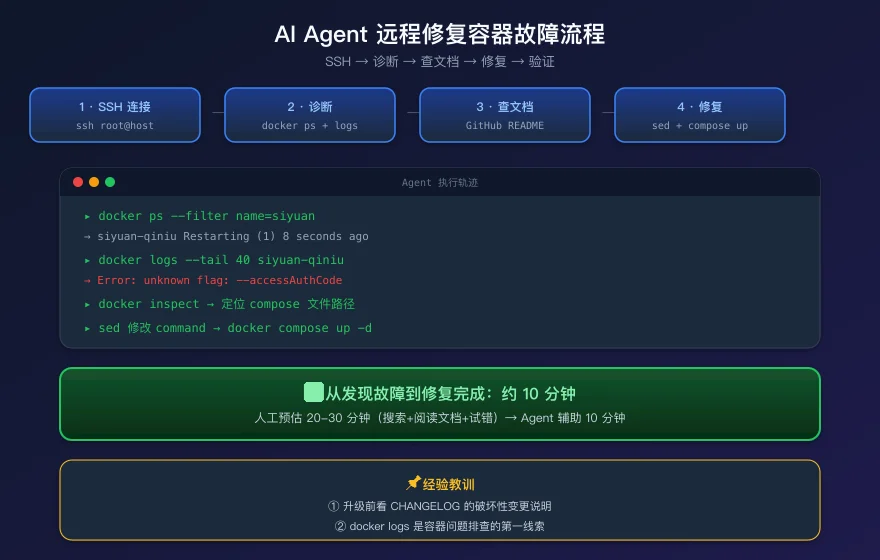
Figure 10: Complete AI Agent workflow for remote Docker container troubleshooting.
6.3 Guardrails for the Agent
When letting an Agent operate on production, these guardrails are essential:
| Guardrail | Description |
|---|---|
| Backup first | Always back up config files before modifying |
| No OS upgrades | Agent operates at container level only |
| No privacy leaks | Never output real IPs, domains, or keys in logs or configs |
| Diagnose before acting | Confirm root cause via logs/inspect before making changes |
| Verify the fix | Check container status and HTTP reachability after the fix |
| Rollback-ready | Keep backup files and rollback commands available |
7. Post-Fix Verification
After the fix, Siyuan should be running normally. Visiting http://<your-host>:<port>/ (port 6001 in this example) will show the Siyuan lock screen:
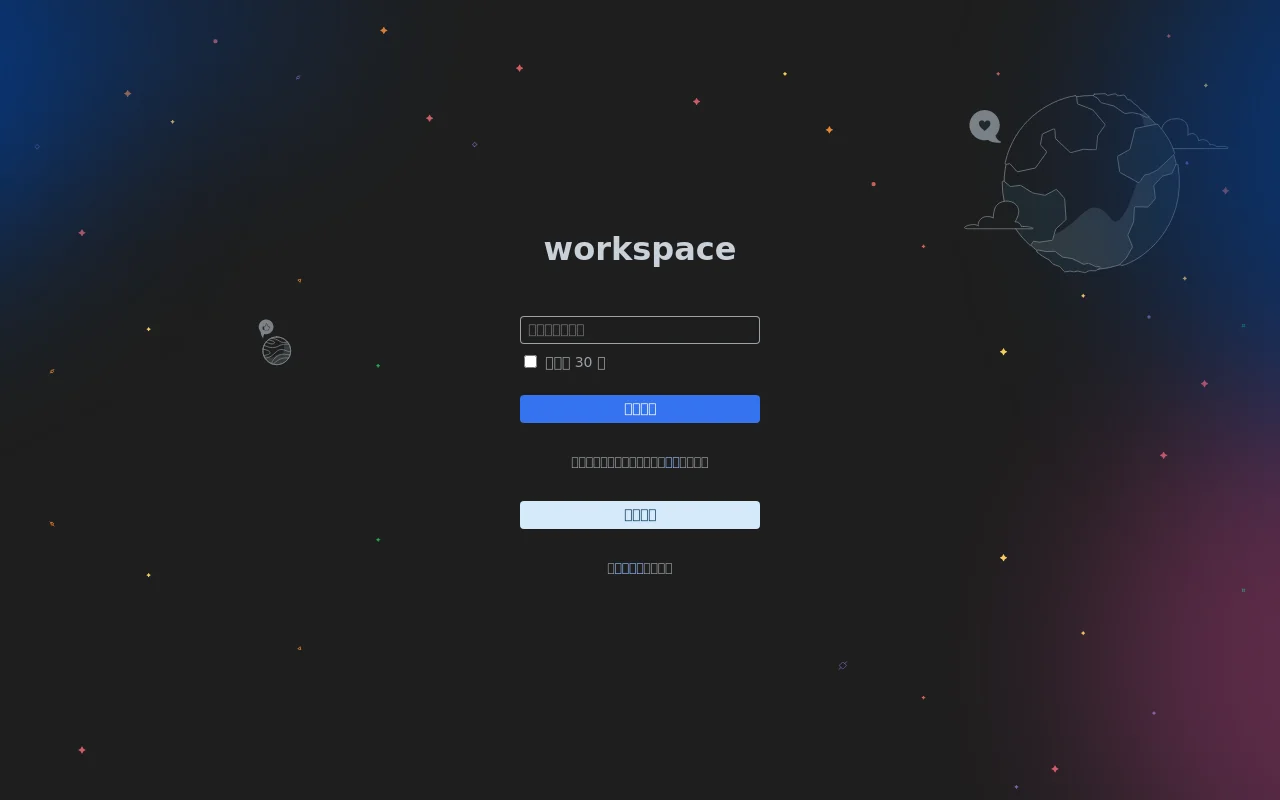
Figure 11: Real screenshot — Siyuan v3.7.0 lock screen (full size). Enter your accessAuthCode to access your notes.
Enter the password set in --accessAuthCode to access your notes. An HTTP 401 response (when testing with curl) is actually good — it means the access control is working.
$ curl -o /dev/null -w "%{http_code}\n" http://<host>:<port>/
401
HTTP 401 is not an error here — it means Siyuan’s access control is active. Only users with the correct password can enter.
8. Q&A
Q1: Why did Siyuan introduce this breaking change in v3.7.0?
Because v3.7.0 added a full CLI. The kernel is no longer just an HTTP server — it’s a multi-function command-line tool. Beyond serve (start the HTTP server), there are export, import, sync, and other subcommands. Breaking functionality into subcommands is standard CLI design, just like git commit, git push, etc.
Q2: I’m still on v3.6.x. Should I upgrade?
Yes. v3.7.0 brings a new UI, kernel plugin system, and AI knowledge base — it’s well worth upgrading. Just make sure your docker-compose.yml command field includes the serve subcommand before you do.
Q3: What if I have multiple Siyuan containers to fix?
The one-click scripts above accept a stack name parameter. Loop through each compose directory and run the fix.
Q4: How do I fix this in Portainer?
In Portainer, go to the stack, click Editor, add 'serve', at the beginning of the command array, and click “Update the stack.” Portainer will recreate the container automatically.
Q5: Will I lose my data?
No. Data lives in /siyuan/workspace (or your mounted directory). The fix only changes the command field in the compose file — it never touches the data volume. Plus, the script backs up the compose file before making changes.
Q6: Is there an easier fix than editing the compose file?
If you use docker run instead of compose, just add serve to the command:
docker run -d \
  -v /siyuan/workspace:/siyuan/workspace \
  -p 6806:6806 \
  b3log/siyuan \
  serve \
  --workspace=/siyuan/workspace/ \
  --accessAuthCode=xxx
Q7: Can this happen with other Docker images?
Yes. Any software that transitions from a flat CLI to a subcommand-based CLI can cause similar issues. Before upgrading, check the CHANGELOG for keywords like “CLI,” “command,” or “breaking change.”
9. Conclusion
Three takeaways from this debugging session:
- When a container fails, read
docker logsfirst.docker pstells you the container is restarting.docker logstells you why. - Read the CHANGELOG before upgrading. v3.7.0’s README explicitly documents the
servesubcommand requirement, but it’s easy to miss when upgrading an existing deployment. - Back up before you fix.
cp file.yml file.yml.bak.$(date)takes two seconds and can save you when things go wrong.
From a technical perspective, the root cause is a CLI interface breaking change. The Siyuan team made the right architectural decision (introducing a subcommand architecture) and documented it, but breaking changes always hit existing deployments the hardest. Fortunately, the fix is trivial — one word, seven characters: serve.
From an operations perspective, this case perfectly demonstrates the value of the “logs first” troubleshooting methodology: don’t guess, don’t try random things, don’t rush to roll back — read the logs. The logs will tell you everything.
If you ran into the same issue, I hope this article saves you 15 minutes of head-scratching.