Migrated My NAS Static Site from Web Station to an nginx Container and Hit the ACL Wall
Short answer first: the scariest part of this migration was not that the container failed to start, and not that port 80/443 was difficult to switch.
The real problem was that the site files were mounted into the container, nginx was running, and yet the pages still would not load.
In the end, the root cause was not a bad path, not a bad nginx config, and not a broken image. It was the Synology permission model: Unix permissions were only the front gate, while ACL acted like an extra access list. The nginx worker inside the container simply was not on the allowed list.
So this post is not just about replacing Web Station with an nginx container. It is about a more useful lesson: when containerizing a NAS static site, think carefully about who is allowed to read the files before you obsess over the web server config.
1. Why move the site from Web Station to an nginx container
A quick bit of background.
The NAS had been serving a static site through Synology Web Station for a long time. The site was simple: a homepage, a few utility pages, and some static assets. There was no important dynamic PHP business tied to it.
A setup like that works, of course, but I cared more and more about three things.
First, the service boundary was not clear enough. Web Station, the built-in nginx layer, certificates, reverse proxying, and DSM entrypoints are tightly connected. Adjusting one static-site behavior often felt riskier than it should be.
Second, long-term maintenance was getting less pleasant. A static site is a very good candidate for containerization, especially if you already manage other services with Portainer. Putting the site under the same operational model makes restarts, updates, and health checks easier to reason about.
Third, I wanted the public URL to stay the same. In other words, visitors should not need to care that anything changed. That makes the migration safer and gives you a much better acceptance test.
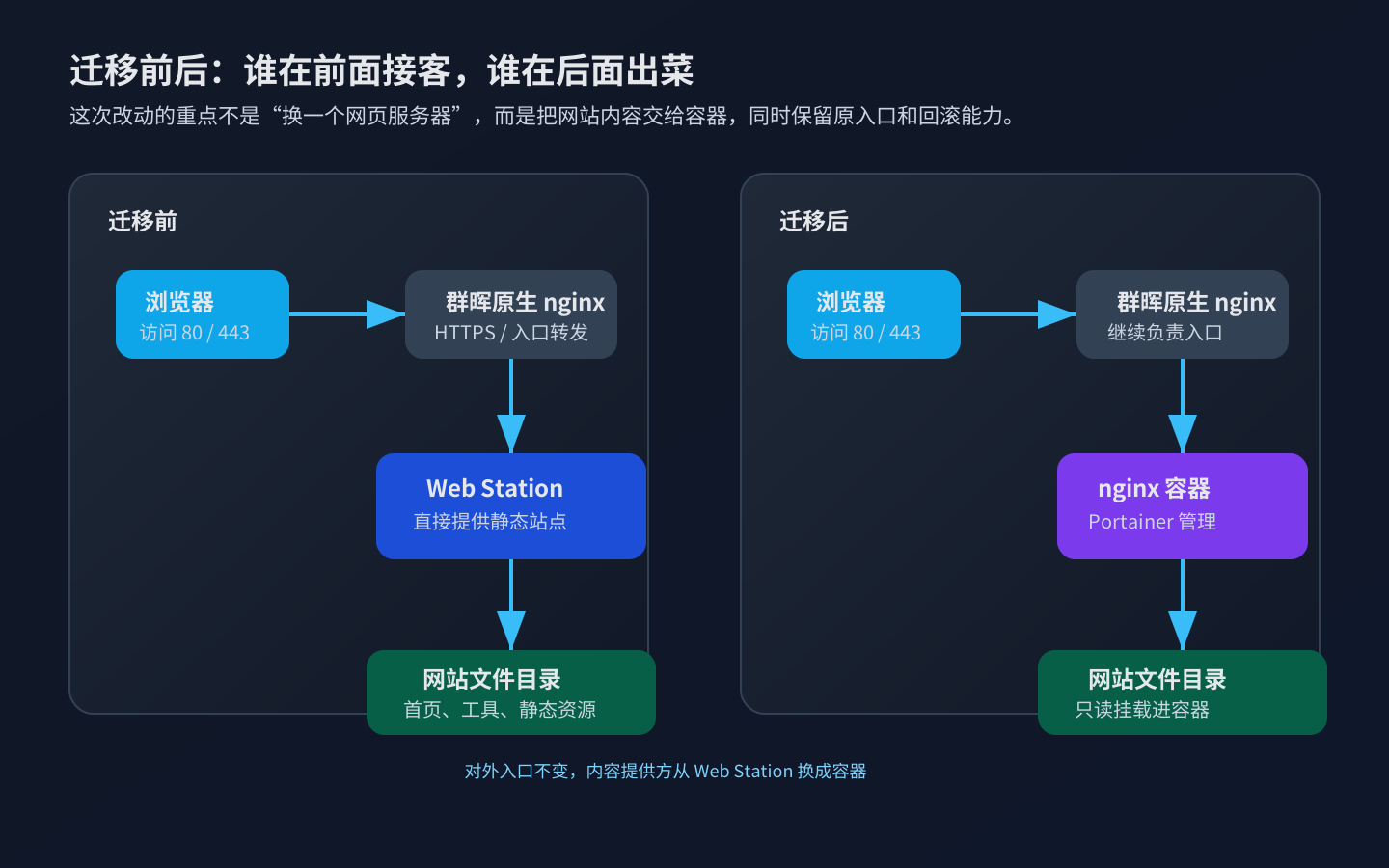
So the goal was not to redesign the site. The goal was to move the content provider from Web Station to a containerized nginx while preserving the original entrypoint and rollback path.
2. Record the baseline before touching anything
Before making changes, I recorded what “normal” looked like.
That matters because migration verification is meaningless unless you know what should stay the same afterward.
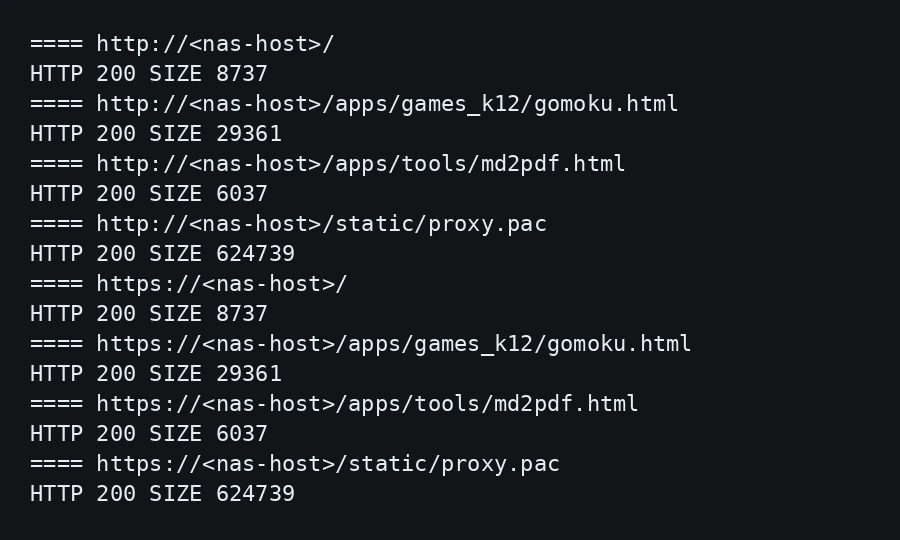
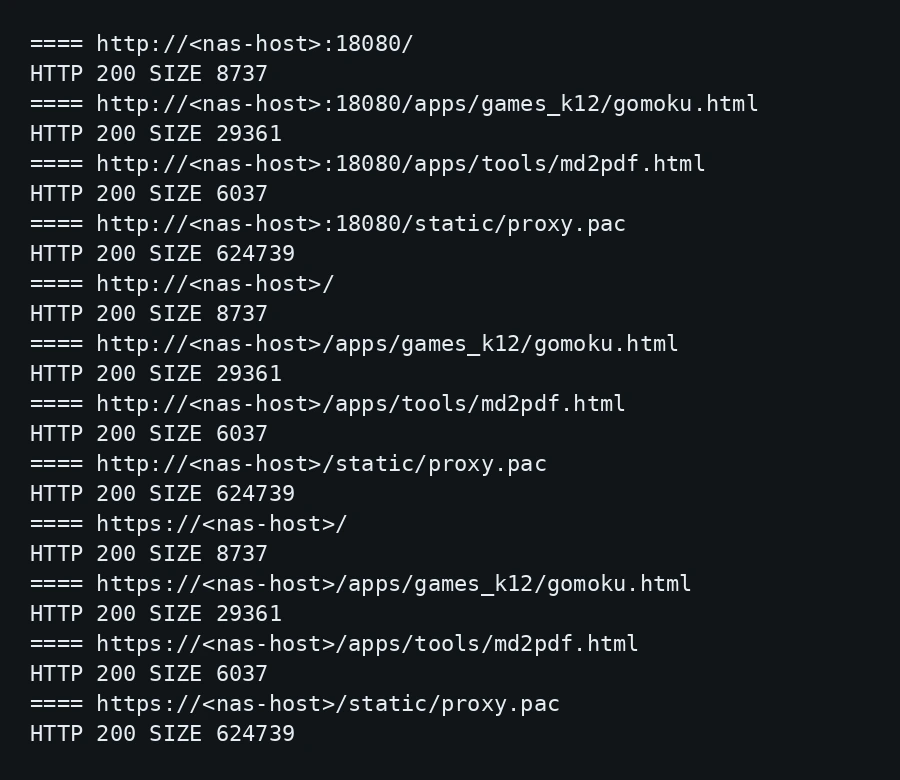
I checked a few representative routes: the homepage, a game page, a utility page, and a static asset file. Together they cover the most common kinds of traffic on this site. I also checked the HTTPS behavior, because the real goal was not just to get HTTP working, but to keep the whole public access pattern unchanged.
The result was simple but important: all key pages returned successfully and their sizes stayed stable. After the migration, I could compare the same checks and tell whether the container had truly taken over the site.
3. The symptom: container up, pages not up
I followed the safest migration order: run the new nginx container on a temporary port first, keep the old site alive, and only switch the main entrypoint after the new one proves itself.
That is when the problem showed up.
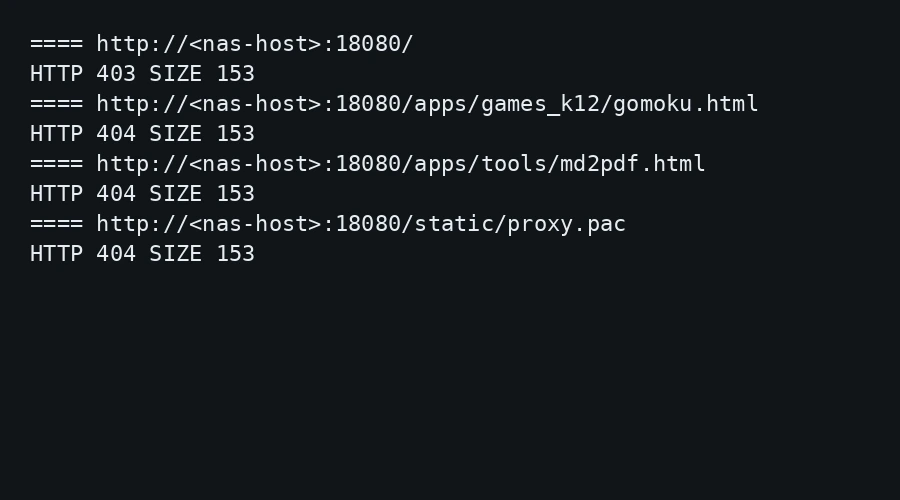
The new container was running. The port mapping looked right. The mounts looked right. But when I tested the temporary port, the homepage returned 403, and many static assets returned 404.
This kind of failure is especially confusing because the service looks “almost there.” If you only check that the container started and the port answers, you may think the issue is minor. But as soon as you test actual pages, it becomes clear that the site is not really being served.
I kept a record of that failure state because it later became an important clue: the failure pattern was not “everything is down.” It was a mixture of 403 on the homepage and 404 on several static paths. That usually points more toward filesystem or permission behavior than simple routing.
4. Analysis: do not rewrite nginx first
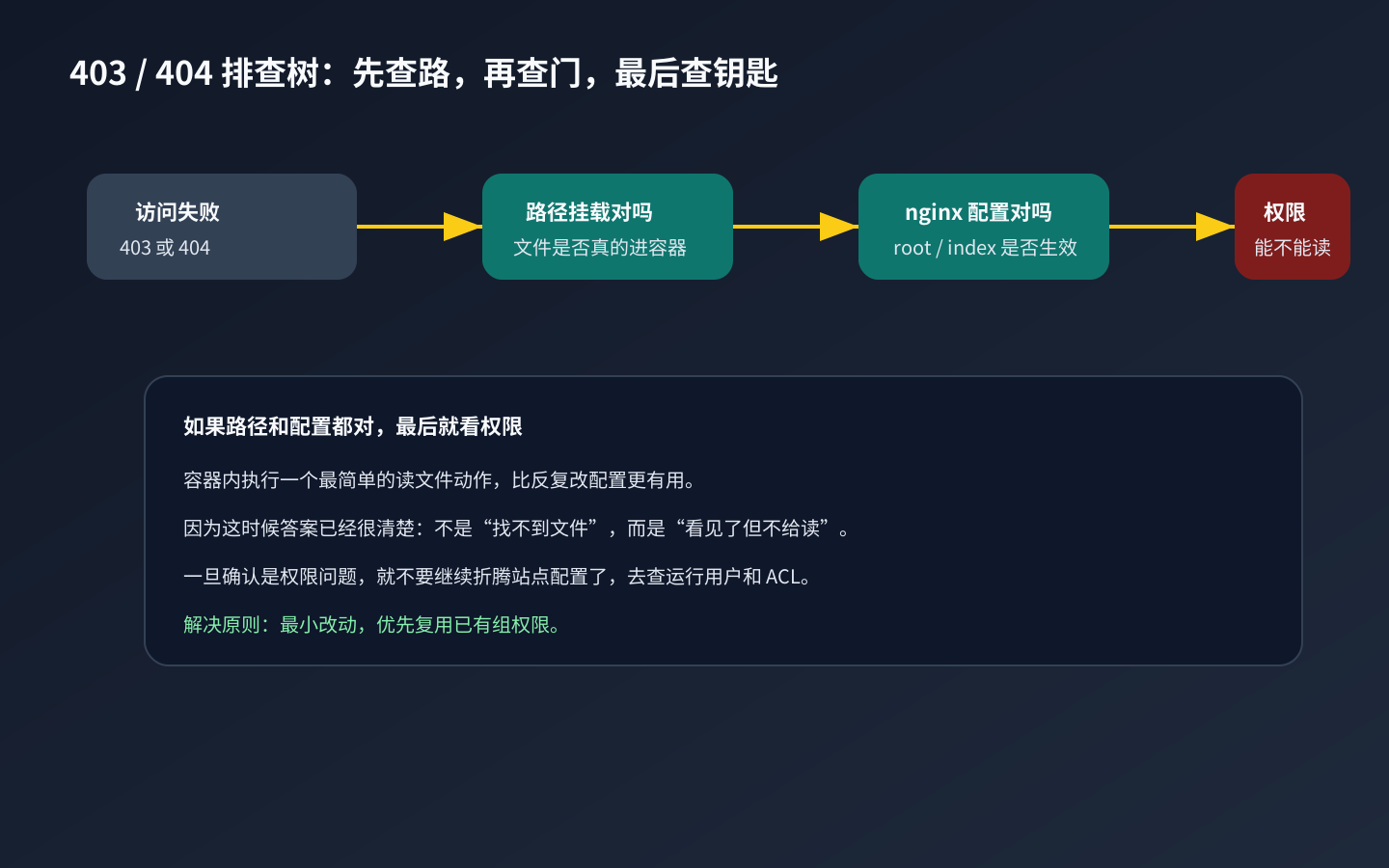
When this kind of issue appears, my strongest advice is simple: do not immediately start rewriting nginx config over and over again.
A better order is:
first confirm the mount is correct and the site directory really is visible inside the container; then confirm the nginx config is being loaded correctly and that root, index, and try_files are sane; only then look at permissions.
The reason this order matters is that the first two categories are “service pairing” problems, while the third is a “file access” problem.
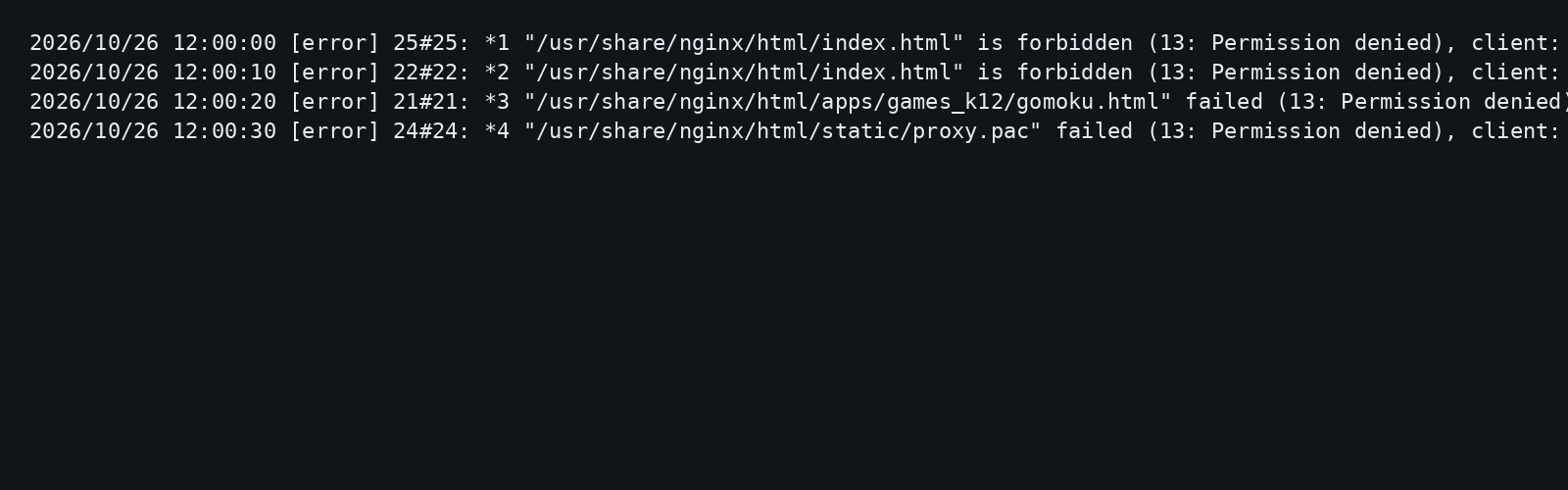
The most useful evidence came from the container logs: they clearly showed Permission denied. That means nginx was not merely failing to find the file. It was finding the file and being told it could not read it.
That distinction matters a lot.
“File not found” usually suggests path, root, index-file, or directory structure issues. “File found but not readable” usually suggests process user, group membership, ACL, or Unix mode issues.
5. Root cause: Unix permissions are the gate, ACL is the guest list
This is the most valuable part of the whole story.
When people first see this kind of issue on Synology, it can be baffling: the directory seems mounted correctly, the service seems to be running, but the files still cannot be read. The easiest way to understand it is to think about building access control.
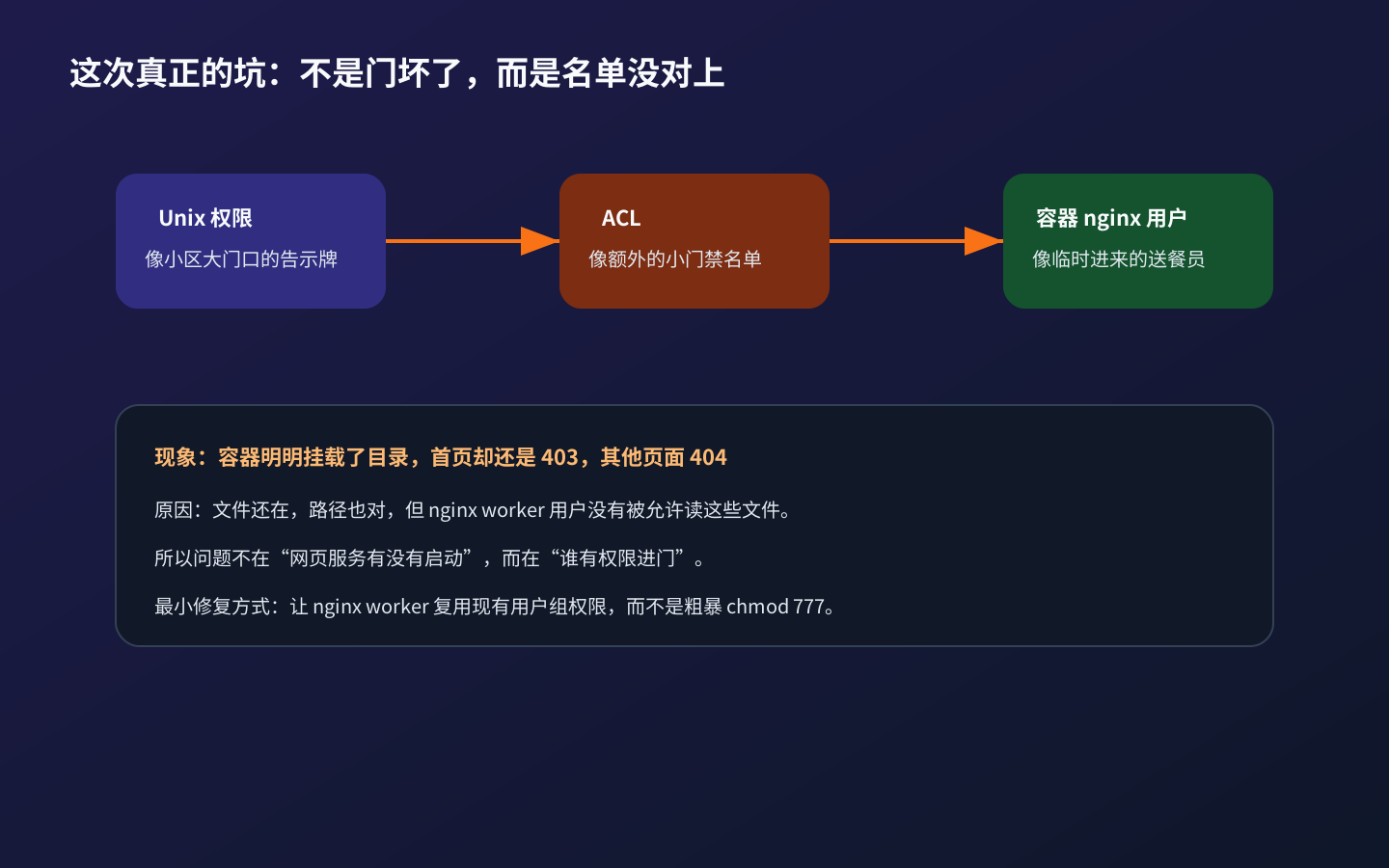
Unix permissions are like the big sign at the main entrance: residents may enter, visitors may not. That is the first, coarse layer.
ACL is like the extra guest list for a specific building. Even if the front gate allows someone into the compound, there may still be another list deciding who can use the elevator, enter the hallway, or open a particular door. That list may not be obvious from a plain directory listing, but it is real, and it matters.
The nginx worker inside the container is like a delivery person who has the right building number and apartment number, and may even be standing at the door already. But if that person is not on the guest list, access is still denied.
That was exactly the problem here. The files were fine, the mount was fine, and the nginx config was not the main issue. The real blocker was that the nginx worker user inside the container did not have permission to read those files.
6. The fix: use the smallest permission change that works
Once the root cause was clear, the fix became much easier.
I did not want to change permissions across the whole site, and I definitely did not want to open everything up just to make the problem disappear. The goal of the migration was to move the service, not to weaken the file security model as a side effect.
The better approach was to let the nginx worker reuse the existing group permission model. In plain terms: instead of rewriting file ACLs across the site, let the nginx process run with the group context that already had read access.
There is a practical lesson here: chmod 777 often looks like the fastest fix, but it is usually the worst habit. In a home NAS environment, the actual problem is often just that one service user cannot read a set of files. That does not mean everyone should be able to read, write, and execute everything.
7. The migration pattern: parallel first, cut over later
The most reusable part of this migration was not the nginx config. It was the order of operations.
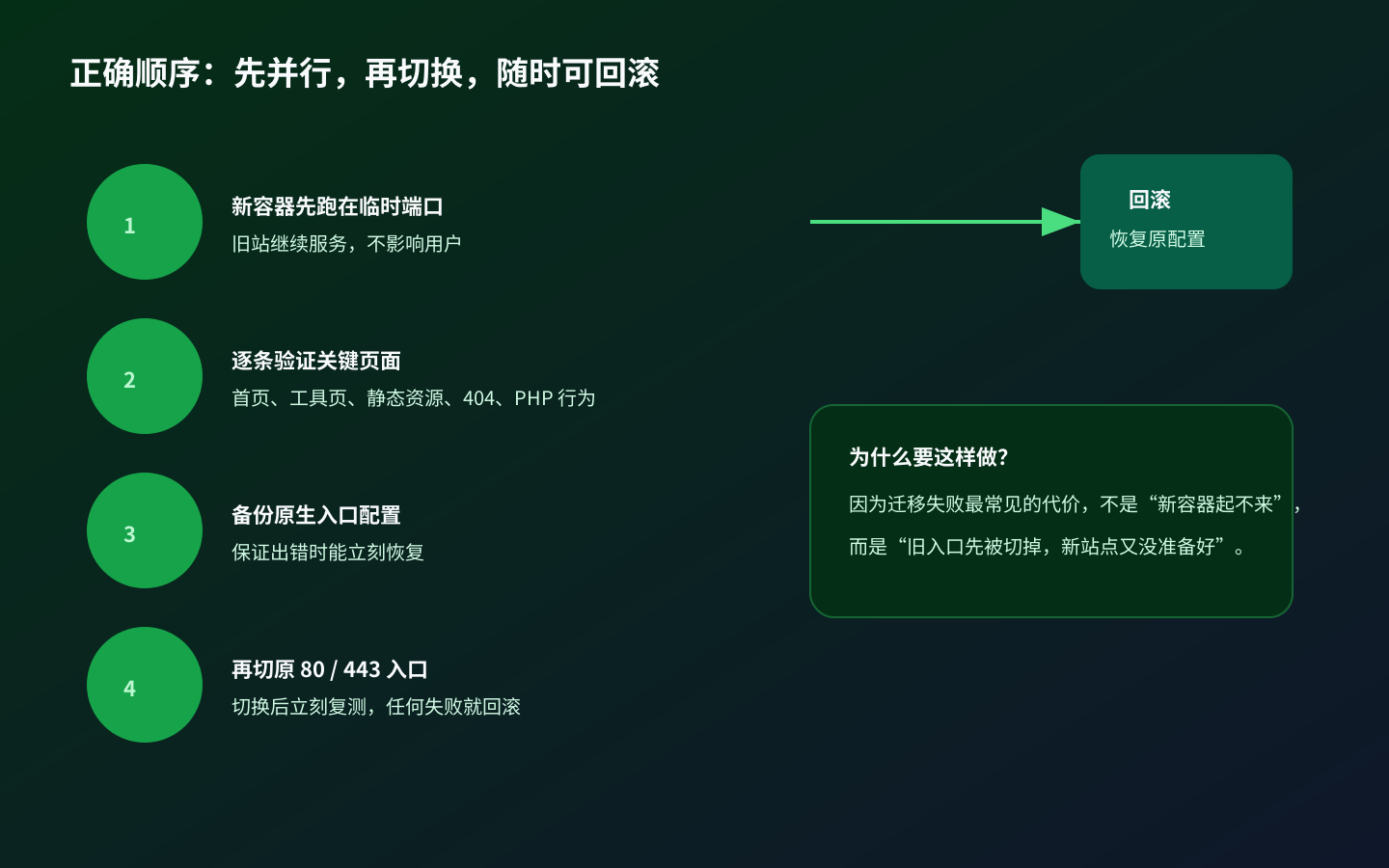
The safer sequence is:
run the new container on a temporary port; verify key pages, assets, 404 behavior, and legacy behavior; back up the original entrypoint config; and only then switch the public 80/443 entrypoint.
That gives you a path back at every step. If the new container is bad, do not switch. If the cutover is bad, roll back immediately. The old site stays alive long enough that you do not end up with the worst possible outcome: new site not ready, old site already removed.
This is where many migration efforts go wrong. People focus heavily on how to build the new thing and do not think enough about how to retire the old thing safely. In practice, failed migrations are often caused by switching too early and rolling back too late.
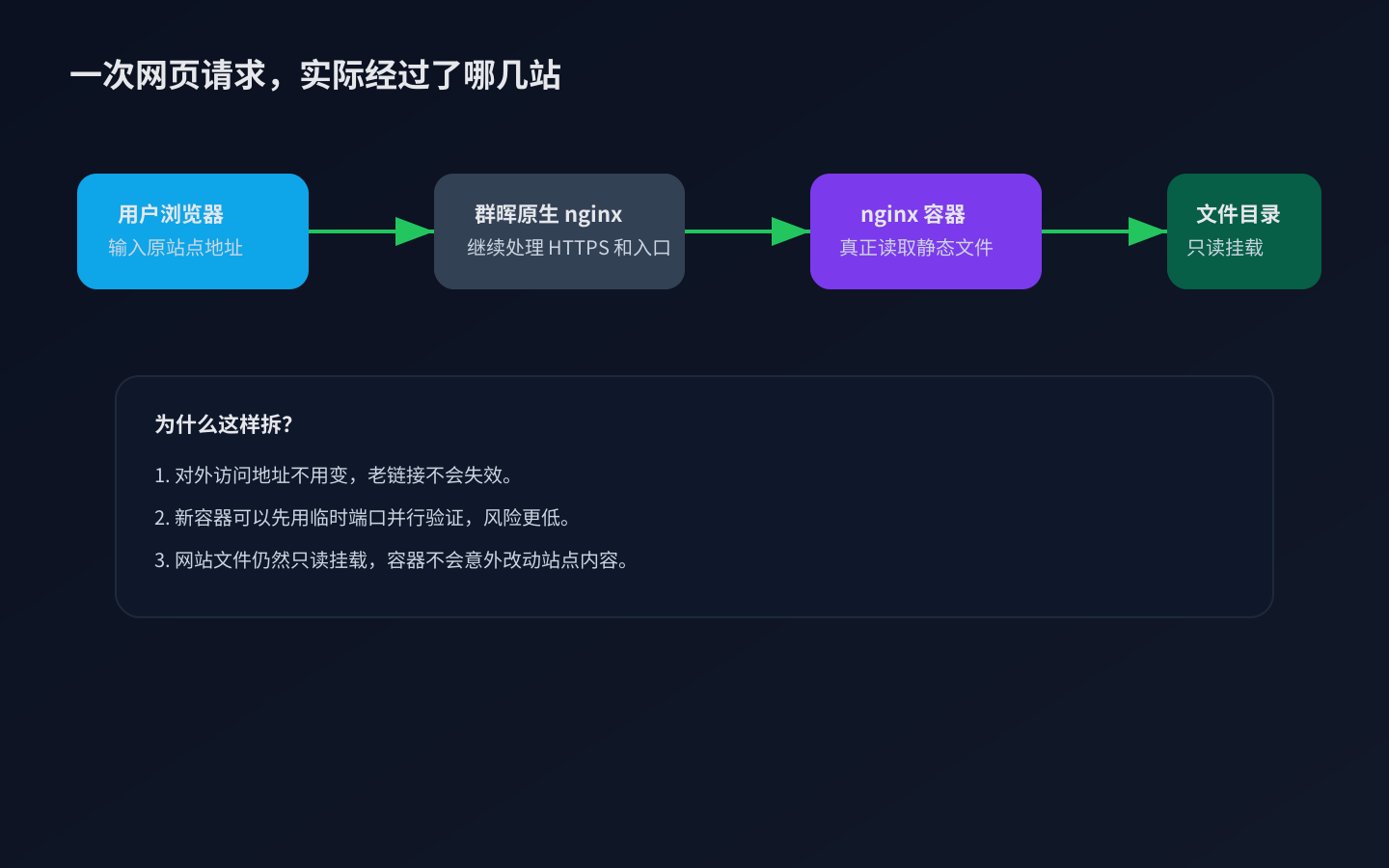
8. Post-fix verification: temporary port first, original URL second
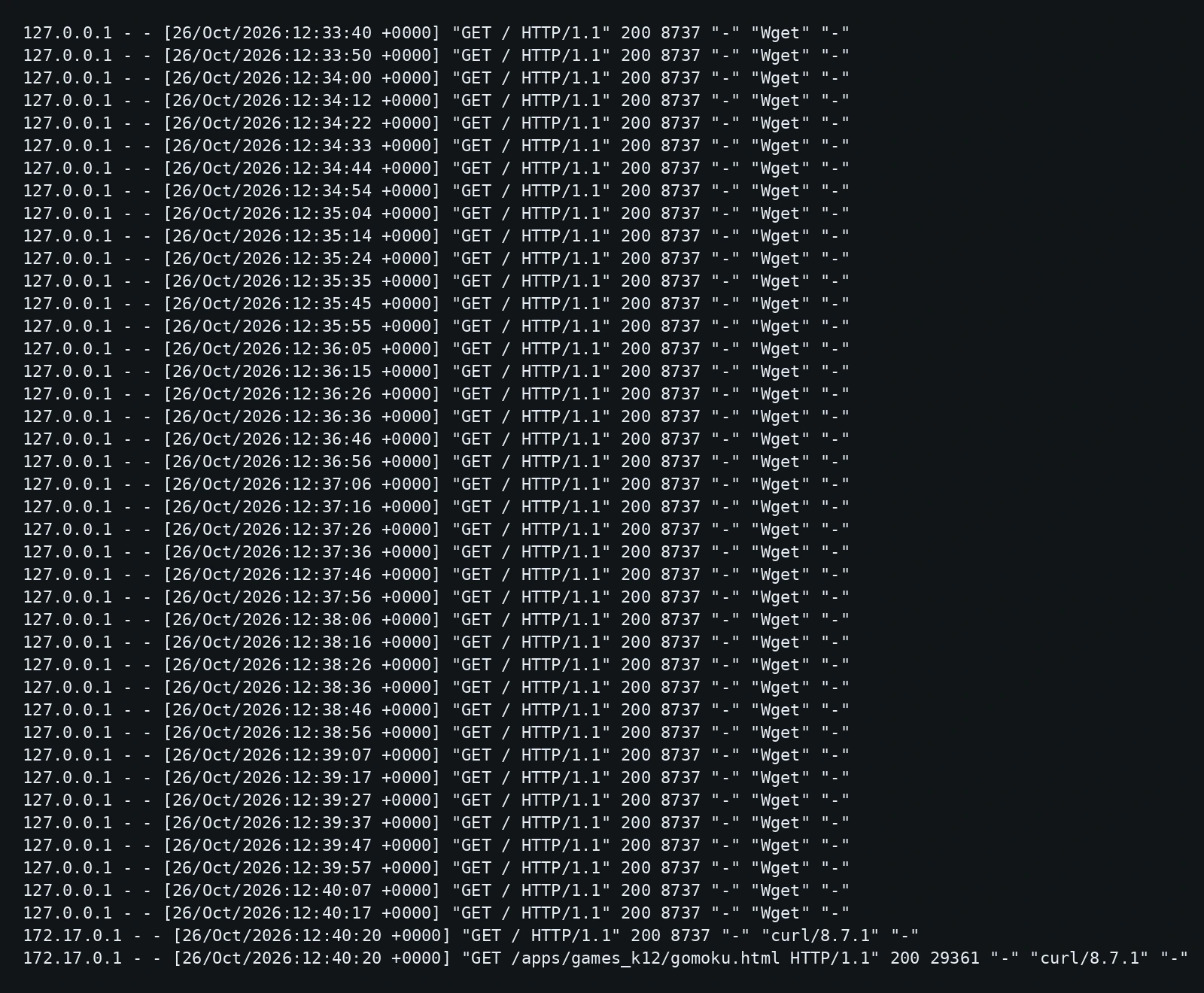
After fixing the permission issue, I verified the temporary port first. The reason is simple: the original public entrypoint had not been switched yet, so any remaining problem would affect only testing, not real visitors.
I looked for two kinds of results: first, that key pages and static assets were returning 200 again; second, that the expected edge behaviors were still correct, such as 404 for missing paths and the same legacy error behavior for PHP-like routes.
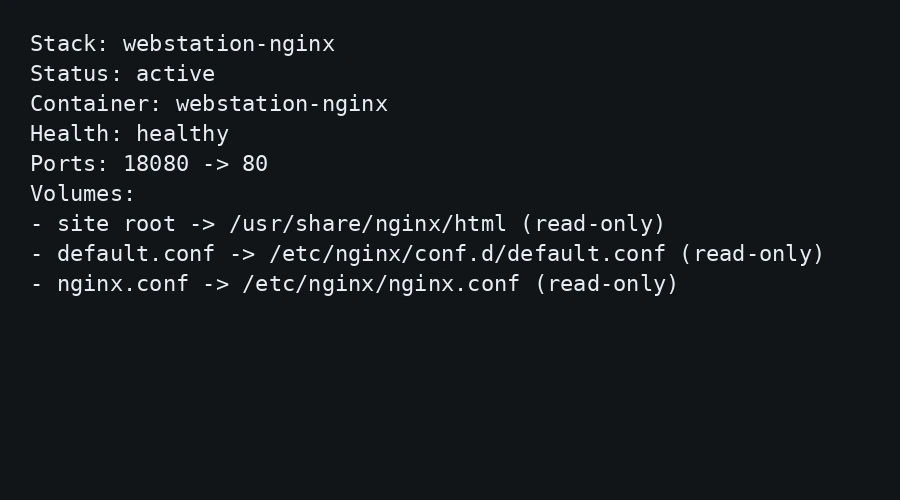
Only after the temporary port looked good did I switch the original 80/443 entrypoint. After the switch, I ran the checks again across HTTP, HTTPS, and the temporary port. The site came back consistently, the container was healthy, and the original entrypoint still behaved normally.
At that point, I could say the migration had actually succeeded, not just that a container had started.
9. Cross-platform helper scripts: manual mode and agent mode
To make this easier to reuse, I turned the workflow into three helper scripts for Windows 11, Ubuntu 26.04, and macOS 27.
They do not depend on third-party services. Their job is to help with the boring but important parts: preflight checks, config generation, container deployment preparation, and health-check reminders.
A quick boundary note: these scripts do not hardcode your NAS address or store credentials for you. They are scaffolding, not a replacement for judgment.
Manual mode
If you are running them yourself, the recommended order is:
confirm the site root, temporary port, image name, and stack/container name; generate the config; review the compose file; deploy with Docker or Portainer; verify the temporary port; only then switch the original entrypoint; and keep the rollback path written down.
Agent mode
If you are asking an agent to do this for you, do not let it jump straight to “switch the public entrypoint.” A safer workflow is to let the agent run preflight checks, deploy in parallel mode, inspect health checks, verify real pages, and only then decide whether the cutover is safe.
Windows 11
Save as webstation_nginx_toolkit_windows11.ps1
param(
  [string]$SiteRoot = "",
  [string]$ConfigDir = "",
  [string]$Image = "nginx:alpine",
  [string]$StackName = "webstation-nginx",
  [string]$ContainerName = "webstation-nginx",
  [int]$TempPort = 18080,
  [switch]$AgentMode
)

function Log([string]$Message) {
  if (-not $AgentMode) { Write-Host $Message }
}

if ([string]::IsNullOrWhiteSpace($SiteRoot)) { throw "SiteRoot is required." }
if ([string]::IsNullOrWhiteSpace($ConfigDir)) { $ConfigDir = Join-Path $SiteRoot "..\webstation-nginx-config" }
if (-not (Test-Path $SiteRoot)) { throw "Site root not found: $SiteRoot" }
if (Get-NetTCPConnection -LocalPort $TempPort -ErrorAction SilentlyContinue) { throw "Port $TempPort is occupied." }

New-Item -ItemType Directory -Force -Path $ConfigDir | Out-Null
$defaultConf = Join-Path $ConfigDir "default.conf"
$compose = Join-Path $ConfigDir "compose.yml"

@'
server {
    listen 80 default_server;
    server_name _;
    root /usr/share/nginx/html;
    index index.html;
    autoindex off;

    location ~* \.(php[345]?|phtml)$ {
        return 500;
    }

    location / {
        try_files $uri $uri/ =404;
    }
}
'@ | Set-Content -Encoding UTF8 $defaultConf

@"
services:
  web:
    container_name: $ContainerName
    image: $Image
    restart: unless-stopped
    ports:
      - "$($TempPort):80"
    volumes:
      - "$SiteRoot:/usr/share/nginx/html:ro"
      - "$defaultConf:/etc/nginx/conf.d/default.conf:ro"
"@ | Set-Content -Encoding UTF8 $compose

Log "Config generated at $ConfigDir"
Log "Next steps:"
Log "1. Review compose.yml"
Log "2. Deploy with Docker or Portainer"
Log "3. Verify http://<nas-host>:$TempPort/"
Log "4. Only then update the original 80/443 reverse proxy target"
Log "Rollback: restore the previous reverse proxy config and reload nginx."
Ubuntu 26.04
Save as webstation_nginx_toolkit_ubuntu2604.sh
#!/usr/bin/env bash
set -euo pipefail

AGENT_MODE=0
if [[ "${1:-}" == "--agent" || "${1:-}" == "--json" ]]; then
  AGENT_MODE=1
fi

log() { if [[ $AGENT_MODE -eq 0 ]]; then echo "$1"; fi }
fail() { echo "$1" >&2; exit 1; }

SITE_ROOT="${SITE_ROOT:-}"
CONFIG_DIR="${CONFIG_DIR:-}"
IMAGE="${IMAGE:-nginx:alpine}"
STACK_NAME="${STACK_NAME:-webstation-nginx}"
CONTAINER_NAME="${CONTAINER_NAME:-webstation-nginx}"
TEMP_PORT="${TEMP_PORT:-18080}"

[[ -n "$SITE_ROOT" ]] || fail "SITE_ROOT is required."
[[ -d "$SITE_ROOT" ]] || fail "Site root not found: $SITE_ROOT"
CONFIG_DIR="${CONFIG_DIR:-$SITE_ROOT/../webstation-nginx-config}"
mkdir -p "$CONFIG_DIR"

if ss -lnt | awk '{print $4}' | grep -q ":${TEMP_PORT}$"; then
  fail "Port ${TEMP_PORT} is occupied."
fi

cat > "$CONFIG_DIR/default.conf" <<'EOF'
server {
    listen 80 default_server;
    server_name _;
    root /usr/share/nginx/html;
    index index.html;
    autoindex off;

    location ~* \.(php[345]?|phtml)$ {
        return 500;
    }

    location / {
        try_files $uri $uri/ =404;
    }
}
EOF

cat > "$CONFIG_DIR/compose.yml" <<EOF
services:
  web:
    container_name: ${CONTAINER_NAME}
    image: ${IMAGE}
    restart: unless-stopped
    ports:
      - "${TEMP_PORT}:80"
    volumes:
      - "${SITE_ROOT}:/usr/share/nginx/html:ro"
      - "${CONFIG_DIR}/default.conf:/etc/nginx/conf.d/default.conf:ro"
EOF

log "Config generated at $CONFIG_DIR"
log "Next steps:"
log "1. Review compose.yml"
log "2. Deploy with Docker or Portainer"
log "3. Verify http://<nas-host>:${TEMP_PORT}/"
log "4. Only then update the original 80/443 reverse proxy target"
log "Rollback: restore the previous reverse proxy config and reload nginx."
macOS 27
Save as webstation_nginx_toolkit_macos27.zsh
#!/usr/bin/env zsh
set -euo pipefail

AGENT_MODE=0
if [[ "${1:-}" == "--agent" || "${1:-}" == "--json" ]]; then
  AGENT_MODE=1
fi

log() { if [[ $AGENT_MODE -eq 0 ]]; then echo "$1"; fi }
fail() { echo "$1" >&2; exit 1; }

SITE_ROOT="${SITE_ROOT:-}"
CONFIG_DIR="${CONFIG_DIR:-}"
IMAGE="${IMAGE:-nginx:alpine}"
STACK_NAME="${STACK_NAME:-webstation-nginx}"
CONTAINER_NAME="${CONTAINER_NAME:-webstation-nginx}"
TEMP_PORT="${TEMP_PORT:-18080}"

[[ -n "$SITE_ROOT" ]] || fail "SITE_ROOT is required."
[[ -d "$SITE_ROOT" ]] || fail "Site root not found: $SITE_ROOT"
CONFIG_DIR="${CONFIG_DIR:-$SITE_ROOT/../webstation-nginx-config}"
mkdir -p "$CONFIG_DIR"

if lsof -nP -iTCP:${TEMP_PORT} -sTCP:LISTEN >/dev/null 2>&1; then
  fail "Port ${TEMP_PORT} is occupied."
fi

cat > "$CONFIG_DIR/default.conf" <<'EOF'
server {
    listen 80 default_server;
    server_name _;
    root /usr/share/nginx/html;
    index index.html;
    autoindex off;

    location ~* \.(php[345]?|phtml)$ {
        return 500;
    }

    location / {
        try_files $uri $uri/ =404;
    }
}
EOF

cat > "$CONFIG_DIR/compose.yml" <<EOF
services:
  web:
    container_name: ${CONTAINER_NAME}
    image: ${IMAGE}
    restart: unless-stopped
    ports:
      - "${TEMP_PORT}:80"
    volumes:
      - "${SITE_ROOT}:/usr/share/nginx/html:ro"
      - "${CONFIG_DIR}/default.conf:/etc/nginx/conf.d/default.conf:ro"
EOF

log "Config generated at $CONFIG_DIR"
log "Next steps:"
log "1. Review compose.yml"
log "2. Deploy with Docker or Portainer"
log "3. Verify http://<nas-host>:${TEMP_PORT}/"
log "4. Only then update the original 80/443 reverse proxy target"
log "Rollback: restore the previous reverse proxy config and reload nginx."
10. Q&A
Why not let the nginx container take over 80/443 directly?
Because those ports already serve as the public entrypoint and are tied into other system responsibilities. Letting a new container grab them directly may look cleaner, but it widens the blast radius. A safer pattern is to validate in parallel and then reverse proxy from the existing entrypoint.
Why keep Web Station at all?
Because keeping it preserves rollback options and reduces the risk of breaking unrelated features by removing a package too early. Migration is not about deleting the old system on day one. It is about replacing it safely.
Why not just chmod 777?
Because 777 means everyone can read, write, and execute. The real problem is usually much narrower: one service identity needs read access. Those are not the same thing, and the security difference matters.
Why validate on a temporary port first?
Because that separates deployment problems from entrypoint-switching problems. If deployment is wrong, production stays untouched. If switching is wrong, rollback is still easy.
Why did 403 and 404 appear together?
Because permission failures can look different depending on the path, fallback behavior, and file type. For troubleshooting, the key signal is not the status code by itself. It is the fact that the service answered but could not serve the content.
11. Final thought: figure out who can read before deciding how to run
If you are working on NAS, Docker, or static-site migrations, my biggest takeaway from this incident is simple: figure out who can read the files before you decide how the service should run.
A lot of migration work looks like nginx tuning, port mapping, and reverse proxy changes, but the real blocker is often permissions. That is especially true on systems like Synology where ACL adds another layer on top of ordinary Unix expectations. You are not just looking at one permission number. You are dealing with a more detailed access system.
This migration went smoothly in the end because the order was right: record the baseline, deploy in parallel, verify content, back up the entrypoint, and only then cut over. The value is not in any single command. It is in having a sequence that does not take the site down while you are still figuring things out.
Hopefully your next migration does not start with 403 and 404 either.