Fresh Ubuntu 26.04 Without Snap: A Clean, Reversible Removal Guide
The short version
If you are setting up a fresh Ubuntu 26.04 system and you know you do not want Snap, remove it in the right order: inspect installed snaps, save anything important, remove snaps with
snap remove --purge, purge thesnapdpackage with APT, clean the remaining Snap directories, and optionally block accidental reinstall.This guide explains the background, symptoms, root cause of messy removals, manual execution, AI Agent execution, and three one-click scripts for Windows 11, Ubuntu 26.04, and macOS 26. The scripts default to dry-run mode, require an explicit execution switch, depend only on built-in OS tools, and do not include private IP addresses, hostnames, private domains, tokens, or secrets.

Figure 1: AI-generated cover. Removing Snap should feel like a careful move: count the boxes first, then carry them out.
1. Background: why remove Snap from a fresh Ubuntu install?
Snap is Canonical’s application packaging and sandboxing system. Its promise is understandable: package an application once, ship it across many Linux distributions, bundle dependencies, isolate the application, and keep it refreshed automatically. For desktop software distribution, that solves real problems.
Yet many Ubuntu 26.04 users still remove Snap immediately after a clean installation. That does not necessarily mean Snap is useless. It usually means Snap does not match how they want to operate that machine.
The common complaints are practical:
- Some large applications feel slower on first launch.
- Automatic refreshes may not match the user’s maintenance window.
- Snap adds another filesystem layout:
/snap,/var/snap,~/snap, and snapd state directories. - File access, themes, input methods, extensions, and plugin paths can behave differently from deb packages.
- A server or minimal development VM often does not need a desktop app store at all.
- Some users want all software managed by APT, Flatpak, containers, source builds, or official tarballs.
A simple analogy: APT is like buying groceries from a local market and putting them into your own fridge. Snap is more like a prepared meal delivered in its own insulated box. The box is standardized and safer for transport, but it takes space and has its own opening rules. Neither model is universally right. The question is which kitchen you want to run.
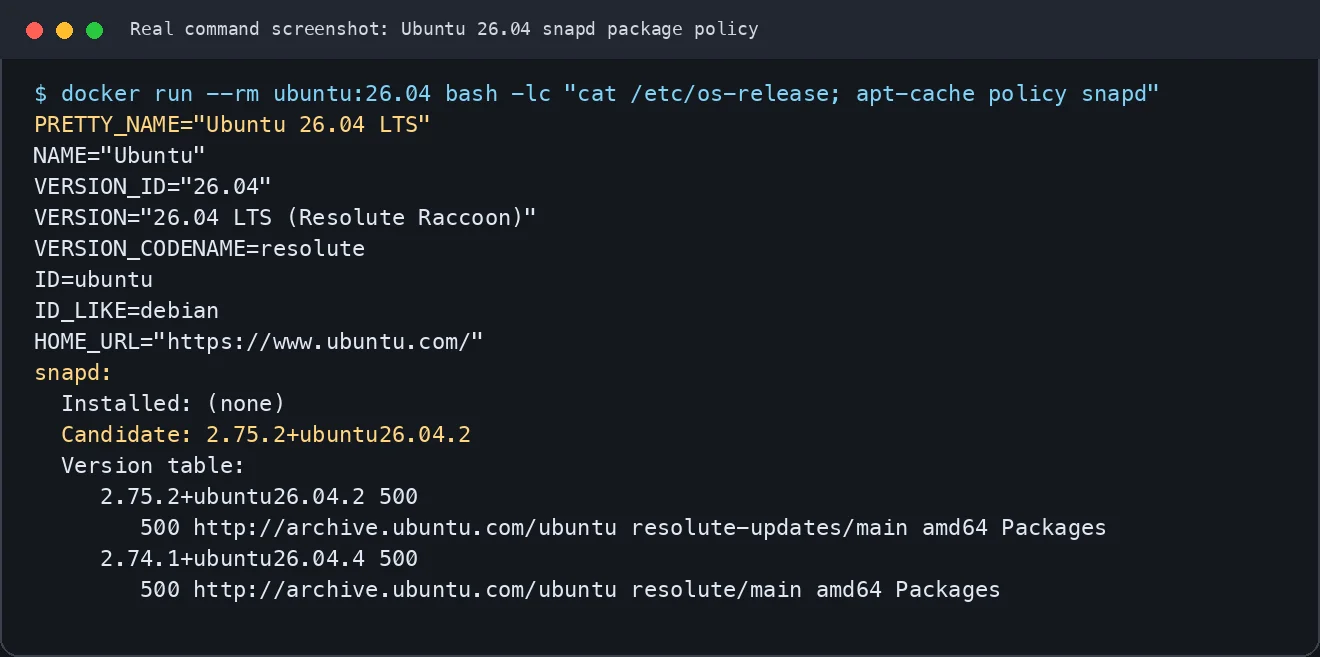
Figure 2: Real command screenshot. Ubuntu 26.04 resolute provides snapd; a minimal container image does not install it by default, while desktop installations commonly include the Snap ecosystem.
2. Symptoms: Snap is not only one command
Removing Snap is not the same as deleting the snap executable. Snap includes several moving parts:
snapd: the daemon that manages installation, refreshes, mounts, confinement, and lifecycle;snap: the command-line client that talks to snapd;/snap: the common read-only mount entry point;/var/snap: system-level snap application data;~/snap: user-level snap application data;/var/lib/snapd: snapd state, cache, mount units, and metadata;- systemd units such as snapd sockets and snap mount units;
- installed snap applications such as browsers, stores, firmware tools, and themes.
So a clean removal is more like ending a lease than tearing a label off the door. You want the tenant to move out, return the keys, cancel the utilities, and only then remove the sign.
The official documentation supports that mental model. The Snapcraft Ubuntu installation page treats snapd as a system daemon. The Ubuntu snap(8) manpage documents snap remove --purge as removal without creating the automatic removal snapshot. The Snapcraft snapshot documentation also explains that snapd can store user, system, and configuration data snapshots.
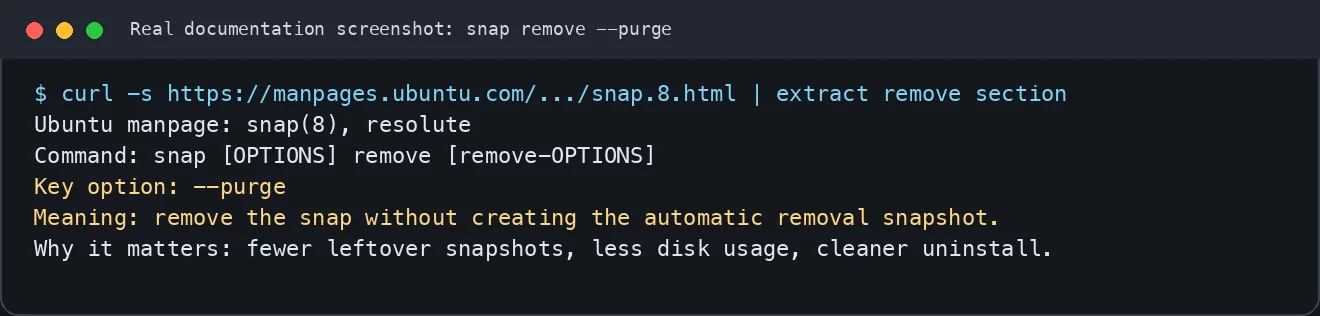
Figure 3: Real documentation screenshot. The key point of --purge is avoiding automatic removal snapshots.
3. Analysis: should you remove it?
Do not turn this into a packaging religion. The useful question is: what is this machine for?
If it is a mainstream desktop for a non-technical user, keeping Snap may reduce maintenance work. Default applications, the software store, and some graphical tools may depend on it. If you remove Snap, you must know where Firefox, Thunderbird, store-like tools, and other applications will come from afterward.
If it is a development workstation, server, VM template, CI node, or a personal minimal desktop, removing Snap is often easier to operate. You get fewer background services, fewer mounts, a more traditional filesystem layout, and a more consistent software source strategy. The cost is that applications available only as snaps need another installation route.
Think of Snap as a labeled storage box. For some rooms, the box keeps things tidy. For other rooms, too many boxes make everything harder to find. If you already decided that this machine will use shelves, drawers, and folders, then remove the boxes cleanly.
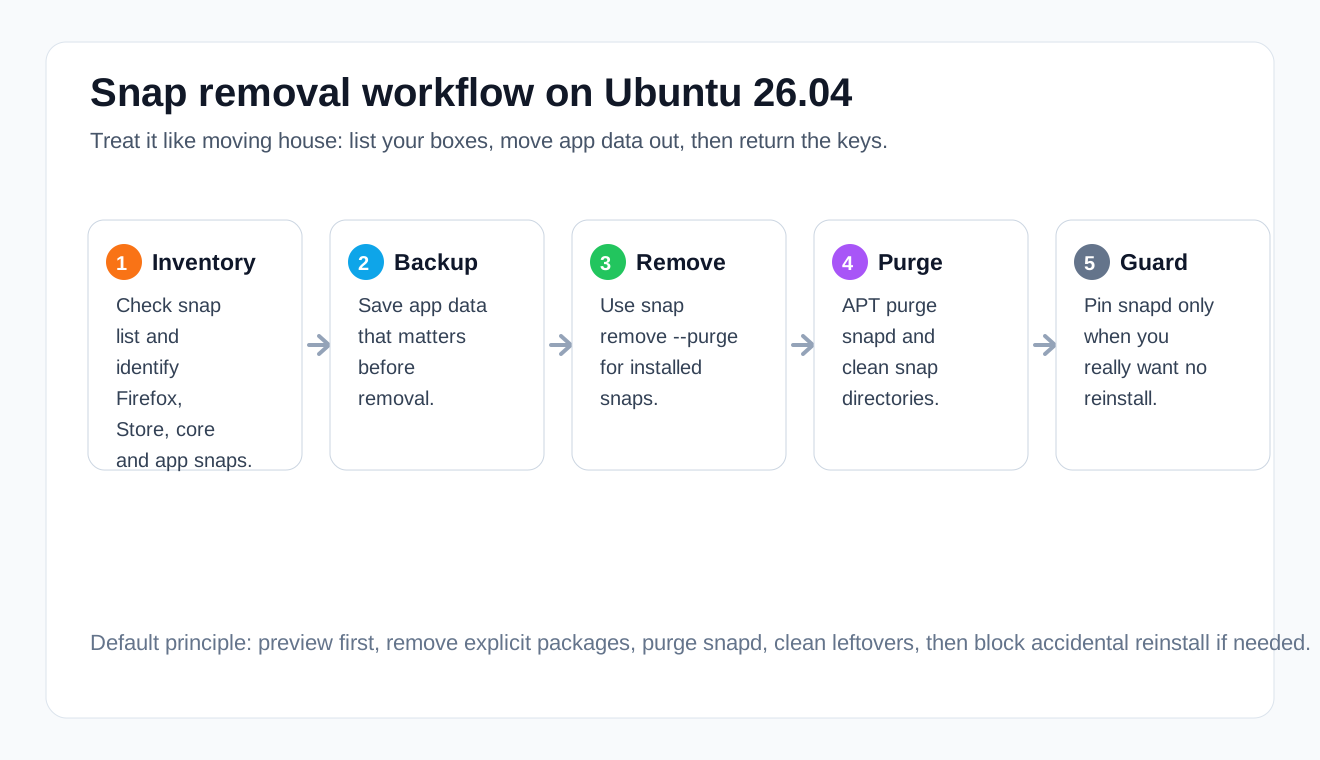
Figure 4: Recommended order: inventory, backup, remove snaps, purge snapd, clean leftovers, optionally prevent reinstall.
4. Root cause: why Snap removals often get messy
Messy removals usually come from four mistakes.
The first mistake is the wrong order. Users purge snapd first, then realize the snap command is gone and installed snap applications were not removed through their normal path. The safer order is snap remove --purge first, apt purge snapd second.
The second mistake is ignoring user data. ~/snap may contain application settings, caches, browser profiles, or login state. On a truly fresh installation, that may not matter. On a system already used for a few days, inspect it first.
The third mistake is accidental reinstall. Later, a metapackage, desktop component, or store package may pull snapd back in. If you strongly want a no-Snap machine, add an APT guard with apt-mark hold and a preferences file.
The fourth mistake is confusing “the system still boots” with “the desktop experience is complete.” Ubuntu will normally boot without snapd, but some default applications may disappear or need replacements from deb packages, Flatpak, official tarballs, or vendor repositories.
The APT simulation below shows an important detail: snapd is still an ordinary deb package from APT’s point of view. That means we can simulate package operations before changing the system.
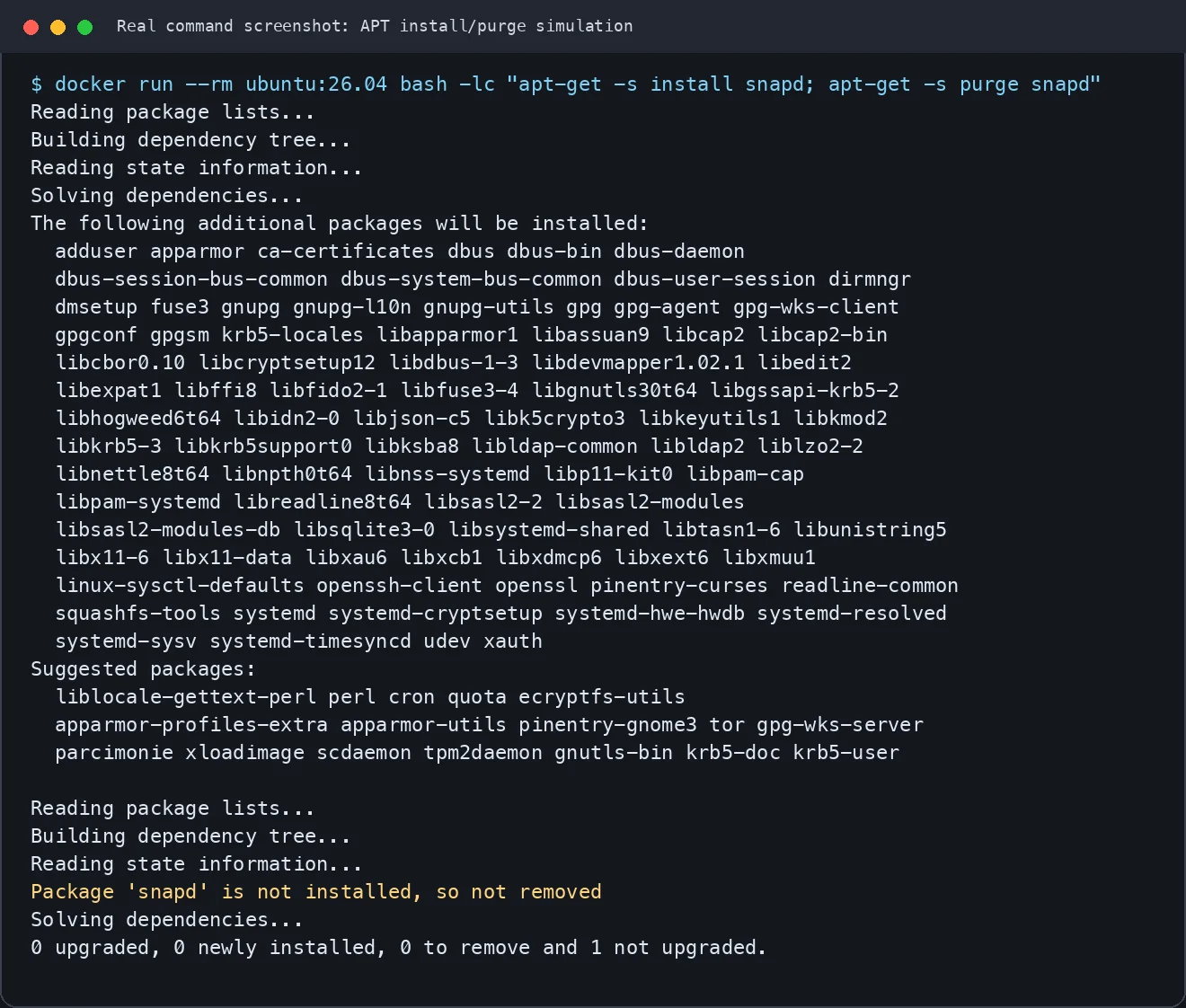
Figure 5: Real command screenshot. Simulation before execution is cheap insurance.
5. Manual Automated Execution
The three scripts below cover different operator machines:
- Ubuntu 26.04 script: run directly on the target Ubuntu machine;
- Windows 11 script: use the built-in OpenSSH client to run the same logic on a remote Ubuntu target;
- macOS 26 script: use SSH from macOS to run the same logic on a remote Ubuntu target.
All scripts default to dry-run mode. They only modify the target when you explicitly enable execution.
5.1 Ubuntu 26.04 local script
Save as remove-snap-ubuntu2604.sh. Preview first:
bash remove-snap-ubuntu2604.sh
Execute after reviewing the output:
EXECUTE=1 HOLD_SNAPD=1 bash remove-snap-ubuntu2604.sh
Script:
#!/usr/bin/env bash
set -euo pipefail

EXECUTE="${EXECUTE:-0}"
HOLD_SNAPD="${HOLD_SNAPD:-0}"
BACKUP_DIR="${BACKUP_DIR:-$HOME/snap-removal-backup-$(date +%Y%m%d-%H%M%S)}"

run() {
  if [ "$EXECUTE" = "1" ]; then
    "$@"
  else
    printf '[dry-run] '
    printf '%q ' "$@"
    printf '\n'
  fi
}

as_root() {
  if [ "$(id -u)" -eq 0 ]; then "$@"; else sudo "$@"; fi
}

echo "Mode: $([ "$EXECUTE" = "1" ] && echo EXECUTE || echo DRY-RUN)"
echo "Backup directory: $BACKUP_DIR"
cat /etc/os-release | sed -n '1,8p'

if command -v snap >/dev/null 2>&1; then
  snap list --all || true
  run mkdir -p "$BACKUP_DIR"
  if [ "$EXECUTE" = "1" ]; then
    snap list --all > "$BACKUP_DIR/snap-list.txt" || true
    snap saved > "$BACKUP_DIR/snap-saved.txt" 2>/dev/null || true
  fi
  mapfile -t snaps < <(snap list --all 2>/dev/null | awk 'NR>1 {print $1}' | sort -u | tac)
  for name in "${snaps[@]:-}"; do
    [ -n "$name" ] && run as_root snap remove --purge "$name"
  done
else
  echo "snap command not found. snapd may already be absent."
fi

run as_root apt-get purge -y snapd
run as_root apt-get autoremove --purge -y

for path in /snap /var/snap /var/lib/snapd "$HOME/snap"; do
  [ -e "$path" ] && run as_root rm -rf "$path"
done

if [ "$HOLD_SNAPD" = "1" ]; then
  run as_root apt-mark hold snapd
  run as_root install -d -m 0755 /etc/apt/preferences.d
  if [ "$EXECUTE" = "1" ]; then
    as_root tee /etc/apt/preferences.d/no-snapd.pref >/dev/null <<'EOF'
Package: snapd
Pin: release *
Pin-Priority: -10
EOF
  else
    echo "[dry-run] write /etc/apt/preferences.d/no-snapd.pref"
  fi
fi

command -v snap >/dev/null 2>&1 && echo "snap still exists" || echo "snap command is absent."
dpkg-query -W snapd 2>/dev/null || echo "snapd package is absent."
This script does not search through your documents, photos, SSH keys, browser profile outside Snap, or project directories. It only handles Snap packages, snapd, and Snap-owned locations.
5.2 Windows 11 remote script
Windows cannot remove Snap from itself, but it can use the built-in OpenSSH client to operate an Ubuntu target. Save as Remove-Snap-From-Ubuntu.ps1.
Preview:
powershell -ExecutionPolicy Bypass -File .\Remove-Snap-From-Ubuntu.ps1 -Target <ubuntu-target> -User <user>
Execute:
powershell -ExecutionPolicy Bypass -File .\Remove-Snap-From-Ubuntu.ps1 -Target <ubuntu-target> -User <user> -Execute -HoldSnapd
Script:
param(
    [Parameter(Mandatory=$true)][string]$Target,
    [string]$User = "root",
    [switch]$Execute,
    [switch]$HoldSnapd
)

$ErrorActionPreference = "Stop"
$executeFlag = if ($Execute) { "1" } else { "0" }
$hold = if ($HoldSnapd) { "1" } else { "0" }

$remoteScript = @'
set -euo pipefail
run(){ if [ "$EXECUTE" = "1" ]; then "$@"; else printf '[dry-run] '; printf '%q ' "$@"; printf '\n'; fi; }
as_root(){ if [ "$(id -u)" -eq 0 ]; then "$@"; else sudo "$@"; fi; }
cat /etc/os-release | sed -n '1,8p'
if command -v snap >/dev/null 2>&1; then
  snap list --all || true
  snap list --all 2>/dev/null | awk 'NR>1 {print $1}' | sort -u | tac | while read -r name; do
    [ -n "$name" ] && run as_root snap remove --purge "$name"
  done
else
  echo "snap command not found."
fi
run as_root apt-get purge -y snapd
run as_root apt-get autoremove --purge -y
for path in /snap /var/snap /var/lib/snapd "$HOME/snap"; do [ -e "$path" ] && run as_root rm -rf "$path"; done
if [ "$HOLD_SNAPD" = "1" ]; then
  run as_root apt-mark hold snapd
  if [ "$EXECUTE" = "1" ]; then
    as_root install -d -m 0755 /etc/apt/preferences.d
    printf 'Package: snapd\nPin: release *\nPin-Priority: -10\n' | as_root tee /etc/apt/preferences.d/no-snapd.pref >/dev/null
  else
    echo "[dry-run] write /etc/apt/preferences.d/no-snapd.pref"
  fi
fi
command -v snap >/dev/null 2>&1 && echo "snap still exists" || echo "snap command is absent."
dpkg-query -W snapd 2>/dev/null || echo "snapd package is absent."
'@

$remoteScript | ssh "$User@$Target" "EXECUTE=$executeFlag HOLD_SNAPD=$hold bash -s"
Use placeholders such as <ubuntu-target> in documentation and screenshots. Do not publish real private addresses, full hostnames, private domains, or credentials.
5.3 macOS 26 remote script
Save as remove-snap-from-ubuntu-macos.sh.
Preview:
bash remove-snap-from-ubuntu-macos.sh <user> <ubuntu-target>
Execute:
EXECUTE=1 HOLD_SNAPD=1 bash remove-snap-from-ubuntu-macos.sh <user> <ubuntu-target>
Script:
#!/usr/bin/env bash
set -euo pipefail

USER_NAME="${1:?usage: bash remove-snap-from-ubuntu-macos.sh <user> <ubuntu-target>}"
TARGET="${2:?usage: bash remove-snap-from-ubuntu-macos.sh <user> <ubuntu-target>}"
EXECUTE="${EXECUTE:-0}"
HOLD_SNAPD="${HOLD_SNAPD:-0}"

ssh "${USER_NAME}@${TARGET}" "EXECUTE=${EXECUTE} HOLD_SNAPD=${HOLD_SNAPD} bash -s" <<'REMOTE'
set -euo pipefail
run(){ if [ "${EXECUTE:-0}" = "1" ]; then "$@"; else printf '[dry-run] '; printf '%q ' "$@"; printf '\n'; fi; }
as_root(){ if [ "$(id -u)" -eq 0 ]; then "$@"; else sudo "$@"; fi; }

cat /etc/os-release | sed -n '1,8p'
if command -v snap >/dev/null 2>&1; then
  snap list --all || true
  snap list --all 2>/dev/null | awk 'NR>1 {print $1}' | sort -u | tac | while read -r name; do
    [ -n "$name" ] && run as_root snap remove --purge "$name"
  done
else
  echo "snap command not found."
fi

run as_root apt-get purge -y snapd
run as_root apt-get autoremove --purge -y
for path in /snap /var/snap /var/lib/snapd "$HOME/snap"; do [ -e "$path" ] && run as_root rm -rf "$path"; done

if [ "${HOLD_SNAPD:-0}" = "1" ]; then
  run as_root apt-mark hold snapd
  if [ "${EXECUTE:-0}" = "1" ]; then
    as_root install -d -m 0755 /etc/apt/preferences.d
    printf 'Package: snapd\nPin: release *\nPin-Priority: -10\n' | as_root tee /etc/apt/preferences.d/no-snapd.pref >/dev/null
  else
    echo "[dry-run] write /etc/apt/preferences.d/no-snapd.pref"
  fi
fi

command -v snap >/dev/null 2>&1 && echo "snap still exists" || echo "snap command is absent."
dpkg-query -W snapd 2>/dev/null || echo "snapd package is absent."
REMOTE
6. AI Agent execution method
If you ask Codex, Claude, OpenClaw, HermesAgent, or another Agent to do this, do not simply say “remove Snap.” Use a controlled prompt:
You need to remove Snap from an Ubuntu 26.04 target.

Requirements:
1. Do not print, log, commit, or publish any real private IP address, full hostname, private domain, key, or token.
2. Read-only inspection first: /etc/os-release, command -v snap, snap list --all, snap saved, apt-cache policy snapd, df -h.
3. Explain impact: which snap applications will disappear and what replacement path exists.
4. Run dry-run only first. Do not delete anything yet.
5. Execute only after my explicit approval, using EXECUTE=1.
6. Verify after execution: snap command, snapd package state, /snap, /var/snap, /var/lib/snapd.
7. If I want snapd blocked from reinstalling, use HOLD_SNAPD=1 and document how to reverse it.
The Agent should act like a careful inventory clerk: inspect, label, report, wait for approval, then move. It should not act like a demolition crew.
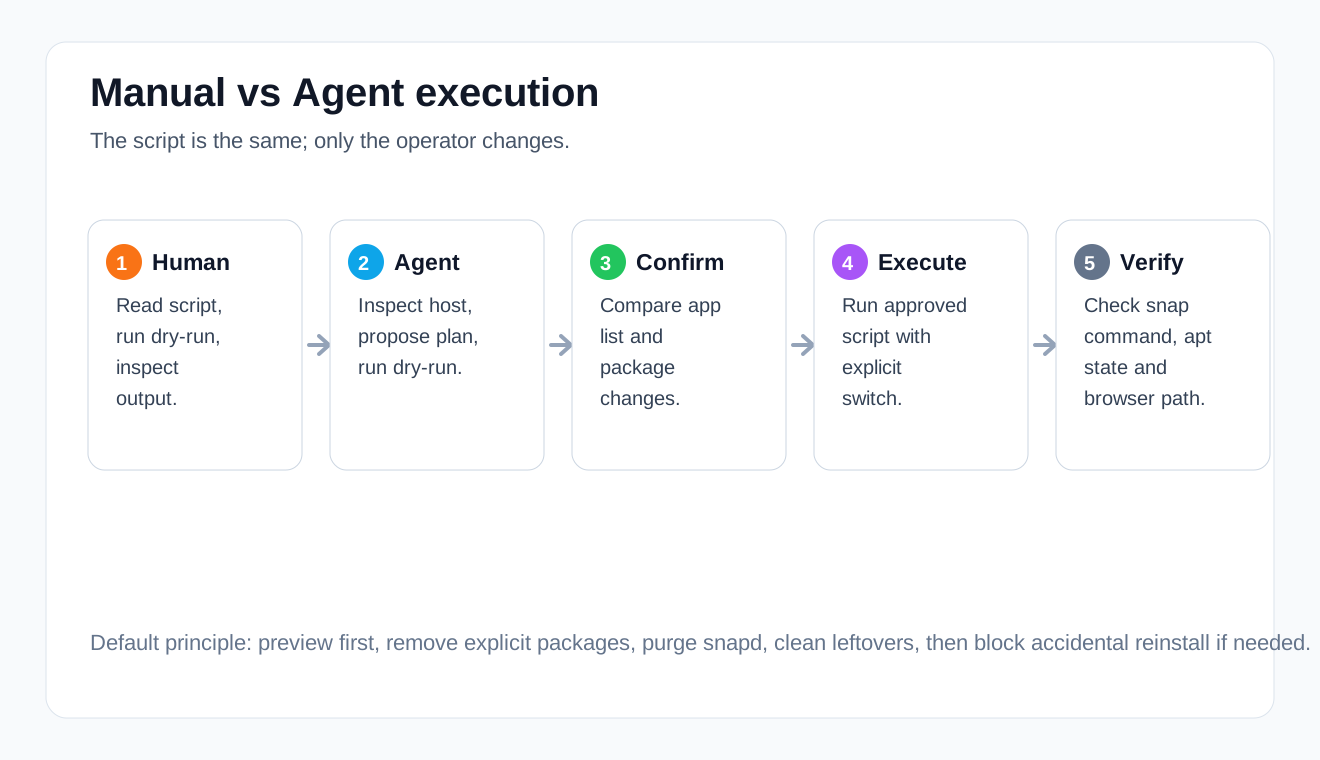
Figure 6: Manual and Agent workflows share the same safe path: inspect, dry-run, confirm, execute, verify.
7. Replacing common applications
After removing Snap, the most common follow-up is application replacement.
For Firefox, use a source you trust: Mozilla’s official deb path, a maintained APT repository, Flatpak, or the official tarball. Avoid random repositories just because they are “not Snap.”
For graphical software stores, you can often skip them on servers and development VMs. On desktops, use APT, a Flatpak frontend, or vendor-provided packages depending on your policy.
If you only dislike one snap application, you do not have to remove all of snapd. Remove that one application and install a deb or Flatpak replacement. Full Snap removal is for machines where you explicitly do not want the Snap runtime.
8. Rollback
If you did not add an APT guard, reinstalling snapd is simple:
sudo apt-get update
sudo apt-get install -y snapd
sudo systemctl enable --now snapd.socket
If you used HOLD_SNAPD=1, reverse the guard first:
sudo apt-mark unhold snapd || true
sudo rm -f /etc/apt/preferences.d/no-snapd.pref
sudo apt-get update
sudo apt-get install -y snapd
Then install applications as needed:
sudo snap install firefox
Important: if you removed applications with --purge, automatic removal snapshots are not kept. Back up important application data before removing Snap.
9. Q&A
Will Ubuntu 26.04 fail to boot without Snap?
Normally no. snapd is an application distribution runtime, not the kernel, init system, driver stack, or base shell. Some desktop applications may need replacements.
Can I just run sudo apt purge snapd?
It is not the best order. Remove installed snaps first with snap remove --purge, then purge snapd.
Why use --purge?
Because a normal snap removal can create an automatic snapshot. On a fresh system, you usually want a cleaner removal with fewer leftover snapshots.
Can I delete ~/snap?
Yes, if you are sure it contains no important application data. On a fresh system it is usually safe. On a used system, inspect or back it up first.
Will APT install snapd again later?
It can happen if another package depends on it or recommends it strongly enough in your workflow. Use apt-mark hold and an APT preferences file if you intentionally want to prevent reinstall.
Should servers remove Snap?
If the server does not run snap-packaged applications, removing Snap can reduce background components and filesystem noise. If you depend on snap-packaged applications, do not remove it blindly.
Does this mean Snap is bad?
No. Snap has real value for confinement, automatic updates, and cross-distribution delivery. This guide is for users who already decided that a specific Ubuntu 26.04 machine should run without Snap.
10. Final recommendation
Whether to remove Snap from a fresh Ubuntu 26.04 system depends on the machine’s role. A mainstream desktop may be easier to maintain with Snap left alone. A development workstation, server, CI node, VM template, or carefully managed desktop may be cleaner without it.
The important part is the method: do not delete directories first, do not skip dry-run, do not forget user data, and do not publish private infrastructure details in scripts or screenshots. Good system maintenance is not about the shortest command; it is about being able to explain the change, verify it, and roll it back.