Ubuntu 26.04 After Install: Set Up Chinese Display and Chinese Input the Right Way
Short version
After installing Ubuntu 26.04 Desktop, do not treat Chinese support as “just install one input method package.” The stable sequence is: update the system, install full Chinese language support, install CJK fonts, decide whether the desktop UI itself should be Chinese, add a Chinese input source, and only then choose between the GNOME-friendly IBus Intelligent Pinyin path and the more customizable Fcitx5 path.
Ubuntu 26.04 LTS is a very usable desktop system out of the box, but Chinese users usually hit the same three issues soon after installation: the interface is partly translated or not translated at all, Chinese text looks thin or falls back to poor fonts, and the input method either does not appear or cannot be switched reliably.
Those issues should not be fixed separately. On Ubuntu Desktop, language support and input methods are connected. Language packages provide translations, regional formats, fonts, dictionaries, and related desktop resources. The input method framework converts keyboard events into Chinese candidates. GNOME Settings connects those engines to the active desktop session. If you only install ibus-libpinyin or only install fcitx5, you may end up with a system that can technically type Chinese but still feels unfinished.
This article is for users who have just installed Ubuntu 26.04 Desktop, and also for people who routinely prepare Linux laptops or desktops for family, coworkers, or new machines. The goal is not to build the most complicated input method setup. The goal is a clean baseline: Chinese text displays correctly, Chinese input switches reliably, and the English desktop can remain available if you prefer it.
All screenshots in this article are real operation screenshots from public references and are stored locally on this site. One screenshot was cropped before being included to remove an unrelated remote-desktop title bar. Ubuntu 26.04 daily images, final release images, OEM builds, and later point releases may use slightly different labels, but the workflow and troubleshooting logic are the same.
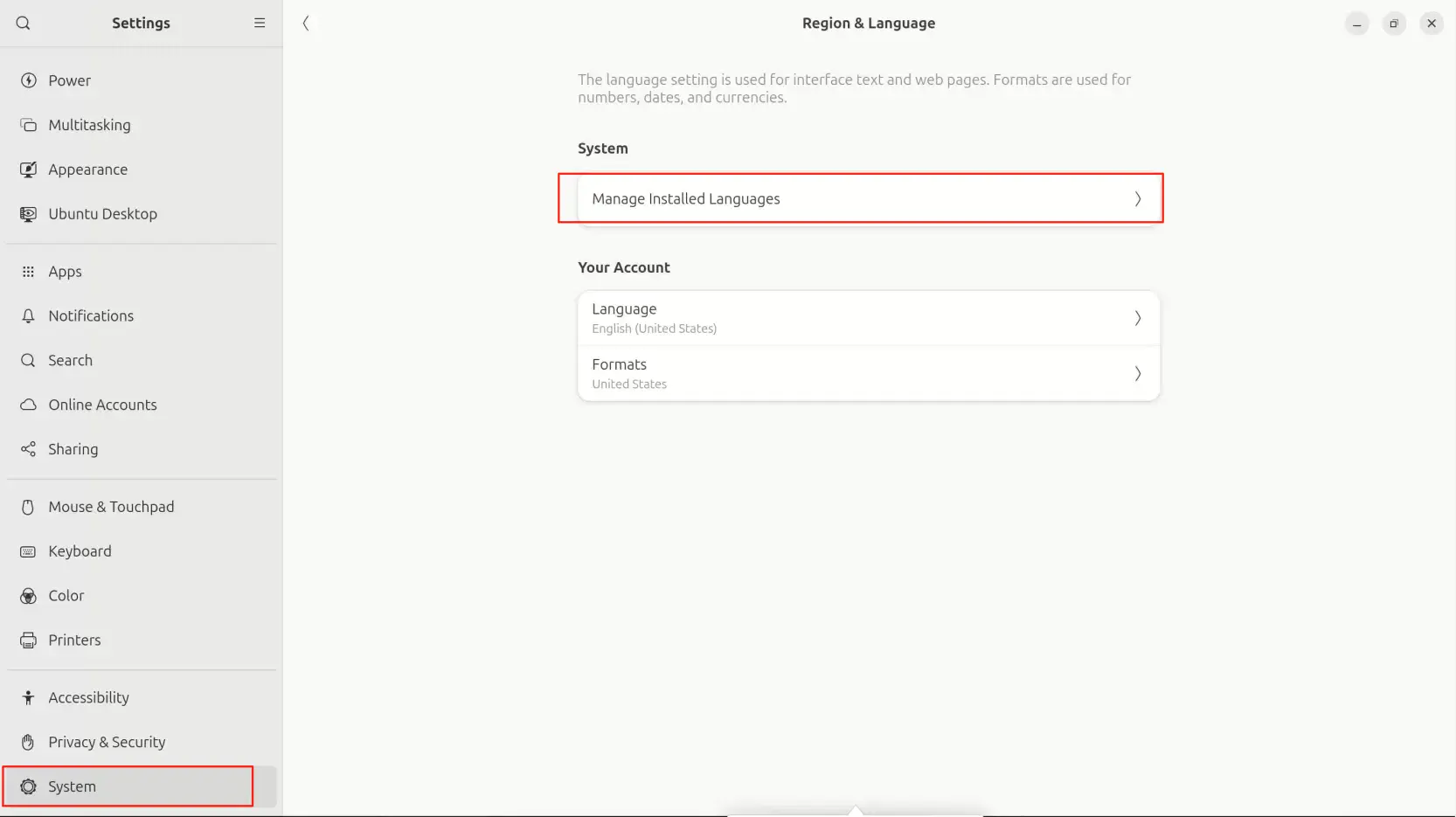
Figure 1: On Ubuntu Desktop, the Chinese setup usually starts from Region & Language in Settings. Screenshot source is listed at the end.
1. Decide whether you want a Chinese desktop or an English desktop with Chinese input
Before typing commands, decide what kind of system you want. Many tutorials mix “Chinese display” and “Chinese input” together, leaving readers unsure whether they need to switch the entire desktop language or just add a Chinese input source.
There are three common choices:
- If the machine is mainly for a Chinese-speaking user, and menus, Settings, Files, dates, and formats should all be Chinese, switch the system language to Chinese and install full Chinese language support.
- If you prefer an English interface but need to write Chinese, search in Chinese, chat, and edit Chinese documents, keep English as the display language and add Chinese input plus Chinese fonts.
- If the machine is used for development, documentation, or remote assistance, I usually recommend English UI plus Chinese display and input. English error messages are easier to search, while Chinese input still works normally.
None of these choices is “more professional” than the others. What you should avoid is a half-configured system: Chinese region settings without full language support, an input framework installed without a refreshed desktop session, or fonts installed only partially so browsers, LibreOffice, terminals, and editors render Chinese differently. The rest of the article follows one principle: install the base resources first, then change display language or input sources.
2. Update the system and make sure the software sources work
A fresh Ubuntu installation should be updated before language work. Language support, input method components, and fonts all come from the package repositories. If the package lists are stale, the graphical “Install” button may hang or a command-line package install may fail.
Open Terminal and run:
sudo apt update
sudo apt upgrade
On a final Ubuntu 26.04 Desktop installation, this usually updates security fixes, browsers, GNOME components, language packages, or the kernel. If the installation image was older, the update may be larger. Reboot after the update, especially if GNOME Shell, Mesa, the kernel, IBus, Fcitx, or other session-related packages changed.
sudo reboot
This reboot is not superstition. Input methods run inside the graphical desktop session. GNOME Shell, IBus, Fcitx5, environment variables, and input source lists all have session state. Many “the input method is installed but does not appear” problems are just old sessions that have not been refreshed.
3. Install Chinese language support: do not install only one input method package
The official Ubuntu Desktop Guide still points users through Settings for language changes. Open Settings, go to System or Region & Language, then open Manage Installed Languages. The first time you open it, Ubuntu may say that language support is not installed completely. If it does, install the missing support instead of closing the prompt.
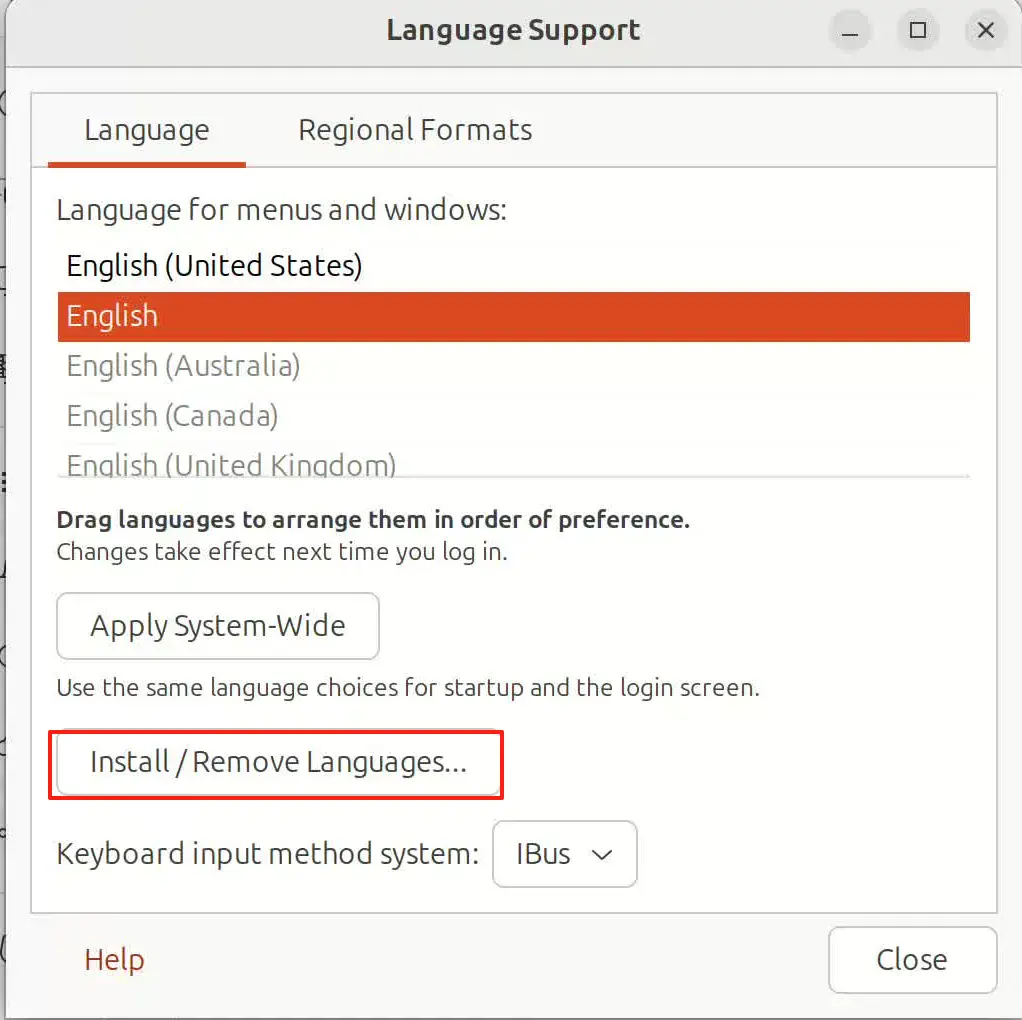
Figure 2: Installing Chinese through Install / Remove Languages gives you a more complete desktop language setup than installing only one input method package.
In Install / Remove Languages, select Chinese and apply the change. Behind that checkbox, Ubuntu installs a group of language packages and dependencies. These may include translations, regional formats, fonts, dictionaries, and input method related components. Exact package names can vary across mirrors and release images, but the idea is consistent: make Chinese a first-class language in the desktop environment instead of treating it as a single add-on.
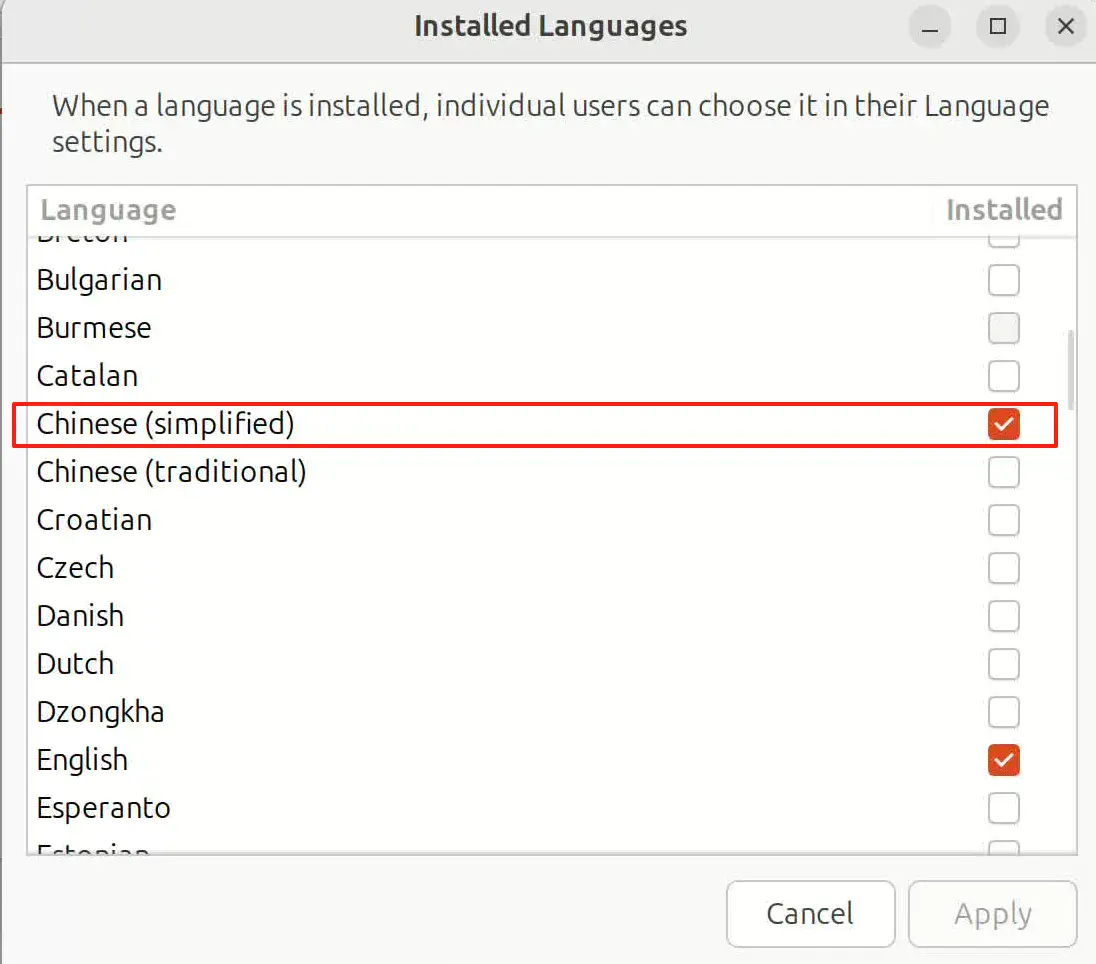
Figure 3: Select Chinese and apply the change to install the necessary language resources.
If you prefer the command line, the following set is a practical baseline for Simplified Chinese users:
sudo apt update
sudo apt install language-pack-zh-hans language-pack-gnome-zh-hans fonts-noto-cjk ibus-libpinyin
Those packages are easy to understand:
language-pack-zh-hansprovides the core Simplified Chinese language package.language-pack-gnome-zh-hansprovides GNOME desktop translations.fonts-noto-cjkprovides broad Chinese, Japanese, and Korean font coverage, improving browsers, PDFs, editors, terminals, and office documents.ibus-libpinyinprovides the Intelligent Pinyin engine for IBus.
For Traditional Chinese, use the corresponding zh-hant packages. Most desktop users do not need to manually list every font package. fonts-noto-cjk covers the majority of normal use cases. Add Source Han Sans, Source Han Serif, or personal font choices only if you have a specific typography preference.
4. Change the display language only if you actually want a Chinese UI
After installing language support, return to Region & Language. If you want the entire desktop UI to be Chinese, set Language to Chinese or Chinese (China). If you only need Chinese input, keep English and do not force the UI to Chinese.
One detail matters: display language and formats are not the same thing. Language controls menus, buttons, Settings, and system applications. Formats control dates, times, numbers, currency, and paper size. Many users want English menus but China-style date and number formats. That is fine: keep Language as English and set Formats to China or another Chinese region.
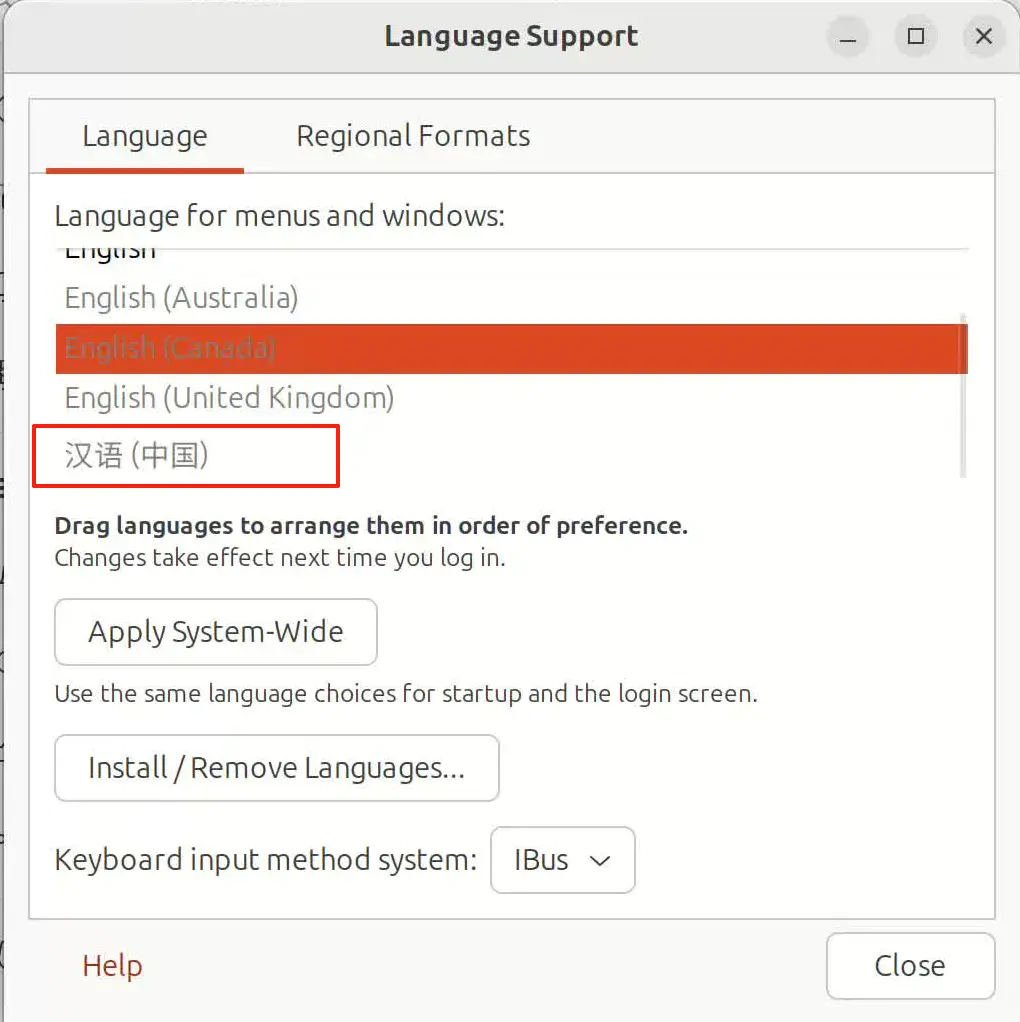
Figure 4: After Chinese language support is installed, you can decide whether the interface itself should become Chinese.
After changing display language or formats, log out and back in, or reboot. Do not keep judging behavior inside the old session. GNOME, Terminal, Files, browsers, and input frameworks read language-related environment variables at different times. A fresh session eliminates a lot of false failures.
If a third-party application remains English after the reboot, first check whether it is a Snap, Flatpak, AppImage, or vendor binary. Ubuntu language packages mainly cover Ubuntu repository packages and GNOME ecosystem components. They cannot guarantee translations for every third-party app.
5. Recommended path: IBus Intelligent Pinyin
For most Ubuntu 26.04 Desktop users, I recommend starting with IBus. Not because IBus has every feature, but because it integrates naturally with GNOME: it appears in Settings, shows up in the top bar, follows GNOME input source shortcuts, and behaves well in Wayland sessions.
After Chinese language support is installed, open Settings -> Keyboard, find Input Sources, click the plus button, choose Chinese, then choose Chinese (Intelligent Pinyin). If Chinese does not appear in the list, verify that language support is installed completely, then log out or reboot and check again.
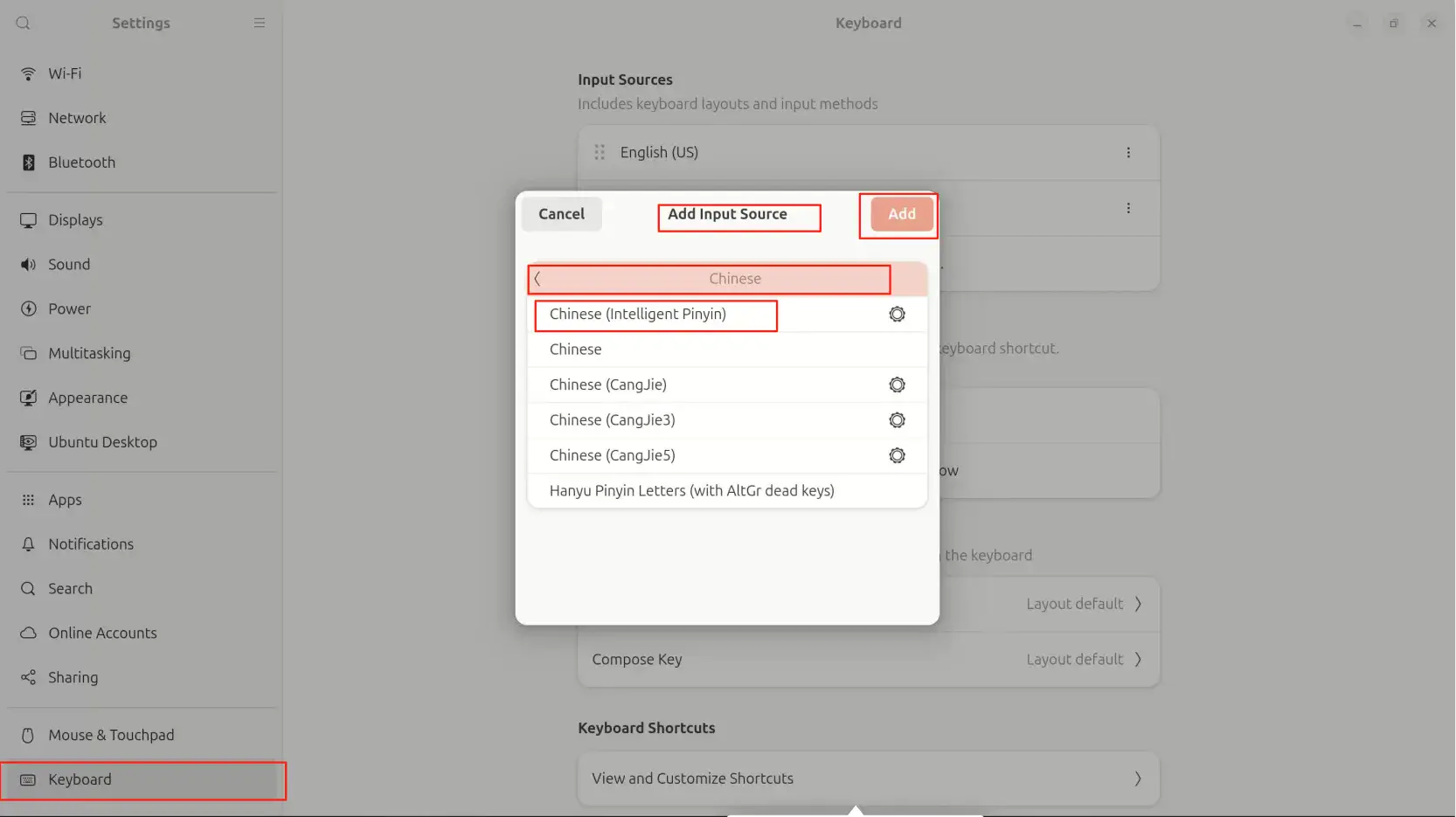
Figure 5: Add Chinese (Intelligent Pinyin) from Input Sources.
After adding it, an input source indicator should appear in the top bar. The default switch shortcut is usually Super + Space, and you can change it in Keyboard Shortcuts. Some Chinese users prefer Ctrl + Space, but that often conflicts with code completion in editors, terminals, and IDEs. If you write code frequently, keep Super + Space or choose another non-conflicting shortcut.
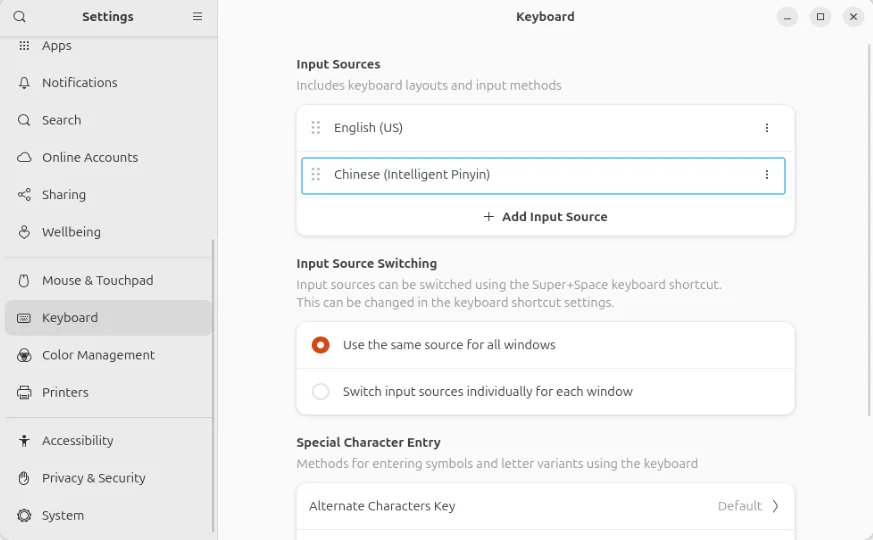
Figure 6: After the input source is added, the current input method status is visible in the top bar.
IBus Intelligent Pinyin is good enough for daily use: normal pinyin, continuous typing, candidates, punctuation switching, Simplified/Traditional conversion, and common word learning. Its limitation is also clear: dictionaries, skins, cloud candidates, double pinyin details, and multi-engine workflows are not as rich as the Fcitx5 ecosystem. If your first priority is to make a new Ubuntu desktop type Chinese reliably, IBus is the low-friction choice.
6. Advanced path: use Fcitx5 when you need more customization
Fcitx5 is better for users who care deeply about input method behavior: detailed candidate settings, double pinyin, Wubi, Rime, custom schemas, themes, and long-term personalization. Ubuntu 26.04 can use Fcitx5, but do not install IBus, Fcitx5, multiple engines, and hand-written environment variables all at once. Input method problems become much harder when two frameworks compete to be the default.
If you decide to use Fcitx5, install the common components:
sudo apt update
sudo apt install fcitx5 fcitx5-chinese-addons fcitx5-config-qt im-config
Then run:
im-config
Choose fcitx5 in the graphical selector, confirm, and log out. After logging back in, run:
fcitx5-configtool
Add pinyin, double pinyin, Wubi, or another input engine in the configuration tool. Fcitx5’s configuration UI is not the same as GNOME’s native Input Sources panel, so do not judge Fcitx5 only by what appears in GNOME Settings. Check three things instead:
- Whether the top bar or tray shows an Fcitx5 status icon.
- Whether
fcitx5-diagnosereports Fcitx5 as the active framework. - Whether Chinese input works in GTK apps, Qt apps, browsers, terminals, and editors.
If Fcitx5 fails in some applications, check session environment variables before reinstalling packages:
env | grep -E 'GTK_IM_MODULE|QT_IM_MODULE|XMODIFIERS|INPUT_METHOD'
Expected values often include GTK_IM_MODULE=fcitx, QT_IM_MODULE=fcitx, and XMODIFIERS=@im=fcitx. However, exact integration differs across sessions and packaging choices. Avoid mechanically editing /etc/environment unless you know why. If im-config can set the framework cleanly, let it manage the session configuration.
7. Troubleshooting: separate display problems from input problems
7.1 The desktop is not fully translated
First confirm that you actually changed the display language and logged in again. Then check whether Language Support reports missing components. If system applications are translated but a third-party app remains English, it is usually not an Ubuntu language support failure. The app may not have Chinese translations, may ignore the system language, or may be packaged independently.
Check the current locale with:
locale
If you want a Chinese UI, you should usually see LANG=zh_CN.UTF-8 or a similar value. If you keep an English UI but only need Chinese input, LANG=en_US.UTF-8 is perfectly fine. You do not need to force the entire system into a Chinese locale just to type Chinese.
7.2 Chinese text looks thin, broken, or appears as boxes
Install Noto CJK first:
sudo apt install fonts-noto-cjk
fc-cache -fv
Then restart browsers, editors, terminals, and office applications. After the font cache refreshes, many missing-glyph problems disappear. If Chinese text in a web page looks very thin or unpleasant, the page may request fonts that are not installed on your system. With Noto CJK installed, browser fallback is usually much better.
7.3 IBus is installed, but Intelligent Pinyin is missing from the input source list
Check the package:
apt policy ibus-libpinyin
If it is missing, install it:
sudo apt install ibus-libpinyin
Then log out and back in, or reboot. If it still does not appear, restart IBus:
ibus restart
In a graphical desktop, a clean login is still the best reset because GNOME Settings and the IBus engine list both depend on session state.
7.4 The input method exists, but the shortcut does not switch to it
Open the input source menu in the top bar and manually choose the Chinese source once. If manual switching works, the input method itself is fine and the problem is probably a shortcut conflict. Open Settings -> Keyboard -> Keyboard Shortcuts and check “Switch to next input source.”
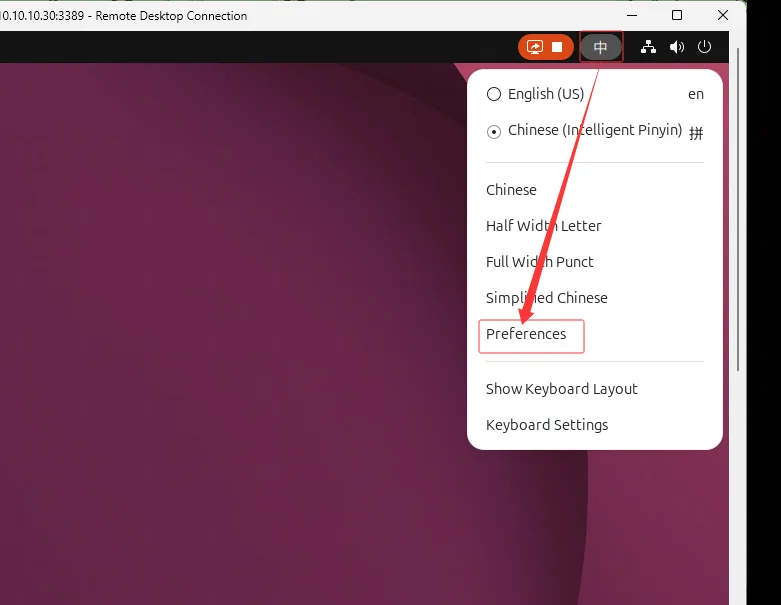
Figure 7: The top bar input source menu is the fastest way to confirm that the desktop session recognizes the input method. The screenshot was cropped to remove an unrelated title bar.
If manual switching also fails, verify that the input source was actually added, that you are not testing in a lock screen or password field, and that the specific app is not blocking input methods. Use Text Editor, the Firefox address bar, LibreOffice Writer, and Terminal for baseline testing. Do not start troubleshooting inside a remote desktop session, a VM console, or a special Electron app.
7.5 IBus and Fcitx5 are both installed and the setup is getting worse
This is one of the most common Chinese input method traps on Linux desktops. IBus and Fcitx5 can both work, but only one framework should own the session at a time. It is fine for packages to coexist, but do not let both frameworks compete as the default.
To switch back to IBus:
im-config
# choose ibus, confirm, then log out and back in
To use Fcitx5:
im-config
# choose fcitx5, confirm, then log out and back in
Always log out after changing the framework. Do not export a few variables in a terminal and declare success or failure, because graphical applications are usually not started from that terminal.
8. My recommended new-install checklist
For a fresh Ubuntu 26.04 Desktop machine, I would initialize Chinese support in this order:
sudo apt update
sudo apt upgrade
sudo apt install language-pack-zh-hans language-pack-gnome-zh-hans fonts-noto-cjk ibus-libpinyin
sudo reboot
After rebooting, open Settings:
- If you want a Chinese interface, set Language to Chinese in Region & Language.
- If you only need Chinese input, keep English as the display language.
- Add Chinese (Intelligent Pinyin) under Keyboard -> Input Sources.
- Switch input sources with
Super + Space. - Test Chinese input in Text Editor, Firefox, LibreOffice, and Terminal.
- If you need Fcitx5, install it and use
im-configto explicitly switch the default framework.
This process is intentionally conservative. It does not replace the desktop environment, write a pile of global environment variables, or mix IBus and Fcitx5 into one confusing setup. Most users are done by step 4. Fcitx5 is there for users who want a richer input method ecosystem.
9. Small suggestions that save time later
First, do not bind “Chinese input” to “Chinese system language.” Developers, operators, students, and writers can all use an English interface with Chinese input. It keeps English error messages searchable without hurting Chinese writing.
Second, avoid third-party input method scripts immediately after installation. Ubuntu 26.04’s built-in path is good enough for the baseline. Get the repository packages working first, then decide whether to bring in Rime, third-party dictionaries, commercial input methods, or custom schemas.
Third, troubleshoot remote desktop and VM input problems in layers. The host input method, remote protocol, guest input method, browser input field, and application toolkit can all be involved. Verify local apps first, then move into the remote session.
Fourth, keep a rollback path. You can try Fcitx5, but know how to switch back to IBus with im-config. You can switch the desktop to Chinese, but know how to change Language back to English. Desktop experience is personal; it should not become a one-way door.
10. Conclusion: treat Chinese support as desktop infrastructure
Chinese setup on Ubuntu 26.04 Desktop is not difficult. The confusing part is that many tutorials show only one slice of the process: one installs a language package, another installs an input method, and another edits environment variables directly. The stable workflow is complete and ordered: update the system, install Chinese language support, install fonts, decide the display language, add an input source, test common applications, and switch to Fcitx5 only when you actually need it.
If you want the least trouble, use Chinese language support + Noto CJK + IBus Intelligent Pinyin. If you need a stronger input method ecosystem, use Fcitx5 + fcitx5-chinese-addons + im-config. Do not let two frameworks fight for the same session, do not judge failures before logging into a fresh session, and do not switch the whole system language just to type Chinese.
Once these steps are done, Ubuntu 26.04 Desktop becomes genuinely comfortable for Chinese users: Chinese text renders correctly, browsers and documents do not show missing glyphs, input sources switch reliably, and the English desktop can remain intact if you prefer it. That is more foundational than installing a dozen flashy apps, and it is worth doing carefully in the first hour after installation.
References and Screenshot Sources
- Ubuntu Desktop Guide: Change which language you use, https://help.ubuntu.com/stable/ubuntu-help/session-language.html
- Ubuntu Desktop Guide: Use alternative input sources, https://help.ubuntu.com/stable/ubuntu-help/keyboard-layouts.html
- Ubuntu Packages:
ibus-libpinyin,fcitx5,fcitx5-chinese-addons,language-pack-zh-hans, https://packages.ubuntu.com/ - Public screenshot reference for Ubuntu Chinese input method setup, used for Region & Language, Install / Remove Languages, Chinese language selection, language support list, and Intelligent Pinyin input source: https://cseek.github.io/posts/ibus-pinyin/
- Blog post “Ubuntu 26.04安装中文输入法”, used for Ubuntu 26.04 input-source and top-bar switch menu screenshots: https://www.cnblogs.com/lnlidawei/p/19804410