Windows 11/10 Background Autostart: Run frp and EasyTier Unattended Without Third-Party Wrappers
Short version
If you want
frp,EasyTier, a sync agent, a collector, a bot, or a proxy daemon to start automatically on Windows 11/10, the key is not “where can I hide this command?” The key is “which native service manager owns its lifecycle?” This article is about unattended background services, not ordinary desktop login apps.On Windows, the first decision is whether the executable is a real Windows Service. Common command-line daemons such as frp and EasyTier are usually better handled by Task Scheduler at system startup, because it is built in and does not require NSSM, WinSW, or another wrapper.
I will show two paths: manual configuration, for understanding every moving part, and agent / one-click automation, for cases where you already know where the binary and config file live. The scripts are self-contained, use built-in OS mechanisms, do not download third-party wrappers, and do not include real addresses, hostnames, private domains, or secrets.
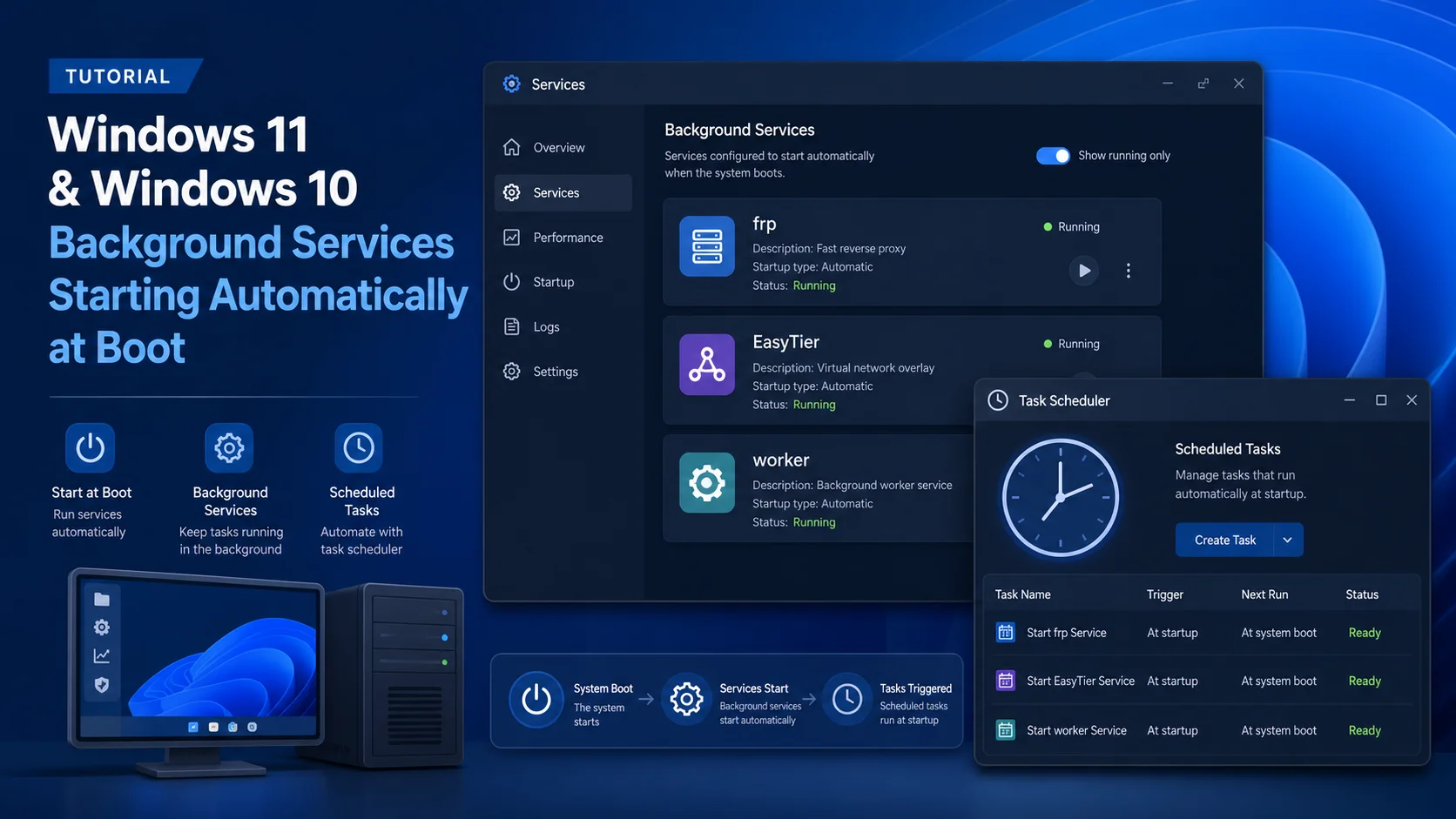
AI-generated cover: background services are started during system boot.
1. Background: A Daemon Is Not a Login App
Homelab machines, small office servers, developer workstations, and edge nodes often run small services that must keep working even when nobody is looking at them. frp, EasyTier, reverse proxies, metrics collectors, file sync agents, notification bots, and polling workers all belong to this family. Their user interface is irrelevant. Their lifetime is everything.
The early version of this setup is usually a terminal command:
/opt/frp/frpc -c /etc/frp/frpc.toml
That proves the binary and config are roughly correct, but it does not prove boot reliability. The terminal may close. The user may never log in. The process may crash. The network may not be ready during boot. A real background service needs a manager.
Think of a tunnel service as the water pump of a building. You do not want the first resident who wakes up to walk downstairs and start the pump. Power comes on, the building systems come up, and the pump starts as part of the infrastructure. That is the mental model for boot services.
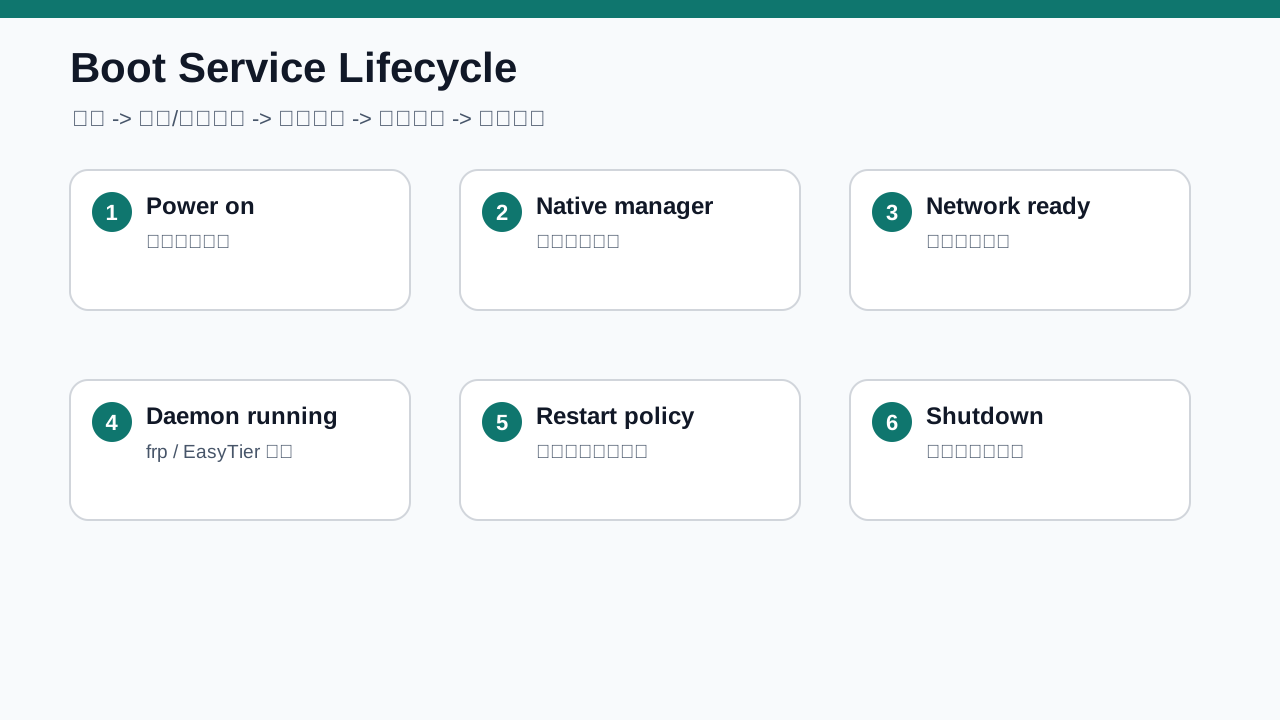
Diagram: the lifecycle from boot, network readiness, daemon start, to supervision.
2. Symptoms: “It Runs” Is Not the Same as “It Starts at Boot”
Autostart problems often appear as small annoyances instead of one dramatic error:
- The tunnel disappears after reboot, but returns when you run the command manually.
- Closing the SSH session or terminal kills the daemon.
- A configuration change appears to be ignored because an old process is still running.
- The daemon exits once and never comes back.
- Shutdown becomes slow because the process does not stop cleanly.
The most common false conclusion is “the command works, so autostart should work.” A boot service runs in a different environment: different working directory, different user, fewer environment variables, earlier network timing, and stricter permissions.
3. Root Cause: You Need Lifecycle Management
A daemon needs lifecycle management: when to start, which identity to run as, which working directory to use, what it depends on, how to restart, where logs go, and how to stop.
On Windows 11/10, the native mechanism is Task Scheduler or native Windows service. You can think of it as the duty manager. Instead of asking a worker to appear whenever they feel like it, you give the manager a card: name, tool path, schedule, restart policy, and shutdown behavior.
For frp and EasyTier, ask four questions:
- Must it run before user login? For tunnels, usually yes.
- Does it need the network? Almost always.
- Does it need elevated privileges? It depends on routes, virtual interfaces, and ports.
- Should it be restarted automatically? Long-running daemons usually should.
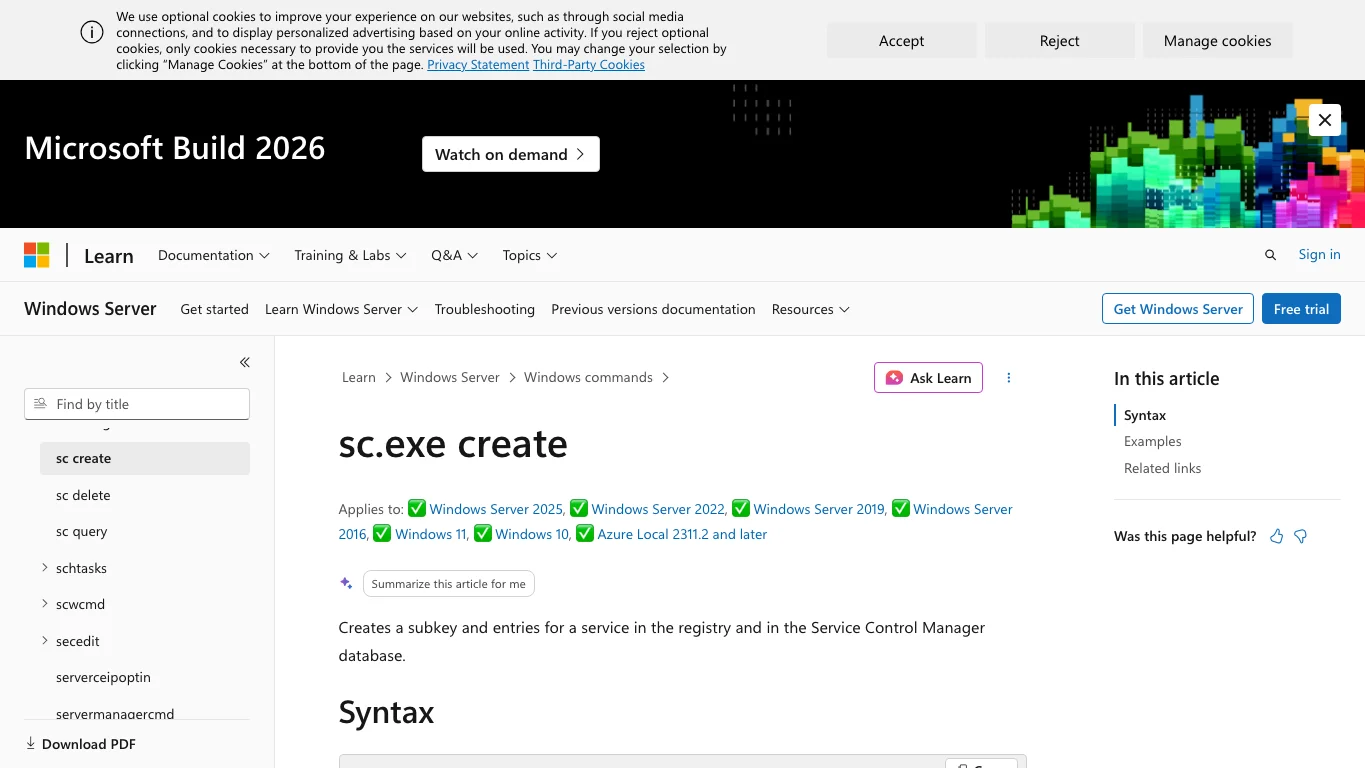
Real screenshot 1: Microsoft sc create documentation, useful for binaries that implement the Windows Service interface.
4. Manual Configuration
Manual configuration is not about typing more commands. It is about understanding what the automation will change.
Use this sequence:
- Check the binary with an absolute path. Do not rely on
PATH. - Check the config file. Keep real endpoints and secrets out of screenshots and posts.
- Write the service definition. Include command, working directory, restart policy, and logging.
- Enable and start it. Enable means next boot. Start means right now.
For frp, the important part is not just the frpc command. It is the surrounding contract: start after the system can reach the network, run under a deliberate identity, restart on failure, and leave logs where you can inspect them.
For EasyTier, the same model applies. Only the binary and arguments change. If it creates a virtual interface or changes routes, the privilege model must match that requirement.
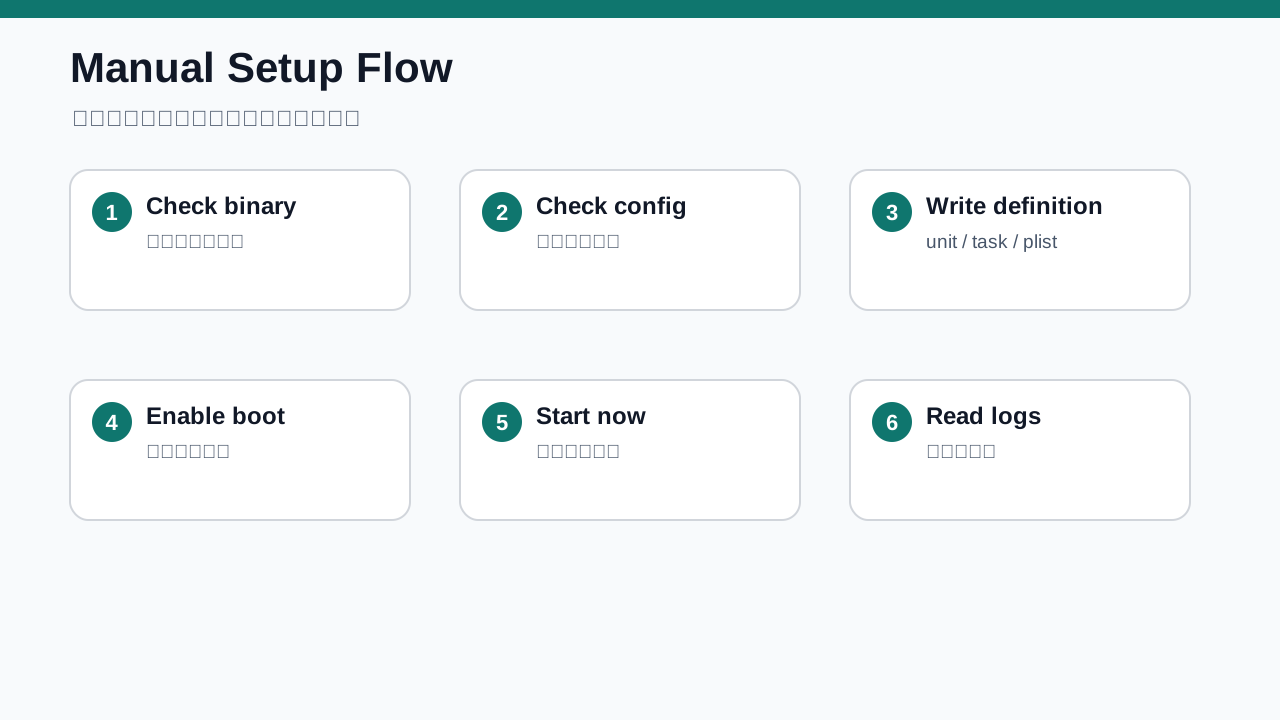
Diagram: manual configuration should follow check, write, enable, and verify.
5. Agent Automation: Give the Agent Boundaries
Here is the prompt I would give an agent:
On this Windows 11/10 machine, configure the given background program as a boot-started service. Use
<SERVICE_NAME>as the service name,<BINARY_PATH>as the executable path, and<CONFIG_PATH>as the config path. First validate paths and permissions. Then write the native service configuration, enable boot autostart, start it now, and print status, logs, and rollback commands. Do not download third-party wrappers. Do not expose real IP addresses, hostnames, private domains, tokens, or secrets in output.
The important parts are “validate first” and “verify last.” Agent automation is not magic. It is a fast operator. You still need to define the guardrails.
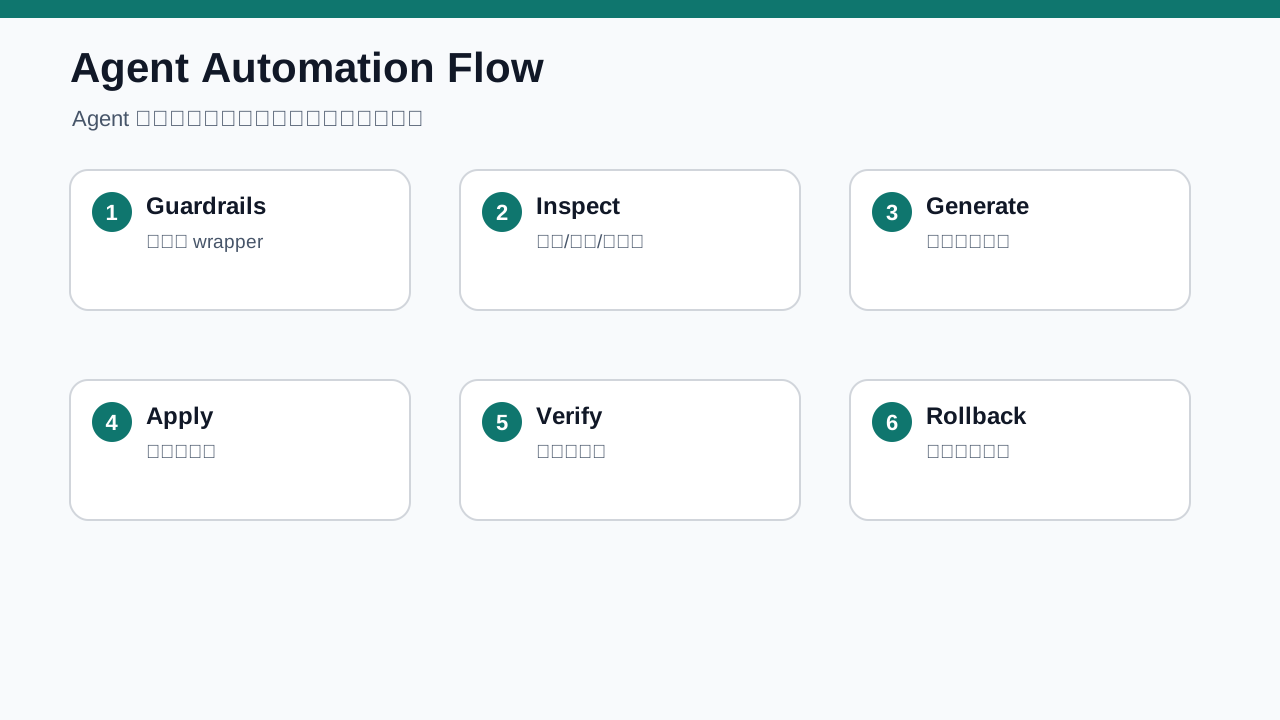
Diagram: agent automation is not magic; it scripts the same checks and writes.
The following one-click script template is designed to be repeatable, fail early, and end with evidence.
# Run in an elevated PowerShell window.
# Usage:
#   $env:SERVICE_NAME="frpc"
#   $env:BINARY_PATH="C:\Tools\frp\frpc.exe"
#   $env:WORK_DIR="C:\Tools\frp"
#   $env:APP_ARGS="-c C:\ProgramData\frp\frpc.toml"
#   .\Install-StartupTask.ps1

$ErrorActionPreference = "Stop"

$ServiceName = if ($env:SERVICE_NAME) { $env:SERVICE_NAME } else { "frpc" }
$BinaryPath = if ($env:BINARY_PATH) { $env:BINARY_PATH } else { "C:\Tools\frp\frpc.exe" }
$WorkDir = if ($env:WORK_DIR) { $env:WORK_DIR } else { Split-Path -Parent $BinaryPath }
$AppArgs = if ($env:APP_ARGS) { $env:APP_ARGS } else { "-c C:\ProgramData\frp\frpc.toml" }
$TaskPath = "\"
$TaskName = "$ServiceName-autostart"

if (-not ([Security.Principal.WindowsPrincipal] [Security.Principal.WindowsIdentity]::GetCurrent()).IsInRole([Security.Principal.WindowsBuiltInRole]::Administrator)) {
  throw "Please run PowerShell as Administrator."
}
if (-not (Test-Path $BinaryPath)) {
  throw "Binary not found: $BinaryPath"
}
if (-not (Test-Path $WorkDir)) {
  throw "Working directory not found: $WorkDir"
}

$Action = New-ScheduledTaskAction -Execute $BinaryPath -Argument $AppArgs -WorkingDirectory $WorkDir
$Trigger = New-ScheduledTaskTrigger -AtStartup
$Principal = New-ScheduledTaskPrincipal -UserId "SYSTEM" -RunLevel Highest
$Settings = New-ScheduledTaskSettingsSet `
  -StartWhenAvailable `
  -RestartCount 999 `
  -RestartInterval (New-TimeSpan -Minutes 1) `
  -ExecutionTimeLimit (New-TimeSpan -Seconds 0) `
  -MultipleInstances IgnoreNew

Register-ScheduledTask -TaskPath $TaskPath -TaskName $TaskName -Action $Action -Trigger $Trigger -Principal $Principal -Settings $Settings -Force | Out-Null
Start-ScheduledTask -TaskPath $TaskPath -TaskName $TaskName
Start-Sleep -Seconds 2
Get-ScheduledTask -TaskPath $TaskPath -TaskName $TaskName | Format-List TaskName,State
Get-ScheduledTaskInfo -TaskPath $TaskPath -TaskName $TaskName | Format-List LastRunTime,LastTaskResult,NextRunTime
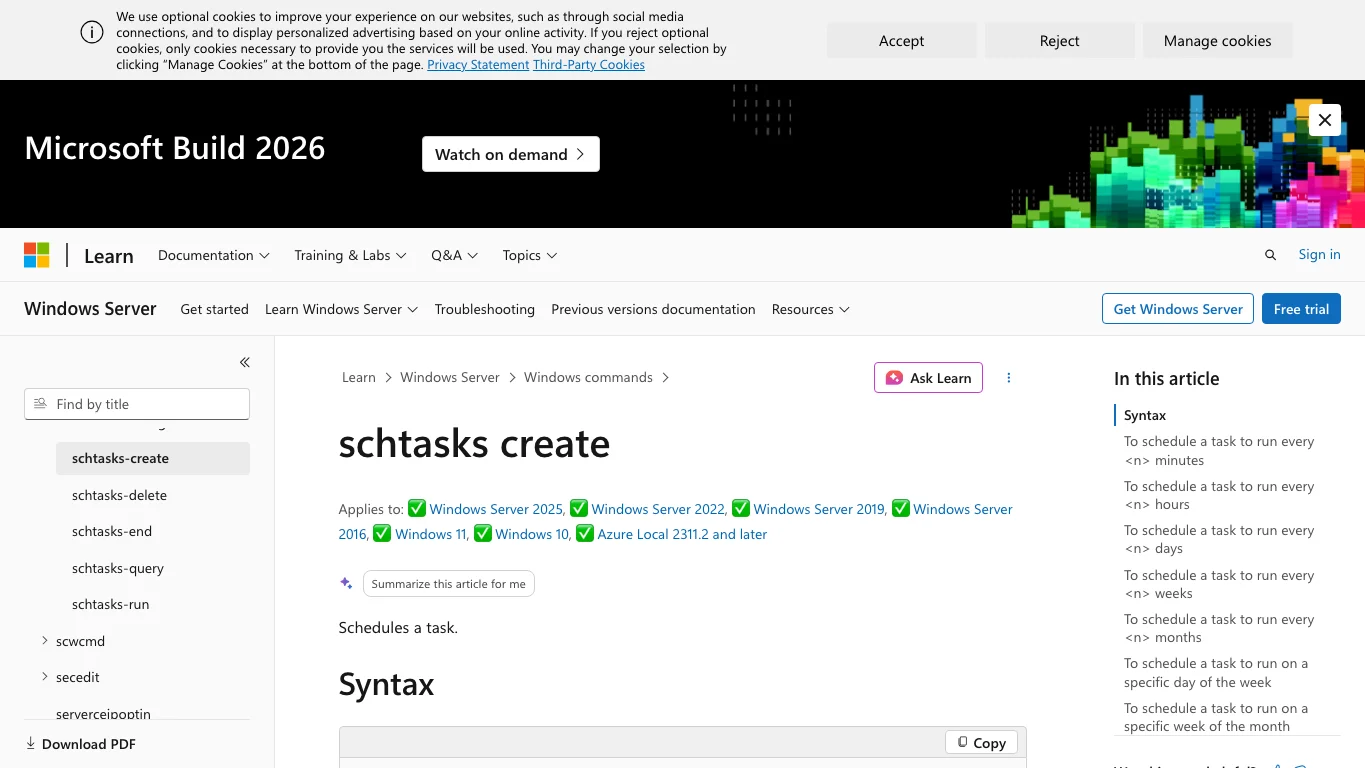
Real screenshot 2: Microsoft schtasks create documentation, the built-in path for console daemons at startup.
6. Applying It to frp and EasyTier
For frp, use a service name such as frpc, point the binary to your frpc executable, and point the config path to your TOML file. The service manager then owns the process from boot onward.
For EasyTier, use a service name such as easytier, point the binary to easytier-core, and pass the config file argument expected by your version. If your setup needs a virtual network interface or route changes, confirm the privilege requirement before reducing permissions.
The two tools have different jobs, but the service pattern is identical. One is a tunnel worker; the other is a network road builder. Both need an employee badge, not a daily verbal reminder.
7. Verification Checklist
Do not stop at “the command returned successfully.” Verify:
- Autostart state: the service or task is registered for boot.
- Current state: it is running now.
- Logs: no repeated crash loop.
- Reboot: after a controlled reboot, it starts without a user session.
- Business behavior: the tunnel or mesh works, while public notes still use placeholders.
Verification is like signing for a package. The courier saying “delivered” is not enough. You still open the door and check that the box is there.
8. Common Traps
Relative paths. Manual shells hide this problem. Boot services expose it. Use absolute paths.
Depending on login. Login items, shell profiles, and open terminals are not reliable daemon managers.
Network timing. Tunnel services often fail if launched too early. Tell the native manager about the network dependency where the OS supports it.
Secrets in command lines. Process lists and task definitions can leak arguments. Prefer permission-controlled config files.
No restart policy. A daemon is allowed to fail once. It should not stay dead forever.
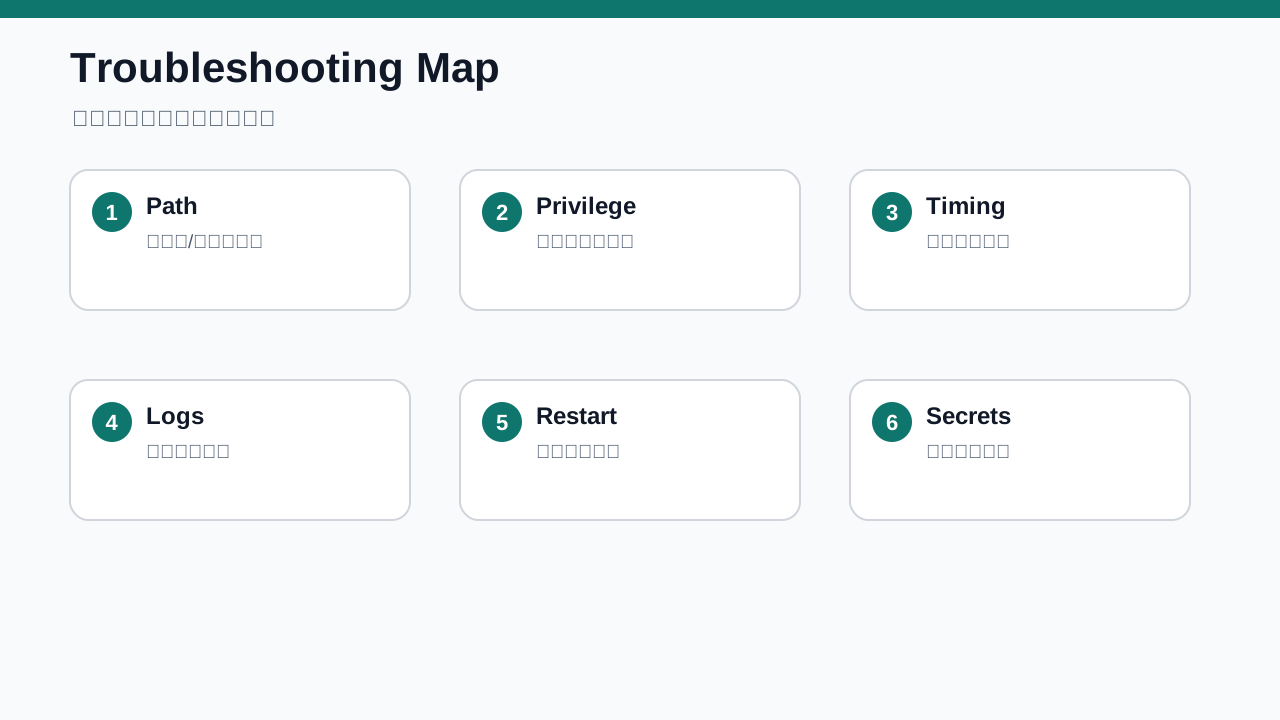
Diagram: when autostart fails, debug permissions, paths, network, and logs.
9. Rollback
Rollback should be as deliberate as installation: stop the service, disable autostart, remove the service definition, and reload the service manager if the OS requires it. Do not delete binaries and configs unless you are sure no other unit uses them.
If installation is onboarding an employee, rollback is offboarding. You return the badge; you do not burn down the office.
10. Q&A
Can I keep using tmux, screen, or nohup?
For debugging, yes. For unattended boot services, no. They are tents, not houses.
Is a one-click script always safe?
No. It is safe only when it is readable, auditable, and reversible. Review variables and write paths before running.
Why avoid third-party wrappers?
Wrappers are sometimes useful, but this article prioritizes native OS mechanisms. Fewer dependencies mean fewer upgrade and supply-chain risks.
What if the real config requires a real server address?
Production configs do, but posts and screenshots should not. Keep the real config on the machine and use placeholders such as <SERVER_ENDPOINT> in shared material.
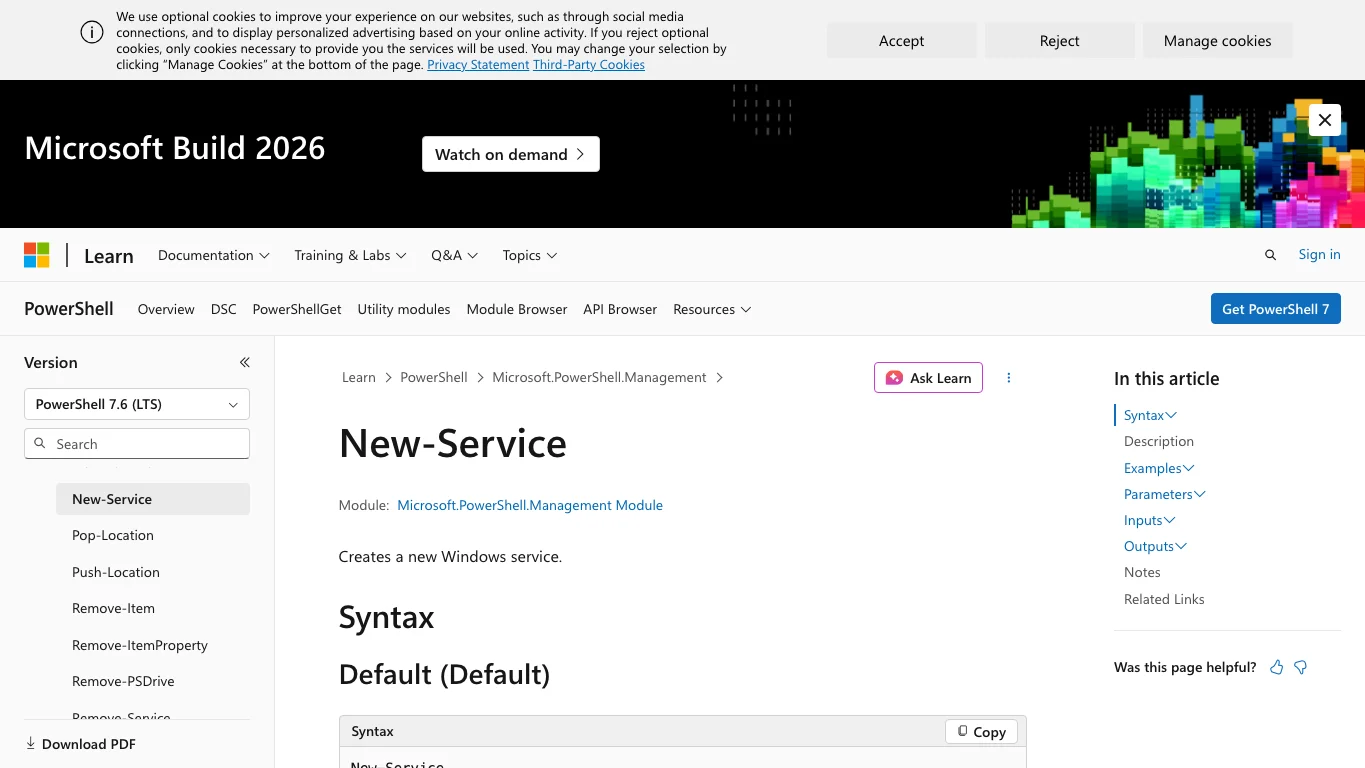
Real screenshot 3: PowerShell New-Service documentation, the service creation API for native service-aware programs.