Install Frp client on Windows and use remote desktop
As the usage restrictions of TeamViewer become more and more strict, it will be regarded as an enterprise user from time to time. After all, there is no free lunch in the world. The following is a method to use the Frp client for intranet penetration and remote control.
Please prepare your own Frp server and consider the security risks of exposing port 3389 to the public network.
Download Frp client
#Configure Frp client
- Please modify the configuration of
server_addr,server_port,remote_portyourself
[common]
server_addr = blog.margrop.net
server_port = 2345

[RDP-i5-TEST-CLIENT]
type = tcp
local_port = 3389
remote_port = 3333
Set up automatic startup
Download nssm and unzip nssm to the frp root directory.
Run nssm install frpc
Click path to select the frp related directory and enter the relevant parameters. Click Install service to install it as a service. If there is any security software blocking it, just allow it. Find the frpc service in service management and start it.
- Parameters
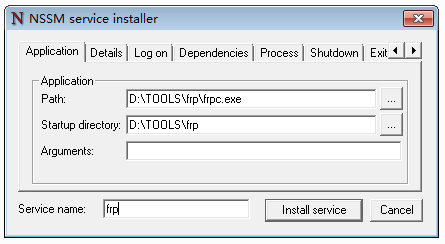
d:\TOOLS\frp\frpc.exe
d:\TOOLS\frp\
-c d:\TOOLS\frp\frpc.ini
Start service
#Set local user password
- omitted
net start frpc
Enter system settings and enable remote control
- omitted
#Set users to log in automatically
- Open Run with Windows+R, enter control userpasswords2 and hit Enter.
- In the pop-up user account window, uncheck the box.
- To use this computer, the user must enter the user name and password twice and enter the account password to be automatically logged in.
- After completion, the account can be automatically logged in without a password.