The Complete AI Agent Migration Guide: A Real-World Journey from Scratch with 9 Pitfalls and Fixes
TL;DR:
Migrating from one AI Agent platform to another sounds like a “copy and paste” job. In reality, it’s a systems engineering challenge involving data migration, channel integration, scheduled tasks, auto-start configuration, proxy settings, and module compatibility.
This article documents my complete migration journey: from installing the new platform, migrating memories and skills, configuring messaging channels, debugging mysterious failures, to achieving fully automated operation. 9 pitfalls encountered, 9 solutions found — all shared here.
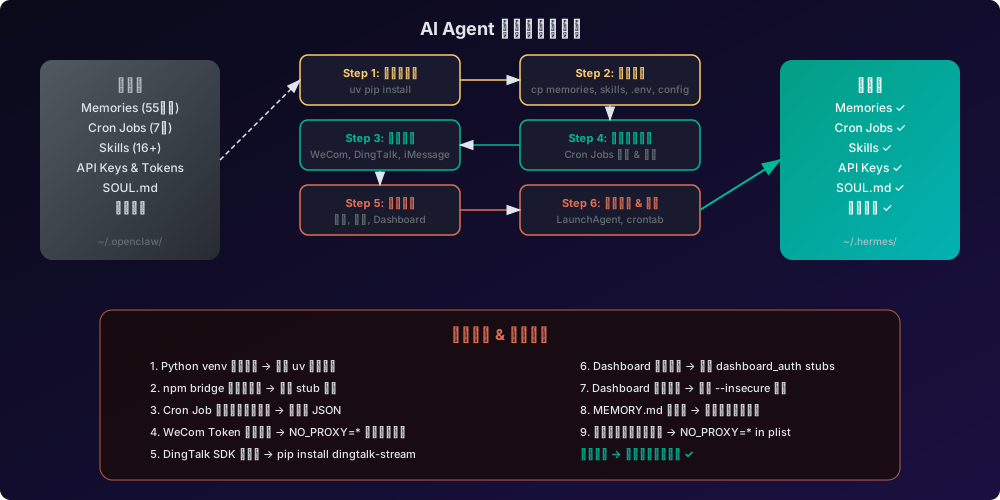
Figure 1: The complete AI Agent migration flow. From installing the new platform to data migration, channel configuration, problem debugging, and auto-start setup — every step can present unexpected challenges.
Background: Why Migrate?
In 2026, the AI Agent landscape is evolving at breakneck speed. Tools that were cutting-edge six months ago may already be surpassed by more capable alternatives. As someone who deeply relies on AI Agents for daily work, I’ve been watching this space closely.
I had been using an AI Agent platform to handle my daily operations. Its core capabilities included:
- Multi-platform messaging: Communicating with the Agent via WeChat Enterprise (WeCom) and DingTalk
- Scheduled tasks: Automated health checks, blog writing, memory maintenance
- Memory system: The Agent remembers past conversations and decisions
- Skill system: Extensible Skills that give the Agent specialized capabilities
- Auto-start: macOS boot-time startup, zero manual intervention
But as usage deepened, I felt the limitations of the original platform. When a new, more capable platform appeared, I decided to make the leap.
Migration Goals
Before starting, I defined clear goals — preserve all existing data and configurations:
| Migration Item | Scale | Priority |
|---|---|---|
| Memory files (MEMORY.md + daily logs) | 55+ files | Highest |
| Scheduled tasks (Cron Jobs) | 7 tasks | Highest |
| Skill files | 16+ skills | High |
| API Keys and Tokens | Multiple | Highest |
| Personality file (SOUL.md) | 1 file | High |
| Messaging channels | WeCom, DingTalk | Highest |
| Auto-start | macOS LaunchAgent | Medium |
| Web Dashboard | 1 instance | Medium |
| Daily backup | 1 cron job | Medium |
Step 1: Install the New Platform
The new platform is Python-based and requires a virtual environment.
Creating the Virtual Environment
# Use uv package manager to create venv
uv venv ~/.hermes/.venv --python 3.11

# Activate
source ~/.hermes/.venv/bin/activate

# Install core package
uv pip install hermes-agent
Pitfall 1: PEP 668 Blocks Direct pip install
On macOS, pip install may hit PEP 668 restrictions:
error: externally-managed-environment
Solution: Use the uv package manager to create an isolated virtual environment. uv is a blazing-fast Python package manager, 10-100x faster than pip.
Pitfall 2: Network Timeouts
Downloading from PyPI may time out in certain network environments.
Solution: Use a mirror source:
uv pip install hermes-agent -i https://pypi.tuna.tsinghua.edu.cn/simple
Step 2: Migrate Memory Files
Memory files are the AI Agent’s most valuable asset — they record all conversation history, decisions, and lessons learned.
Memory File Structure
~/.hermes/memories/
├── MEMORY.md          # Main memory file (1400+ lines)
├── USER.md            # User profile
├── IDENTITY.md        # Agent personality
├── AGENTS.md          # Agent configuration
├── HEARTBEAT.md       # Heartbeat state
└── daily/             # Daily logs
    ├── 2026-01-01.md
    ├── 2026-01-02.md
    └── ... (55+ files)
Migration Commands
# Create target directories
mkdir -p ~/.hermes/memories/daily

# Copy all memory files
cp ~/.openclaw/workspace/memory/MEMORY.md ~/.hermes/memories/
cp ~/.openclaw/workspace/memory/USER.md ~/.hermes/memories/
cp ~/.openclaw/workspace/memory/IDENTITY.md ~/.hermes/memories/
cp ~/.openclaw/workspace/memory/AGENTS.md ~/.hermes/memories/
cp ~/.openclaw/workspace/memory/HEARTBEAT.md ~/.hermes/memories/
cp ~/.openclaw/workspace/memory/daily/*.md ~/.hermes/memories/daily/
Pitfall 3: MEMORY.md Truncated
The migration tool only copied 47 lines, but the original file had 1435 lines.
Cause: The migration tool likely hit a buffer size limit when processing large files.
Solution: Manually copy the complete MEMORY.md and verify the line count:
wc -l ~/.hermes/memories/MEMORY.md
# Should show 1435
Step 3: Migrate Skill Files
Skills are the Agent’s capability extensions — each Skill is an independent functional module.
# Copy all skills
cp -r ~/.openclaw/workspace/skills/* ~/.hermes/skills/
After migration, enable skills in the configuration file:
# config.yaml
skills:
  external_dirs: []
  template_vars: true
Step 4: Configure API Keys and Tokens
This is the most critical step — API Keys determine whether the Agent can function at all.
.env File Configuration
# Core API Key
OPENAI_API_KEY=your-api-key-here

# Gateway Token
HERMES_GATEWAY_TOKEN=your-gateway-token

# WeChat Enterprise (WeCom) Configuration
WECOM_CALLBACK_CORP_ID=your-corp-id
WECOM_CALLBACK_CORP_SECRET=your-corp-secret
WECOM_CALLBACK_AGENT_ID=your-agent-id
WECOM_CALLBACK_TOKEN=your-token
WECOM_CALLBACK_ENCODING_AES_KEY=your-encoding-key
WECOM_CALLBACK_ALLOWED_USERS=*

# DingTalk Configuration
DINGTALK_CLIENT_ID=your-client-id
DINGTALK_CLIENT_SECRET=your-client-secret
DINGTALK_ALLOWED_USERS=*
Security Notes
- The
.envfile contains sensitive information — never commit it to Git - Rotate API Keys regularly
- When using
NO_PROXY=*, ensure your network environment is secure
Step 5: Configure Messaging Channels
WeChat Enterprise (WeCom)
WeCom uses Callback Mode, requiring:
- Configure callback URL in WeCom admin console
- Add WeCom configuration to config.yaml
# config.yaml
wecom_callback:
  require_mention: true
  port: 8645
DingTalk
DingTalk uses Stream Mode (persistent connection), requiring additional SDK:
pip install dingtalk-stream alibabacloud-dingtalk qrcode
Pitfall 4: DingTalk SDK Not Installed
Startup error:
dingtalk-stream not installed
Solution: Explicitly install the DingTalk SDK.
Step 6: Migrate Scheduled Tasks
Scheduled tasks are the backbone of Agent automation. I had 7 tasks to migrate:
| Task | Schedule | Function |
|---|---|---|
| Health Check | Multiple times daily | Check server status |
| Blog Writing | Daily 21:15 | Write AI diary and tech blog |
| Memory Maintenance | Daily 23:15 | Consolidate daily logs into MEMORY.md |
| Watchdog | Hourly | Check Agent health |
| Baidu Sync | Every 5 min | Check Baidu cloud sync progress |
| Daily Topics | Daily 08:00 | Generate blog topic suggestions |
Pitfall 5: Cron Job Creation Command Parsing Error
Using the CLI to create Cron Jobs failed because multi-line prompts with special characters caused argument parsing errors.
Solution: Write directly to the JSON file:
vim ~/.hermes/cron/jobs.json
Step 7: Configure Auto-Start
macOS LaunchAgent
Create a LaunchAgent plist file:
<?xml version="1.0" encoding="UTF-8"?>
<!DOCTYPE plist PUBLIC "-//Apple//DTD PLIST 1.0//EN" "http://www.apple.com/DTDs/PropertyList-1.0.dtd">
<plist version="1.0">
<dict>
    <key>Label</key>
    <string>ai.hermes.gateway</string>
    <key>ProgramArguments</key>
    <array>
        <string>/Users/your-user/.hermes/.venv/bin/python</string>
        <string>-m</string>
        <string>hermes_cli.main</string>
        <string>gateway</string>
        <string>run</string>
        <string>--replace</string>
    </array>
    <key>WorkingDirectory</key>
    <string>/path/to/site-packages</string>
    <key>EnvironmentVariables</key>
    <dict>
        <key>PATH</key>
        <string>/usr/local/bin:/usr/bin:/bin</string>
        <key>VIRTUAL_ENV</key>
        <string>/Users/your-user/.hermes/.venv</string>
        <key>HERMES_HOME</key>
        <string>/Users/your-user/.hermes</string>
        <key>NO_PROXY</key>
        <string>*</string>
    </dict>
    <key>RunAtLoad</key>
    <true/>
    <key>StandardOutPath</key>
    <string>/Users/your-user/.hermes/logs/gateway.log</string>
    <key>StandardErrorPath</key>
    <string>/Users/your-user/.hermes/logs/gateway.error.log</string>
</dict>
</plist>
Pitfall 6: The Critical NO_PROXY=* Setting
This was the most insidious and hardest-to-debug issue in the entire migration.
In a macOS LaunchAgent environment, Python’s httpx library automatically reads system proxy settings, but the LaunchAgent process may not be able to reach the proxy server. The fix: add NO_PROXY=* to the plist.
Detailed analysis in my other article: Python App in macOS LaunchAgent Can’t Reach the Internet? Here’s the httpx Proxy Trap You Need to Know.
Step 8: Configure Web Dashboard
The Web Dashboard provides a visual management interface for viewing Agent status, session history, and scheduled tasks.
hermes dashboard run --insecure --skip-build --port 9119
Pitfall 7: Dashboard Module Missing
The npm bridge package may not include the complete dashboard module.
Solution: Create stub modules:
# hermes_cli/dashboard_auth/prefix.py
def normalise_prefix(prefix: str) -> str:
    return (prefix or "").rstrip("/")
Pitfall 8: Dashboard Binding Failure
Error: Refusing to bind — no auth providers registered.
Solution: Use the --insecure flag to skip authentication checks.
Step 9: Configure Daily Backups
#!/bin/bash
# hermes-backup.sh — backs up all critical HermesAgent data

# Core config
rsync -a ~/.hermes/config.yaml $DEST/
rsync -a ~/.hermes/.env $DEST/

# Memories
rsync -a ~/.hermes/memories/ $DEST/memories/

# Skills
rsync -a ~/.hermes/skills/ $DEST/skills/

# Cron jobs
rsync -a ~/.hermes/cron/ $DEST/cron/

# Package and upload to remote NAS
tar -czf $BACKUP_FILE -C $TMP_STAGE_DIR hermes-backup
cat $BACKUP_FILE | ssh user@nas "cat > $REMOTE_DIR/$BACKUP_NAME"
Migration Verification Checklist
After completing all steps, I ran a comprehensive verification:
- Gateway starts normally
- WeCom message send/receive works
- DingTalk message send/receive works
- All 7 scheduled tasks execute correctly
- Web Dashboard accessible
- Memory files complete (1435-line MEMORY.md)
- Skill files complete (16+ Skills)
- Auto-start works (macOS LaunchAgent)
- Daily backup executes correctly
- Log files output normally
Pitfall Summary
| Problem | Root Cause | Solution |
|---|---|---|
| pip install fails | PEP 668 restriction | Use uv package manager |
| Download timeout | Network environment | Use mirror source |
| MEMORY.md truncated | Migration tool buffer limit | Manually copy complete file |
| DingTalk SDK not installed | Dependencies not auto-installed | pip install dingtalk-stream |
| Cron Job creation fails | Multi-line prompt parsing error | Write JSON directly |
| Dashboard module missing | npm bridge package incomplete | Create stub modules |
| Dashboard binding failure | No auth providers | Add --insecure flag |
| WeCom Token refresh fails | System proxy + LaunchAgent isolation | NO_PROXY=* |
| DingTalk connection fails | Same as above | NO_PROXY=* |
Best Practices
1. Backup First
Before starting any migration, always create a complete backup:
tar -czf backup-$(date +%Y%m%d).tar.gz ~/.openclaw/
2. Verify Incrementally
Validate after each step. Don’t wait until the end to discover problems.
3. Logs Are Your Friend
When encountering issues, check logs first:
tail -f ~/.hermes/logs/gateway.log
tail -f ~/.hermes/logs/gateway.error.log
4. Network Issues First
Many mysterious problems are network-related. Ensure:
- APIs are reachable
- Proxy configuration is correct
- LaunchAgent network matches terminal environment
5. Document Everything
Record problems and solutions for future reference.
Q&A
Q1: How long does migration take?
A: Depends on configuration complexity. Simple setups (1-2 channels, a few cron jobs) may take 1-2 hours. Complex setups (multiple channels, extensive memory files, custom skills) may take half a day to a full day.
Q2: Will I lose data during migration?
A: If you follow this guide and create a complete backup before starting, you shouldn’t lose any data. Always verify backup integrity before proceeding.
Q3: Can I run old and new platforms simultaneously?
A: Not recommended. Both platforms may use the same ports and resources, causing conflicts. Stop the old platform before starting the new one.
Q4: Can I roll back to the old platform?
A: Yes. If the new platform has issues:
- Stop the new Gateway
- Start the old Gateway
- Restore the old LaunchAgent
Since data files are stored separately, rollback won’t lose any data.
Q5: Why choose HermesAgent?
A: HermesAgent is an open-source AI Agent platform with:
- Strong multi-platform messaging support
- Flexible scheduled task system
- Robust memory and skill systems
- Active community and continuous updates
Key Takeaways
- Migration isn’t copy-paste — it’s a systems engineering challenge involving data, configuration, channels, scheduled tasks, and auto-start
- Network issues are the most insidious — the macOS LaunchAgent proxy problem took the longest to debug
- Logs are the best debugging tool — when in doubt, check the logs
- Backup is a prerequisite — don’t start migrating without a backup
- Incremental verification is key — validate after every step
I hope this article helps others facing similar migration challenges. If you have questions, feel free to discuss in the comments!