New Chrome Could Not Log In to Bitwarden, but Old Machines Still Worked: A Vaultwarden Compatibility Trap
TL;DR
The failure looked like a Chrome or Bitwarden extension problem: newly installed computers could not log in to a self-hosted Vaultwarden instance, while existing computers continued to work with the same Bitwarden
2026.4.1browser extension. The actual root cause was server-side compatibility: the clients were using a newer prelogin endpoint, while the Vaultwarden server was still runningvaultwarden/server:1.35.4-alpine, which did not provide/identity/accounts/prelogin/password.Existing machines were likely protected by an already established login state and local cache. They did not prove that the full first-login API path was still compatible. The correct fix was to back up the Vaultwarden data, upgrade the server image to
1.36.0or newer, and confirm from logs that the prelogin endpoint no longer returned 404.All domains, paths, usernames, and deployment details in this article are sanitized. Examples use placeholders such as
vault.example.comand/opt/vaultwarden; no internal network or private information is included.
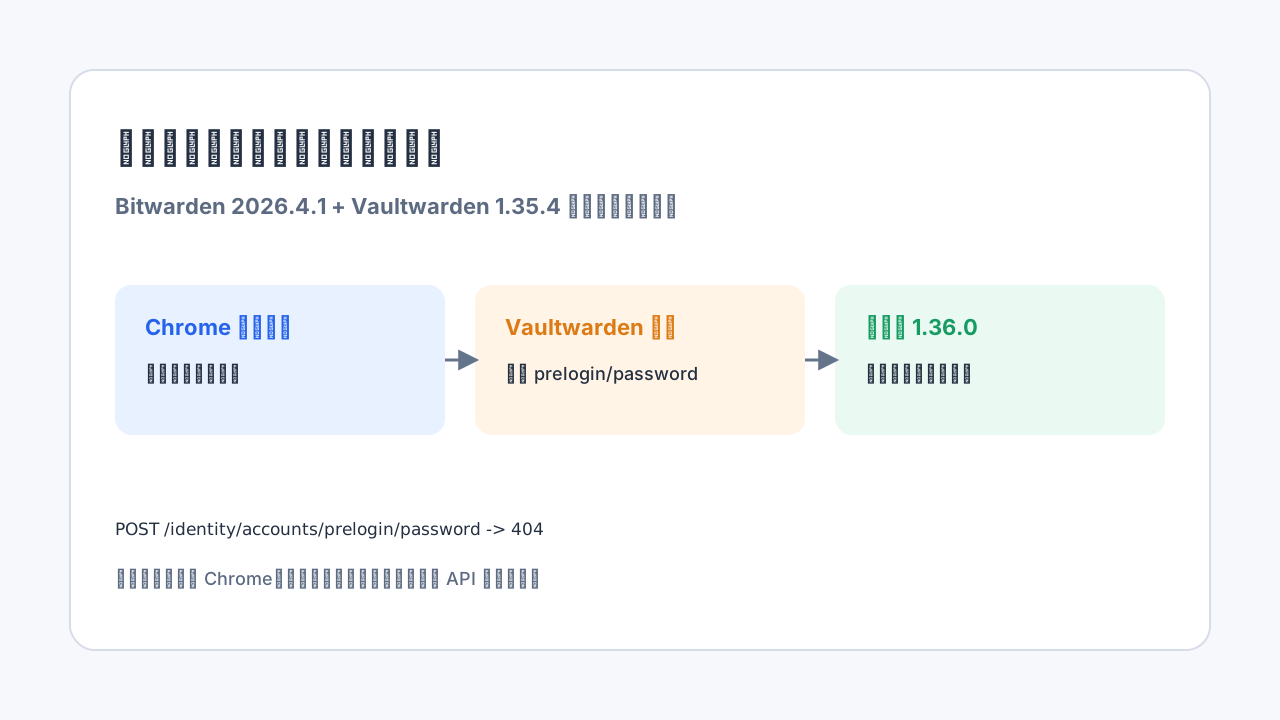
Figure 1: This type of incident is easy to misread as a browser problem. It is often an API compatibility gap between a new client and an older self-hosted server.
0. Background: It Looked Like Chrome Was Broken
The incident started with a familiar self-hosted setup. Several newly installed computers had a fresh Chrome installation, then the Bitwarden browser extension was installed. The extension version was 2026.4.1. Instead of using Bitwarden’s hosted cloud, the extension was configured to connect to a self-hosted Vaultwarden server.
The strange part was the split behavior:
- new computers failed to log in after setting the self-hosted server URL;
- old computers were already using Bitwarden
2026.4.1and still worked normally; - the Vaultwarden service was still running, and existing devices could sync and fill passwords;
- the first instinct was to suspect Chrome permissions, extension cache, proxy settings, DNS, TLS certificates, or a user input mistake.
That instinct is understandable, but it is also where this class of problem becomes misleading. An existing computer is not necessarily exercising the same path as a new computer. It may already have a local key, a device record, an access token, cached server metadata, or a refresh flow that avoids the full first-login sequence.
A new computer has to go through the entire login path from scratch: server selection, prelogin, KDF metadata, token exchange, vault sync, and local unlock state initialization. If one of those API calls changed recently, an old logged-in client can remain functional while a newly installed client fails immediately.
So the useful question is not: “Why does the same extension version work on one machine and fail on another?”
The better question is: does a first login on a new machine call the same server APIs as an already logged-in machine?
Usually, it does not.
1. Symptoms: The Failure Was Concentrated Around First Login
The case had several strong signals.
First, the issue happened on multiple newly installed computers. That makes a single-machine browser profile corruption less likely. It also weakens the theory of one mistyped password or one broken local Chrome policy.
Second, the old computers were not running an older extension. They were already on Bitwarden 2026.4.1. Their working state mainly proved that existing sessions could continue; it did not prove that the server could satisfy the newest complete login workflow.
Third, the server image version was the key clue:
vaultwarden/server:1.35.4-alpine
Vaultwarden 1.36.0 was published on 2026-05-03, and its official release notes include a very relevant change:
add new /identity/accounts/prelogin/password
At that point the problem becomes much less mysterious. A new client may be calling a login preparation endpoint that the older server simply does not implement.
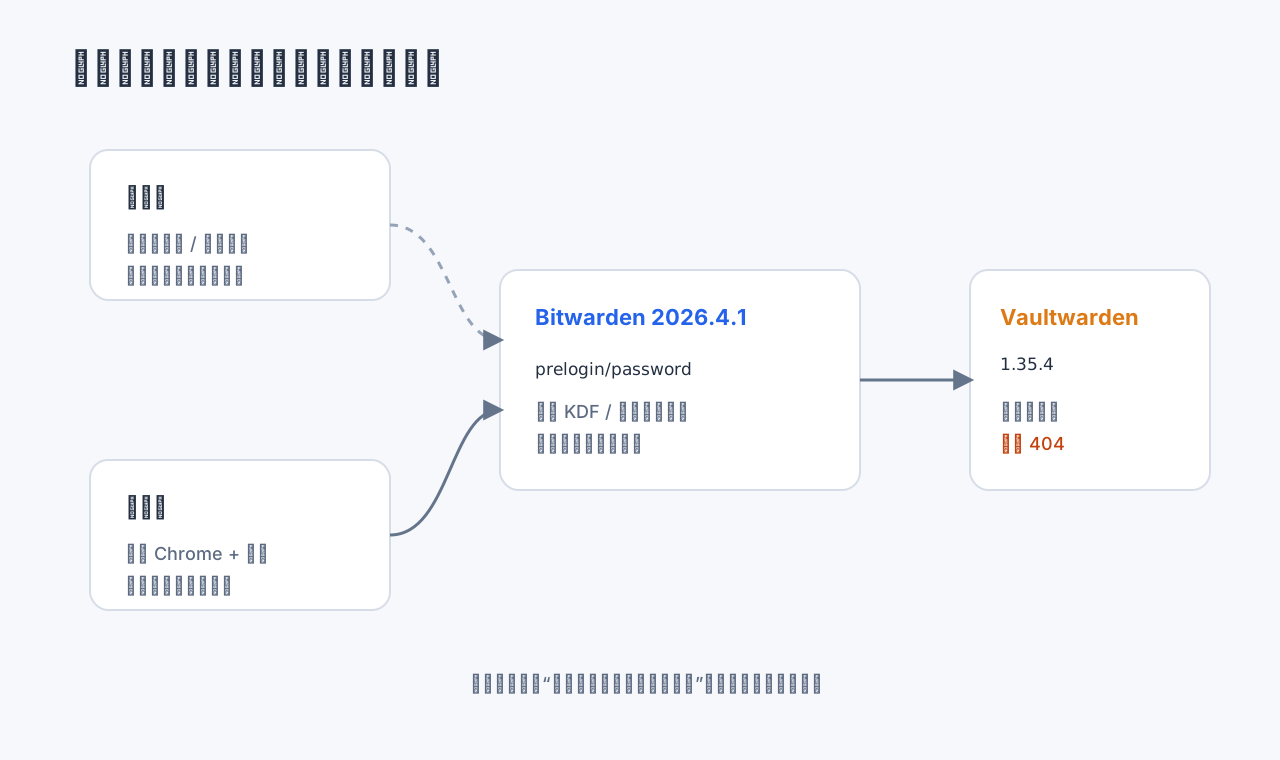
Figure 2: An old device that still works may only prove that an existing session is alive. It does not prove that the first-login API path is healthy.
2. The Tempting but Wrong Debugging Paths
When a browser extension cannot log in, client-side fixes are tempting: reinstall the extension, clear the Chrome profile, remove the browser, try another browser, disable proxy settings, change DNS, or assume the password is wrong. Those actions may eventually be useful, but they should not be the first line of investigation when a self-hosted server version is known to be behind a new client release.
The client is just the entry point. The login succeeds only if the server understands the request sequence. If the server lacks a required endpoint, a pristine Chrome profile will not help.
2.1 It Was Not Just a Chrome Permission Problem
Chrome extension permissions can absolutely cause failures. A restricted site-access setting, an enterprise policy, or a blocked extension capability can produce errors such as failed fetches. But when multiple new machines fail in the same way, old machines remain signed in, and the server version is older than the client behavior, server compatibility should be checked first.
2.2 It Was Not Merely a Wrong Password
A wrong password is always possible, and an old logged-in device does not prove that the password being typed today is correct. But service logs are the tie-breaker. If the server returns 404 for a prelogin route, the issue is not the password. The server route does not exist.
2.3 Opening the Web Vault Is Not Enough
Being able to load https://vault.example.com in a browser is useful, but it only proves a limited part of the stack: DNS, TLS, reverse proxy routing, and static web assets are broadly reachable. It does not prove that every Identity API endpoint required by the newest browser extension exists and behaves correctly.
2.4 Do Not Log Out of the Old Working Devices First
This is an operational safety rule. If old computers still work, keep them working until the server has been backed up, upgraded, and verified. Logging out just to test the theory can turn a partial incident into a complete lockout.
3. The Correct Debugging Path: Follow the Request
The fastest way to debug this is to walk through the path in layers.
First, confirm that the extension is really configured for the self-hosted server. The server URL should be clean:
https://vault.example.com
Avoid http://, avoid a URL ending in /#/login, and make sure the extension is not accidentally trying to authenticate against Bitwarden’s hosted service.
Second, watch the server logs while attempting a login from a new machine:
docker logs -f vaultwarden 2>&1 | grep -Ei 'prelogin|connect/token|404|400|ERROR|WARN'
Third, identify the failing endpoint. If the logs show something like this:
POST /identity/accounts/prelogin/password 404
then the signal is very strong. A 404 on that path does not mean “the account was not found.” It means the server does not have a route for that endpoint. That is exactly what we would expect from a Vaultwarden instance still running 1.35.4.
Fourth, compare the behavior with official release notes. Vaultwarden 1.36.0 explicitly introduced /identity/accounts/prelogin/password. The diagnosis no longer depends on guesswork.
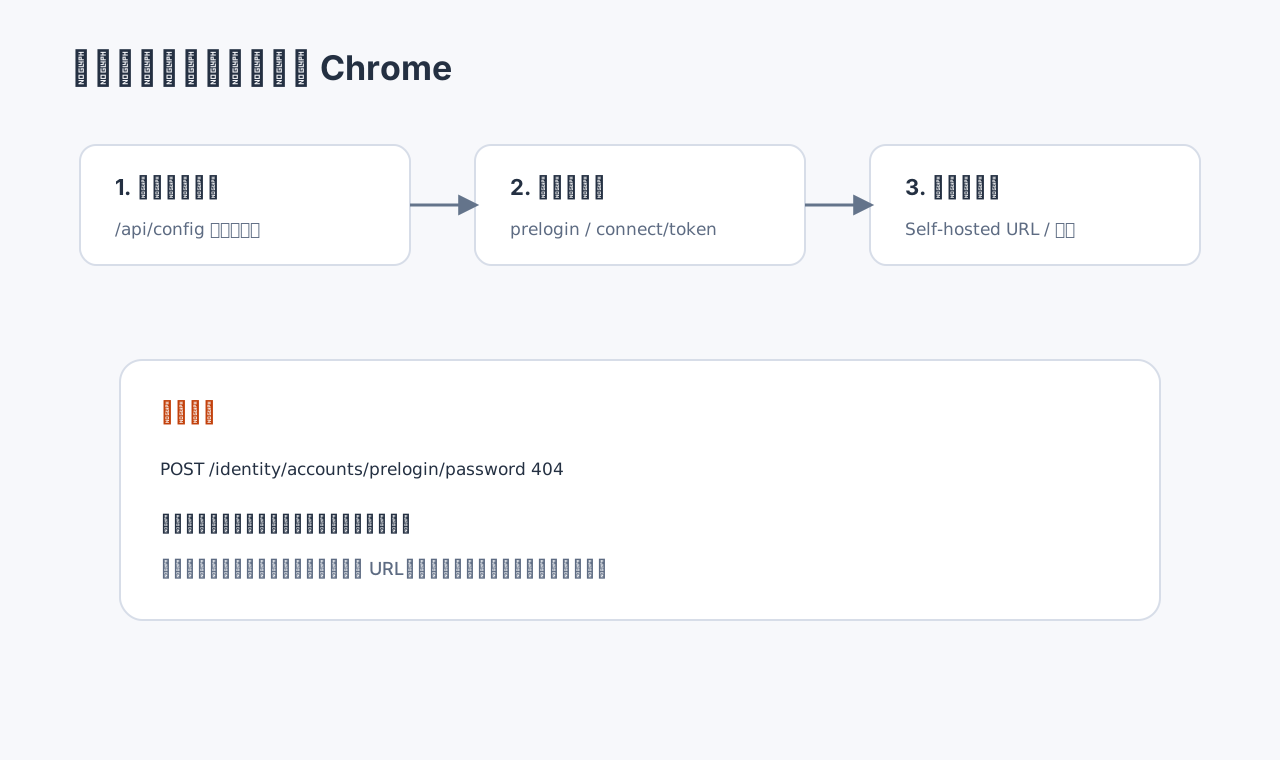
Figure 3: The order matters. Check server version and request logs before spending time rebuilding the browser profile.
4. Root Cause: The Client Login Flow Moved Ahead of the Server API
The root cause is simple once all the signals are aligned.
The newly installed Bitwarden Chrome extension 2026.4.1 uses a login flow that calls:
/identity/accounts/prelogin/password
That endpoint is part of the login preparation phase. From the user’s perspective it is hidden behind the normal email-and-password login form. From the server’s perspective it is a required part of the protocol that prepares the client for the actual token exchange.
The self-hosted server, however, was still running:
vaultwarden/server:1.35.4-alpine
That version did not include the new endpoint. A newly installed client made the request, the server returned 404, and the browser extension surfaced the failure as a login problem.
Existing computers kept working because they did not necessarily trigger that first-login route. They were already authenticated and could continue using refresh, sync, local unlock, and cached metadata paths. This is the essential lesson: the same extension version does not mean the same runtime state. A signed-in client and a first-login client are exercising different parts of the system.
There is also a security angle. Vaultwarden 1.36.0 did not only add compatibility work; its release notes also contain multiple security fixes and advise users to update promptly. Staying on the older image is therefore both a compatibility risk and a security maintenance risk.
5. Minimal Safe Fix: Back Up, Change Only the Image, Upgrade, Verify
The right fix is not to change everything at once. Do not simultaneously rewrite the reverse proxy, change the domain, move volumes, rotate database settings, modify SMTP, and change the admin token. That creates too many variables.
The goal is to prove one hypothesis: the server image is too old for the current client login path. So change only the server image version first.
5.1 Back Up Before Touching Anything
For a typical SQLite-backed deployment with data under /opt/vaultwarden/data:
cd /opt/vaultwarden

tar -czvf vaultwarden-data-backup-$(date +%F-%H%M).tar.gz ./data
cp docker-compose.yml docker-compose.yml.bak-$(date +%F-%H%M)
For MySQL or PostgreSQL, back up the database too. A password manager is not a place to improvise without a rollback path.
5.2 Update the Compose Image Tag
A minimal example:
services:
  vaultwarden:
    image: vaultwarden/server:1.36.0-alpine
    container_name: vaultwarden
    restart: unless-stopped
    volumes:
      - ./data:/data
    ports:
      - "8080:80"
Keep the existing environment variables and deployment structure in place:
DOMAIN
SMTP_HOST
SMTP_FROM
ADMIN_TOKEN
SIGNUPS_ALLOWED
WEBSOCKET_ENABLED
DATABASE_URL
The point is to upgrade the server implementation, not to redesign the whole service.
5.3 Pull and Restart
docker compose pull vaultwarden
docker compose up -d vaultwarden
docker logs -f vaultwarden
If your service has a different Compose name, list it first:
docker compose ps
Then use the actual service name.
5.4 Confirm the Version and the Endpoint Behavior
After the restart, check server configuration or logs:
curl -s https://vault.example.com/api/config | jq
or:
docker logs vaultwarden | grep -i version
Then try a new-machine login again while watching logs. The key thing to confirm is that this no longer appears:
POST /identity/accounts/prelogin/password 404
If the 404 disappears and the login continues to the token exchange, the root cause is confirmed.
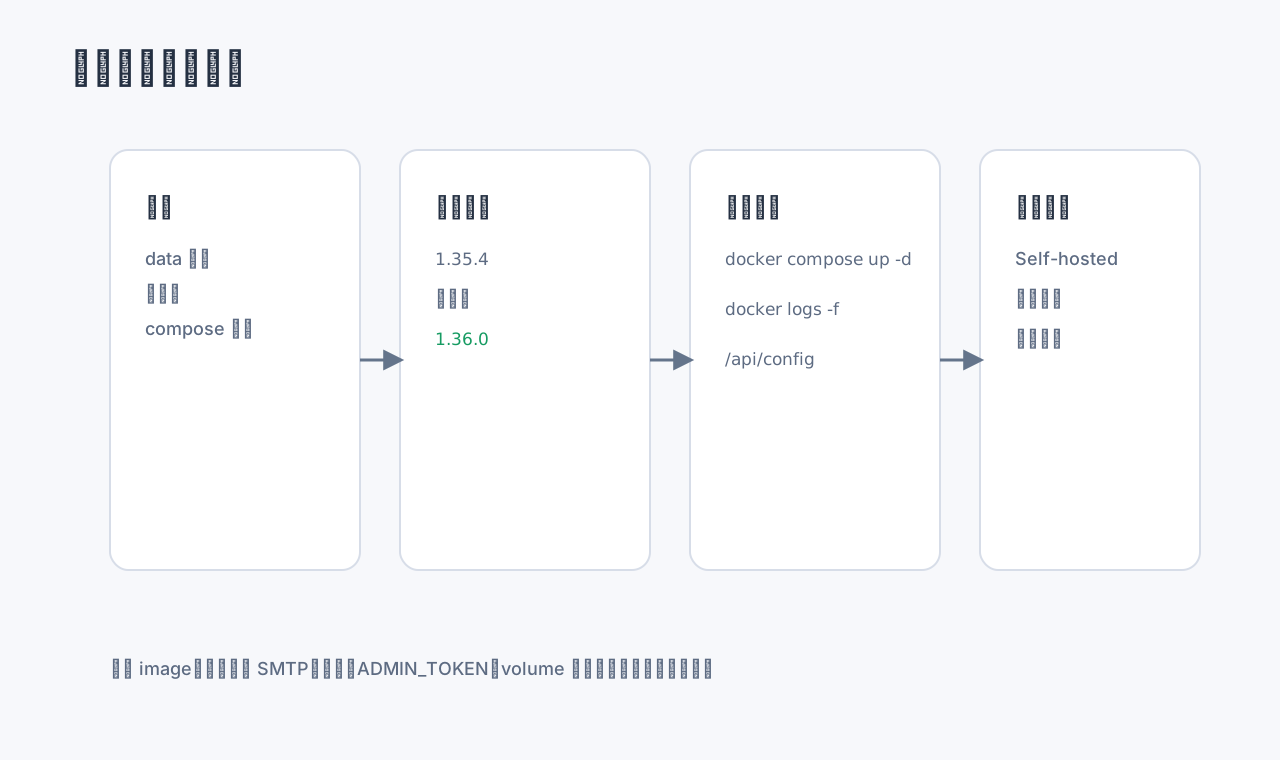
Figure 4: Change the smallest necessary piece first: back up, upgrade the image, restart, and verify the login path.
6. What If It Still Fails After Upgrading?
If the server is upgraded to 1.36.0 and a new computer still cannot log in, continue from the logs rather than restarting the guessing game.
6.1 The Prelogin Endpoint Still Returns 404
If this still appears:
POST /identity/accounts/prelogin/password 404
then the request is not reaching the upgraded Vaultwarden instance. Common causes include:
- Compose did not actually recreate the target container;
- the reverse proxy still points to an old container or old port;
- multiple Vaultwarden instances are running on the same host;
- the image tag changed in the file but the running container still uses the old image;
- a gateway or CDN layer is routing to a stale upstream.
Useful checks:
docker ps --format 'table {{.Names}}\t{{.Image}}\t{{.Ports}}'
docker inspect vaultwarden --format '{{.Config.Image}}'
Also confirm the reverse proxy upstream points to the current container.
6.2 Prelogin Works, but Token Exchange Returns 400
If the prelogin route no longer returns 404 but the next step fails with:
POST /identity/connect/token 400
Username or password is incorrect
then move to account and configuration checks:
- the self-hosted URL may be wrong;
- the extension may still be pointed at the hosted Bitwarden service;
- the email may include leading or trailing spaces;
- the master password may truly be wrong;
- 2FA, WebAuthn, or SSO may have special requirements;
- the reverse proxy may be mishandling
HostorX-Forwarded-Proto.
6.3 The Server Receives No Request
If login produces no server log entries at all, the request never reaches Vaultwarden. Check:
- whether the extension selected Self-hosted mode;
- whether the URL is a clean
https://vault.example.comvalue; - whether the new machine trusts the TLS certificate;
- whether DNS resolves to the expected entry point;
- whether Chrome extension site access is too restricted;
- whether a system proxy, enterprise policy, or browser security setting blocks the request.
7. Reverse Proxy Items Worth Checking
Even though the root cause here was the Vaultwarden version, a self-hosted Vaultwarden deployment still needs a sane reverse proxy. For Nginx, the basics look like this:
proxy_set_header Host $host;
proxy_set_header X-Real-IP $remote_addr;
proxy_set_header X-Forwarded-For $proxy_add_x_forwarded_for;
proxy_set_header X-Forwarded-Proto $scheme;

proxy_http_version 1.1;
proxy_set_header Upgrade $http_upgrade;
proxy_set_header Connection "upgrade";
For Nginx Proxy Manager, make sure WebSocket support is enabled and the upstream points to the current container. WebSocket support mainly affects live sync and notifications, but a messy proxy configuration can create confusing side effects around login, icons, attachments, and sync.
8. What This Teaches About Self-Hosting
The incident is small, but the lesson is broad.
First, self-hosting is not “deploy once and never touch it again.” Browser extensions, mobile apps, and desktop clients keep moving. They introduce new APIs, login flows, cryptographic handling, and security assumptions. A server that is left behind will eventually be exposed by a client update.
Second, “old devices still work” is not a proof of server health. It often only proves that old sessions are still alive. Many systems behave like this: existing sessions keep running, while new sessions, new devices, new tokens, or new authorization flows fail.
Third, debug the request path, not only the visible UI. The UI says “login failed.” Logs tell you whether the failure is prelogin, token exchange, sync, TLS, reverse proxy, or client configuration.
Fourth, security maintenance and compatibility maintenance are often the same work. Vaultwarden 1.36.0 contained the missing endpoint and multiple security fixes. Updating resolved the login compatibility issue and reduced security exposure at the same time.
Fifth, control variables when fixing live services. Change only the image first, keep the data volume and proxy stable, and verify the hypothesis before doing any larger cleanup.
9. Q&A
Q1: Why did old computers work with the same Bitwarden extension version?
Because they were likely already signed in. They did not necessarily call /identity/accounts/prelogin/password. A signed-in device and a first-login device are not exercising the same code path.
Q2: Can I simply downgrade the Bitwarden browser extension?
It may work as a temporary workaround, but it is not a good long-term fix. Browser extension downgrades are fragile, can be overwritten by auto-update, and may leave security issues unpatched. Updating the server is the cleaner solution.
Q3: Is 1.36.0 required?
You need a Vaultwarden version that includes /identity/accounts/prelogin/password. At the time of this incident, the latest official release was 1.36.0, so upgrading directly to it was the simplest stable path. If a newer stable release exists later, prefer the newer stable release after reading its notes.
Q4: Will upgrading Vaultwarden delete my vault?
Normally no. The data lives in the /data volume or an external database. But you must back up first. The dangerous scenarios are missing backups, accidentally changing volume mappings, or pointing the container at an empty database.
Q5: Should old devices be logged out after the upgrade?
Not immediately. First confirm that a new device can log in, sync, and use the Web Vault. Then decide whether old devices need a refresh.
Q6: Would the official Bitwarden server have the same problem?
The official Bitwarden server and clients are maintained together, so this specific lag is less likely. Vaultwarden is a strong community implementation, but it must track Bitwarden client API changes quickly.
Q7: What is the shortest useful diagnostic command?
Watch the server logs while logging in from a new device:
docker logs -f vaultwarden 2>&1 | grep -Ei 'prelogin|connect/token|404|400|ERROR|WARN'
If you see prelogin/password 404, upgrade Vaultwarden first.
10. Practical Runbook: The Lowest-Risk Order of Operations
If I turn the analysis above into a real maintenance procedure, I split the work into three phases: pre-upgrade confirmation, upgrade observation, and post-upgrade acceptance. The point is not ceremony. The point is to avoid turning a small compatibility problem into a broader password-management outage.
10.1 Before the Upgrade
First, confirm which instance is actually serving traffic. Long-running self-hosted services often accumulate old Compose directories, retired containers, test containers, backup containers, or reverse proxy upstreams pointing to unexpected ports. Before changing anything, run:
docker ps --format 'table {{.Names}}\t{{.Image}}\t{{.Ports}}'
docker compose ps
Then verify that the running container name, reverse proxy upstream port, and Compose service name all refer to the same instance. If those three do not match, upgrading the file you are looking at may change nothing.
Second, record the current state. At minimum, capture the image, container ID, mounted data directory, database type, and reverse proxy entry point:
docker inspect vaultwarden --format '{{.Id}} {{.Config.Image}}'
docker inspect vaultwarden --format '{{range .Mounts}}{{println .Source "->" .Destination}}{{end}}'
This information matters during rollback. Rollbacks often fail not because a backup is missing, but because nobody remembers which volume, config file, or port was actually in use.
Third, make sure the backup exists and is readable. Do not stop at running the tar command. Check file size with ls -lh, and use tar -tzf to confirm the archive can be listed. If you use an external database, confirm the dump is not an empty file.
10.2 During the Upgrade
Use two terminals if possible. In one terminal, perform the Compose operation:
docker compose pull vaultwarden
docker compose up -d vaultwarden
In the other terminal, watch logs continuously:
docker logs -f vaultwarden
Focus on three categories of log output: the startup version, any database migration or schema errors, and the new extension login requests. The specific acceptance signal for this incident is that prelogin/password no longer returns 404.
If the container starts restarting repeatedly, do not keep running up -d blindly. Read the recent logs first:
docker logs --tail=200 vaultwarden
If the error points to environment variables, database connectivity, permissions, or volume paths, fix that layer. Do not change several unrelated variables at once.
10.3 After the Upgrade
Acceptance is more than “the page opens.” I would run at least five checks.
First, open the Web Vault and confirm TLS and static assets load correctly.
Second, call the configuration endpoint:
curl -s https://vault.example.com/api/config | jq
Third, on a new Chrome installation, choose Self-hosted, enter https://vault.example.com, and complete a login.
Fourth, create a harmless test item such as test-login-after-upgrade, confirm that it syncs to the Web Vault, then delete it.
Fifth, watch logs for another five to ten minutes and confirm there are no repeated application errors, database errors, reverse proxy 502s, or WebSocket error storms.
Only after those checks is it fair to call the service recovered. A single successful login does not fully validate sync, autofill, Web Vault behavior, mobile clients, or desktop clients.
10.4 Rollback Principles
If the upgrade fails, roll back in controlled layers. Start by restoring the previous image tag and running docker compose up -d. If the service is still unhealthy, then consider restoring the data directory or external database backup. Avoid changing the image, volume mapping, and proxy port all at once.
A rollback is successful when the service is usable again and logs are quiet, not merely when the container is running. Once the service is stable, revisit the upgrade plan with the new evidence.
This procedure takes a few extra minutes compared with “change one image tag and restart.” For a password manager, that extra discipline is worth it. The vault holds access to other systems, so small upgrades deserve real backup, logging, and acceptance checks.
11. Summary
The core issue was not Chrome. Bitwarden Chrome extension 2026.4.1 used a newer first-login flow that called /identity/accounts/prelogin/password, while Vaultwarden 1.35.4-alpine did not yet implement that endpoint. Existing computers continued to work because their already-authenticated state did not necessarily exercise the full first-login path.
The practical fix is direct:
Back up first, then upgrade vaultwarden/server:1.35.4-alpine to vaultwarden/server:1.36.0-alpine or a newer stable release.
After the upgrade, confirm from logs that /identity/accounts/prelogin/password no longer returns 404. Only then spend time on extension-side details such as the self-hosted URL, permissions, certificates, and reverse proxy behavior.
The broader lesson is the diagnostic method: when old devices work but new devices fail, separate existing sessions from new login flows, then follow the server logs to the exact protocol difference. That is faster and far less misleading than rebuilding the client environment blindly.
References
- Vaultwarden GitHub Release
1.36.0: https://github.com/dani-garcia/vaultwarden/releases/tag/1.36.0 - Vaultwarden PR
add new /identity/accounts/prelogin/password: https://github.com/dani-garcia/vaultwarden/pull/7156 - Bitwarden self-hosting documentation: https://bitwarden.com/help/self-host-an-organization/
- The incident background came from a sanitized troubleshooting conversation. All private deployment information has been replaced with example values.