Your Mac App Is Not Broken: Gatekeeper May Just Distrust an Unsigned Tool
The short version
When a macOS utility refuses to launch after being downloaded, the first conclusion should not be “the app is broken.” A very common cause is a combination of two facts: the app still has the
com.apple.quarantineextended attribute that marks it as downloaded from the internet, and the app bundle does not have a usable signature that Gatekeeper can trust. For first launch, “downloaded from the web + no usable signature” is enough for macOS to block it.For a tool whose source you understand and trust, the smallest local repair is straightforward: inspect the quarantine attribute, verify the signing state, apply a local ad-hoc signature to that one app bundle, remove quarantine from that one app, and then verify the result. The point is not to turn off macOS security globally. The point is to fix one known local tool while keeping the safety boundary clear.
This post is based on a real local troubleshooting session, but all private details have been removed. There are no real internal addresses, usernames, tokens, private download locations, hostnames, or machine-specific paths. The examples use placeholders such as /Applications/<App>.app and <App>. The goal is to share a repeatable diagnostic method, not to expose an environment.
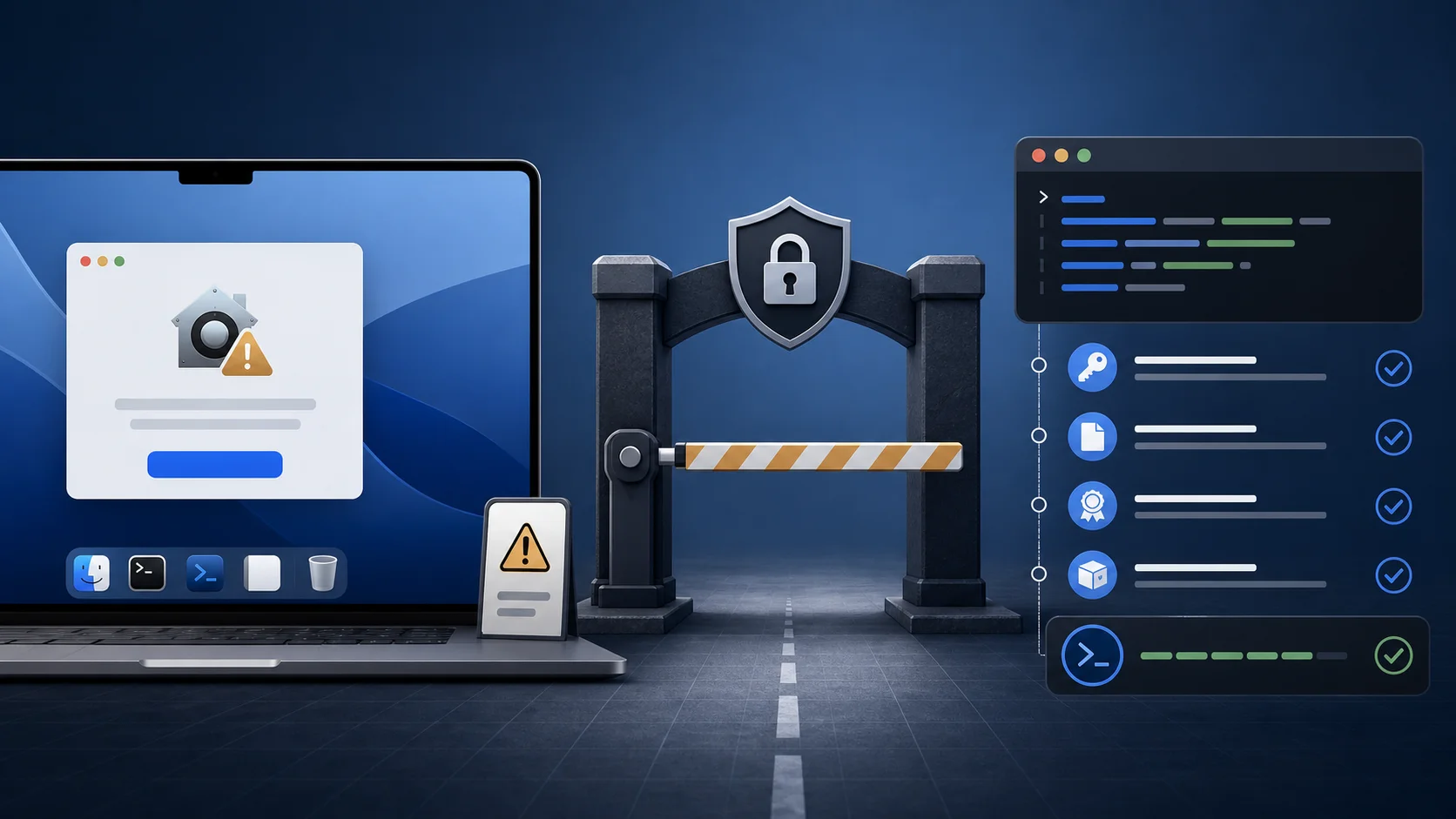
Figure 1: A custom hero image for this article. The visible symptom is “the app will not open,” but the useful evidence usually lives in quarantine metadata, code signing, and Gatekeeper assessment.
1. Background: why downloaded macOS apps are treated carefully
Power users often install tools that do not come from the Mac App Store. Sometimes the tool is a .dmg, sometimes it is a .zip, and sometimes it is just a prebuilt .app copied into Applications. When the app is opened for the first time, macOS may show a warning that the developer cannot be verified, that the app is damaged, or that the app cannot be opened.
This behavior is not random. Gatekeeper exists to evaluate software that arrives from outside trusted installation channels. On modern macOS, the best path for externally distributed software is Developer ID signing plus notarization. macOS also tracks how a file arrived on the machine through quarantine metadata. A browser, mail client, chat client, or download manager can attach that metadata to downloaded files.
In other words, macOS does not only ask whether a file is executable. It asks several more specific questions:
- Did this app come from the internet or another external source?
- Does it have a verifiable code signature?
- Is the signature tied to a trusted developer identity?
- Has it been notarized by Apple?
- Has the user explicitly allowed this app to run?
If the answers are weak, especially when the app is both quarantined and unsigned, Gatekeeper is expected to block first launch. That does not automatically prove the app is malicious. It also does not always mean the binary is corrupt. It means macOS does not have enough trust evidence.
2. Symptom: the app exists, but macOS refuses to run it
There are several common symptoms.
The first is the familiar dialog saying macOS cannot verify the developer. That is the most direct Gatekeeper clue. Many users see it and assume the only choices are deleting the app or disabling security.
The second is the more confusing “the app is damaged and can’t be opened” message. It sounds like the archive was corrupted, but in some cases it is still a Gatekeeper or quarantine problem rather than a broken binary.
The third is a quiet failure: the Dock icon appears briefly, Finder gives no useful feedback, and the process does not stay running. At that point, repeated double-clicking is not a diagnostic method. The command line gives clearer evidence.
The first useful commands are:
xattr -lr "/Applications/<App>.app"
codesign --verify --deep --strict --verbose=4 "/Applications/<App>.app"
spctl --assess --type execute --verbose=4 "/Applications/<App>.app"
They answer three different questions:
xattr: does the app bundle or any file inside it still carrycom.apple.quarantine?codesign: does the bundle have a self-consistent code signature?spctl: would the system policy accept it as executable software?
If the output contains lines like these, the direction is clear:
com.apple.quarantine: ...
code object is not signed at all
rejected
source=no usable signature
That is not a mystery. The app is quarantined, it does not have a usable signature, and Gatekeeper rejects it.
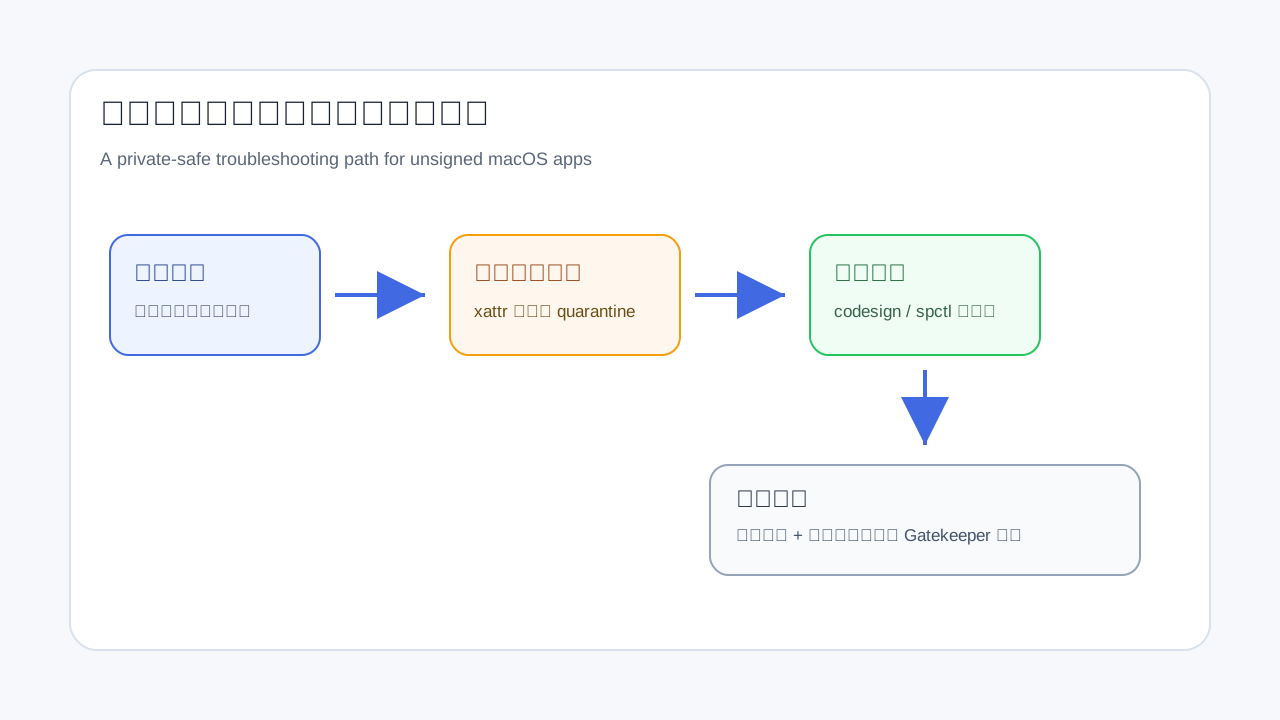
Figure 2: Check quarantine first, then code signing, then system policy. The vague symptom becomes a concrete root cause.
3. Three concepts that should not be mixed together
The fastest way to make this problem messy is to use “Gatekeeper,” “signature,” and “quarantine” as if they were the same thing. They are related, but they describe different layers.
3.1 Quarantine: where the file came from
com.apple.quarantine is an extended attribute. It tells macOS that a file came from an external source and should be treated carefully on first launch. Browsers, mail clients, chat clients, and download tools can attach it.
Inspect it with:
xattr -lr "/Applications/<App>.app"
If the output includes com.apple.quarantine, the app is on the first-run security path. That attribute is not a bug. It is a safety signal.
3.2 Code signing: whether the code object is signed and consistent
codesign verifies the signing state of a code object. An app bundle may have a Developer ID signature, an ad-hoc signature, a broken signature, or no signature at all.
Check it with:
codesign --verify --deep --strict --verbose=4 "/Applications/<App>.app"
If the output says code object is not signed at all, the app is unsigned. This is different from “the signature is expired” or “the signature is not trusted.” Different signing errors have different fixes.
3.3 Gatekeeper and spctl: whether system policy accepts the app
spctl asks the system policy layer whether the app should be accepted:
spctl --assess --type execute --verbose=4 "/Applications/<App>.app"
If it returns rejected or no usable signature, Gatekeeper policy does not accept this app as trusted external software. That does not necessarily mean the binary cannot run in every possible context. It means the policy layer is rejecting it.
4. Root cause: quarantine plus no usable signature
The root cause can be stated precisely:
This was a downloaded
.appbundle with quarantine metadata and no usable code signature, so Gatekeeper blocked first launch.
That is more accurate than saying “the app was unsigned.” An unsigned app without quarantine may behave differently. A quarantined app with a valid Developer ID signature and notarization may pass. The failure comes from the combination.
This combination is common:
- A developer wraps a command-line binary in a simple
.appbundle. - The release is not signed with a Developer ID certificate.
- A user downloads it through a browser, so macOS adds quarantine metadata.
- On first launch, Gatekeeper cannot find a trusted signature.
- macOS blocks the app, and the user experiences it as a launch failure.
This is why reinstalling the app, moving it to another folder, changing execute bits, or disabling global security can be the wrong response. Those actions may change the symptom, but they do not explain the cause.
5. The local fix: repair one app, not the whole system
The following workflow is for software whose origin you already trust. Do not copy these commands for unknown software. If you do not know where the app came from, stop and verify the source first.
5.1 Set the target path
APP="/Applications/<App>.app"
Confirm that it exists:
test -d "$APP" && echo "app exists"
5.2 Inspect quarantine metadata
xattr -lr "$APP"
If com.apple.quarantine appears, the app is still marked as downloaded software.
5.3 Inspect signing state
codesign --verify --deep --strict --verbose=4 "$APP"
If the bundle is unsigned, you may see code object is not signed at all.
5.4 Apply a local ad-hoc signature
codesign --force --deep --sign - "$APP"
The --sign - form means ad-hoc signing. It does not require an Apple developer certificate. It does not create a Developer ID signature. It simply gives this local code object a signature structure that codesign can verify.
5.5 Remove quarantine from this app bundle
xattr -dr com.apple.quarantine "$APP"
This removes the quarantine attribute from this app bundle only. It does not disable Gatekeeper globally and does not affect other apps.
5.6 Verify and launch
codesign --verify --deep --strict --verbose=4 "$APP"
xattr -lr "$APP" | grep quarantine || echo "no quarantine"
open "$APP"
If codesign reports that the app is valid on disk and satisfies its designated requirement, and quarantine no longer appears, the app should be able to launch locally.
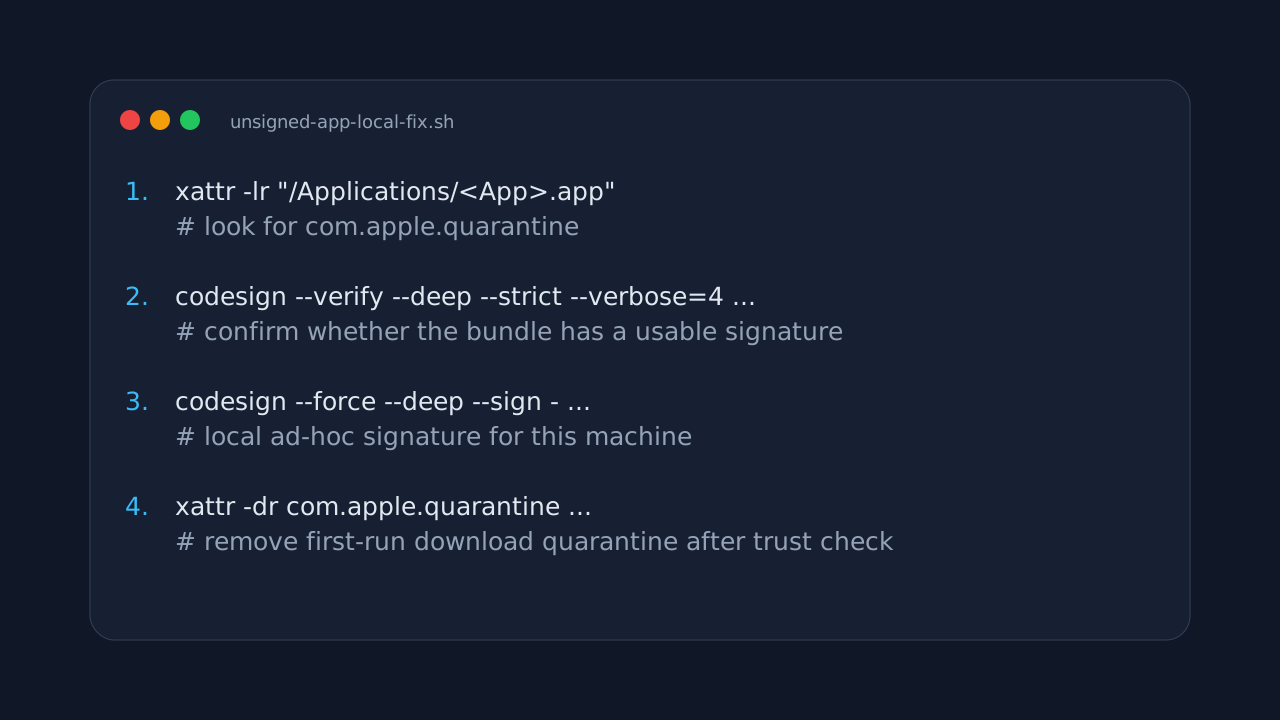
Figure 3: The order matters. Gather evidence, sign locally, remove quarantine, then verify.
6. Why spctl may still reject the app
One confusing detail is that spctl --assess may still say rejected after ad-hoc signing.
That is expected in many cases. An ad-hoc signature is not a Developer ID signature. It does not prove the app came from an Apple-recognized developer, and it does not prove the app has been notarized.
The distinction matters:
codesign --sign -creates a local ad-hoc signature.xattr -dr com.apple.quarantineremoves the first-run download quarantine marker for this app.- Developer ID signing plus notarization is the correct path for public distribution.
The local repair is not trying to make the app equivalent to notarized software. It is making a known local tool runnable on your machine after you have made a trust decision.
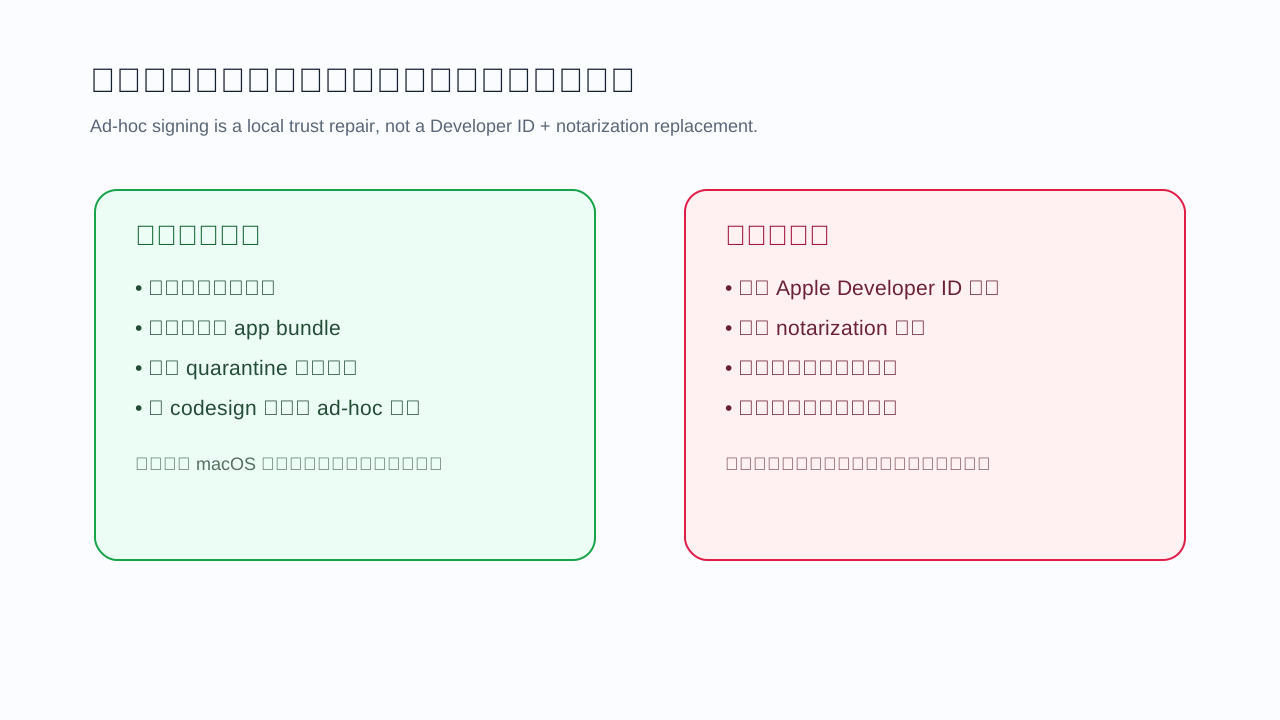
Figure 4: Ad-hoc signing is useful for local use. It should not be presented as a public distribution trust model.
7. When not to use this method
This workflow is not a universal bypass. Avoid it when:
- You do not know the software source.
- The publisher, checksum, or release channel cannot be verified.
- The app asks for an administrator password, installs privileged helpers, adds login items, or touches sensitive directories.
- The app will handle private keys, tokens, browser data, wallets, or production configuration.
- You plan to redistribute the repaired app to other users.
If you publish macOS software, the correct solution is not to tell users to remove quarantine. Use Developer ID signing, notarization, checksums, release notes, and a trustworthy download channel. Apple’s documentation is clear that externally distributed macOS software should follow the formal signing and notarization path.
8. Q&A
Q1: Can I just click “Open Anyway” in System Settings?
Sometimes, yes. That is reasonable for a one-off app whose source you understand. The command-line workflow is more explicit because it shows what macOS is objecting to and what you changed.
Q2: Does chmod +x fix this?
Only if the real problem is missing execute permission on the internal binary. If the failure is caused by quarantine or signing policy, chmod +x does not address the root cause.
Q3: Is sudo spctl --master-disable simpler?
It is broader, not better. Disabling Gatekeeper globally affects more than one app. For a single trusted local tool, a targeted repair is usually the better engineering choice.
Q4: Is ad-hoc signing safe?
Ad-hoc signing is not a safety certification. It only gives the local code object a signature structure. The actual trust decision still depends on the software source, integrity, behavior, and permissions.
Q5: Will I need to repeat this after updating the app?
Possibly. A new download or replacement bundle may have new quarantine metadata and a different signing state. Re-run the diagnostic commands instead of blindly reusing the fix.
Q6: Why avoid real app names, internal paths, and private addresses in a public post?
Troubleshooting methods are useful without exposing operational details. Real paths, internal addresses, account names, private app names, and download sources can become attack clues. Placeholders are enough.
9. Summary
When a downloaded macOS app will not open, the app is not always broken. The common chain is: quarantine marks it as downloaded software, codesign cannot find a usable signature, and Gatekeeper rejects first launch.
The practical troubleshooting order is:
- Use
xattrto inspect quarantine. - Use
codesignto inspect signing state. - Use
spctlto inspect system policy assessment. - If the source is trusted, ad-hoc sign only this app.
- Remove quarantine only from this app.
- Verify and launch.
This is not about bypassing security blindly. It is about understanding which layer is blocking the app and making the smallest local change that matches the evidence. For local trusted tools, that is often enough. For software distribution, Developer ID signing and notarization remain the right answer.
References
- Apple Support: Open a Mac app from an unidentified developer
- Apple Developer Documentation: Notarizing macOS software before distribution
- Apple Developer Documentation: Distributing your macOS apps outside the Mac App Store
- macOS manual pages:
codesign(1),spctl(8),xattr(1)