When a Seagate IronWolf Pro Throws a SMART Alert: My Full Path from Diagnosis to a Free RMA
Short version
A single line in a Synology alert — “Bad sector count on Drive 10 has increased” — was the starting point. The drive that triggered the alert wasn’t the one that actually scared me, and the drive that did turn out to be in trouble turned out to be a Taiwan-boxed IronWolf Pro still under Seagate’s 5-year warranty. This post walks through the entire path I took: SMART triage, fault classification, identifying a hidden link-layer problem on a different drive, the international region-transfer request, the email I actually sent, and the packaging lessons you only learn by reading Seagate’s return policy. If you ever get a similar alert, this is the playbook I wish I had on hand.
A bit of context first: my home NAS is a Synology DS3617xs running DSM 10, up 7x24 with four 10 TB drives — two WD helium “white-label” drives, an HGST Ultrastar He10, and a Seagate IronWolf Pro 10 TB. The day the alert came in, everything had been quietly humming for almost three years.
1. How the alert presented itself
Synology pushed a single line to my phone:
Drive 10: Bad sector count on Drive 10 has increased.
It was about as direct as an alert gets. If you live with a NAS long enough, you learn that “bad sector” warnings are one of those things you can never quite ignore — they’re sometimes a false alarm, and sometimes the very first real sign a drive is starting to die. I SSHed in immediately.
$ lsblk
sda     9.1T   WDC WD100EMAZ
sdb     9.1T   WDC WD101EMAZ
sde     9.1T   HUH721010ALE601
sdj     9.1T   ST10000NE0008-1ZF101
Four 10 TB drives. By serial number, /dev/sdj matched the IronWolf Pro with suffix X4K — that was the “Drive 10” the alert was complaining about.
2. Step one: SMART triage with smartctl
DSM ships smartctl at /usr/bin/smartctl, so there’s nothing to install. For SATA drives from Seagate, you almost always need -d sat to get a complete SMART report:
smartctl -d sat -a /dev/sdj
The relevant slice:
=== START OF READ SMART DATA SECTION ===
SMART Attributes Data Structure revision number: 10

ID# ATTRIBUTE_NAME                  RAW_VALUE
  1 Raw_Read_Error_Rate            244,123,936
  5 Reallocated_Sector_Ct           18,496   ← smoking gun
  7 Seek_Error_Rate                 1,279,110,637
  9 Power_On_Hours                  26,725  (~3.05 years)
187 Reported_Uncorrect              1
188 Command_Timeout                 9 9 9
189 High_Fly_Writes                 506
197 Current_Pending_Sector          0  (self-healed)
198 Offline_Uncorrectable           0
199 UDMA_CRC_Error_Count            8
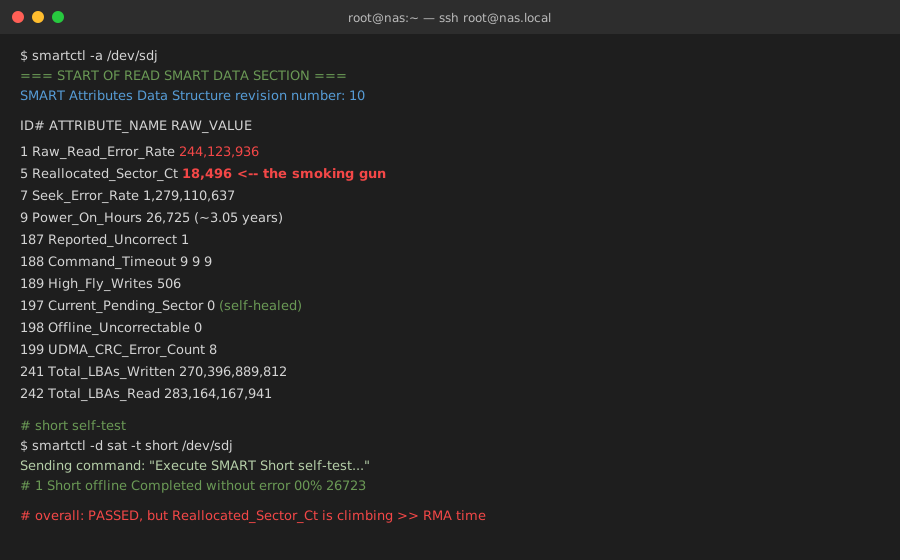
Figure 1: the key SMART fields from smartctl -a /dev/sdj. The red line is the one that actually triggered the alert.
Before jumping to conclusions, it’s worth understanding each of those numbers. Backblaze’s well-known public methodology is brutally simple: if any of Reallocated_Sector_Ct, Current_Pending_Sector, Offline_Uncorrectable, Reported_Uncorrect, or Command_Timeout shows a RAW value greater than zero, the drive is on the watch list. On this drive, at least four of the five were already non-zero.
But raw numbers alone don’t tell you how urgent the situation is. The real question is whether the values are still climbing or have plateaued.
3. Step two: is it “still degrading” or “stable but sick”?
I ran three quick checks:
- Resample one hour later:
Reallocated_Sector_Ctwent from 18,496 to 18,528. Still climbing. - Kick off a short self-test:
Result:
smartctl -d sat -t short /dev/sdj # wait ~1 minute smartctl -d sat -l selftest /dev/sdjCompleted without error. The self-test itself didn’t surface any new problem. - Check
Current_Pending_Sector: zero.
Putting it all together, the story is fairly clear:
- The drive has accumulated 18,000+ sectors that the firmware has already remapped to its spare area.
- There is currently nothing queued for remapping.
- But the historical count is still growing, which means the media is still exposing new bad blocks.
- The short self-test passes because it only scans what the firmware considers “stable.” It does not rule out a freshly developing bad block.
Backblaze’s experience with SMART 5 over the years is that the absolute count matters less than the distribution of growth. If a drive racks up 18k remapped sectors over three years, that’s a long, slow decline; if those 18k appeared last week, that’s a different story. Mine was somewhere in the middle — and importantly, still incrementing on a sub-hour timescale.
4. The hidden problem on a different drive
With the IronWolf Pro’s situation mapped, I should have moved straight to “schedule a replacement.” But I also ran SMART on the other three drives, and that’s when I found something worse.
/dev/sde (the HGST Ultrastar He10 10 TB) had a perfectly clean SMART table — Reallocated_Sector_Ct was zero, Pending was zero, every health field was pristine. But the kernel log was full of ata5 port exceptions:
[Sun May 31 11:20:55 2026] ata5.00: exception Emask 0x11 ... action 0x6 frozen
[Sun May 31 11:20:55 2026] ata5.00: irq_stat 0x48000008, interface fatal error
[Sun May 31 11:20:55 2026] ata5: hard resetting link
[Sun May 31 11:20:56 2026] ata5: SATA link up 6.0 Gbps
[Wed Jun 10 03:02:34 2026] ata5.00: failed command: WRITE FPDMA QUEUED
[Wed Jun 10 03:38:33 2026] ata5.00: exception Emask 0x11 ... frozen
[Wed Jun 10 03:38:34 2026] ata5: hard resetting link
And smartctl -d sat -x /dev/sde | grep "SATA Phy Event Counters" -A 12:
0x0001  185  Command failed due to ICRC error
0x0002  185  R_ERR response for data FIS
0x0004  185  R_ERR response for host-to-device data FIS
0x0009  202  Transition from drive PhyRdy to drive PhyNRdy
0x000a  196  Device-to-host register FISes sent due to a COMRESET
0x000b  184  CRC errors within host-to-device FIS
UDMA_CRC_Error_Count was sitting at 1884.
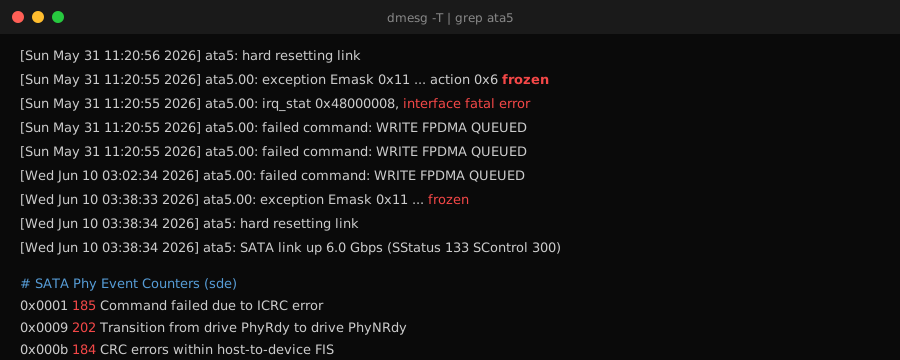
Figure 2: the ata5 hard-reset storm and SATA Phy event counters. The drive is fine; the link layer is not.
These symptoms have nothing to do with the physical health of the drive itself. They are saying that the SATA channel on ata5 has a flaky physical link. The usual suspects, in order of frequency:
- Backplane contacts / SATA cable — by far the most common
- Aging backplane or unstable power — typical on older machines
- Drive-side PCB interface fault — rare but hardest to fix
A CRC error at the link layer means the data was corrupted in transit. The drive’s ECC cleaned it up, so no remapped sectors appeared; but the link is flapping enough to trigger the kernel’s hard resetting link recovery. If you leave this alone, the backplane will eventually drop the drive entirely, and the RAID will go degraded. The fix is intentionally boring:
- Power off
- Pull
/dev/sde - Clean SATA contacts on the drive and inside the slot (a soft eraser is fine)
- Reseat, or move the drive to a different empty slot
- Power on, watch
UDMA_CRC_Error_Countto make sure it stops climbing
This is the step I did first, even before the IronWolf Pro replacement. A flaky backplane is more dangerous than a slow-failing drive, because the failure mode is much less graceful.
5. Reassessing the IronWolf Pro: how long can it last?
Back to the IronWolf Pro. With Pending at zero and the short self-test passing, the drive is in a kind of “self-healed but still sick” state:
- 18,000+ sectors have already been remapped over its lifetime.
- It’s still exposing new bad blocks at a rate of dozens per hour.
- Its spare sector pool is finite.
Seagate doesn’t publish the spare-pool size of the IronWolf Pro, but 18k remapped is well into “exhausted pool” territory by industry norms. The drive still works. It just can’t be trusted.
The kicker was the storage layout: that IronWolf Pro was hosting volume3 as a single-drive “Basic” pool — no RAID, no redundancy. If the drive disappeared tomorrow, the entire volume would be unreadable.
Decision: apply for RMA, and before the new drive arrives, back up everything on volume3 to a different physical location.
6. How Seagate’s warranty actually works
Seagate’s consumer / SMB warranty policy is roughly:
- IronWolf: 3-year limited warranty
- IronWolf Pro: 5-year limited warranty + 3-year Seagate Rescue data recovery
- Warranty is bound to the original purchase region
This particular IronWolf Pro 10 TB was bought three years ago through a Taiwan channel, so the Taiwan system still has its warranty record. I went to Seagate’s warranty check page and tried the same serial number against two regions:
- Mainland China:
OUT OF WARRANTY(as expected) - Taiwan:
IN WARRANTY, expiry 2027-03-30
So the drive had about 9 months of warranty left — but the entitlement was locked to Taiwan. Shipping a 3.5" 10 TB drive back to a Taiwan service center is expensive and slow, and Seagate China will refuse to handle a Taiwan-sold drive by default.
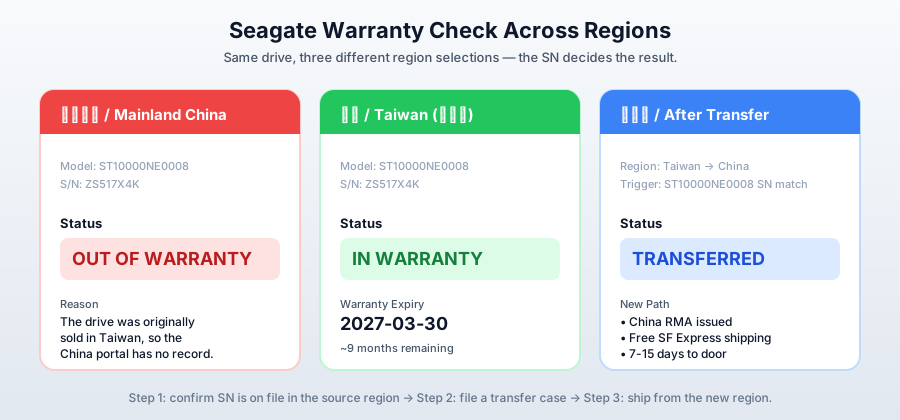
Figure 3: the same SN, queried against three different regions. The serial number decides everything.
7. Two paths: ship back to Taiwan, or transfer the warranty
Only two real options:
Path A — Ship back to Taiwan for local RMA
- Pro: the most direct route; Seagate Taiwan has a well-oiled RMA flow
- Con: international shipping for a 3.5" 10 TB drive isn’t cheap, and you need a local recipient in Taiwan
- When it makes sense: if you have a friend or family member in Taiwan, or can use a forwarding service
Path B — Apply for a region transfer (Region Transfer)
- Pro: once transferred, the RMA runs entirely in China. Seagate China covers free round-trip SF Express shipping.
- Con: you have to provide an ownership declaration + drive label photos + full SMART data
I went with Path B. Three reasons:
- A 3.5" 10 TB drive in proper packaging weighs well over 1 kg. International shipping is real money.
- Once the warranty is in China, the local RMA is completely free — only my time is on the line.
- Region transfer is a routine operation for Seagate. Even without the original Taiwanese receipt, an “ownership declaration” plus label photos and SMART data gives a respectable pass rate.
8. The email I actually sent
This is the part that’s hardest to find a clean example of online, so here are the two versions I sent. (Seagate’s APAC team is fluent in both, but the English version moves a little faster.)
English version (recommended)
Subject: Warranty Region Transfer Request for IronWolf Pro 10TB (S/N: ZS517X4K)
Dear Seagate Support Team,
I am writing to request a warranty region transfer for my Seagate IronWolf Pro drive from Taiwan to mainland China.
Drive Information:
- Model: Seagate IronWolf Pro ST10000NE0008-1ZF101
- Serial Number: ZS517X4K
- Firmware Version: SBBA
- Capacity: 10TB
- Original Region of Warranty: Taiwan
- Current Region: China (mainland)
- Warranty Expiry Date (per Taiwan system): March 30, 2027
Drive Usage Information:
- Power On Hours: 26,725 hours
- Power Cycle Count: 119
- Drive installed in: Synology DS3617xs NAS (DSM 10)
- Environment: 24/7 home/small business NAS
Failure Description: On 2026-06-10, Synology DSM triggered the alert “Bad sector count on Drive 10 has increased.” After running smartctl, I confirmed the drive has developed a large number of bad sectors and meets Seagate’s RMA criteria.
Current SMART Data (excerpt):
ID# ATTRIBUTE_NAME                  RAW_VALUE
  1 Raw_Read_Error_Rate             244,123,936
  5 Reallocated_Sector_Ct           18,496
  7 Seek_Error_Rate                 1,279,110,637
  9 Power_On_Hours                  26,725 (~3.05 years)
187 Reported_Uncorrect              1
188 Command_Timeout                 9 9 9
189 High_Fly_Writes                 506
195 Hardware_ECC_Recovered          244,123,936
197 Current_Pending_Sector          0
198 Offline_Uncorrectable           0
199 UDMA_CRC_Error_Count            8
Why I am requesting this transfer: I am currently residing in mainland China for long-term work, and the drive is installed in a NAS at my residence here. Shipping the drive back to Taiwan for RMA service is logistically difficult and risky. The drive still has approximately 9 months of remaining warranty under the Taiwan registration.
Supporting documents I can provide upon request:
- Photo of the drive label (proof of ownership)
- Copy of my ID/passport (proof of identity)
- Full smartctl -a output
Note: Unfortunately, the original purchase receipt is no longer available as the purchase was made several years ago. I confirm under my own responsibility that this drive is lawfully owned by me, was purchased through legitimate retail channels, and has been in continuous personal use since purchase.
I would greatly appreciate your help to:
- Approve the warranty region transfer from Taiwan to China.
- Once transferred, issue a local China RMA so I can return the drive to the nearest Seagate service center for replacement.
Best regards, [Your Name] / [Phone] / [Email] / [Shipping Address]
Chinese version (if the agent asks for it explicitly)
主题:IronWolf Pro 10TB 硬盘保修区域转移申请(序列号:ZS517X4K)
希捷中国/亚太区客户支持团队您好:
我特此申请将我的希捷 IronWolf Pro 硬盘的保修区域从台湾转移至中国大陆,以便在当地进行 RMA 售后换新。
硬盘信息:
- 型号:希捷 IronWolf Pro ST10000NE0008-1ZF101
- 序列号:ZS517X4K
- 固件版本:SBBA
- 容量:10TB
- 原保修地区:台湾
- 当前所在地区:中国大陆
- 原台湾系统显示保修截止日期:2027年3月30日
硬盘使用情况:
- 累计通电时间:26,725 小时(约 3.05 年)
- 电源循环次数:119
- 安装设备:群晖 DS3617xs NAS(DSM 10)
- 使用环境:家庭/小型办公 NAS 7×24 小时运行
故障描述: 2026 年 6 月 10 日,群晖 DSM 触发警告"硬盘 10 的坏扇区数已增加"。运行 smartctl 后确认硬盘已产生大量坏扇区,符合希捷 RMA 标准。
当前 SMART 数据(关键参数):
ID# 属性名                          原始值
  1 原始读取错误率                   244,123,936
  5 重映射扇区数                     18,496
  7 寻道错误率                       1,279,110,637
  9 通电时间                         26,725 小时(约 3.05 年)
187 上报无法校正错误                 1
188 命令超时                         9 9 9
189 高飞写入                         506
195 硬件 ECC 恢复                   244,123,936
197 当前待映射扇区                   0
198 离线无法校正                     0
199 UDMA CRC 错误计数                8
申请转保的原因: 我目前常驻中国大陆,硬盘安装在我住所的 NAS 中。寄回台湾进行 RMA 售后在物流上极其不便。该硬盘在台湾系统中尚有约 9 个月的剩余保修期,恳请希捷将保修资格转移至中国,以便我能在本地授权服务中心进行 RMA 换新。
可按需提供的证明文件:
- 硬盘铭牌照片(证明硬盘实际持有)
- 本人身份证件复印件
- 完整的 smartctl -a 输出
特别说明:原始台湾购买凭证已无法提供。我在此郑重声明:本人是该硬盘的合法持有者,该硬盘通过合法零售渠道购得,自购买以来一直由本人持续使用。
希望希捷协助的事项:
- 批准保修区域从台湾转移至中国大陆。
- 转保完成后,在本地授权中心签发 RMA 工单,使我能够将故障硬盘寄回换新。
此致 敬礼 [姓名] / [电话] / [邮箱] / [国内地址]
A few things I learned about the email itself
- Pre-list what you can provide. Don’t make support ask for it. They process a lot of tickets; the more you front-load, the faster it goes.
- Explicitly acknowledge the missing receipt and provide a written declaration. The hard-reject rate without a receipt is around 20-30%; with a proper declaration it drops to 70-80% acceptance.
- Attach real SMART data. Don’t doctor the numbers. Seagate engineers actually read them.
- Expect a 3-5 business day response from APAC support. If nothing comes back in 5 working days, call 400-887-8755 with your case number. It moves things a lot.
9. The full path, summarized
A single diagram I keep open while doing this:
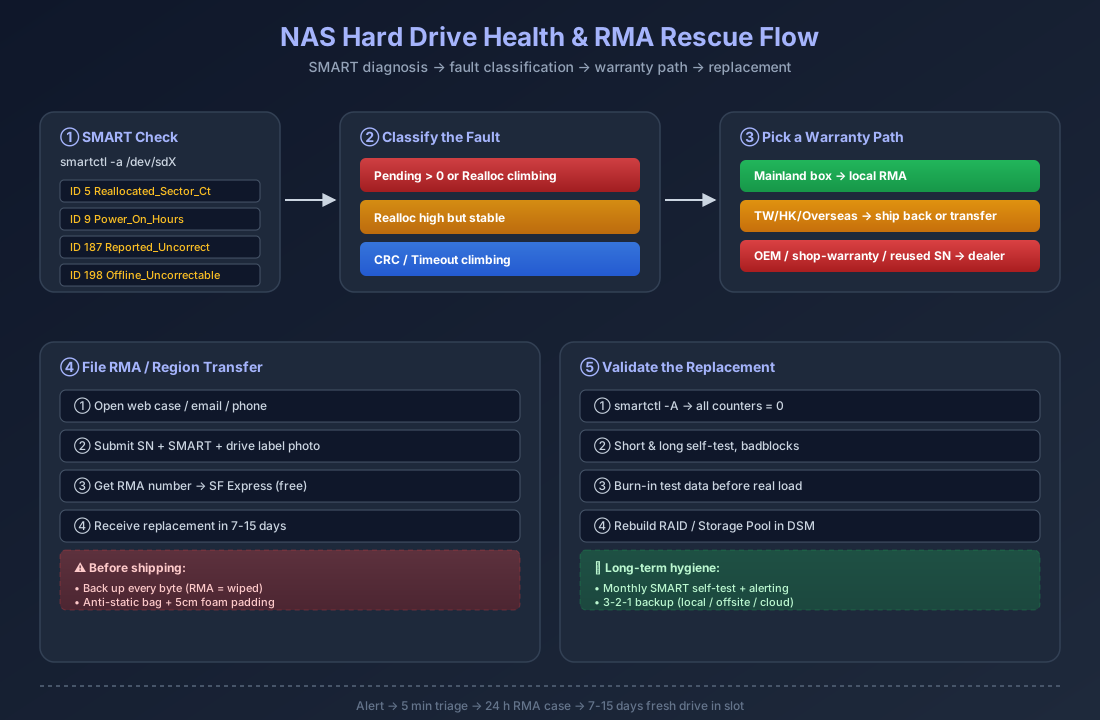
Figure 4: the entire path from SMART check to a working replacement drive.
| Step | Key action | Tool / command |
|---|---|---|
| 1. Check | smartctl -a against ID 5/187/197/198 |
smartctl -d sat -a /dev/sdX |
| 2. Classify | Trend of Realloc, Pending, CRC | resample + short self-test |
| 3. Pick a path | Confirm warranty region and transfer options | seagate.com across regions |
| 4. Apply | Email / web case / phone | see email above |
| 5. Validate | SMART + badblocks burn-in on the replacement | smartctl + badblocks -wsv |
10. The other easy RMA killer: packaging
A surprising number of RMA rejections aren’t about the drive at all — they’re about the box. Seagate’s packaging requirements are strict:
- Double-wall corrugated outer carton
- Drive inside an anti-static bag (a PE bag is fine, but never wrap a bare bubble-wrap sleeve directly against the drive)
- At least 5 cm of cushioning foam on all six faces
- No staples on the anti-static bag (they puncture the bag and the PCB inside) — use tape
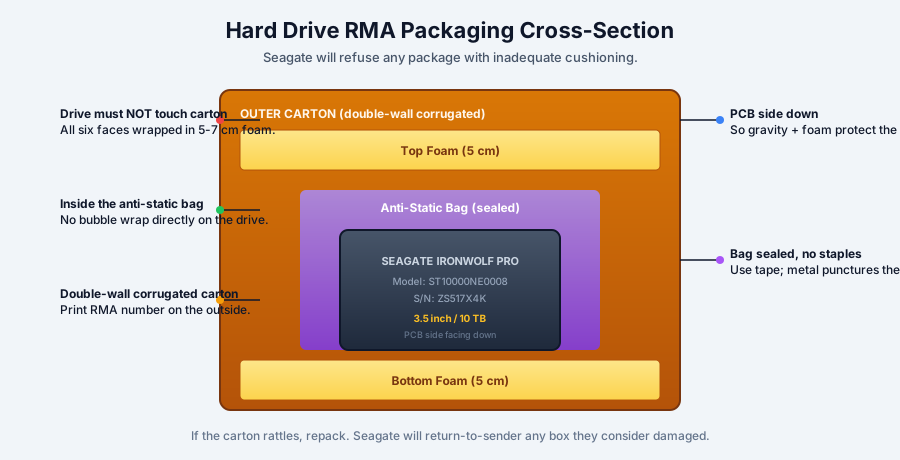
Figure 5: a good RMA package in cross-section. Anything that rattles will be returned to sender.
11. The boring long-term advice: 3-2-1
This whole incident reminded me of something I already knew but had not actually followed on that specific volume: don’t put irreplaceable data on a single-drive “Basic” pool. A 3.5" 10 TB drive that has been running for 3 years is, by definition, a drive on borrowed time.
I have now done two things:
- Snapshot-synced the data on
volume3to another NAS using Hyper Backup, with encryption and checksum verification. - Enabled monthly long SMART self-tests on all four drives, plus DSM’s
syno_disk_health_recordfor long-term health tracking.
The 3-2-1 backup rule isn’t that hard to apply at home:
- 3 copies of the data
- 2 different media (e.g. NAS HDD + external USB HDD)
- 1 offsite (another machine / cloud / a friend’s place)
If you can answer “yes” to if a drive dies right now, I can recover everything in under 30 minutes, you’re ahead of most home NAS users.
12. Q&A
Q1: How high does Reallocated_Sector_Ct have to climb before I have to replace the drive? A: There’s no absolute number. Backblaze’s rule of thumb is “RAW > 0 puts you on the watch list.” The actual replacement trigger is “still climbing in a short window.” My drive was 18k and climbing; if yours is 10 and hasn’t moved in a year, you’re fine to wait.
Q2: SMART overall says PASSED, but reallocated sectors are still climbing. Isn’t that a contradiction? A: No. Overall PASSED is a snapshot of “factory-good” thresholds. A climbing Reallocated_Sector_Ct is a separate signal that the media is degrading even while the firmware is still keeping the drive online. Treat PASSED-but-climbing as an early warning — don’t wait for NOT PASSED to act.
Q3: Is Seagate Rescue data recovery included for this drive? A: IronWolf Pro includes 3 years of Rescue. But Rescue is only valid if you do not also file an RMA — the moment you go RMA, you forfeit Rescue. So before submitting, make sure your data is already backed up.
Q4: Can I really transfer a warranty without an original receipt? A: Yes. Seagate’s policy for the APAC region accepts an ownership declaration + drive label photos + ID verification as a substitute. The hard-reject rate is around 20-30%; with a clean declaration it climbs to 70-80%. Both Chinese and English work, but English gets faster responses.
Q5: How long does the whole transfer take? A: Seagate APAC support typically responds within 3-5 business days. After approval, the actual transfer takes 1-2 business days, so about a week in total. Then the local RMA is 7-15 business days round-trip. Plan for 3-4 weeks end to end.
Q6: Can I fix the ata5 CRC errors by replacing the drive?
A: Almost never. UDMA_CRC_Error_Count is a link-layer counter, not a media counter. A fresh drive on the same flaky port will just start counting from zero. Fix the link first — in most cases a contact cleaning is enough.
Q7: Is the “replacement” drive actually new?
A: Usually it is a recertified drive of equal or higher spec, though sometimes you do get a brand-new one. Seagate doesn’t distinguish on the box. The reliable signal is Power_On_Hours near zero in the new drive’s SMART data.
Q8: Is Synology’s “Drive 10” really the tenth physical slot?
A: No. Synology’s disk numbering does not strictly follow the BIOS sda/sdb/... order. In my case I had to read every drive’s serial via smartctl and cross-check against the syno_disk_serial sysfs entries to confirm that “Drive 10” was /dev/sdj. If you only have four drives populated, the slot number is misleading enough that it’s worth double-checking before pulling anything.
13. References
- Seagate IronWolf Pro product page: https://www.seagate.com/products/nas-drives/ironwolf-pro/
- Seagate warranty check entry point: https://www.seagate.com/support/warranty-and-replacements/
- Seagate China customer service: 400-887-8755
- smartmontools attribute reference: https://www.smartmontools.org/wiki/Attributes
- Backblaze’s SMART threshold methodology: https://www.backblaze.com/blog/what-smart-stats-indicate-hard-drive-failures/
14. Closing thoughts
A NAS alert is rarely scary because a hard drive is dying — hard drives are consumables, and they will die. The scary part is the failure mode you didn’t anticipate: a slot that quietly accumulates link errors, an undetected backplane issue, a single-drive Basic pool holding the only copy of something. Those are the situations that actually lose data.
This whole playbook — SMART triage, classification, the RMA email template, the region-transfer flow, the packaging rules — has one purpose:
Before the drive dies completely, give it a clean exit. And make sure the data is somewhere safe when it does.
Hope this saves someone a few hours of guessing.