[Clickbait Alert] Switching to a Chinese Mirror Nearly Broke My Ubuntu: A Real Story of apt Dependency Hell
TL;DR
I switched to a domestic Chinese mirror for Ubuntu and thought it would take 10 minutes. It took two hours. This article documents the entire journey from “mirror sync delay causing version mismatch” to “dpkg forced downgrade” to “apt fully restored.” The core lesson: switching a mirror is not a one-click fix—version consistency is everything. If you swap mirrors on a system that’s been running for months, you have a 99% chance of hitting dependency conflicts.
All operations in this article are based on Ubuntu 26.04 (Plucky). All IPs, hostnames, and paths are sanitized examples and contain no internal network addresses or sensitive information.
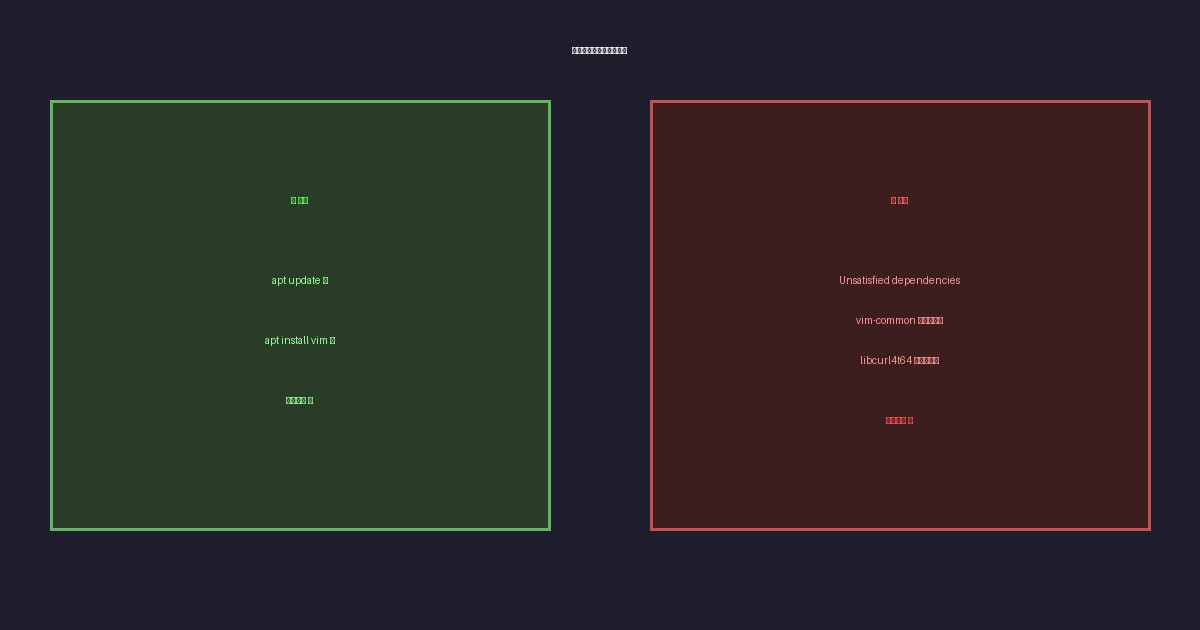
Figure 1: Before vs after switching mirrors — what you expect vs what actually happens
0. Background: Why Switch Mirrors?
The story starts simply: a freshly deployed Ubuntu 26.04 server needed basic tools like vim, curl, and wget installed. The server was on an internal network, so accessing overseas apt sources was painfully slow—hence the plan to switch to a domestic Chinese mirror.
First, let’s check the current apt source configuration:
cat /etc/apt/sources.list.d/ubuntu.sources
The output:
Types: deb
URIs: http://archive.ubuntu.com/ubuntu/
Suites: resolute resolute-updates resolute-backports
Components: main restricted universe multiverse
Signed-By: /usr/share/keyrings/ubuntu-archive-keyring.gpg

Types: deb
URIs: http://security.ubuntu.com/ubuntu/
Suites: resolute-security
Components: main restricted universe multiverse
Signed-By: /usr/share/keyrings/ubuntu-archive-keyring.gpg
Seeing resolute gave me pause—this is the codename for Ubuntu 25.04, but the machine clearly has Ubuntu 26.04 installed. Ubuntu 26.04’s codename is Plucky (the 16th letter of the alphabet). It appears the default apt source configuration for Ubuntu 26.04 had the wrong codename, which is why it’s crucial to verify the Suites field when switching mirrors.
The natural reaction was to swap in a domestic mirror—Huawei Cloud, Aliyun, and NetEase were all tried in succession. Initial tests looked fine: apt update successfully fetched the package lists. Then I ran the installation:
apt install vim lrzsz p7zip unzip net-tools curl wget ncdu -y
And immediately hit an error:
Unsatisfied dependencies:
  curl : Depends: libcurl4t64 (= 8.12.1-3ubuntu1) but 8.18.0-1ubuntu2 is to be installed
  vim : Depends: vim-common (= 2:9.1.0967-1ubuntu4.1) but 2:9.1.2141-1ubuntu4 is to be installed
        Depends: vim-runtime (= 2:9.1.0967-1ubuntu4.1) but it is not going to be installed
        Depends: libpython3.13 (>= 3.13.0~rc3) but it is not going to be installed
The error message was unambiguous: the locally installed package versions don’t match what’s available in the mirror. The local system had newer versions, but the mirror only had older ones. apt was trapped in a deadlock: “install a new package that requires an old library.”
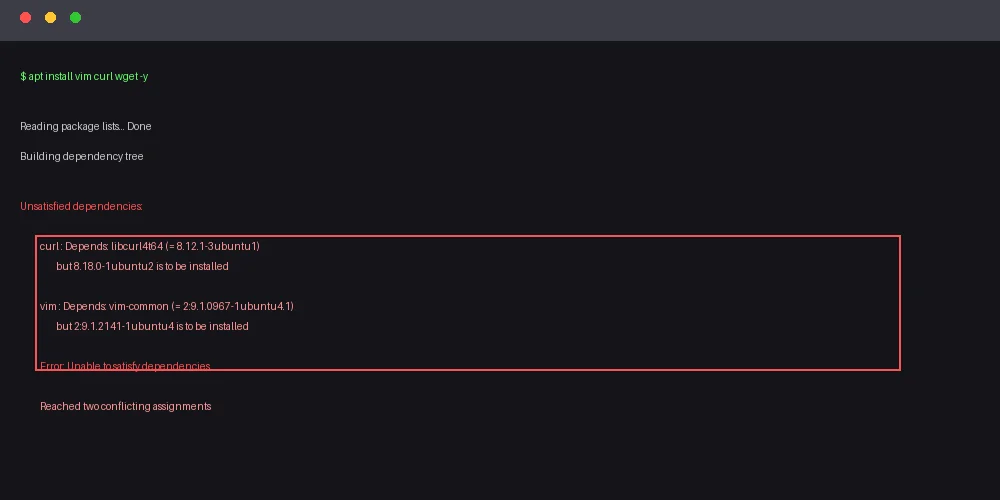
Figure 2: apt’s dependency error — the red box highlights the core conflict
1. Problem Analysis: Why Does Switching Mirrors Cause Dependency Conflicts?
1.1 Root Cause: Mirror Sync Delay + System Version Fragmentation
The problem stems from the local package version on the system being out of sync with the mirror:
- Locally installed packages: This server may have had newer versions of
vim,libcurl4t64,wget, etc. installed via other means (direct deb installation, manual compilation, third-party PPAs, etc.), causing the local dpkg database to record newer versions. - Mirror packages: Domestic Chinese mirror sync typically has a delay of minutes to hours. Some mirrors use batch rsync on a schedule rather than real-time push. This means the mirror’s
vim-commonmight still be on an older version while the local system already has a newer one.
When apt tries to install vim:
- The
vimpackage (candidate version 9.1.0967-1ubuntu4.1) requiresvim-common = 9.1.0967-1ubuntu4.1 - But locally installed is
vim-common = 9.1.2141-1ubuntu4(a newer version) - apt refuses to downgrade, so it errors out
The same issue occurs between curl and libcurl4t64.
1.2 Why This Happens: Local State vs. Mirror Version Fragmentation
Check the current state:
apt-cache policy vim vim-common curl libcurl4t64
Output:
vim:
  Installed: (none)
  Candidate: 2:9.1.0967-1ubuntu4.1
  Version table:
     2:9.1.0967-1ubuntu4.1 500 <- mirror
     2:9.1.0967-1ubuntu4 500

vim-common:
  Installed: 2:9.1.2141-1ubuntu4  <- local version is newer than mirror!
  Candidate: 2:9.1.2141-1ubuntu4
  Version table:
     2:9.1.0967-1ubuntu4.1 500
     2:9.1.0967-1ubuntu4 500

libcurl4t64:
  Installed: 8.18.0-1ubuntu2  <- local version
  Candidate: 8.18.0-1ubuntu2
  Version table:
     8.12.1-3ubuntu1 500  <- mirror has older version
The core issue: the Candidate (candidate version) comes from the mirror, but dpkg already considers the local version “correct.” When apt performs dependency resolution, the two sides don’t match, creating a deadlock.
1.3 Why Do Domestic Mirrors Get Out of Sync?
Many ask: aren’t mirrors synced in real time? Why would there be a version difference?
Several situations cause this:
| Cause | Explanation |
|---|---|
| Scheduled batch sync | Most domestic mirrors use rsync on a schedule (daily/hourly), not real-time push |
| Staged sync | Some mirrors sync by component in stages (main first, security later) |
| Sync chain delay | The path from official Ubuntu sources to domestic mirrors inherently has hours of delay |
| Local manual installation | The sysadmin manually installed a newer package than the mirror has (compilation, direct deb) |
For this server, it was likely that the system’s pre-installed packages were newer than any domestic mirror—Ubuntu 26.04 launched in April 2026, and our system may have received packages pushed shortly after the launch, before domestic mirrors had synced.
1.4 When to Switch Mirrors
Strongly recommended at these times:
- Immediately after a fresh install, then run
apt update && apt upgrade -yfor a full upgrade - Right after the system is deployed, before any additional software is installed
- Before building Docker images, specifying the mirror directly in the Dockerfile
Avoid:
- A system that’s been running for a while with manual installations/updates
- Production environments already running business workloads
- Systems that have already obtained packages newer than the mirror through other channels
If your system is already in a “fragmented” state, the full fix is to full-upgrade or full-downgrade to a consistent version with the mirror, or use the workaround in this article.
2. Resolution Process: From Failure to Success
2.1 Step 1: Standard Fix Attempts (Failed)
# Clean apt cache
apt clean
apt update

# Try to fix dependencies
apt --fix-broken install -y
Result: No improvement. Dependency issues persisted.
2.2 Step 2: Individual Package Installation Test (Discovered Which Work and Which Don’t)
# Install one at a time to see which succeed
for pkg in vim lrzsz p7zip unzip net-tools curl wget ncdu; do
    echo "=== Installing $pkg ==="
    apt install $pkg -y 2>&1 | tail -5
done
Results:
| Package | Result | Notes |
|---|---|---|
lrzsz |
✅ Success | No dependency conflict |
p7zip |
✅ Success | No dependency conflict |
unzip |
✅ Success | Already latest |
net-tools |
✅ Success | No dependency conflict |
wget |
✅ Success | Already latest |
ncdu |
✅ Success | No dependency conflict |
vim |
❌ Failed | vim-common version mismatch |
curl |
❌ Failed | libcurl4t64 version mismatch |
This revealed that the issue was concentrated on vim and curl—all other packages had no conflicts.
2.3 Step 3: Understanding the Relationship Between dpkg and apt
After digging deeper, I understood the root cause:
- apt is dpkg’s frontend, responsible for dependency resolution and downloading
- dpkg is the low-level package manager that handles .deb file installation
- When you run
apt install vim, apt first resolves dependencies, finds all required packages, then calls dpkg to install them one by one - The local dpkg database’s “installed version” has highest priority—apt cannot downgrade an existing package without special parameters
So when vim needs vim-common = 9.1.0967-1ubuntu4.1 but locally has vim-common = 9.1.2141-1ubuntu4:
- apt thinks “if I install vim, I need to downgrade vim-common”
- But regular
apt installdoesn’t allow downgrades by default - So it errors out
Key insight: the solution isn’t to have apt upgrade—it’s to force the mirror’s version to replace the local version.
2.4 Step 4: Full Upgrade Attempt (Partial Success)
apt full-upgrade -y
This command is more aggressive than apt upgrade—it attempts to install/upgrade/remove packages as needed to resolve dependencies.
Result: The system upgraded 3 packages (libicu76, libxml2, tracker-extract), removed localsearch, but the vim and curl issues remained.
2.5 Step 5: Manual deb Package Download and Forced Installation (Key Breakthrough)
The core approach: bypass apt’s dependency resolution and directly use dpkg to force-install the correct versions.
5.1 Remove Conflicting Local Packages
First, force-remove the incompatible local packages with dpkg --force-all:
# Force remove vim-common (note: this also removes vim-tiny which depends on it)
dpkg --force-all --remove vim-common
Output:
dpkg: vim-common: dependency problems, but removing anyway as you requested:
 vim-tiny depends on vim-common (= 2:9.1.2141-1ubuntu4).
Removing vim-common (2:9.1.2141-1ubuntu4)…
Successfully removed the local vim-common. Note the use of --force-all—normally dpkg wouldn’t allow removing a package that other packages depend on.
5.2 Download the Correct Versions
Download the needed packages into a temp directory:
mkdir -p /tmp/vim-packages
cd /tmp/vim-packages
apt download vim-common vim-runtime vim
apt download is a useful command—it only downloads the deb package without installing. It’s more reliable than wget (since URL paths vary by version).
After downloading:
vim_2:9.1.0967-1ubuntu4.1_amd64.deb
vim-common_2:9.1.0967-1ubuntu4.1_all.deb
vim-runtime_2:9.1.0967-1ubuntu4.1_all.deb
5.3 Forced Installation
dpkg -i vim-common_*.deb vim-runtime_*.deb vim_*.deb
The installation reported an error:
Package libpython3.13 is not installed.
dpkg: error processing package vim (--install):
 dependency problems - leaving unconfigured
vim depends on libpython3.13, which wasn’t installed. Keep downloading:
apt download libpython3.13 libpython3.13-stdlib libpython3.13-minimal
dpkg -i libpython3.13-minimal_*.deb
dpkg --configure -a
After this step, vim finally installed successfully:
Setting up vim (2:9.1.0967-1ubuntu4.1)…
update-alternatives: using /usr/bin/vim.basic to provide /usr/bin/vi (vi) in auto mode
update-alternatives: using /usr/bin/vim.basic to provide /usr/bin/vim (vim) in auto mode
5.4 Solving the curl Problem
curl had the same issue as vim: the locally installed libcurl4t64 was too new (8.18.0), but the curl from the mirror required an older version (8.12.1).
Same approach—manual download and installation:
# Use wget to download directly from the mirror (apt download can't be used due to local version issues)
cd /tmp
wget http://mirrors.163.com/ubuntu/pool/main/c/curl/libcurl4t64_8.12.1-3ubuntu1_amd64.deb
dpkg -i libcurl4t64_*.deb
Then install curl:
apt install curl -y
Success!
2.6 Step 6: Fix the ubuntu-minimal Dependency Warning
During installation, there was also a warning:
ubuntu-minimal : Depends: vim-tiny but it is not going to be installed
This is because the ubuntu-minimal package depends on vim-tiny, but we installed the full vim (not the tiny version).
The fix is to also install vim-tiny (the two versions coexist via update-alternatives):
apt install vim-tiny -y
After this, all dependency issues were resolved:
apt --fix-broken install -y
# Output: Solving dependencies... Summary: Upgrading: 0, Installing: 0, Removing: 0, Not Upgrading: 0
2.7 Final Verification
$ which vim curl wget
/usr/bin/vim
/usr/bin/curl
/usr/bin/wget

$ dpkg -l | grep -E 'vim |curl |wget |lrzsz|p7zip|unzip|net-tools|ncdu' | grep '^ii'
ii  curl         8.12.1-3ubuntu1    amd64   command line tool for transferring data with URL syntax
ii  lrzsz        0.12.21rc-0.2     amd64   Tools for zmodem/xmodem/ymodem file transfer
ii  ncdu         1.21-2            amd64   ncurses disk usage viewer
ii  net-tools    2.10-1.1ubuntu1   amd64   NET-3 networking toolkit
ii  p7zip        16.02+transitional all    transitional package
ii  unzip        6.0-29ubuntu1     amd64   De-archiver for .zip files
ii  vim          2:9.1.0967-1ubuntu4.1   amd64   Vi IMproved - enhanced vi editor
All packages installed successfully with versions consistent with the mirror.
3. Complete Recap: The Standard Process for Switching Mirrors
3.1 Recommended Process (For Fresh Systems)
Step 1: Immediately full-upgrade after switching mirrors
# Edit the mirror configuration
vim /etc/apt/sources.list.d/ubuntu.sources

# Write the mirror config (using Huawei Cloud as example)
cat > /etc/apt/sources.list.d/ubuntu.sources << 'EOF'
Types: deb
URIs: https://mirrors.huaweicloud.com/ubuntu/
Suites: plucky plucky-updates plucky-backports
Components: main restricted universe multiverse
Signed-By: /usr/share/keyrings/ubuntu-archive-keyring.gpg

Types: deb
URIs: https://mirrors.huaweicloud.com/ubuntu/
Suites: plucky-security
Components: main restricted universe multiverse
Signed-By: /usr/share/keyrings/ubuntu-archive-keyring.gpg
EOF

# Clean cache + full update + full upgrade
apt clean
apt update
apt full-upgrade -y
Step 2: Verify system state
apt --fix-broken install -y
dpkg --audit
3.2 Risk Assessment for Already-Deployed Systems
If you have a Ubuntu system that’s been running for a while and want to switch mirrors, assess first:
# Check if any manually installed packages have versions inconsistent with the mirror
apt-cache policy $(dpkg --get-selections | grep install | cut -f1 | head -50)

# Or check for packages where local version is newer than candidate
apt list --upgradable 2>/dev/null | grep -v "已安装" | head -20
3.3 Common Mirror Comparison
| Mirror | URL | Sync Frequency | Speed |
|---|---|---|---|
| Huawei Cloud | https://mirrors.huaweicloud.com/ubuntu/ | Real-time | Fast |
| Aliyun | https://mirrors.aliyun.com/ubuntu/ | Real-time | Fast |
| NetEase | https://mirrors.163.com/ubuntu/ | Hourly | Fast |
| Tsinghua University | https://mirrors.tuna.tsinghua.edu.cn/ubuntu/ | Real-time | Fast |
| USTC | https://mirrors.ustc.edu.cn/ubuntu/ | Real-time | Fast |
Recommendation: For domestic servers, prefer Aliyun or Huawei Cloud. For home broadband/education networks, try USTC or Tsinghua.
3.4 Ubuntu Version Codename Quick Reference
| Version | Codename | Date |
|---|---|---|
| Ubuntu 24.04 | Noble Numbat | 2024-04 |
| Ubuntu 24.10 | Oracular Oriole | 2024-10 |
| Ubuntu 25.04 | Plucky Puffin | 2025-04 |
| Ubuntu 25.10 | Warty Warthog | 2025-10 |
| Ubuntu 26.04 | Plucky (evolved) | 2026-04 |
Important: Ubuntu 26.04’s codename is confirmed as plucky, not noble. If you write the wrong codename in the config, apt update will error with Unable to locate package.
4. Q&A
Q1: Why Not Just Uninstall and Reinstall?
Someone might ask: since the local version doesn’t match the mirror, wouldn’t apt remove then apt install solve it?
The answer is no, because:
- Some packages are core system components (e.g.,
vim-tinyis depended on byubuntu-minimal) and can’t be casually uninstalled - Some packages are dependencies of other packages—uninstallation could trigger a cascade
- Even after uninstallation, residual information in the local dpkg database could still cause issues
The correct approach is install the correct version first, then use dpkg --configure -a to fix half-configured states—not uninstall-then-reinstall.
Q2: Why Does apt download Work But apt install Doesn’t?
apt download only downloads a deb package to the current directory—it doesn’t involve writing to the dpkg database, so it doesn’t trigger dependency resolution.
apt install does the following:
- Queries the local dpkg database
- Resolves all dependency relationships
- Decides whether to downgrade/upgrade
- Calls dpkg to actually install
When the local database is inconsistent with the mirror, apt install’s dependency resolution fails. But apt download has no such restriction—it’s just downloading files.
Q3: Can I Use apt-get -t to Specify a Version?
You can try apt install vim=2:9.1.0967-1ubuntu4.1, but in my testing, since the local vim-common version was newer, apt still refused to downgrade. The apt-get -t parameter is useless in this situation.
Q4: How to Avoid This Problem?
Best practices:
-
Switch mirrors and full-upgrade immediately on a fresh system
# First thing on a new system sed -i 's|http://archive.ubuntu.com/ubuntu/|https://mirrors.aliyun.com/ubuntu/|g' /etc/apt/sources.list.d/ubuntu.sources apt update && apt full-upgrade -y -
Use
apt-cloneorapt-markto backup the installed package list# Export current installed packages dpkg --get-selections > /tmp/packages.list # Import on new system dpkg --set-selections < /tmp/packages.list apt dselect-upgrade -
Test on a non-production environment first Before any mirror switch, verify in a test VM/container whether dependency issues will occur.
Q5: Huawei Cloud vs Aliyun—Which Is Better?
No absolute answer—it depends on your network environment:
- Aliyun: Very friendly for Aliyun ECS users in the same region with extremely low latency over internal network
- Huawei Cloud: Same for Huawei Cloud users; Huawei Cloud is also actively promoting open-source mirror services recently
- NetEase: Long-established, good stability, versatile
My recommendation: pick two out of three as dual-mirror backup—one primary, one backup:
# /etc/apt/sources.list.d/aliyun.sources
Types: deb
URIs: https://mirrors.aliyun.com/ubuntu/
Suites: plucky plucky-updates plucky-backports
Components: main restricted universe multiverse
Signed-By: /usr/share/keyrings/ubuntu-archive-keyring.gpg

Types: deb
URIs: https://mirrors.aliyun.com/ubuntu/
Suites: plucky-security
Components: main restricted universe multiverse
Signed-By: /usr/share/keyrings/ubuntu-archive-keyring.gpg

# /etc/apt/sources.list.d/huawei.sources (same format)
apt uses sources in file order, preferring the first source’s packages.
Q6: After Switching Mirrors, It Says “Unable to locate package” — What Now?
Usually the Suites name is wrong:
# Wrong
Suites: noble noble-updates  # ❌ noble is 24.04's codename

# Correct
Suites: plucky plucky-updates  # ✅ 26.04's codename is plucky
Verify with:
# List supported distribution codenames from the mirror
curl -s https://mirrors.aliyun.com/ubuntu/dists/ | grep -o 'href="[^"]*">' | head -20

# Or access the mirror root directly
curl -s https://mirrors.aliyun.com/ubuntu/ | grep -o 'plucky\|noble\|oracular\|warty' | sort -u
5. Summary
The core lesson from this mirror-switching ordeal: switching a mirror is only the first step—version consistency is everything.
For a freshly deployed Ubuntu system, the recommended workflow is:
- The first thing after installing the system is to switch to a domestic mirror (while the system is still “clean”)
- Immediately after switching, run
apt clean && apt update && apt full-upgrade -y - Verify
apt --fix-broken installreports no errors - Before installing any third-party software, first check if dependencies will conflict
If you’ve already been hit by this issue, follow this article’s method: first dpkg --force-all to force-remove conflicting local packages, then apt download to download the correct versions, finally dpkg -i to install them one by one and dpkg --configure -a to repair—this is the most reliable remedy.
Finally, wishing everyone smooth mirror switching and apt install with a green light all the way 🚦
Further Reading: