Restart Is Not Magic: Why Turning a Computer Off and On Seems to Fix 99% of Its Problems
The short version
A restart is not magic, and it does not repair every fault. It is closer to emptying a room that has been used for months without cleaning: borrowed items are collected, people take fresh queue numbers, temporary notes disappear, and doors and appliances are initialized again. The system returns to a cleaner and more predictable starting point.
When “restart fixed it” is true, the fault is often in volatile state, not in permanently damaged hardware, a configuration that is always wrong, or an application whose root cause has disappeared.
You have probably seen this: a browser refuses to open a new tab, a file says it is still in use, a remote session will not connect, fans spin like a tiny aircraft, or the machine becomes slow even though several gigabytes appear to be free.
You close a few windows. You quit a few applications. Finally, you restart “just to see what happens”. The problem is gone when the computer comes back.
That is the origin of the familiar claim that a restart fixes 99% of problems. It is not a rigorous statistic. It is an engineering observation: many failures are not permanent damage. They are temporary states that accumulate while a system runs for a long time.

Figure 1: A restart is a reset of a room that has become difficult to live in. Original illustration.
Imagine the computer as a room that never closes
When you move into a room, it is tidy. There is one computer on the desk, a few documents in a cabinet, and two pairs of shoes near the door.
Now imagine living there for three months without a serious cleanup:
- Delivery boxes accumulate until the walkway is blocked.
- Borrowed scissors, chargers, and keys are never returned.
- A queue forms at the door, while people who already left still occupy numbers.
- Old sticky notes remain on the desk, so everyone follows outdated instructions.
- Two people hold different keys and wait for the other person to move first.
The system’s “room” contains memory, file handles, network connections, threads, locks, caches, driver state, and service context. They share one property: they are created during startup, modified during normal work, and often have their cleanest global cleanup opportunity when a process or the operating system exits.
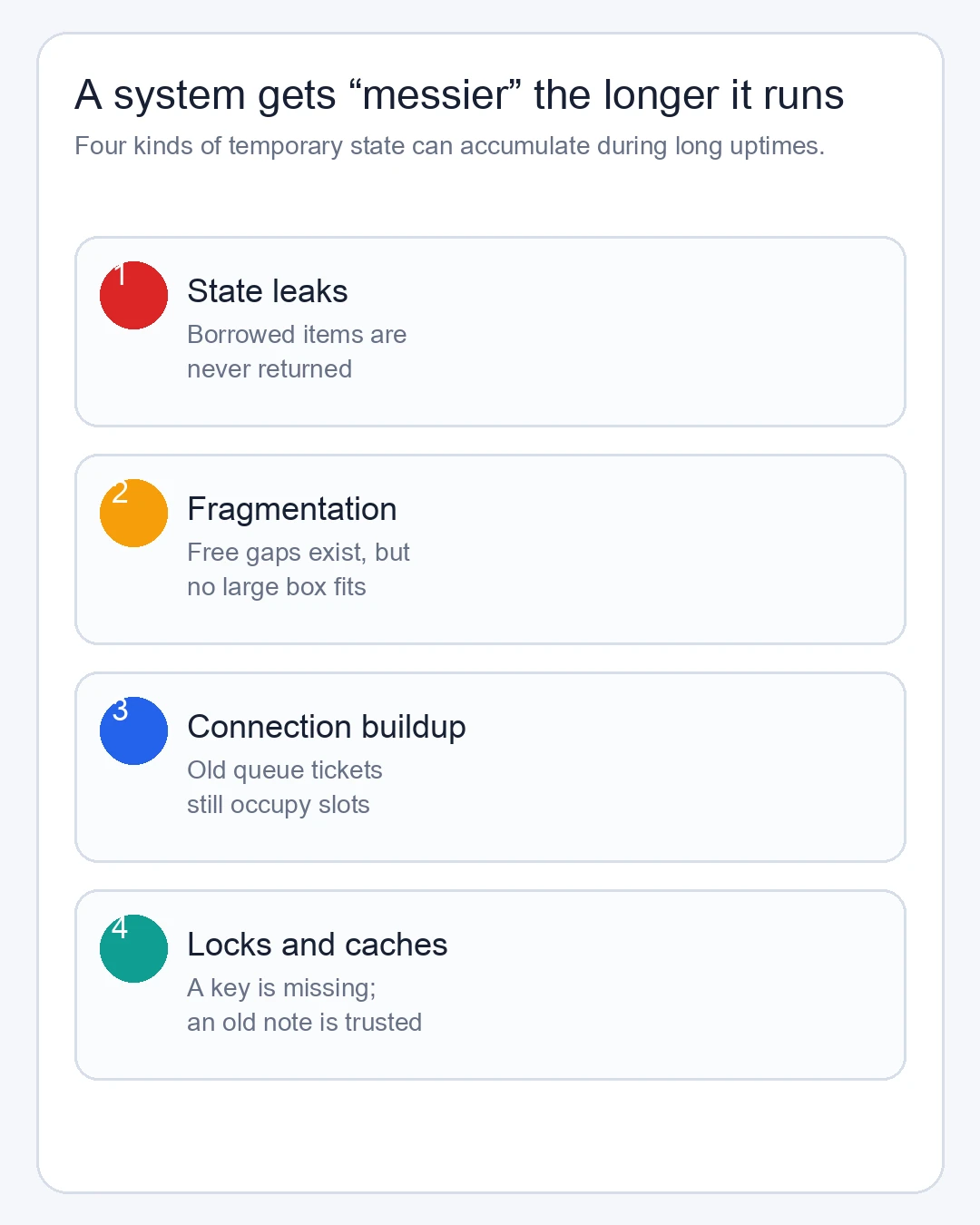
Figure 2: State leaks, fragmentation, connection buildup, and stale locks or caches are four common forms of system clutter.
State leaks: borrowed items are never returned
A leak does not have to be water coming through a pipe. In software, a leak often means “a resource was borrowed but never returned”.
When an application opens a file, the operating system gives it a file descriptor. When it creates a network connection, the system tracks connection state. When it allocates memory, an allocator records which part belongs to which owner. If the application forgets to close something, or simply stays alive for weeks, those resources can keep occupying slots.
One leak can be too small to notice. If a service keeps one extra handle for every thousand requests, a day may pass without a symptom. After several weeks, the same service may report too many open files, fail to create a thread, or refuse new connections.
This explains why restarting one service can be more effective than clicking the same button again. Once the process exits, the operating system can reclaim the process’s memory, handles, threads, and sockets. The property manager collects the missing items when the tenant leaves.
macOS exposes virtual-memory page statistics through vm_stat; Linux commonly uses /proc/meminfo, free, and per-process RSS. These are not single “health scores”. They are evidence that tells us what is accumulating.
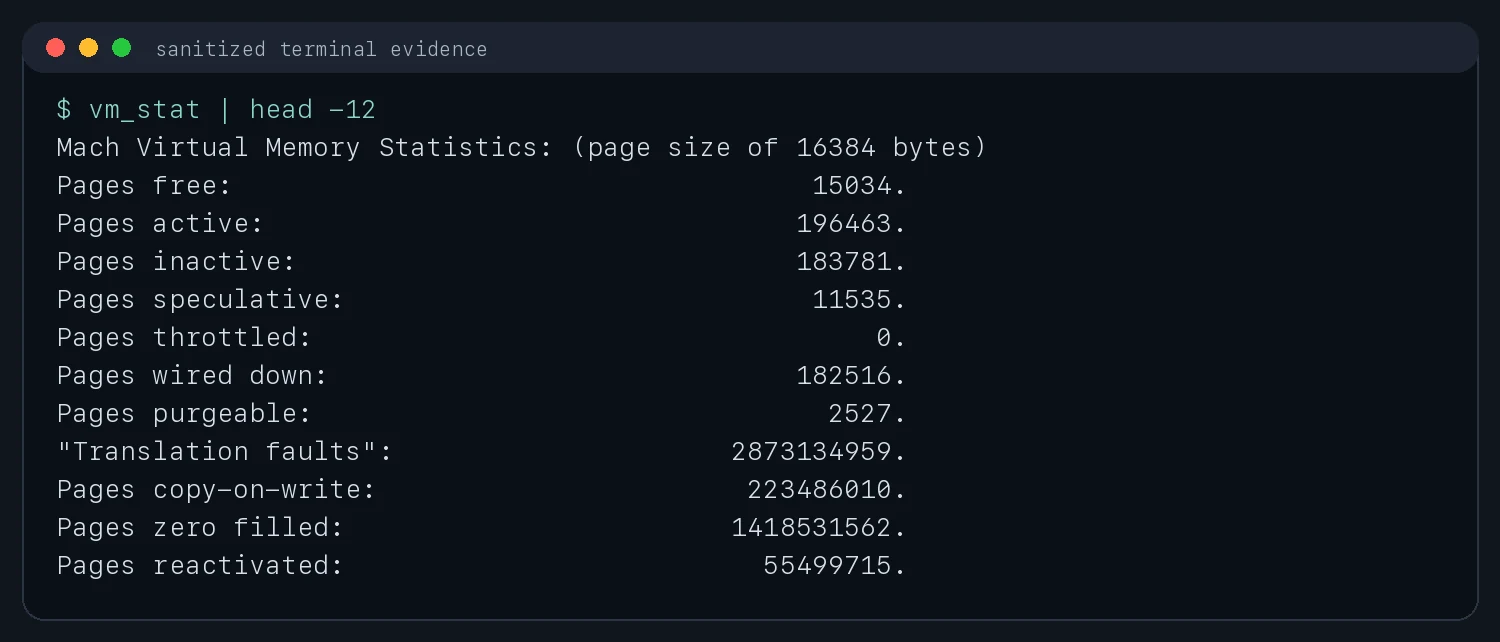
Figure 3: Real macOS vm_stat output. Values change with time and workload; the trend is more useful than one fixed number.
Fragmentation: the closet has gaps, but no large gap
People often ask: “If several gigabytes are free, why did an allocation fail?”
Because total free space is not the same as one large contiguous free region.
Imagine a closet with many shelves. A small box goes in, another box is removed, then a large suitcase needs to be placed. After many rounds, the closet can have many small gaps but no single continuous space large enough for the suitcase.
That is the beginner-friendly picture of memory fragmentation. Real systems are more complicated: user-space allocators, kernel page allocation, object sizes, memory mappings, caches, and page mobility all affect the layout. Operating systems can compact some memory, but moving things costs CPU and not every page can be moved.

Figure 4: Blue blocks are occupied; pale blocks are scattered gaps. “Free space exists” does not guarantee a large contiguous block.
Linux kernel documentation describes compaction as moving movable pages together to form larger contiguous free areas. It is like grouping small clothes on one side of a closet to make room for a complete suitcase. It is useful, but it is not free and it cannot move every object at every moment.
A restart sometimes makes memory look suddenly healthier because old processes, mappings, and caches end together. It does not create RAM out of nowhere; it gives new processes a cleaner layout to work with.
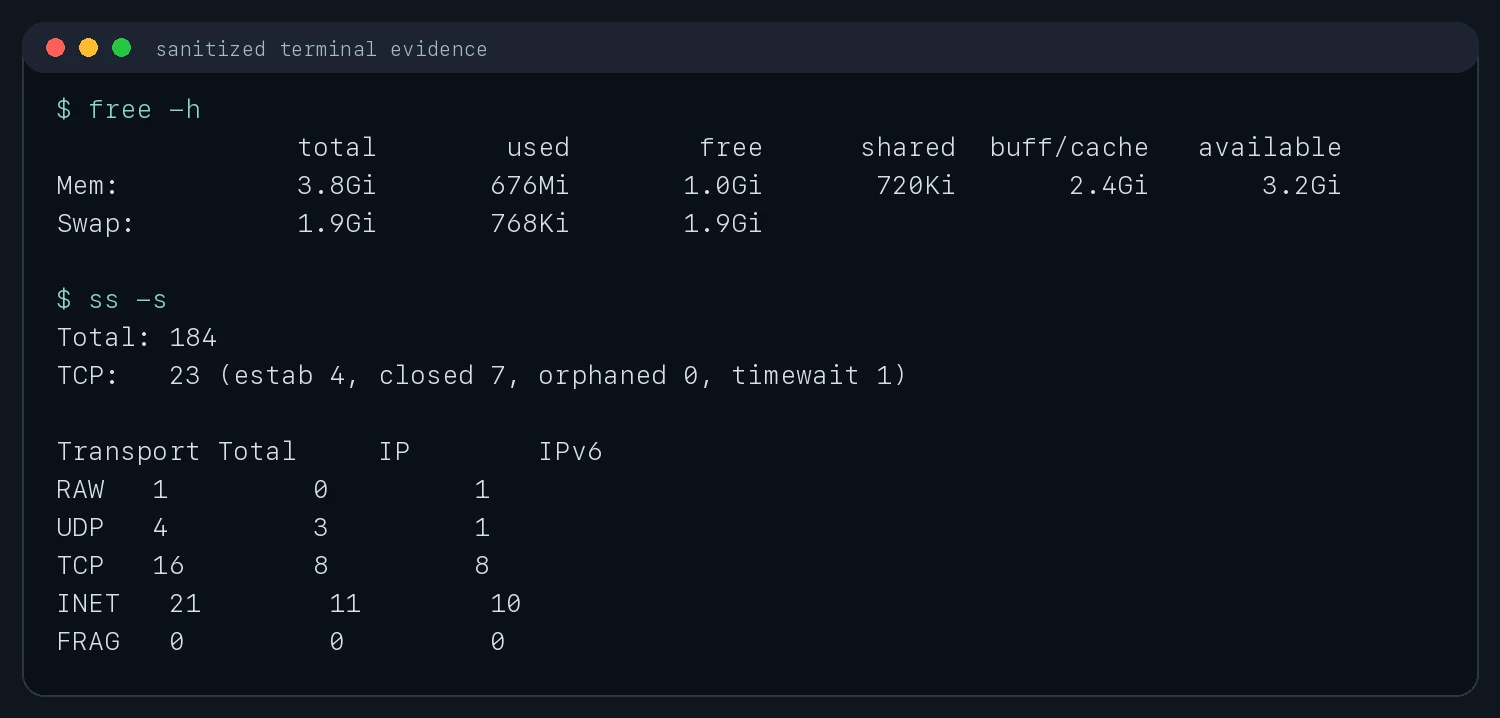
Figure 5: Real free -h and ss -s output from Ubuntu. Only aggregate statistics are shown; addresses and machine names are omitted.
Connection buildup: limited windows with old tickets still inside
Think of network connections as bank windows.
A server has finite connection slots, file descriptors, threads, and ports. A request arrives and consumes resources; when it finishes, those resources should be returned. Real networks also have retransmissions, timeouts, half-closed sessions, connection reuse, and TIME-WAIT. Some states are intentional protocol behavior, not bugs. The problem is a mismatch between their quantity or lifetime and the workload.
RFC 9293 describes TIME-WAIT in the TCP state machine. A side that actively closes a connection keeps state for a period so that delayed old segments cannot interfere with a later connection. In everyday terms, a parcel locker does not immediately hand the same number to a new customer the instant an old parcel is collected. It waits long enough to be sure the old parcel is really finished.
If an application creates short-lived connections without pooling, timeouts, or correct cleanup, the queue grows. Symptoms include intermittent connection failures, requests waiting forever, exhausted ports, or a service that recovers immediately after restart.
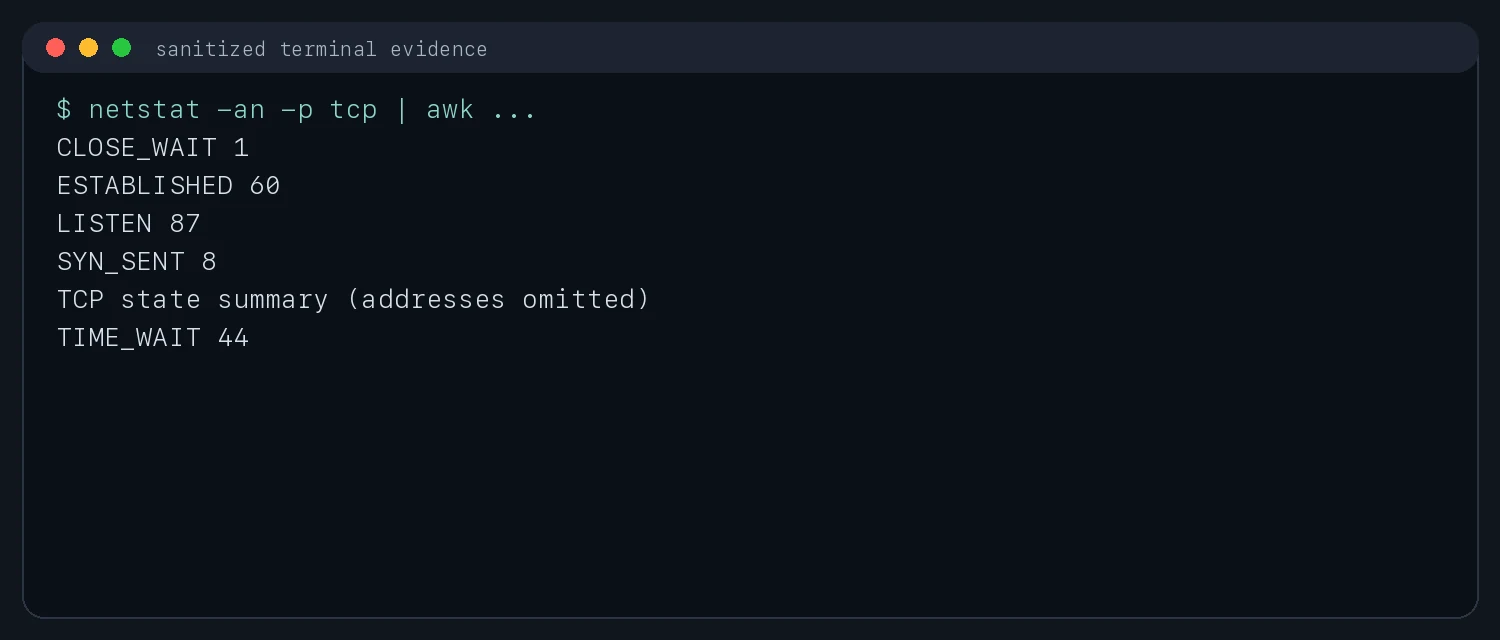
Figure 6: Real TCP state counts. A single snapshot is not a diagnosis; look for persistent growth and related failures. TIME-WAIT alone is not an incident.
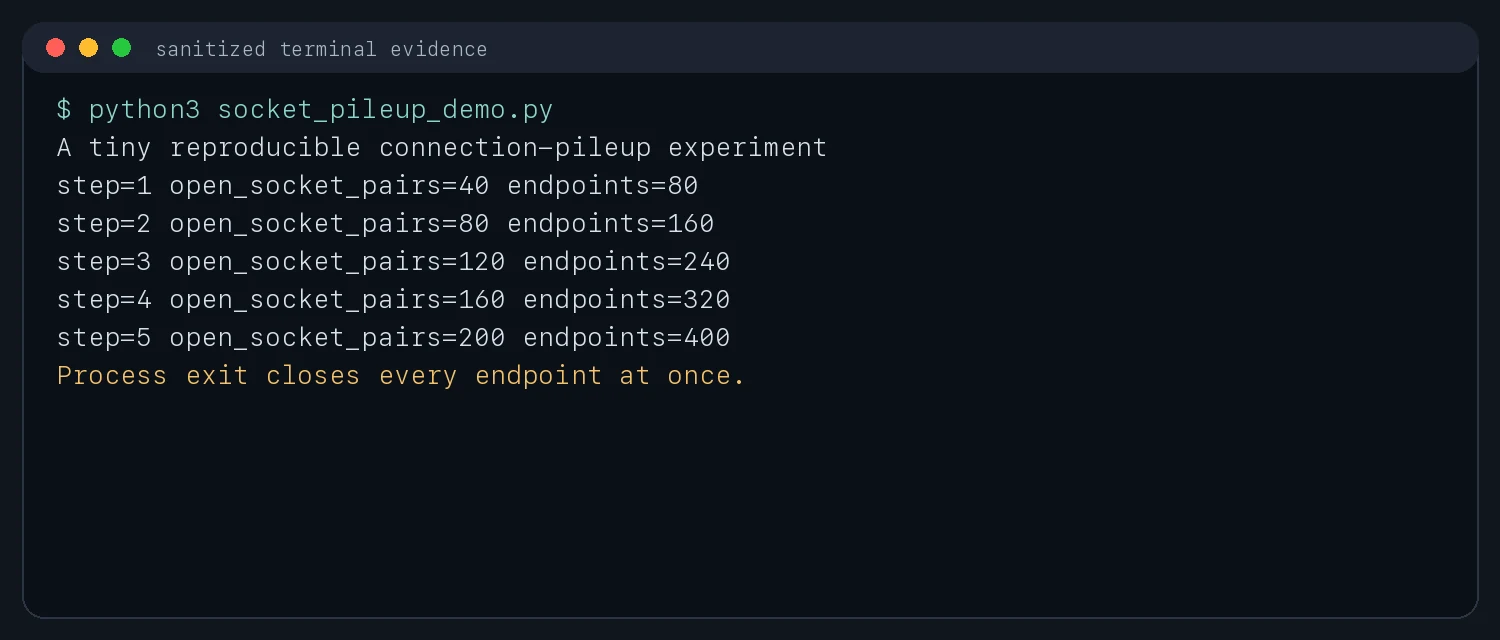
Figure 7: A small experiment grows socket pairs in batches; process exit closes every endpoint at once.
Locks and stale caches: two people waiting at the same door
Not every failure looks like high memory usage. Sometimes a state has simply become inconsistent.
Examples include:
- Thread A holds key 1 and waits for key 2, while thread B holds key 2 and waits for key 1.
- A service-discovery cache keeps an old endpoint and never refreshes it.
- A driver has been reloaded while a user-space process still believes the old device state.
- A failed background task leaves a “running” flag, so the foreground task waits forever.
This is like two people standing on opposite sides of a narrow doorway. A will not step back, B will not step back, and the room stops moving.
Some systems recover through timeouts, retries, cache invalidation, lock release, or a service restart. If the state spans several processes, kernel modules, or desktop services, an operating-system restart breaks the whole cycle.
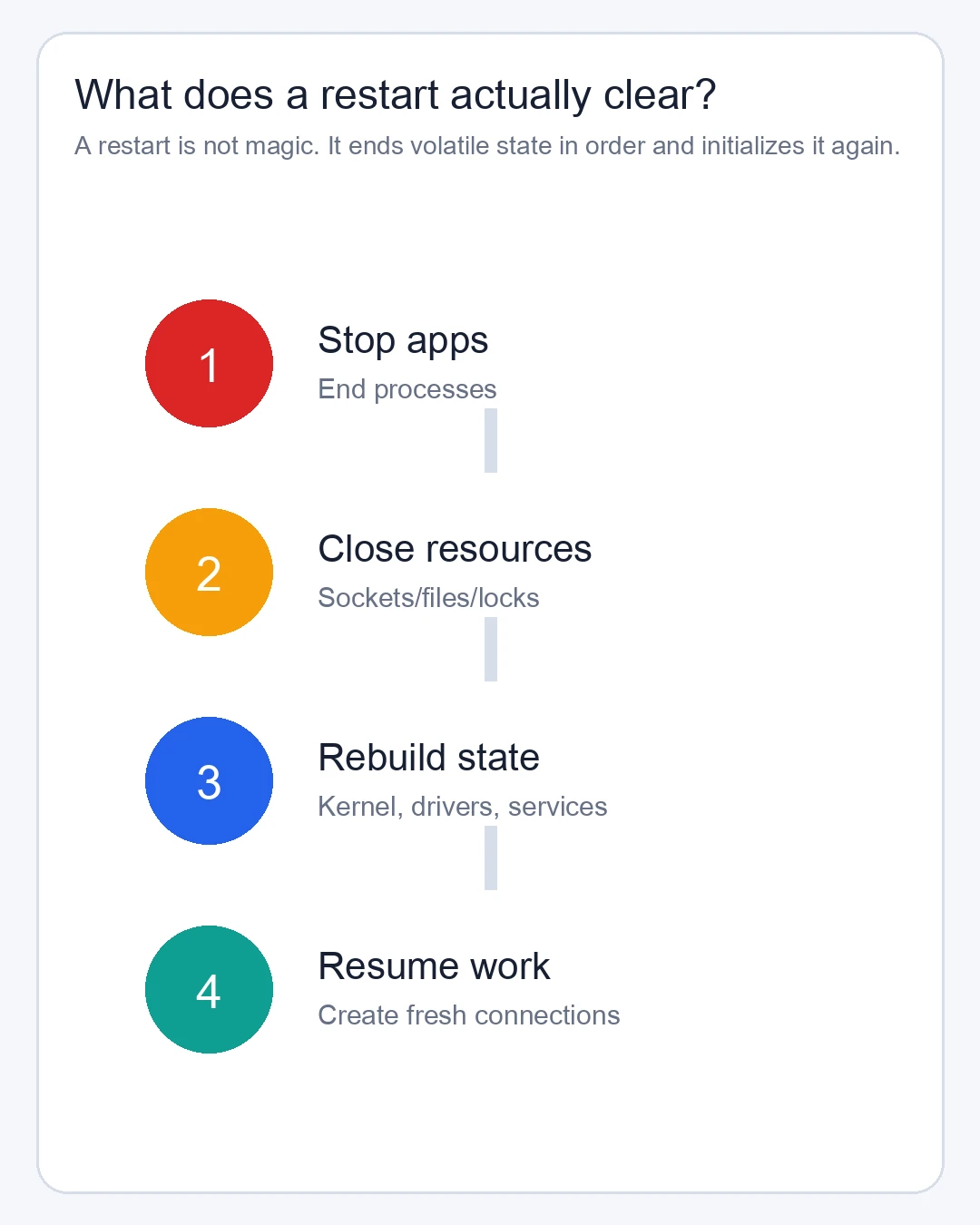
Figure 8: A restart ends old state in order, then creates fresh processes, services, and connections.
A tiny experiment: state grows while the process stays alive
The following experiment uses no third-party service and changes no system setting. At each step it retains another block of memory and prints the process’s peak RSS. When the process exits, the operating system reclaims that process-owned memory.
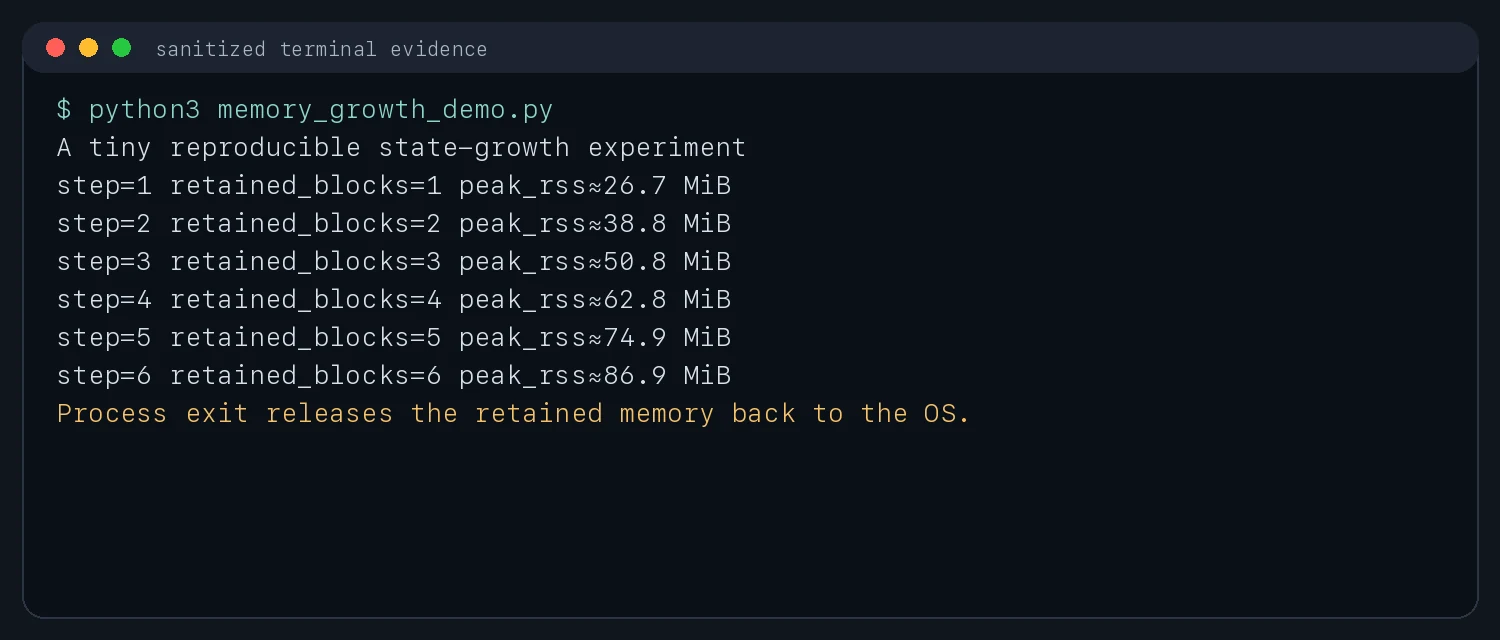
Figure 9: Real experiment output. It does not model every kind of leak, but it shows why process lifetime matters.
This is the important boundary: a restart clears temporary state owned by the process, but it does not guarantee that the next run will not leak again. If RSS climbs after every start, restart only redraws the same problem curve from zero.
Why restart and shutdown are not always identical
On Windows, the visible “Shut down” action is not always equivalent to a full kernel reset. Fast Startup stores part of the system state to disk to shorten the next boot; Restart normally follows a complete restart path. When the goal is to reset drivers, kernel state, or services, choose an explicit Restart rather than assuming that Shut down and power-on are identical.
Fast Startup is not a bad feature. It is designed for a quick return home. Restart is closer to emptying the room and opening the door again. Different goals call for different actions.
A useful restart leaves evidence behind
If every incident ends with an immediate restart, we only learn that the problem temporarily disappeared. A stronger workflow is: record, reset, verify.
Windows 11: PowerShell evidence collection and safe restart
The script below uses built-in commands. It writes a report to the desktop and asks for an explicit RESTART before rebooting. It uploads nothing and changes no system configuration.
$ErrorActionPreference = "Continue"
$stamp = Get-Date -Format "yyyyMMdd-HHmmss"
$report = Join-Path $env:USERPROFILE "Desktop\restart-room-$stamp.txt"
"Restart room evidence - $stamp" | Set-Content $report
"`n[OS]" | Add-Content $report
Get-CimInstance Win32_OperatingSystem | Select-Object Caption,Version,LastBootUpTime | Format-List | Add-Content $report
"`n[Top memory processes]" | Add-Content $report
Get-Process | Sort-Object WorkingSet64 -Descending | Select-Object -First 12 Name,Id,@{N='WorkingSetMiB';E={[math]::Round($_.WorkingSet64/1MB,1)}} | Format-Table | Out-String | Add-Content $report
"`n[Network state counts]" | Add-Content $report
netstat -ano | Select-String 'TCP' | ForEach-Object { ($_ -split '\s+')[-1] } | Group-Object | Sort-Object Count -Descending | Format-Table | Out-String | Add-Content $report
Get-Content $report
$answer = Read-Host "Evidence saved. Type RESTART to reboot, anything else to stop"
if ($answer -ceq 'RESTART') { Restart-Computer -Confirm }
For a human, save it as restart-room.ps1, run it in PowerShell, and review the report before confirming. For an Agent, split evidence collection and reboot into two actions: return the report, explain the blast radius, wait for explicit human authorization, then call Restart-Computer. Never skip confirmation merely because “reboot usually works”.
Ubuntu 26.04: Bash evidence collection and safe restart
#!/usr/bin/env bash
set -euo pipefail

stamp="$(date +%Y%m%d-%H%M%S)"
report="$HOME/restart-room-$stamp.txt"
{
  echo "Restart room evidence - $stamp"
  echo
  echo "[OS]"
  uname -srm
  uptime
  echo
  echo "[Memory]"
  free -h
  echo
  echo "[Socket summary]"
  ss -s
  echo
  echo "[Failed services]"
  systemctl --failed --no-legend || true
  echo
  echo "[Compaction counters]"
  grep -E '^(compact_|allocstall_)' /proc/vmstat | head -30 || true
} | tee "$report"

read -r -p "Evidence saved to $report. Type RESTART to reboot: " answer
if [[ "$answer" == "RESTART" ]]; then
  sudo systemctl reboot
fi
Before running it manually, confirm that you are on the intended machine and copy the report to a ticket or local workstation. An Agent should return the report path, failed-service count, TCP summary, and uptime. It should call sudo systemctl reboot only during an approved maintenance window and after explicit authorization.
macOS 26: zsh evidence collection and safe restart
#!/bin/zsh
set -u

stamp="$(date +%Y%m%d-%H%M%S)"
report="$HOME/Desktop/restart-room-$stamp.txt"
{
  echo "Restart room evidence - $stamp"
  echo
  echo "[System]"
  sw_vers
  uptime
  echo
  echo "[Virtual memory]"
  vm_stat | head -18
  echo
  echo "[Memory pressure]"
  memory_pressure | head -22
  echo
  echo "[TCP state counts]"
  netstat -an -p tcp 2>/dev/null | awk 'BEGIN{print "addresses omitted"} /^tcp/{state[$NF]++} END{for(s in state) print s, state[s]}' | sort
} | tee "$report"

printf 'Evidence saved to %s. Type RESTART to reboot: '
read answer
if [[ "$answer" == "RESTART" ]]; then
  sudo shutdown -r now
fi
For a human, let the operating system’s own terminal handle sudo; do not give a password to a script or an Agent. An Agent can explain memory_pressure and TCP states, but should not treat one snapshot as the root cause or upload the raw report to a third-party service.
Restart is neither the first step nor the last step
Here is a more useful troubleshooting ladder:
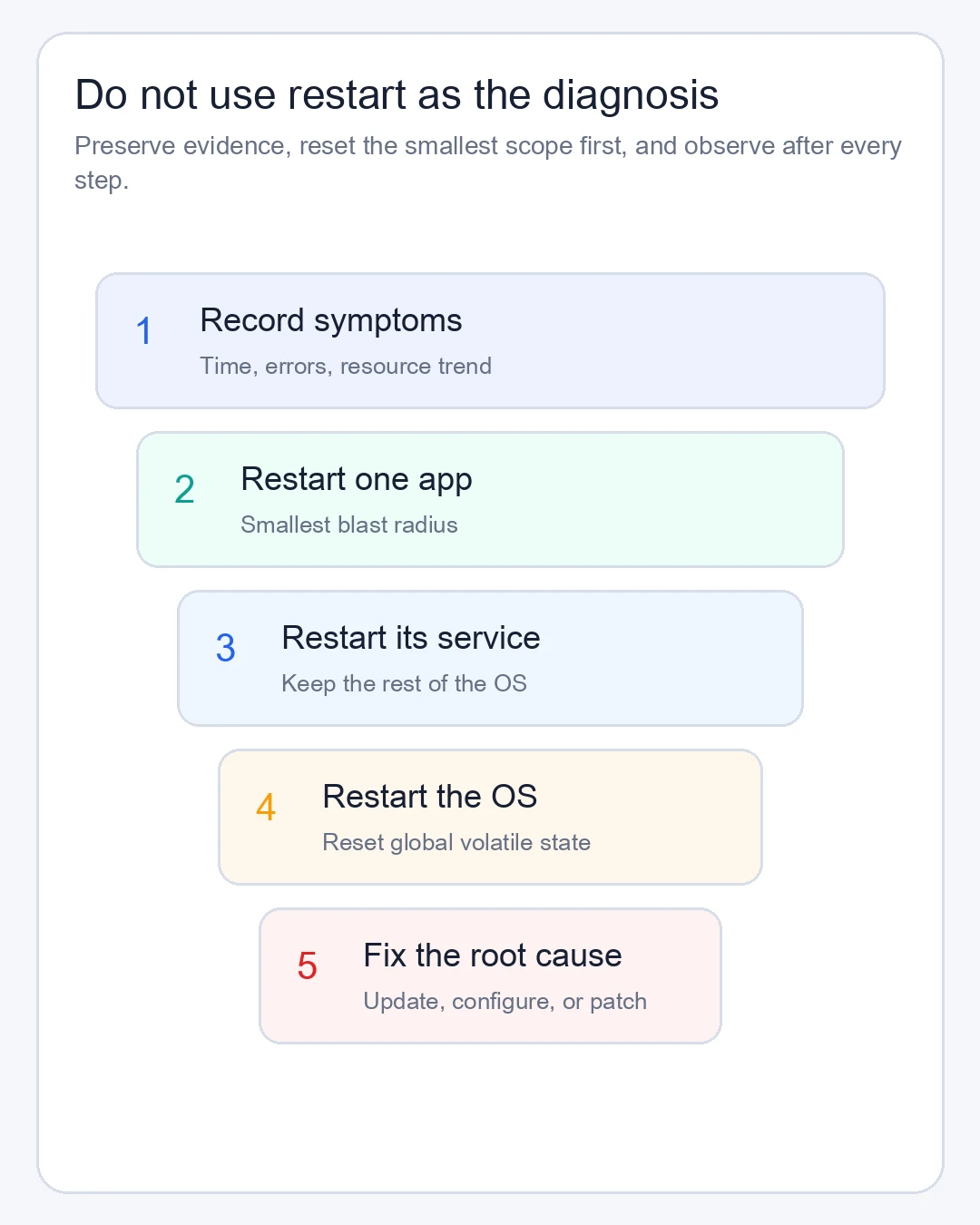
Figure 10: Restart is one reset level in the middle. Root-cause repair still requires changes to capacity, configuration, versions, or code.
Record the time, error, and resource trends first. Then restart one application if the symptom is local to that application. Restart its service if necessary. If several services share kernel, driver, or network state, consider an operating-system restart.
After the restart, verify three things:
- Did the problem disappear, or did traffic simply become lighter?
- Does the resource curve start climbing again?
- Does the same error return after a similar amount of time?
If the answer is yes, restart was a reset button, not a fix.
Problems a restart usually cannot cure
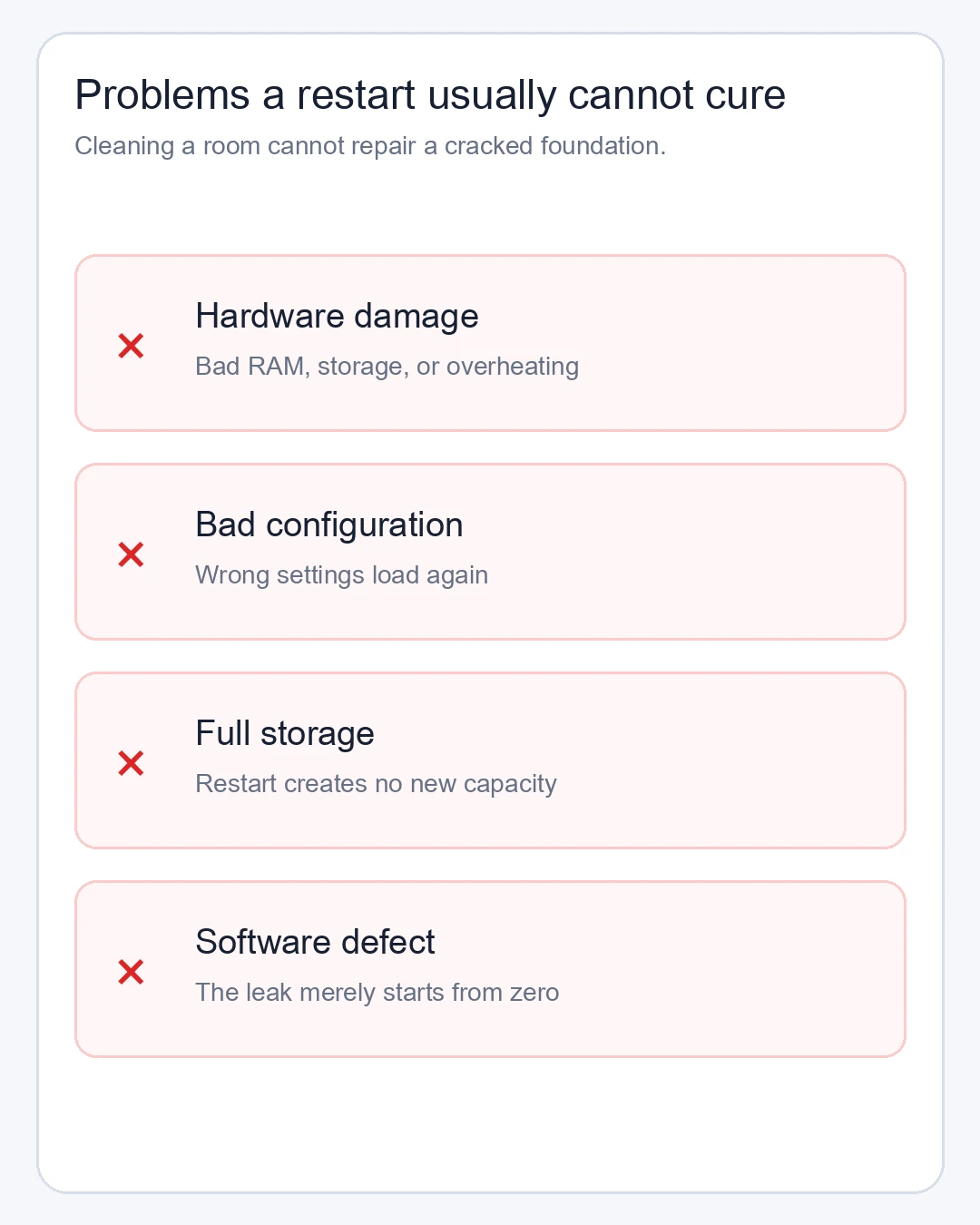
Figure 11: Cleaning a room cannot repair a cracked foundation.
Damaged hardware, failing storage, overheating, bad configuration, expired certificates, a full disk, broken program logic, and corrupted data do not truly disappear after reboot. When an application has a memory leak, restart only resets the leak counter. When a configuration is wrong, the same wrong value loads again.
That is why experienced on-call engineers label “recovered after restart” as symptom relief, not “root cause fixed”.
Q&A: common misconceptions about restart
Does restart “clear all memory”?
It ends most user-space processes and reinitializes much of the operating system, but it does not physically erase RAM. Firmware, disk data, configuration files, and persistent state remain. Restart clears runtime context, not every piece of data.
Should high memory usage always trigger a restart?
No. File cache, compressed memory, and a healthy working set all use memory. Check reclaimable memory, swap, memory pressure, process trends, and allocation failures. A system with high usage but low pressure can be working perfectly.
Does a large TIME-WAIT count mean the network is broken?
Not by itself. TIME-WAIT is part of reliable TCP close behavior. Ask whether it is growing abnormally, whether ports are exhausted, and whether connection failures or latency rise with it. Do not disable protocol protection merely to make a number reach zero.
Why can restarting one app be enough?
Because the leak or deadlock may exist only inside that process. Restarting one app has a smaller blast radius and is easier to verify. If it fails again quickly, continue with logs, versions, configuration, and resource-release paths.
How often should a computer be restarted?
There is no universal interval. A desktop can restart for updates and unusual symptoms. A server should rely on monitoring, limits, pooling, timeouts, rolling deployments, and failure drills rather than treating a weekly reboot as its only reliability strategy.
Turn the “magic button” into an engineering action
Restart looks like a universal cure because it performs many jobs at once: it ends processes, closes connections, releases handles, drops stale caches, rebuilds services, reloads drivers, and creates fresh network state.
It is like asking everyone to leave the room, issuing new keys and queue numbers, and opening the door again. The room becomes orderly for a while. If someone keeps throwing trash onto the floor, it will become messy again.
The professional goal is not to make restart solve 99% of incidents forever. It is to make every restart leave enough evidence to answer: who created the trash, why was it not cleaned, why did monitoring not warn us earlier, and what will prevent the next recurrence?
References
- Microsoft Learn: Application or Service Memory Leaks Troubleshooting Guidance
- Microsoft Learn: Improve app performance by reducing memory and disk usage
- Microsoft Learn: Evaluate Fast Startup Using Windows Performance Toolkit
- Linux kernel documentation: Compaction
- Linux kernel documentation: TCP/IP sysctl
- RFC 9293: Transmission Control Protocol
- Apple Support: Activity Monitor User Guide