Windows Finally Gets Native Linux Commands: Microsoft Coreutils Replaces WSL, Cygwin, and Git Bash
Let me ask you something:
Have you ever tried to
grepa log file in Windows Terminal, only to be told thatgrepis not a recognized command? Tried to usefindto locate files, only to discover that Windows’findis a completely different beast from Linux’sfind? Written a cross-platform script that works perfectly on Linux, then falls apart the moment it touches Windows?It’s not your fault. It’s the “Berlin Wall” between Windows and Linux command lines.
The good news? Microsoft just tore that wall down. In late 2025, Microsoft open-sourced coreutils on GitHub — a native Windows port of the essential Linux command set. No WSL. No Cygwin. No Git Bash. Just one
winget installcommand, and your Windows terminal suddenly speaks fluentls,grep,sed, andawk.

Figure 1: The Microsoft coreutils project — run Linux commands natively on Windows, no WSL required.
1. The Problem: A Windows User’s “Command-Line Pain”
If you’re a developer working on Windows, or an ops engineer managing Windows servers, you’ve lived through these moments.
Scenario 1: Log Analysis
Production is down. You need to pull every line containing ERROR from a 500MB log file and count how many times each error appears. On Linux, it’s a one-liner:
grep ERROR app.log | cut -d' ' -f3 | sort | uniq -c | sort -rn
On Windows? You open PowerShell and write something like this:
Select-String -Path app.log -Pattern "ERROR" | ForEach-Object { ($_.Line -split ' ')[2] } | Group-Object | Sort-Object Count -Descending
Never mind the verbosity — just remembering those cmdlet names is exhausting. And the real kicker? When you search Stack Overflow for help, 99% of the answers are Linux commands. You have to mentally “translate” every single one into PowerShell.
Scenario 2: Cross-Platform Scripts
You wrote a CI/CD script that runs beautifully on Linux runners. Now a teammate on Windows wants to use it. You discover that cp, mv, rm, and chmod mean nothing to Windows’ cmd. Your options:
- Rewrite the entire script in PowerShell (time-consuming and error-prone)
- Ask Windows users to install Git Bash (one more dependency)
- Ask Windows users to install WSL (way too heavy for a simple script)
Scenario 3: AI Agent Automation
More and more developers are using AI agents for automation. The problem? Most AI models generate Linux-style commands by default. You tell an agent to run ls -la /var/log on Windows, and it has no idea that /var/log doesn’t exist. You have to constantly remind it in your prompts: “You’re on Windows, use PowerShell syntax.” Even then, Linux commands keep slipping through.
Analogy time: It’s like buying a car where the steering wheel is on the wrong side. You can drive it, but every single turn requires mental translation. It’s exhausting.
2. The Existing Solutions (And Why They Fall Short)
Before coreutils, Windows users had three main paths to run Linux commands. Each one has its own set of headaches.
2.1 WSL (Windows Subsystem for Linux)
WSL is Microsoft’s official Linux subsystem — the most complete solution. But it comes with baggage:
- Heavy: WSL2 runs a full Linux virtual machine. Memory usage? Several gigabytes, easily.
- Slow: Cold start takes seconds. Not suitable for frequent script invocation.
- Filesystem isolation: WSL has its own filesystem.
ls /mnt/c/Usersin WSL vsC:\Usersin Windows — two different worlds. - Overkill for simple tasks: You just want to
grepa log file, but you have to boot an entire Linux kernel.
Analogy: WSL is like buying a cow because you want a glass of milk. The milk is great, but the upkeep is ridiculous.
2.2 Git Bash / MSYS2
Git for Windows bundles Git Bash, which provides basic Linux commands. But:
- Incomplete: Advanced tools like
sedandawkare either missing or ancient versions. - Path translation nightmares: Converting between
/c/UsersandC:\Usersbreaks in subtle ways. - Mediocre performance: It’s a compatibility layer, not a native implementation.
- Community-maintained: Not officially supported by Microsoft. Update cadence is unpredictable.
Analogy: Git Bash is like drinking soup through a straw — you get some of it, but the chunky bits get stuck.
2.3 Cygwin
Cygwin is the oldest POSIX compatibility layer for Windows, born in 1995. It attempts to fully emulate POSIX APIs on Windows, but:
- Poor compatibility: Many programs fail to compile.
- Poor performance: The POSIX emulation layer adds significant overhead.
- Messy deployment: Requires a pile of DLLs.
- Obsolete: WSL has largely replaced Cygwin’s use cases.
Analogy: Cygwin is like installing a diesel engine adapter in a gasoline car — it works, but it’s loud, inefficient, and prone to breaking.
3. What Is coreutils?
coreutils is Microsoft’s official open-source project on GitHub (microsoft/coreutils), currently in Preview. Its core idea is beautifully simple:
Take the most commonly used Linux commands, rewrite them in Rust, and compile them as native Windows PE executables.
It’s not a compatibility layer. It’s not an emulator. It’s not a virtual machine. It’s just native .exe files — as native as notepad.exe.
3.1 Technical Architecture
coreutils is built on top of uutils/coreutils — a from-scratch Rust reimplementation of GNU coreutils. uutils aims for “exact output parity with GNU,” treating any difference as a bug. Ubuntu has shipped uutils by default since version 25.10.
What Microsoft did: take the uutils codebase, adapt and optimize it for Windows, package it as a multi-call binary (like BusyBox), and distribute it via winget.
┌─────────────────────────────────────────────┐
│                 coreutils.exe                │
│         (Single Native Windows PE Binary)    │
├─────────────────────────────────────────────┤
│  Based on uutils/coreutils (Rust rewrite)    │
│  + findutils + grep                         │
├─────────────────────────────────────────────┤
│  Direct Windows NT Kernel API calls          │
│  No POSIX layer / VM / emulation             │
└─────────────────────────────────────────────┘
Analogy: WSL is like building a “Linux room” inside your house — you have to go in there to use Linux tools. coreutils is like giving your house “Linux language skills” — you stand in the Windows living room and speak Linux fluently.
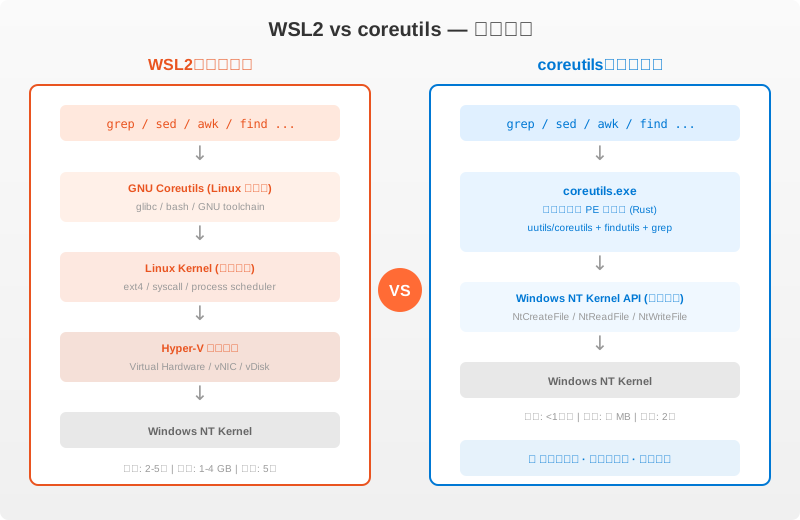
Figure 5: WSL2 requires 5 abstraction layers (Linux userspace → Linux kernel → Hyper-V → Windows), while coreutils has just 2 (coreutils.exe → Windows NT Kernel), calling system APIs directly.
3.2 Supported Commands
As of v2026.6.16, coreutils supports the following commands (non-exhaustive):
| Category | Commands |
|---|---|
| File Operations | ls, cp, mv, rm, cat, touch, mkdir, ln |
| Text Processing | grep, sed, awk, cut, sort, uniq, wc, head, tail |
| Search | find, xargs |
| System Info | date, echo, sleep, tee, basename, dirname |
| Other | tr, paste, split, comm, join, shuf |
Some commands are intentionally excluded:
dir,expand,more,timeout,whoami: conflict with Windows built-in commandschmod,chown,stty: pure POSIX concepts with no Windows equivalentkill: Windows lacks POSIX signal mechanisms
4. Installation and Usage
4.1 Installation
The easiest way is via winget:
winget install Microsoft.Coreutils
For silent installation (ideal for batch deployment):
winget install Microsoft.Coreutils --silent
You can also download the .exe installer or .zip archive from the GitHub Releases page.
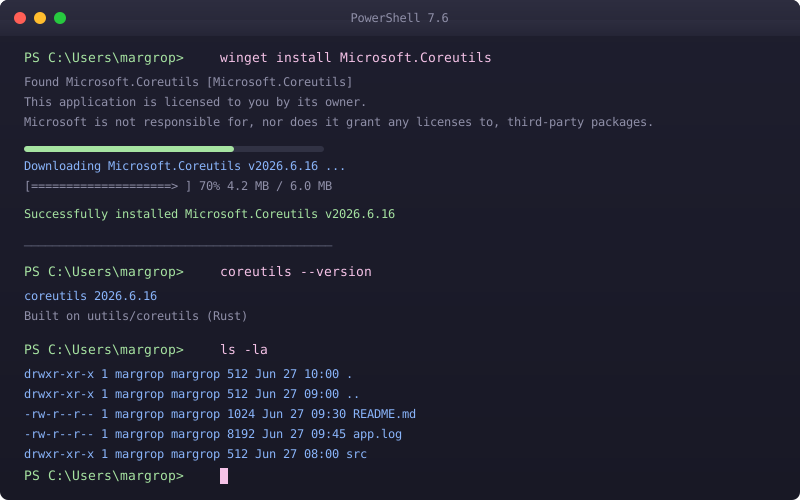
Figure 2: One-command installation of Microsoft.Coreutils via winget.

Figure 3: The coreutils project page on GitHub, open-sourced by Microsoft.
4.2 System Requirements
- PowerShell 7.4 or later (7.6+ recommended for tilde path support)
- Windows 10 or Windows 11
- Creating symbolic links requires Developer Mode or an elevated terminal
4.3 Verifying Installation
After installation, open PowerShell and try these:
# Check version
coreutils --version

# Try ls
ls

# Try grep
echo "hello world" | grep hello

# Try a pipe chain
cat README.md | grep "##" | wc -l
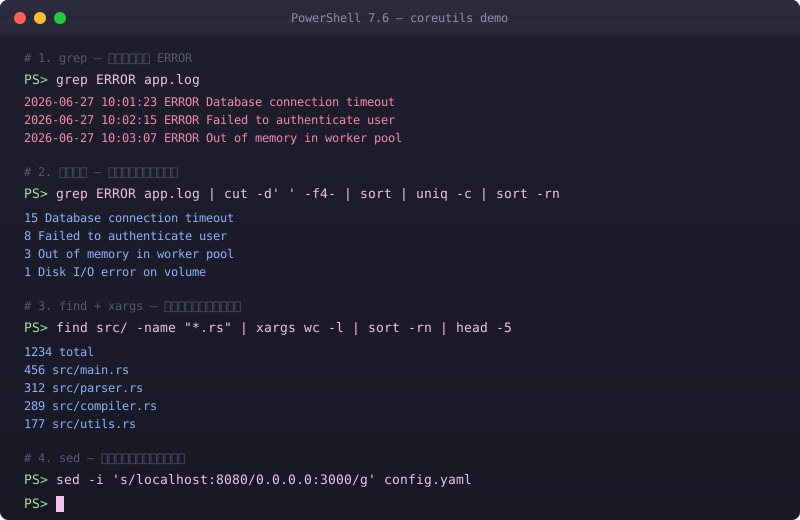
Figure 4: Running Linux commands directly in Windows Terminal — no translation needed.
4.4 Important Caveats
Windows and Linux have fundamental differences. Here’s what to know when using coreutils:
| Difference | Linux | Windows (coreutils) |
|---|---|---|
| Null device | /dev/null |
NUL |
| Line endings | \n (LF) |
\r\n (CRLF), mostly handled transparently |
| Path separator | / |
Both / and \ accepted |
| Signals | SIGTERM, SIGKILL, etc. |
Only Ctrl+C (SIGINT) |
| Permissions | POSIX rwx | Windows ACL |
| Escape character | \ |
` (backtick) |
Tip: If you’re used to PowerShell aliases like
lsandcurl, note that coreutils commands may conflict with them. Adjust yourPATHorder to control priority, or usecoreutils-manager disable <command>to disable specific utilities.
5. Comparison with Other Solutions
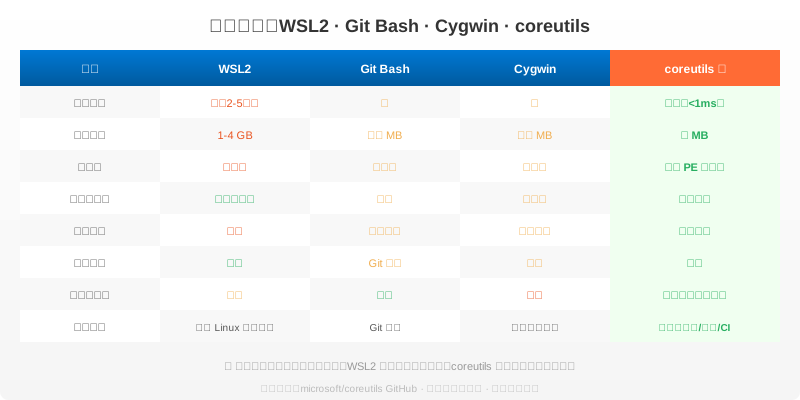
Figure 6: A comprehensive comparison of the four solutions across startup speed, memory usage, native integration, command completeness, and more.
| Feature | WSL2 | Git Bash | Cygwin | coreutils |
|---|---|---|---|---|
| Startup Speed | Slow (seconds) | Fast | Fast | Instant (<1ms) |
| Memory Usage | GB-level | Tens of MB | Tens of MB | A few MB |
| Native Integration | VM | Compatibility layer | Compatibility layer | Native PE binary |
| Command Completeness | ⭐⭐⭐⭐⭐ | ⭐⭐ | ⭐⭐⭐ | ⭐⭐⭐⭐ |
| Filesystem | Isolated | Path translation | Path translation | Direct access |
| Official Maintenance | Microsoft | Git community | Community | Microsoft |
| Install Complexity | Medium | Easy | Complex | Trivial (one command) |
| Best For | Full Linux dev environment | Git operations | Legacy compatibility | CLI tools / scripts / CI |
Bottom line: If you need a full Linux development environment (running Docker, compiling C++ projects, hosting Linux services), WSL2 is still the best choice. But if you just want to
grep,sed, andawkin your Windows terminal, or make cross-platform scripts work on Windows — coreutils is the lightest, cleanest option available.
6. Real-World Use Cases
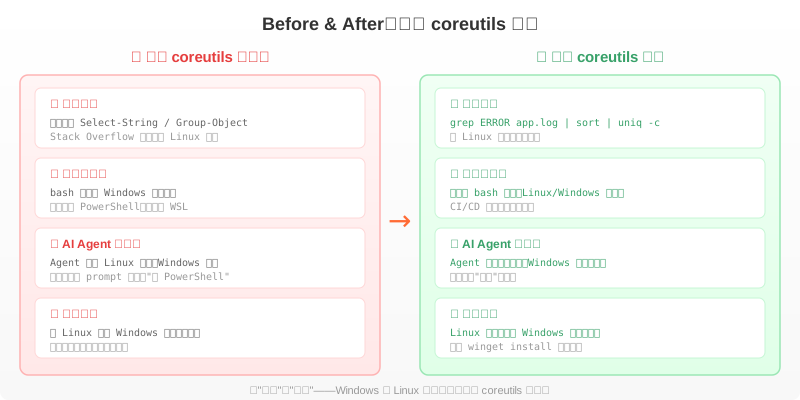
Figure 7: How coreutils transforms log analysis, cross-platform scripting, AI agent automation, and the learning curve.
6.1 Log Analysis
# Find all ERROR lines, count by type, sort descending
type app.log | grep ERROR | cut -d' ' -f3 | sort | uniq -c | sort -rn
No more memorizing Select-String, Group-Object, and Sort-Object.
6.2 Batch File Processing
# Find all .log files over 100MB, sorted by size
find . -name "*.log" -size +100M -exec ls -lh {} \; | sort -k5 -hr
6.3 CI/CD Scripts
# Same script works on both Linux and Windows runners
- name: Analyze logs
  run: |
    grep ERROR build.log | wc -l
    find dist/ -name "*.js" | xargs wc -l | sort -rn | head -10
6.4 AI Agent Automation
With coreutils, AI agents can execute Linux-style commands on Windows without translation. You no longer need to pepper your prompts with “use PowerShell syntax” — the agent’s grep, find, and awk commands run natively on Windows.
7. Q&A
Q: Does coreutils conflict with WSL?
A: Not at all. They’re completely independent. WSL is a Linux subsystem; coreutils is a set of native Windows commands. You can have both installed simultaneously with zero interference.
Q: Does it support all GNU commands?
A: Not all. dir, expand, more, timeout, and whoami are excluded due to conflicts with Windows built-ins. chmod, chown, and stty are excluded because Windows lacks the corresponding POSIX concepts. kill is excluded because Windows has no POSIX signals. But 90%+ of the commands you use daily are supported.
Q: How’s the performance?
A: Since it’s a native Windows PE binary — not an emulation layer — performance is very close to native Linux. For text processing and file operations, it’s an order of magnitude faster than WSL (no Linux kernel to boot).
Q: Can I use it on Windows Server?
A: Yes. As long as the system meets the PowerShell 7.4+ requirement. Windows Server 2019 and 2022 are both supported.
Q: Is it compatible with PowerShell pipelines?
A: Mostly, with caveats. PowerShell pipelines pass .NET objects, while coreutils pipelines pass text streams. Mixing PowerShell aliases (e.g., ls → Get-ChildItem) with coreutils ls can cause compatibility issues. Use PowerShell 7.4+ for the best experience — Microsoft has integrated PSReadLine support to smooth out the rough edges.
Q: Will this project be maintained long-term?
A: It’s an official Microsoft project with regular GitHub updates (multiple releases as of June 2026), and the underlying uutils project is also under active development. Ubuntu 25.10 ships uutils by default, which validates the direction at an industry level.
8. Conclusion
Microsoft coreutils solves a problem that’s existed for decades: the chasm between Windows and Linux command lines.
It’s not trying to replace WSL. It’s not trying to replace PowerShell. It simply gives you another option — when you just want to grep a log, find a few files, or sed some text, you don’t need to boot a full Linux subsystem, install Git Bash, or learn PowerShell cmdlets.
One winget install Microsoft.Coreutils, and your Windows terminal speaks Linux.
It’s like realizing you don’t need an espresso machine to make a cup of coffee. Sometimes, instant coffee is exactly what you need.
References: