I Put Docker in a Control Room: Portainer CE 2.39.4 Deployment, Daily Use, and Real Traps
Bottom line first
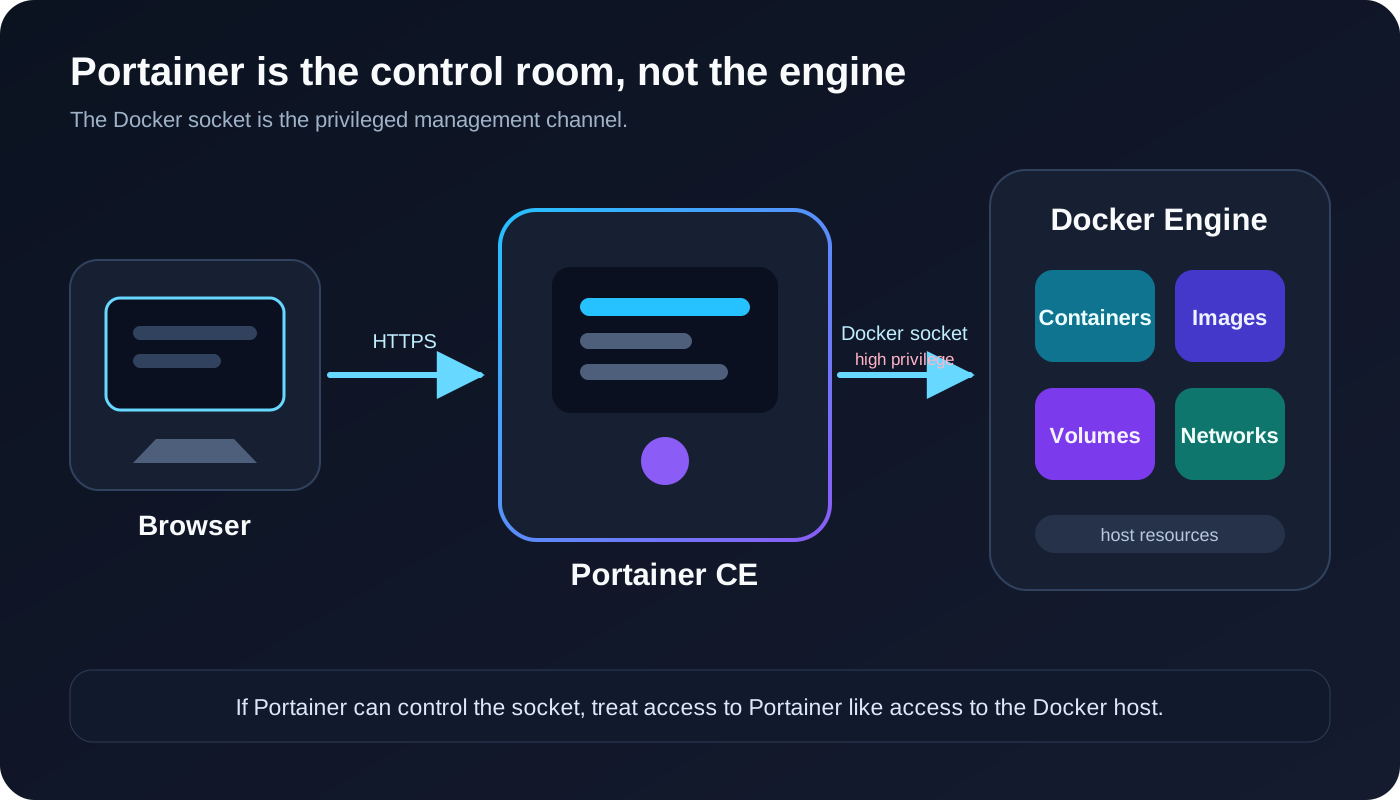
Portainer does not replace Docker. It is a control room for a Docker host. Docker Engine remains the machinery; Portainer organizes containers, images, networks, volumes, and Compose stacks into a web dashboard.
I ran an isolated deployment of
portainer/portainer-ce:2.39.4, initialized it, connected the local Docker environment, inspected the dashboard, filtered a disposable container, and created a demonstration stack. The installation is onedocker runcommand. The important lessons are broader: persist/data, understand that/var/run/docker.sockis highly privileged, and never expose the management interface to an untrusted network without protection.This article contains no complete IP address, real host name, private domain, administrator password, token, cookie, private registry address, or production container name. The screenshots use disposable names, and the container address is redacted.
Why People Install Portainer After Learning Docker
Docker commands are not inherently difficult. docker ps lists containers, docker logs reads logs, and docker compose up -d updates a Compose project. With two or three containers, those commands are like three keys in a drawer. With many containers, networks, volumes, images, and stacks, the keys start covering an entire wall.
Portainer does not eliminate the need to understand Docker. It gives you a faster starting point: which container is running, which one stopped, what image it uses, which stack owns it, which ports are published, and which volume holds its data.
Think of a Docker host as an apartment building:
- Docker Engine is the building management machinery.
- Containers are rooms where services live.
- Images are room templates.
- Volumes are storage rooms that survive room replacement.
- Networks are hallways and access doors.
- Portainer is the control room that shows the whole building on one screen.
The control room is not a toy. Anyone holding its keys can usually operate the building. That is why Docker socket security is central to this guide.
What I Actually Verified
I did not modify the long-running Portainer service. I started a separate 2.39.4 LTS instance with a unique container name, an isolated data directory, and non-conflicting lab ports. I then:
- Pulled the fixed image tag and verified the image digest and reported version.
- Persisted
/dataand mounted the Docker socket. - Initialized the administrator and created a local Docker environment.
- Created a disposable Compose stack with one demo container, network, and volume.
- Filtered the Containers page to the demonstration resource only.
- Confirmed the stack was manageable from the Stacks page.
- Removed the temporary Portainer instance and every lab resource after capturing evidence.
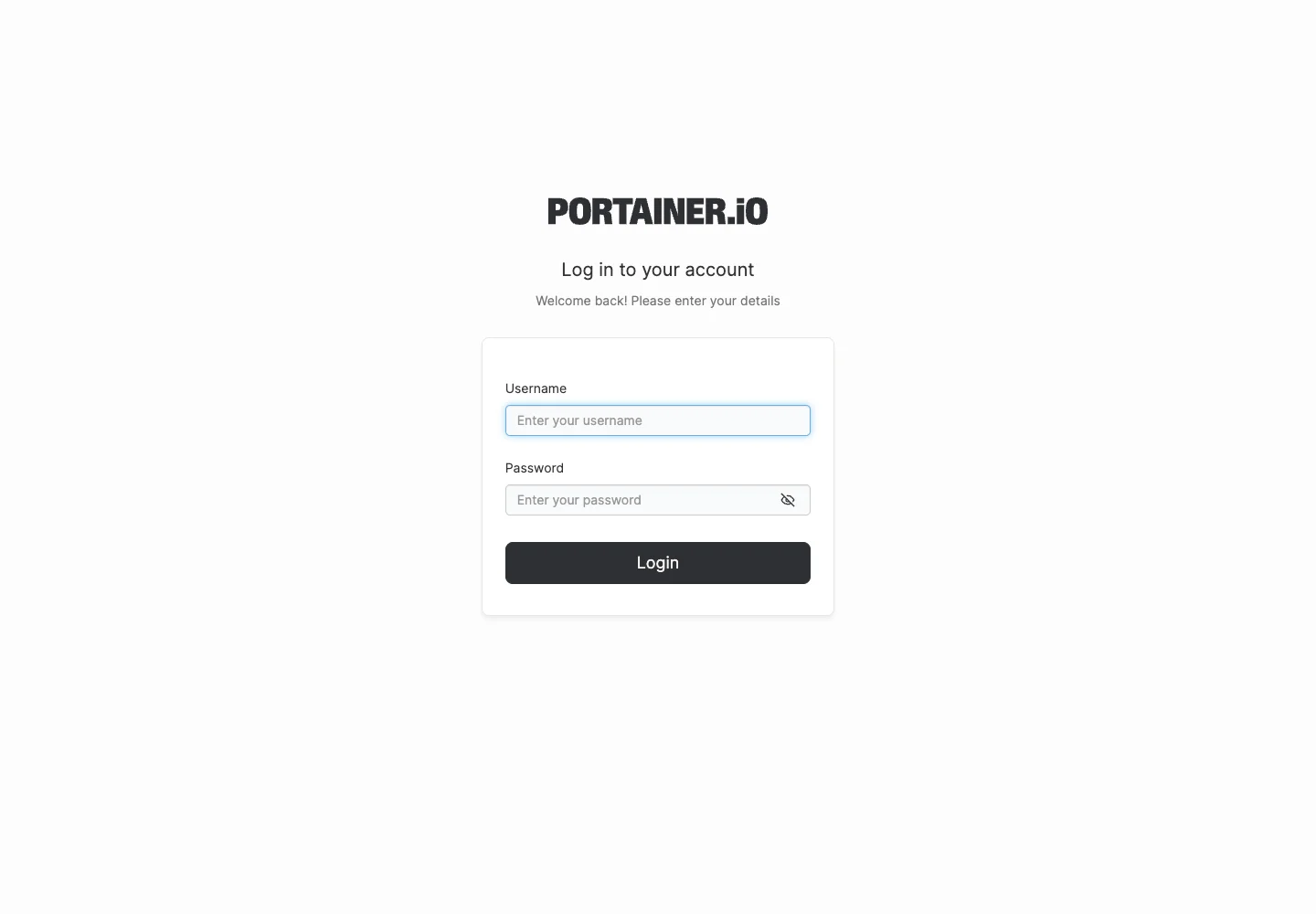
The following image is a real login page. A Playwright page screenshot excludes the browser address bar, so the access address is not exposed.
The Shortest Deployment Command
The supplied deployment method is:
docker run -idt \
  -p 9000:9000 \
  --name=portainer \
  --restart=always \
  -v /var/run/docker.sock:/var/run/docker.sock \
  -v /docker/portainer_data:/data \
  portainer/portainer-ce:2.39.4
It performs five jobs:
- Publishes the traditional HTTP management port.
- Restarts Portainer with Docker.
- Gives Portainer access to the local Docker API through the socket.
- Persists users, environments, stack metadata, and settings under
/data. - Pins version
2.39.4instead of silently changing throughlatest.
The command works, but I recommend making HTTPS the default entry point:
docker run -d \
  -p 9443:9443 \
  --name portainer \
  --restart=always \
  -v /var/run/docker.sock:/var/run/docker.sock \
  -v /docker/portainer_data:/data \
  portainer/portainer-ce:2.39.4
Portainer generates a self-signed certificate when no certificate is supplied. A browser warning means the browser cannot verify the issuer; it does not mean the connection is unencrypted. A production setup should use a trusted certificate through Portainer or a controlled reverse proxy and should restrict who can reach the interface.
If an old workflow still needs HTTP, both ports can be published:
-p 9443:9443 -p 9000:9000
Do not treat port 9000 as harmless just because it is convenient. This is an administration interface connected to Docker control, not a public brochure site.
First Login and the Setup Window
Open:
https://SERVER_ADDRESS:9443
Create a unique, strong administrator password that is not reused elsewhere. Recent Portainer initialization also has setup-token protection. In my API-level test, an administrator initialization request without the one-time X-Setup-Token printed in startup logs returned 403. The normal web workflow handles initialization. If an unconfigured instance sits too long and reports that setup timed out, restart that still-empty Portainer instance and complete initialization immediately.
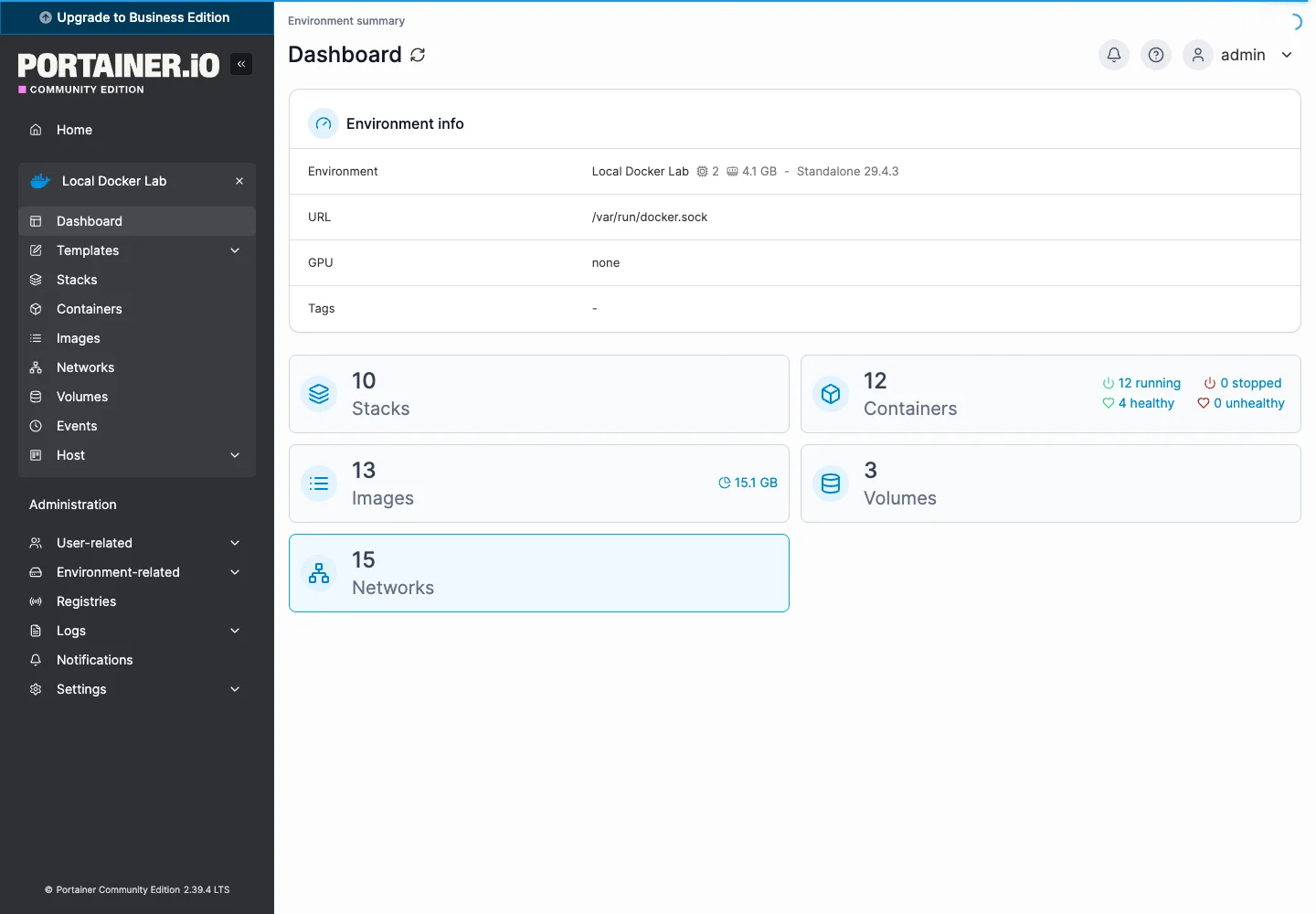
After login, Home lists the manageable environments. My temporary environment was named Local Docker Lab. The real dashboard summarizes stacks, containers, images, volumes, and networks.
The Docker Socket Is the Most Convenient and Dangerous Line
-v /var/run/docker.sock:/var/run/docker.sock
Many tutorials describe this as an ordinary bind mount. It is closer to a master-key interface. Portainer uses it to create containers, mount directories, connect networks, read logs, and execute management operations. An administrator who can control Docker can commonly obtain powerful access to the host.
Use these rules:
- Do not expose the Portainer interface to an untrusted network.
- Prefer VPN access, a controlled reverse proxy, firewall restrictions, or another trusted access layer.
- Do not share one administrator account among many people.
- Do not deploy unknown templates, extensions, or stacks.
- Back up
/data, and protect the backup as sensitive material. - Do not assume a read-only socket mount solves the problem. Portainer needs write operations to manage Docker; the real boundary is access control and environment isolation.
Portainer makes privileged operations easier. It does not remove their privilege. Replacing an electrical master switch with a touchscreen improves usability, but pressing the wrong button can still turn off the building.
Daily Use: Start With Containers, Stacks, and Volumes
Containers
The Containers page is a good first diagnostic view: state, owning stack, image, creation time, ports, and quick actions. I filtered the page to one disposable resource and replaced its internal address with [redacted].
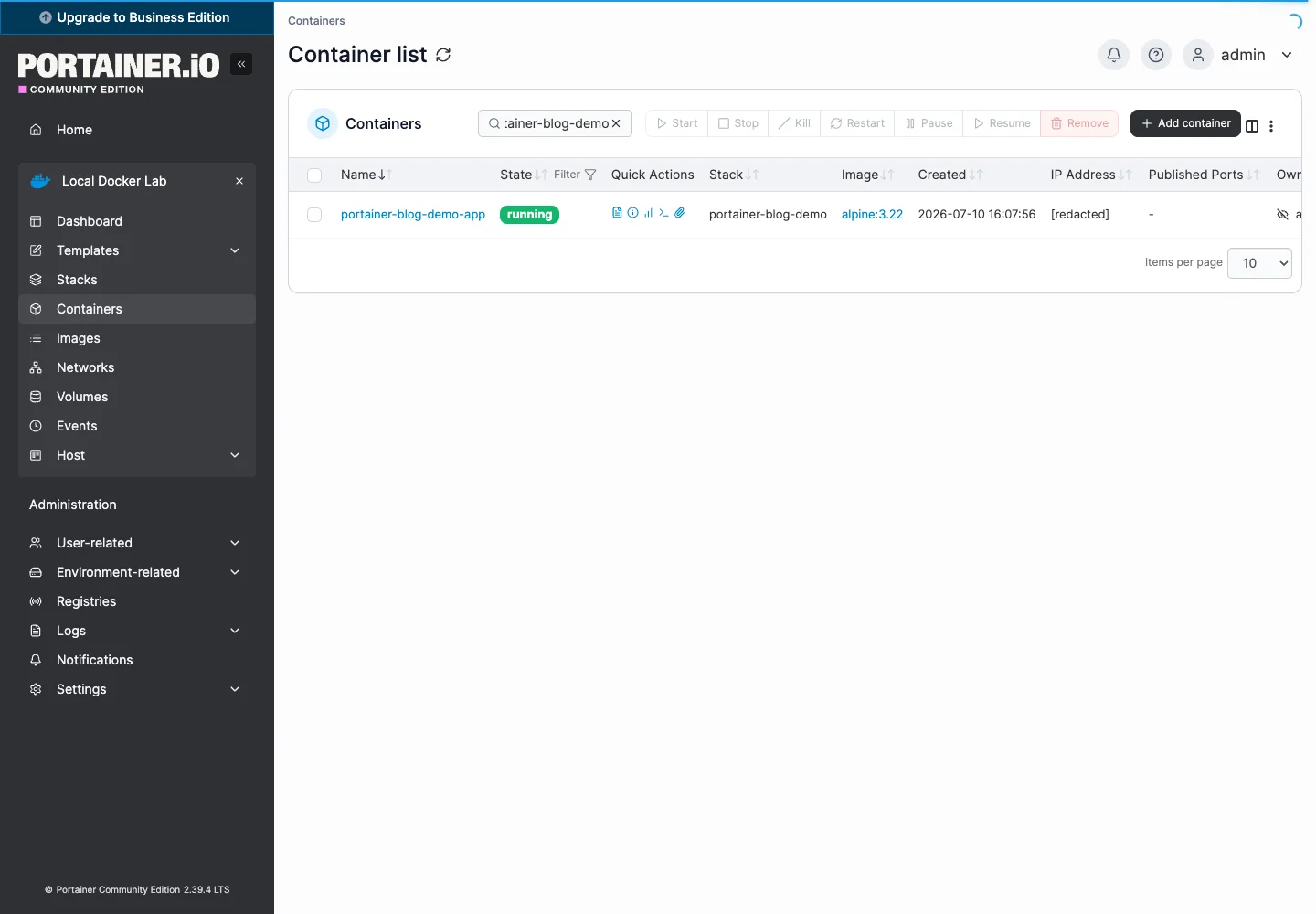
When a service is unavailable, check in this order:
- Is the container
running? - Do Logs show startup, permission, or port errors?
- Does Inspect show the expected mounts?
- Are the published ports correct?
- Is the container owned by a stack? If so, update the stack rather than making a temporary one-off change.
Stacks
A stack is a complete renovation plan. One Compose file can define the application, database, volumes, networks, and environment settings. It is more reproducible than manually creating a group of containers.
The lab stack was named portainer-blog-demo and held only one disposable container, network, and volume. Portainer recognized it as a Compose stack and displayed its creation and control information.
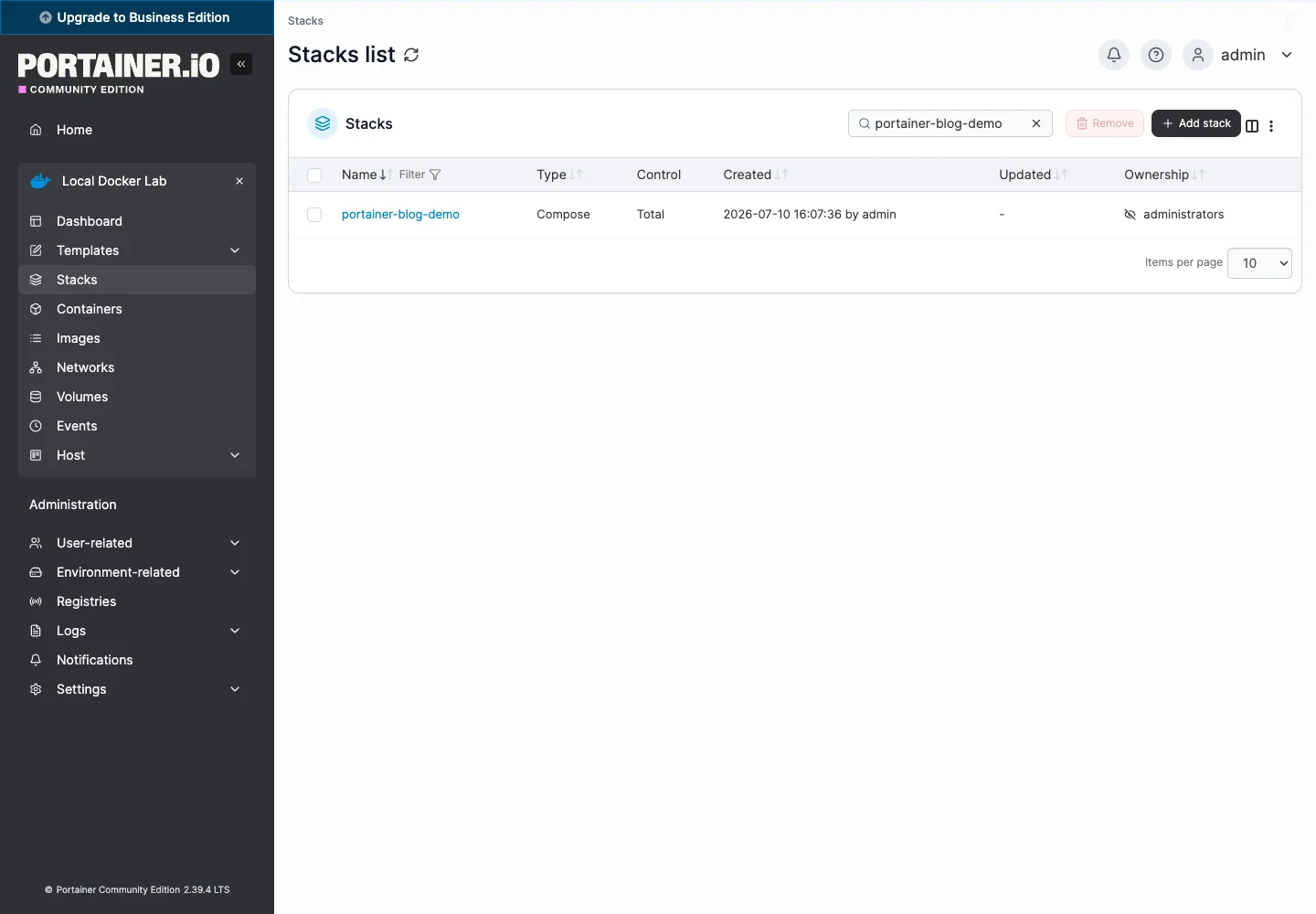
Do not place secrets in public screenshots, article snippets, or Git repositories. Portainer can accept environment values and controlled configuration, but a masked field in the UI does not prove that the value is encrypted everywhere. Check the stack source, backups, and browser tools before assuming a secret is hidden.
Volumes
Deleting a container does not always delete its volume, but a wrong checkbox or cleanup command can remove data. Before touching a database, photo library, document system, or configuration service, confirm:
- The volume name.
- Which containers use it.
- Whether it is a named volume or bind mount.
- Where the host backup lives.
- Whether ownership and permissions must be preserved during restore.
Containers are replaceable rooms. Volumes are storage rooms. You can download the room template again; you cannot recover family photos by pulling an image.
One-Click Installers for Three Platforms
The three installers included with this article depend only on the local Docker installation. They do not upload configuration, call an additional management service, or discover and print LAN addresses. They pin 2.39.4, publish only 9443 by default, and expose 9000 only when explicitly requested.
Windows 11
Docker Desktop must be running Linux Containers:
Set-ExecutionPolicy -Scope Process Bypass
.\install-portainer-windows11.ps1
Enable traditional HTTP only when required:
.\install-portainer-windows11.ps1 -EnableLegacyHttp
Windows and macOS use a named Docker volume for /data by default, avoiding desktop file-sharing path differences.
Ubuntu 26.04
chmod +x install-portainer-ubuntu2604.sh
./install-portainer-ubuntu2604.sh
Use a different data directory and enable old HTTP explicitly:
./install-portainer-ubuntu2604.sh \
  --data-dir /srv/portainer/data \
  --enable-legacy-http
The script first tries the current user’s Docker access. If necessary and available, it uses sudo docker. If the container name already exists, it does not delete it. It inspects the state and starts a stopped container instead of destroying an unknown configuration.
macOS 26
chmod +x install-portainer-macos26.zsh
./install-portainer-macos26.zsh
Select another volume name:
./install-portainer-macos26.zsh --volume portainer_data_main
If Docker Desktop is not running, the installer stops with a clear error instead of leaving a half-created setup.
Human-Operated Automation
Human-operated automation means a person confirms the environment and risk, then lets the script perform repetitive steps:
- Run
docker ps -aand confirm no unrelatedportainercontainer exists. - Check whether
9443is already in use. - Decide whether
/datauses a bind mount or named volume. - Download the installer for the operating system and read its parameters.
- Run it and wait for a confirmed running state.
- Open
https://localhost:9443or reach the server through a controlled network. - Complete administrator initialization immediately.
- Inspect Environments, Containers, Volumes, and Stacks.
- Apply firewall, VPN, or reverse-proxy access rules.
- Back up
/dataonce and document the restore procedure.
Do not treat “the page opens” as complete validation. It proves the web process responds; it does not prove the data mount is correct or that the configuration survives recreation.
Agent-Operated Configuration Prompt
Give an operations agent explicit boundaries instead of saying “install Portainer”:
Deploy Portainer CE 2.39.4 with these requirements:
1. Read-only inspect Docker version, conflicting container names, 9443/9000 usage, and existing data paths first.
2. Do not delete any container, volume, network, or directory not created by this task.
3. Publish only 9443 by default. Do not publish 9000 unless I explicitly request it.
4. Use the specified persistent directory on Linux and a named Docker volume on Windows/macOS.
5. Pin the image version. Do not use latest.
6. Verify state, image tag, restart policy, mounts, and HTTPS response after startup.
7. Never print a complete IP, host name, password, setup token, JWT, cookie, or private domain in logs or reports.
8. If screenshots are needed, show disposable resources only and redact container addresses and unrelated names.
9. If Portainer already exists, stop deployment and report it. Do not overwrite it.
10. Report the result, access method, backup path, rollback steps, and exact cleanup scope.
An agent’s most dangerous mistake is often not a malformed command but deleting a same-named resource that belongs to someone else. Automation is like hiring movers: a precise inventory prevents them from taking the neighbor’s boxes.
Backup, Upgrade, and Rollback
For a bind mount, stop Portainer before copying the data directory:
docker stop portainer
tar -C /docker -czf portainer-data-backup.tar.gz portainer_data
docker start portainer
Store the archive in a protected location with restricted permissions. It may contain users, environment definitions, endpoint details, stack metadata, and other sensitive settings.
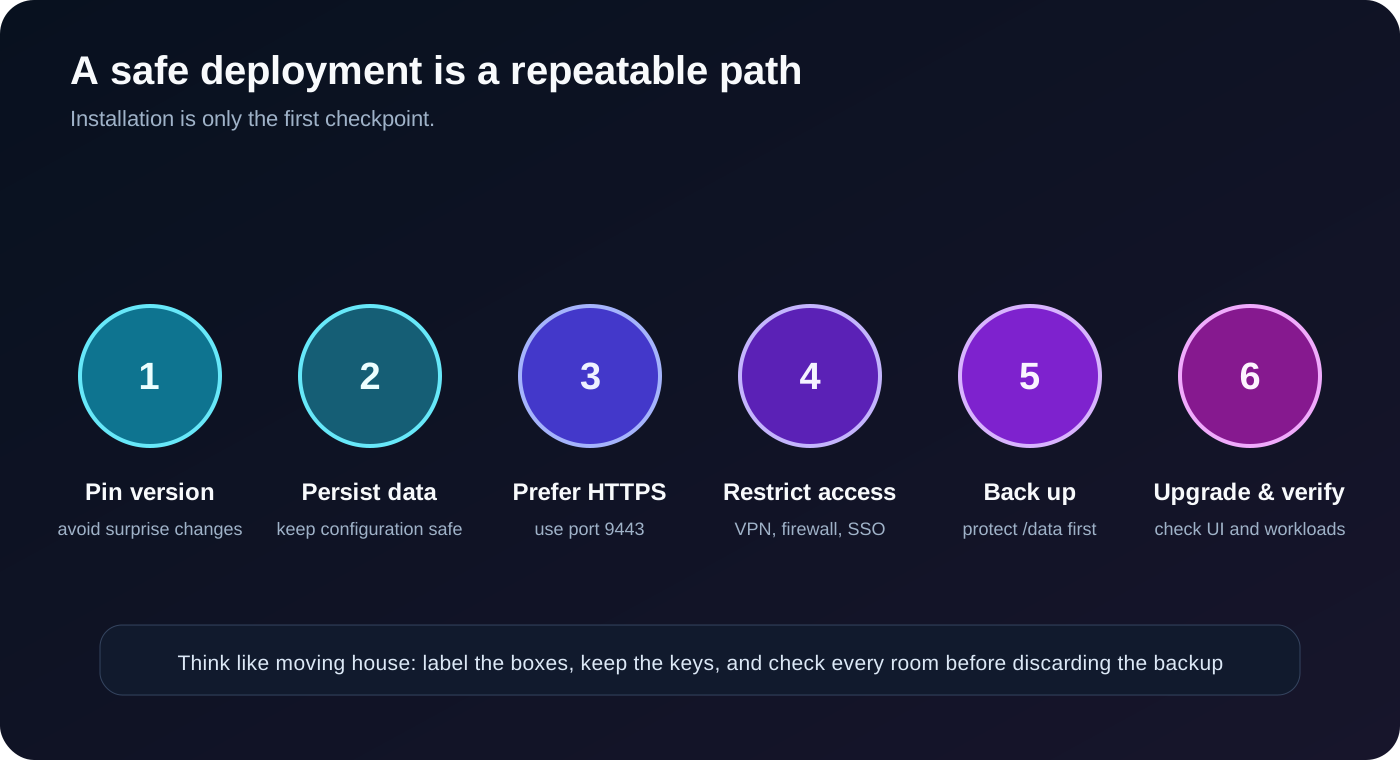
Before upgrading:
- Read the target release notes and known issues.
- Back up
/data. - Record the current image tag and
docker inspectoutput. - Stop and remove the old container while preserving the data directory or volume.
- Recreate the container with the new fixed version and the same mounts.
- Verify login, environments, stacks, container actions, and logs.
- If validation fails, recreate the old image tag against the preserved data.
Do not switch to latest and call it a permanent upgrade strategy. Replacing the control room equipment requires saved records, the old model number, and an acceptance checklist.
Common Problems and Root Causes
The container is running, but the page does not open
Check mappings and logs:
docker ps --filter name=portainer
docker logs --tail 100 portainer
Common causes are a port conflict, firewall rules, using the wrong protocol, a reverse proxy missing WebSocket forwarding, or certificate generation still in progress.
Recreation looks like a fresh installation
The usual cause is missing /data persistence or a different empty source path. Inspect the container and locate the mount whose destination is /data. A matching container name does not guarantee matching data.
Why can Portainer see every container on the Docker host?
Because the Docker socket is mounted. It reads and controls resources through the Docker API; it is not discovering them through network scanning. Convenience and risk come from the same channel.
Initialization timed out
For a still-empty, unconfigured instance, restart the container and complete setup immediately. Version 2.39.4 also prints a one-time setup token in startup logs to protect administrator initialization and restore operations on uninitialized instances. Never paste that token into chat, tickets, or screenshots.
The administrator password is lost
Back up /data first, then follow Portainer’s official password-reset procedure. Deleting the data directory to “reinstall” also deletes environment and stack metadata.
Can Portainer be exposed directly to the internet?
It is technically possible but operationally unwise without layers of protection. At minimum use HTTPS, strong credentials, source restrictions, prompt security updates, and backups. A VPN, zero-trust access gateway, or reverse proxy limited to a management network is safer.
Does Portainer replace the CLI?
No, and it should not. Portainer is excellent for global visibility, common operations, stacks, and team workflows. The CLI is better for precise automation, batch work, deep troubleshooting, and emergency recovery. Good operators know when to use the dashboard and when to open a terminal.
A One-Line Installation Is Only the Beginning
Portainer is attractive because it starts with one command. A responsible guide cannot stop when the browser opens. You still need to know where data lives, who can reach the interface, what the Docker socket represents, how to back up before an upgrade, and how to roll back.
This isolated drill confirmed that Portainer makes Docker state easier to understand without making Docker’s security model disappear. Treat it as a control room and you will think about instruments, keys, backups, and emergency procedures. Treat it as merely a pretty Docker web page and the first accidental deletion or public exposure will provide a much harsher lesson.
References
- Portainer open-source project: https://github.com/portainer/portainer
- Portainer CE installation on Docker: https://docs.portainer.io/start/install-ce/server/docker/linux
- Portainer 2.39.4 LTS release notes: https://github.com/portainer/portainer/releases/tag/2.39.4
- Portainer CE on Docker Hub: https://hub.docker.com/r/portainer/portainer-ce
- Portainer backup documentation: https://docs.portainer.io/admin/settings/general