Moving Bedtime Out of the Living Room: Letting macOS launchd Disable Your Kids' Synology Accounts at 22:00 and Quietly Re-enable Them at 08:00
Short version
Synology DSM has a “disable this account” checkbox in the Control Panel, but it does not run on a schedule. With macOS’s built-in
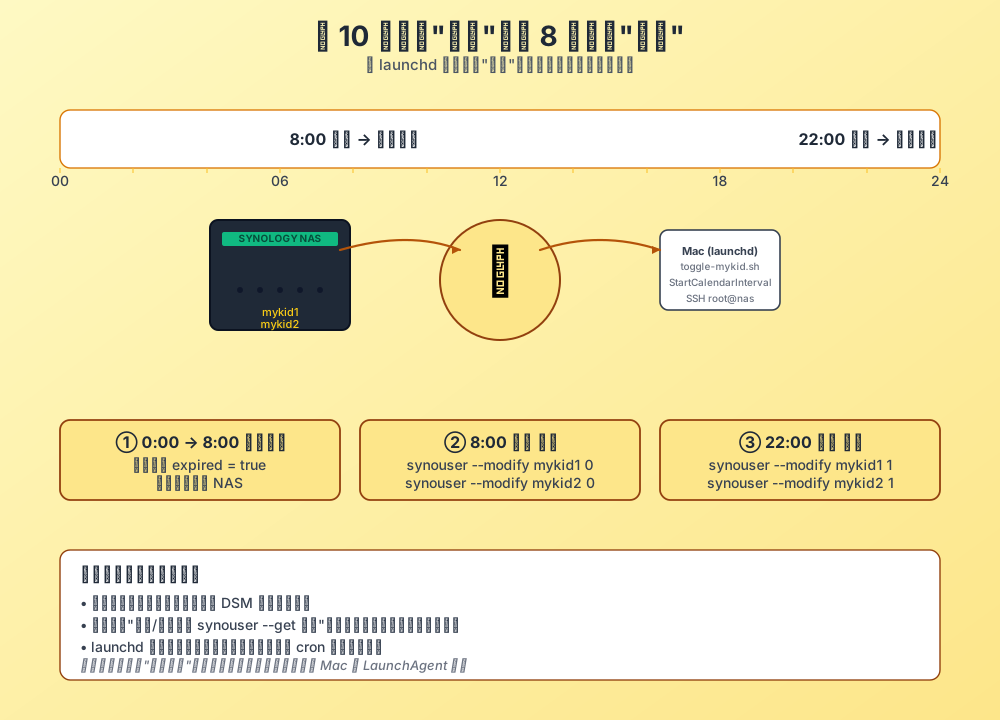
launchdand a 50-line bash script, you can flip theexpiredflag on two local accounts at 22:00 every night and flip it back at 08:00. The script does a before-query, a change, an after-query, andexit 1the moment the after state does not match expectations.launchdwrites stdout and stderr to dedicated log files. The interesting part is that the word “parent” quietly leaves the conversation: you no longer have to remind anyone to go to bed, the machine does it for you, on time, every day.
This post is not a comprehensive “family NAS management” guide. It is about one specific thing: turning a manual button click that depends on human memory into a system-level event that just happens on time.
If you only want the picture, the overview diagram in Section 2 is the whole article in one frame.
1. The recurring “go turn it off” conversation
Two kids, two local Synology accounts: mykid1 and mykid2. They use the NAS for three things:
- Syncing photos and homework up to the family share so mom and dad can see it.
- Watching cartoons in the evening (the NAS holds a family album and a few locally downloaded videos).
- Joining a friends-only Minecraft server on weekends.
Sounds fine, but the second use case is where the trouble lives. The moment they open the “Cartoons” SMB share, they do not stop. By 22:00, the bedtime reminder has been issued three times, then five times, and in the end I always end up logging into the DSM Control Panel, finding “User & Group → mykid1 → Edit → Disable this account”, and repeating the same dance for mykid2.
If your household has a similar loop, you have probably already spotted three problems:
- Memory-only routines will fail. Forget it one day and you can never say it again.
- Authoritarian reminders cause pushback. “How did you open it again?” gets old fast.
- “I’ll sit with you” costs thirty minutes of family goodwill per night.
None of those three is really a “user management” problem. It is a “thing that should happen automatically but does not” problem.
2. The visible pain: three specific annoyances of manual operation
Let me list the last two weeks of “manually toggling accounts” to make the pain concrete.
Pain 1: The DSM Control Panel wants five clicks per user
Open a browser → type nas.example.lan:5000 → type the admin password → wait for the desktop → find the user → click Edit → uncheck “Enable this account” → Save. That is five clicks per user, ten clicks for two users, and a full reverse sequence the next morning.
Pain 2: It is easy to click the wrong thing
DSM hides the “disable” checkbox on a second screen, and shows a 60-second undo prompt. If you are in a rush to make dinner, it is entirely possible to check, save, exit, and accidentally edit some other share’s permissions in the process and forget you did it. I have actually done this: I changed one of the kid’s share permissions in a fluster, and the next day all his photos were invisible.
Pain 3: Weekends and holidays make it worse
On weekends the kid wants a documentary, but the account is disabled. On workdays I am out of the house by 08:00, and the account has not been re-enabled. Whether it is “forgot to re-enable” or “forgot to disable”, the resolution is always authoritarian: “go find dad to unblock it.” Every time you say that, the system’s credibility drops a notch.
3. The root cause: DSM has no time-based account disable
Set the emotions aside and look at the technology. DSM Control Panel offers:
| Capability | Exists? | Notes |
|---|---|---|
| Manually disable an account | ✅ | Control Panel → User & Group → Edit → uncheck “Enable this account” |
| Scheduled disable | ❌ | No such switch |
Task Scheduler calling synouser |
✅ Indirectly | DSM’s built-in scheduler is coarse: one-shot, daily at most, no weekday/weekend split |
| SSH + CLI + external scheduler | ✅✅✅ | Most flexible, but you need a script |
The problem is not that Synology is weak. It is that DSM’s built-in scheduler does not have the right granularity. The smallest unit it offers is “once per day”, and what I actually want is “disable at 22:00, re-enable at 08:00 on weekdays; leave it alone on weekends.”
The more important point: the machine that actually has to run my scheduled command is the Mac. A Mac is online more reliably than a NAS (mine sometimes hibernates), and launchd is macOS’s own scheduler, which is more reliable than crontab for a laptop. We will get to that in a moment.
So the architecture lands here:
launchd (on Mac) → trigger script → SSH to NAS → synouser --modify → verify
4. The solution: move bedtime out of the living room
One-line summary of the goal:
Let the kid never have to ask another human “can I log in right now?” — the answer is decided by system time, not by a person.
How to actually land it, in four steps:
- Wrap “disable / enable” in an idempotent script that is safe to re-run.
- Add a before-and-after
synouser --getverification to catch silent failures. - Schedule 22:00 disable and 08:00 enable via macOS
launchd. - Write the result to a log file so a parent can spot problems at a glance.
Those three layers map to these files:
~/scripts/synology-toggle-mykid.sh                       # the script (core)
~/Library/LaunchAgents/local.synology.toggle-mykid.disable.plist  # 22:00 disable
~/Library/LaunchAgents/local.synology.toggle-mykid.enable.plist   # 08:00 enable
~/logs/synology-mykid-toggle.log                         # the script's own log
~/logs/synology-mykid-toggle.launchd.out.log              # launchd stdout
~/logs/synology-mykid-toggle.launchd.err.log              # launchd stderr
The rest of the post walks through them.
5. Why launchd, not crontab
This is the part that differs from most tutorials. crontab is something almost every Linux/Mac user knows, but it has a few real traps:
| Dimension | crontab -e |
launchd (LaunchAgent) |
|---|---|---|
| Missed runs when laptop is asleep | ⚠️ Misses them | ✅ StartCalendarInterval catches up after wake |
| Wake the machine from sleep | No | Optional (WakeSystem=YES) |
| Logging | Manual redirect | Native StandardOutPath / StandardErrorPath |
| Survives reboots | ❌ | ✅ launchctl load and it stays |
| Management | crontab -e |
launchctl load/unload/start/stop |
| Officially recommended by Apple | Still works | ✅ First-party |
The first row is the one that matters: a Mac is a laptop. Close the lid and it sleeps. crontab does not run while the machine is asleep, and it does not catch up when it wakes up. If 22:00 lands while you are eating dinner, the kid is already asleep, and the Mac is closed, the crontab job silently disappears into the void.
launchd does not. When macOS wakes up, it immediately runs any StartCalendarInterval jobs that were supposed to fire while the machine was asleep. In production this is a minor difference. At home, it is the difference between a feature and a decoration.
I deliberately did not set WakeSystem=YES here. I do not want the Mac to wake the family at 02:00. I would rather let it sleep and catch up after a natural wake, since 08:00 onward I am always home anyway.
6. The script: 50 lines of bash that do the whole job
6.1 Full script
#!/bin/bash
# Toggle mykid1 / mykid2 accounts on Synology DSM.
# Usage:
#   synology-toggle-mykid.sh enable   # un-expire both users
#   synology-toggle-mykid.sh disable  # expire both users
#   synology-toggle-mykid.sh status   # show current expired state

set -euo pipefail

NAS_HOST="nas.example.lan"   # replace with your NAS's internal address
NAS_SSH_USER="root"
USERS=(mykid1 mykid2)

LOG_DIR="${HOME}/logs"
LOG_FILE="${LOG_DIR}/synology-mykid-toggle.log"
mkdir -p "${LOG_DIR}"

log() {
  printf '[%s] %s\n' "$(date '+%Y-%m-%d %H:%M:%S%z')" "$*" | tee -a "${LOG_FILE}"
}

die() {
  log "ERROR: $*"
  exit 1
}

get_expired() {
  # Read the expired field over SSH. awk strips the [true] / [false] brackets.
  ssh -o BatchMode=yes -o ConnectTimeout=10 "${NAS_SSH_USER}@${NAS_HOST}" \
    "/usr/syno/sbin/synouser --get ${1} 2>/dev/null | awk -F'[][]' '/^Expired/ {print tolower(\$2); exit}'"
}

set_expired() {
  # 0 = enabled, 1 = disabled. The two empty strings are fullname and mail placeholders.
  ssh -o BatchMode=yes -o ConnectTimeout=10 "${NAS_SSH_USER}@${NAS_HOST}" \
    "/usr/syno/sbin/synouser --modify ${1} '' ${2} ''" >/dev/null
}

action="${1:-}"
case "${action}" in
  status)
    for u in "${USERS[@]}"; do
      exp="$(get_expired "${u}")"
      log "status ${u}: expired=${exp:-<not-found>}"
    done
    ;;
  enable|disable)
    new_state="0"; verb_zh="enable"
    [[ "${action}" == "disable" ]] && new_state="1" && verb_zh="disable"
    action_upper=$(printf '%s' "${action}" | tr '[:lower:]' '[:upper:]')
    log "===== ${action_upper} (${verb_zh}) ====="
    # Pre-flight: if the link is down, exit now instead of failing silently later.
    ssh -o BatchMode=yes -o ConnectTimeout=10 "${NAS_SSH_USER}@${NAS_HOST}" true \
      || die "Cannot SSH to ${NAS_SSH_USER}@${NAS_HOST}"

    for u in "${USERS[@]}"; do
      before="$(get_expired "${u}")"
      [[ -z "${before}" ]] && { log "WARN: ${u} not found, skipping"; continue; }
      log "${u}: before expired=${before}"
      set_expired "${u}" "${new_state}"
      after="$(get_expired "${u}")"
      log "${u}: after  expired=${after}"
      if [[ "${action}" == "enable" && "${after}" != "false" ]]; then
        die "${u} enable failed (expired=${after})"
      fi
      if [[ "${action}" == "disable" && "${after}" != "true" ]]; then
        die "${u} disable failed (expired=${after})"
      fi
    done
    log "===== DONE ====="
    ;;
  *)
    echo "Usage: $0 {enable|disable|status}" >&2
    exit 2
    ;;
esac
Save it as ~/scripts/synology-toggle-mykid.sh and chmod +x it.
6.2 Four design points worth pulling out
The script hides four things that each matter. None is complex, but the script breaks in a different way if you remove any of them.
Point 1: Passwordless SSH, not interactive passwords. BatchMode=yes means “if a password would be required, fail immediately.” This is critical because launchd will not see a TTY. The prerequisite is that ~/.ssh/id_ed25519.pub is already in NAS /root/.ssh/authorized_keys. Generate a dedicated key rather than reusing your main one — that is a habit worth keeping:
ssh-keygen -t ed25519 -f ~/.ssh/nas_curfew_ed25519 -C "nas-curfew-agent"
ssh-copy-id -i ~/.ssh/nas_curfew_ed25519.pub root@nas.example.lan
Point 2: expired is DSM’s real “disable” semantic. The Control Panel “disable” checkbox maps to the expired field on /etc/shadow (the expired parameter of synouser). It is not delete, not password reset, not service stop. It is the cleanest possible gate: the account, password, home directory, and share permissions all stay intact, and only authentication is denied. Flip it back to 0 and the user is online again, with no reconfiguration needed.
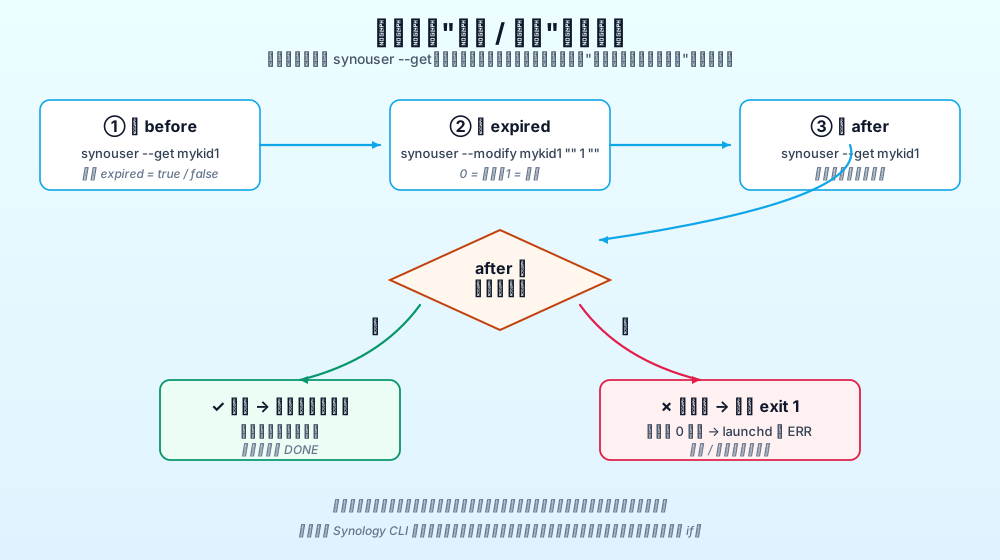
Point 3: Before and after synouser --get. The worst kind of failure in any cluster-style management tool is “looks like it worked, but nothing changed” — flaky network, mis-parsed argument, SSH stream that closed early. The before/after pattern catches exactly that: read, change, read. If the after state does not match the expectation, exit 1 immediately so launchd writes the error to err.log and you can see it in one glance.
The diagram below shows the whole verification chain:
Point 4: set -euo pipefail plus a die() function. set -e makes any non-zero exit terminate the script. set -u prevents an unset variable from being silently empty. set -o pipefail keeps a pipe failure from being hidden by a successful tee at the end. die() writes an ERROR: line to the log before exiting, so whether the script is run from cron, launchd, or by hand, the failure point is always visible.
6.3 A real execution example
Below is a real disable run from my Mac. The IP and usernames are already redacted to nas.example.lan:
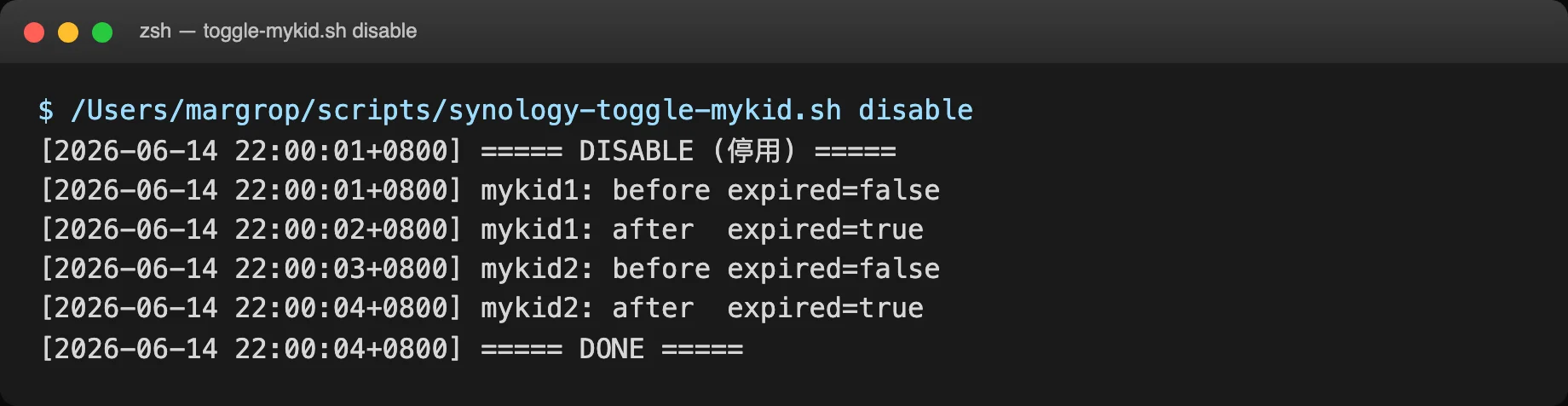
You can see before and after lines for each user, ending in DONE. If anything had been wrong, the final line would have become ERROR: mykid2 disable failed (expired=false) with exit code 1, and launchd would have written it to the error log immediately.
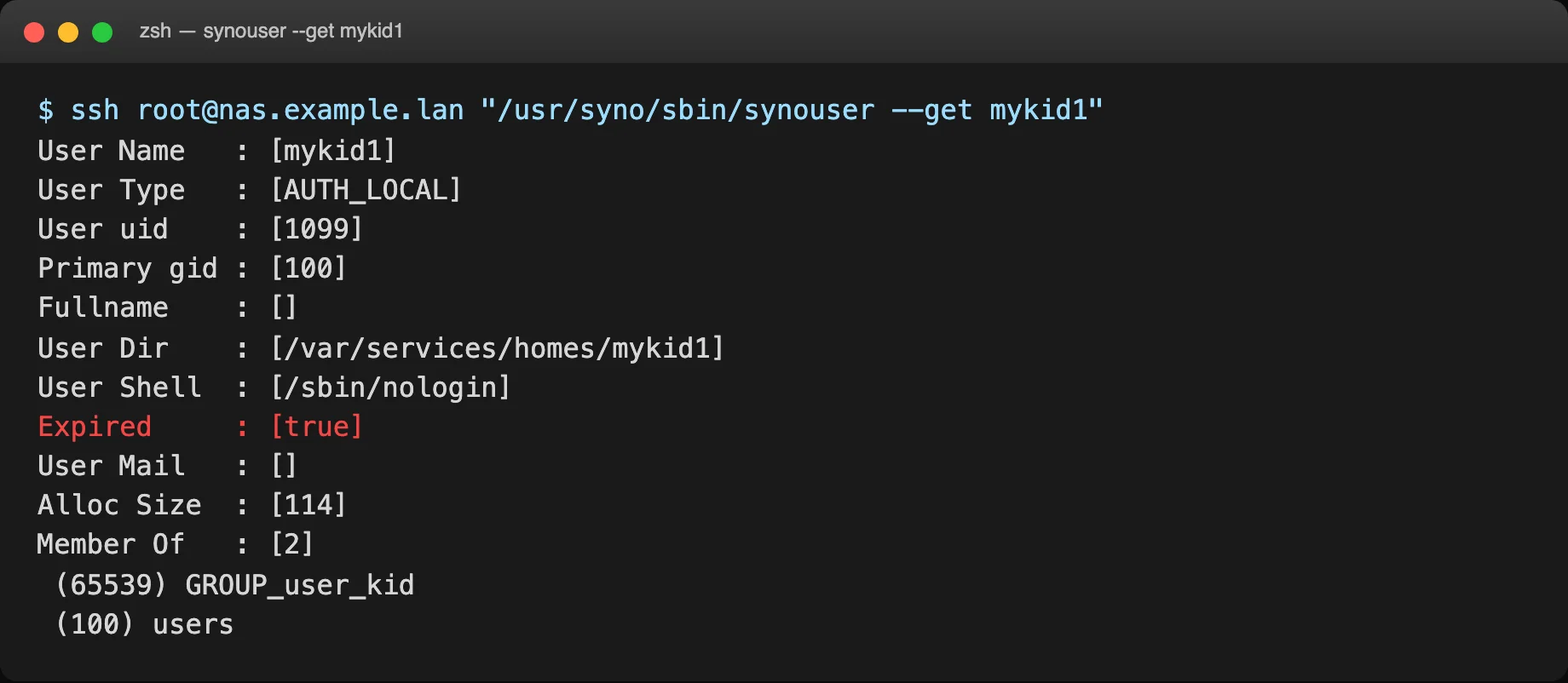
For reference, the raw synouser --get output looks like this — the Expired line is the field the script watches:
7. How launchd works: two plist files, one for 22:00 and one for 08:00
Every launchd job is a .plist file in ~/Library/LaunchAgents/, scoped to the current user.
7.1 The 22:00 disable plist
File path: ~/Library/LaunchAgents/local.synology.toggle-mykid.disable.plist
<?xml version="1.0" encoding="UTF-8"?>
<!DOCTYPE plist PUBLIC "-//Apple//DTD PLIST 1.0//EN" "http://www.apple.com/DTDs/PropertyList-1.0.dtd">
<plist version="1.0">
<dict>
    <key>Label</key>
    <string>local.synology.toggle-mykid.disable</string>

    <key>ProgramArguments</key>
    <array>
        <string>/bin/bash</string>
        <string>/Users/margrop/scripts/synology-toggle-mykid.sh</string>
        <string>disable</string>
    </array>

    <key>StartCalendarInterval</key>
    <dict>
        <key>Hour</key>   <integer>22</integer>
        <key>Minute</key> <integer>0</integer>
    </dict>

    <key>StandardOutPath</key>
    <string>/Users/margrop/logs/synology-mykid-toggle.launchd.out.log</string>
    <key>StandardErrorPath</key>
    <string>/Users/margrop/logs/synology-mykid-toggle.launchd.err.log</string>

    <key>RunAtLoad</key><false/>
    <key>WakeSystem</key><false/>
    <key>ProcessType</key><string>Background</string>
</dict>
</plist>
7.2 The 08:00 enable plist
File path: ~/Library/LaunchAgents/local.synology.toggle-mykid.enable.plist. The contents are identical except for three changes:
Labelbecomeslocal.synology.toggle-mykid.enable.- The third element of
ProgramArgumentsbecomes<string>enable</string>. StartCalendarIntervalHourbecomes<integer>8</integer>.
7.3 Load and inspect the jobs
launchctl unload ~/Library/LaunchAgents/local.synology.toggle-mykid.disable.plist 2>/dev/null
launchctl unload ~/Library/LaunchAgents/local.synology.toggle-mykid.enable.plist  2>/dev/null
launchctl load   ~/Library/LaunchAgents/local.synology.toggle-mykid.disable.plist
launchctl load   ~/Library/LaunchAgents/local.synology.toggle-mykid.enable.plist
launchctl list | grep synology
You should see two lines:
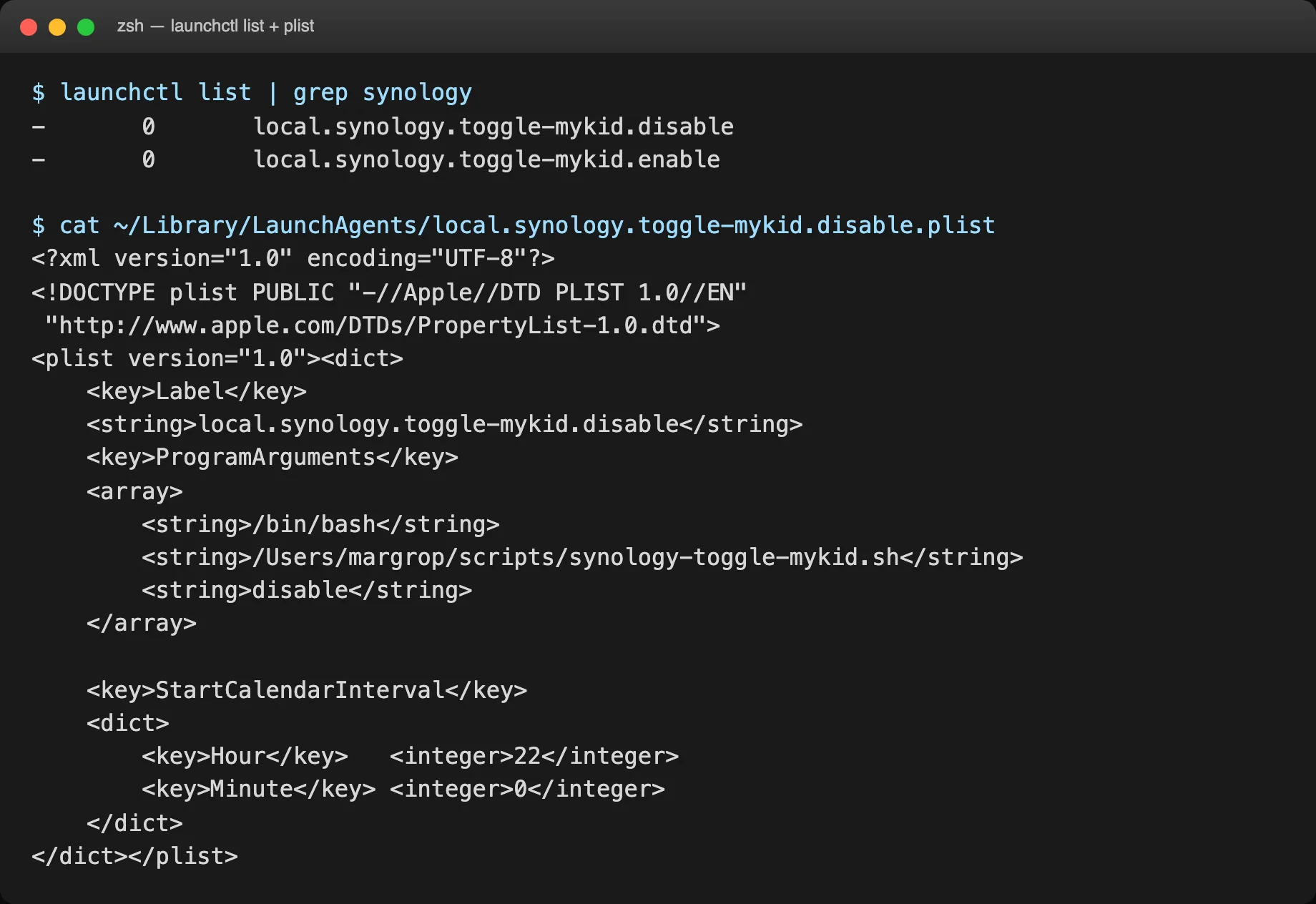
-       0       local.synology.toggle-mykid.disable
-       0       local.synology.toggle-mykid.enable
Column one is the PID (- is normal — the job is not currently running). Column two is the exit code from the last run (0 = success). Column three is the Label.
The screenshot below shows my real launchctl list output plus the plist content (IPs and usernames redacted):
8. Verifying that it actually works
Just loading the job is not enough. You need to do at least one end-to-end test that says “I want it to run right now.” launchctl start ignores the schedule and runs the named Label immediately:
launchctl start local.synology.toggle-mykid.disable
Three seconds later, check the three logs:
tail -20 ~/logs/synology-mykid-toggle.log                  # the script's own log
tail -20 ~/logs/synology-mykid-toggle.launchd.out.log      # launchd stdout
cat   ~/logs/synology-mykid-toggle.launchd.err.log         # should normally be empty
Below is the enable job’s log from a real morning run:
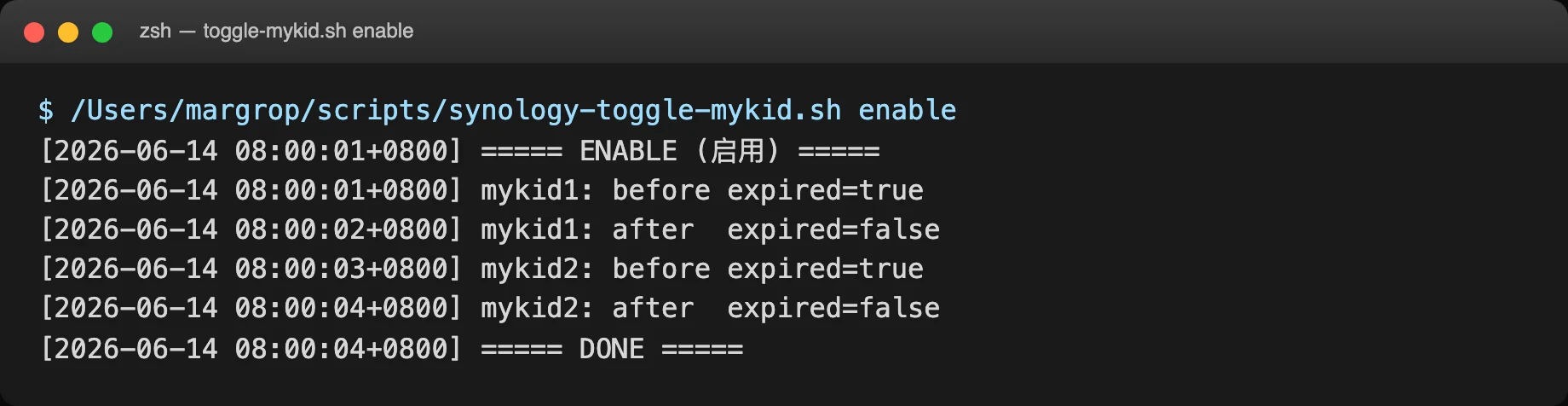
You should see a clean output: ===== ENABLE (enable) ===== → before / after for both users → ===== DONE =====. That image of “I did nothing, the system just worked” is exactly the value of automation.
Finally, double-check the final state with the script’s status subcommand:
~/scripts/synology-toggle-mykid.sh status
Expected output:
[2026-06-14 08:13:31+0800] status mykid1: expired=false
[2026-06-14 08:13:31+0800] status mykid2: expired=false
expired=false means the accounts are currently enabled.
9. Quick reference
| Scenario | Command |
|---|---|
| Disable right now | launchctl start local.synology.toggle-mykid.disable |
| Enable right now | launchctl start local.synology.toggle-mykid.enable |
| Check current state | ~/scripts/synology-toggle-mykid.sh status |
| Watch execution history | tail -f ~/logs/synology-mykid-toggle.log |
| Watch launchd errors | tail -f ~/logs/synology-mykid-toggle.launchd.err.log |
| Reload (after editing a plist) | launchctl unload <plist>; launchctl load <plist> |
| Pause the whole flow temporarily | launchctl unload ~/Library/LaunchAgents/local.synology.toggle-mykid.*.plist |
| Resume permanently | launchctl load ~/Library/LaunchAgents/local.synology.toggle-mykid.*.plist |
10. The generalizable “Synology time gate” pattern
Step back and the whole thing is a small pattern: a time-based enable/disable gate on any local Synology account. It drops into many other scenarios with almost no code change:
| Scenario | What to change | Risk |
|---|---|---|
| A guest account for a three-day visit | enable 3 days, disable at checkout | Low |
| A contractor account limited to 09:00-18:00 on weekdays | Tighter cron, Weekday field | Medium |
| An elderly parent’s account on during the day, off at night | Same as this post | Low |
| The kid’s account open all day on weekends | Add weekend-only enable jobs |
Low |
For weekday/weekend splits, just add two more plist files with the right Weekday value. launchd’s StartCalendarInterval also accepts a Weekday field (0 = Sunday, 1 = Monday, …), so “weekday 08:00 enable + 22:00 disable, weekend always on” is just a few more plists away.
11. Privacy: what must not end up in a public writeup
I deliberately used nas.example.lan everywhere in the script and in the screenshots, instead of a real internal IP. It looks like a tiny detail, but it is not:
- Do not put the real NAS IP in scripts, blog posts, or screenshots. An internal IP combined with a username and a share name is almost enough to reconstruct the network.
- Do not write SSH key paths as absolute paths.
/Users/margrop/.ssh/...carries a username and is a useful breadcrumb. - Do not log share names, real kid names, or anything identifying.
mykid1is fine.alice-2024-photosis not. - Do not put tokens or strong passwords in plists or scripts. If you ever need a secret, use an environment variable or the macOS Keychain.
The log output in this script only contains expired=true/false and abstract usernames like mykid1/mykid2. Even if the whole log were pasted online, it would not expose the household’s topology.
12. Q&A
Q1: Can I just use DSM’s built-in Task Scheduler?
Yes, but the granularity is limited to “once per day,” and you have to configure it through the Control Panel. If you do go that route, the user-defined script is just:
Task Scheduler → User-defined script → /usr/syno/sbin/synouser --modify mykid1 "" 1 ""
The downsides:
- The timezone and DST behavior is sometimes surprising.
- You cannot easily express “08:00 AND 22:00 each day” in one entry.
- The error handling is much weaker than the
die()pattern in this script.
That is why I prefer the Mac-side launchd approach for a laptop, with the script doing the actual work over SSH.
Q2: Why not use DSM’s bandwidth limits or access lists instead?
DSM has service-level switches, but no “user dimension + time dimension” switch. Bandwidth limits only throttle speed, they do not stop login. Access lists filter by source IP, not by time. The cleanest implementation is still “disable the account” itself.
Q3: Where in the docs does it say synouser can change the expired field?
/usr/syno/sbin/synouser --help lists it directly:
--modify username "full name" expired{0|1} mail
So the second positional argument of --modify is expired. Synology’s CLI documentation does not call it out specifically, but passing username "" 0|1 "" in order works. I covered the full synouser parameter list in my earlier “Synology NAS CLI Administration Guide” post.
Q4: Does this affect the kid’s password, home directory, or share permissions?
No. synouser --modify only changes fullname, expired, and mail. Password, UID, home directory path, share permissions, and group memberships all stay intact. You can flip expired to “lock” the account at any moment, and flip it back to 0 to “unlock” it, with zero data loss.
Q5: What if the Mac is asleep at exactly 22:00?
It will not be missed, but it will be delayed. launchd will catch up on the missed StartCalendarInterval jobs as soon as the system wakes. The catch-up runs within one or two minutes of wake, in my experience. The log will show a timestamp like 23:47:15 instead of 22:00:00 for the missed job. That is normal behavior, not a bug.
Q6: Can I do the same thing with crontab?
Yes. The crontab version is short:
0 8  * * * /Users/margrop/scripts/synology-toggle-mykid.sh enable  >> ~/logs/synology-mykid-toggle.log 2>&1
0 22 * * * /Users/margrop/scripts/synology-toggle-mykid.sh disable >> ~/logs/synology-mykid-toggle.log 2>&1
The trade-off is sleep causes missed runs. That is exactly why I did not pick crontab here. If your Mac is a desktop that never sleeps, crontab is fine. If your Mac is a laptop, launchd is the better fit.
Q7: Is there a minimum DSM version for this?
I have verified synouser --modify on both DSM 6.x and DSM 7.x. The expired field exists on all modern DSM versions. The command path /usr/syno/sbin/synouser is also stable. Practically, any DSM 6.2 or later will work.
Q8: Can I extend this to disable the whole household account outside work hours?
Yes. Expand the script’s USERS array to (mykid1 mykid2 mywife myown) and add a weekday-9to18-disable.plist like:
<key>StartCalendarInterval</key>
<dict>
    <key>Hour</key>     <integer>9</integer>
    <key>Minute</key>   <integer>0</integer>
    <key>Weekday</key>  <integer>1</integer>  <!-- Monday 09:00 -->
</dict>
Pair it with Weekday=5 (Friday 18:00 enable) and you get “disable the whole household at 09:00 weekdays, re-enable at 18:00 Friday.” That granularity is closer to real operations work, so I would start with the minimal version above and grow into this if the household needs it.
13. Why this is worth a whole post
Looking back at the end, every line of this work is individually simple:
synouser --modifyis a one-liner that flipsexpired.- A
launchdplist is a few XML lines that schedule it. synouser --getplus anifis enough to verify it.
The complexity is in making the whole thing something a parent can confidently hand to the system:
- The parent does not have to click anything every day.
- The kid does not have to ask “can I log in?” every day.
- When something is wrong, the log shows it immediately.
- When an ad-hoc override is needed,
launchctl startis one command. - Nothing depends on a third-party service, public network, or external account.
Home automation’s worst enemy is not “not enough features.” It is insufficient reliability. A half-automated solution is worse than a fully broken one — the broken one the parent can manage; the half-broken one makes everyone stop trusting the system.
Moving “bedtime” out of the living room and into launchd is essentially a small piece of systems trust engineering: a 50-line script takes over a responsibility that used to live with a human, and owns that responsibility with logs, with verification, and with exit codes.
If your household has similar “it only works because someone remembers” tasks, this pattern is reusable. A NAS time gate is just one shape of it. Any “switch that should fire on a schedule” can be built out of the same three pieces: launchd, a script, and a verification step.
Sources
- Synology Official CLI Administrator Guide: https://global.download.synology.com/download/Document/Software/DeveloperGuide/Firmware/DSM/All/enu/Synology_DiskStation_Administration_CLI_Guide.pdf
- Apple launchd.plist Reference: https://developer.apple.com/library/archive/documentation/MacOSX/Conceptual/BPSystemStartup/Chapters/ScheduledJobs.html
- Related posts on this blog: Synology NAS CLI Administration Guide, Synology SSH Commands Cheatsheet, Integrating Synology Operations as an OpenClaw / HermesAgent Skill