Don't Let Your Mac mini Gather Dust: Run Agents 24/7 from Windows
The short answer
If Windows is your everyday platform but a low-power Mac mini stays on to run OpenClaw, HermesAgent, or macOS-only automation, you do not need to dedicate another monitor, keyboard, and mouse to it. Treat the Mac mini as a quiet Agent server. macOS already includes Screen Sharing, and RealVNC Viewer on Windows can take over the desktop whenever configuration, upgrades, or troubleshooting require a GUI.
This is especially useful in a Windows-first home or studio where the Mac mini runs continuously at relatively low power while the Windows machines remain the daily workstations. The installation is rarely the difficult part. Most failures come from Screen Sharing, user authorization, VNC credentials, network reachability, sleep behavior, or services that do not recover after a restart.
One rule matters more than every convenience tweak in this guide: do not expose TCP port 5900 directly to the public Internet. A same-LAN connection is the simplest starting point. For access across networks, first join a self-hosted VPN or another controlled private network, and only then connect to the Mac.
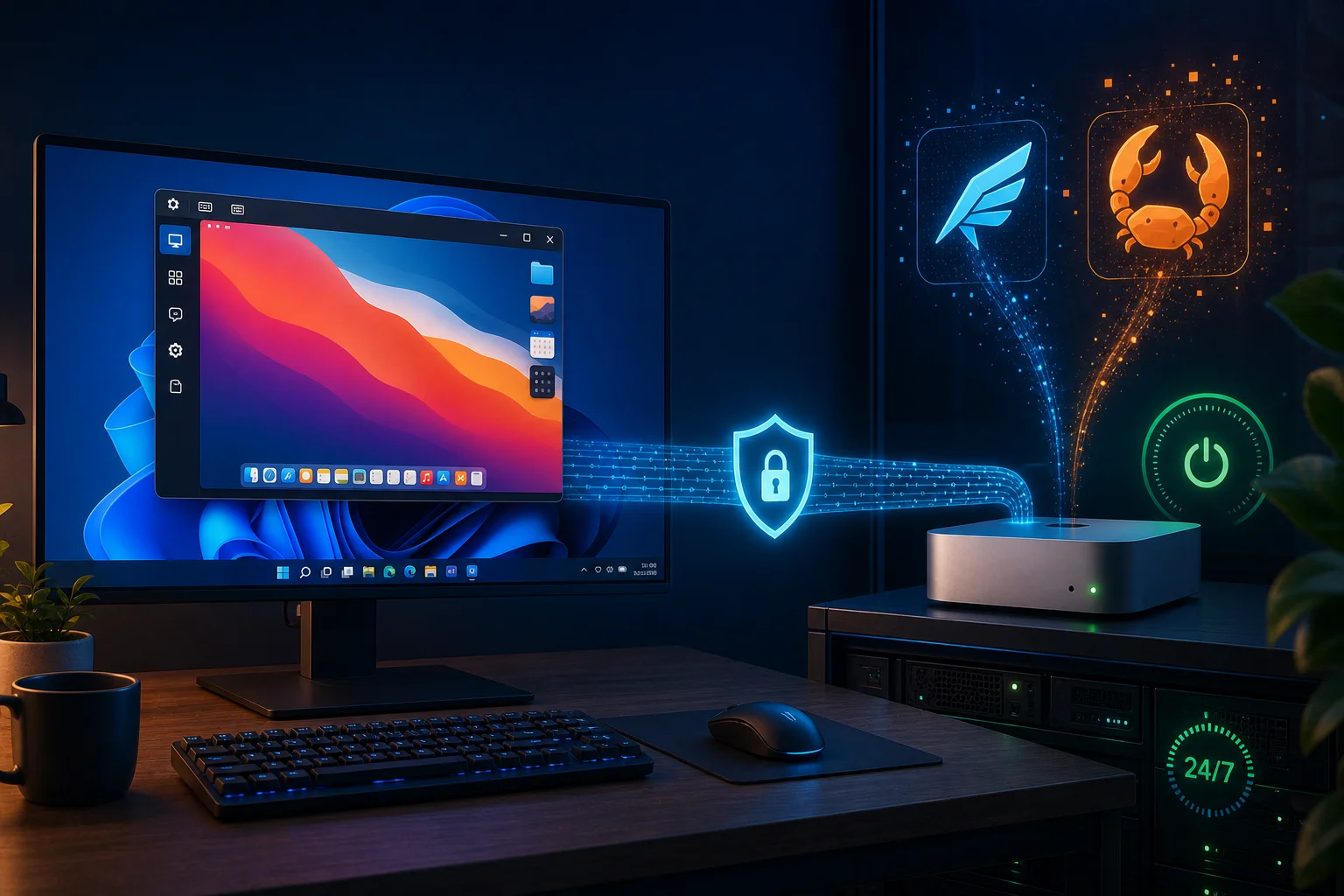
Why this guide exists
Many desks contain both platforms. Windows may be required for business applications, games, or a corporate environment, while the Mac handles development, media, photography, or automation. The problem begins when you are sitting at the Windows PC and suddenly need a file, browser session, or application that exists only on the Mac.
Walking to the other computer works, but it interrupts your workflow. Switching a display, keyboard, and mouse repeatedly is not much better. A remote desktop turns the Windows machine into a remote steering wheel: Windows shows the picture and sends input, while the applications and files remain on the Mac.
Remote desktop is more than video streaming. A video service sends pictures in one direction. Remote control must also send mouse movement, keystrokes, and sometimes clipboard data back to the remote computer.
The ideal setup: Windows for daily work, a Mac mini for always-on Agents
The most useful version of this design is not two computers that receive equal desk time. It is a home or studio with one Mac mini and several Windows desktops or laptops. You prefer the Windows keyboard, applications, and desktop for everyday work, and you do not want a second display and input set merely to configure macOS occasionally. At the same time, OpenClaw, HermesAgent, or another workflow that depends on macOS needs a machine that can remain online.
The Mac mini is like a refrigerator, while the Windows PC is the dining table. Nobody needs to stand in front of the refrigerator all day. It quietly performs a continuous job, and you approach it only to change a setting, inspect its contents, or investigate a problem. RealVNC replaces that walk with a window on the Windows desktop.
This architecture offers several practical benefits:
- Relatively low-power operation: A Mac mini is compact and quiet, making it a practical host for message bridges, schedules, and local Agents. Actual consumption still depends on the chip, workload, peripherals, and power policy.
- No duplicate desk setup: The headless Mac mini does not need a permanently assigned monitor. The Windows display, keyboard, and mouse become its remote console.
- Windows habits remain unchanged: Normal office work stays on Windows. You enter macOS only to update OpenClaw, adjust HermesAgent, approve a privacy prompt, or diagnose a failure.
- Services are separated from the workstation: The Agent keeps running when the Windows PC restarts, shuts down, or leaves the house.
- Real macOS capabilities remain available: Workflows that need Keychain, notifications, automation permissions, or other Apple-platform behavior still execute on real Mac hardware.
Always-on does not mean maintenance-free. Configure OpenClaw and HermesAgent through their supported background-service mechanism or launchd; allow the display to turn off without letting the whole Mac mini fall into an inappropriate deep sleep; retain screen locking and a dedicated account; and test a complete restart after an update or power interruption.
FileVault creates another boundary. After a fully powered-off Mac starts, a local disk unlock may be required before normal services and remote desktop become available. Think of it as a main gate outside the automated building: every service inside may start automatically, but somebody must first open the outer gate. For higher availability, evaluate a UPS, controlled power recovery, and an acceptable manual recovery process rather than disabling disk encryption for convenience.
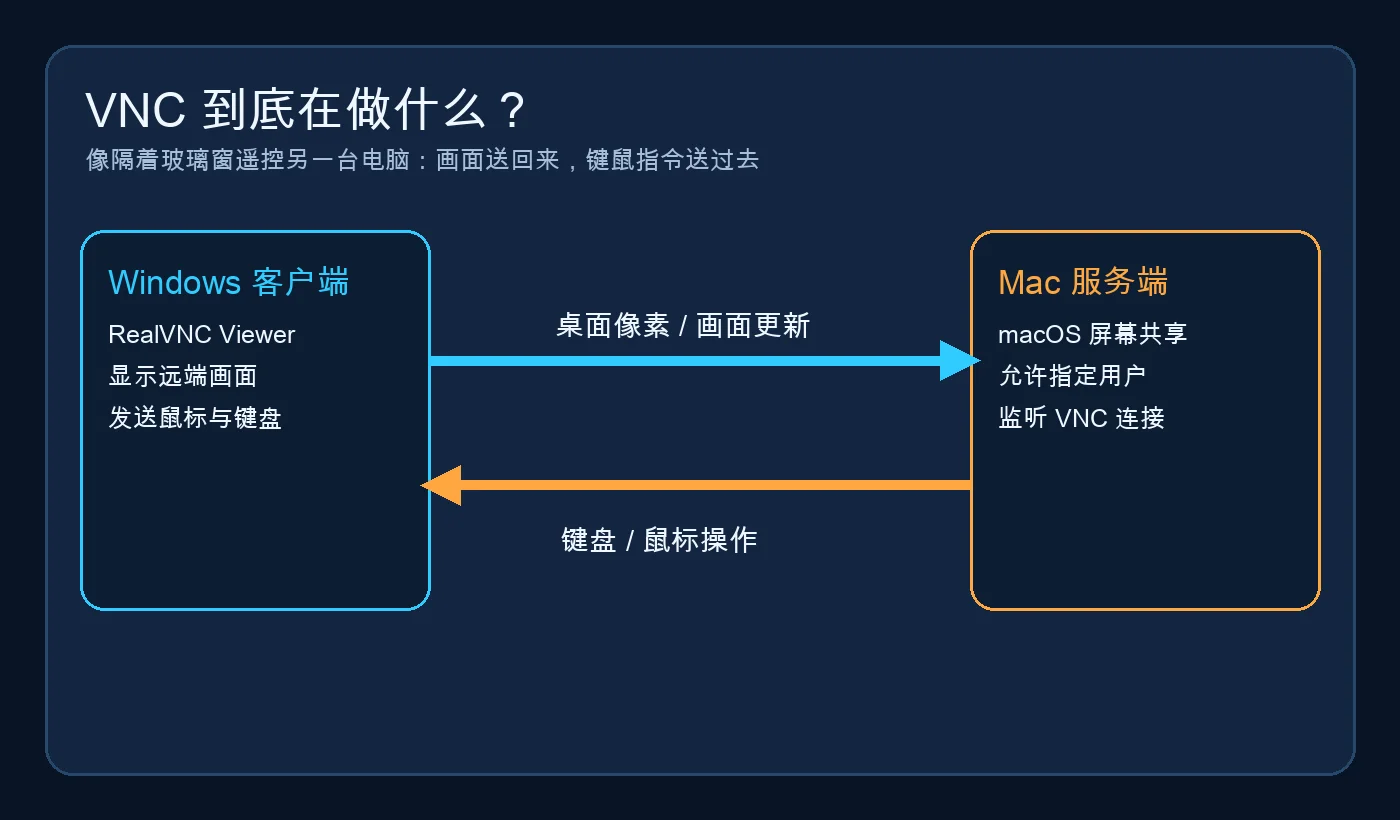
VNC and RealVNC in plain language
VNC stands for Virtual Network Computing. It is a family of protocols for viewing a remote display and controlling its keyboard and pointer. VNC is not one application and does not belong exclusively to one vendor. A compatible server and viewer can often communicate even when they come from different products.
Think of an apartment entrance:
- The VNC protocol is the agreed entry procedure.
- macOS Screen Sharing is the concierge desk that sends the desktop image and receives commands.
- RealVNC Viewer is the visitor terminal used to enter an address and credentials.
- The Mac user list determines which apartment the visitor may enter.
- The network address and port are the building and door number.
RealVNC is a company with long-running VNC products. Its commonly encountered applications include Viewer, which controls another computer, and Server, which exposes a desktop for remote control.
This article uses the built-in macOS Screen Sharing service as the server and RealVNC Viewer on Windows as the client. It does not require installing RealVNC Server on the Mac for this specific design.
There is an important licensing caveat. RealVNC’s products, plans, and rules for connecting to third-party VNC servers change over time. Current help pages distinguish RealVNC Server from third-party servers, and plan or regional pages may not always describe the same entitlement. Do not assume that this combination will remain free forever. Check the current RealVNC download, plan, and help pages before deploying it widely.
Decide where you will connect from
The easiest test keeps Windows and Mac on the same trusted LAN, such as the same home or office router. That is like two people already standing inside the same building: the visitor only needs the correct apartment number.
When Windows is at work and the Mac is at home, routers, firewalls, and provider networks sit between them. Forwarding port 5900 from the router is not a safe shortcut. It is equivalent to placing your front door directly on a busy public street and attaching a sign that says “remote control entrance.”
A safer route is to connect to a self-hosted VPN or another managed private network first. Windows then behaves as if it has entered the private building before it looks for the Mac. This guide intentionally uses placeholders such as <Mac address> and never publishes a complete private address, hostname, account name, or internal domain.
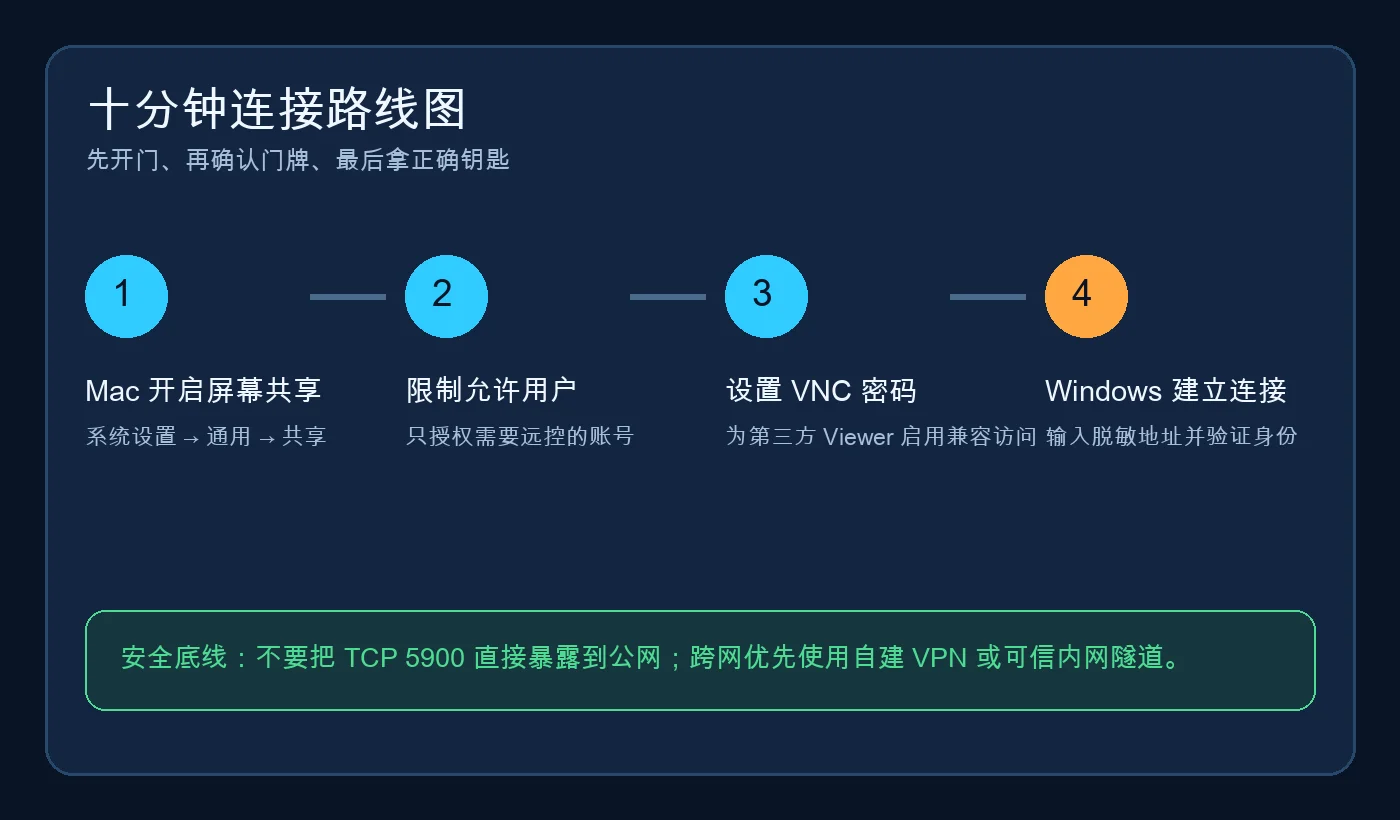
Enable Screen Sharing on macOS 26
The tested system for this article is macOS 26. Apple’s current Mac User Guide uses this path:
System Settings → General → Sharing → Screen Sharing
Configure it in this order:
- If Remote Management is enabled, confirm whether it is required. Apple states that Screen Sharing and Remote Management cannot be enabled at the same time.
- Turn on Screen Sharing.
- Open the information panel and inspect the allowed-user list.
- Avoid granting access to every user. Authorize only the account that actually needs remote control.
- When a third-party viewer is required, enable the option that allows VNC viewers to control the screen with a password and create a unique password.
Do not reuse an Apple Account password, the Mac login password, or a common website password. The VNC compatibility password is a visitor key. It should be replaceable without compromising every other account.
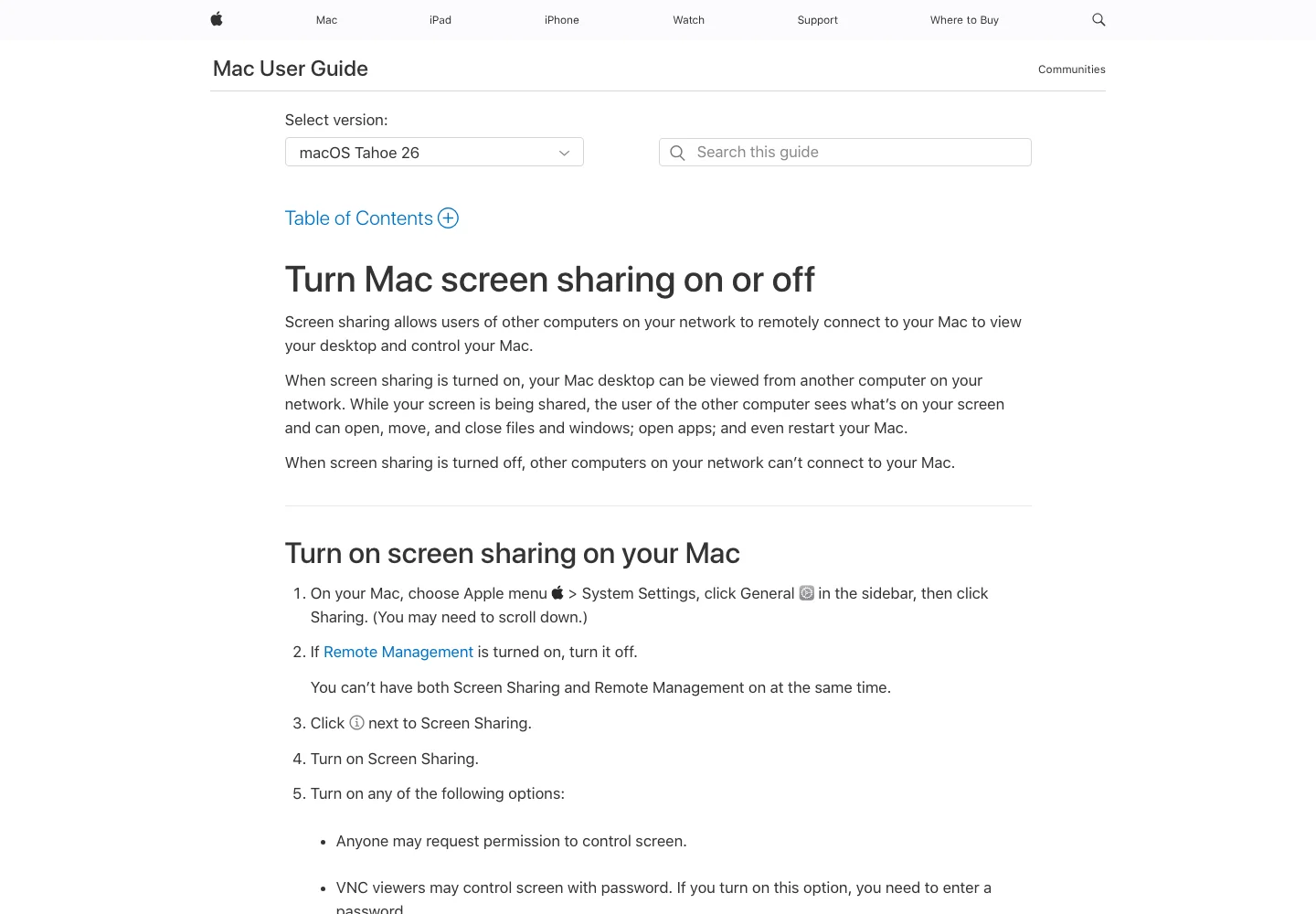
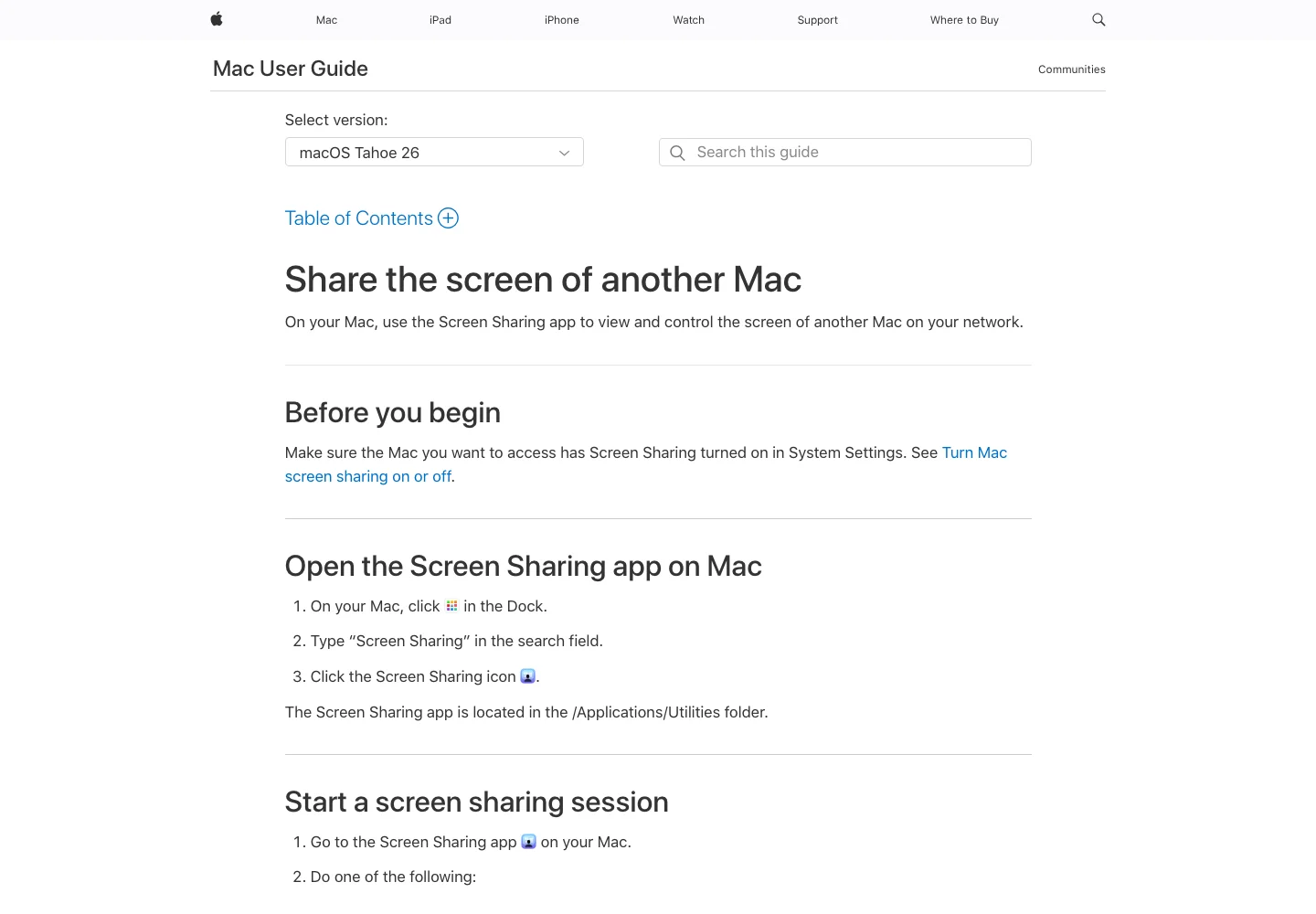
This real Apple Mac User Guide screenshot shows the General → Sharing path, the conflict with Remote Management, and the password option for VNC viewers.
The Sharing panel normally displays connection information for devices on the same network. Read that information only on your own devices. Do not publish a complete address or computer name in screenshots, tickets, or chat messages.
Connect from Windows 11 with RealVNC Viewer
Download Viewer from RealVNC’s official site. Pay attention to the product name:
- Windows is controlling the Mac, so Windows needs Viewer.
- The Mac already supplies the server in this design, so RealVNC Server is not required on the Mac.
- If the installer or account page asks for sign-in, a plan, or a third-party-server entitlement, follow the current product policy rather than an old tutorial.
Create a connection in Viewer and enter the Mac address on your trusted LAN or VPN. Use <Mac address> as a placeholder in notes and documentation. Give the connection a generic label that does not expose a real device name.
The first connection may show a server-identity or encryption warning. Do not click through automatically. Verify that the address came from your own Mac, the connection is inside a trusted LAN or VPN, the protocol warning is expected, and the credential is the dedicated VNC password or an authorized macOS account—not a reused master password.
Once connected, Viewer displays the current Mac desktop. Responsiveness depends on the Viewer version, macOS permissions, display resolution, and network latency. A high-resolution Mac over slow Wi-Fi may feel delayed. Lowering picture quality, color depth, or effective resolution can make control much more responsive.
Troubleshooting in the right order
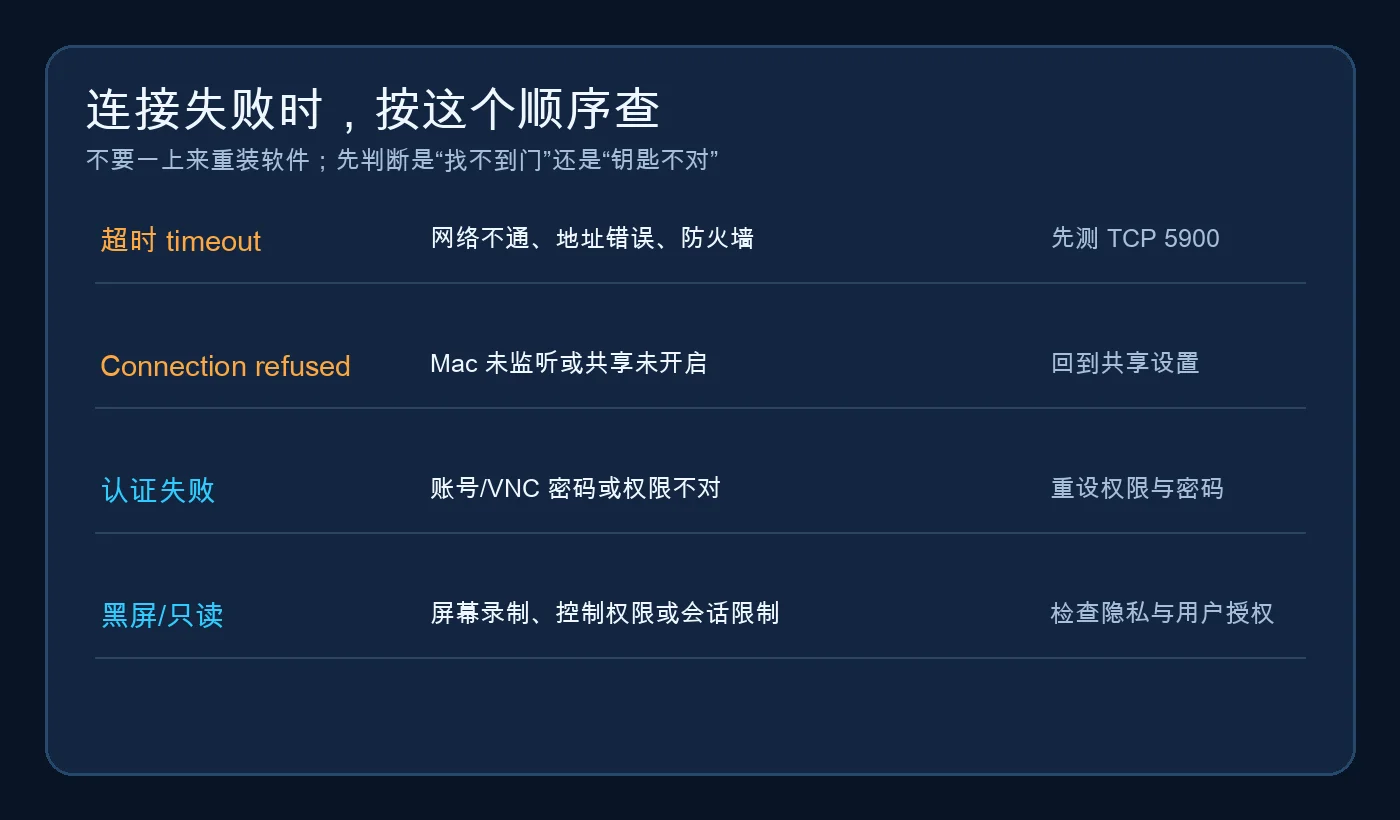
Treat remote-desktop diagnosis like tracing a missing delivery. The courier may have the wrong address, the building may block entry, the recipient may not be on the approved list, or the key may be wrong. Reinstalling the courier app does not fix those causes.
The connection times out
A timeout is usually a reachability problem. Confirm that both computers are on the same LAN or private VPN, then test TCP 5900 on the exact target. Do not reinstall Viewer before checking the network.
The connection is refused immediately
A refusal often means the route works but no service is accepting the connection. Screen Sharing may be disabled or the VNC service may not be listening. Return to the Mac Sharing settings.
Authentication fails
The network and service are probably working. Inspect the allowed-user list, VNC compatibility password, capitalization, and keyboard layout. Do not solve an authentication problem by authorizing everyone.
The screen is black or view-only
Check macOS user authorization, privacy controls, the active session, display state, and any organizational management policy. Establishing a network session does not guarantee that macOS will permit full control.
One-command Windows 11 check
Save this as Test-MacVnc-Windows11.ps1. It does not scan the network or install software from an unofficial source. It only reports local networking, tests the exact address supplied by the operator, and opens the official RealVNC download page.
param(
    [Parameter(Mandatory = $true)]
    [string]$MacAddress,
    [int]$Port = 5900
)

$ErrorActionPreference = "Stop"
Get-NetIPConfiguration |
    Where-Object { $_.IPv4Address -and $_.NetAdapter.Status -eq "Up" } |
    Select-Object InterfaceAlias, IPv4Address, IPv4DefaultGateway

$result = Test-NetConnection -ComputerName $MacAddress -Port $Port -InformationLevel Detailed
$result | Select-Object ComputerName, RemotePort, NameResolutionSucceeded, TcpTestSucceeded

if (-not $result.TcpTestSucceeded) {
    Write-Warning "Check Screen Sharing, allowed users, firewall, and LAN/VPN reachability."
} else {
    Write-Host "TCP $Port is reachable. Continue in RealVNC Viewer." -ForegroundColor Green
}

Start-Process "https://www.realvnc.com/en/connect/download/viewer/"
Run it with an address obtained from your own Mac:
powershell -ExecutionPolicy Bypass -File .\Test-MacVnc-Windows11.ps1 -MacAddress "<Mac address>"
One-command Ubuntu 26.04 check
This second client helps separate a Windows Viewer issue from a network or Mac-server problem. It uses standard system tooling. If nc is missing, it installs netcat-openbsd from Ubuntu’s configured repository and does not depend on a third-party cloud service.
#!/usr/bin/env bash
set -euo pipefail
TARGET="${1:-}"
PORT="${2:-5900}"

if [[ -z "$TARGET" ]]; then
  echo "Usage: $0 <Mac address> [port]" >&2
  exit 2
fi

if ! command -v nc >/dev/null 2>&1; then
  sudo apt-get update
  sudo apt-get install -y netcat-openbsd
fi

ip route show default || true
if nc -vz -w 5 "$TARGET" "$PORT"; then
  echo "VNC endpoint is reachable. Continue with an authorized viewer."
else
  echo "Check LAN/VPN routing and macOS Screen Sharing." >&2
  exit 1
fi
One-command macOS 26 preparation
Screen Sharing changes who may control a computer. A responsible script should not silently authorize every user or write a weak password. This helper checks the system, opens the correct settings page, pauses for protected human approval, and verifies whether port 5900 is listening afterward.
#!/usr/bin/env bash
set -euo pipefail
sw_vers
lsof -nP -iTCP:5900 -sTCP:LISTEN || true
open 'x-apple.systempreferences:com.apple.Sharing-Settings.extension'

cat <<'TEXT'
Manually turn on Screen Sharing, authorize only the required account,
and enable a unique VNC viewer password only when necessary.
Do not expose TCP 5900 to the public Internet.
TEXT

read -r -p "Press Enter after saving the settings..."
lsof -nP -iTCP:5900 -sTCP:LISTEN || {
  echo 'No listener found. Recheck Screen Sharing and policy.' >&2
  exit 1
}
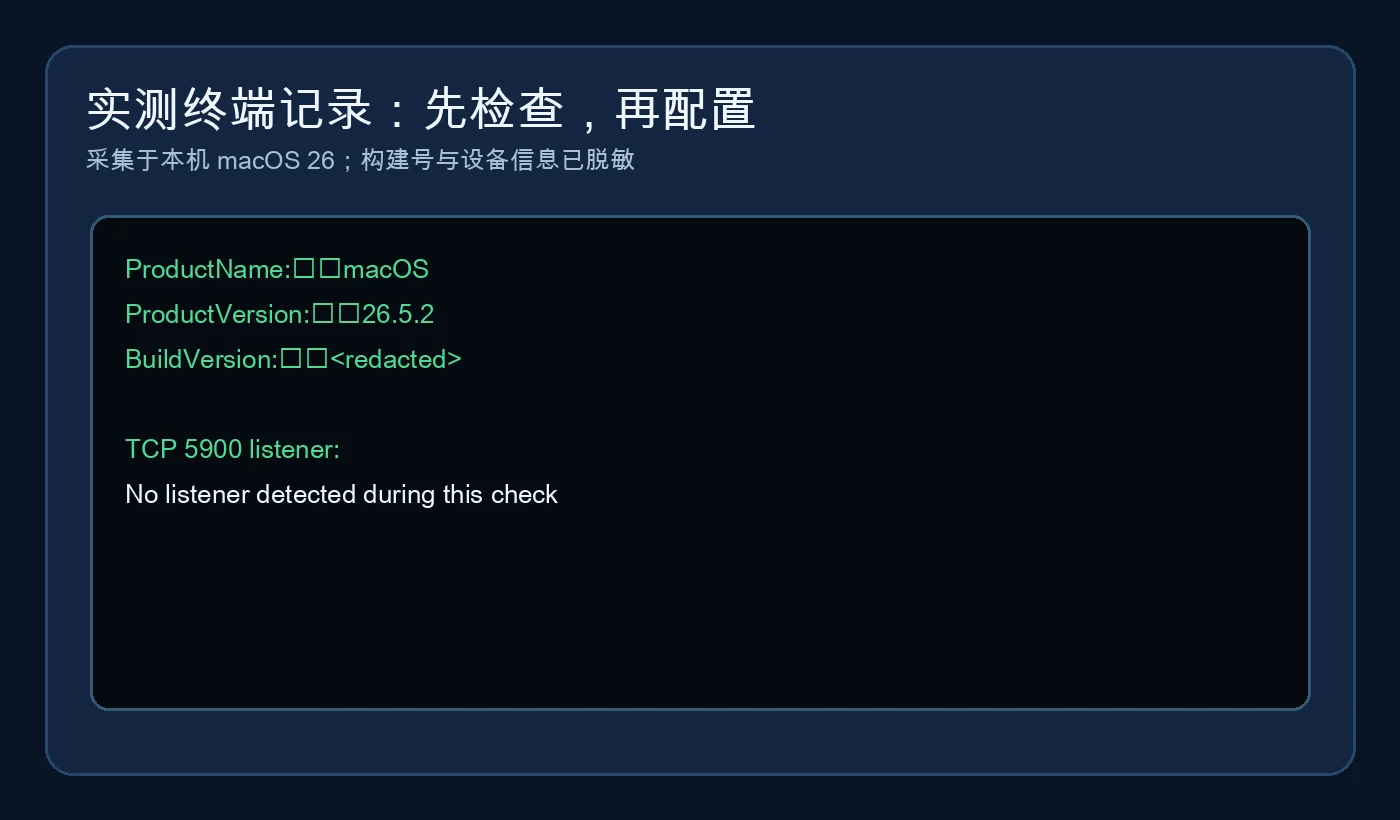
This image records an actual local check performed while writing the article. Screen Sharing was not enabled for the sake of a screenshot, so no port 5900 listener appeared. The automation deliberately avoided changing the user’s security settings.
Manual automation and Agent automation
The recommended manual workflow is to run the helper script for repetitive checks, then let the owner approve the user list and password in the protected macOS interface. This preserves the security decision while removing unnecessary command typing.
A local Agent can follow this task description:
Check VNC reachability to the one Mac target that I explicitly provide.
Do not reveal full addresses, hostnames, usernames, or passwords, and do not scan other devices.
On a Mac server, open System Settings > General > Sharing, but do not bypass prompts,
do not authorize all users, and do not generate or record a plaintext password.
Report the OS version, TCP 5900 listener state, client reachability, and remaining human approvals.
Never add a router port-forward and never expose TCP 5900 to the public Internet.
An Agent is useful as a checklist runner, not as the owner of the keys. A smart home assistant may walk to the door and test the lock, but the homeowner must decide who receives a key.
The security boundary that matters
VNC transports a screen and input. It is not automatically a safe public remote-access architecture, especially when using a compatibility mode designed for interoperable viewers.
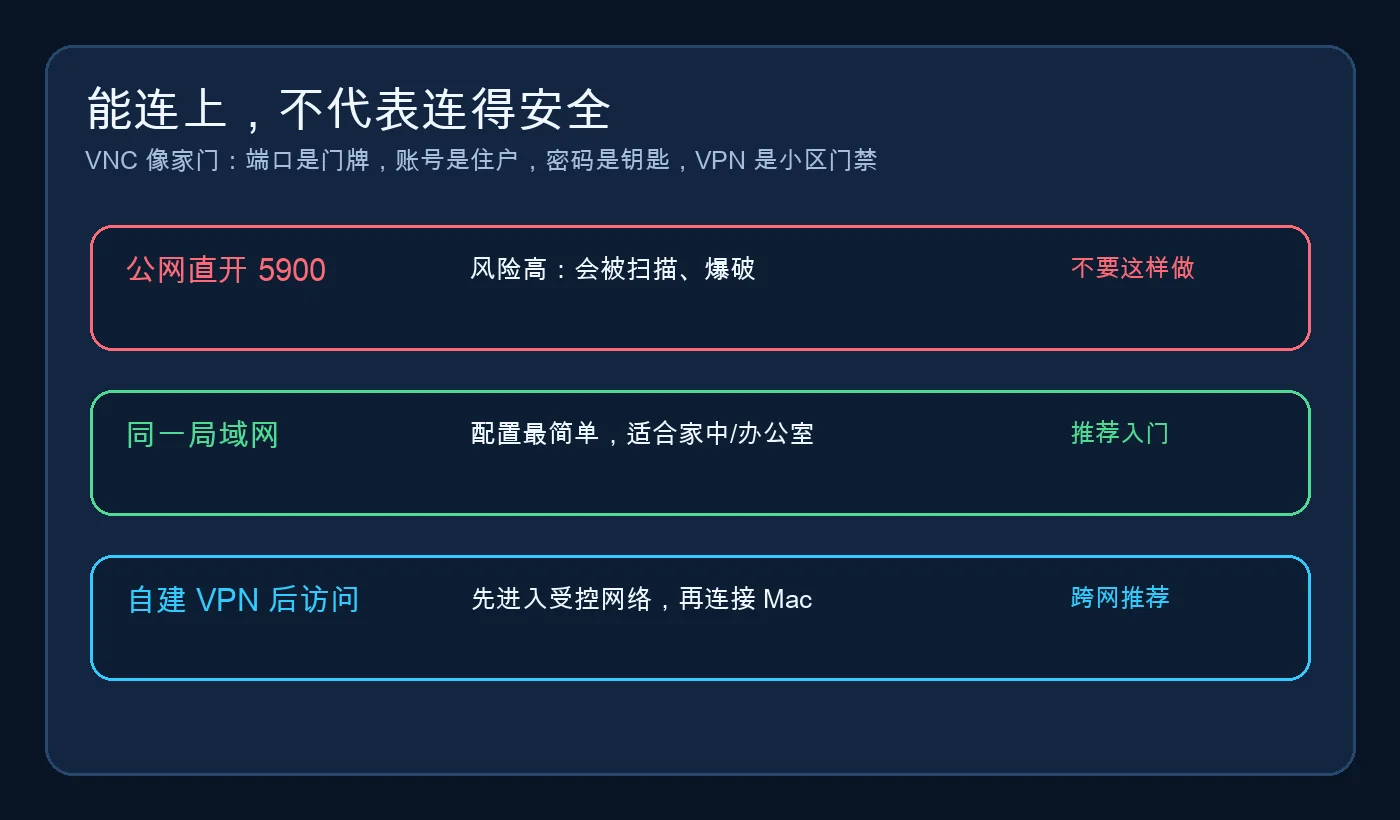
At minimum:
- Authorize only the necessary account.
- Use a long, unique VNC password.
- Remove full addresses, computer names, and usernames from public screenshots.
- Never create a public port-forward for 5900.
- Enter through a self-hosted VPN or controlled network for off-site access.
- Disable Screen Sharing when it is no longer needed and review allowed users regularly.
- Follow organizational MDM, auditing, and remote-access policy on managed Macs.
Q&A
Why cannot Windows Remote Desktop Connection connect directly to a Mac?
Windows Remote Desktop Connection primarily speaks RDP, while built-in macOS Screen Sharing exposes VNC-compatible behavior. They are different languages. The fact that both are described as “remote desktop” does not make them interoperable.
Must I install RealVNC Server on the Mac?
No. This guide uses the built-in macOS service. RealVNC Server may be appropriate for other account, cloud-brokered, management, or commercial requirements, but it is not mandatory for this architecture.
Why does Viewer find the Mac but request an upgrade or reject the server?
The current RealVNC product may restrict third-party VNC servers according to edition or plan. Check the official entitlement instead of installing a cracked client. Another compatible viewer may work, but it requires its own security and maintenance review.
Can I transfer files through this connection?
VNC’s core job is screen and input transport. File transfer depends on proprietary extensions and the exact server-viewer pair. The built-in macOS server does not guarantee the complete RealVNC feature set. Use controlled file sharing, SFTP, or another approved transfer method when files must move.
Can I connect while a MacBook lid is closed?
That depends on power, sleep, external-display, and management policy. A sleeping Mac normally cannot maintain an ordinary VNC session. Adjust power and wake behavior carefully; do not disable every sleep and lock protection merely for convenience.
Can a headless Mac mini run OpenClaw or HermesAgent continuously?
Yes. An Agent depends on its process, background service, network, power, and sometimes its user session—not on whether a monitor is connected. Use a supported automatic-start mechanism and separately test a normal restart, an operating-system update, and a network interruption. Some GUI applications may choose a different resolution without a display, but that does not justify installing an untrusted remote-control optimizer.
Why not run every Agent directly on Windows?
If a workflow is fully cross-platform and does not require macOS permissions, Windows or Linux may be the simpler host. A real Mac mini becomes valuable when an OpenClaw or HermesAgent workflow needs a Mac application, Keychain, system notifications, automation privileges, or another Apple-platform capability. Keep the macOS-dependent work on the Mac and the daily interaction on Windows.
Will RealVNC and the Agents return automatically after a restart?
Not necessarily; test the complete path. Screen Sharing is a system service, but Agent recovery depends on its startup configuration. FileVault, applications that require an interactive login, privacy prompts, and system updates can interrupt unattended recovery. Maintain a restart checklist covering network availability, the port 5900 listener, OpenClaw and HermesAgent service state, log activity, and a fresh connection from Windows.
Final checklist
Reliable Windows-to-Mac remote control requires several aligned pieces: a VNC viewer, the Mac Screen Sharing service, the correct user authorization, a reachable private network, and suitable power, sleep, and automatic-start behavior for an unattended machine.
The shortest path is to enable Screen Sharing under System Settings → General → Sharing, authorize only the required Mac user, install RealVNC Viewer on Windows, and connect to the Mac’s address inside a trusted LAN or VPN. When it fails, diagnose reachability, the port 5900 listener, authentication, and permissions—in that order.
For a Windows-first environment where a low-power Mac mini runs OpenClaw or HermesAgent around the clock, RealVNC turns the Mac into a practical headless Agent host: quiet most of the time and immediately controllable when needed. Once you understand the address, concierge, guest list, and key—and also plan for sleep, restarts, and service recovery—the setup becomes dependable rather than merely convenient.
References
- Apple Mac User Guide — Turn Mac screen sharing on or off: https://support.apple.com/guide/mac-help/mh11848/mac
- Apple Mac User Guide — Share the screen of another Mac: https://support.apple.com/guide/mac-help/mh14066/mac
- RealVNC Viewer Download: https://www.realvnc.com/en/connect/download/viewer/
- RealVNC Help Center — third-party VNC viewers and servers: https://help.realvnc.com/hc/en-us/articles/360002250477
Prepared from official material available and a macOS 26 check performed on July 11, 2026. Interfaces, plans, and licensing may change; verify the official pages on the day you deploy.